
Collections And ProductsCollection page
Collection template
2 min read
Create a new collection template
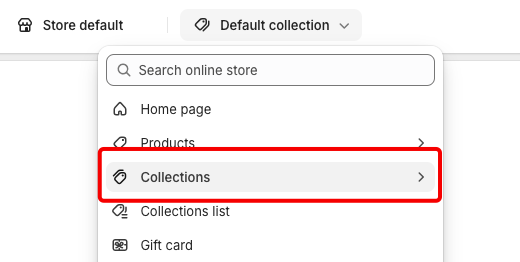
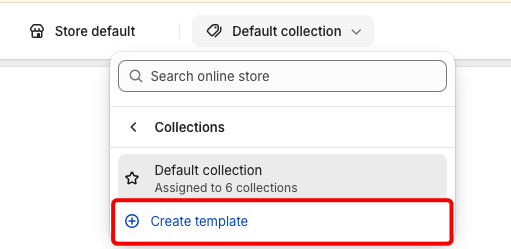
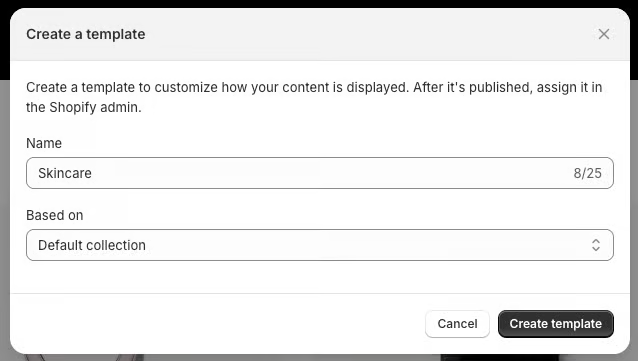
Apply a new template to a collection
- From your Shopify admin, go to Products > Collections.
- Use the search filter to locate the collection that you want to change, or click the collection from the list of existing collections.
- In the Online store section, use the dropdown menu to select a new theme template to apply to the selected collection.
- Click Save.
Managing your templates
Rename a template
- From your Shopify admin, go to Online Store > Themes
- Find the theme with the template that you want to rename, and then click the ... button > Edit code.
- In the code editor, find the templates folder. Click the name of the template that you want to rename, and then click Rename file.
- Enter the new template name, and click Rename file to save.
Delete a template
- From your Shopify admin, go to Online Store > Themes
- Find the theme you want to delete a template from, and then click the ... button > Edit code.
- In the code editor, find the templates folder. Click the name of the template that you want to delete, and then click Delete file. If you have any resources assigned to that template, then they are displayed with the default template until you assign a different one.
Last updated