# Typography
Typography is considered one of the essential components that impact the website's look and feel. This article will show you how to edit your store typography.
## How to access Typography settings
Steps:
1. In the theme editor (**Customize**), click **Theme settings**.
2. Locate **Typography**.
3. Make necessary changes.
4. Click **Save.**
## Typography settings options
You can choose between many [existing fonts](https://shopify.dev/docs/storefronts/themes/architecture/settings/fonts#available-fonts) from the library.
The font that displays on your customer's computer depends on their **operating system**.
To learn more about system fonts and how they work with your theme, visit [Shopify's system fonts documentation](https://shopify.dev/docs/storefronts/themes/architecture/settings/fonts#system-fonts).
### Fonts
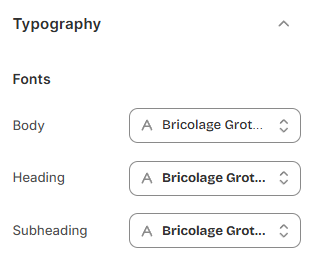
* **Body**: Choose the font for body text, which will be used for the majority of content across your site. Select from the available fonts and apply them to the body of your pages.
* **Heading**: Choose the font for headings, which will be applied to titles and important sections of your site.
* **Subheading**: Choose the font for subheadings, which appear in secondary sections or as a secondary emphasis below headings.
### Text presets
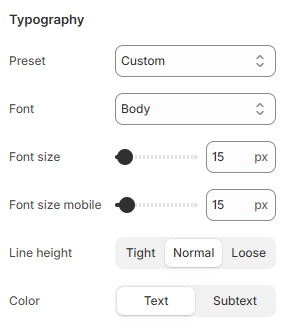
Text presets automatically adjust the font sizes for various screen sizes, ensuring your typography scales well on all devices.
You can choose from different text presets in sections or blocks, allowing you to set the ideal font size for each:
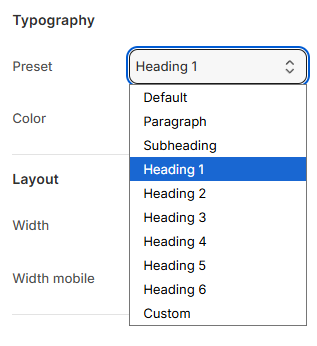
Available presets:
* **Default**: Use the default font size you set in the Rich text field.
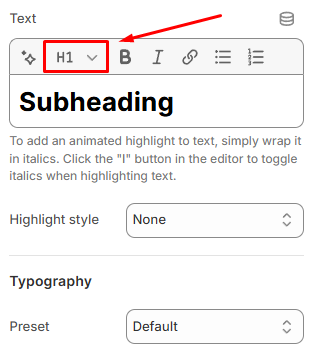
* **Paragraph**: Used for standard paragraph text. You can adjust the paragraph font size [here](#paragraph).
* **Subheading**: Used for smaller, supporting titles. You can adjust the subheading font size [here](#subheading)
* **Heading 1 to Heading 6**: Choose from different heading sizes, from the largest (Heading 1) to the smallest (Heading 6).
* **Custom**: Allows you to set a custom font size based on your design needs.
### Paragraph
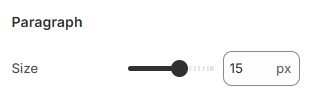
* **Size**: Set the font size for paragraph text (10 - 18px). The size is adjustable in pixels (px).
* For example, 15px is typically used for body text.
### Subheading
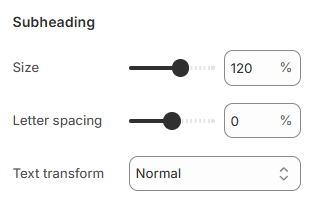
* **Size**: Adjust the size of subheadings. You can use percentage values to scale the font size (70 - 150%).
* **Letter spacing**: Adjust the spacing between letters in subheadings (-10 - 10%). This helps control the look of the text.
* **Text transform**: Choose from options like Normal, Title Case, UPPER CASE, or lower case to customize the appearance of the subheading text.