# Collection list: Flex carousel
_g1EXx5Bx.jpg)
Highlight your best-selling and seasonal collections with an easy-to-scroll carousel for faster shopping.
## How to add a Collection list: Flex carousel section to your Shopify store
1. In the theme editor **(Customize)**, click **Add section.**
2. Select **Collection list: Flex carousel** section.
3. Make necessary changes.
4. **Save.**
## How to customize a Collection list: Flex carousel section
### Section settings
* **Container:** Defines whether the section spans the full page width or stays within a fixed content width.
* **Carousel settings**
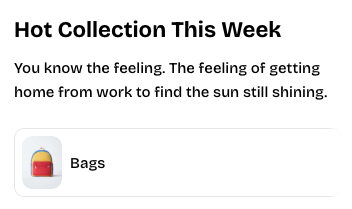
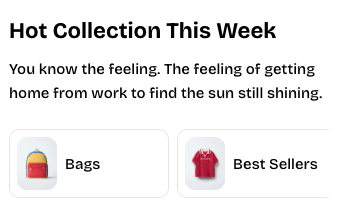
* **Overflow content:** Controls how off-screen items appear, either fully visible or with edge shadows.
* **Slides per view:** Sets how many collection cards are shown at once, either automatically or by a fixed column count.
* **Horizontal gap:** Adjusts the spacing between collection cards inside the carousel.




* **Mobile layout**
* **Columns:** Choose 1 or 2 columns on mobile.
* **Horizontal gap (mobile):** Controls the horizontal spacing between cards on mobile devices.
### Block settings
#### Header

The **Header** block supports 4 nested block types:
| Dynamic blocks | Purpose |
| --- | --- |
| **Heading** | Primary title text used to introduce the section or key content. |
| **Subheading** | Secondary text that provides additional context or supports the main heading. |
| **Text** | Regular body text used for descriptions, details, or any supplementary information within the block. |
| **Button** | A call-to-action element that users can click to open another page. |
#### Collection item
* **Collection:** Selects the collection.
* **Image:** Allows you to upload a custom image; leave it blank to use the collection’s default image.
* **Aspect ratio:** Sets the shape of the image or adapts automatically based on the uploaded image.
* **Title:** Lets you enter a custom title; leave it blank to use the collection’s name.
* **Width:** Sets the display width of the collection item on desktop.
* **Width mobile:** Sets the display width of the collection item on mobile devices.
#### Image card
📝 Learn more about Image card block: [Image card](https://docs.foxecom.com/pebble-theme/theme-blocks/basic#image-card)
#### Collection card
📝 Learn more about Collection card block: [Collection card](https://docs.foxecom.com/pebble-theme/theme-blocks/collection#collection-card)