# Basic

The **Text block** is used to display rich text content such as descriptions, quotes, product details, and other text-based elements, from headings, subheadings, to text.
#### ⚙️ **Block settings**
| Setting | Description |
| --- | --- |
| **Text** | The main content of the block. You can enter plain text or use rich text. |
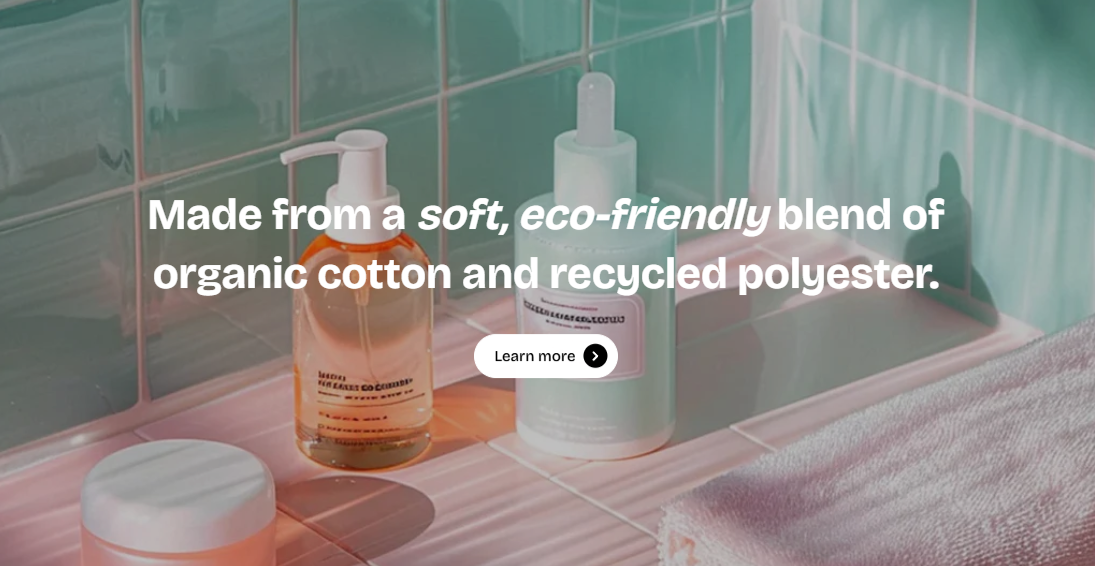
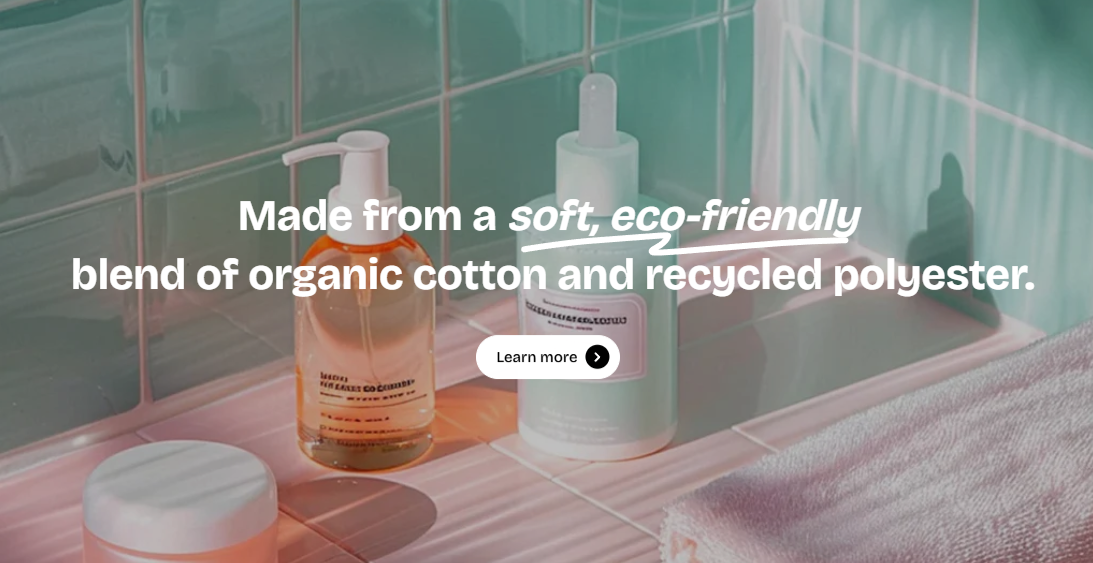
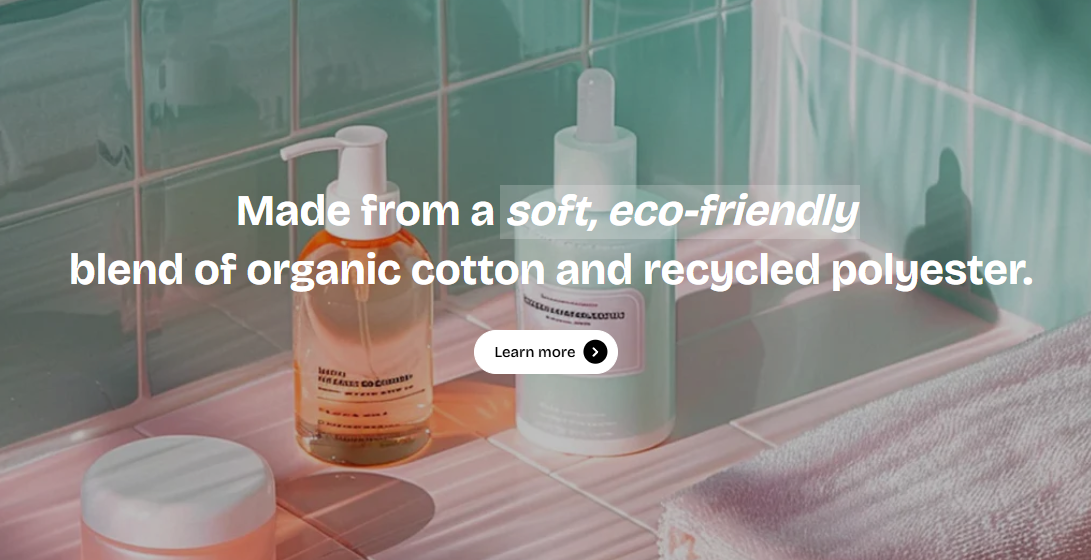
| **Highlight style** | Choose a highlight style to emphasize text. Options include:
• None
• Wavy underline
• Solid background
 |
| **Highlight font style** | Select whether highlighted text is **italic** or **normal**. This is only available when highlight style is not "None". |
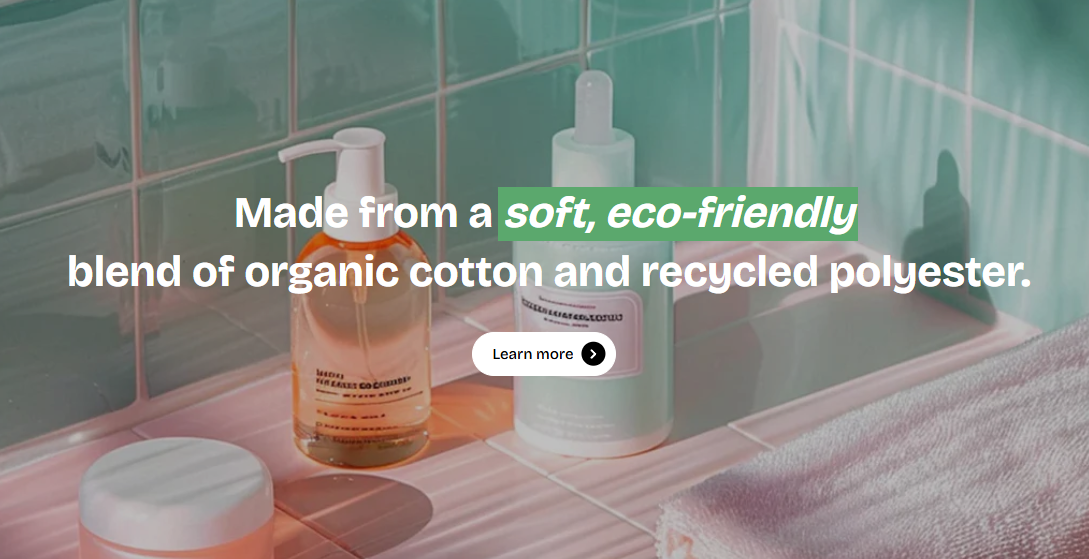
| **Highlight shape color** | Choose the color for the shape around the highlighted text.
|
| **Highlight font style** | Select whether highlighted text is **italic** or **normal**. This is only available when highlight style is not "None". |
| **Highlight shape color** | Choose the color for the shape around the highlighted text.
 |
| **Highlight text color** | Select the text color for highlighted text. |
| **Font preset** | Choose a preset font style. Learn more: [Typography](https://docs.foxecom.com/pebble-theme/theme-settings/typography) |
| **Font size** | Adjust the size of the text. |
| **Line height** | Choose the line height. |
| **Text color** | Select the color of the text: Text or Subtext. |
| **Width** | Choose the width of the text block. |
|
| **Highlight text color** | Select the text color for highlighted text. |
| **Font preset** | Choose a preset font style. Learn more: [Typography](https://docs.foxecom.com/pebble-theme/theme-settings/typography) |
| **Font size** | Adjust the size of the text. |
| **Line height** | Choose the line height. |
| **Text color** | Select the color of the text: Text or Subtext. |
| **Width** | Choose the width of the text block. |
#### 💡 Best practices
* The **Highlight style** feature is great for drawing attention to key information.
* Use subtle animations, like **Fade In** or **Slide In**, to attract attention without being distracting. Avoid overuse of animations for a more polished, professional design.

The **Collapsible text block** helps you show rich text content (like brand stories, product details, or policies) while keeping your page clean and scannable. Visitors can expand the content by clicking the “View more” button and collapse it back when done reading.
#### ⚙️ **Block settings**
| Setting | Description |
| -------- | ---------------------------------------------------------------------------------------------------------------- |
| **Text** | The main text content displayed in the block. Supports rich text formatting (headings, paragraphs, links, etc.). |
| Typography | Description |
| ------------------------------------------------------------ | ---------------------------------------------------------------- |
| **Preset** | Choose a predefined text style. |
| **Font** *(visible when “Custom” preset is selected)* | Choose which theme font to apply (body, heading, or subheading). |
| **Font size** *(visible when “Custom” preset is selected)* | Define a custom font size for desktop and mobile separately. |
| **Line height** *(visible when “Custom” preset is selected)* | Adjust line spacing (tight, normal, or loose). |
| **Color** | Select text color: `Text` (default) or `Subtext` (lighter tone). |
| Collapsible settings | Description |
| -------------------- | ------------------------------------------------------------------------------------------- |
| **Text line limit** | Control how many lines are shown before truncation. Options: None, 1–5 lines. |
| **Button style** | Choose the style of the “View more” button (`Primary`, `Secondary`, `White`, or `Outline`). |
| **Padding** | Adjust spacing around the text content (in px). |
| **Mobile scale** | Adjust padding scale for mobile view (%). |
#### 💡 **Pro tips**
* Set a **4-line limit** for long texts — it keeps content readable and inviting.
* Keep text conversational — collapsible text works best when used for storytelling.
* Combine this block with **Image or Group blocks** to balance visuals and long copy.

The **Button** block lets you insert a clickable button anywhere in your section — perfect for guiding shoppers to featured products, collections, or promotions.
#### ⚙️ **Block settings**
| Setting | Description |
| --- | --- |
| **Label** | The text shown on the button. |
| **Link** | Add a destination URL. This can be a product, collection, page, or any external link. |
| **Style** | Choose the button appearance:
• `Primary` — main accent button for key CTAs.
• `Secondary` — subtle button for secondary actions.
• `Outline` — bordered button with a transparent background. |
| **Size** | Adjust the button size: `Extra small`, `Small`, `Medium`, or `Large`. |
| **Icon** | Add an icon before or after the button text (e.g., arrow, cart, heart, etc.). |
| **Icon style** | Choose icon weight: `Default` (outline look) or `Solid` (filled look). Visible only when an icon is selected. |
| **Animation type** | Add entrance animation when the button appears on scroll.
Visible only if animations are enabled in theme settings: [Animations](https://docs.foxecom.com/pebble-theme/theme-settings/animations) |
| **Animation delay** | Control how soon the animation starts. Useful when multiple elements are animated in sequence. |
Customize the overall appearance of the buttons in **Theme settings >** [**Buttons**](https://docs.foxecom.com/pebble-theme/theme-settings/buttons).

The **Press** block allows you to showcase press mentions, reviews, or testimonials in a visually appealing way, adding credibility to your brand.
#### ⚙️ **Block settings**
| Setting | Description |
| --- | --- |
| **Image** | Upload an image to accompany your press or testimonial content. |
| **Width** | Adjust the width of the image for desktop and mobile view separately. |
| **Alignment** | Set the alignment of the image and text block. |
| **Text content** | Add your press content, such as reviews or press mentions. |
| **Author info** | Add information about the author or source of the press, such as their name, bio, and photo. |
| **Text alignment** | Adjust the text alignment (left, center, or right). |
| **Width** | Set the block width (fill, fit-content, or custom). |
The Press block comes with 2 nested **static blocks** by default:
* **Text** block: Display the main content text.
* **Information** block: Display the author or source information.
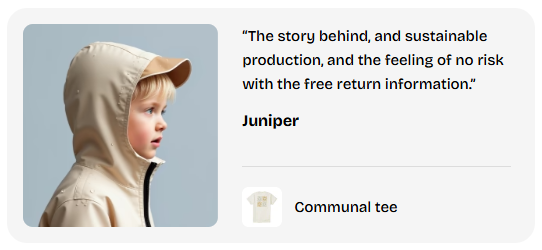
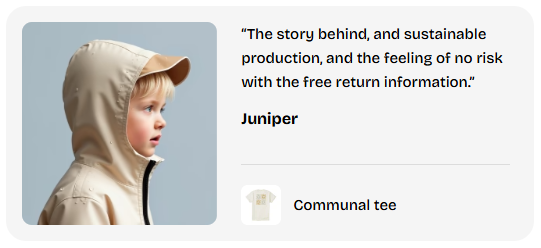
The **Testimonial block** is designed to showcase customer reviews, quotes, or testimonials in a visually appealing way. This block can include an image of the reviewer, the text of their testimonial, and the product associated with the testimonial.
#### ⚙️ **Block settings**
| Setting | Description |
| --- | --- |
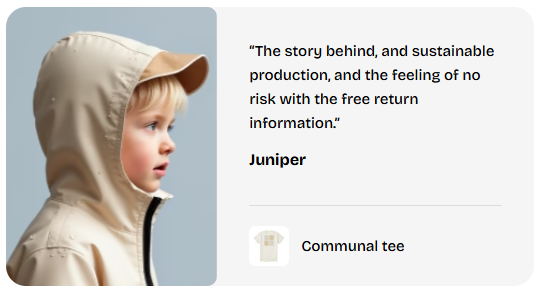
| **Design** | Choose the layout design for the testimonial block:
• `Stacked` (image above text)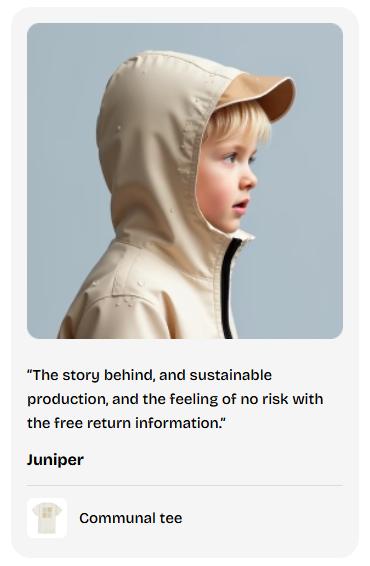
• `Inline` (image beside text). |
| **Show Image** | Decide whether to display an image in the testimonial. |
| **Image** | Upload an image. |
| **Image Ratio** | Select the aspect ratio for the image. |
| **Image away from edge** | Optionally adds space around the image for a more balanced look.
|
| **Show Image** | Decide whether to display an image in the testimonial. |
| **Image** | Upload an image. |
| **Image Ratio** | Select the aspect ratio for the image. |
| **Image away from edge** | Optionally adds space around the image for a more balanced look.
 |
| **Enable image stretch** | For inline layouts, enable or disable image stretching to fit the available space. |
| **Image corner radius** | Set rounded corners for the image to soften its appearance. |
| **Product** | Link the testimonial to a specific product. |
|
| **Enable image stretch** | For inline layouts, enable or disable image stretching to fit the available space. |
| **Image corner radius** | Set rounded corners for the image to soften its appearance. |
| **Product** | Link the testimonial to a specific product. |
#### ⚙️ Nested static blocks
The Testimonial block comes with 2 [static blocks](https://docs.foxecom.com/pebble-theme/theme-blocks/overview#static-blocks):
* **Text**: Main testimonial content (e.g., the customer's feedback, review, or experience with the product/service). You can enter plain text or rich text.
* **Information**: Hold the details about the author of the testimonial (their name and bio).

The **Image block** lets you upload a photo, banner, or graphic, and optionally turn it into a clickable link.
#### ⚙️ **Block settings**
| Setting | Description |
| --- | --- |
| **Image** | Upload your main desktop image. |
| **Image (mobile)** | Upload an optional image optimized for mobile. |
| **Link** | Add a clickable link to make the entire image act as a button. |
| **Aspect ratio** | Choose how the image fits inside its container. |
| **Width** | Select how wide the image should be:
• `Fit content` — adjusts to image size
• `Fill` — takes full width of container
• `Custom` — define your own percentage. |
| **Custom width** *(if custom selected)* | Manually set image width (0–100%). |
#### 🎨 **Border settings**
| Setting | Description |
| --- | --- |
| **Borders** | Choose `None` or `Solid` to add a border around the image. |
| **Border width** | Adjust line thickness (0–10 px). |
| **Border opacity** | Control transparency (0–100%). |
| **Border radius** | Round the corners of the image (0–32 px). |
#### 💡 **Pro tips**
* Use **different desktop and mobile images** for better framing and readability on smaller screens.
* Combine multiple Image blocks inside a **Grid** or **Group** section for collages or lookbooks.
* Apply **rounded corners** for a softer, modern visual style.
* Keep image aspect ratios consistent across a section for a tidy look.

The **Image card block** lets you combine an image with text, button, and optional overlay to create visual cards for promotions, featured products, or storytelling.
#### ⚙️ **Block settings**
| Setting | Description |
| --- | --- |
| **Show content below image** | Moves all text and button content beneath the image instead of overlaying it.
 |
| **Gap** | Controls spacing between image and content when content is below. |
| **Image** | Upload your main desktop image. |
| **Image (mobile)** | Upload a different image optimized for mobile layout. |
| **Media overlay** | Enable to add a semi-transparent color overlay on top of the image (useful for text contrast). |
| **Overlay color** | Choose overlay color and opacity when overlay is enabled. |
| **Aspect ratio** | Control how the image fits inside its frame. |
| **Image border** | Add a border around the image. |
| **Border width / opacity / radius** | Adjust border thickness, transparency, and rounded corners. |
#### 🧩 **Content settings**
| Setting | Description |
| --- | --- |
| **Padding** | Adds internal padding around text inside the card. |
| **Content direction** | Choose layout:
• `Vertical` — content stacks in a column.
• `Horizontal` — button and text sit side-by-side.
 |
| **Alignment (horizontal / vertical)** | Control how content aligns within the card. |
| **Column gap / Row gap** | Adjust the distance between the image and content depending on layout direction. |
| **Width** | Define how wide the image card should appear. |
| **Card label** | Add a short label to identify or tag this card.
 |


The **Images Stack** block allows you to display multiple images in a horizontal stack. This block offers a visually engaging layout with a hover effect that reveals stacked images, creating a dynamic and interactive user experience.
Once you add the block, you will be able to add **multiple images** to the stack. Click on each image slot to upload images for your stack.

The **Image comparison block** lets you showcase two images side-by-side with an interactive slider, perfect for highlighting *before/after* results or visual differences.
#### ⚙️ Block settings
| Setting | Description |
| --- | --- |
| **Direction** | Choose how images are compared: **Horizontal** (left/right) or **Vertical** (top/bottom). |
| **Aspect ratio** | Control image proportions. |
| **Aspect ratio (mobile)** | Set a different ratio for mobile screens. |
| **Color scheme** | Apply a color style to labels and controls. |
| **Corner radius** | Adjust rounded corners for the image container. |
#### 📦 Nested blocks
The **Image comparison block** includes 2 required image blocks:
* Image - Before
* Image - After
#### 💡 Pro tips
* **Use matching images:** Keep the same angle, lighting, and subject for a clear comparison.
* **Keep labels short:** Use simple tags like *Before / After* or *Day 1 / Day 30*.
* **Choose the right direction:** Horizontal works best for most cases; vertical is great for tall images.
* **Highlight transformation:** Use this block where visual change is the main selling point (e.g., results, improvements, upgrades).

The **Card layered** block combines image, text, and overlay into a modern, interactive card.
#### ⚙️ **Block settings**
| Setting | Description |
| -------------------------- | --------------------------------------------------------------------------------------------------- |
| **Image (desktop)** | Upload the main image displayed in the background. |
| **Image (mobile)** | Upload a separate image optimized for mobile view. |
| **Aspect ratio (desktop)** | Choose the image ratio for desktop (auto, square, portrait, or landscape). |
| **Aspect ratio (mobile)** | Choose a separate ratio for mobile devices. |
| **Media overlay** | Enable a color overlay on top of the image for contrast. |
| **Overlay color** | Choose the overlay color and transparency (visible only when overlay is enabled). |
| **Padding (edge gap)** | Adjust spacing between the card’s edge and its text content: `None`, `Small`, `Medium`, or `Large`. |
| **Text alignment** | Align text content (`Left`, `Center`, or `Right`). |
| **Width (desktop)** | Set how wide the card appears: `Fit content`, `Fill`, or `Custom width`. |
| **Custom width (desktop)** | Define a specific percentage width (only visible if “Custom” is selected). |
| **Width (mobile)** | Adjust how the card scales on mobile. |
| **Custom width (mobile)** | Define a custom mobile width (only visible if “Custom” is selected). |
| **Color scheme** | Apply one of your theme’s color schemes to the card’s content area. |
| **Border style** | Choose a border type (`None` or `Solid`). |
| **Border width** | Control border thickness in pixels (visible only when border is enabled). |
| **Border opacity** | Adjust border transparency (0–100%). |
| **Border radius** | Round the corners of the card for a softer look (0–32px). |
#### 🧩 **Nested content**
The **Card layered block** contains three built-in text areas:
* **Subheading** — smaller text for numbering or categories.
* **Heading** — main focus text or title.
* **Description** — optional supporting text below the heading.
These are pre-set [**static text blocks**](https://docs.foxecom.com/pebble-theme/theme-blocks/overview#static-blocks) inside the card, ensuring a consistent layout style.
#### 💡 **Pro tips**
* Use **Media overlay** to make light text stand out on bright images.
* Combine multiple Card layered blocks in a **Grid section** for editorial-style layouts.
* Keep text short and impactful — this block shines with minimal copy.
* Use **rounded corners** and subtle borders to create soft, modern visuals.

The **Icon block** lets you display a visual symbol or upload a custom image icon. You can also turn it into a clickable link — perfect for emphasizing features, linking to social channels, or highlighting quick info visually.
#### ⚙️ **Block settings**
| Setting | Description |
| --- | --- |
| **Icon** | Choose from a wide selection of built-in icons. |
| **Image icon** | Upload a custom image icon instead of using a built-in icon. |
| **Icon size** | Select a predefined size or choose **Custom size** for full control. |
| **Width** *(Visible if custom size)* | Set custom icon width. |
| **Link** | Add a destination URL to make the icon clickable. |
#### 💡 **Pro tips**
* Pair icons with **text or headings** for better context.
* Use consistent icon sizes to keep the layout visually balanced.
* Avoid oversized icons; they should complement, not overpower, text.

The **Icon list block** lets you display a group of items with icons and text, perfect for highlighting features, benefits, or key points in a clear, scannable format.
#### ⚙️ **Block settings**
| Setting | Description |
| --- | --- |
| Vertical gap | Adjust spacing between list items. |
| Mobile vertical gap | Control spacing between items on mobile devices. |
| Style | Choose how icons appear:
• `Standard` - Icon and text inline.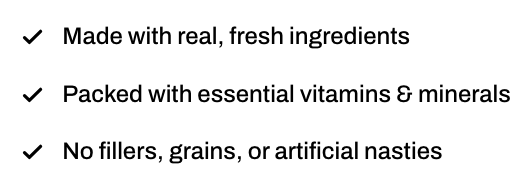
• `Circle` - Icon inside a circle.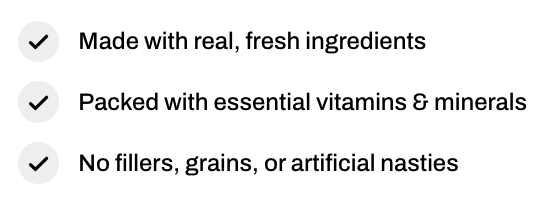 |
| Position | Align items vertically (Top, Center, Bottom). |
| Padding | Adjust spacing around the entire block (top, bottom, left, right) for desktop and mobile. |
|
| Position | Align items vertically (Top, Center, Bottom). |
| Padding | Adjust spacing around the entire block (top, bottom, left, right) for desktop and mobile. |
#### 📦 Nested blocks
The **Icon list block** is made up of multiple **List item** blocks.
* **List item:** Each item represents a single row in the list

The **Icon box block** is a flexible layout element that combines visuals and text. You can use it to highlight store values, product benefits, or any key information in a clean, visual way.
#### ⚙️ **Block settings**
| Setting | Descriptio |
| --- | --- |
| **Direction** | Choose layout orientation:
• `Vertical` — icon on top, text below.

• `Horizontal` — icon and text side-by-side.
 |
| **Text alignment** *(Vertical only)* | Align text and icon: Left, Center, or Right.
 |
| **Icon** | Select a built-in icon. |
| **Image icon** | Upload your own image if you want to replace the default icon. |
| **Icon spacing** | Controls the space between icon and text (0–32 px). |
| **Icon size** | Choose icon size or set a **Custom size**. |
| **Heading** | Enter your title. |
| **Heading preset** | Choose heading style. |
| **Description text** | Add supporting information below the heading. |
| **Text color** | Choose color style for the description (`Text` or `Subtext`). |
| **Link** | Make the entire card clickable by entering a URL. |
| **Row gap** | Adjust space between heading and text (0–32 px). |
#### 🎨 **Appearance settings**
| Setting | Description |
| --- | --- |
| **Style** | Choose between:
• `Standard` — clean layout without border or background.
• `Card` — boxed layout with background and border. |
| **Inherit color scheme** *(Card only)* | Use section color scheme, or disable to apply a custom one. |
| **Border type** *(Card only)* | Select `None` or `Solid` border. |
| **Border width** *(Card only)* | Adjust border thickness (0–3 px). |
| **Border opacity** *(Card only)* | Control border transparency (0–100%). |
| **Border radius** *(Card only)* | Round card corners (0–20 px). |

The **Video block** allows you to embed videos from both uploaded files and external URLs (such as YouTube or Vimeo).
#### ⚙️ **Block settings**
| Setting | Description |
| --- | --- |
| **Source** | Select the video source: **Uploaded** or **External URL**. |
| **Video** | Upload a video file (if **Source** is set to **Uploaded**). |
| **Video URL** | Provide a link to a YouTube or Vimeo video (if **Source** is set to **External URL**). |
| **Video autoplay** | Enable autoplay for the video. When enabled, the video starts automatically when the page loads.
⚠️ *This feature may be affected by certain browser and device settings.* |
| **Video loop** | Enable looping, so the video will restart automatically once it finishes playing. |
| **Cover image** | Upload an image to display as a thumbnail or placeholder for the video, visible before the video starts (only if using **URL** source and **Autoplay** is off). |
| **Alt text** | Add alt text for accessibility purposes, describing the video content (only if using **URL** source). |
| **Aspect ratio** | Set the aspect ratio for the video. |
| **Width** | Set the width of the video. |
| **Borders** | Choose whether to apply borders around the video. |
#### 💡 Best practices
* **Aspect ratio**: When embedding videos, the **16:9** ratio works well for most landscape videos, especially from platforms like YouTube and Vimeo. If you're showcasing a square video, **1:1** is a good choice.
* **Borders**: Applying **borders** can help frame the video content and make it stand out more on the page. If your video content is minimalist, a **solid border** with a subtle color might enhance the look without being too distracting.

The **Counter** block helps you showcase key metrics or achievements using animated numbers and short labels, perfect for highlighting milestones, statistics, or brand credibility
#### ⚙️ Block settings
| Setting | Description |
| ----------------------------- | ------------------------------------------------------------------ |
| **Layout – Direction** | Choose whether items are displayed *vertically* or *horizontally*. |
| **Layout – Alignment** | Align content to the left, center, or right. |
| **Mobile layout – Direction** | Set vertical or horizontal layout specifically for mobile devices. |
| **Mobile layout – Position** | Control the vertical position (top, middle, bottom) on mobile. |
#### 🎨 Appearance settings
| Setting | Description |
| --- | --- |
| **Style** | Choose between:
• `Standard` — clean layout without border or background.
• `Card` — boxed layout with background and border. |
| **Inherit color scheme** *(Card only)* | Use section color scheme, or disable to apply a custom one. |
| **Border type** *(Card only)* | Select `None` or `Solid` border. |
| **Corder radius** *(Card only)* | Round card corners (0–20 px). |
#### 🧩 Nested content
The **Counter block** comes with 1 static block:
* **Number:** Displays the main numeric value (e.g., statistics, achievements, or key metrics).
| Setting | Description |
| --- | --- |
| **Number** | The main value displayed |
| **Prefix** | Text or symbol shown **before** the number |
| **Suffix** | Text or symbol shown **after** the number |
| **Format** | Controls how the number is displayed:
• 1,234.56
• 1 234.56
• 1.234,56 |
* Use a **prefix** and a **suffix** to add meaning
* Use **symbols** to shape perception
* Maintain **consistent formatting** across all counters
* Pair with a **text block** to explain what the number represents
* Combine **multiple Counter blocks inside a Grid** to display side-by-side stats — ideal for showcasing survey results, product benefits, or brand milestones.\
\

The **Countdown timer block** displays a ticking timer that counts down to a specific date or resets automatically after a chosen duration.
* **Evergreen type** resets automatically after each duration.
* **Fixed-time type** ends at the selected date/time and stays at “00:00:00” after completion.
* Timers are fully responsive and adapt their layout across devices.
#### ⚙️ **Block settings**
| Setting | Description |
| ----------------------------------------------- | ------------------------------------------------------------------------------------------------------------------------------------------------------------------------------------------------------------------------------------------------------- |
| **Type** | Select countdown type:
• Evergreen — loops repeatedly based on duration.
• Fixed time — ends at a specific date and time.
|
| **Duration** *(Evergreen only)* | Choose how often the countdown resets |
| **Ends time** *(Fixed time only)* | Set a target end date and time. |
| **Show text** | Toggle to show or hide text labels (Days, Hours, Minutes, Seconds). |
| **Style** | Choose layout appearance:
• Standard — clean, minimal digits.
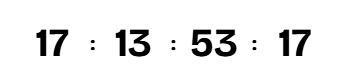
• Card — bold digits with background boxes.
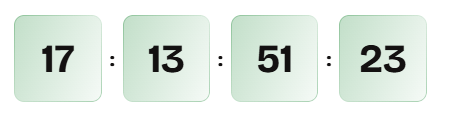
|
| **Number preset** | Select typography style for countdown numbers. |
| **Inherit color scheme** | Use the section’s default color scheme. Disable to customize number colors manually. |
| **Number color** *(Visible if not inheriting)* | Choose the color of the countdown digits. |
| **Number background color** *(Card style only)* | Set background color for the number boxes. |
#### 💡 **Pro tips**
* Use **Evergreen timers** for recurring deals or automated marketing cycles.
* Set **custom number colors** when your section uses contrasting backgrounds.
* Place the countdown near a **CTA button** to maximize urgency-driven clicks.

The **Countdown timer: Icon with text** block helps you display a timer with a short message or icon to highlight urgency — perfect for flash sales, product launches, or limited-time offers.
#### ⚙️ **Block settings**
| Setting | Description |
| ----------------------------------------- | ----------------------------------------------------------------------------------------------------------------------------------------------------------------------------------------------------------------------------------------------------------------- |
| **Width** | Choose whether the block fits its content or stretches to fill available space. |
| **Icon** | Select an icon from the theme’s icon set.

|
| **Image icon** | Optionally upload a custom image instead of using a theme icon. |
| **Icon size** | Choose icon size. |
| **Icon width** *(Visible if custom size)* | Define icon width in pixels for desktop and mobile view separately. |
| **Heading text** | Enter your message. |
| **Heading preset** | Choose a text style for the heading. |
| **Style** | Select layout style:
• Standard — clean layout without background.
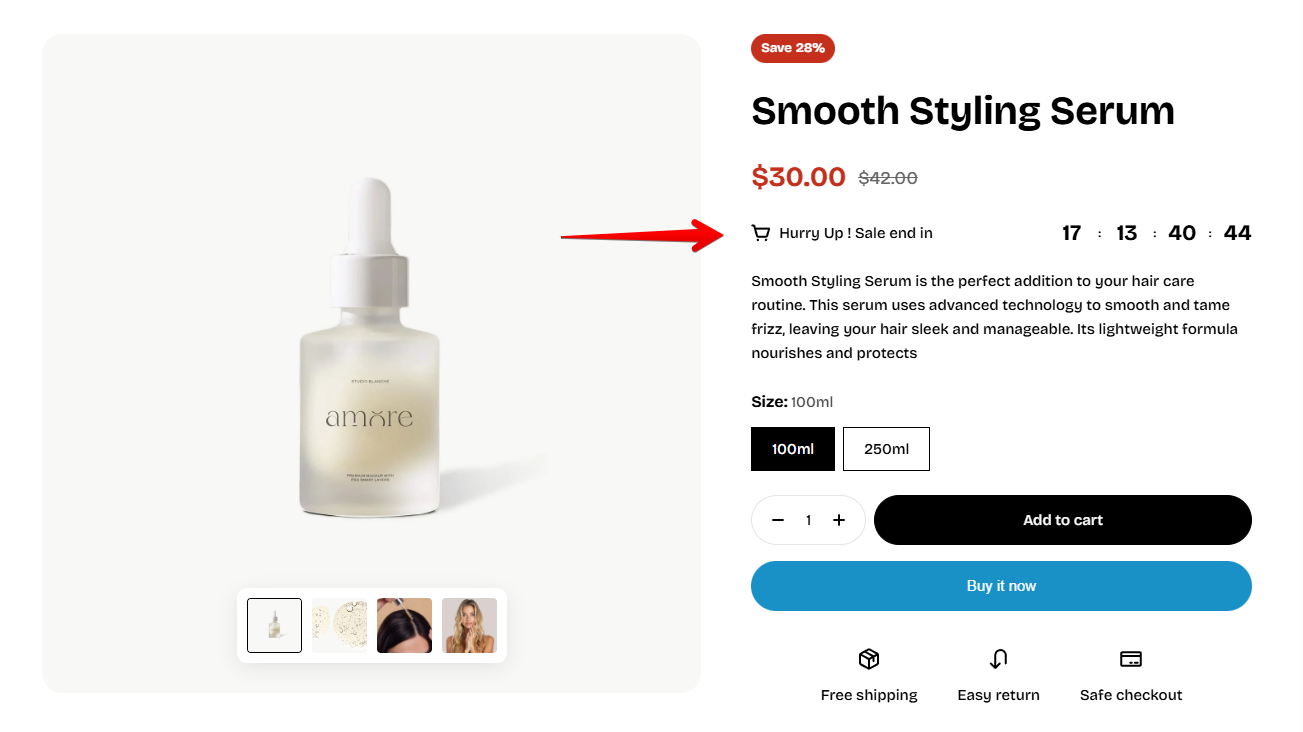
• Card — framed design with background and borders.
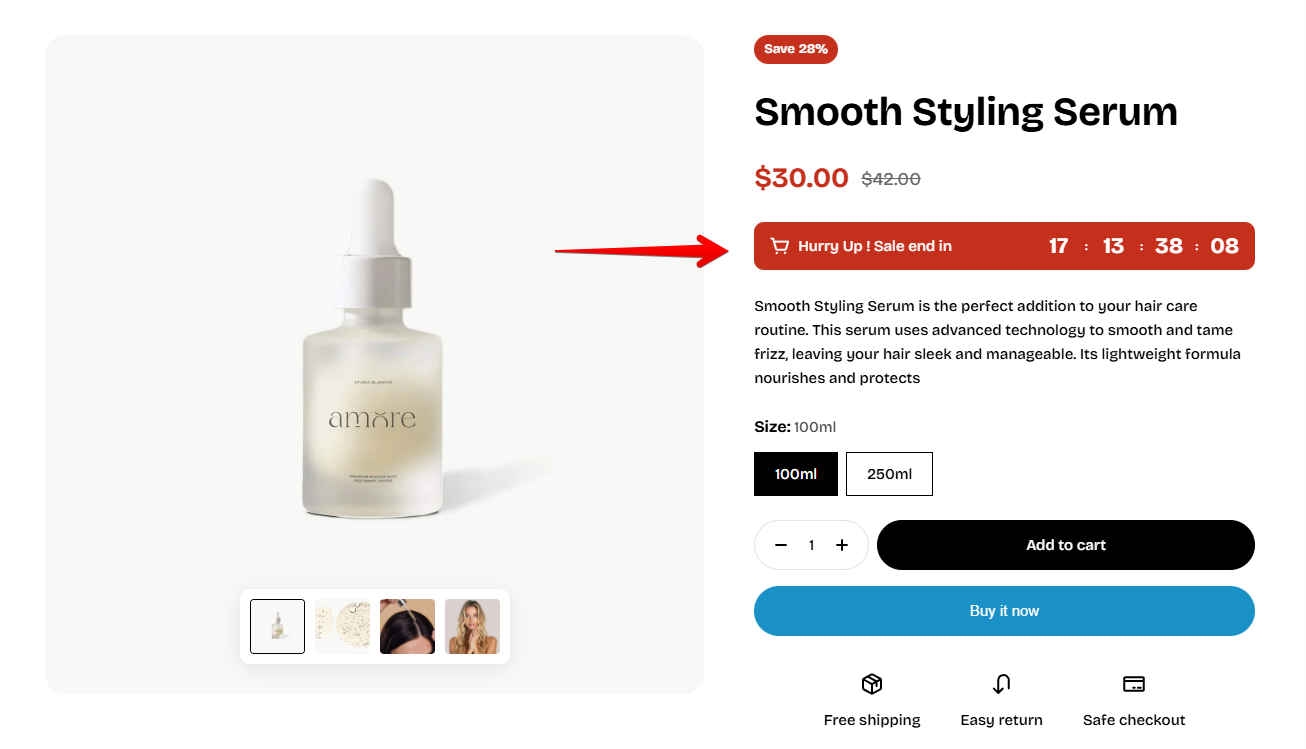
|
| **Inherit color scheme** *(Card only)* | Use the parent section’s color scheme. Disable to apply a custom scheme. |
| **Border** *(Card only)* | Choose border type (`None` or `Solid`). |
| **Border width** *(Card only)* | Adjust border thickness (in px). |
| **Border opacity** *(Card only)* | Control border transparency (0–100%). |
| **Border radius** *(Card only)* | Round the card’s corners (0–20px). |
#### 🧩 **Nested content**
This block includes a built-in **Countdown timer** block inside it.
You can customize the nested timer independently. *Learn more:* [Countdown Timer](#countdown-timer)

The **Article card** block displays a single blog post with its image, title, tags, author, and publish date. It’s perfect for highlighting featured blog content, promoting your latest stories, or showcasing brand updates anywhere on your storefront.
#### ⚙️ **Block settings**
| Setting | Description |
| --- | --- |
| **Article** | Select which blog post to display.
[*See how to add blog posts*](https://help.shopify.com/en/manual/online-store/blogs/writing-blogs/working-with-blog-posts) |
| **Layout type** | Choose how the card is displayed:
• `Overlay` — text on top of the article image.

• `Vertical` — image above text (column layout).

• `Horizontal` — image beside text (row layout).
 |
| **Image ratio** | Adjust the article image ratio separately for desktop and mobile. |
| **Text alignment** | Align text content (`Left`, `Center`, or `Right`). |
| **Show tags** | Display article tags as badges on the blog's image. |
| **Show date** | Show the article’s publish date. |
| **Show author** | Display the article author’s name. |
| **Show button** | Include a “Read more” button linking to the full article. |

The **Divider block** adds horizontal spacing and a customizable line between elements. It’s ideal for breaking up long layouts, organizing grouped content, or improving visual hierarchy in your sections.
#### ⚙️ **Block settings**
| Setting | Description |
| --- | --- |
| **Thickness** | Controls the divider line’s weight (0.5 px – 5 px). Thicker lines create stronger separation. |
| **Length** | Adjusts how wide the divider spans (5% – 100% of container width). |
| **Disable on mobile** | Hides the divider on mobile devices for cleaner vertical layouts. |
| **Device** | Toggle between adjusting padding for `Desktop` or `Mobile`. |
| **Padding top / bottom** | Add vertical space before and after the divider. Separate controls for desktop and mobile. |
#### 💡 **Pro tips**
* Keep **thin (1 px)** dividers for minimalist designs — thicker lines can feel heavy.
* Turn off the divider on mobile for shorter, more fluid page layouts.
* Combine with **subtle background colors** or color-scheme changes to highlight section transitions.

The Video card block showcases a customer story through an interactive video-based card, creating a more engaging and immersive brand experience.
#### ⚙️ **Block settings**
| Settings | Description |
| --- | --- |
| **Video** | Upload or select a video for the video card. |
| **Cover image** | Upload an optional cover image displayed before the video plays. |
| **Aspect ratio** | Set the aspect ratio of the video card. |
| **Width** | Control the width behavior of the video card on desktop devices. |
| **Corner radius** | Adjust the roundness of the video card corners. |
#### 🧩 Information block **settings**
| Settings | Description |
| --- | --- |
| **Avatar image** | Upload an optional avatar image displayed in the information area. |
| **Hidden on mobile** | Hide the avatar image on mobile devices. |
| **Title** | Add a title for the video card information area. |
| **Preset** | Select a typography preset for the title. |
| **Bio text** | Add supporting text or description for the video card. |
#### 💡 Best practices
* **Use high-quality videos:** Upload clear, optimized videos to ensure smooth playback and a better viewing experience across devices.
* **Choose the right aspect ratio:** Portrait ratios work well for storytelling content, while square or landscape ratios are better for more balanced layouts.
* **Keep content concise:** Short titles and brief supporting text help keep the video card clean, engaging, and easy to scan.

The Spinning icon badge block adds a rotating decorative badge to your layout, helping highlight key messages, promotions, or brand elements with subtle motion.
#### ⚙️ **Block settings**
| Settings | Description |
| --- | --- |
| **Icon** | Select an icon to display in the spinning badge. |
| **Image icon** | Upload a custom image to use instead of the default icon. |
| **Text** | Enter the text that will rotate around the badge. |
| **Font** | Choose the font style for the rotating text. |
| **Color** | Select a color style for the text. |
| **Gradient color** | Gradient color |
| **Border** | Choose whether to display a border around the badge. |
#### 💡 Best practices
* **Aspect ratio:** When using an image icon, a **1:1 ratio** works best to keep the spinning badge visually balanced during rotation.
* **Image format:** We recommend using **PNG** or **SVG** files with a **transparent background** for a cleaner and more professional appearance.
* **Text length:** Keep the rotating text relatively short for better readability and a cleaner visual effect.