# Collection links: Background
_4WgSzSHN.jpg)
Showcase your collections with bold background imagery and clickable links, helping customers quickly explore and discover your products.
## How to add a Collection links: Background section to your Shopify store
1. In the theme editor **(Customize)**, click **Add section.**
2. Select **Collection links: Background** section.
3. Make necessary changes.
4. **Save.**
## How to customize a Collection links: Background section
### Section settings
| Setting | Description |
| --- | --- |
| **Container** | Choose between full-width or fixed-width layout for the section. |
| **Height** | Set the section height (Adapt to image/Small/Medium/Large) |
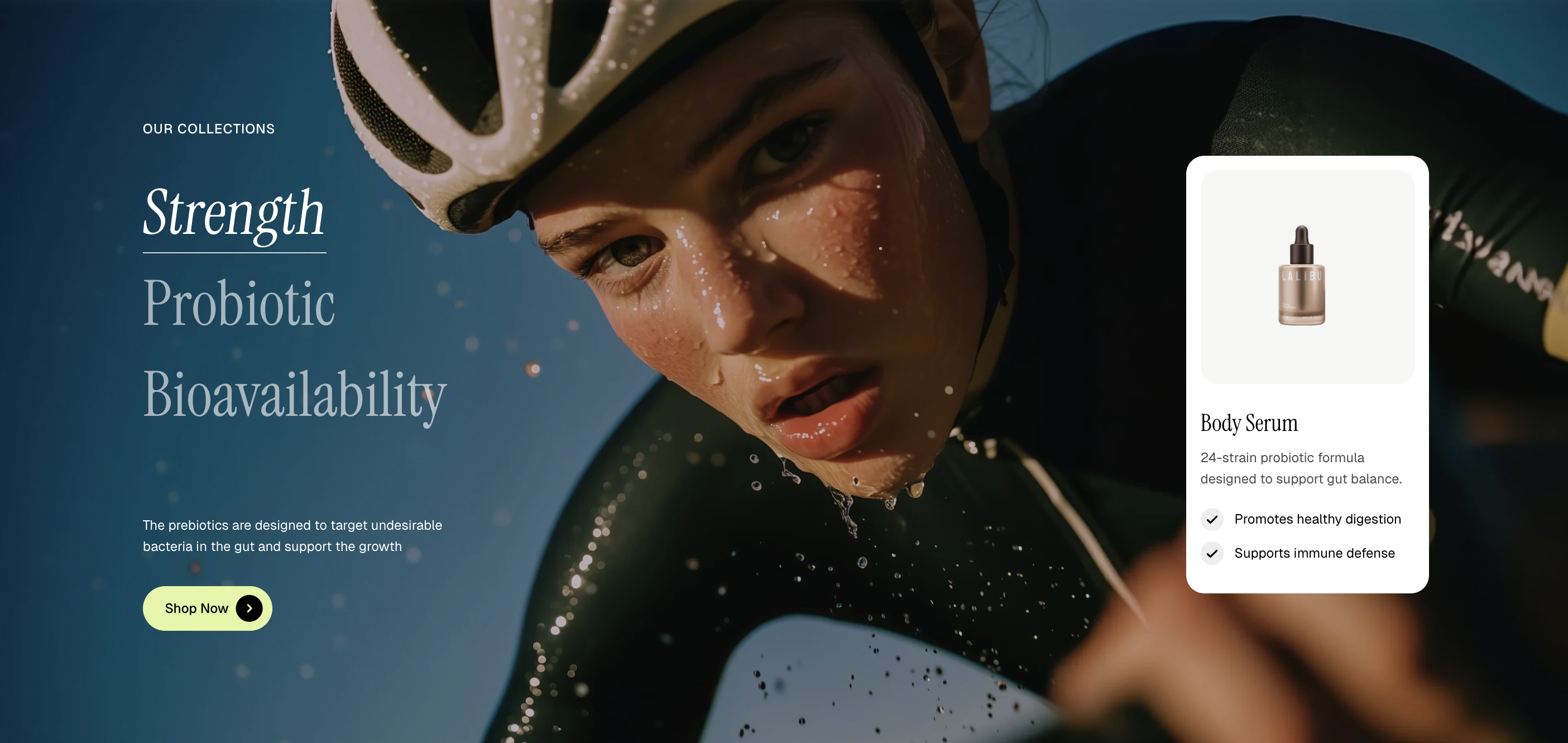
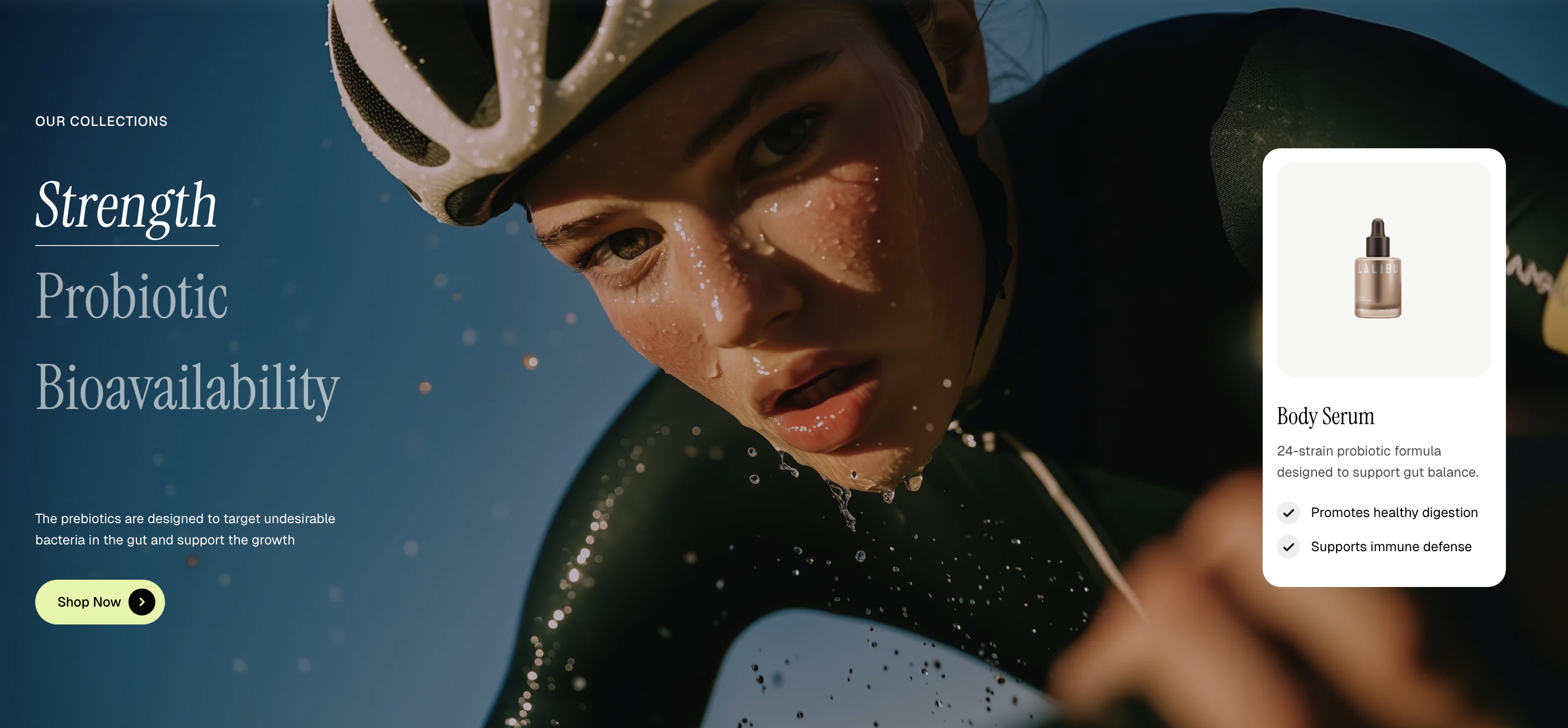
| **Content position** *(Full width only)* | Place the content inside the image area or outside of it.
• `Inside`:
• `Outside`:
 |
|
| Setting | Description |
| --- | --- |
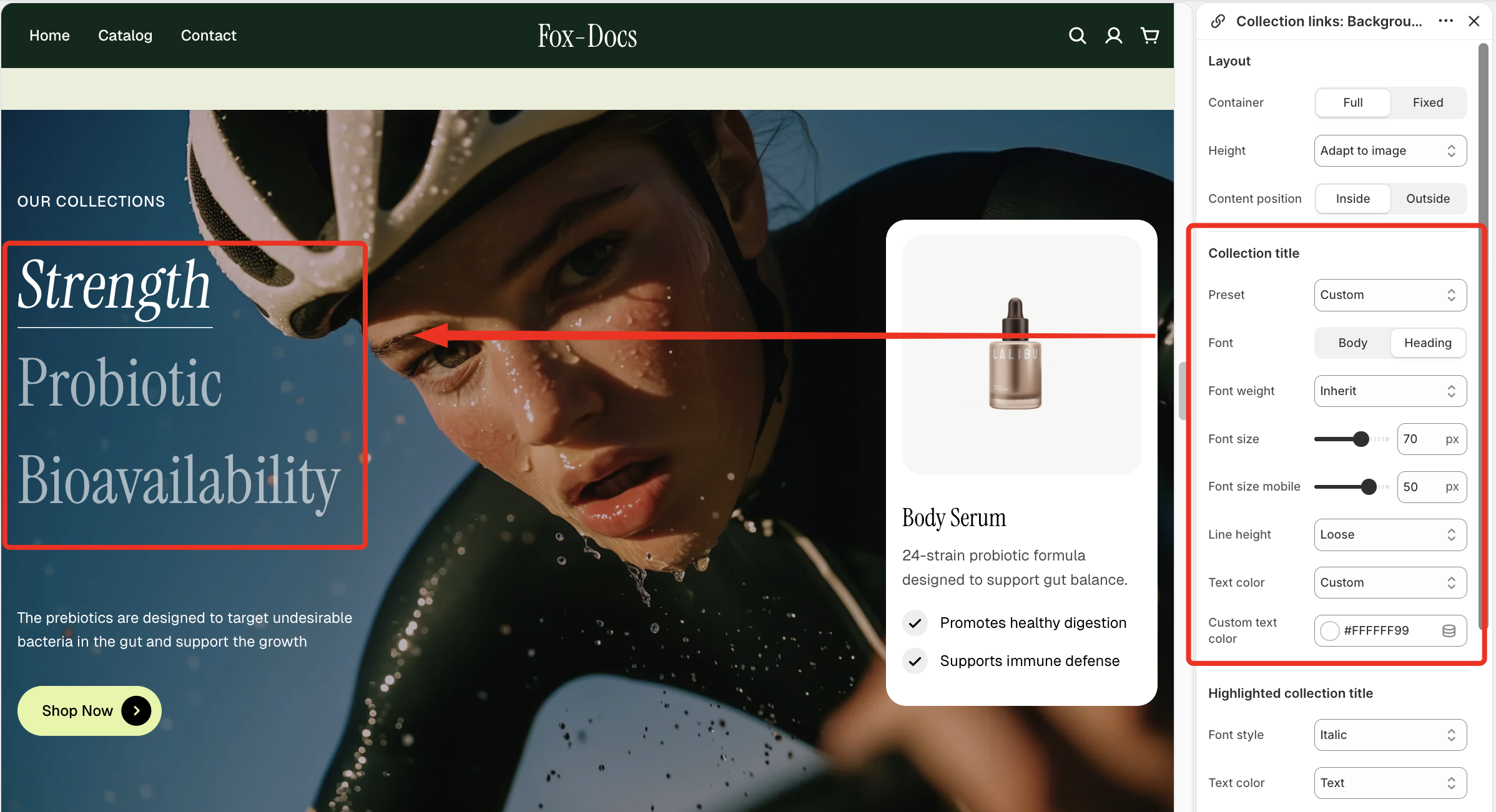
| **Preset** | Choose a predefined style or switch to custom settings. |
| **Font** | Select the font style for the content (Body or Heading). |
| **Font weight** | Adjust the thickness of the text. |
| **Font size** | Set the font size. |
| **Font size mobile** | Set the font size for mobile devices. |
| **Line height** | Control the spacing between lines of text. |
| **Text color** | Choose a predefined or custom text color. |
| **Custom text color** | Set a custom color when “Custom” is selected. |
| Setting | Description |
| --- | --- |
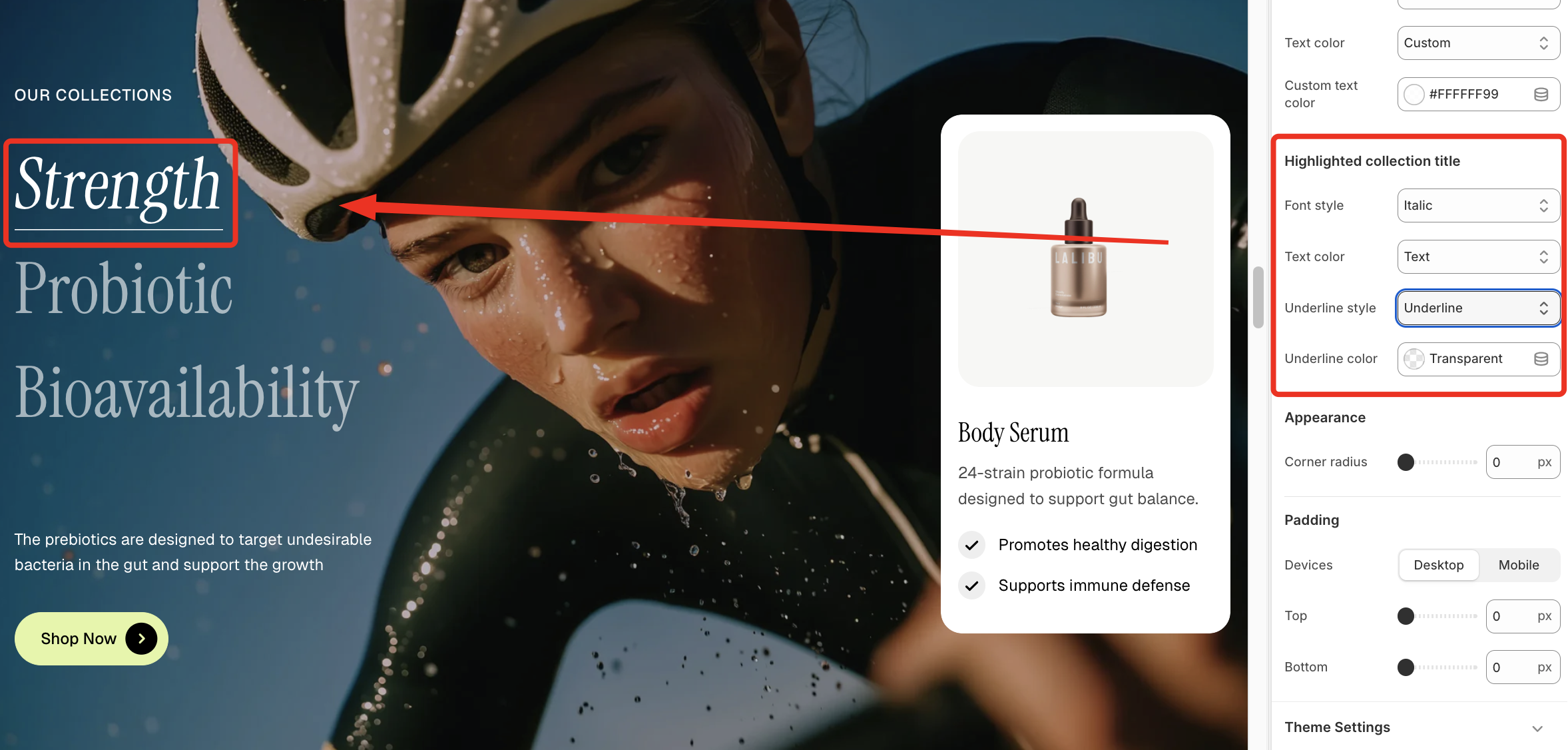
| **Font style** | Adjust the emphasis of the highlighted title. |
| **Text color** | Set the color of the highlighted title. |
| **Underline style** | Choose the underline style. |
| **Underline color** | Set the color of the underline. |
✨ Check out other Collection links: Background section settings: [Common settings available in most sections](https://docs.foxecom.com/pebble-theme/theme-sections/overview#common-settings-available-in-most-sections)
### Block settings
The **Collection links: Background** section includes two main blocks: **Header** and **Collection**. The **Collection** block also contains a **Product** block.
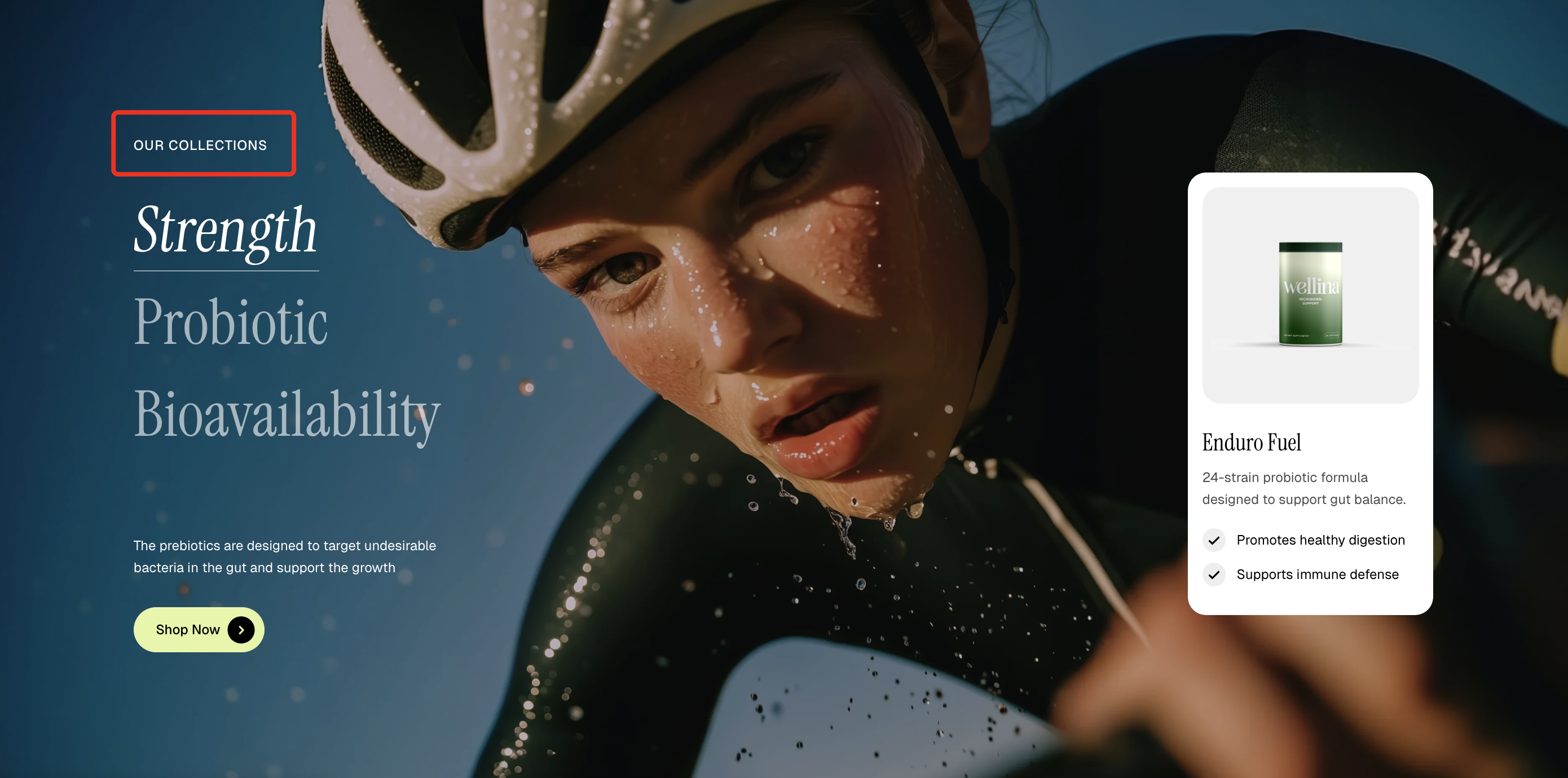
Use the **Header** block to create and customize the section’s heading and introductory content.
| Setting | Description |
| --- | --- |
| **Alignment** | Set the header alignment: left, center, or right. |
| **Devices** | Switch between desktop and mobile padding settings. |
| **Bottom** | Adjust the spacing below the header. |
* **Heading** – Add a main title
* **Subheading** – Provide supporting text above or below the heading
* **Text** – Include additional descriptions or details
* **Image** – Display an image or icon
* **Button** – Add a call-to-action
📝 Learn more: [Basic](https://docs.foxecom.com/pebble-theme/theme-blocks/basic)
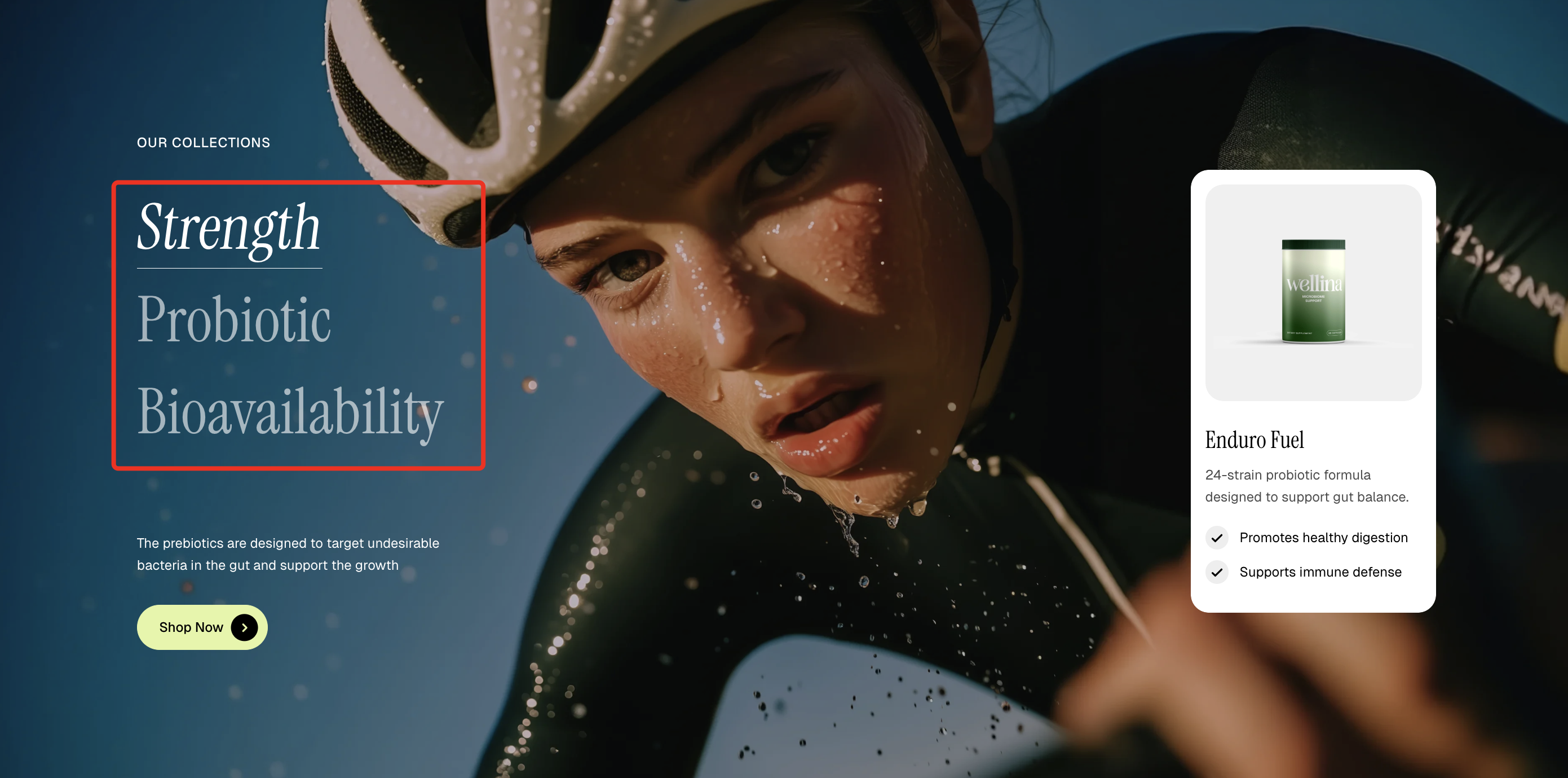
Feature a collection with a custom image, title, and description.
| Setting | Description |
| --- | --- |
| **Collection** | Select the collection to display in this block. |
| **Background image** | Upload a custom background image for the collection. |
| **Background image mobile** | Set a separate background image optimized for mobile devices. |
| **Media overlay** | Enable or disable an overlay on top of the background image. |
| **Overlay color** | Choose the color and opacity of the image overlay. |
| **Collection title – Text** | Enter a custom title or leave blank to use the collection’s default name. |
| **Description** | Add a custom description or leave blank to use the collection’s description. |
* [Product](#product)
_KF1yFjup.jpg)
Display a product card with key details, features, and a clear call-to-action.
* **Heading** – Add a main title
* **Subheading** – Provide supporting text above or below the heading
* **Product title** – Display the name of the selected product
* **Text** – Add supporting product details or description
* **Icon list** – Highlight key features with icons
* **Button** – Add a call-to-action for the product
📝 Learn more: [Basic](https://docs.foxecom.com/pebble-theme/theme-blocks/basic)