# Header

## What is the Header section?
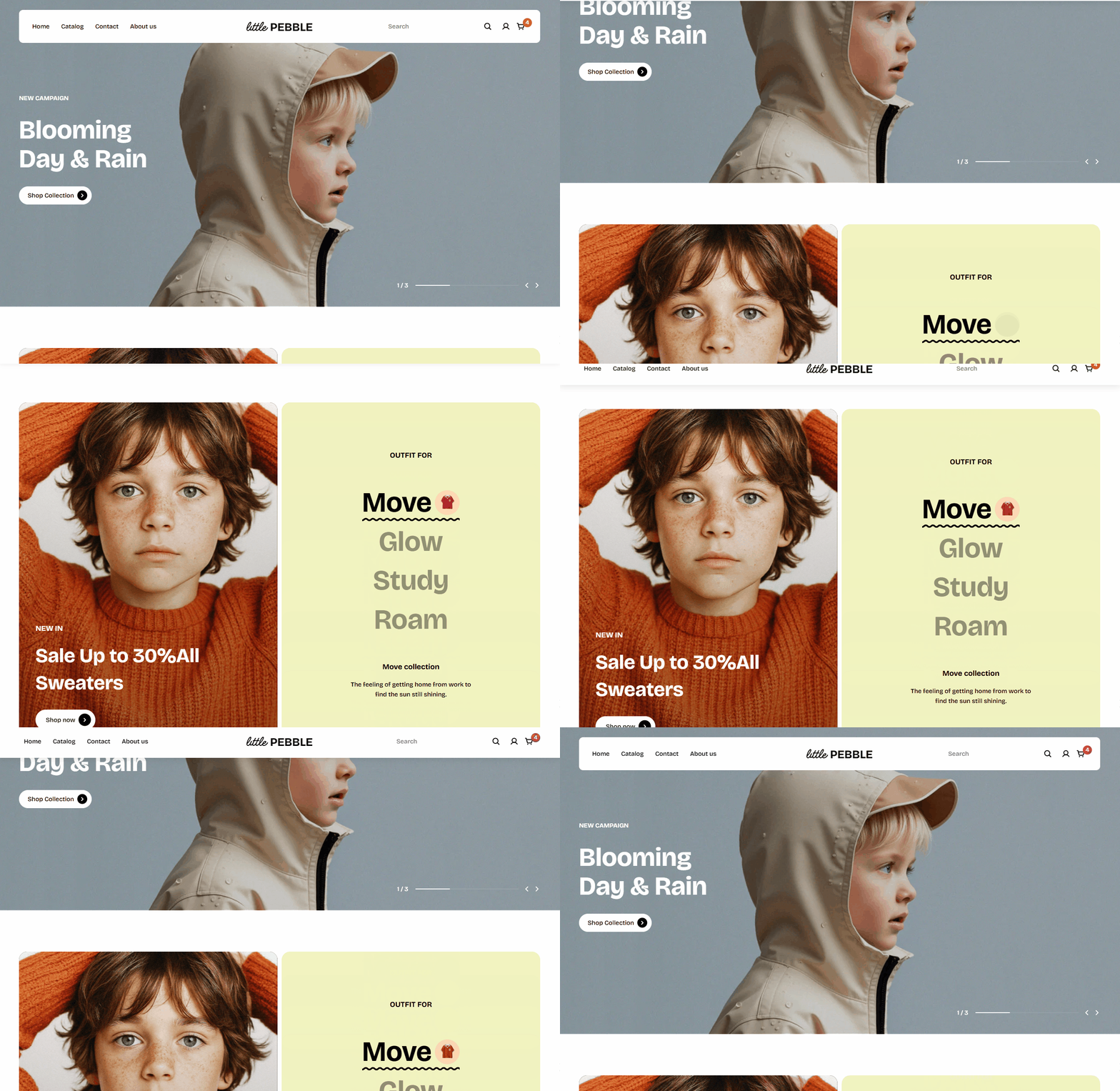
The header is a content block at the upper part of your website that appears on every page. It usually contains the logo of a store, the main navigation menu, and other elements such as a search bar, language selector, etc.
The header plays a vital role in branding your site, helping visitors navigate, and displaying your most important pages.
## How to edit the Header section
You can freely customize your header to suit your business needs by choosing the main menu and other addons.
Steps:
1. In the theme editor (**Customize**), go to the **Header** area.
2. Select the **Header** section.
3. Make necessary changes.
4. Click **Save**.
### General
#### Logo
To add your logo, go to **Theme settings >** [Logo](https://docs.foxecom.com/pebble-theme/theme-settings/logo)**.**
#### Menus
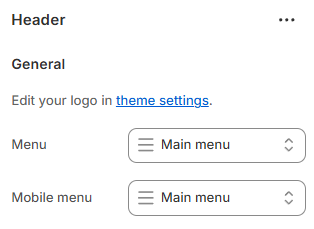
* Select a **Menu** for your header.
* Select a **Mobile menu** to ensure smooth navigation on smaller screens.
To add, remove, or edit menus in your Shopify store, see [Editing menus](https://help.shopify.com/en/manual/online-store/menus-and-links/editing-menus).
💡 **See how to customize the Mega menu:**
Mega menu
#### Header layout

Choose how your logo is positioned on your desktop header:


#### Dropdown menu trigger
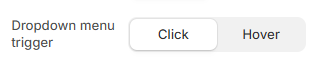
Control how dropdown menus open on desktop:
* **Click**: Dropdowns open when clicked.
* **Hover**: Dropdowns open when the mouse pointer hovers over the menu item.
#### Header sticky

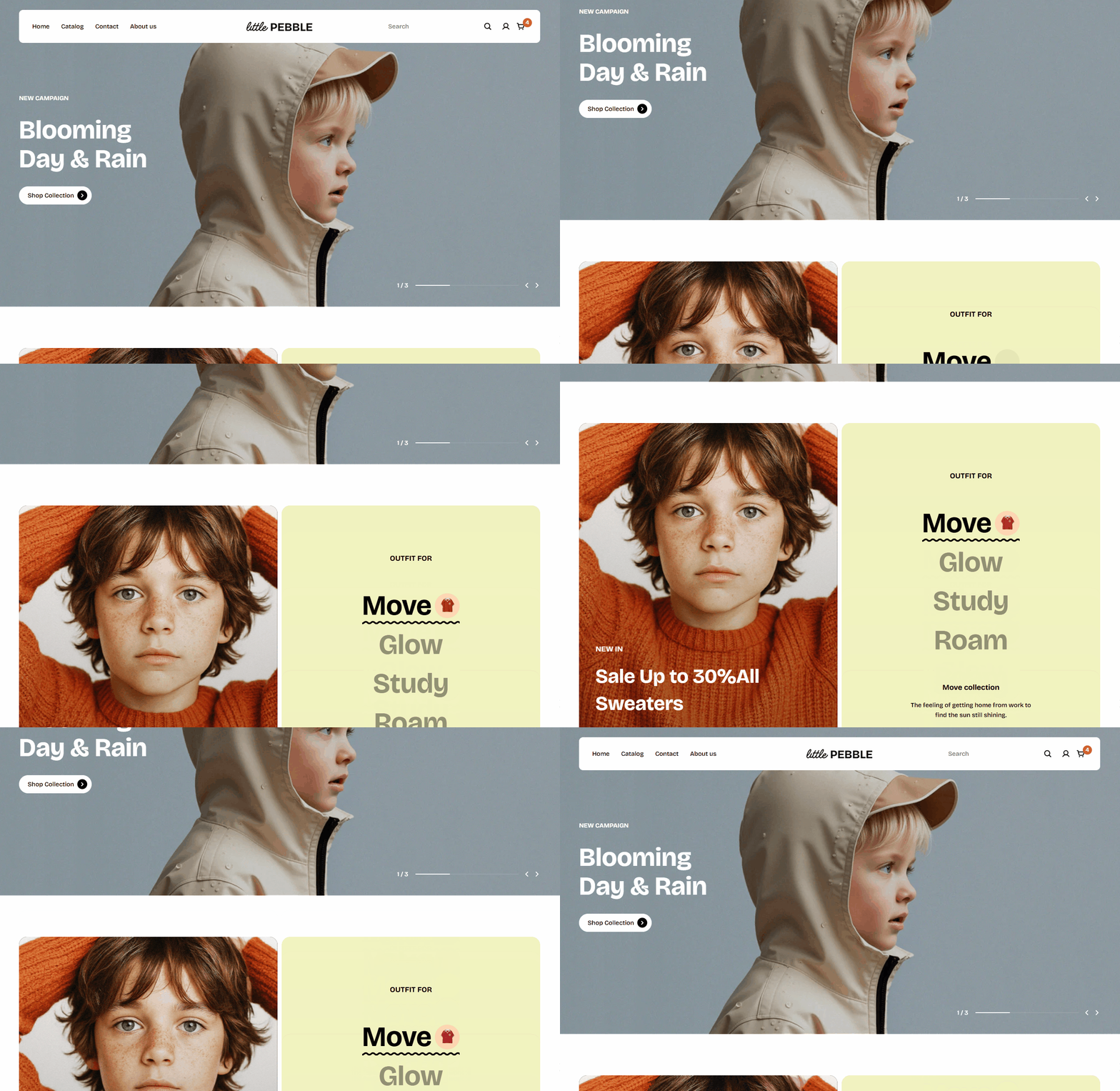
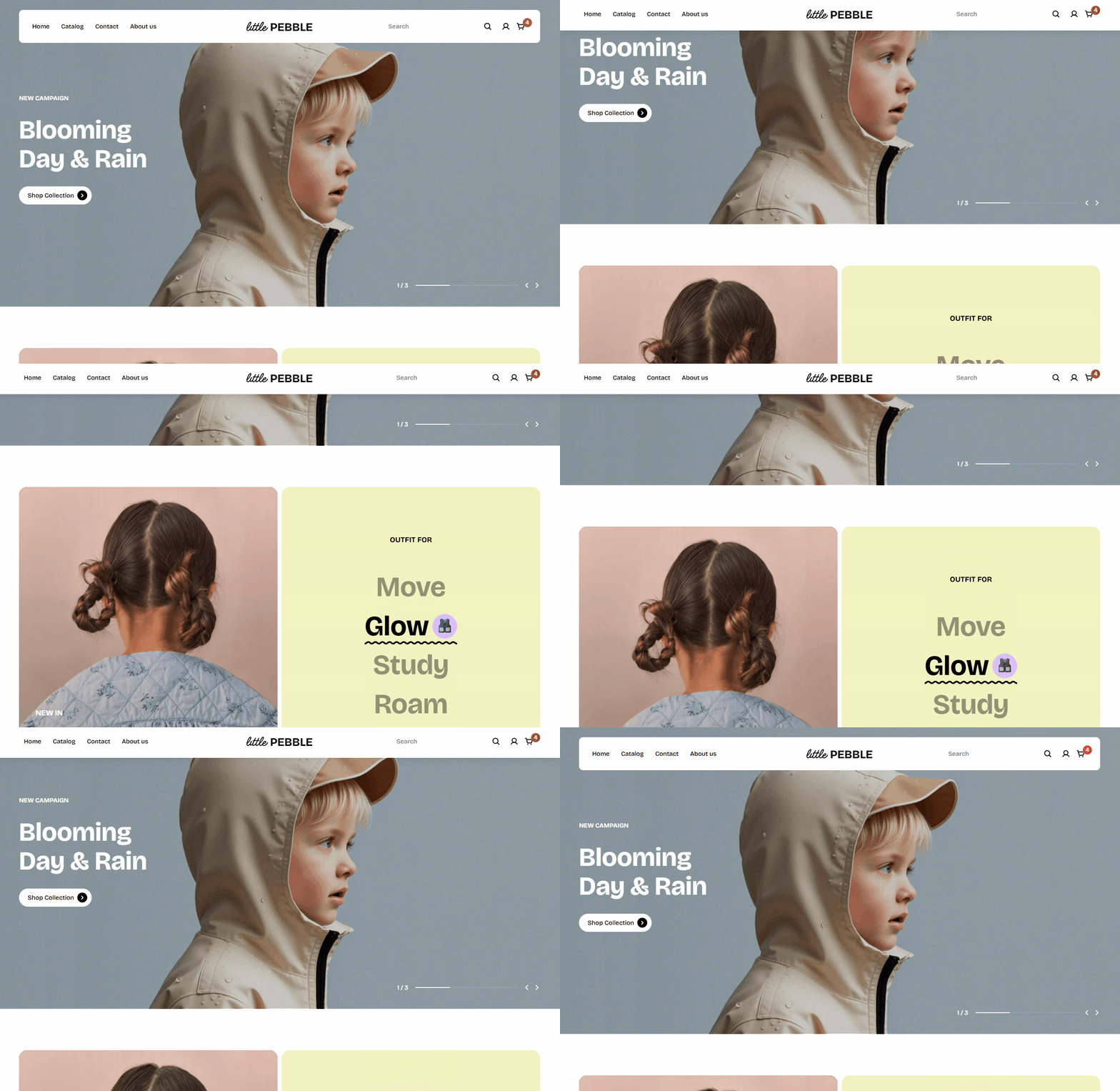
Enable sticky behavior so the header remains visible while scrolling.
Options:
* **None**: Header does not stick.
* **Always**: Header stays fixed at the top.
* **On scroll up**: Header appears only when the user scrolls upward.
#### Search form
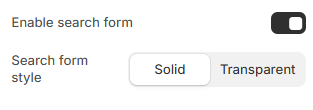
Turn on/off the **Enable search form** to display/hide the search bar in the header.
Under **Search form style**, choose how the search bar appears when opened:
* **Solid:** Search bar has a solid background.
* **Transparent:** Search bar blends with the header background.


### Mobile layout
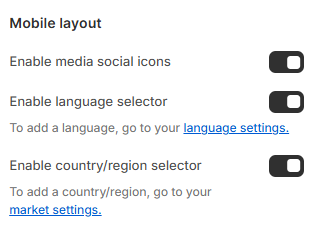
Toggle options for:
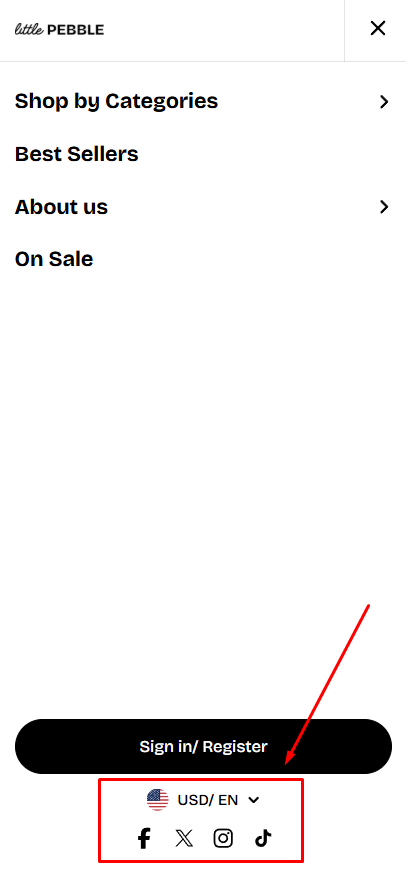
* Showing media social icons. Go to [Social media](https://docs.foxecom.com/pebble-theme/theme-settings/social-media) to set up your social links.
* Enabling **language selectors** for multilingual stores. Learn more: [Language selector](https://docs.foxecom.com/pebble-theme/global-sections/header/language-selector).
* Enabling **country/region selectors** for international markets. Learn more: [Currency selector](https://docs.foxecom.com/pebble-theme/global-sections/header/currency-selector).
### Appearance
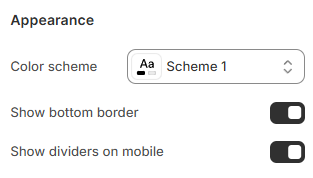
Customize the appearance of your header.
* **Color scheme**: Choose a predefined color palette assigned under the [theme’s color settings](https://docs.foxecom.com/pebble-theme/theme-settings/colors).
* **Show bottom border**: Add a thin line below the header.
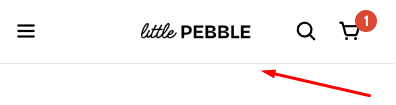
* **Show dividers on mobile**: Adds small dividers between icons such as search, cart, and menu. Helps improve clarity and touch targets on mobile screens.
