# Colors
_U78216CY.jpg)
One of the most important components of designing a visually appealing, functional, and accessible theme is color.
Not only does a well-designed color system reinforce a merchant’s branding, but it also has the power to enhance and improve user experiences.
## How to access Colors settings
Steps:
1. In the theme editor (**Customize**), click **Theme settings**.
2. Locate **Colors**.
3. Manage your **Schemes** and other element colors.
4. Click **Save**.
## Color schemes
### What is a color scheme?
A color scheme is a set of coordinated colors used across different elements of your store.
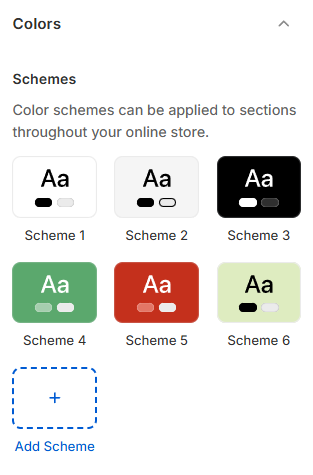
In the Pebble theme, a color scheme can control:
* **Background**
* **Background secondary**
* **Text**
* **Subtext**
* **Border**
* **Sale price**
* **Primary button**
* **Secondary button**
* **Inputs (form fields)**
* **Swatches (color swatch borders)**
* **Notifications (Success, Error, Warning, Info, Out of Stock)**
* **Progress bar**
You can define different color schemes in your theme settings and apply the color schemes to different sections throughout your online store, using a color scheme picker.
### Apply your color scheme
After defining your schemes, you can assign them using the **Color scheme** picker inside section/block settings.
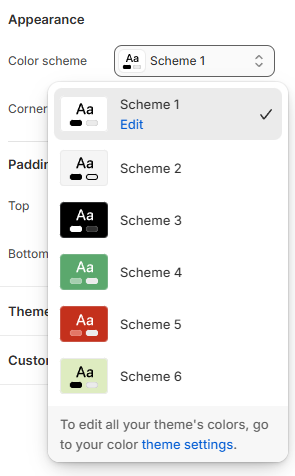
The color scheme picker is only available in sections/blocks that support custom color schemes.
## Other element colors
### Badges
The Pebble theme allows you to fully customize the appearance of product badges.
Available badges:
* **New badge**
* **Hot badge**
* **Popular badge**
* **Sale badge**
* **Sold out badge**
For each badge type, you can set:
* **Background color**
* **Text color**
To add custom badges to your store, go to **Theme settings >** [Product badges](https://docs.foxecom.com/pebble-theme/theme-settings/product-badges).
### Other colors
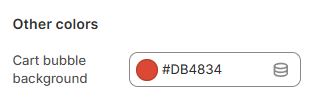
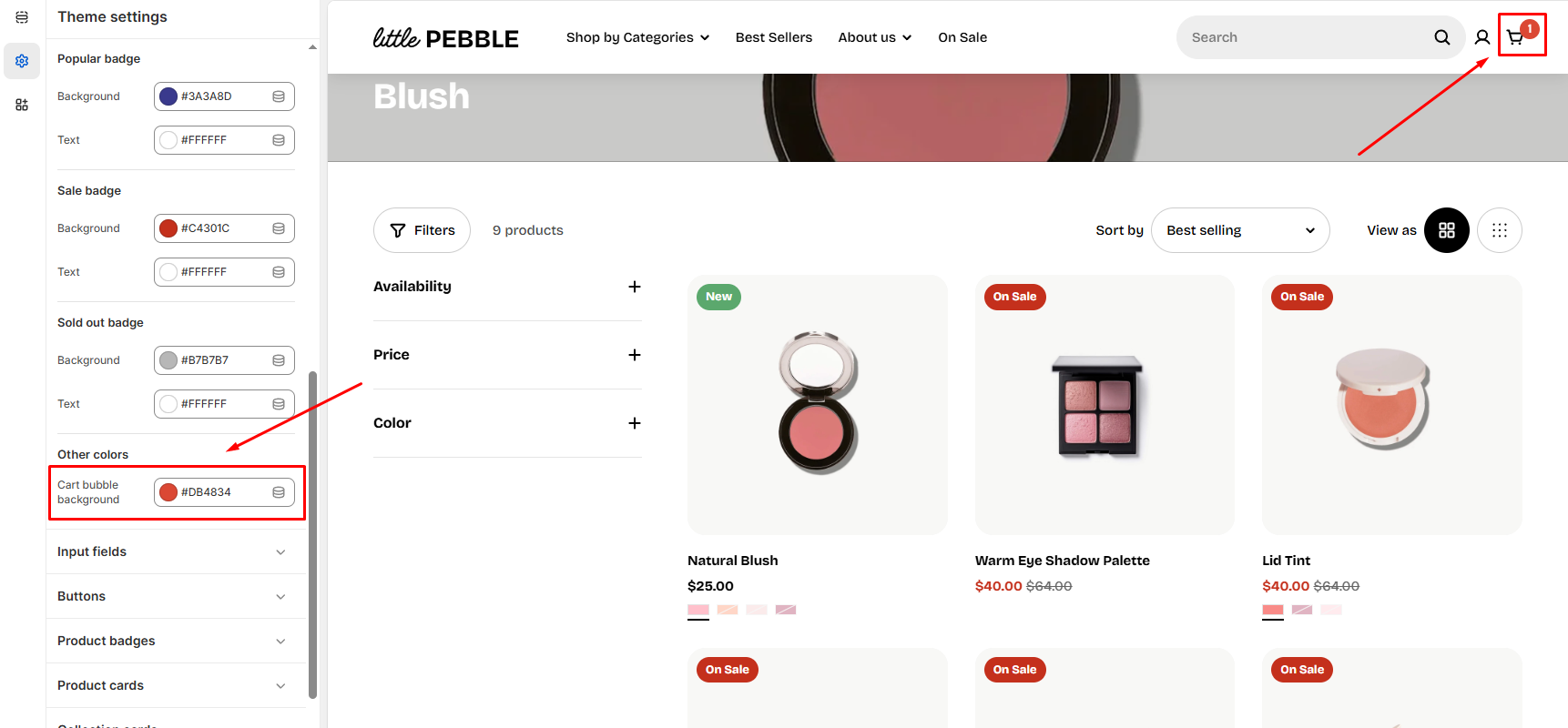
The Pebble theme also includes additional standalone color controls, such as:
* **Cart bubble background**