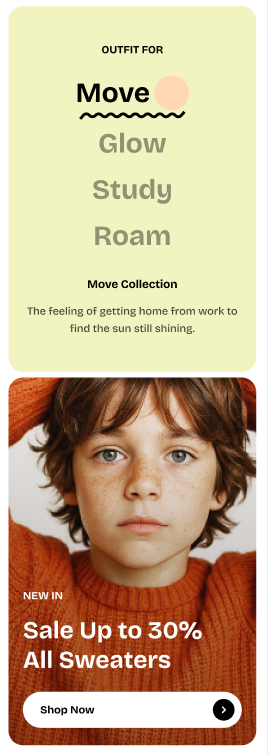
# Collection links: Spotlight
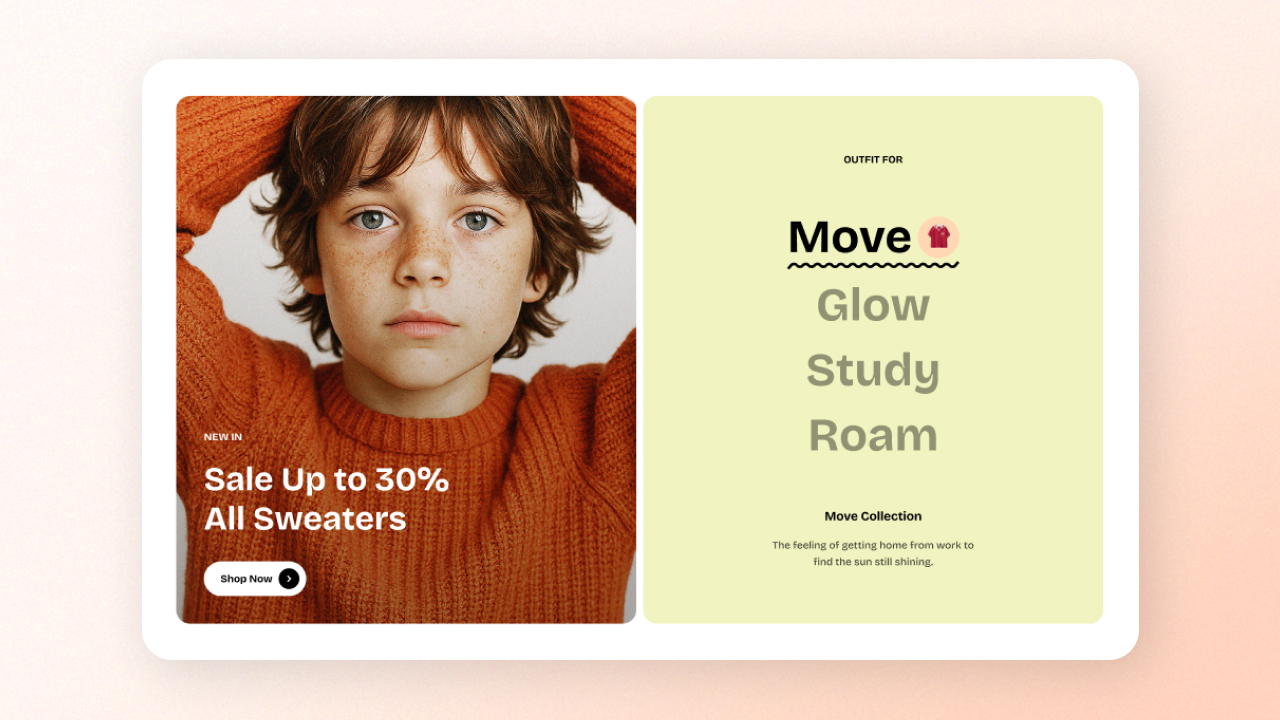
Showcase multiple collections with visually engaging images and descriptions. Ideal for driving attention to key products or promotions.
## How to add a Collection links: Spotlight to your Shopify store
1. In the theme editor **(Customize)**, click **Add section.**
2. Select **Collection links: Spotlight** section.
3. Make necessary changes.
4. **Save.**
## How to edit the section Collection links: Spotlight
### Section settings
| Setting | Description |
| --- | --- |
| **Desktop image position** | Choose between **left** or **right** for the image layout. |
| **Image aspect ratio** | Select an aspect ratio for the images. |
| **Subheading** | Add a subheading to give context or introduce the section. |
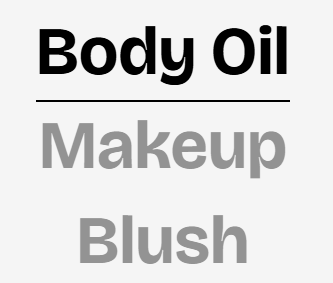
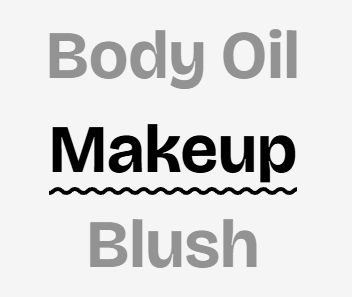
| **Collection link style** | Choose the style for the collection title:
• **Underline**
• **Wavy underline**
 |
| **Color scheme** | Choose a color scheme to apply to the section's background and text.
|
| **Color scheme** | Choose a color scheme to apply to the section's background and text.
Learn more: [Colors](https://docs.foxecom.com/pebble-theme/theme-settings/colors) |
### Block settings
The section includes multiple **Collection** blocks with nested **Image cards**.
* In each **Collection** block, pick a collection you want to feature and upload a thumbnail to display next to the collection title *(optional)*.
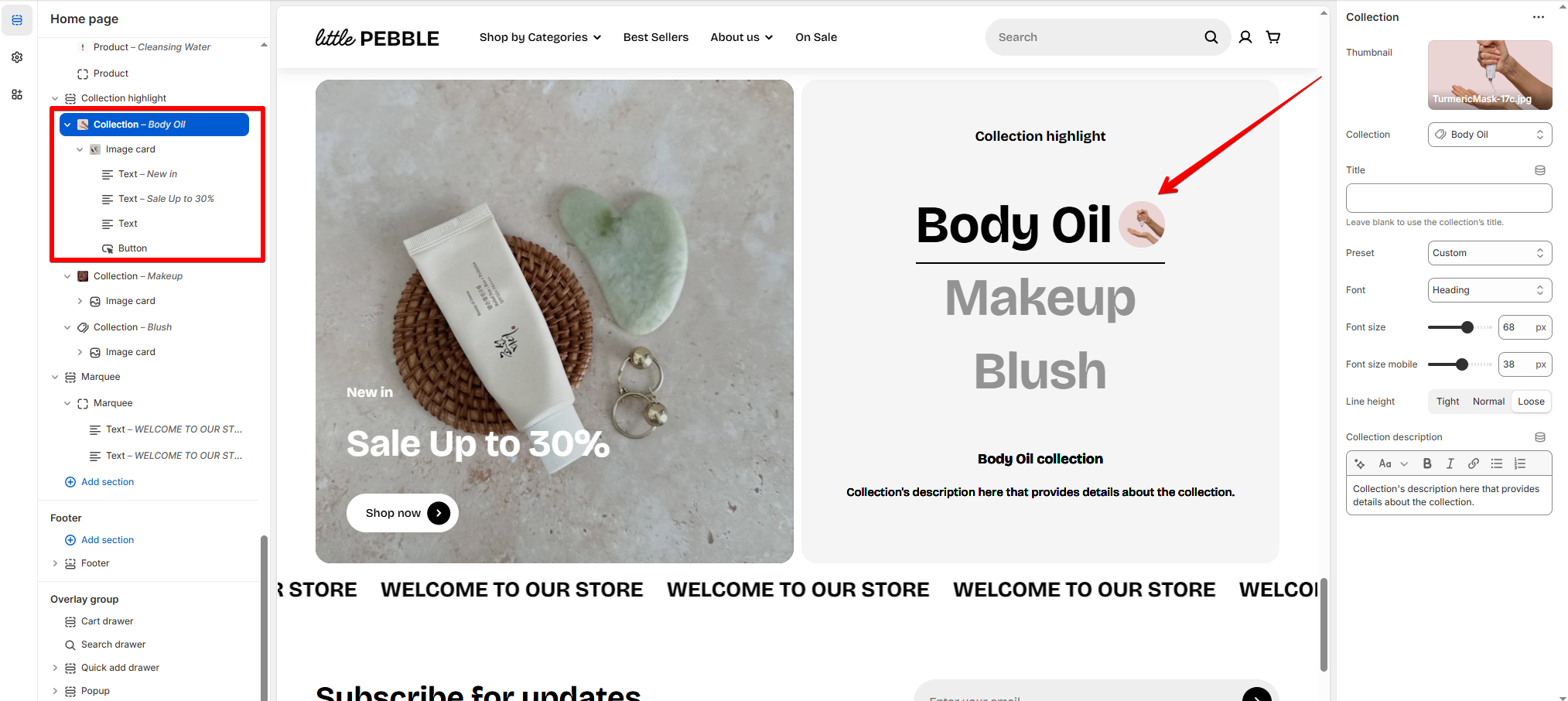
* Each **Collection** block includes an **Image card**. *Learn more about* [*how to customize the Image card block*](https://docs.foxecom.com/pebble-theme/theme-blocks/basic#image-card)*.*
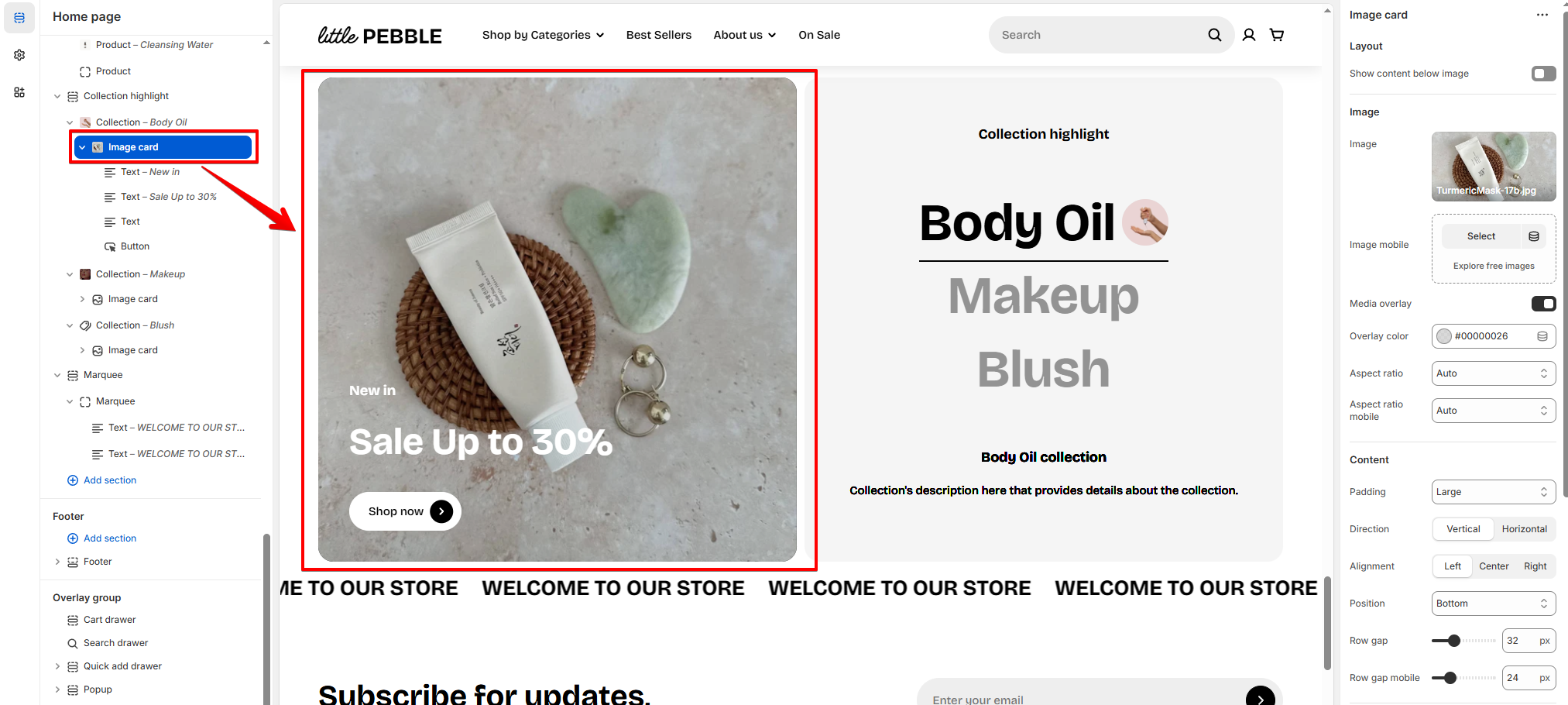
On mobile view, the image cards are displayed under the collection titles.