# Countdown timer

<figure><img src="/files/4X0p8GA42O7Gz4w3eWM2" alt=""><figcaption></figcaption></figure>

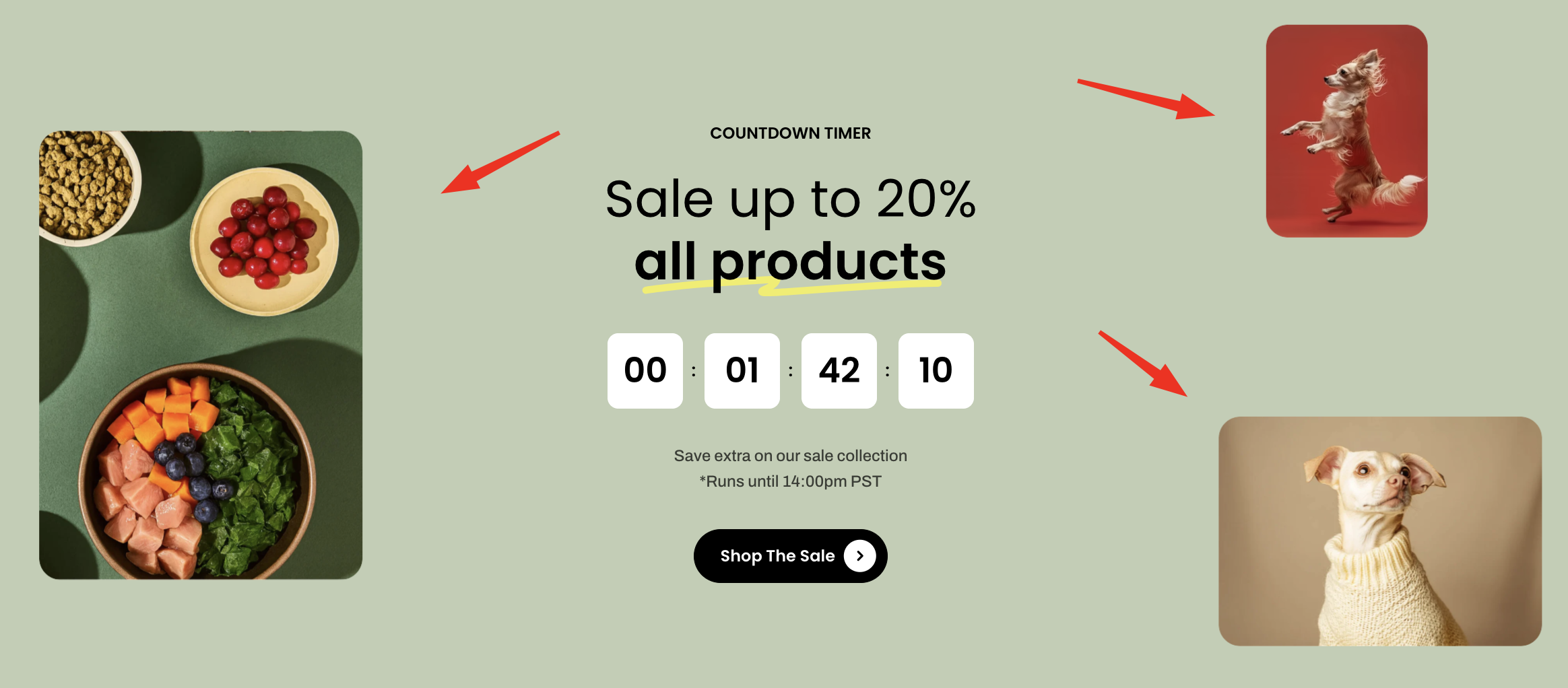
Add a countdown timer to create urgency and encourage customers to take action before time runs out.

## How to add a Countdown timer section to your Shopify store

{% hint style="success" %}

1. In the theme editor **(Customize)**, click **Add section.**
2. Select **Countdown timer** section.
3. Make necessary changes.
4. **Save.**
   {% endhint %}

## How to customize a Countdown timer section <a href="#how-to-customize-a-banner-with-tabs-section" id="how-to-customize-a-banner-with-tabs-section"></a>

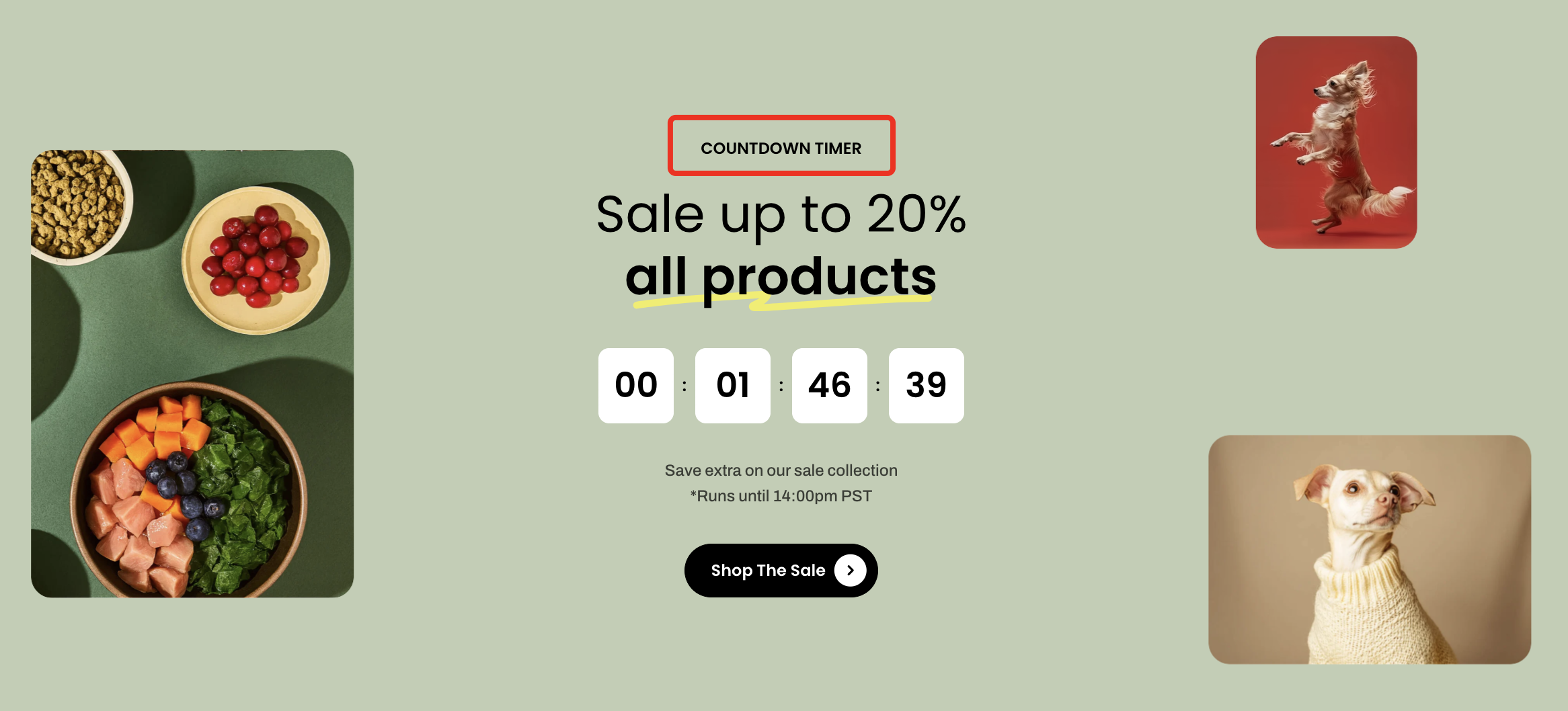
The **Countdown timer** section supports flexible nested blocks to help you build engaging promotional content:
{% tabs %}
{% tab title="Subheading" %}

<figure><img src="/files/tztHjK4u92SRjToVkZwQ" alt=""><figcaption></figcaption></figure>

Add a short label or context above the main heading to introduce the promotion.

{% hint style="success" %}
📝 Learn more: [Basic](/pebble-theme/theme-blocks/basic.md#text)
{% endhint %}
{% endtab %}

{% tab title="Heading" %}

<figure><img src="/files/sziiArxKXNH2w5ydwEsn" alt=""><figcaption></figcaption></figure>

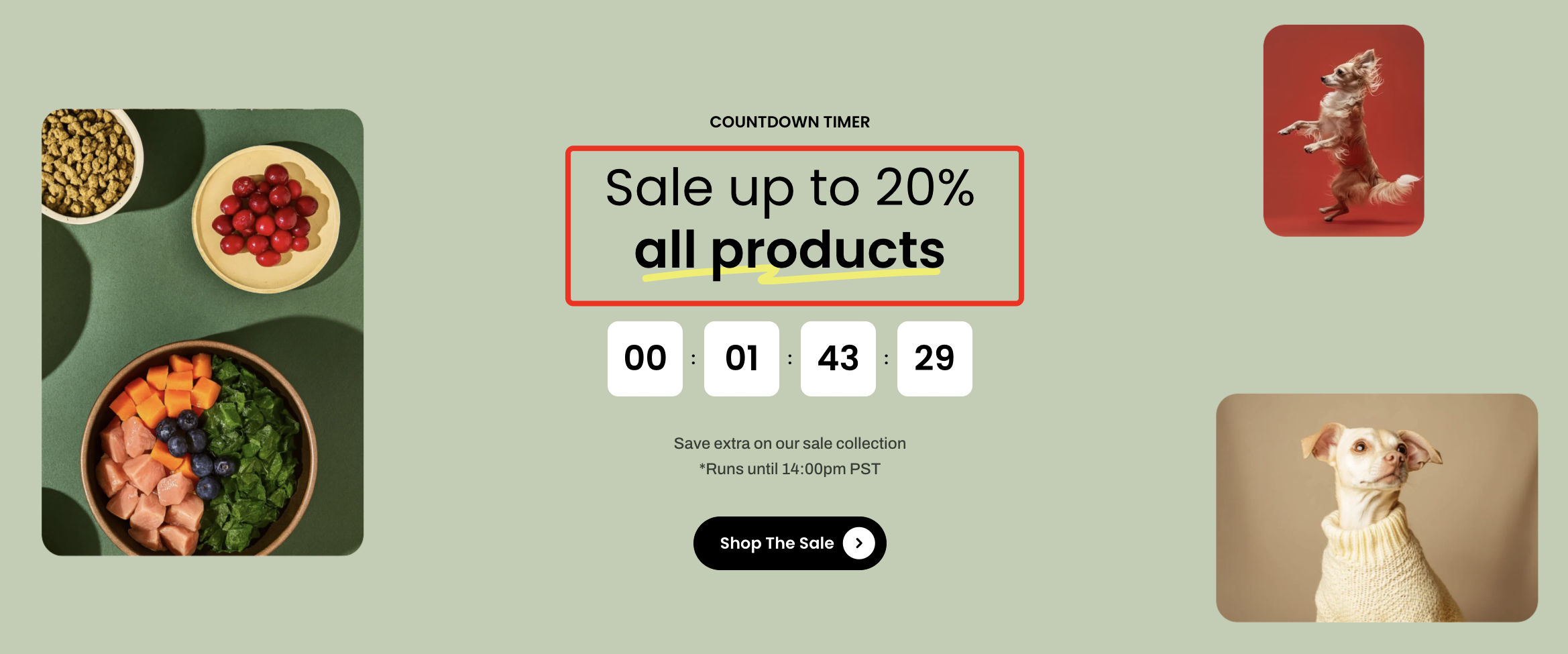
Highlight the main message or offer to capture attention.

{% hint style="success" %}
📝 Learn more: [Basic](/pebble-theme/theme-blocks/basic.md#text)
{% endhint %}
{% endtab %}

{% tab title="Text" %}

<figure><img src="/files/vQX9xMzgYZDnGFmx93zA" alt=""><figcaption></figcaption></figure>

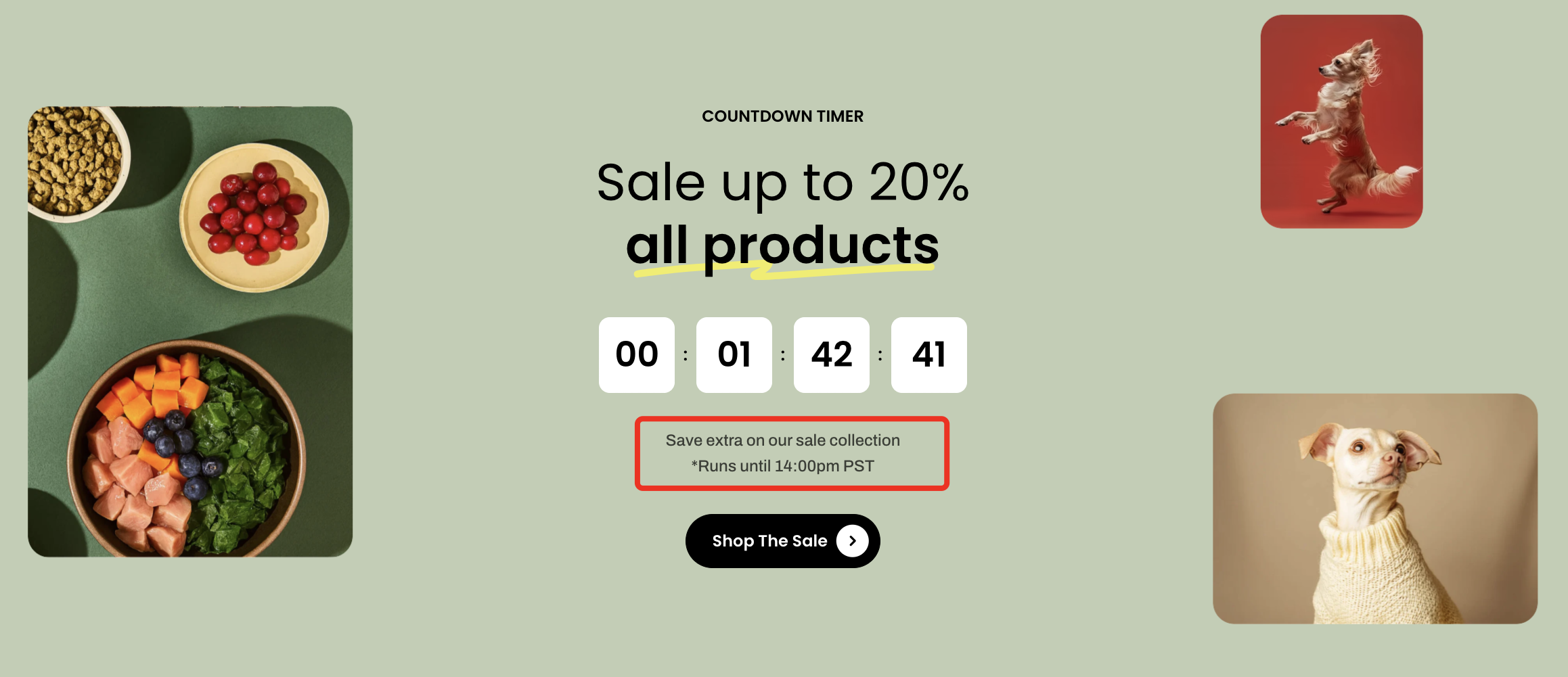
Provide additional details such as terms, timing, or supporting information.

{% hint style="success" %}
📝 Learn more: [Basic](/pebble-theme/theme-blocks/basic.md#text)
{% endhint %}
{% endtab %}

{% tab title="Countdown timer" %}

<figure><img src="/files/b0HW2Y0AyP8KxGBtk5Xz" alt=""><figcaption></figcaption></figure>

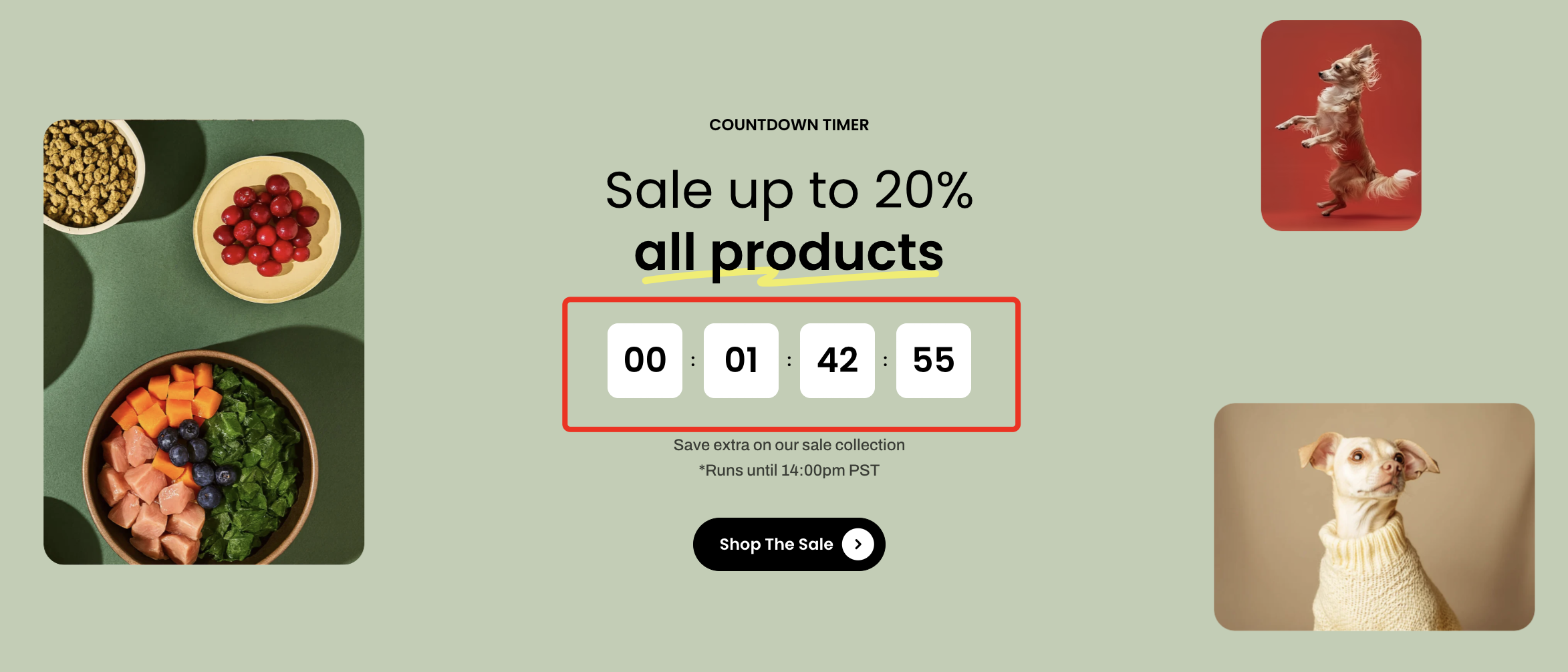
Display a live countdown to create urgency and encourage immediate action.

{% hint style="success" %}
📝 Learn more: [Basic](/pebble-theme/theme-blocks/basic.md#countdown-timer)
{% endhint %}
{% endtab %}

{% tab title="Button" %}

<figure><img src="/files/rg02EpbVlsfOq11g2kz3" alt=""><figcaption></figcaption></figure>

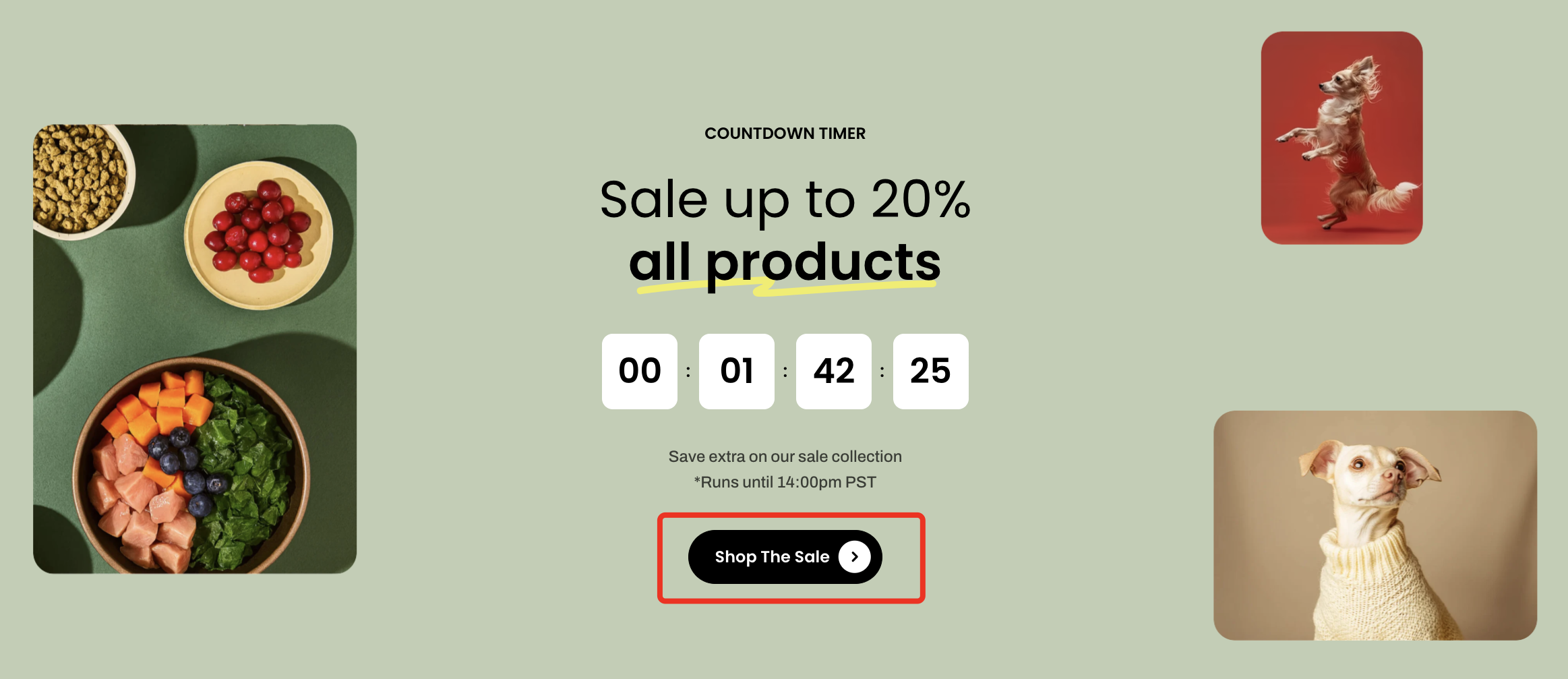
Add a call-to-action to direct customers

{% hint style="success" %}
📝 Learn more: [Basic](/pebble-theme/theme-blocks/basic.md#button)
{% endhint %}
{% endtab %}

{% tab title="Image" %}

<figure><img src="/files/ctSQZMrMm6zx0g9NPt6R" alt=""><figcaption></figcaption></figure>

Show supporting visuals to enhance the promotion and attract attention.

{% hint style="success" %}
📝 Learn more: [Basic](/pebble-theme/theme-blocks/basic.md#image)
{% endhint %}
{% endtab %}
{% endtabs %}

{% hint style="info" %}
✨ Check out the Countdown timer section settings: [Overview](/pebble-theme/theme-sections/overview.md#common-settings-available-in-most-sections)
{% endhint %}


---

# Agent Instructions: Querying This Documentation

If you need additional information that is not directly available in this page, you can query the documentation dynamically by asking a question.

Perform an HTTP GET request on the current page URL with the `ask` query parameter:

```
GET https://docs.foxecom.com/pebble-theme/theme-sections/countdown-timer.md?ask=<question>
```

The question should be specific, self-contained, and written in natural language.
The response will contain a direct answer to the question and relevant excerpts and sources from the documentation.

Use this mechanism when the answer is not explicitly present in the current page, you need clarification or additional context, or you want to retrieve related documentation sections.