# Icon boxes

<figure><img src="/files/YHYd39P2nlJ4M7RJvxaM" alt=""><figcaption></figcaption></figure>

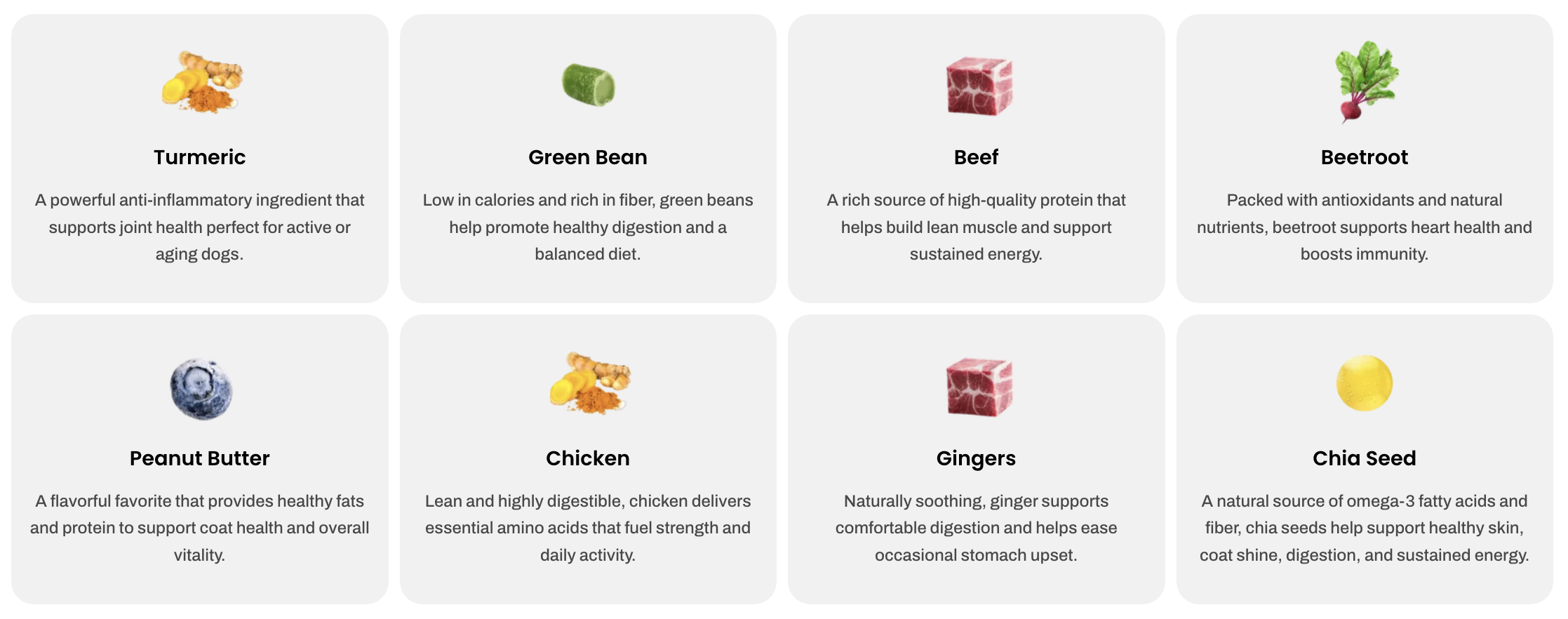
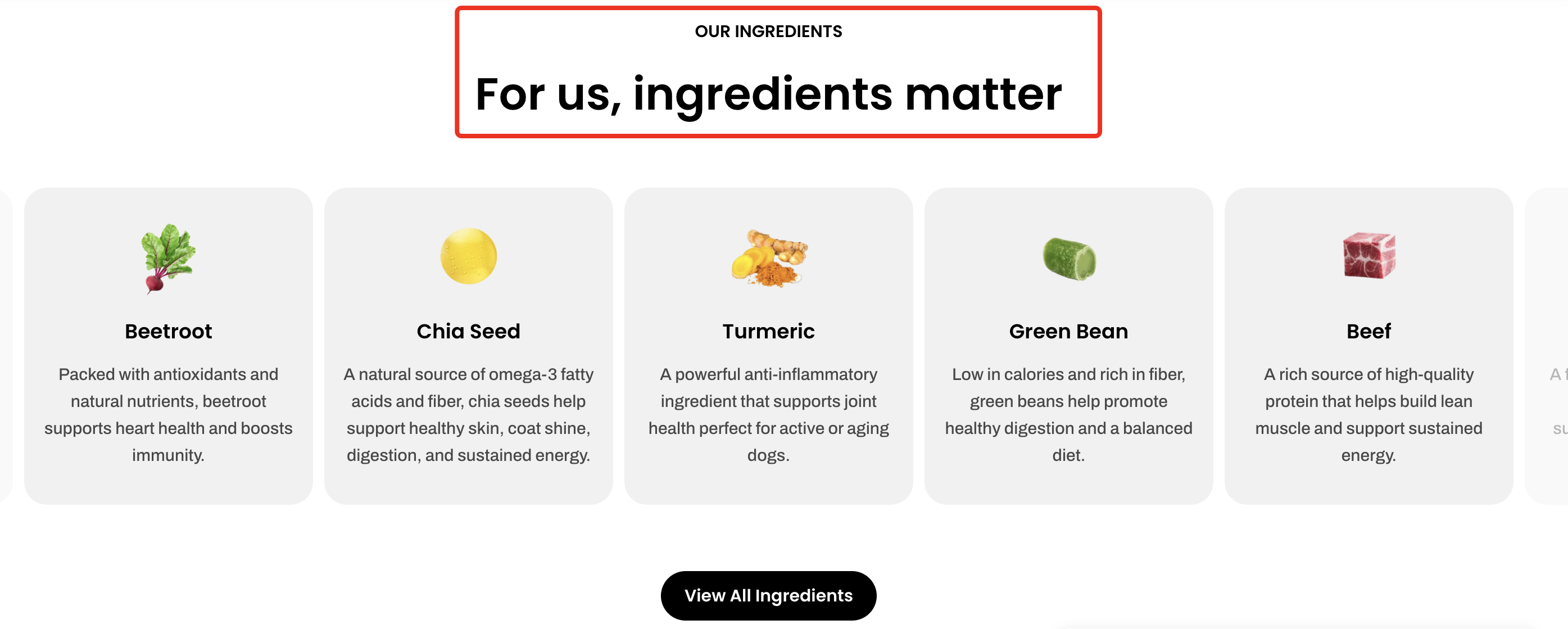
Highlight your key features or ingredients with clean, visually engaging icon boxes that make it easy for customers to explore and understand what sets your products apart.

## How to add an Icon boxes section to your Shopify store

{% hint style="success" %}

1. In the theme editor **(Customize)**, click **Add section.**
2. Select **Icon boxes** section.
3. Make necessary changes.
4. **Save.**
   {% endhint %}

## How to customize an Icon boxes section <a href="#how-to-customize-a-banner-with-tabs-section" id="how-to-customize-a-banner-with-tabs-section"></a>

### Section settings

#### Layout

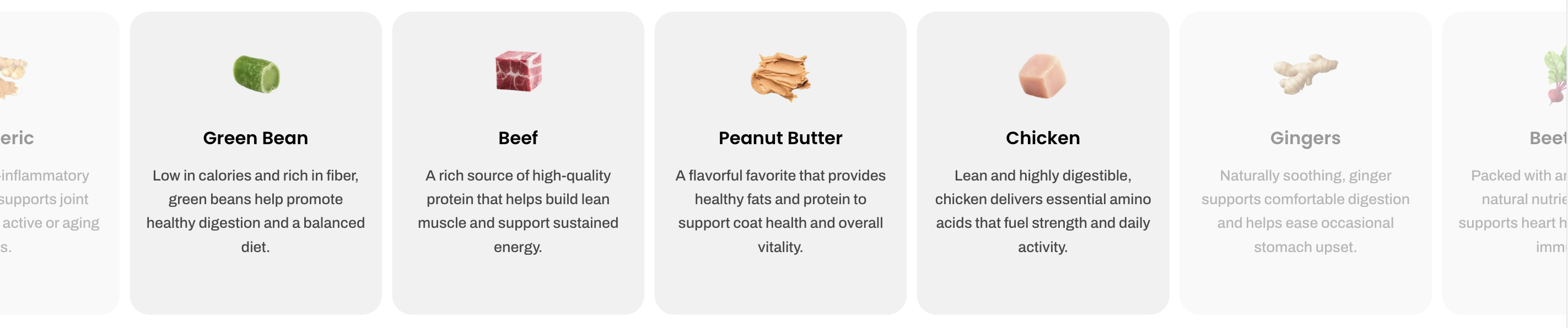
<table><thead><tr><th width="218.28009033203125">Setting</th><th>Description</th></tr></thead><tbody><tr><td><strong>Type</strong></td><td>Choose how icon boxes are displayed.</td></tr><tr><td><strong>Columns</strong></td><td>Set the number of columns displayed in the grid.</td></tr><tr><td><strong>Column gap</strong></td><td>Adjust the spacing between columns.</td></tr><tr><td><strong>Row gap</strong> <em>(Grid only)</em></td><td>Adjust the spacing between row.</td></tr></tbody></table>

{% tabs %}
{% tab title="Grid" %}

<figure><img src="/files/h60p39XIpSwaZwRZKbxs" alt=""><figcaption></figcaption></figure>
{% endtab %}

{% tab title="Carousel" %}

<figure><img src="/files/6o7OGrBcp1gTnn3T82hO" alt=""><figcaption></figcaption></figure>
{% endtab %}
{% endtabs %}

#### Mobile layout

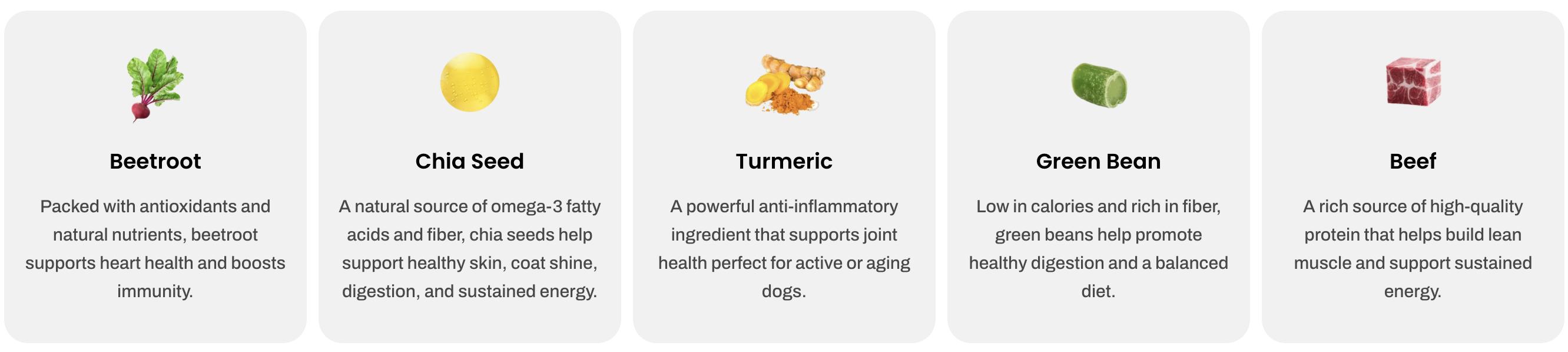
<table><thead><tr><th width="218.28009033203125">Setting</th><th>Description</th></tr></thead><tbody><tr><td><strong>Enable swipe on mobile</strong></td><td>Allow users to swipe through items on mobile devices.</td></tr><tr><td><strong>Custom column width</strong></td><td>Enable custom width for columns instead of equal sizing.</td></tr><tr><td><strong>Mobile columns</strong></td><td>Select how many columns appear on mobile.</td></tr><tr><td><strong>Horizontal gap</strong></td><td>Adjust the spacing between items horizontally on mobile.</td></tr></tbody></table>

{% tabs %}
{% tab title="Enable swipe on mobile" %}

<figure><img src="/files/MiRc0HNe1WpsI71mGp6m" alt=""><figcaption></figcaption></figure>
{% endtab %}

{% tab title="1 column" %}

<figure><img src="/files/YV5IjZjLjuESJwSzYel3" alt=""><figcaption></figcaption></figure>
{% endtab %}

{% tab title="2 columns" %}

<figure><img src="/files/dSnQYiUna45I1ddYO2cw" alt=""><figcaption></figcaption></figure>
{% endtab %}
{% endtabs %}

{% hint style="info" %}
Check out other Icon boxes section settings: [Overview](/pebble-theme/theme-sections/overview.md#common-settings-available-in-most-sections)
{% endhint %}

### Block settings

The Icon boxes section consists of three main blocks: **Header**, **Icon box**, and **Quick view**.
{% tabs %}
{% tab title="Header" %}

<figure><img src="/files/yfQZe6xURmJajYmGNxug" alt=""><figcaption></figcaption></figure>

Use the **Header** block to create and customize the section’s heading and introductory content.

<table><thead><tr><th width="214.1806640625">Setting</th><th>Description</th></tr></thead><tbody><tr><td><strong>Alignment</strong></td><td>Set the header alignment: left, center, or right.</td></tr><tr><td><strong>Devices</strong></td><td>Switch between desktop and mobile padding settings.</td></tr><tr><td><strong>Bottom</strong></td><td>Adjust the spacing below the header.</td></tr></tbody></table>

{% hint style="info" %}

#### 📦 Nested dynamic blocks

* **Heading** – Add a main title
* **Subheading** – Provide supporting text above or below the heading
* **Text** – Include additional descriptions or details
* **Image** – Display an image or icon
* **Button** – Add a call-to-action
  {% endhint %}

{% hint style="success" %}
📝 Learn more: [Basic](/pebble-theme/theme-blocks/basic.md)
{% endhint %}
{% endtab %}

{% tab title="Icon box" %}

<figure><img src="/files/32oBRgv7ghd4InYwYBPp" alt=""><figcaption></figcaption></figure>

{% hint style="success" %}
📝 Learn more: [Basic](/pebble-theme/theme-blocks/basic.md#icon-box)
{% endhint %}
{% endtab %}

{% tab title="Quick view" %}

<figure><img src="/files/6G24f0bGlRO5150jAEXU" alt=""><figcaption></figcaption></figure>

Displays a quick view modal with a list of icon box details, allowing users to easily browse information without leaving the page.

<table><thead><tr><th width="300.64312744140625">Setting</th><th>Description</th></tr></thead><tbody><tr><td><strong>Heading</strong></td><td>Set the title displayed at the top of the quick view pop up.</td></tr><tr><td><strong>Button</strong></td><td>Customize the text shown on the action button.</td></tr><tr><td><strong>Button style</strong></td><td>Choose the visual style of the button.</td></tr><tr><td><strong>Button size</strong></td><td>Adjust the size of the button.</td></tr><tr><td><strong>Button icon</strong></td><td>Add or remove an icon displayed alongside the button label.</td></tr><tr><td><strong>Enable button full width on mobile</strong></td><td>Make the button stretch to full width on mobile devices for better usability.</td></tr></tbody></table>
{% endtab %}
{% endtabs %}


---

# Agent Instructions: Querying This Documentation

If you need additional information that is not directly available in this page, you can query the documentation dynamically by asking a question.

Perform an HTTP GET request on the current page URL with the `ask` query parameter:

```
GET https://docs.foxecom.com/pebble-theme/theme-sections/icon-boxes.md?ask=<question>
```

The question should be specific, self-contained, and written in natural language.
The response will contain a direct answer to the question and relevant excerpts and sources from the documentation.

Use this mechanism when the answer is not explicitly present in the current page, you need clarification or additional context, or you want to retrieve related documentation sections.