# Blog posts
_SaW7Mq49.jpg)
_pXtnCBlg.jpg)
Showcase your latest blog posts to keep customers informed, inspired, and engaged with your brand.
## How to add a Blog posts section to your Shopify store
1. In the theme editor **(Customize)**, click **Add section.**
2. Select **Blog posts** section.
3. Make necessary changes.
4. **Save.**
## How to customize a Blog posts section
### Section settings
| Setting | Description |
| --- | --- |
| **Blog** | Select the blog source to display posts from. |
| **Container** | Choose the layout width: Fixed (contained) or Full (full-width). |
| **Layout** | Switch between Grid and Featured grid layout styles. |
| **Post count** *(Grid only)* | Set the number of blog posts to display. |
| **Columns** *(Grid only)* | Define how many columns are shown in the grid. |
| **Horizontal gap** | Adjust the spacing between items horizontally. |
| **Vertical gap** | Adjust the spacing between items vertically. |
| **Enable swipe on mobile** *(Grid only)* | Allow swipe interaction for posts on mobile devices. |
| **Custom column width** | Customize the width of each column to control how much space each column occupies in the layout. |
| **Mobile horizontal gap** *(Grid only)* | Adjust horizontal spacing between items on mobile. |
| **Mobile vertical gap** | Adjust vertical spacing between items on mobile. |
Check out other Blog posts section settings: [Common settings available in most sections](https://docs.foxecom.com/pebble-theme/theme-sections/overview#common-settings-available-in-most-sections)
### Block settings
This section consists of three main blocks: **Heading**, **Button**, and **Article card.**
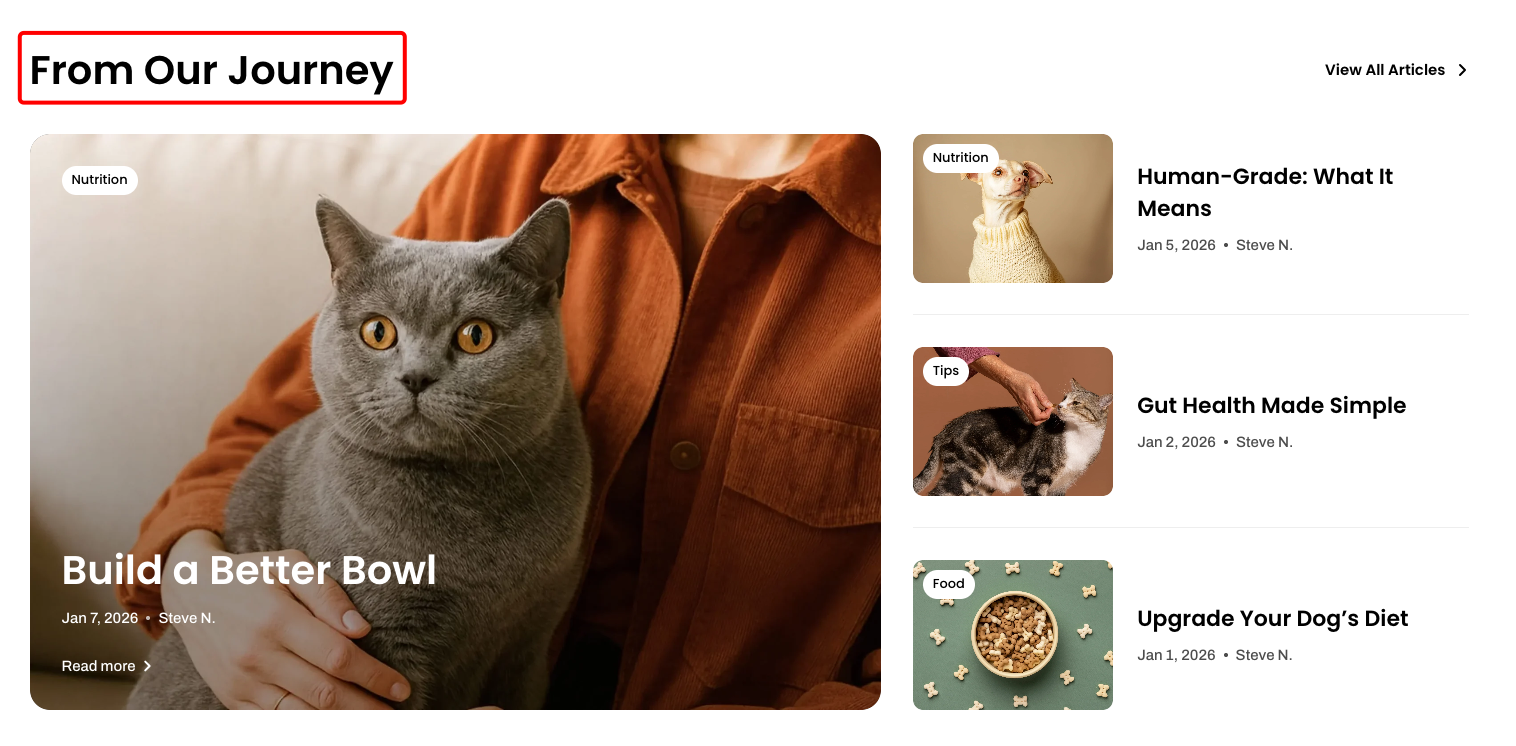
📝 Learn more: [Basic](https://docs.foxecom.com/pebble-theme/theme-blocks/basic#text)
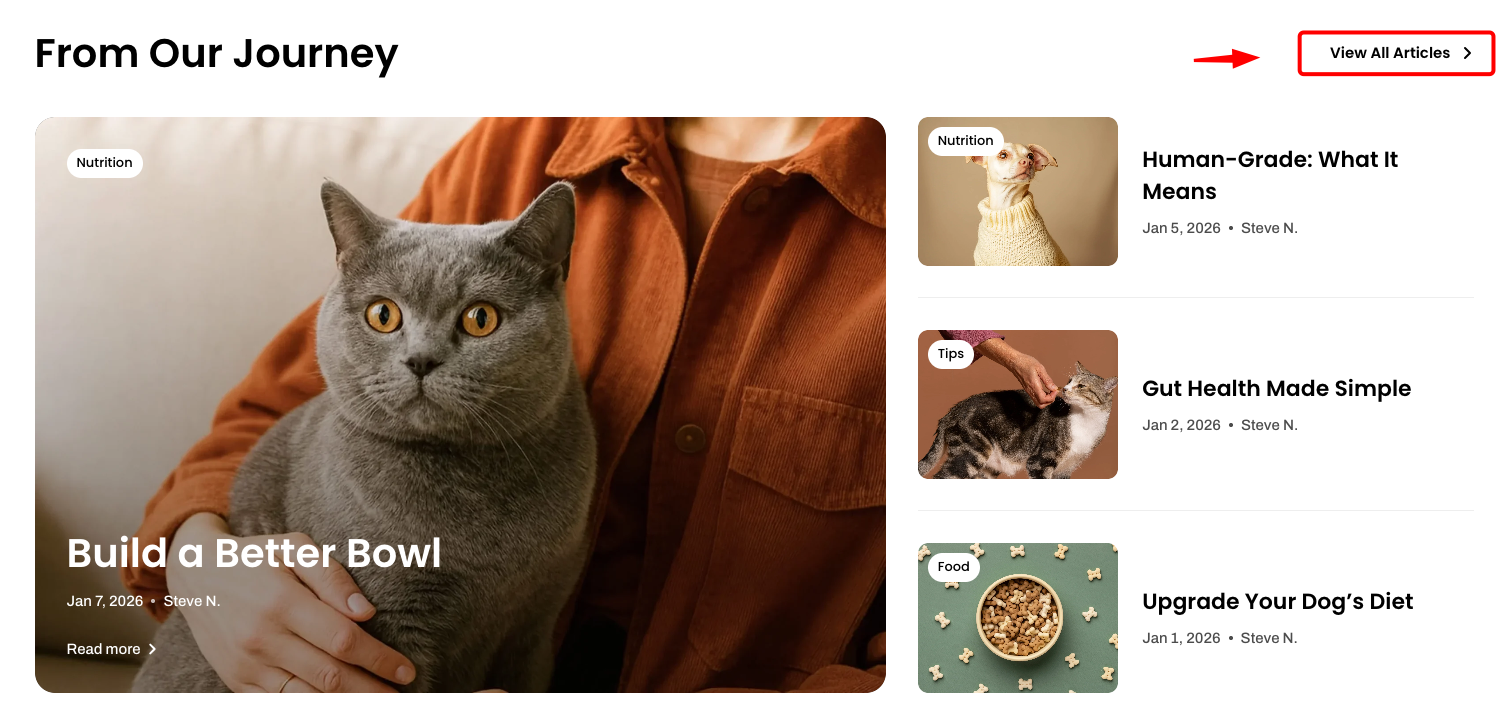
📝 Learn more: [Basic](https://docs.foxecom.com/pebble-theme/theme-blocks/basic#button)
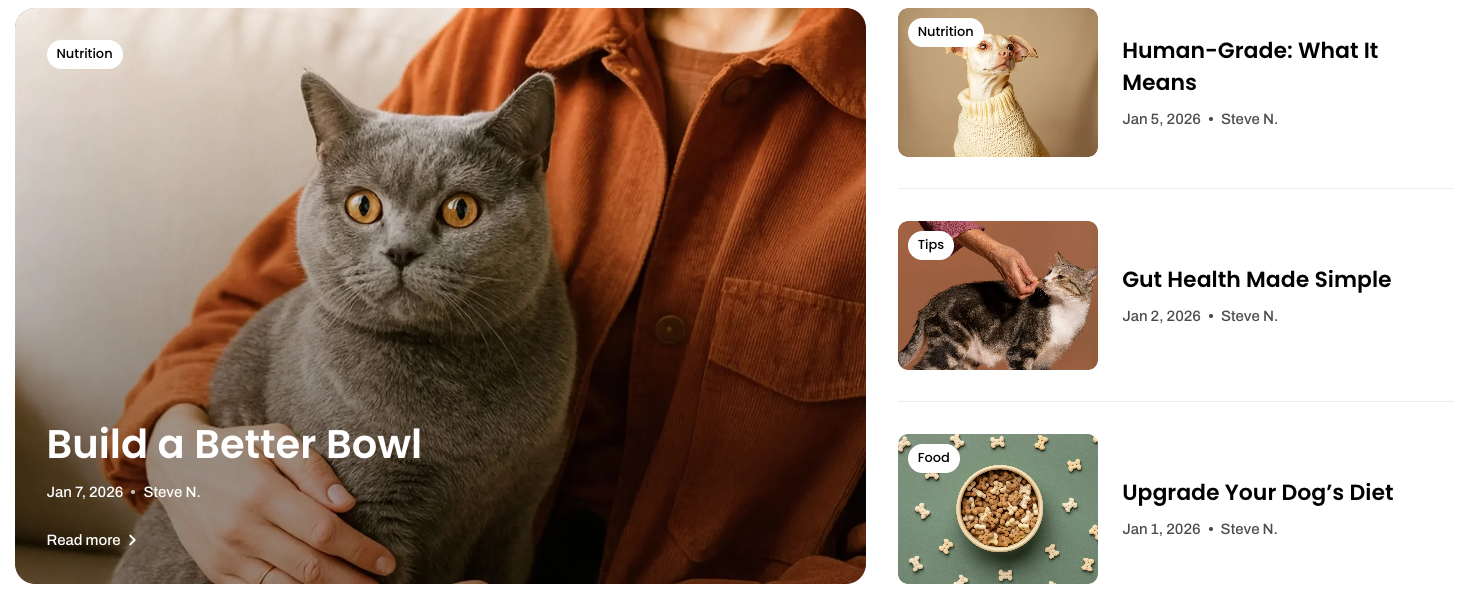
The Article card block will only be displayed when a blog is selected for the section and that blog has visible (published) posts.
[*See how to add blog posts*](https://help.shopify.com/en/manual/online-store/blogs/writing-blogs/working-with-blog-posts)
If you’re looking to create a more visually appealing blog post layout, you might want to try our [**Foxify AI Landing Page Builder app**](https://apps.shopify.com/foxify-builder?utm_source=foxecom\&utm_medium=help_center_pebble_theme_sections_blog_posts\&utm_campaign=anchor_text\&utm_term=foxify_ai_landing_page_builder_app), which helps you create beautiful templates easily with simple **drag-and-drop** ✨
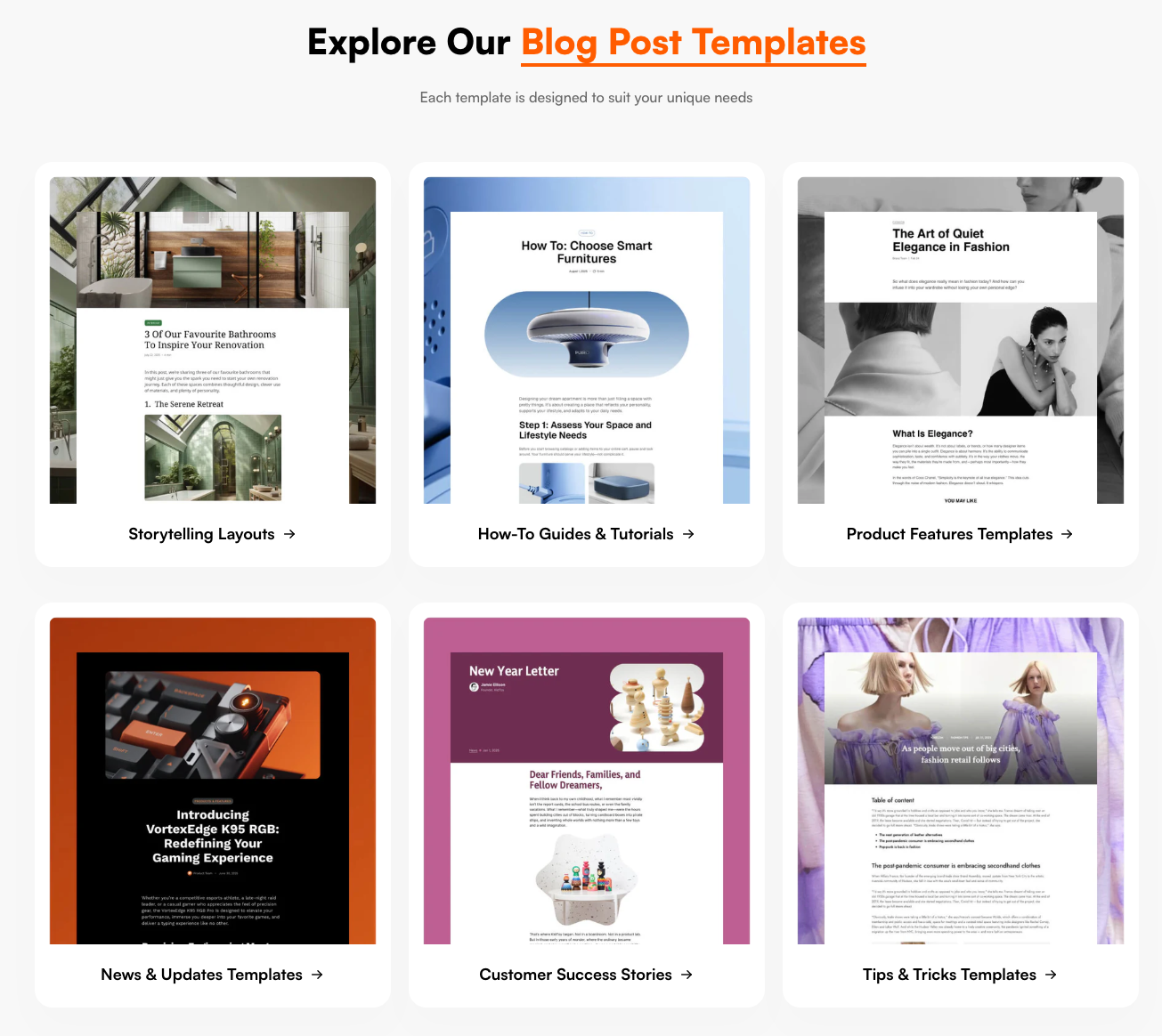\
You can also learn more about [blog posts in Foxify](https://foxecom.com/pages/blog-post-builder) here 😊
📝 Learn more: [Basic](https://docs.foxecom.com/pebble-theme/theme-blocks/basic#article-card)