# Collection links: Image

<figure><img src="/files/Y95TnkUBER87MiKuwJmJ" alt=""><figcaption></figcaption></figure>

Showcase your collections with eye-catching images and seamless links, making it easy for customers to discover more.

## How to add a Collection links: Image section to your Shopify store

{% hint style="success" %}

1. In the theme editor **(Customize)**, click **Add section.**
2. Select **Collection links: Image** section.
3. Make necessary changes.
4. **Save.**
   {% endhint %}

## How to customize a Collection links: Image section <a href="#how-to-customize-a-banner-with-tabs-section" id="how-to-customize-a-banner-with-tabs-section"></a>

### Section settings

<details>

<summary>🏷️ Collection title</summary>

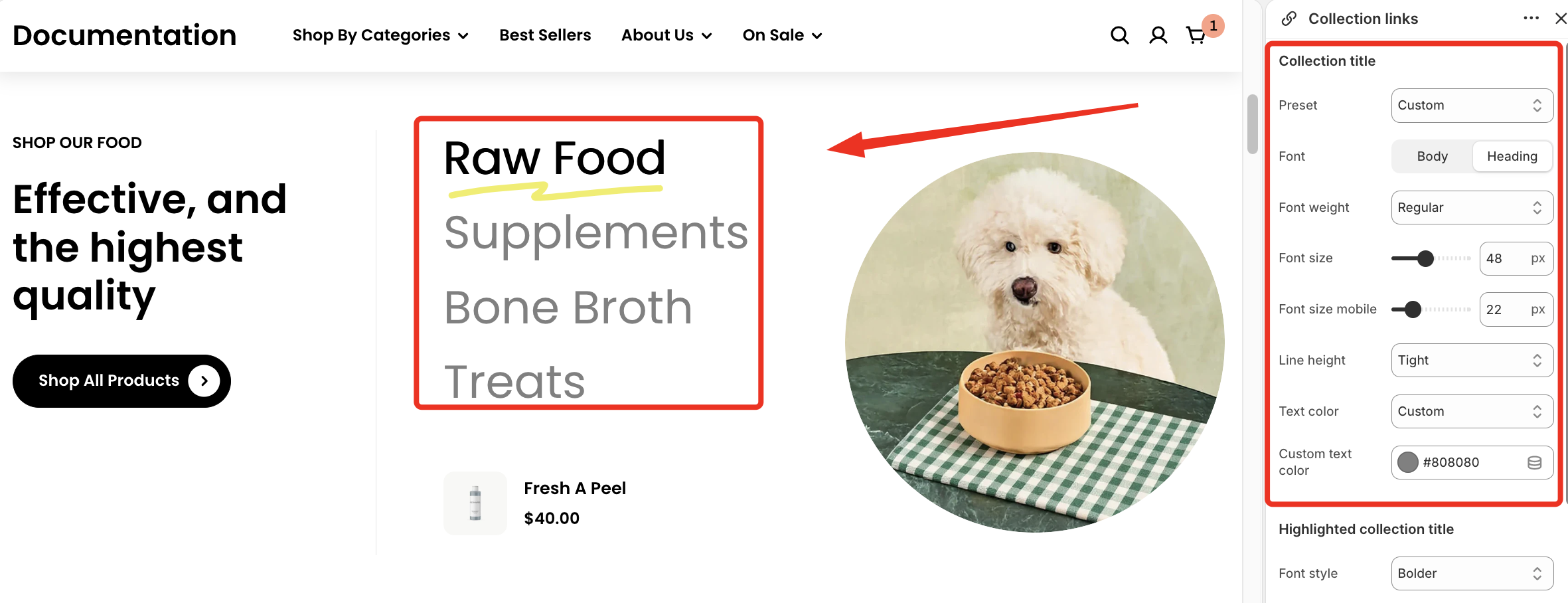
<figure><img src="/files/lbLHQqAxWpl3iTTmBrJp" alt=""><figcaption></figcaption></figure>

<table><thead><tr><th width="171.2745361328125">Setting</th><th>Description</th></tr></thead><tbody><tr><td><strong>Preset</strong></td><td>Choose a predefined style or switch to custom settings.</td></tr><tr><td><strong>Font</strong></td><td>Select the font style for the content (Body or Heading).</td></tr><tr><td><strong>Font weight</strong></td><td>Adjust the thickness of the text.</td></tr><tr><td><strong>Font size</strong></td><td>Set the font size.</td></tr><tr><td><strong>Font size mobile</strong></td><td>Set the font size for mobile devices.</td></tr><tr><td><strong>Line height</strong></td><td>Control the spacing between lines of text.</td></tr><tr><td><strong>Text color</strong></td><td>Choose a predefined or custom text color.</td></tr><tr><td><strong>Custom text color</strong></td><td>Set a custom color when “Custom” is selected.</td></tr></tbody></table>

</details>

<details>

<summary>🌟 Highlighted collection title</summary>

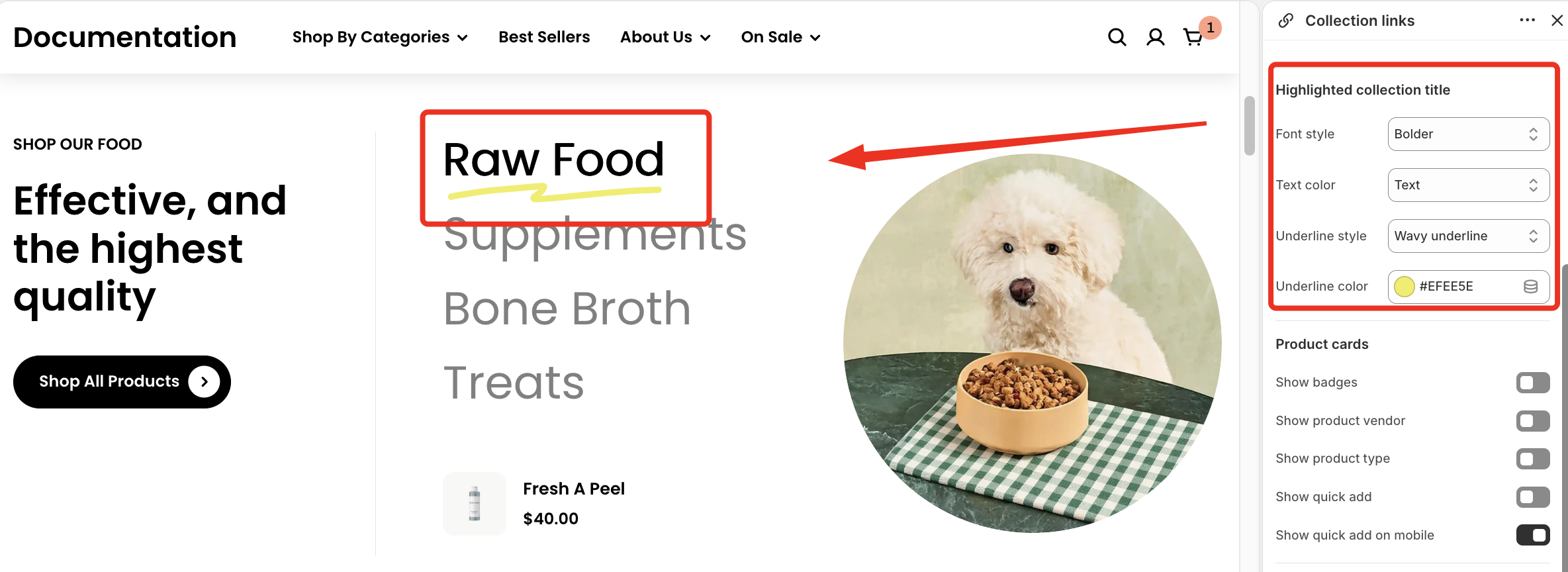
<figure><img src="/files/7zmV246qgsbG1g5BhVVX" alt=""><figcaption></figcaption></figure>

<table><thead><tr><th width="202.86724853515625">Setting</th><th>Description</th></tr></thead><tbody><tr><td><strong>Font style</strong></td><td>Adjust the emphasis of the highlighted title.</td></tr><tr><td><strong>Text color</strong></td><td>Set the color of the highlighted title.</td></tr><tr><td><strong>Underline style</strong></td><td>Choose the underline style.</td></tr><tr><td><strong>Underline color</strong></td><td>Set the color of the underline.</td></tr></tbody></table>

</details>

<details>

<summary>🛍️ Product cards</summary>

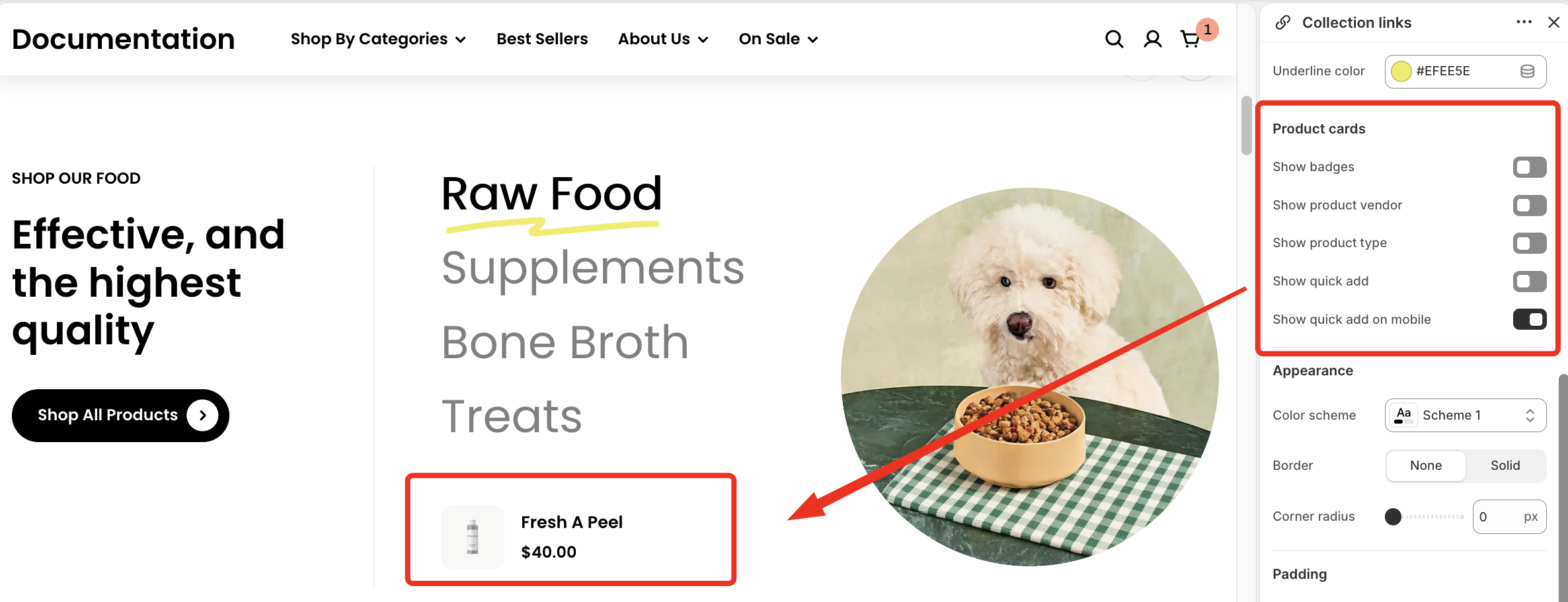
<figure><img src="/files/UdVMQ0GIzkfxHidN1zp9" alt=""><figcaption></figcaption></figure>

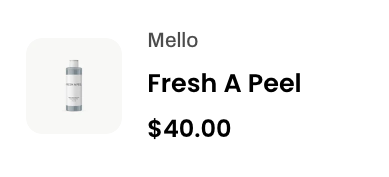
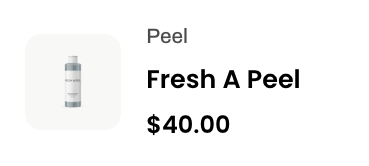
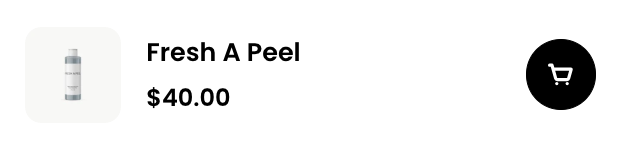
<table><thead><tr><th width="228.982177734375">Setting</th><th width="249.12225341796875">Description</th><th>Example</th></tr></thead><tbody><tr><td><strong>Show badges</strong></td><td>Display product badges.</td><td><img src="/files/jQXs9Bp4aJQXtEmBuqij" alt="" data-size="original"></td></tr><tr><td><strong>Show product vendor</strong></td><td>Show the vendor/brand name.</td><td><img src="/files/5yh6zCun0Ins0WaRDSPN" alt="" data-size="original"></td></tr><tr><td><strong>Show product type</strong></td><td>Display the product category/type.</td><td><img src="/files/vfRLmkteeblHulO0MzbH" alt="" data-size="original"></td></tr><tr><td><strong>Show quick add</strong></td><td>Enable quick add button on desktop.</td><td><img src="/files/WAq4IepexVbnXqzXCmt2" alt="" data-size="original"></td></tr><tr><td><strong>Show quick add on mobile</strong></td><td>Enable quick add button on mobile devices.</td><td><img src="/files/tBiu6xsdRSggX8qU9a8A" alt="" data-size="original"></td></tr></tbody></table>

</details>

{% hint style="info" %}
✨ Check out other Collection links: Image section settings: [Overview](/pebble-theme/theme-sections/overview.md#common-settings-available-in-most-sections)
{% endhint %}

### Block settings

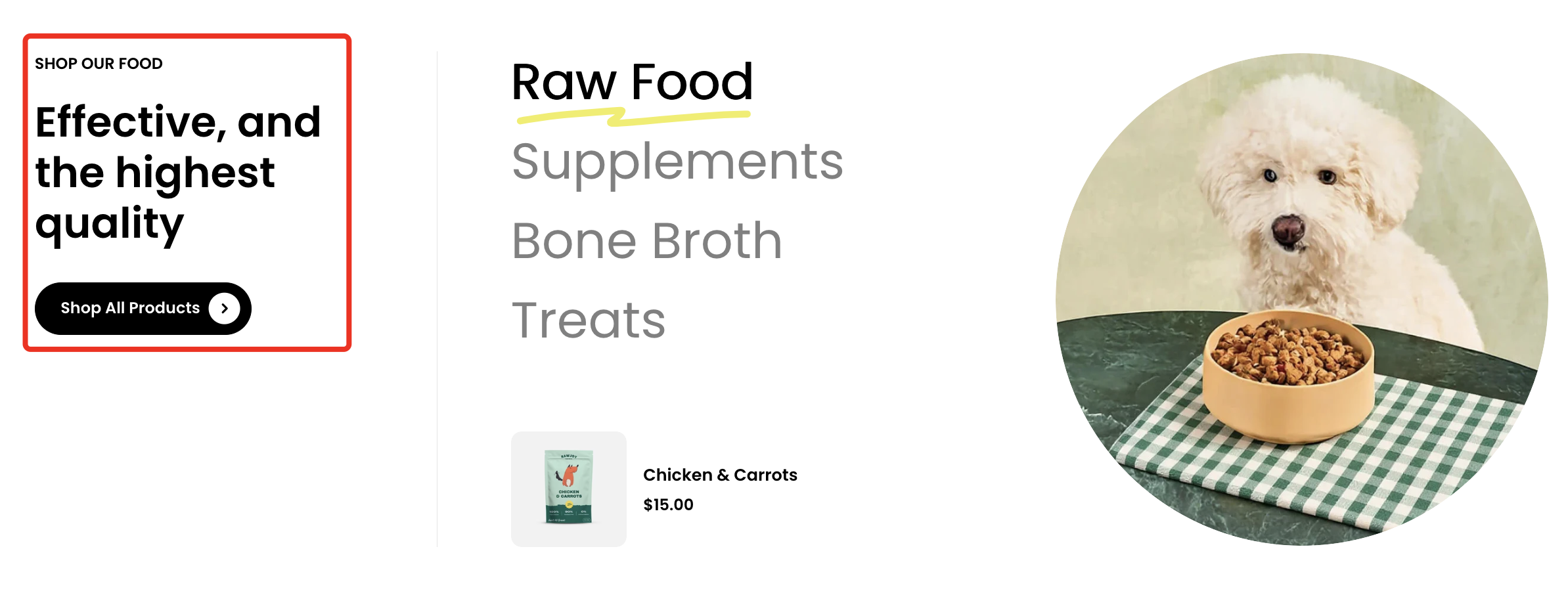
The Collection links: Image section is made up of two main blocks: **Header** and **Collection**.
{% tabs %}
{% tab title="Header" %}

<figure><img src="/files/VjRt4xjVU1agcqQBzdKQ" alt=""><figcaption></figcaption></figure>

Use the **Header** block to create and customize the section’s heading and introductory content.

<table><thead><tr><th width="214.1806640625">Setting</th><th>Description</th></tr></thead><tbody><tr><td><strong>Alignment</strong></td><td>Set the header alignment: left, center, or right.</td></tr><tr><td><strong>Devices</strong></td><td>Switch between desktop and mobile padding settings.</td></tr><tr><td><strong>Bottom</strong></td><td>Adjust the spacing below the header.</td></tr></tbody></table>

{% hint style="info" %}

#### 📦 Nested dynamic blocks

* **Heading** – Add a main title
* **Subheading** – Provide supporting text above or below the heading
* **Text** – Include additional descriptions or details
* **Image** – Display an image or icon
* **Button** – Add a call-to-action
  {% endhint %}

{% hint style="success" %}
📝 Learn more: [Basic](/pebble-theme/theme-blocks/basic.md)
{% endhint %}
{% endtab %}

{% tab title="Collection" %}

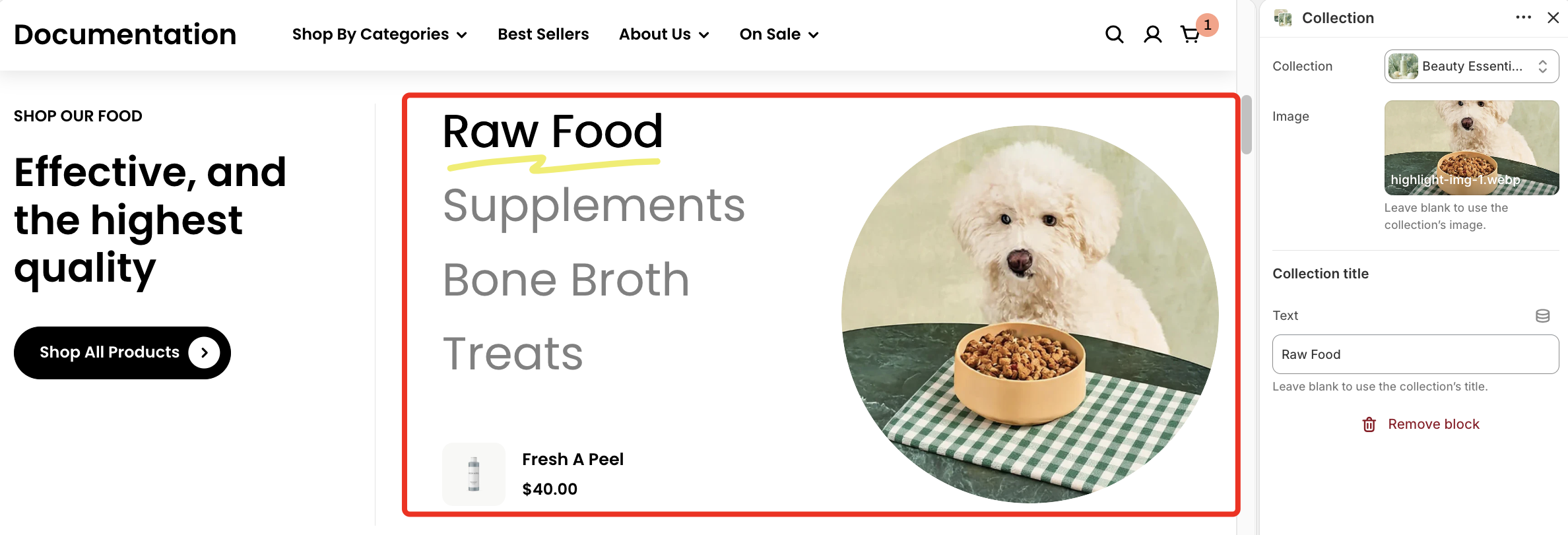
<figure><img src="/files/4u4ClqwAtJlBk1n93EY2" alt=""><figcaption></figcaption></figure>

Display a selected collection with a custom image and title.

<table><thead><tr><th width="189.40313720703125">Setting</th><th>Description</th></tr></thead><tbody><tr><td><strong>Collection</strong></td><td>Select the collection to display.</td></tr><tr><td><strong>Image</strong></td><td>Upload a custom image or leave blank to use the collection image.</td></tr><tr><td><strong>Collection title</strong></td><td>Enter a custom title or leave blank to use the collection name.</td></tr></tbody></table>
{% endtab %}
{% endtabs %}


---

# Agent Instructions: Querying This Documentation

If you need additional information that is not directly available in this page, you can query the documentation dynamically by asking a question.

Perform an HTTP GET request on the current page URL with the `ask` query parameter:

```
GET https://docs.foxecom.com/pebble-theme/theme-sections/collection-links-image.md?ask=<question>
```

The question should be specific, self-contained, and written in natural language.
The response will contain a direct answer to the question and relevant excerpts and sources from the documentation.

Use this mechanism when the answer is not explicitly present in the current page, you need clarification or additional context, or you want to retrieve related documentation sections.