# Products bundle
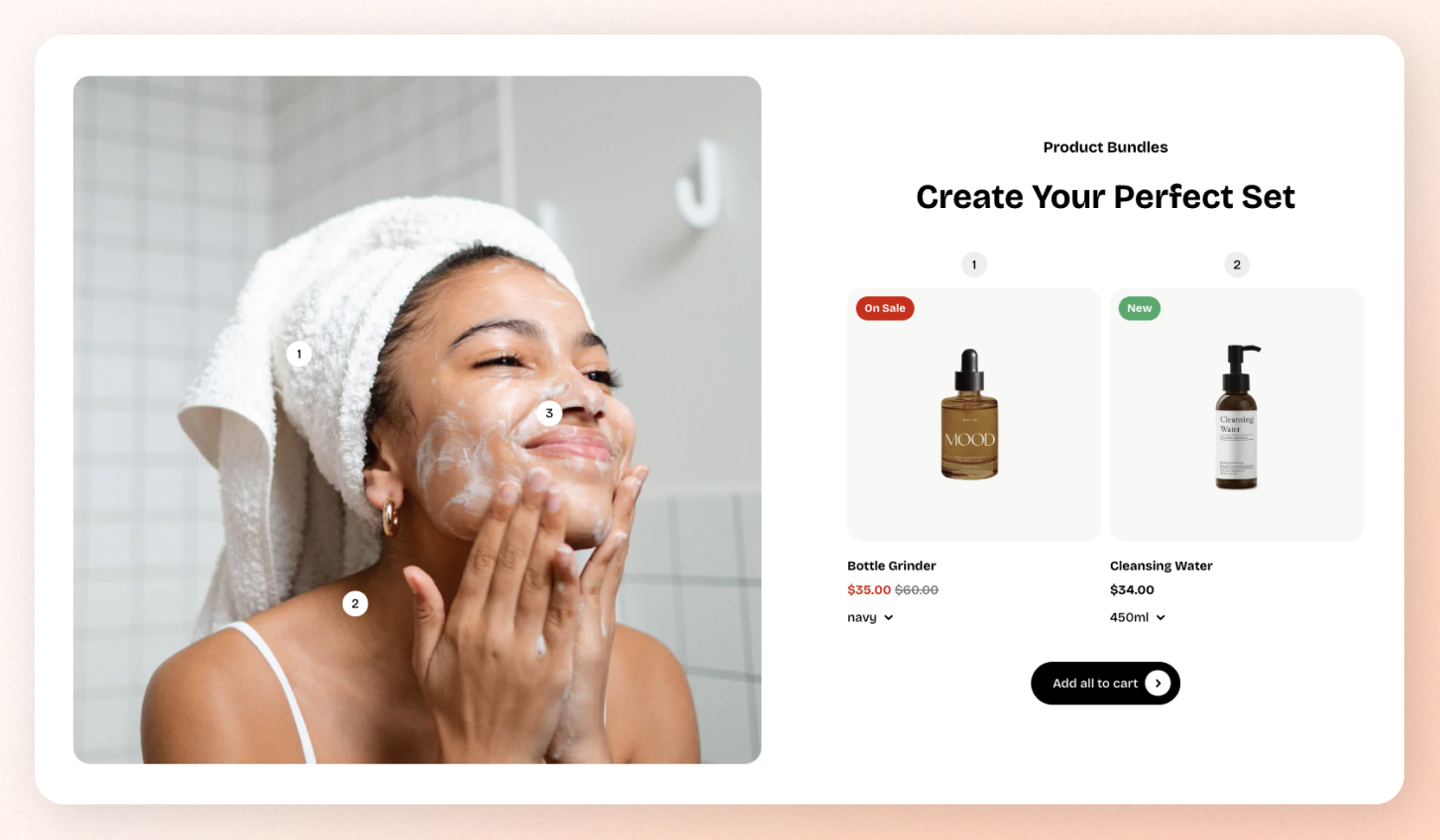
Group multiple complementary products into a single offer, giving shoppers an easy and visually appealing way to add several items to the cart at once.
## How to add a Products bundle section to your Shopify store
1. In the theme editor **(Customize)**, click **Add section.**
2. Select **Products bundle** section.
3. Make necessary changes.
4. **Save.**
## How to customize a Products bundle section
### Section settings
| Setting | Description |
| --------------------------------- | ----------------------------------------------------------------------------------------------------------------------------------------------------------------------------- |
| **Desktop image position** | Choose between **left** or **right** for the image layout. |
| **Use color scheme in container** | Applies the selected color scheme to the section’s inner container only. |
| **Color scheme** | Choose a color scheme to apply to the section's background and text.
Learn more: [Colors](https://docs.foxecom.com/pebble-theme/theme-settings/colors)
|
The section show a **Add all to cart** button at the bottom of the bundled products list.
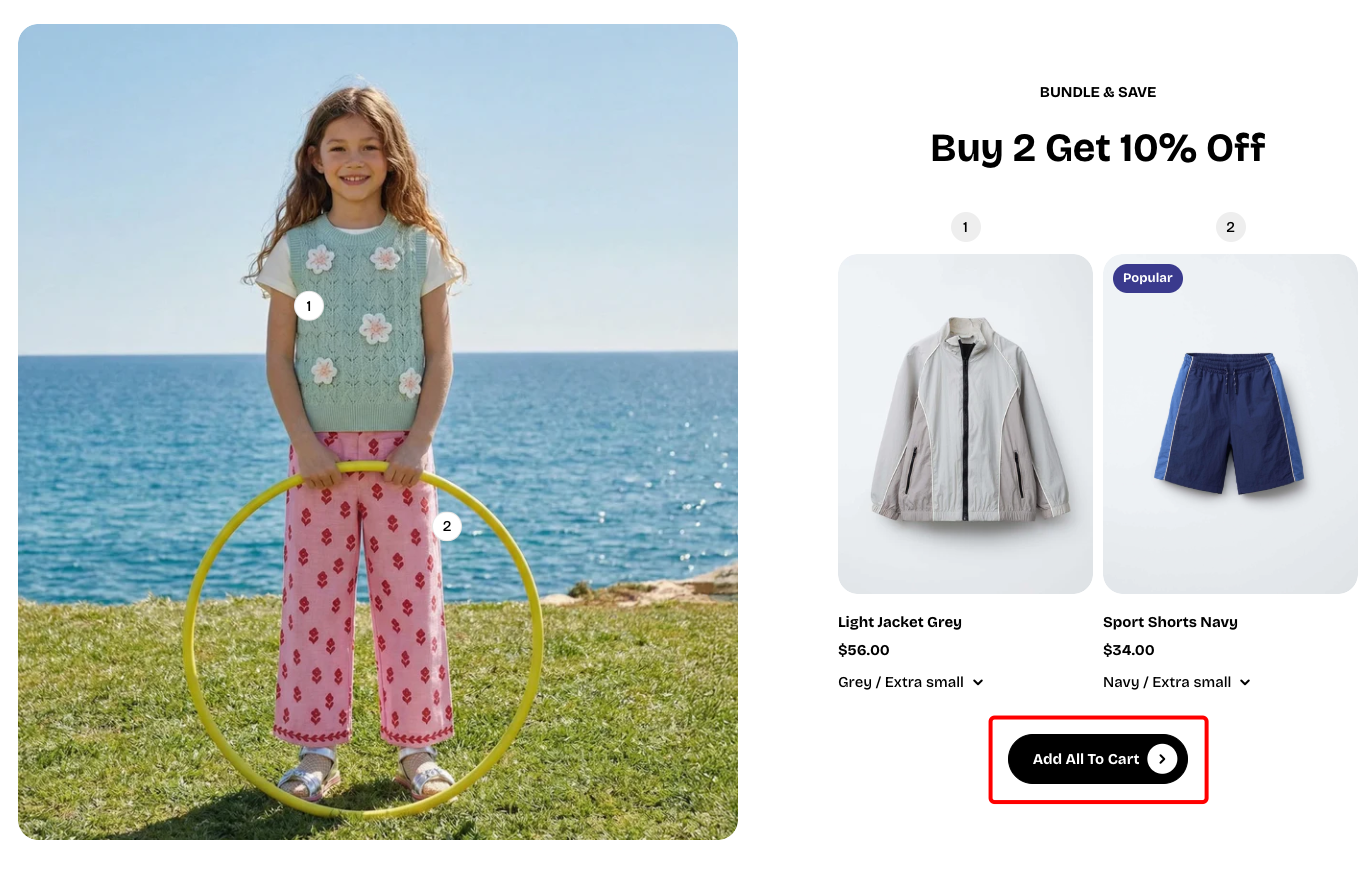
✅ Customers can pick the variant (e.g., size, color) before adding everything to their cart.
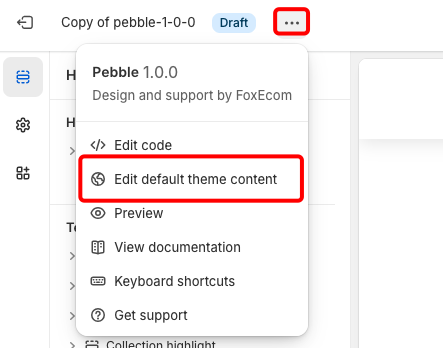
* To change this button label, go to **Actions > Edit default theme content**.

### The **Products** bundle **section** includes
* **2 static blocks:**
#### 📦 Nested dynamic blocks
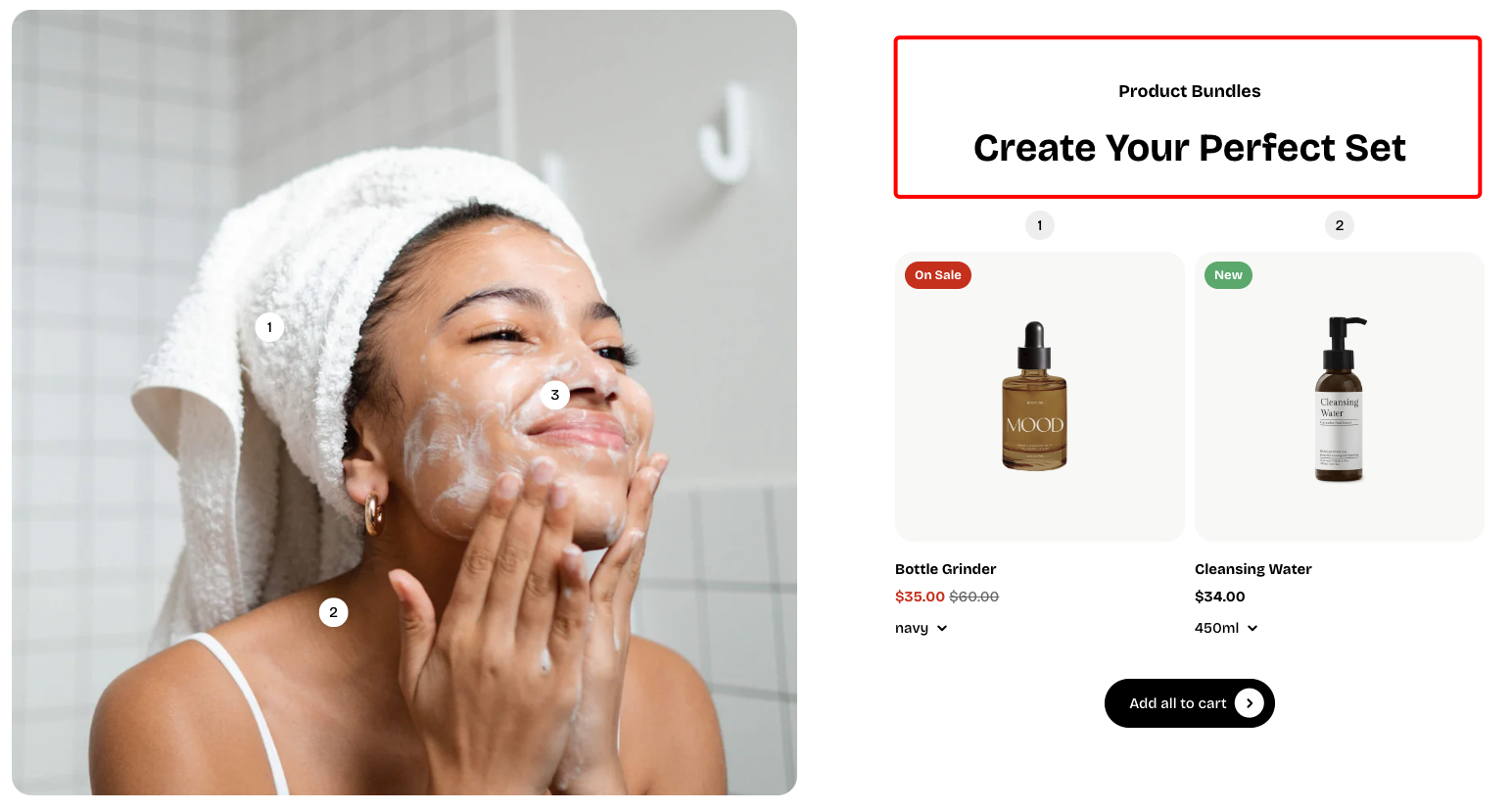
The **Header** block supports 3 nested block types:
| Dynamic blocks | Purpose |
| --- | --- |
| **Heading** | Primary title text used to introduce the section or key content. |
| **Subheading** | Secondary text that provides additional context or supports the main heading. |
| **Text** | Regular body text used for descriptions, details, or any supplementary information within the block. |
Learn more: [Basic](https://docs.foxecom.com/pebble-theme/theme-blocks/basic#text)
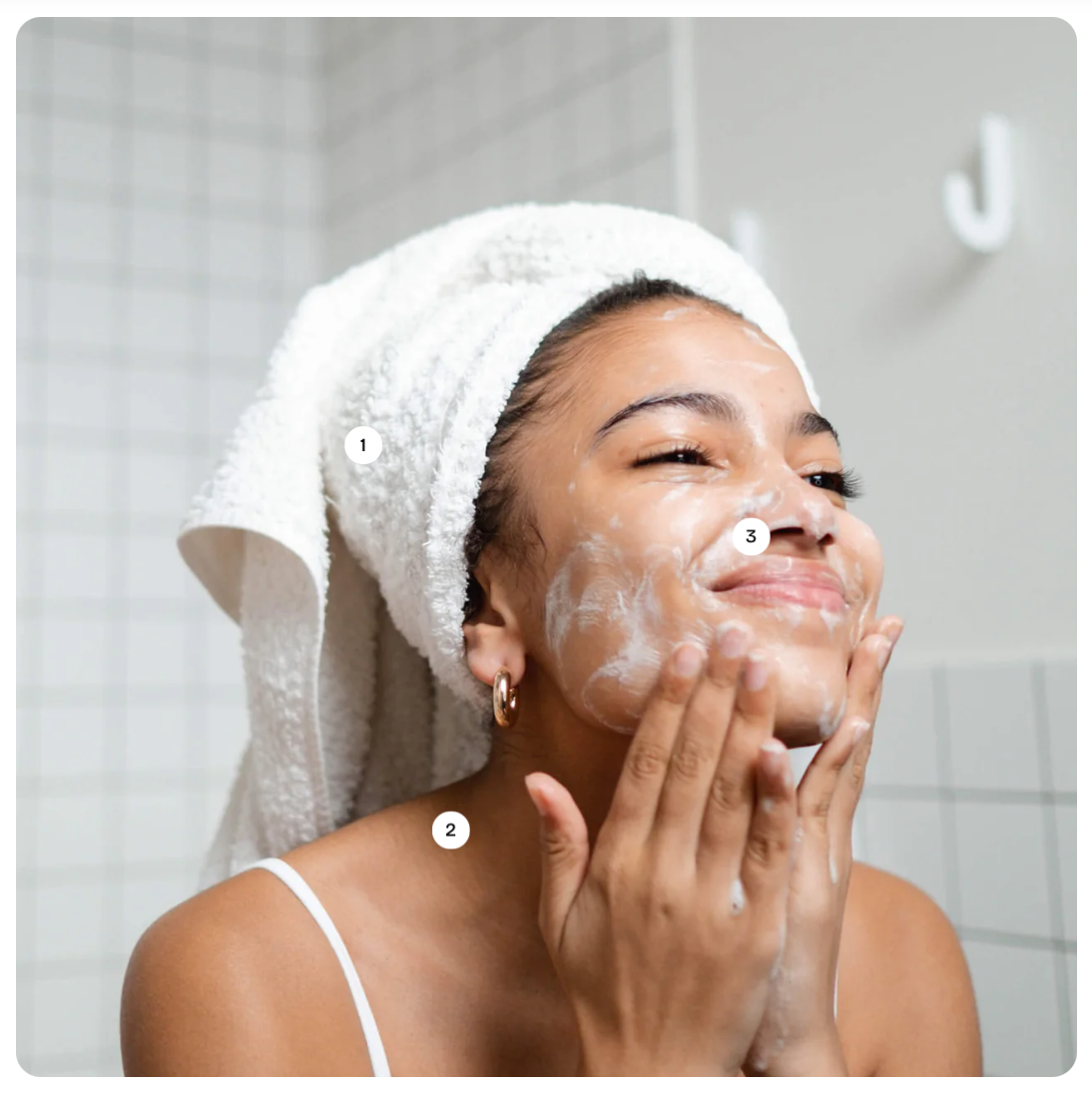
| Setting | Description |
| ----------------------- | ----------------------------------------------------- |
| **Image** | Upload the banner image. |
| **Image mobile** | Upload a separate image optimized for mobile devices. |
| **Aspect ratio** | Sets the image’s ratio |
| **Aspect ratio mobile** | Sets the image’s ratio specifically for mobile view. |
| **Corner radius** | Controls how rounded the banner’s corners are. |
* **1 private block:**
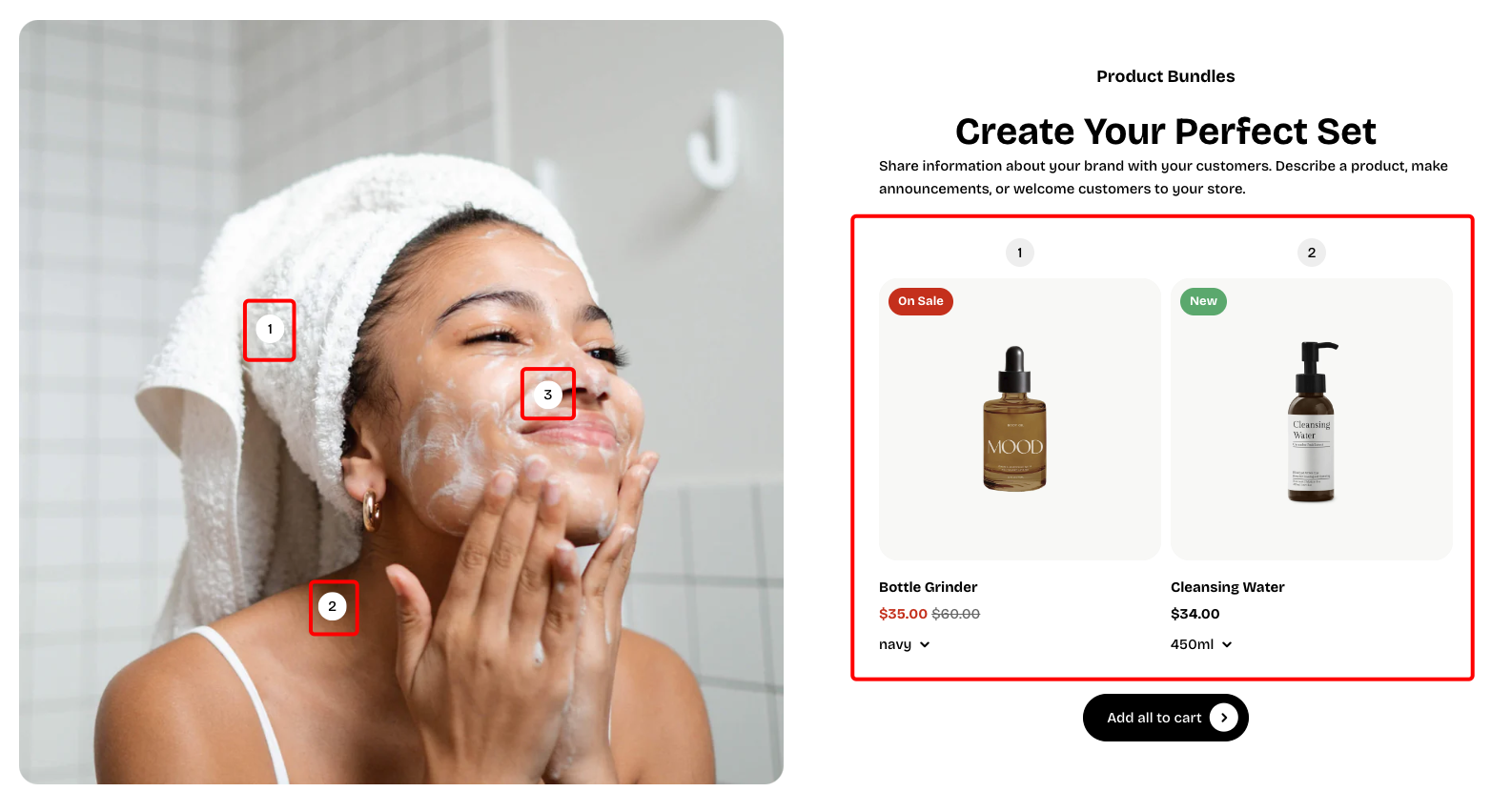
| Setting | Description |
| ---------------------- | ------------------------------------------------------------------------------ |
| **Product** | Select the product linked with the hotspot, following the top-to-bottom order. |
| **Color scheme** | Choose the hotspot’s color style. |
| **Offset top** | Adjusts the hotspot’s vertical position on desktop. |
| **Offset left** | Adjusts the hotspot’s horizontal position on desktop. |
| **Offset top mobile** | Adjusts the hotspot’s vertical position on mobile. |
| **Offset left mobile** | Adjusts the hotspot’s horizontal position on mobile. |