# Slideshow
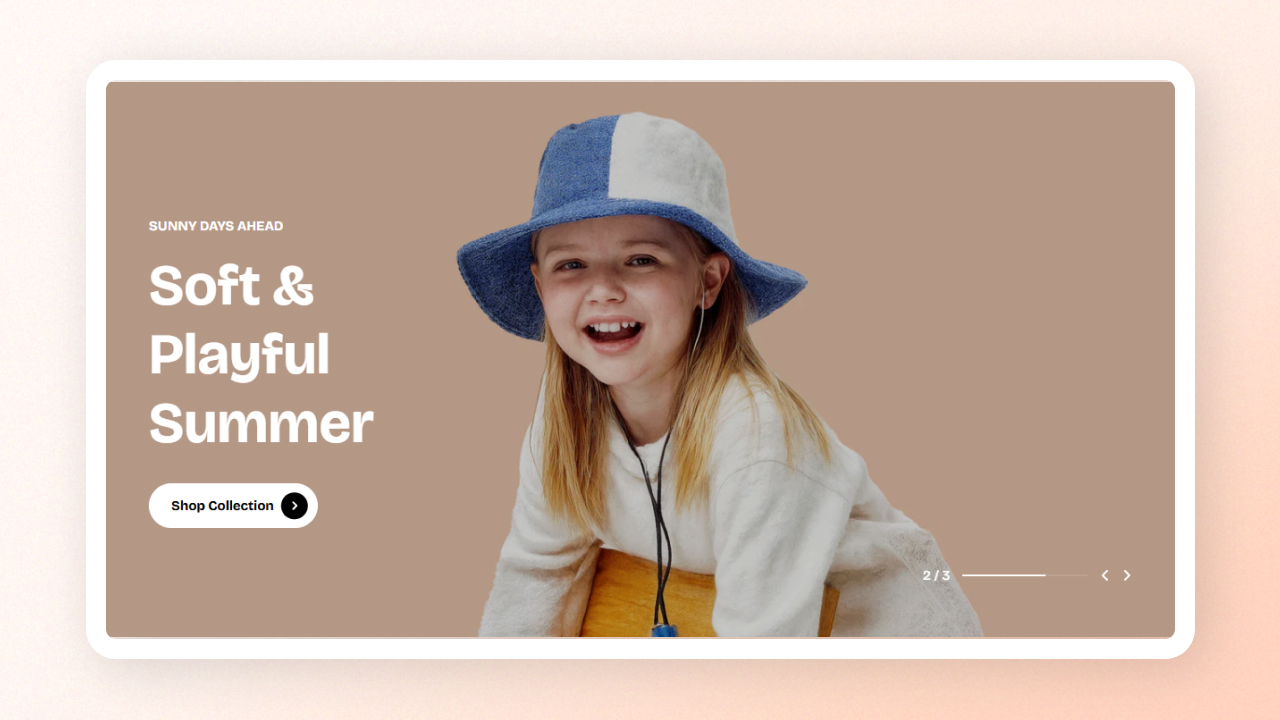
The **Slideshow** section lets you display multiple hero slides with images or videos in a smooth, auto-rotating carousel. It’s designed to create strong first impressions, announce promotions, and guide users into key pages of your store.
## How to add a Slideshow section to your Shopify store
1. In the theme editor **(Customize)**, click **Add section.**
2. Select **Slideshow** section.
3. Make necessary changes.
4. **Save.**
## How to edit the section Slideshow
### Section settings
#### **Layout**
| Setting | Description |
| --- | --- |
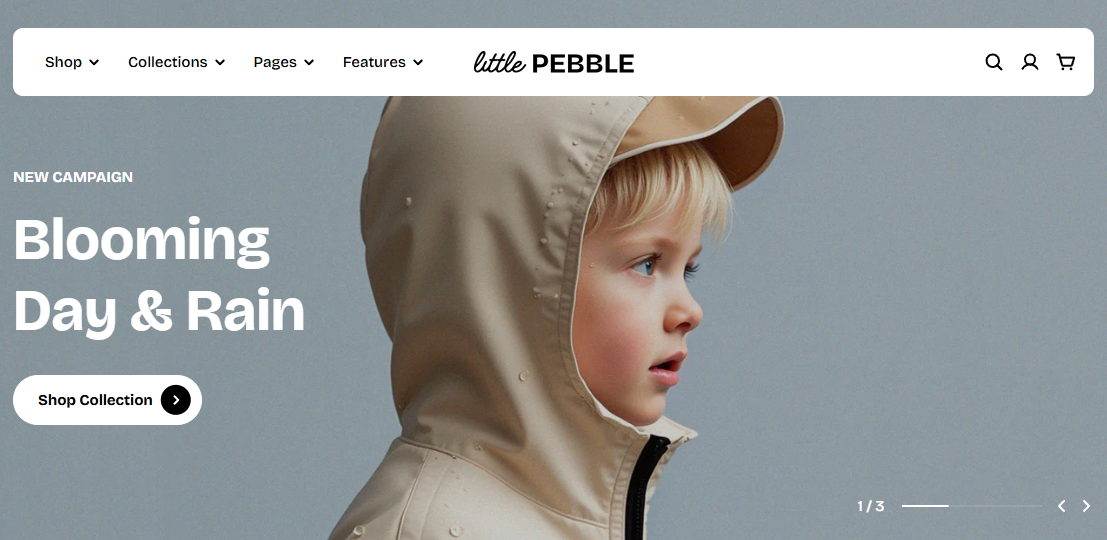
| **Enable header overlay** | Allows the header to sit transparently over the slideshow.
 |
| **Height** | Controls the height of the slides. “Adapt” auto-adjusts based on the image. |
#### **Carousel settings**
| Setting | Description |
| --- | --- |
| **Autoplay** | Enables automatic slide movement. |
| **Autoplay delay** | Time between slides (seconds). Visible only when autoplay is ON. |
| **Control type** | Choose how users navigate the slideshow: **Default** or **Progress text**. |
| **Control alignment** | Left / center / right alignment for default controls. |
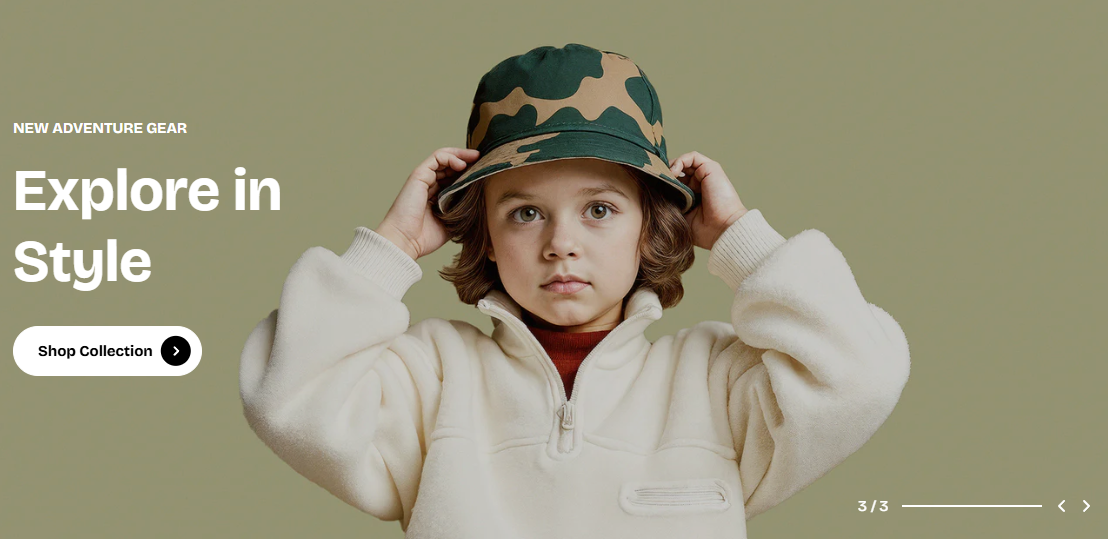
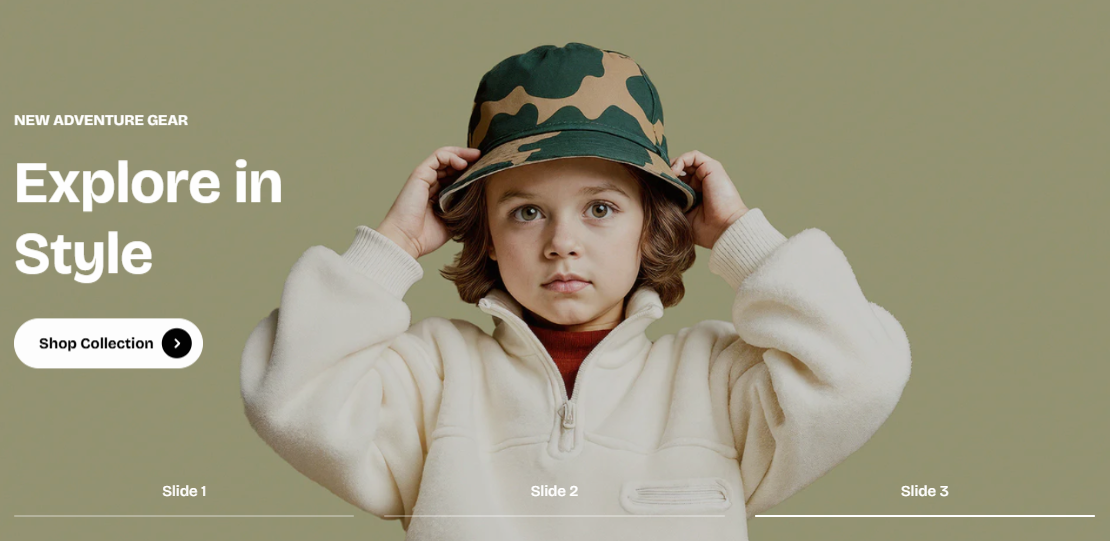
Change the **Pagination label** in the **Slide block settings**.
### Block settings
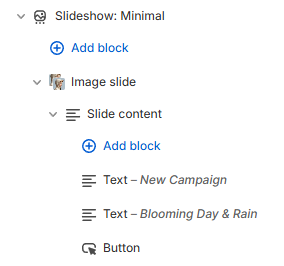
The Slideshow section provides three main block types:
* **Image slide** – a hero slide using desktop/mobile images
* **Video slide** – a hero slide using autoplay looping video
* **Slide content** – the textual layer (heading, text, button, spacing, animations) that appears on top of the slide media
These blocks give full control over visuals, content layout, and storytelling on your hero carousel.
Use this block to create standard hero slides with responsive images, overlays, and content placement.
Settings include:
* **Image**: Upload the desktop image for the slide
* **Enable overlay**: Add a semi-transparent layer to improve text visibility.
* **Content position**: Controls where text appears over the image.
* **Pagination label**: The name that appears in the progress-text navigation. Useful for editorial storytelling.
💡 **Best practices**
* **Use a mobile-specific image** to avoid awkward cropping on small screens.
* **Add an overlay** when using busy lifestyle backgrounds to keep text readable.
* **Place content where the image has natural empty space** (“safe zones”).
Best for premium or experiential storytelling.
Settings include:
* **Video**: Upload or select a Shopify-hosted video. Automatically loops, autoplays, and plays muted.
* **Content position:** Placement of the content area over the video.
* **Pagination label**: Label shown in progress-text navigation, visible only when using that control style.
💡 **Best practices**
* **Use short videos (8–12s)** to reduce load and maintain flow.
* Use clean, bright footage that loops well.
This nested block contains all textual elements layered over the slide media. It acts as the inner container that holds headings, text, buttons, and spacers.
Settings include:
* **Alignment**: Select left/ center/ right alignment for the content stack.
* **Row gap**: Space between content blocks.
* **Width:** Choose content width: Fit, Fill, or Custom.
* **Color scheme**: Choose a scheme for the slide content. *Learn more:* [Colors](https://docs.foxecom.com/pebble-theme/theme-settings/colors)
* **Transparent background**: Remove the background to show only text.
Within the Slide content, you can add:
| Block | Purpose |
| --- | --- |
| **Text** | Heading, paragraph, subheading — highly customizable.
Learn more: [theme-blocks/basic#text](https://docs.foxecom.com/pebble-theme/theme-blocks/basic#text) |
| **Button** | Primary, secondary, or link-styled button.
Learn more: [theme-blocks/basic#button](https://docs.foxecom.com/pebble-theme/theme-blocks/basic#button) |
| **Spacer** | Add vertical spacing between elements. |