# Lookbook carousel

<figure><img src="/files/XaFg8gzlgkanvbWEF7fq" alt=""><figcaption></figcaption></figure>

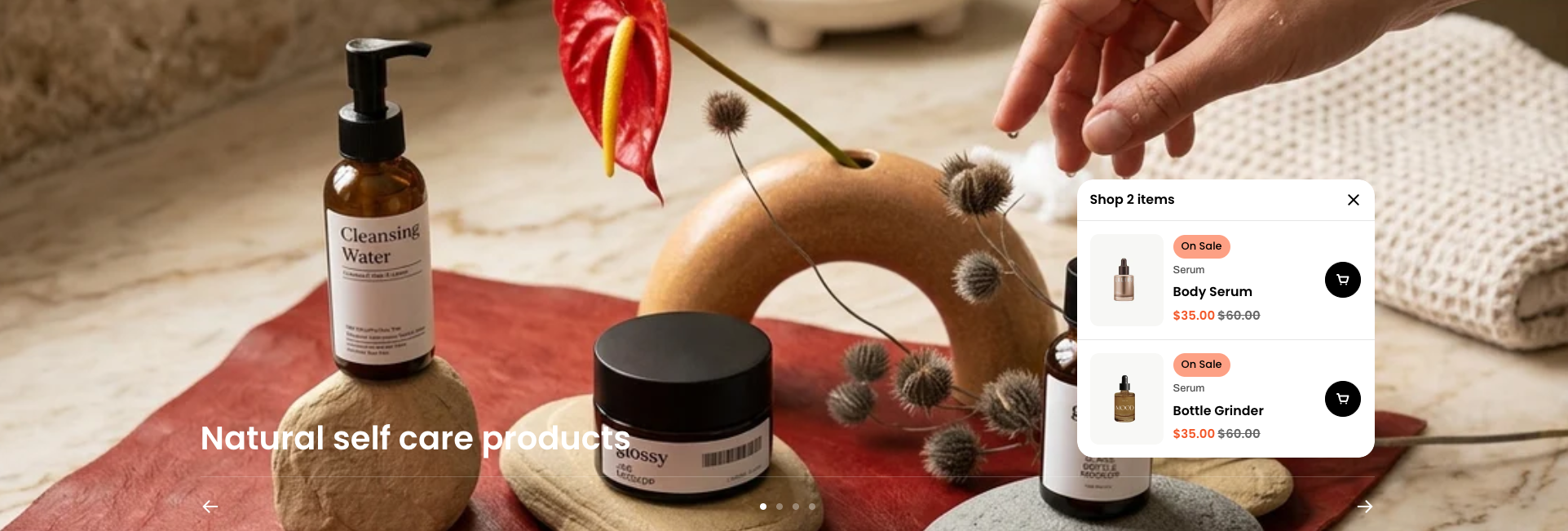
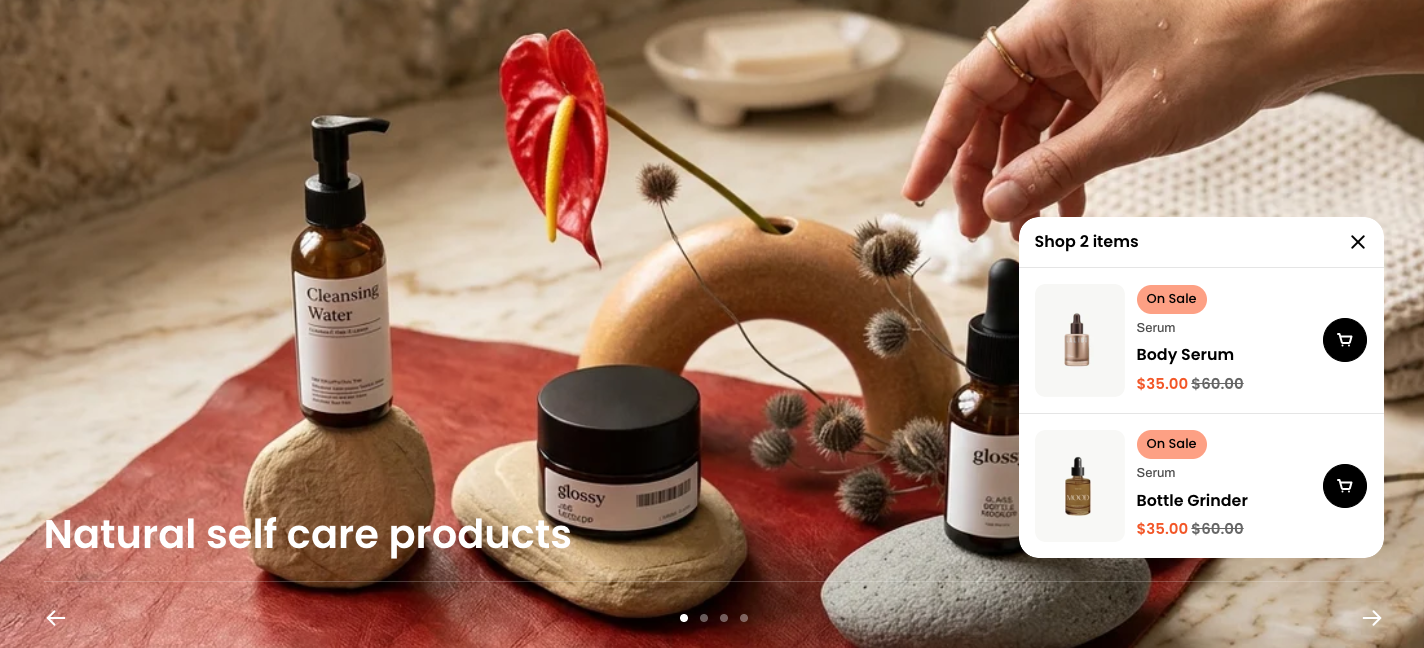
An interactive lookbook carousel that showcases images with shoppable products, allowing customers to explore and purchase items directly from each slide.

## How to add a Lookbook carousel section to your Shopify store

{% hint style="success" %}

1. In the theme editor **(Customize)**, click **Add section.**
2. Select **Lookbook carousel** section.
3. Make necessary changes.
4. **Save.**
   {% endhint %}

## How to customize a Lookbook carousel section <a href="#how-to-customize-a-banner-with-tabs-section" id="how-to-customize-a-banner-with-tabs-section"></a>

### Section settings

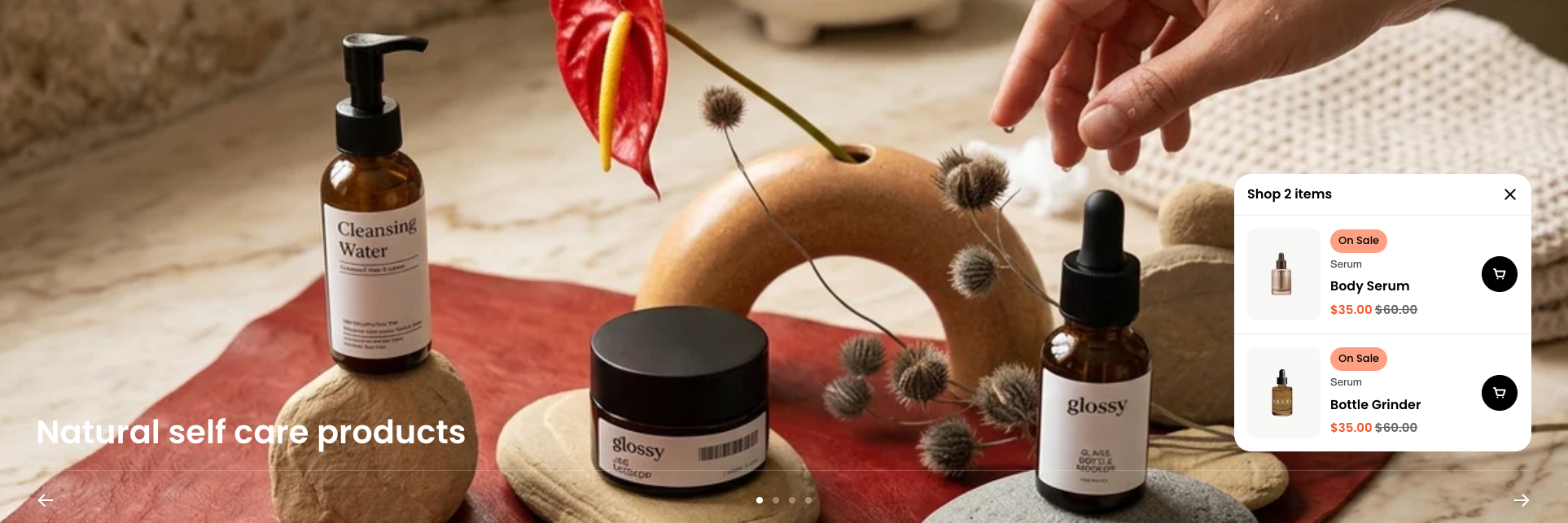
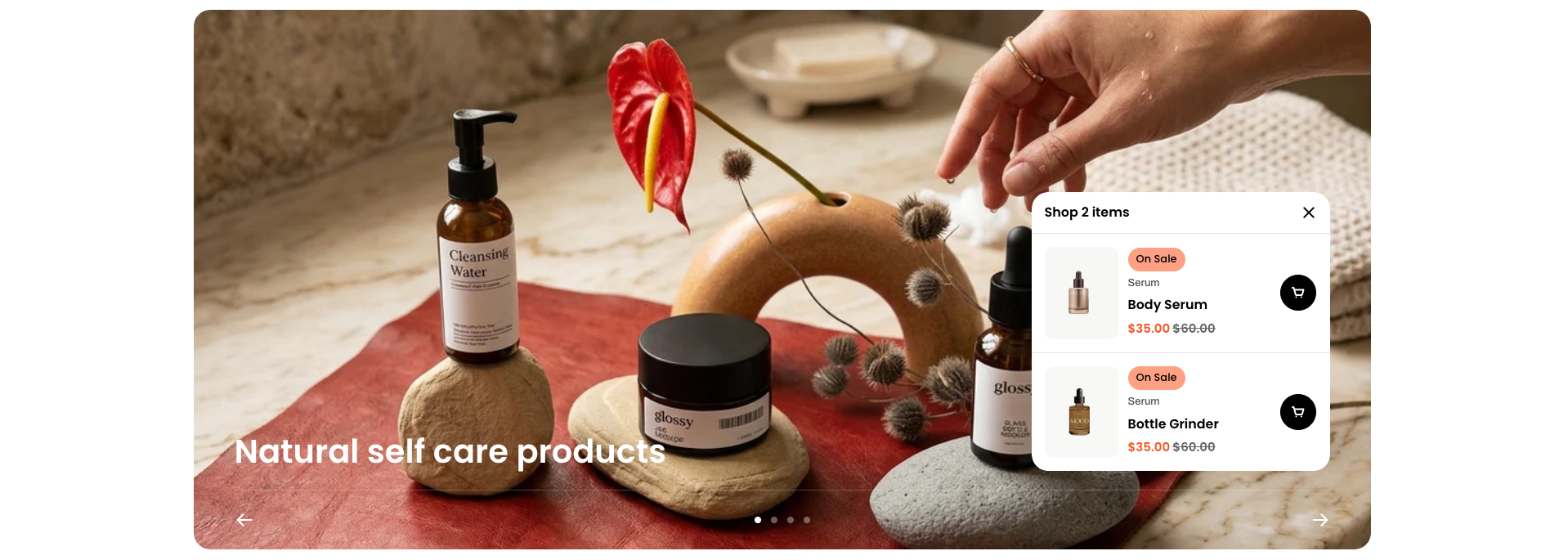
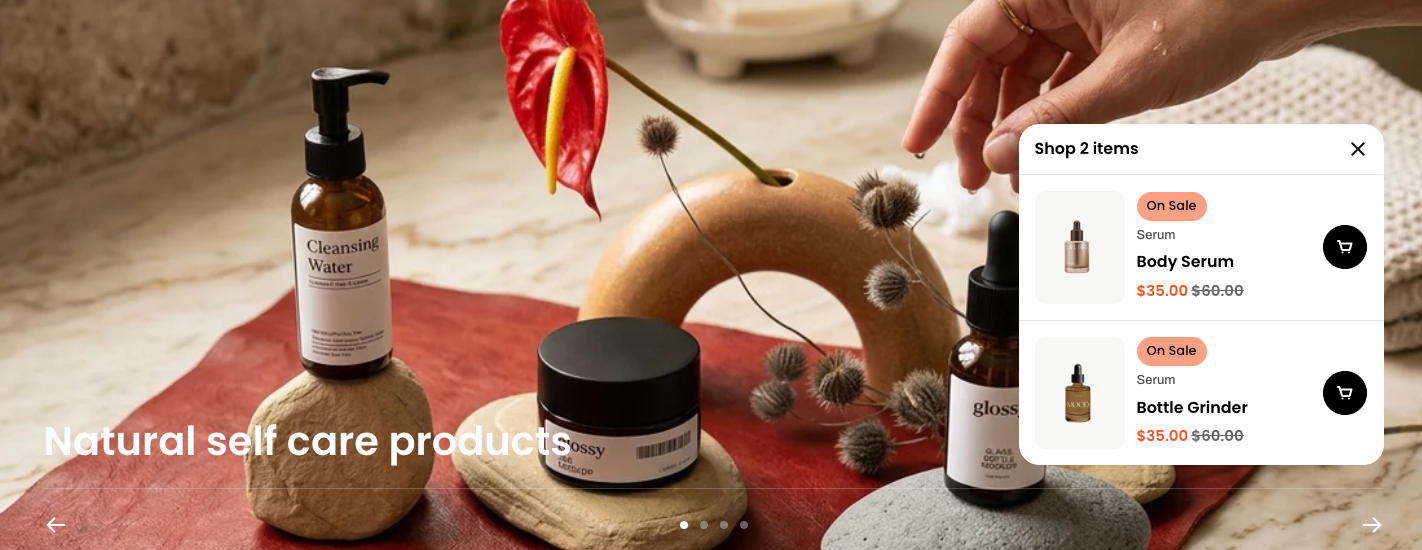
<table><thead><tr><th width="212.940673828125">Setting</th><th>Description</th></tr></thead><tbody><tr><td><strong>Container</strong></td><td>Choose the layout width of the section (full width or fixed width).</td></tr><tr><td><strong>Height</strong></td><td>Set the height of the carousel.</td></tr><tr><td><strong>Content position</strong> <em>(Full width only)</em></td><td>Control whether the content appears inside or outside the carousel image.</td></tr><tr><td><strong>Corner radius</strong></td><td>Adjust the roundness of the carousel corners.</td></tr><tr><td><strong>Auto-rotate content</strong></td><td>Enable automatic sliding between carousel items.</td></tr></tbody></table>

{% tabs %}
{% tab title="Full width - Inside" %}

<figure><img src="/files/GWcNibkaA3zRVaIvqncY" alt=""><figcaption></figcaption></figure>
{% endtab %}

{% tab title="Full width - Outside" %}

<figure><img src="/files/4H6csNnWuqHqa3BvjULU" alt=""><figcaption></figcaption></figure>
{% endtab %}

{% tab title="Fixed width" %}

<figure><img src="/files/jxtB1wQaOfyaxleTXdIi" alt=""><figcaption></figcaption></figure>
{% endtab %}
{% endtabs %}

{% tabs %}
{% tab title="Carousel height options" %}

| Option             | Height              |
| ------------------ | ------------------- |
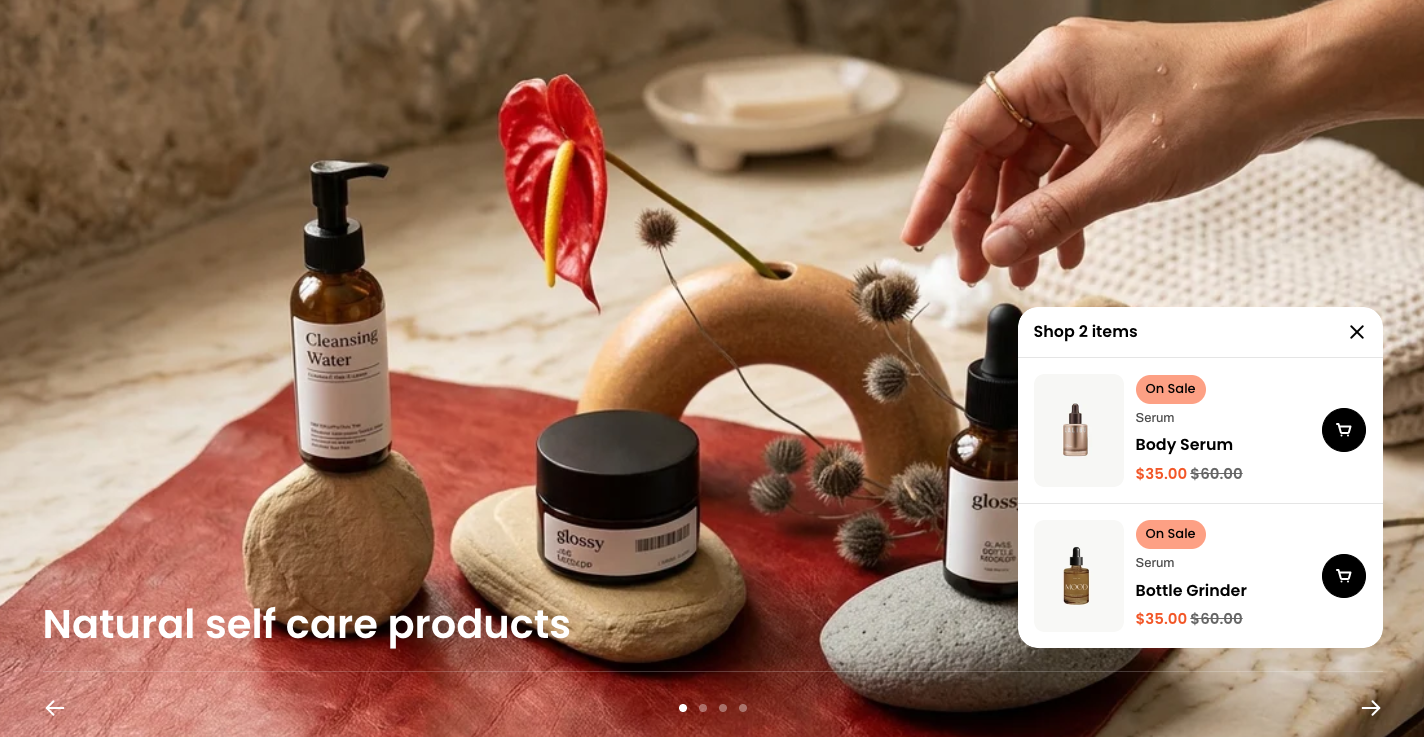
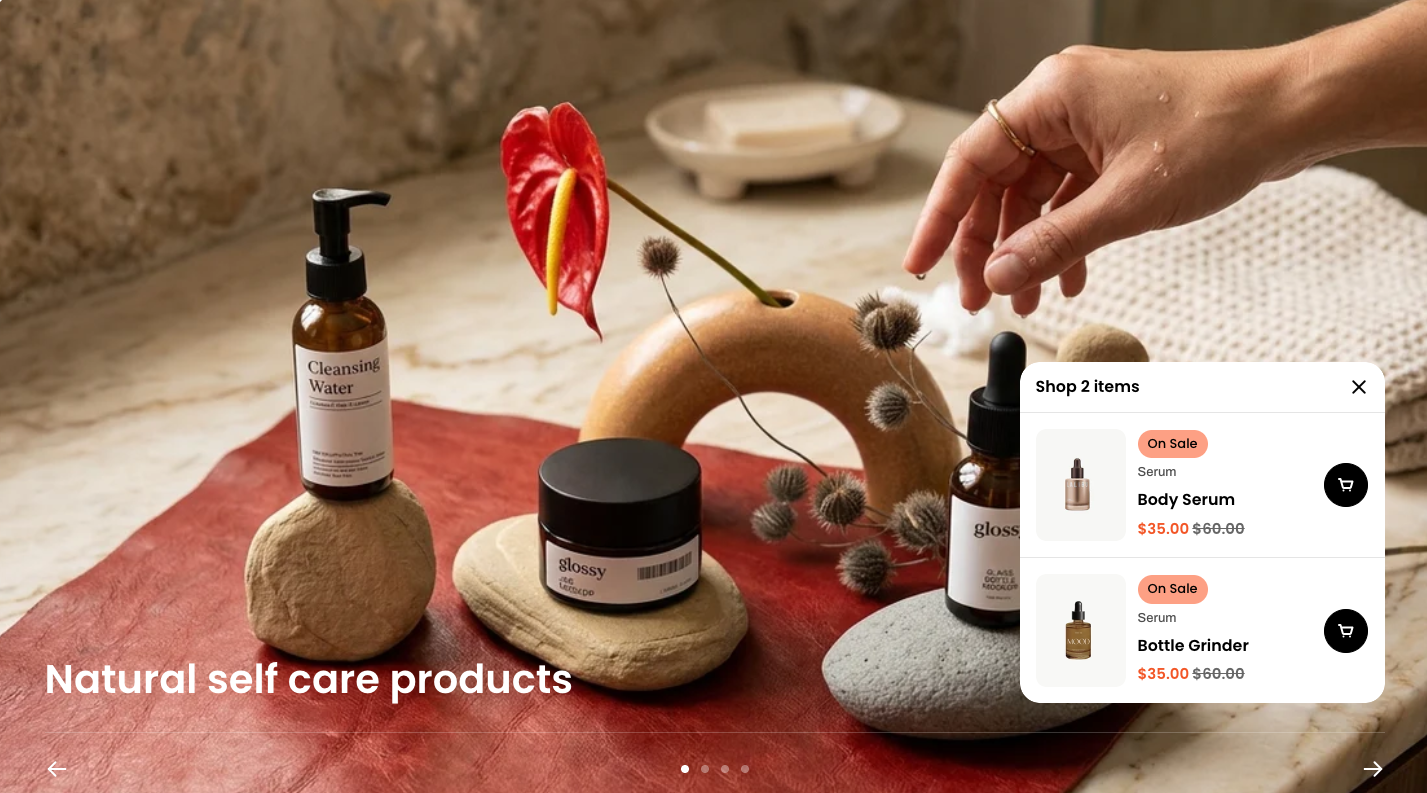
| **Adapt to image** | 100% (image height) |
| **Small**          | 57rem (570px)       |
| **Medium**         | 66rem (660px)       |
| **Large**          | 75rem (750px)       |
| {% endtab %}       |                     |

{% tab title="Adapt to image" %}

<figure><img src="/files/k7bE8420QwPZkcIb5hfe" alt=""><figcaption></figcaption></figure>
{% endtab %}

{% tab title="Small" %}

<figure><img src="/files/0BS8FiLDfBToYR3lUtVd" alt=""><figcaption></figcaption></figure>
{% endtab %}

{% tab title="Medium" %}

<figure><img src="/files/RDmzbikLFS56qxP6AY2M" alt=""><figcaption></figcaption></figure>
{% endtab %}

{% tab title="Large" %}

<figure><img src="/files/epEOnNbODsbs76XbK8pr" alt=""><figcaption></figcaption></figure>
{% endtab %}
{% endtabs %}

{% hint style="info" %}
Check out other Lookbook carousel section settings: [Overview](/pebble-theme/theme-sections/overview.md#common-settings-available-in-most-sections)
{% endhint %}

### Block settings

{% tabs %}
{% tab title="Lookbook" %}

<figure><img src="/files/jfowhY2y2G0U2Styjepp" alt=""><figcaption></figcaption></figure>

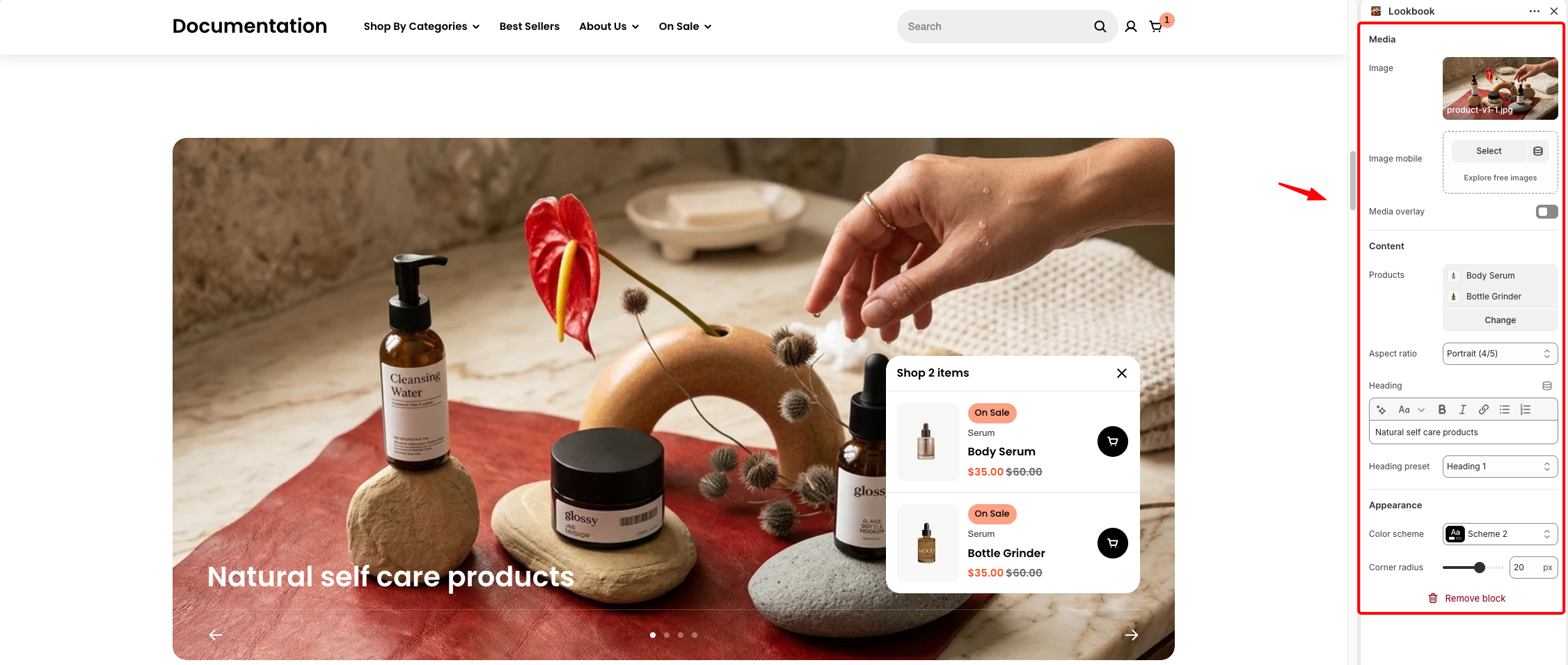
<table><thead><tr><th width="186.4320068359375">Setting</th><th>Description</th></tr></thead><tbody><tr><td><strong>Image</strong></td><td>Upload the main image displayed in the lookbook slide.</td></tr><tr><td><strong>Image mobile</strong></td><td>Upload a separate image optimized for mobile devices.</td></tr><tr><td><strong>Media overlay</strong></td><td>Enable an overlay layer to improve text readability on the image.</td></tr><tr><td><strong>Products</strong></td><td>Select and display products that can be shopped directly from the slide.</td></tr><tr><td><strong>Aspect ratio</strong></td><td>Choose the product image aspect ratio.</td></tr><tr><td><strong>Heading</strong></td><td>Add a title or text displayed on top of the image.</td></tr><tr><td><strong>Heading preset</strong></td><td>Select the heading style (e.g., Heading 1, 2) based on theme typography.</td></tr></tbody></table>
{% endtab %}
{% endtabs %}


---

# Agent Instructions: Querying This Documentation

If you need additional information that is not directly available in this page, you can query the documentation dynamically by asking a question.

Perform an HTTP GET request on the current page URL with the `ask` query parameter:

```
GET https://docs.foxecom.com/pebble-theme/theme-sections/lookbook-carousel.md?ask=<question>
```

The question should be specific, self-contained, and written in natural language.
The response will contain a direct answer to the question and relevant excerpts and sources from the documentation.

Use this mechanism when the answer is not explicitly present in the current page, you need clarification or additional context, or you want to retrieve related documentation sections.