# Banners
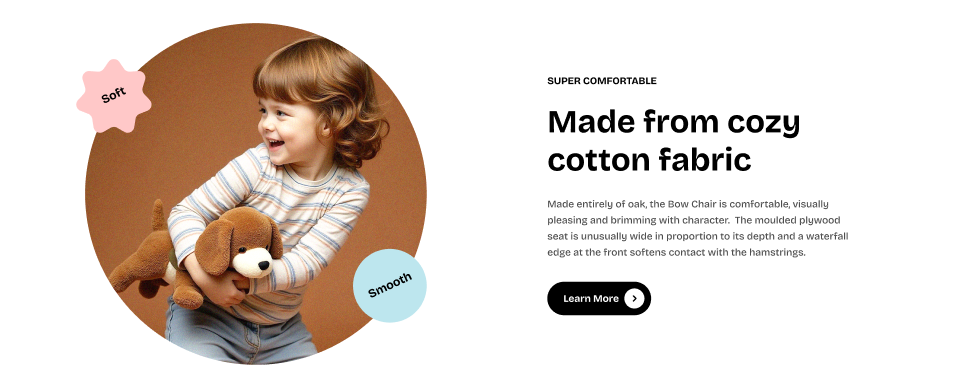
The **Image with badges** block allows you to display an image along with customizable badges. The badges can be used to highlight key information, such as promotional tags, offers, or product features.
#### **⚙️ Block settings**
| Setting | Description |
| --- | --- |
| **Image** | Upload the image that you want to display in the block. |
| **Image ratio** | Choose the aspect ratio of the image on desktop and mobile view separately. |
| **Rounded image** | Enable to make the image corners rounded. |
| **Border** | Choose whether to apply borders around the image. |
#### **🏷️ Badge settings**
This block includes **multiple badges** that can be added to the image.
| Setting | Description |
| --- | --- |
| **Shape** | Choose the shape of the badge. Options include:
• None
• Petal star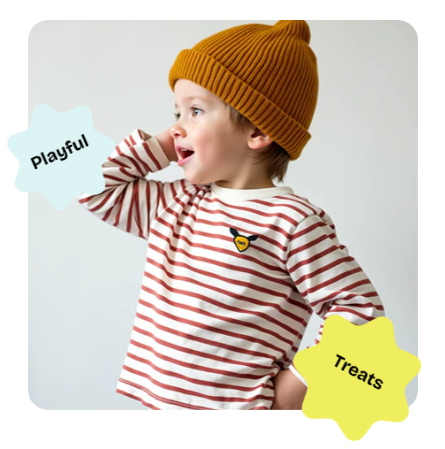
• Multi-point star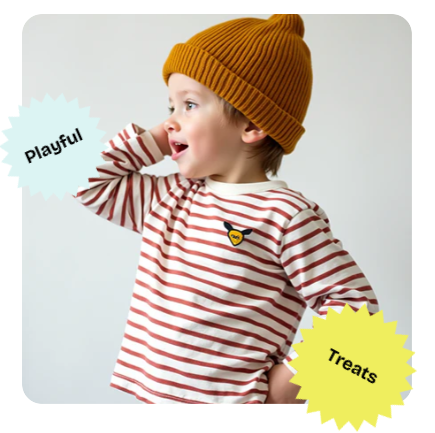
• Circle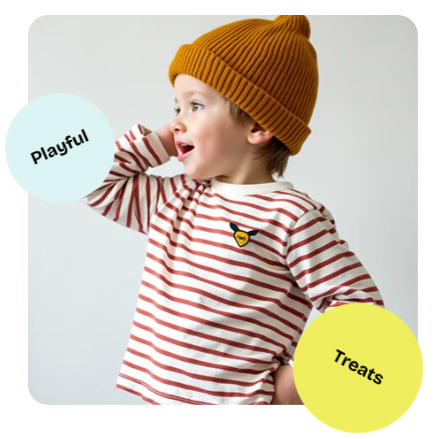
• Scalloped circle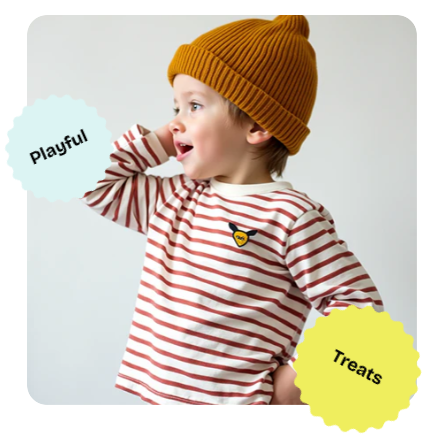
• Custom: Upload a custom image to use as the badge shape. |
| **Background color** | Choose a background color for the badge. |
| **Rotate** | Set the rotation angle of the badge for a tilted effect. |
| **Width** | Set the width of the badge. Adjust this depending on how prominent you want the badge to be. |
| **Offset (Left)** | Adjust the badge’s left position relative to the image. |
| **Offset (Top)** | Adjust the badge’s top position relative to the image. |
| **Text** | Set the text for the badge. This can be a tag, a price, a label like "New", or any other text you want to feature. |
| **Text preset** | Choose the font style for the text in the badge.
*Learn more:* [Text presets](https://docs.foxecom.com/pebble-theme/theme-settings/typography#text-presets) |
#### **💡 Best practices**
* Use **1:1 (square)** for logos or any content where equal height and width are needed. The **16:9 (landscape)** ratio is ideal for promotional banners or hero images.
* Badges can be used to highlight limited-time offers, product features, or special tags. Make sure the **text** is short and impactful.
* Adjust the **offset** to ensure badges don’t overlap with the key visual elements of the image. Try to position badges near the corners or areas that are less busy.

The **Marquee** block is a dynamic feature that allows you to create a scrolling or moving content effect across your webpage. It’s perfect for highlighting important messages, announcements, or product features in an attention-grabbing way.
The Marquee block is a [private block](https://docs.foxecom.com/pebble-theme/theme-blocks/overview#private-blocks), meaning it is restricted to certain sections.
#### **⚙️ Block settings**
| Setting | Description |
| --- | --- |
| **Direction** | Set the direction of the marquee. Choose between:
• Forward
• Reverse |
| **Speed** | Adjust the scrolling speed of the marquee. |
| **Rotate (Angle)** | Set the rotation angle of the marquee content (from -5° to 5°). This adds a slight tilt to the marquee items. |
| **Pause on hover** | Enable this setting to make the marquee content stop scrolling when the user hovers over it. |
| **Show edge fade** | Enable this setting to add a fading effect at the edges of the marquee content. |
| **Enable parallax** | Enable this setting to apply a parallax effect to the marquee content. |
Within the Marquee block, you can add nested blocks, including:
* [Basic](https://docs.foxecom.com/pebble-theme/theme-blocks/basic#text)
* [Basic](https://docs.foxecom.com/pebble-theme/theme-blocks/basic#button)
* [Basic](https://docs.foxecom.com/pebble-theme/theme-blocks/basic#icon)
* Icon with text
#### **💡 Best practices**
* Since the marquee moves continuously, keep the text short so it doesn’t overwhelm the user. A short call to action, like "Hurry, limited time offer!" or "Check out our latest collection!" works best.
* Enabling **Parallax** adds depth, but overuse can make the effect too distracting. Similarly, use **Pause on Hover** when you want to keep the content static for better visibility on hover.