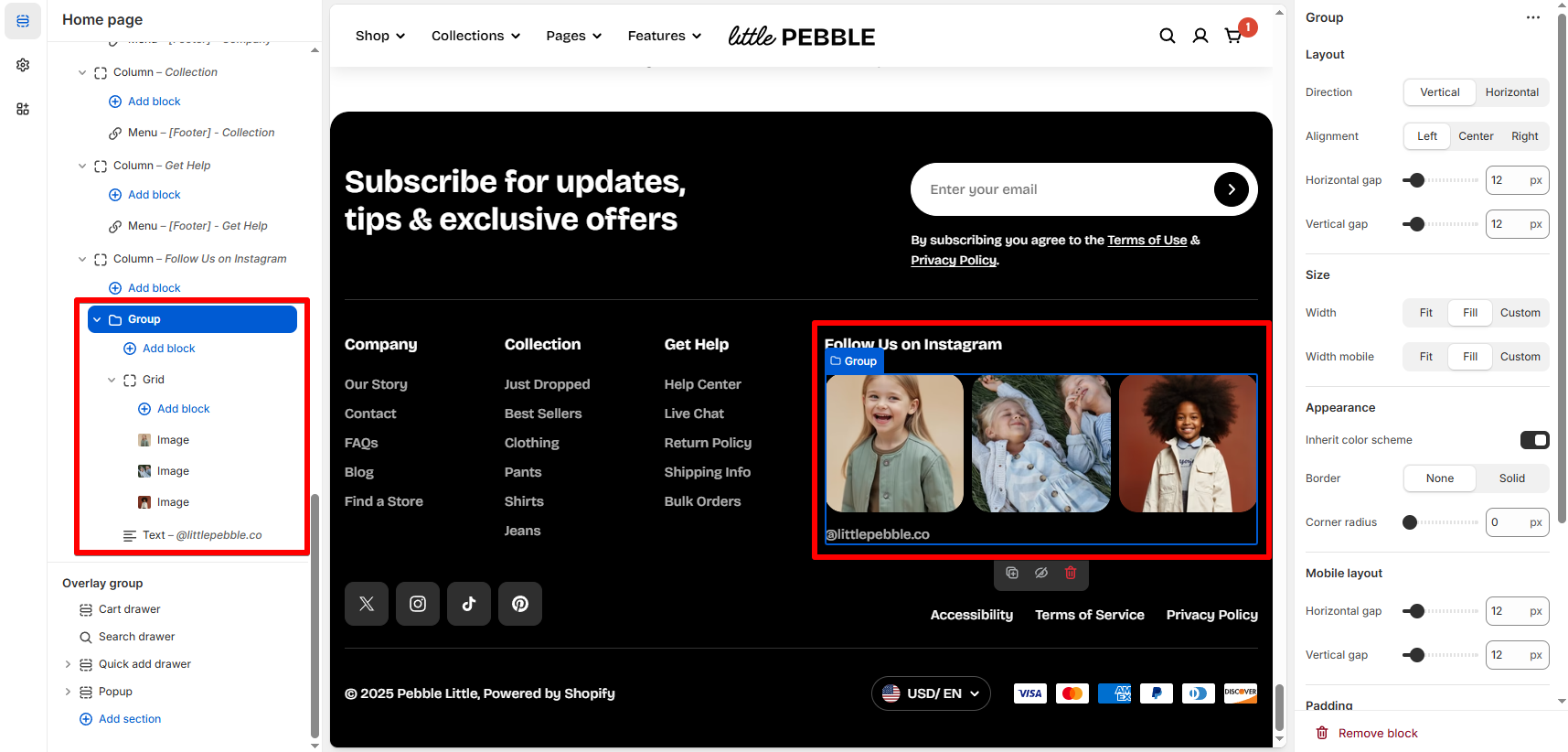
# Footer
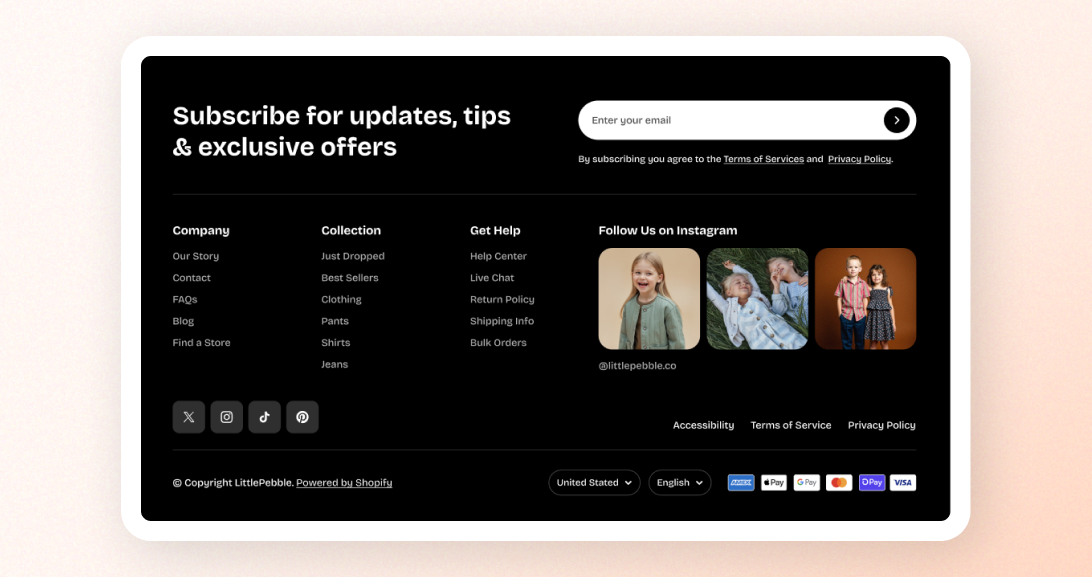
The Footer appears at the bottom of every page and is one of the most important sections for building trust and navigation clarity.
In Pebble, the Footer is fully customizable — you can add multiple columns, navigation menus, contact info, social icons, localization dropdowns, and payment method icons.
## Section overview
The Footer section is divided into two parts:
#### **1. Footer top**
* Contains **blocks** you add (footer columns)
* Typically used for menus, contact info, newsletter, or custom content
#### **2. Footer bottom**
* Social media icons
* Follow on Shop button
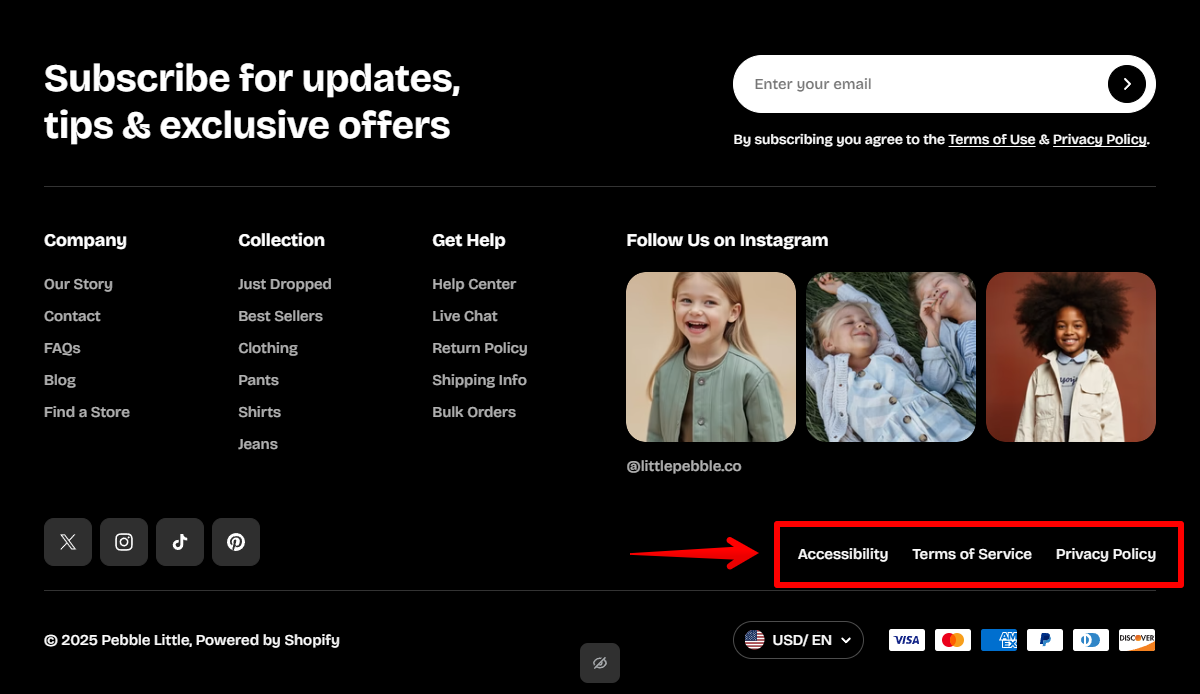
* Custom footer menu / quick links
* Currency & language selector
* Payment icons
* Copyright text
## How to edit the Footer section
Steps:
1. In the theme editor (**Customize**), go to the **Footer** area.
2. Select the **Footer** section.
3. Make necessary changes.
4. Click **Save**.
### Section setting
| Setting | Description |
| --- | --- |
| **Menu** | Choose a menu to display as quick links in the bottom bar.
✍️ *See* [*how to add and edit menus on Shopify Help Center*](https://help.shopify.com/) |
| **Enable Follow on Shop** | Displays Shopify’s "Follow on Shop" badge (only if Shop Pay is configured for your store. [*Learn more*](https://help.shopify.com/manual/online-store/themes/customizing-themes/common-customizations/add-shop-buttons)). |
| **Enable social media icons** | Shows social icons if URLs are added in **Theme Settings > Social media**. [*Learn more*](https://docs.foxecom.com/pebble-theme/theme-settings/social-media) |
| **Enable language selector** | Shows a language dropdown if multiple languages are published.
*Learn more:* [Language selector](https://docs.foxecom.com/pebble-theme/global-sections/header/language-selector) |
| **Enable country selector** | Shows a country/currency selector if multiple markets are configured.
*Learn more:* [Currency selector](https://docs.foxecom.com/pebble-theme/global-sections/header/currency-selector) |
| **Enable payment icons** | Displays supported Shopify payment icons. |
### Block settings - Footer column
Each **Footer column** block lets you create structured sections inside the footer top area.
A typical footer might include:
* About us
* Customer service menu
* Shop links
* Contact info
* Newsletter signup
#### ⚙️ Column block
| Setting | Description |
| --- | --- |
| **Width (%)** | Sets how wide the column is inside the footer layout (10%–100%). Common values: 20–33%. |
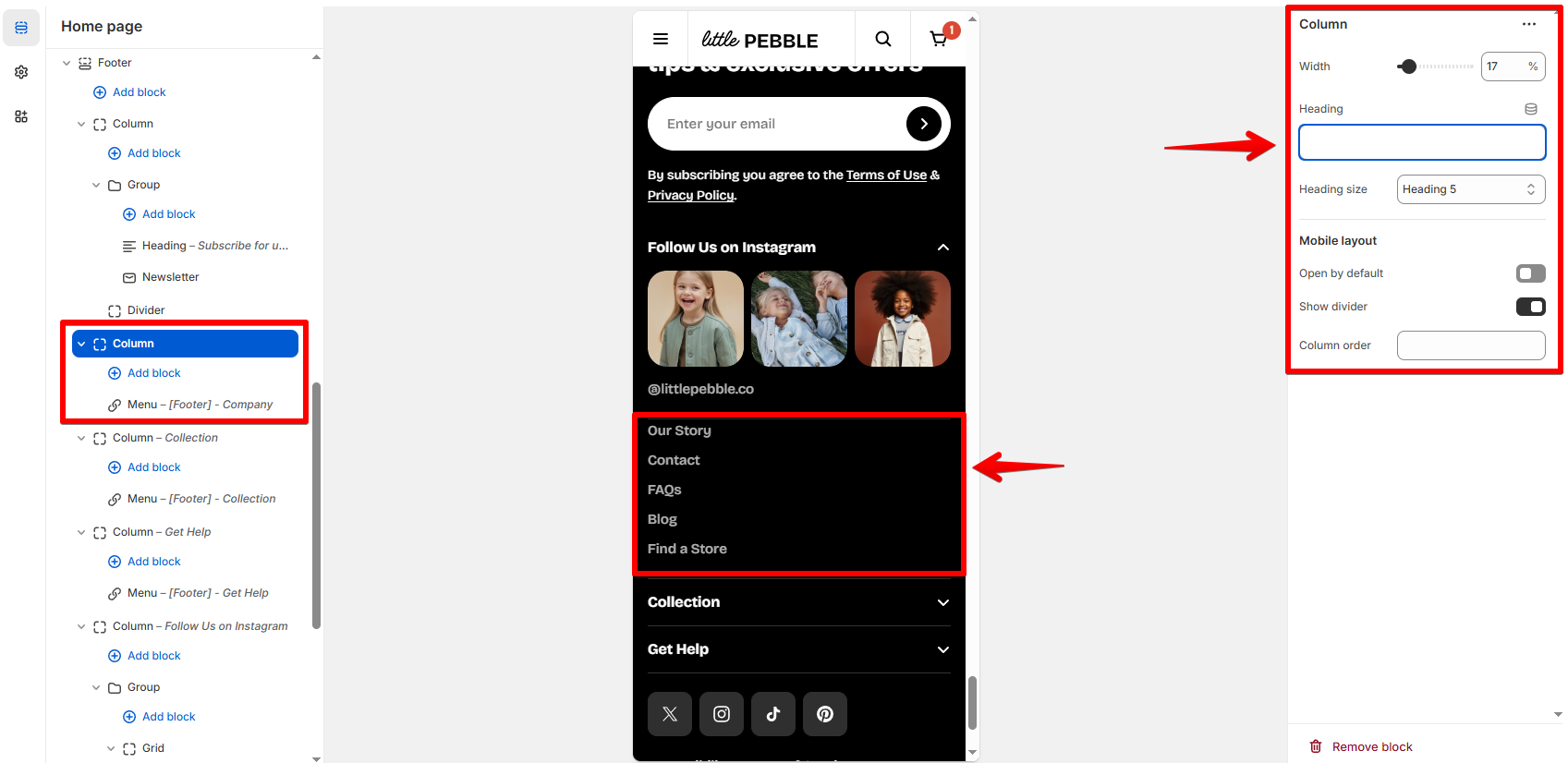
| **Heading** | The title of the column.
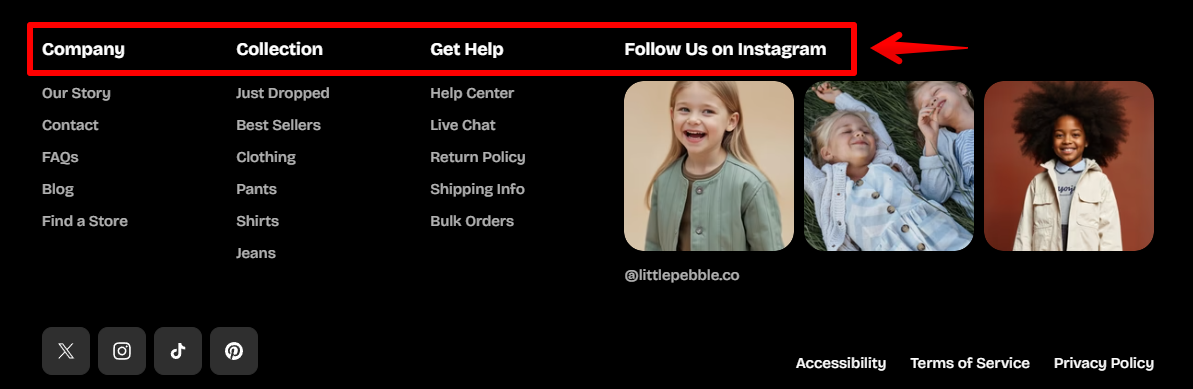
On mobile, leaving the title blank removes the accordion and keeps the content always visible.
 |
| **Heading size** | Choose the visual size of the column heading: H6 (small), H5 (default), or H4 (large). |
| **Open by default (mobile)** | When enabled, the accordion opens automatically on mobile. Useful for primary columns. |
| **Enable divider** | Adds a subtle dividing line between this column and the next. |
| **Column order** | Sets a custom desktop order using numeric values (lower number = appears earlier). Useful for rearranging layouts. |
#### 📦 Supported nested blocks (Content inside the column)
Each footer column can contain any of the following blocks, giving you full design freedom:
| Block Type | Use Case |
| --- | --- |
| **App block** | Insert content from third-party apps. |
| **Group** | Create grouped content layouts. [*Learn more*](https://docs.foxecom.com/pebble-theme/theme-blocks/layout#group) |
| **Grid** | Build multi-column content inside the footer column. [*Learn more*](https://docs.foxecom.com/pebble-theme/theme-blocks/layout#grid) |
| **Icon** | Add branded icons or visual markers. [*Learn more*](https://docs.foxecom.com/pebble-theme/theme-blocks/basic#icon) |
| **Image** | Display small logos, badges, or store graphics. [*Learn more*](https://docs.foxecom.com/pebble-theme/theme-blocks/basic#image) |
| **Video** | Embed short videos. [*Learn more*](https://docs.foxecom.com/pebble-theme/theme-blocks/basic#video) |
| **Text** | Add paragraphs, contact info, store hours, etc. [*Learn more*](https://docs.foxecom.com/pebble-theme/theme-blocks/basic#text) |
| **Button** | Add CTAs. [*Learn more*](https://docs.foxecom.com/pebble-theme/theme-blocks/basic#button) |
| **Divider** | Add separation inside the column content. [*Learn more*](https://docs.foxecom.com/pebble-theme/theme-blocks/basic#divider) |
| **Newsletter** | Add a newsletter signup form. [*Learn more*](https://docs.foxecom.com/pebble-theme/theme-blocks/forms#newsletter) |
| **Footer menu** | Add a Shopify menu. |
## Best practices
✅ **Use consistent column widths**
* 25% each for a 4-column layout
* 33% for a 3-column layout
* 20 / 20 / 20 / 40 for a layout with a wider “About us” section
✅ **Keep link lists short (max 6–8 items).** This helps scanning and avoids clutter.
✅ **Use grouping blocks for rich layouts.** Great for:
* Logos + text combinations
* Icon + text lists
* Mini contact cards