# Dialogs
Dialogs are overlay windows used throughout your storefront, for example, quick-view modals, cart drawers, and other popup-style components.
Pebble lets you customize the appearance of these dialogs so they match your store’s brand and design system.
## How to edit Dialogs
Steps:
1. In the theme editor (**Customize**), click **Theme settings**.
2. Locate **Dialogs**.
3. Make necessary changes.
4. Click **Save**.
## Dialogs settings options
### Appereance
#### Inherit color scheme
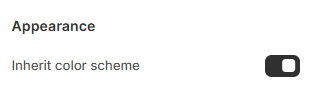
Determines whether dialogs use the global theme color settings or a custom scheme.
* **ON:**
* Dialogs automatically inherit the theme’s global color scheme.
* The **Color scheme** selector is hidden
* **OFF:**
* Reveals the **Color scheme** dropdown
* Let you choose a specific color scheme only for dialogs, for example, a dark modal on a light storefront.
Use this when you want the dialog to stand out, match a specific section, or improve contrast.
#### Color scheme
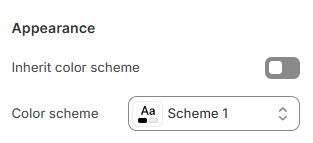
*(visible only when “Inherit color scheme” is OFF)*
Allows you to choose a specific color scheme for all dialogs.
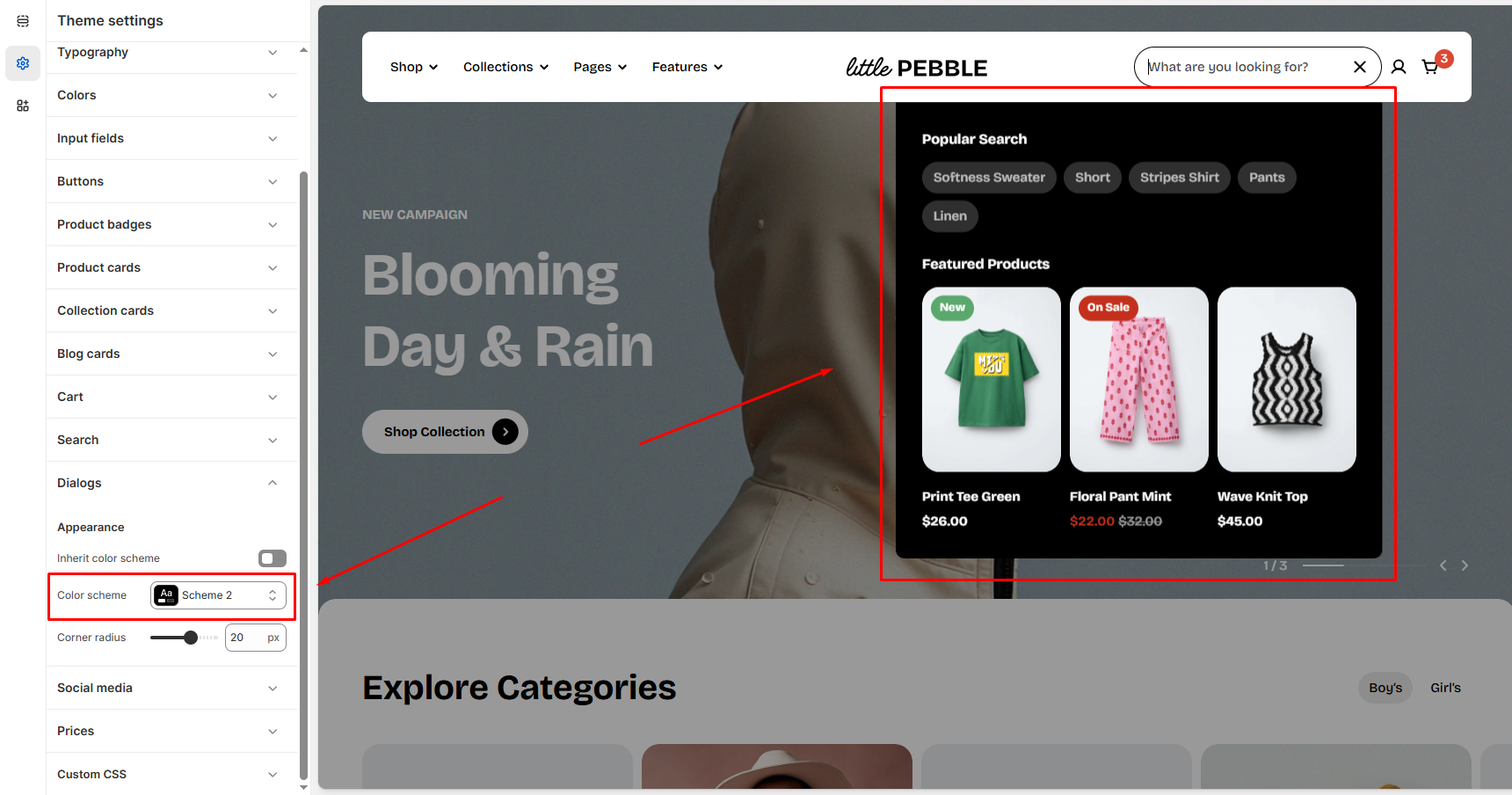
To edit the color schemes, go to **Theme settings** > [Colors](https://docs.foxecom.com/pebble-theme/theme-settings/colors)
#### Corner radius

Controls how rounded the dialog’s corners appear.
* Move the slider to change from 0px (sharp corners) to 32px (fully rounded).