# Cart
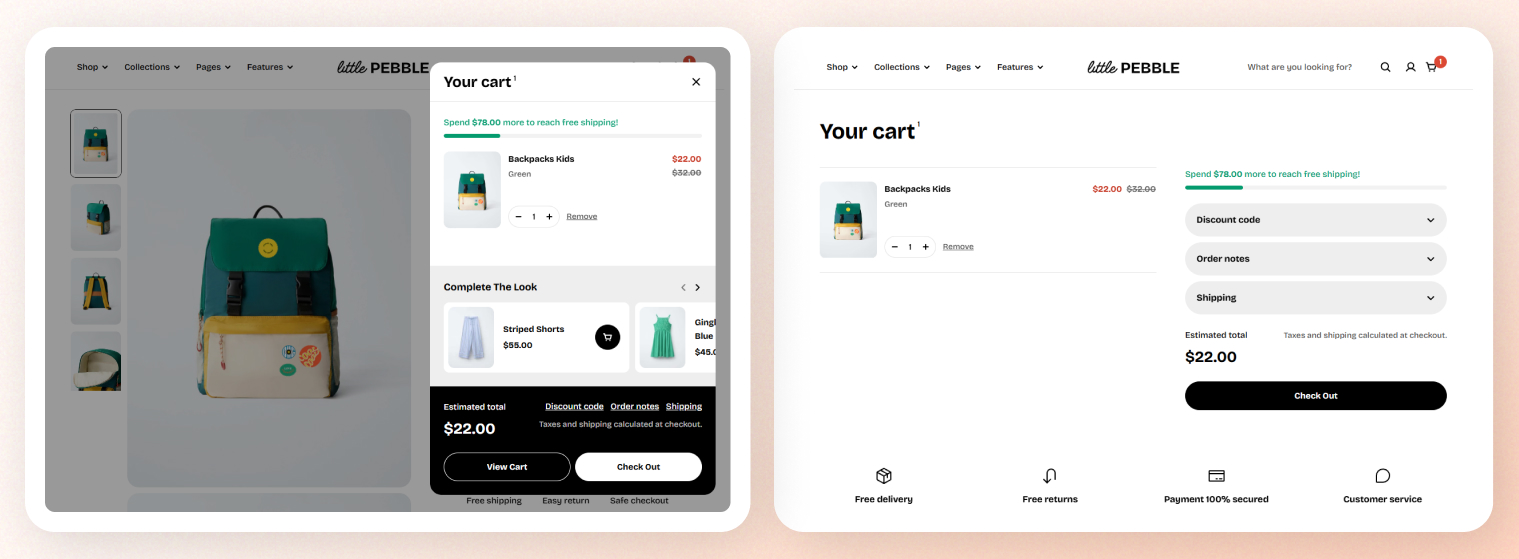
The Cart settings allow you to control how customers interact with their shopping cart and how the cart is displayed across your store.
From choosing between a traditional cart page or a modern slide-out drawer, to enabling discount fields, shipping calculators, image styles, and free-shipping progress bars, these options help you create a smoother and more engaging checkout experience.
## How to edit Cart
Steps:
1. In the theme editor (**Customize**), click **Theme settings**.
2. Locate **Cart**.
3. Make necessary changes.
4. Click **Save**.
## Cart settings options
### General
#### Cart type
Choose how customers will view their cart.
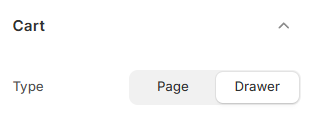
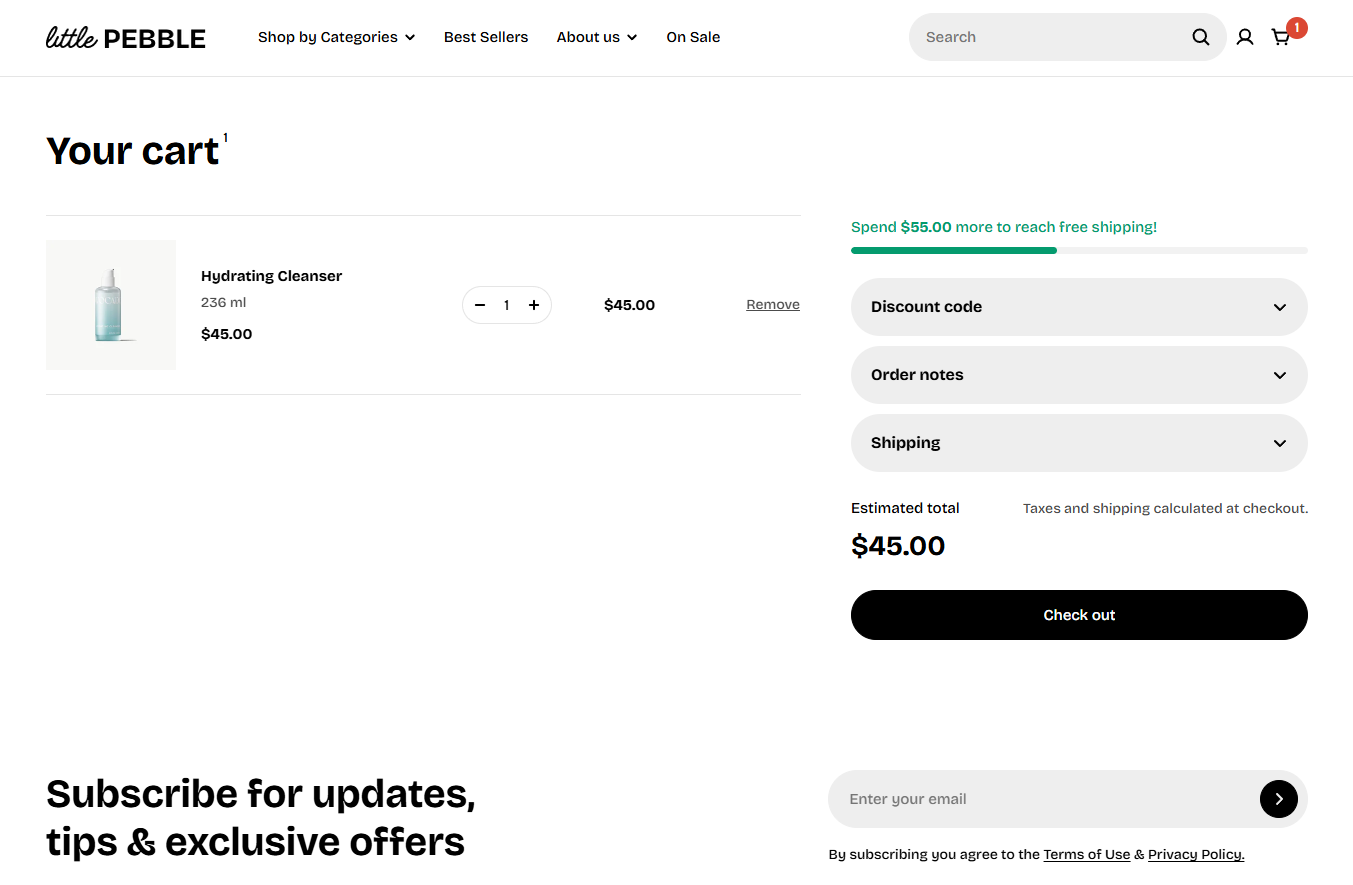
* **Page**: Customers go to a full cart page when they click the cart icon.
* **Drawer**: A slide-out panel opens on the right side. Customers can review items without leaving the product or home page.
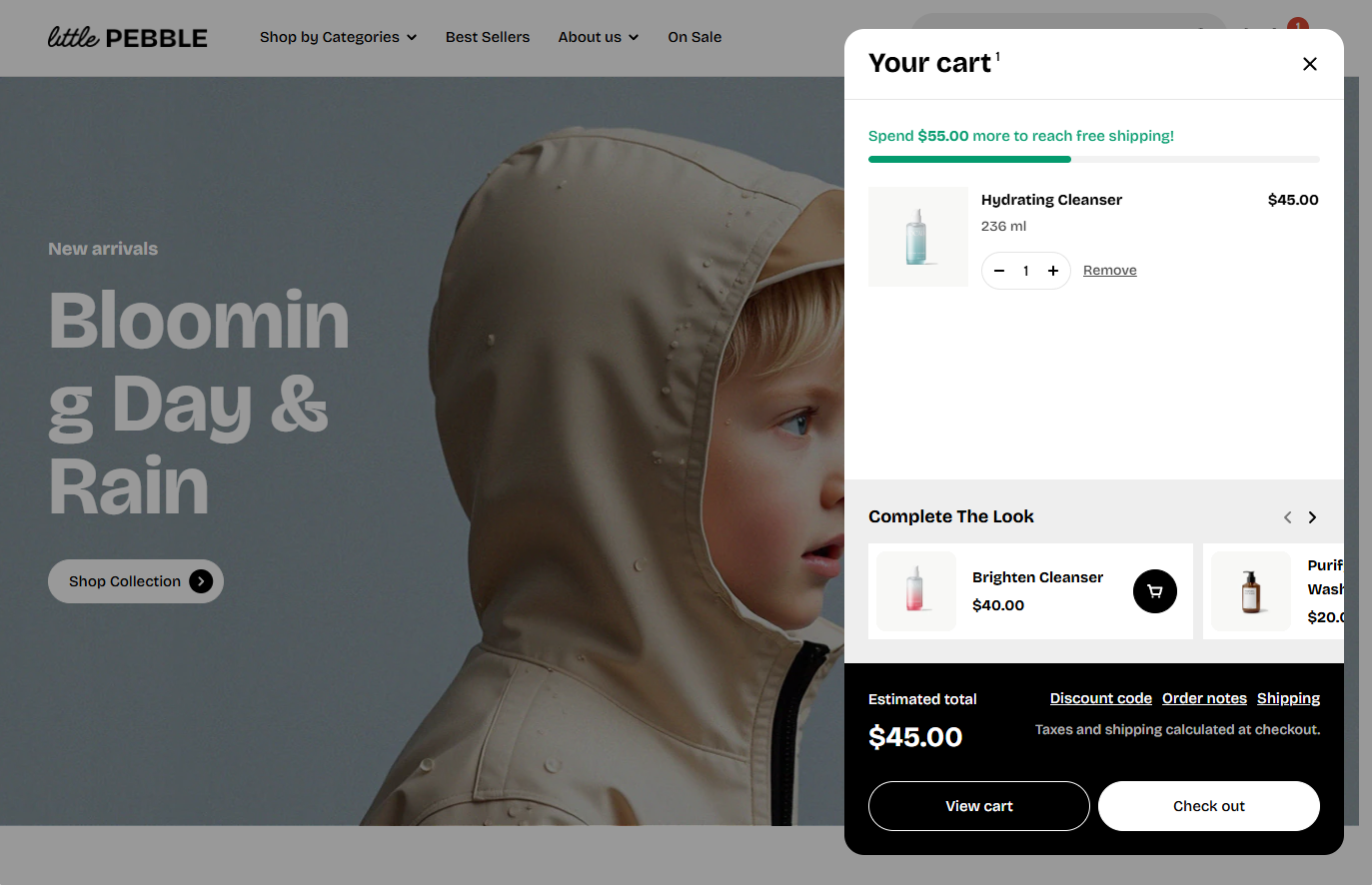
If you’ve enabled the Cart type as **Drawer**, see how to customize your cart drawer here:
Cart drawer
#### Cart options
These settings control what actions customers can perform inside the cart.
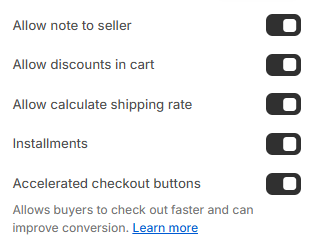
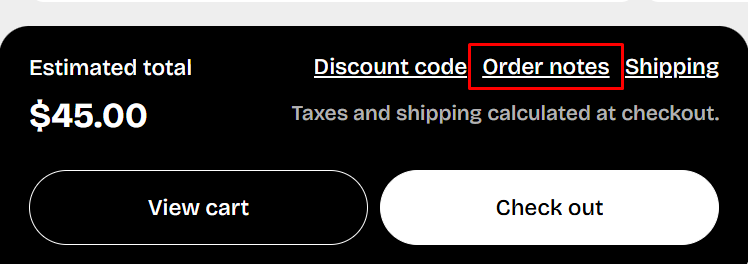
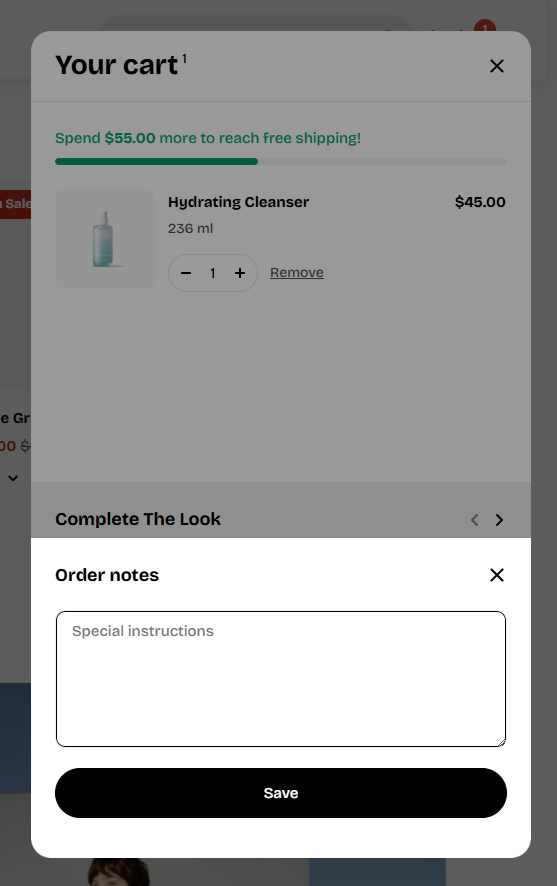
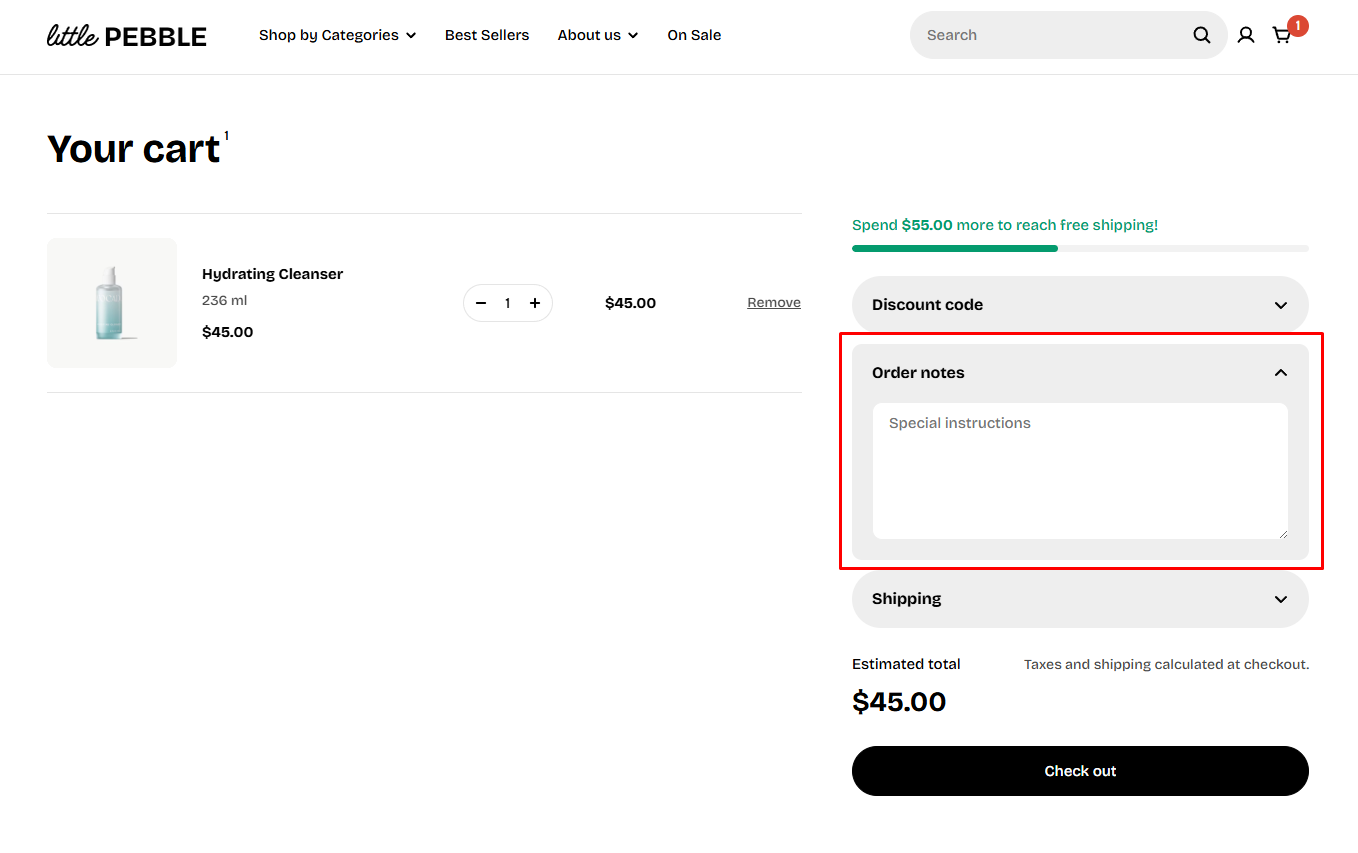
* **Allow note to seller**: Adds a message box so customers can leave order instructions or special notes.
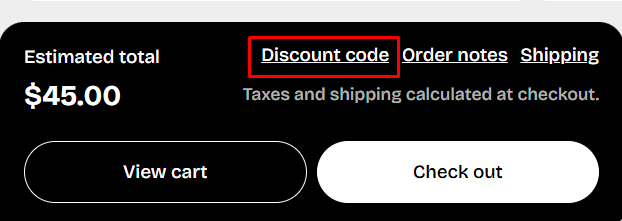
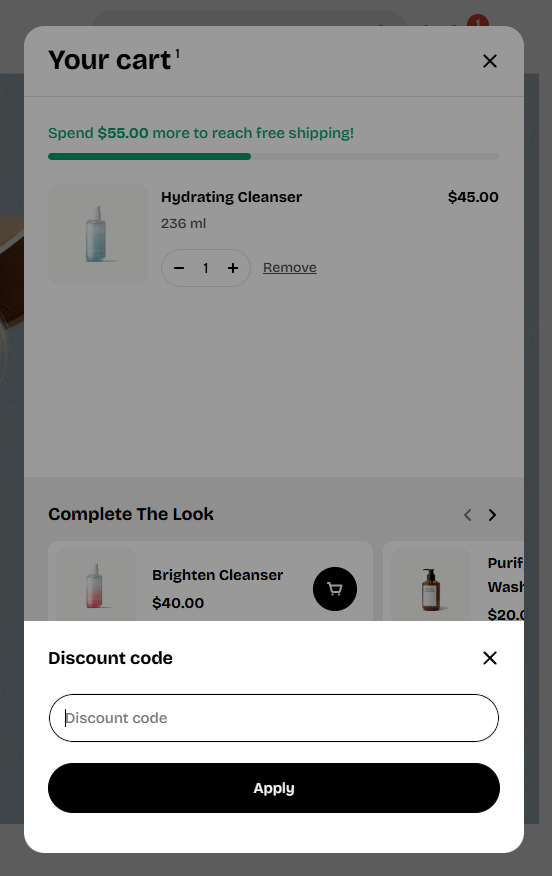
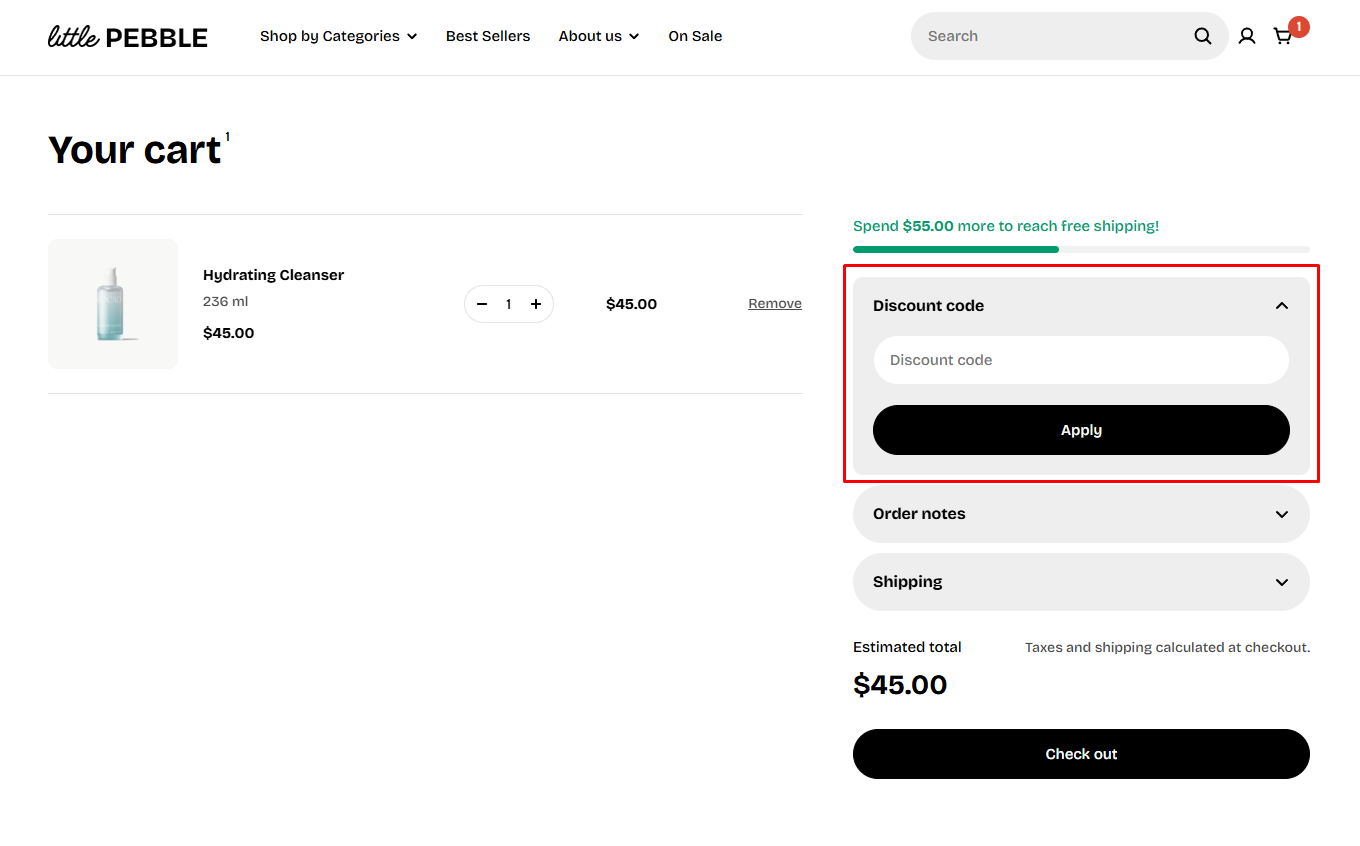
* **Allow discounts in cart**: Shows a discount code field directly in the cart, so customers can enter coupons before checkout.
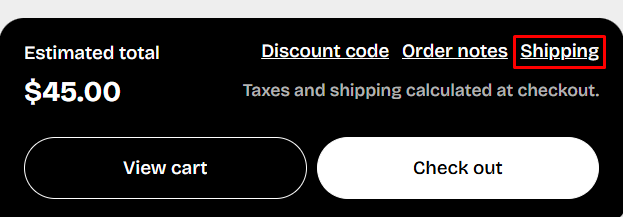
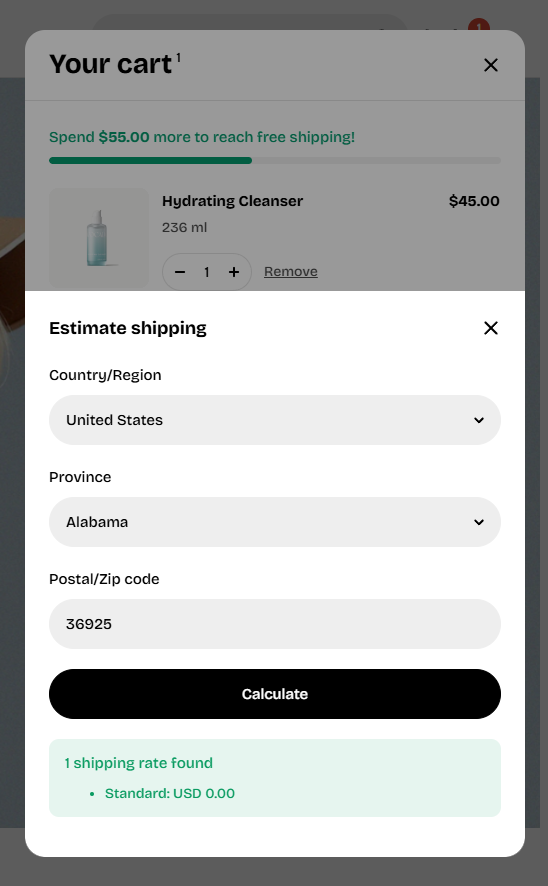
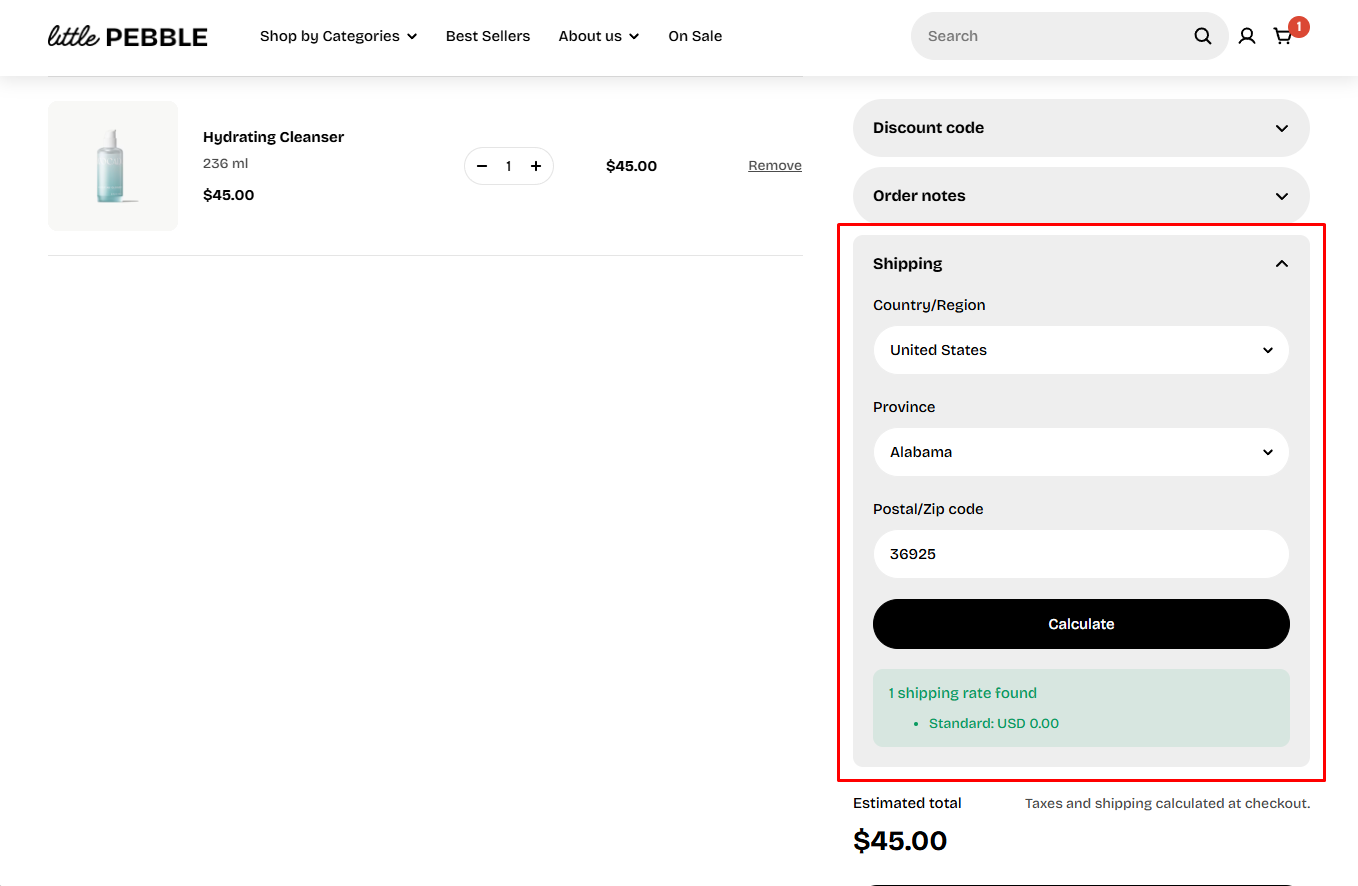
* **Allow calculate shipping rate**: Shows a shipping calculator that lets customers estimate shipping fees.
* **Installments**: Displays installment or payment-plan messaging (such as Shop Pay installments), if your payment provider supports it.
* **Accelerated checkout buttons**: Displays fast-checkout buttons (Shop Pay, Apple Pay, Google Pay). These let customers complete their purchase more quickly and can increase conversions. [Learn more](https://help.shopify.com/manual/online-store/dynamic-checkout)
### Media
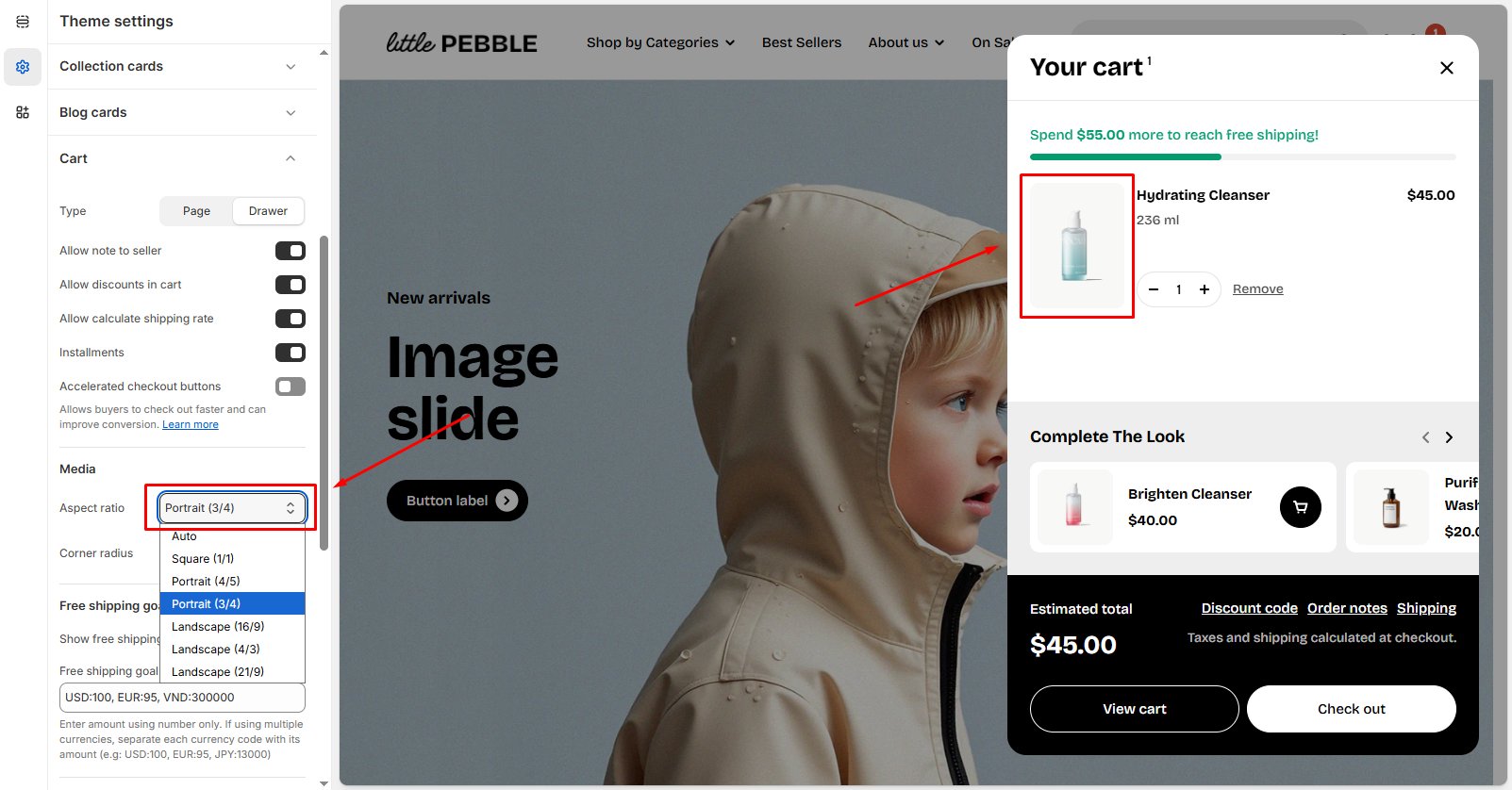
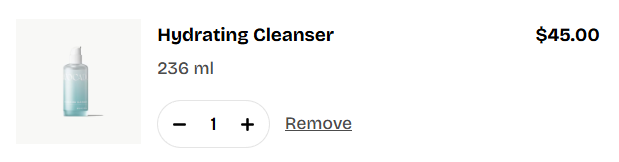
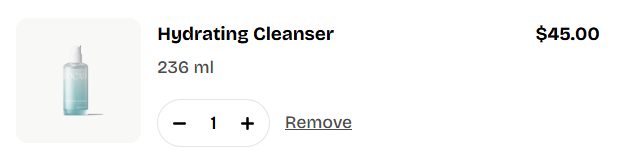
Controls product image appearance inside the cart drawer/page.
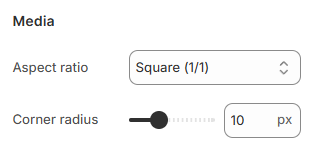
* **Aspect ratio**: Choose how product images are cropped or displayed. This helps you match your store’s photography style. Available options:
* **Auto**
* **Square (1:1)**
* **Portrait (4:5)**
* **Portrait (3:4)**
* **Landscape (16:9)**
* **Landscape (4:3)**
* **Landscape (21:9)**
* **Corner radius**: Change the roundness of product image corners. Range: 0px (square) to 32px.
### Free shipping goal
Offering free shipping is a great way to reduce cart abandonment and encourage customers to complete their purchases.
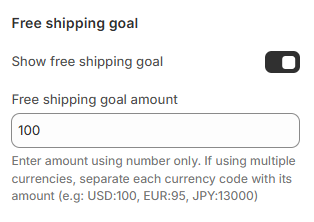
* **Show free shipping goal**: Toggle this option on to display the free shipping progress bar and message inside the cart.
* **Free shipping minimum amount**: Fill in the minimum spend for free shipping.
**Note**:
* Enter the amount using numbers only as the minimum spend for free shipping. Example: `100`
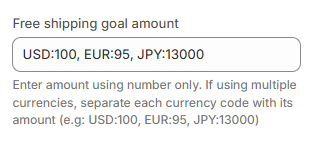
* If your store supports multiple currencies, you can specify each amount using the currency code, separated by commas.
* When custom values are provided, these amounts override Shopify’s automatic conversion.
* Example: `USD:100, EUR:95, JPY:13000`
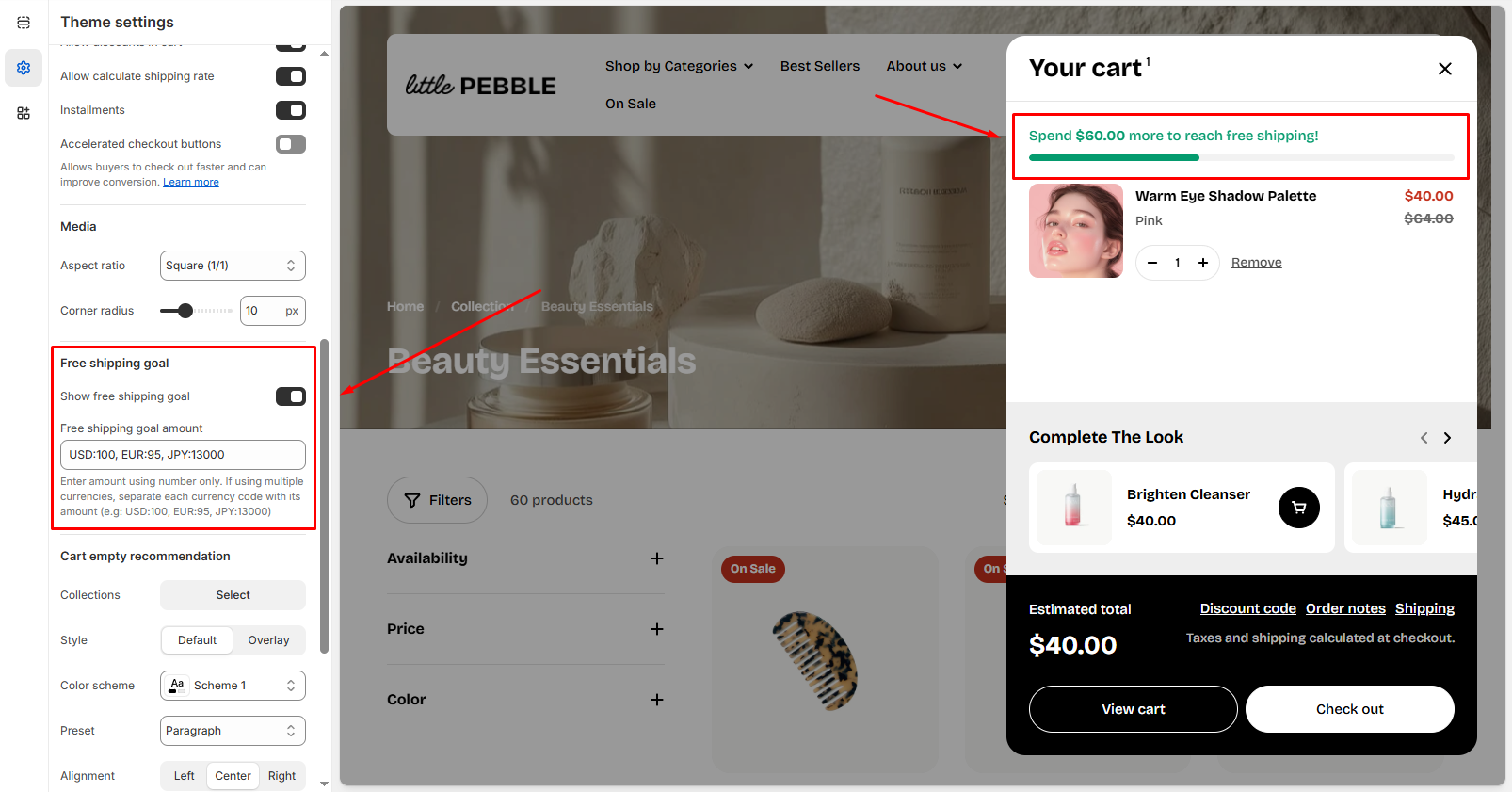
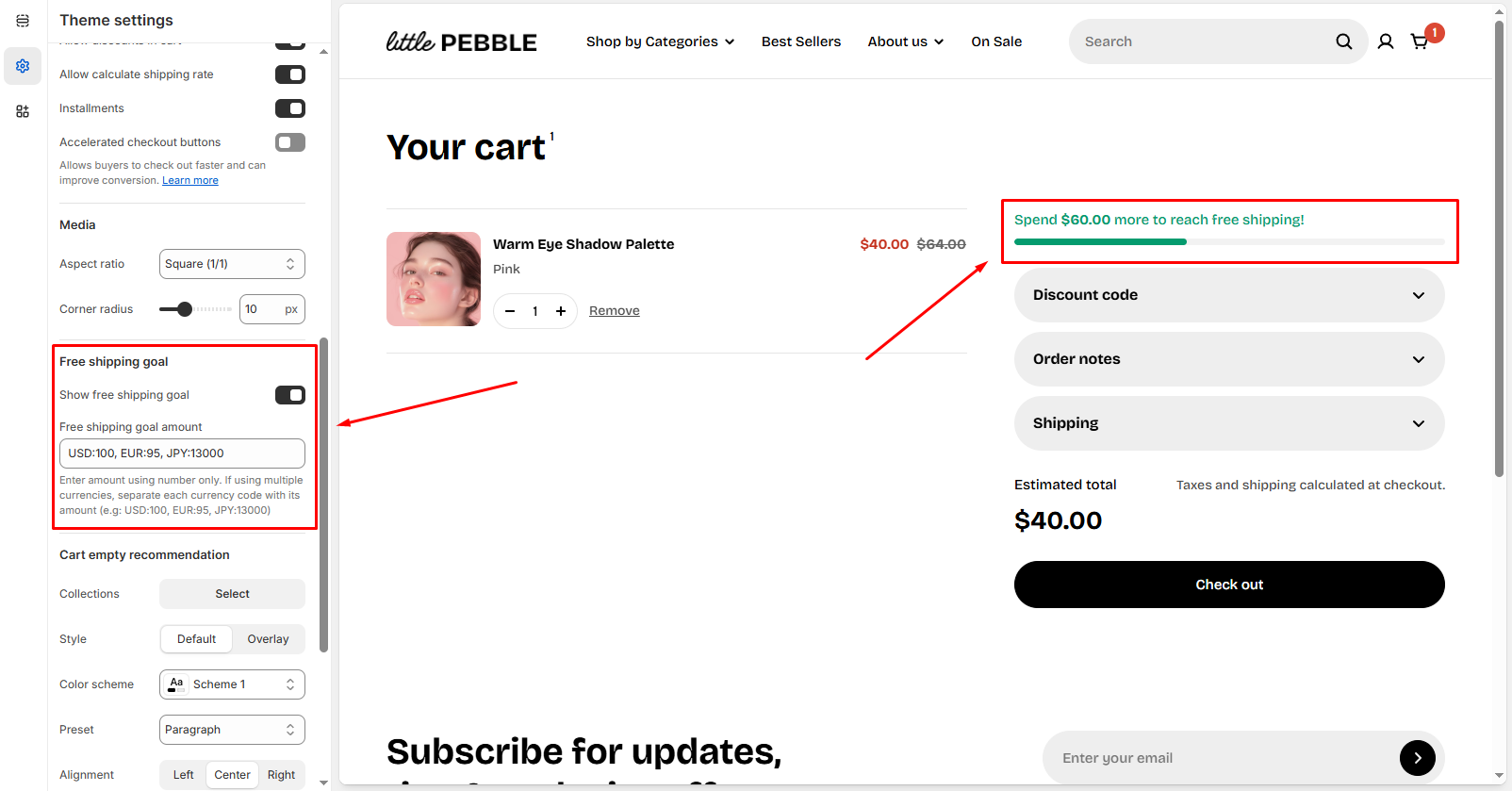
To ensure that customers receive free shipping at checkout, make sure that your [shipping rates](https://help.shopify.com/en/manual/fulfillment/setup/shipping-rates) are properly configured.
The Free shipping goal is based on the store's primary currency. If no custom currency amounts are entered and a customer switches to another currency, the goal will be calculated using Shopify market [exchange rates](https://help.shopify.com/en/manual/markets/pricing/exchange-rates).
### Cart empty recommendation
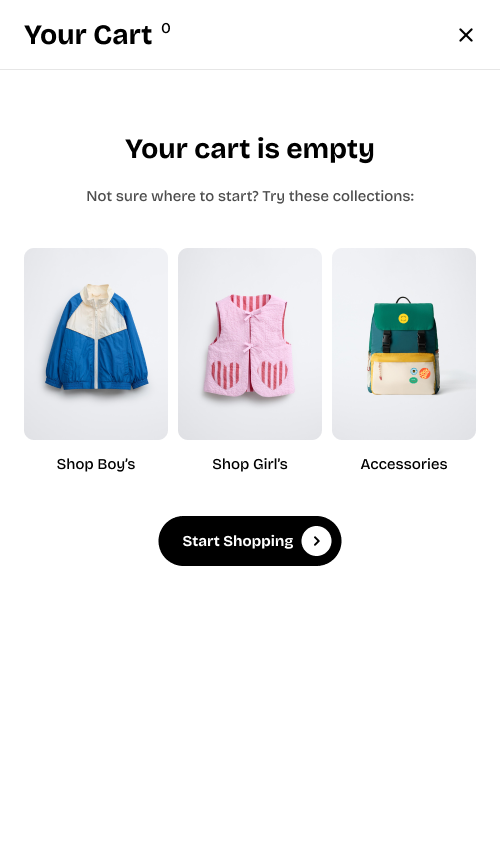
Display a list of suggested collections customers can explore if they view their empty cart.
Use it to guide customers back to your products.
#### Collections
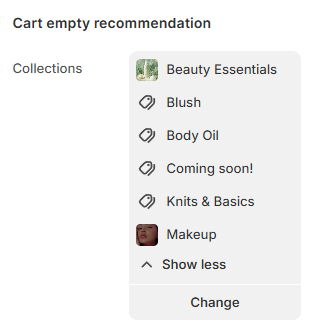
Select the collections you want to display in the empty-cart recommendation area.
* Click **Change** to open the collection picker.
* You can select **up to 6 collections**.
* The selected collections will appear as recommendation cards when the cart is empty.
#### Display settings
**Style**

Choose how the recommendation cards are displayed:
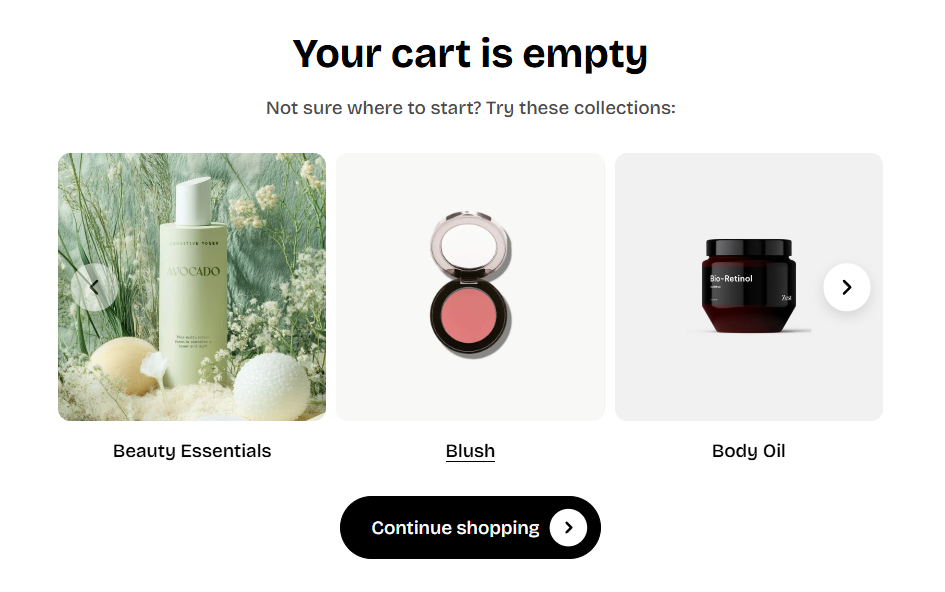
* **Default**: Text sits below the image. Clean and simple.
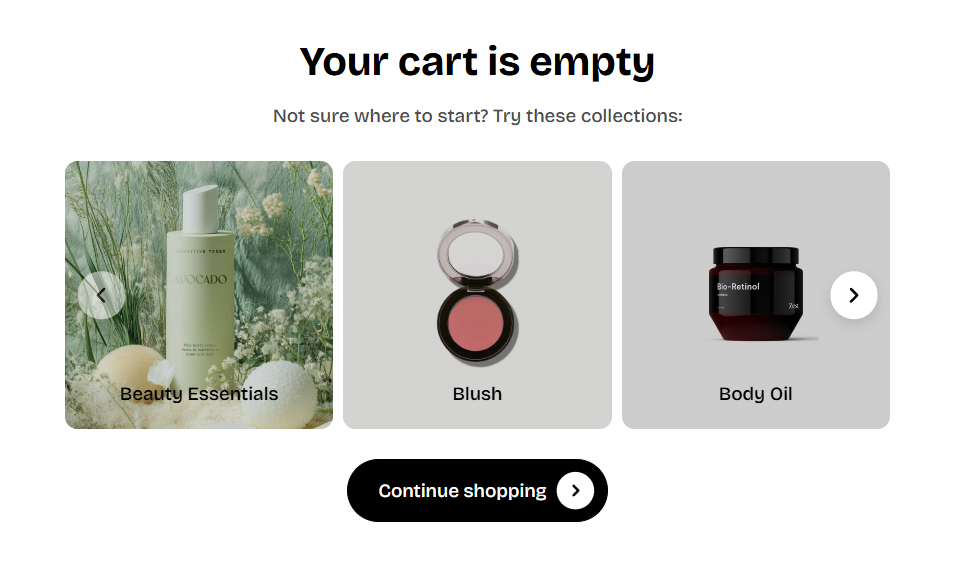
* **Overlay**: Text appears on top of the image. Ideal for high-quality photography.
**Color scheme**

Controls text and background colors of the recommendation cards.
(Only applies when using **Overlay** style.)
**Overlay color**

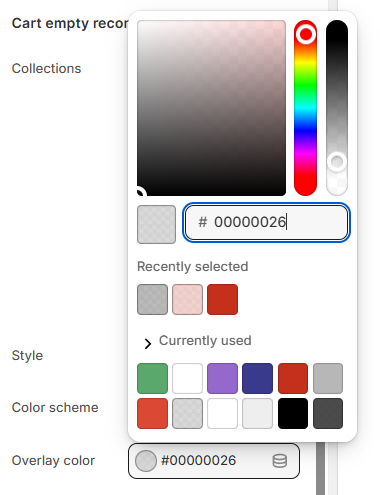
Set a tinted overlay color behind the text to improve readability.
(Visible only when using the **Overlay** style)
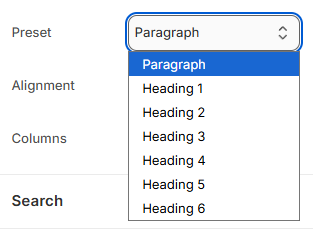
**Preset**

Changes the Collection title style shown inside each recommendation card.
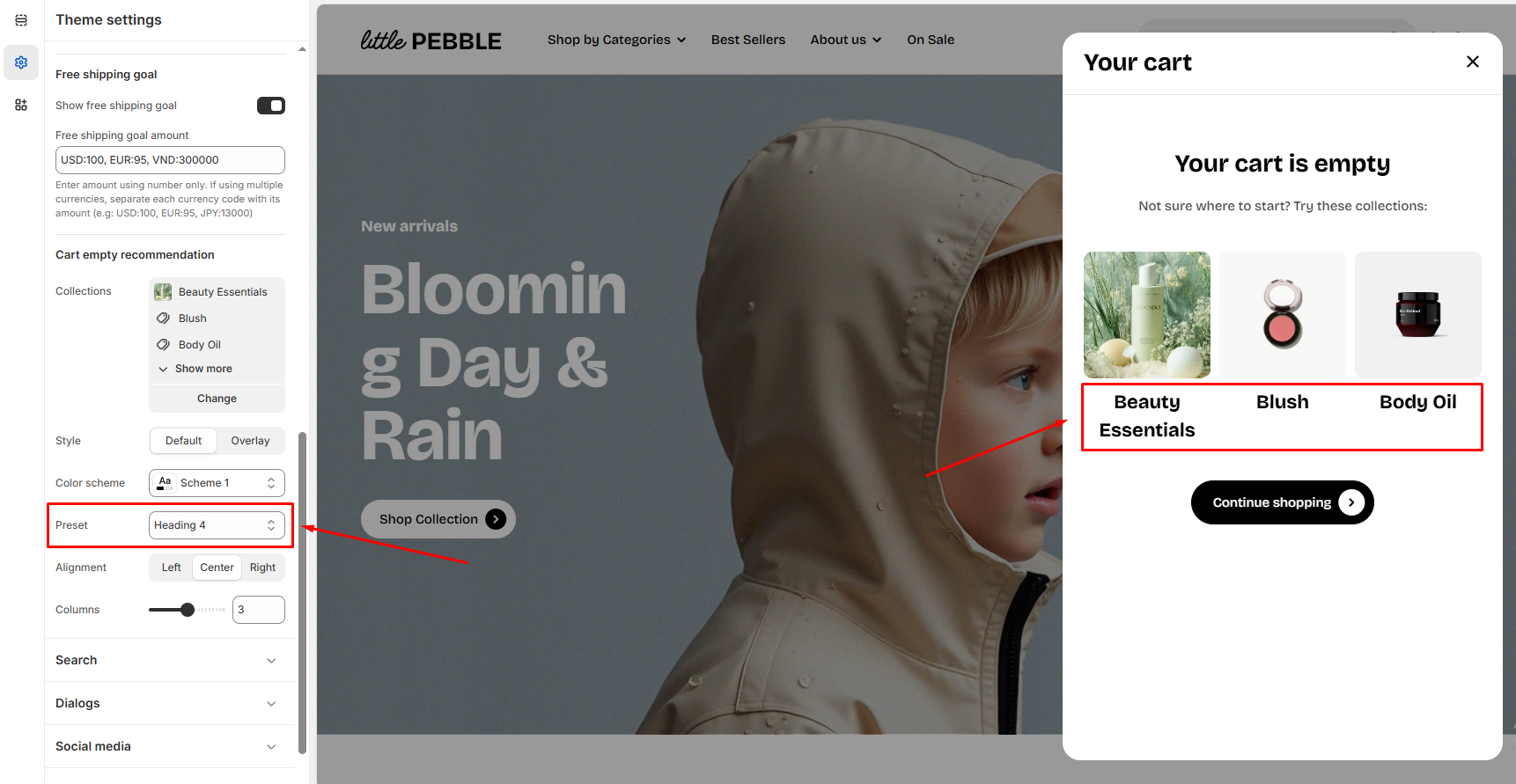
Available presets:
* **Paragraph**
* **Heading 1** (largest)
* **Heading 2–6** (descending sizes)
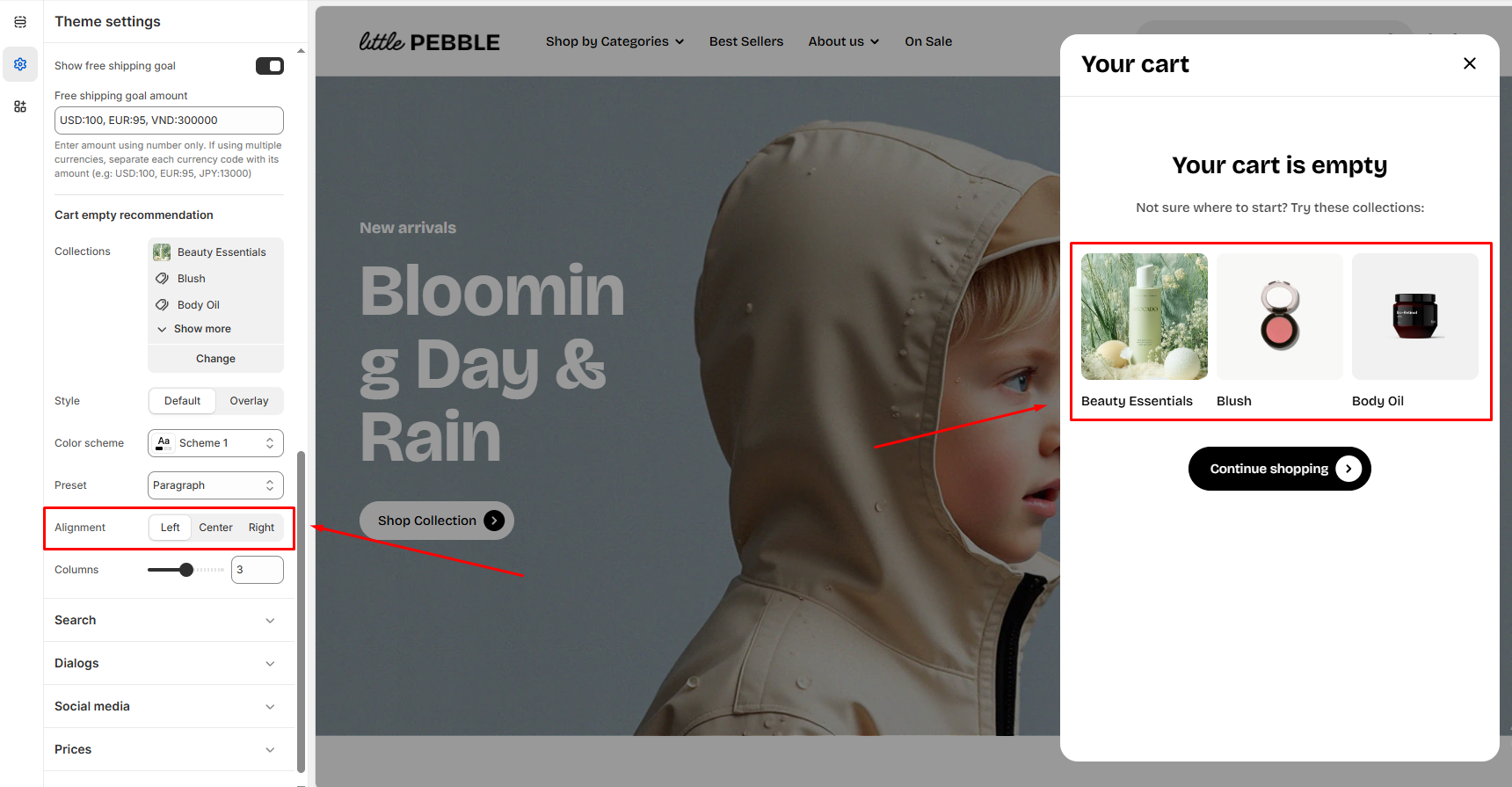
**Alignment**

Controls the alignment of the Collection titles inside each card.
Options:
* **Left**
* **Center**
* **Right**
Center alignment is most commonly used for a clean, balanced layout.
**Columns**

Controls how many collection cards appear per row in the empty-cart recommendation section.
Use the slider to choose the number of columns (from 2 to 4).
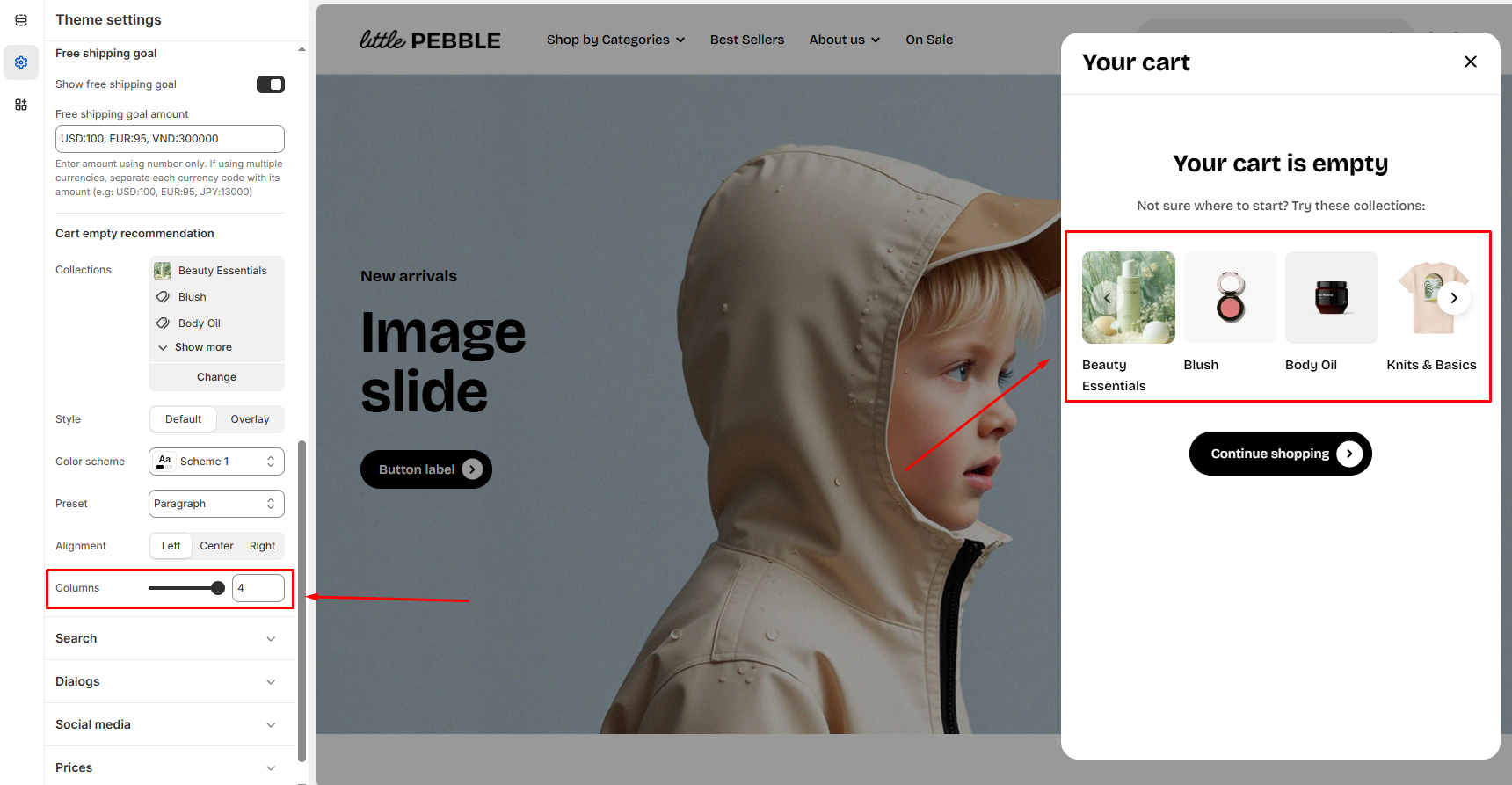
If the **number of columns** is smaller than the **number of selected collections**, the section will automatically display in a carousel layout.
### Gift wrapping
Offer customers the option to add beautiful gift wrapping to their orders. Choose whether gift wrap applies to the whole cart or each product individually, and customize pricing, quantity sync, and presentation to match your store experience.
#### Create a gift wrap product
**Steps:**
1. From your Shopify admin, go to **Products.**
2. Click **Add product**.
3. Create a gift-wrap product [just as you would create any other product.](https://help.shopify.com/manual/products/add-update-products)
4. Make the necessary changes and click **Save**.
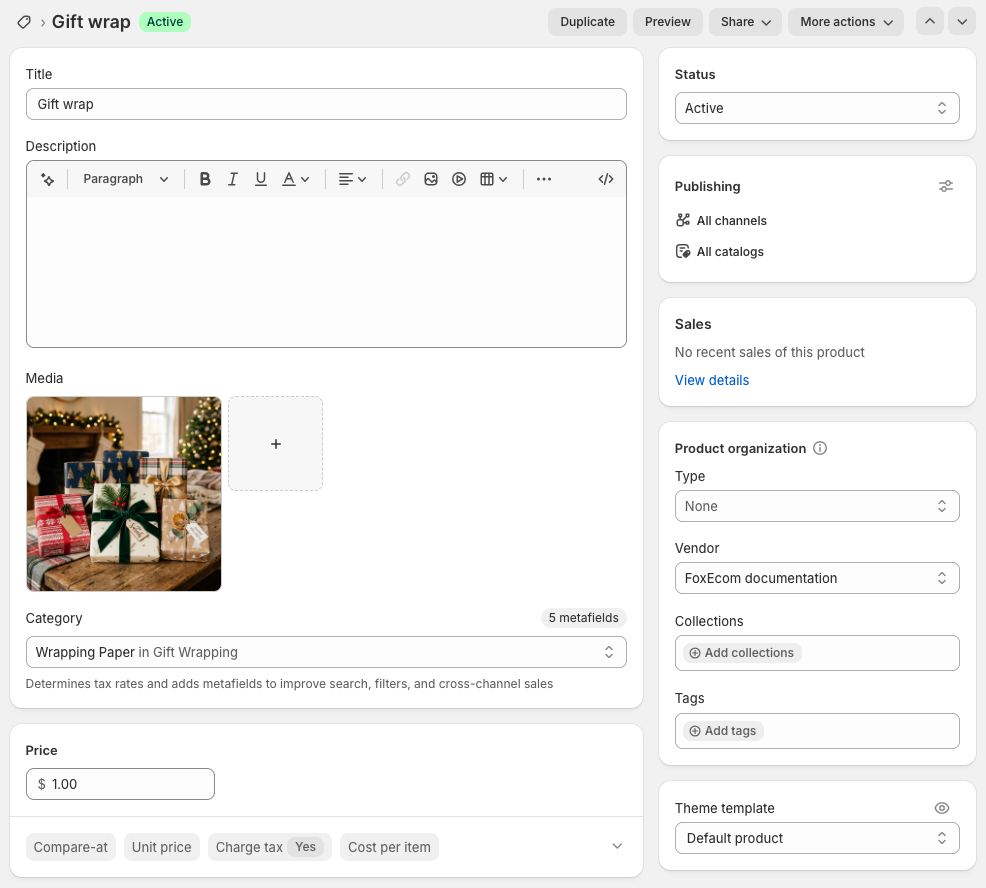
* Use the product description to explain your gift-wrap materials and style.
* Set the product price to charge for gift wrapping, or set it to 0 for free gift wrap.
* Upload an image to show customers how the gift wrapping looks.
* Make sure the gift-wrap product has inventory enabled, or disable inventory tracking if needed.
* For stores with multiple locations, uncheck **Track quantity** to avoid inventory tracking issues.
#### Set up the gift wrap product
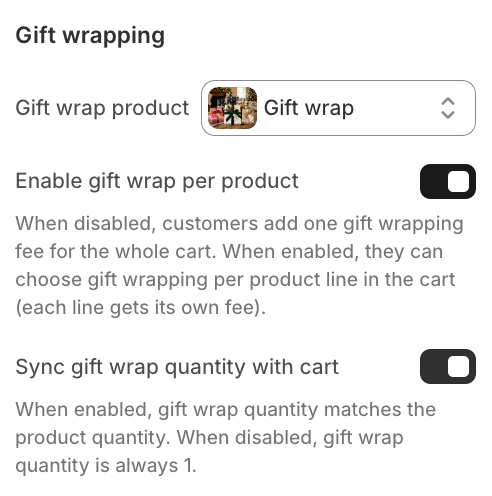
Choose the product you created for gift wrapping.
_7XFKsfPl.jpg)
_vA6bWL0P.jpg)
**Enable gift wrap per product**
* When disabled, customers pay one gift-wrap fee for the whole cart.
* When enabled, customers can choose gift wrapping for each product separately.
_mNCDNnkG.jpg)
**Sync gift wrap quantity with cart**
* When enabled, the gift-wrap quantity matches the product quantity.
* When disabled, the gift-wrap quantity is always 1.
_QPg2vp0i.jpg)