# Shop the look
_uSFn5aMN.jpg)
Showcase a complete look by tagging products within an image, allowing customers to shop each item directly.
## How to add a Shop the look section to your Shopify store
1. In the theme editor **(Customize)**, click **Add section.**
2. Select **Shop the look** section.
3. Make necessary changes.
4. **Save.**
## How to customize the Shop the look section
The Shop the look section consists of three main blocks: **Header**, **Banner**, and **Hotspot**.
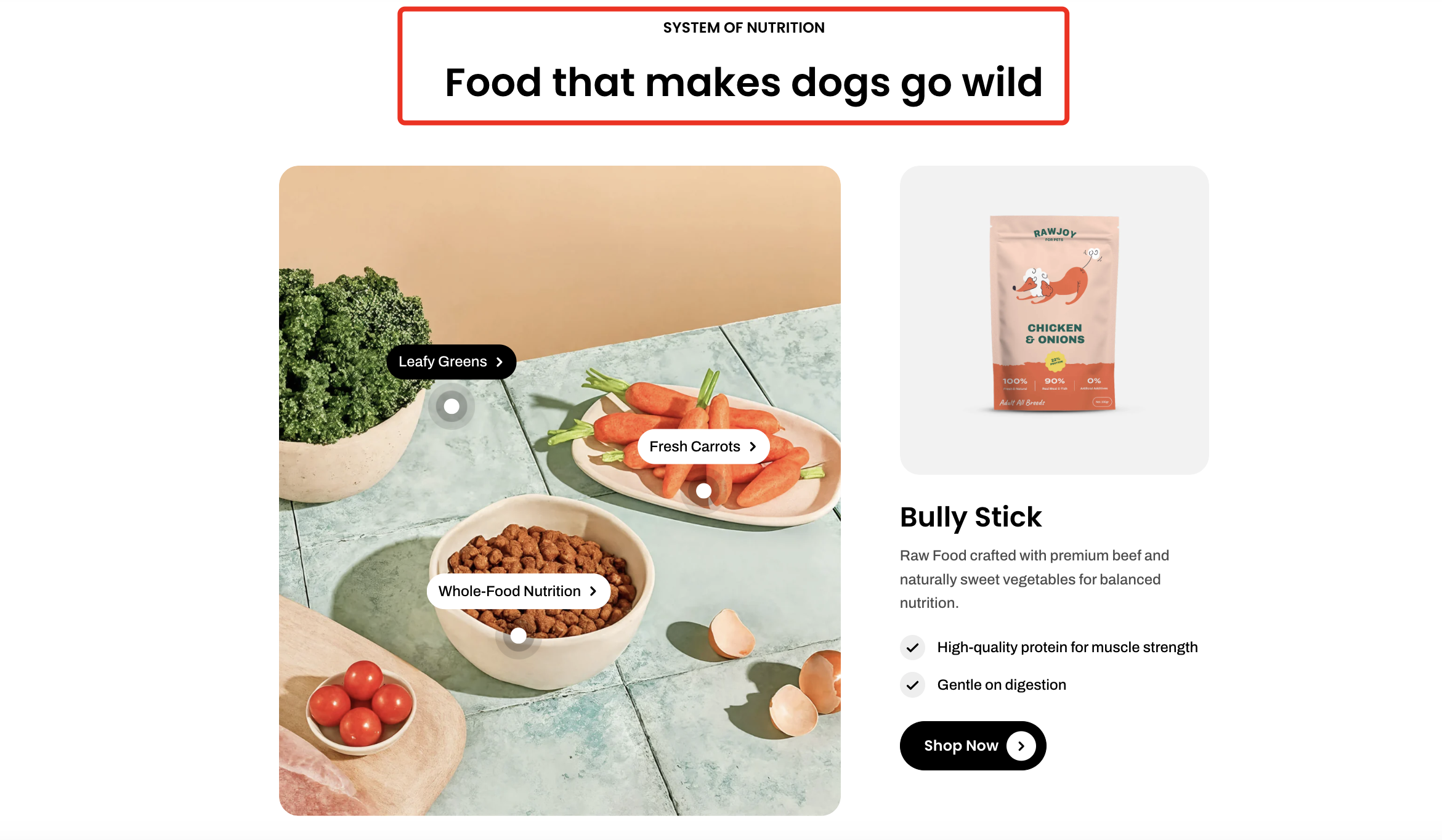
Use the **Header** block to create and customize the section’s heading and introductory content.
| Setting | Description |
| --- | --- |
| **Alignment** | Set the header alignment: left, center, or right. |
| **Devices** | Switch between desktop and mobile padding settings. |
| **Bottom** | Adjust the spacing below the header. |
* **Heading** – Add a main title
* **Subheading** – Provide supporting text above or below the heading
* **Text** – Include additional descriptions or details
* **Image** – Display an image or icon
* **Button** – Add a call-to-action
📝 Learn more: [Basic](https://docs.foxecom.com/pebble-theme/theme-blocks/basic)
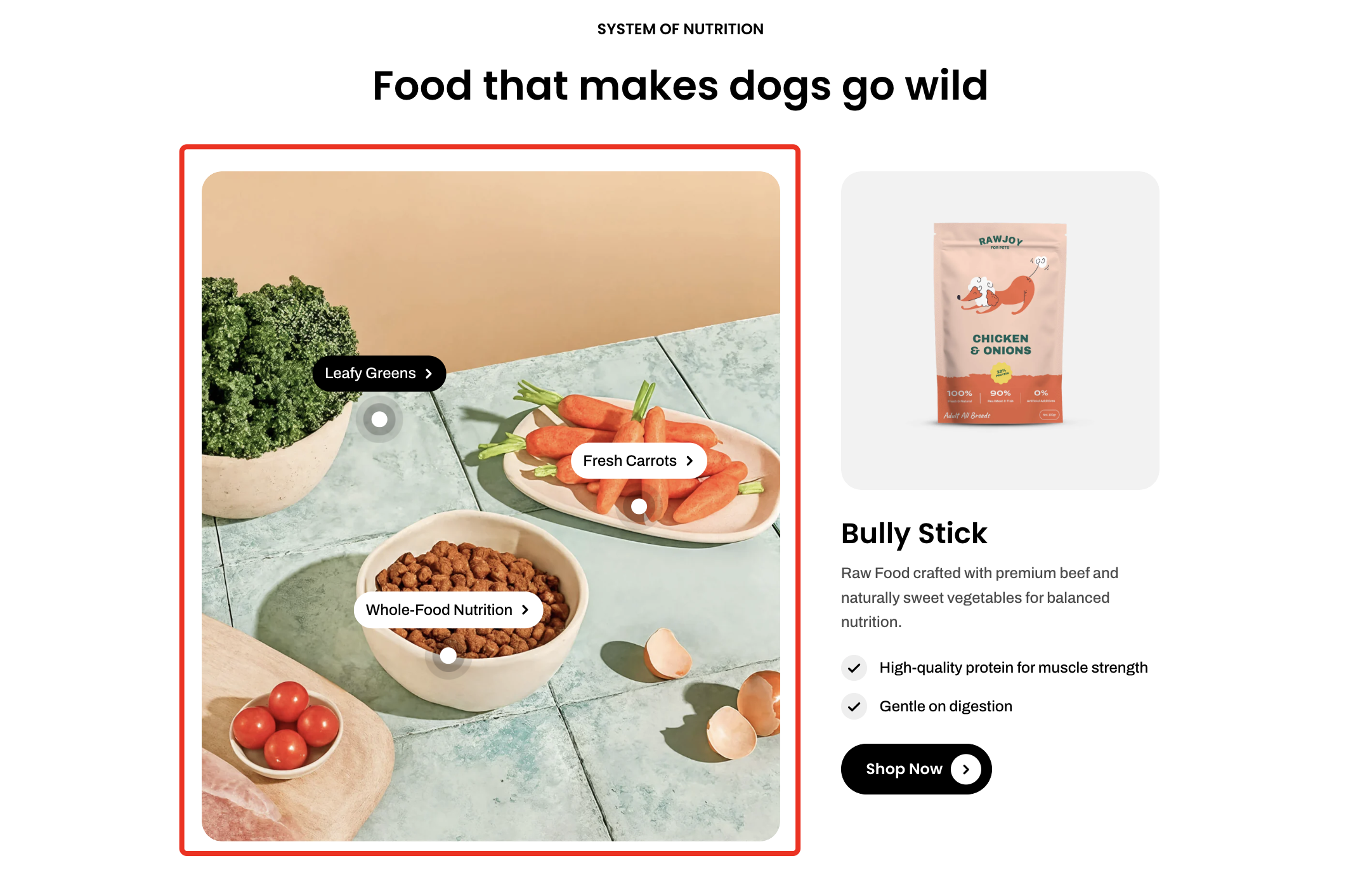
Configure the main image displayed in the section.
| Setting | Description |
| --- | --- |
| **Image** | Select the banner image. |
| **Image mobile** | Upload a separate image optimized for mobile devices. |
| **Aspect ratio** | Adjust the image ratio for desktop display. |
| **Aspect ratio mobile** | Set a different image ratio for mobile display. |
| **Corner radius** | Control the roundness of the image corners. |
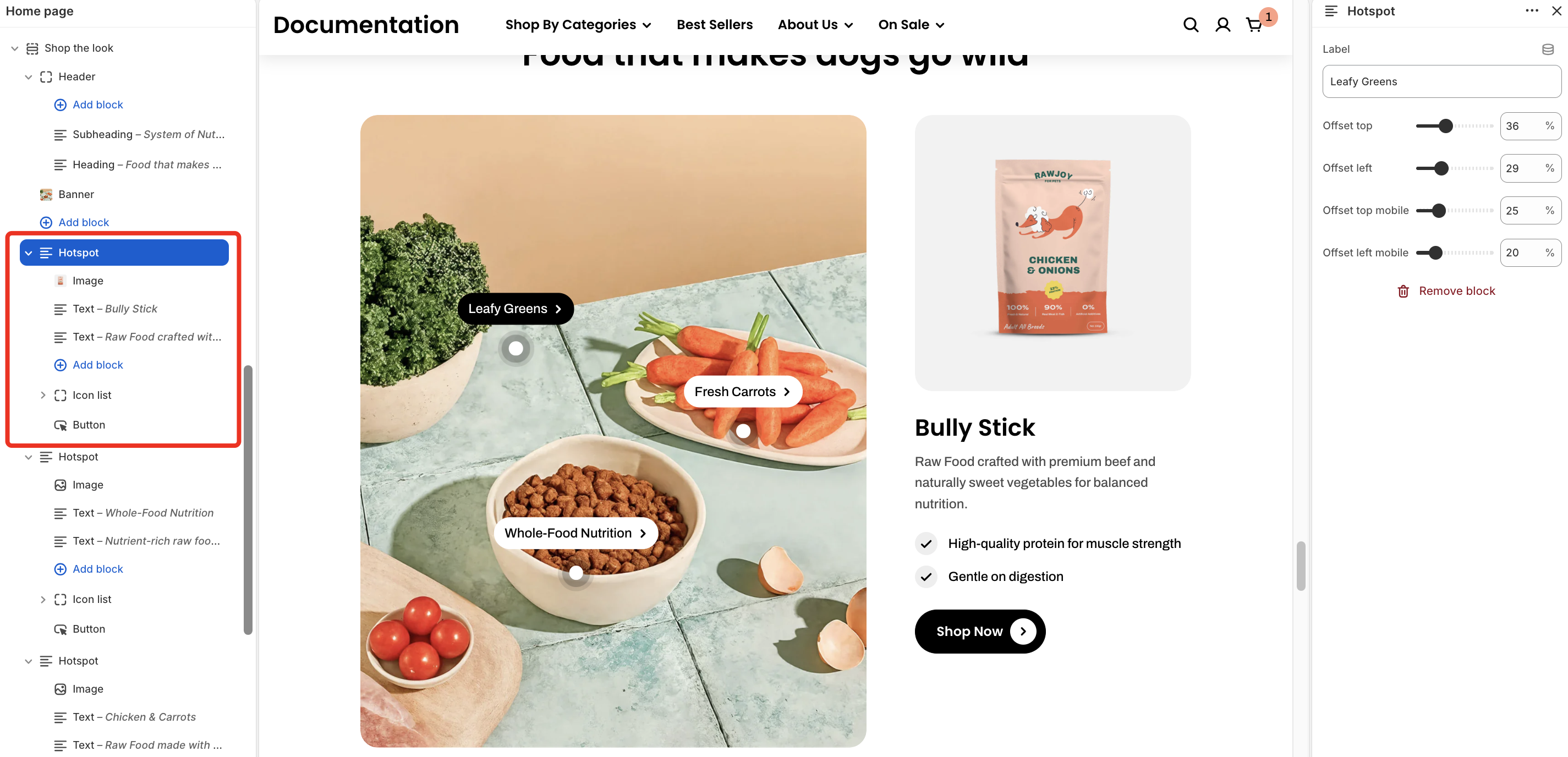
Add interactive hotspots to highlight products or key elements within an image.
| Setting | Description |
| --- | --- |
| **Label** | Enter the text displayed for the hotspot. |
| **Offset top** | Adjust the vertical position of the hotspot. |
| **Offset left** | Adjust the horizontal position of the hotspot. |
| **Offset top mobile** | Set the vertical position of the hotspot on mobile devices. |
| **Offset left mobile** | Set the horizontal position of the hotspot on mobile devices. |
* **Image** – Display the associated product or visual
* **Text** – Add product name or description
* **Icon list** – Highlight key features or benefits. *Learn more:* [Basic](https://docs.foxecom.com/pebble-theme/theme-blocks/basic#icon-list)
* **Button** – Add a call-to-action for the hotspot
Learn more:
Basic