# Video cards: Flex carousel
_1mdWxma5.jpg)
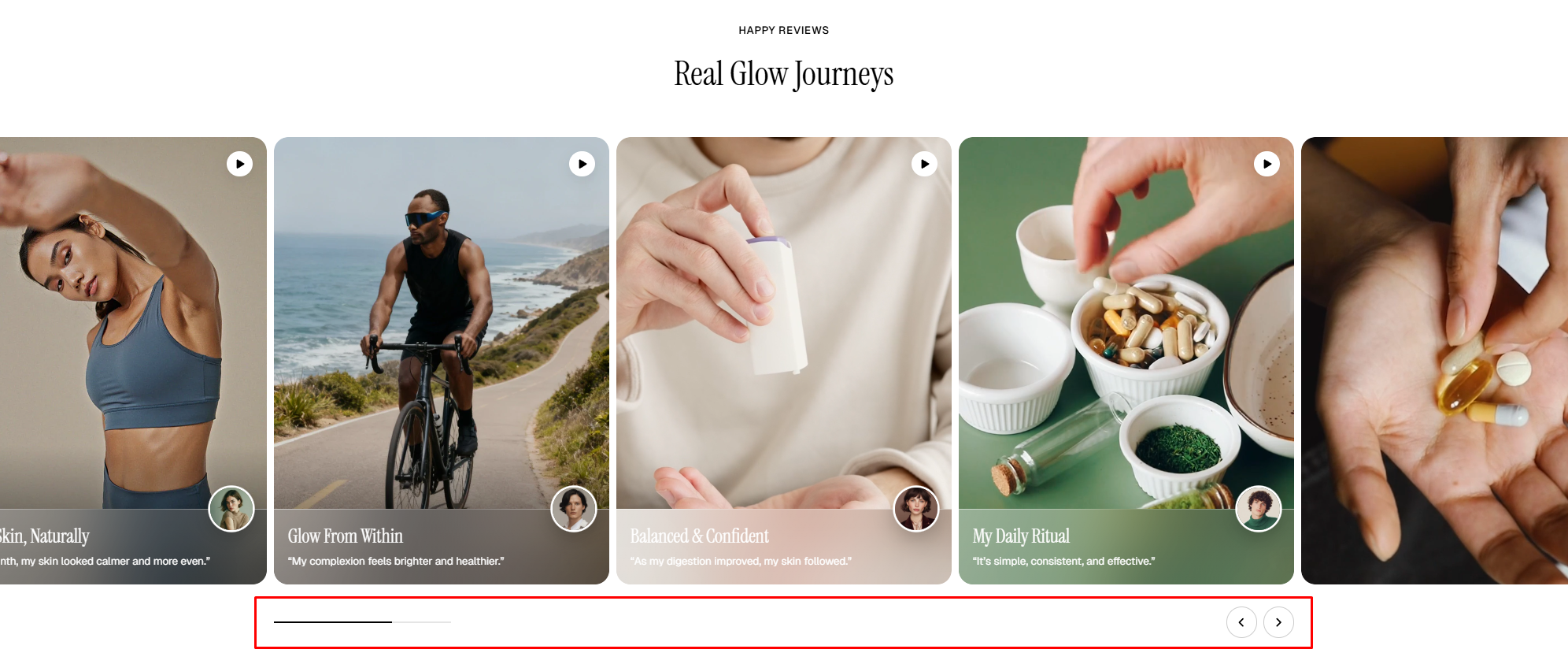
The **Video cards: Flex carousel** section showcases customer stories through interactive video-based cards, helping create a more engaging and immersive brand experience.
## How to add a Video cards**: Flex carousel** to your Shopify store
1. In the theme editor **(Customize)**, click **Add section.**
2. Select **Video cards: Flex carousel** section.
3. Make necessary changes.
4. **Save.**
## How to customize a Video cards**: Flex carousel** section
### Section settings
| Setting | Description |
| --- | --- |
| **Layout** | Defines whether the section spans the full page width or stays within a fixed content width. |
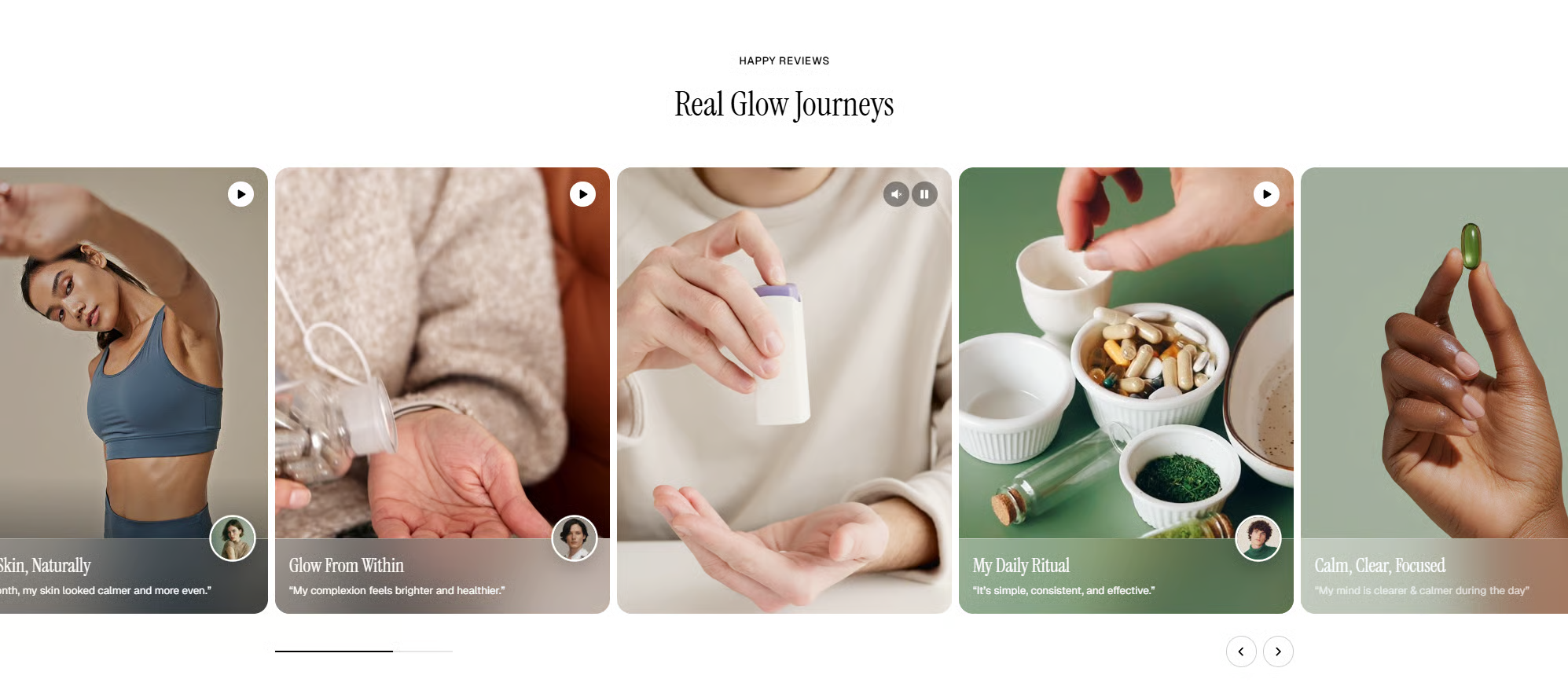
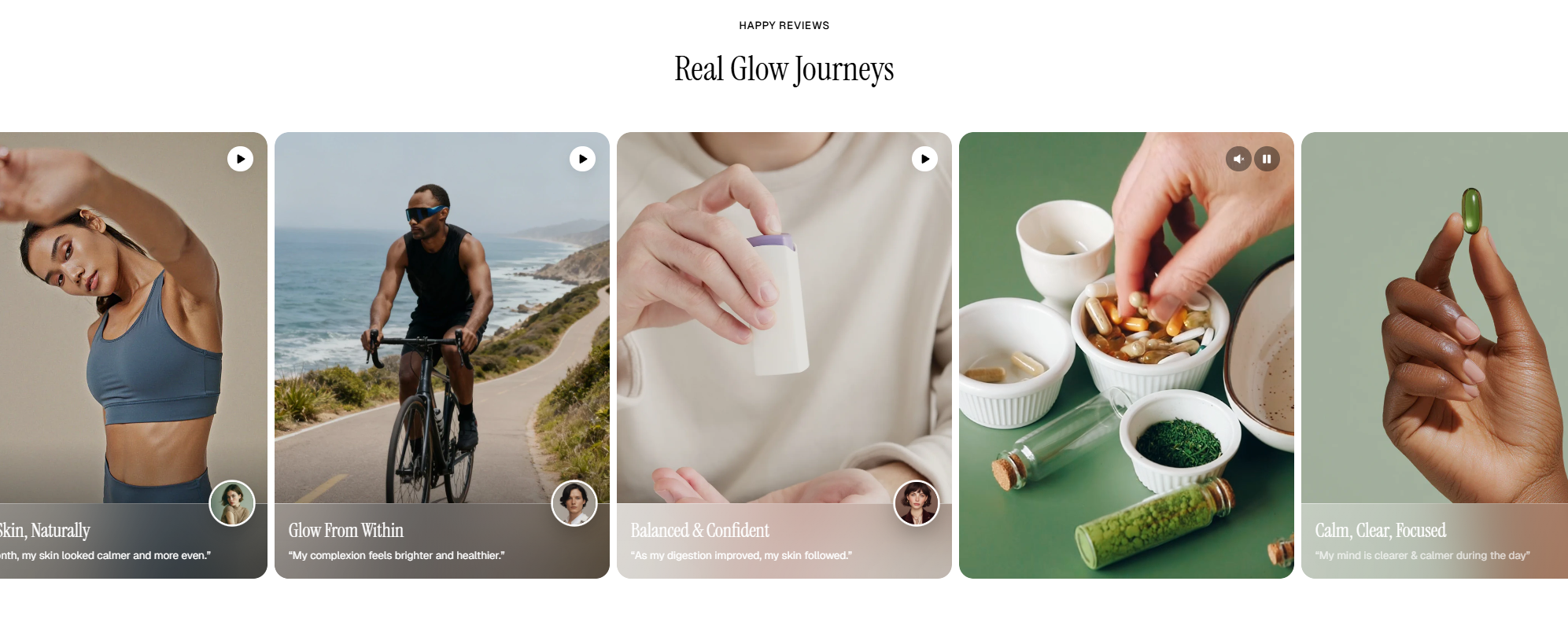
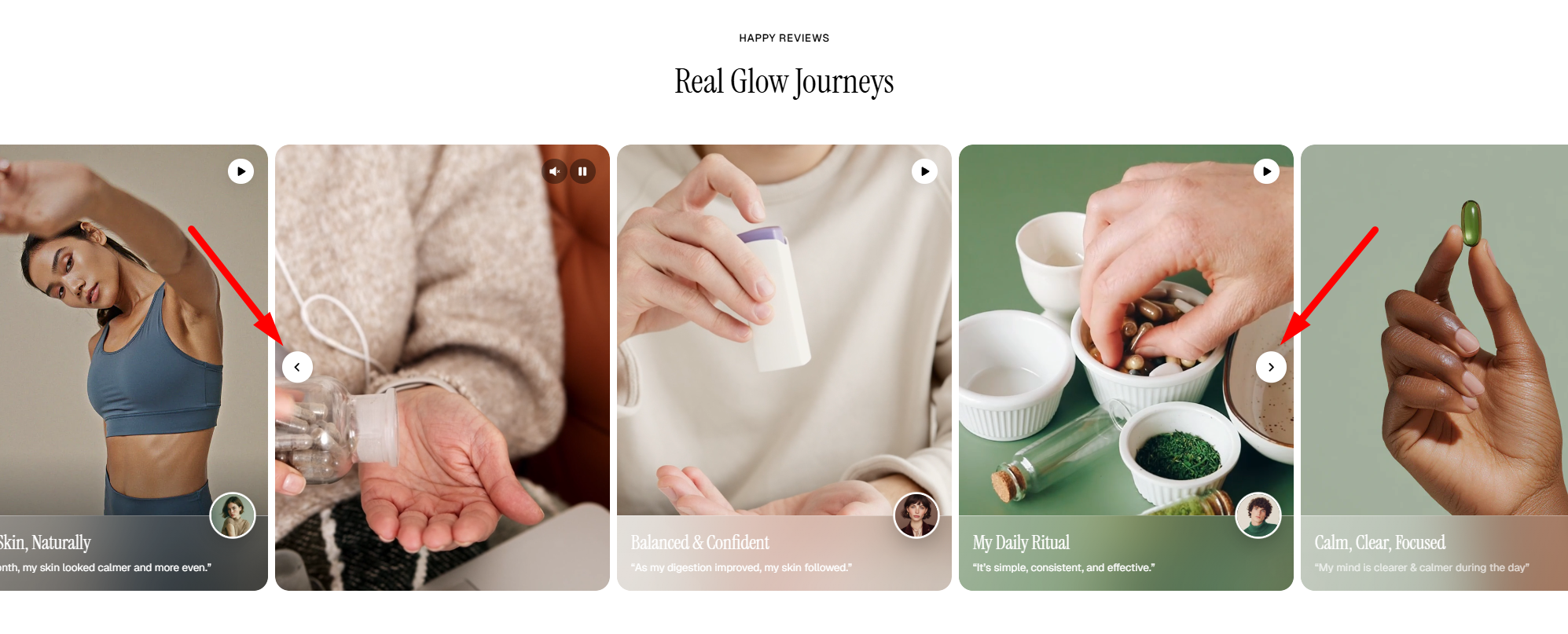
| **Overflow content** | Controls how content outside the visible area of the slider/container is displayed (Visible/Edge shadows). |
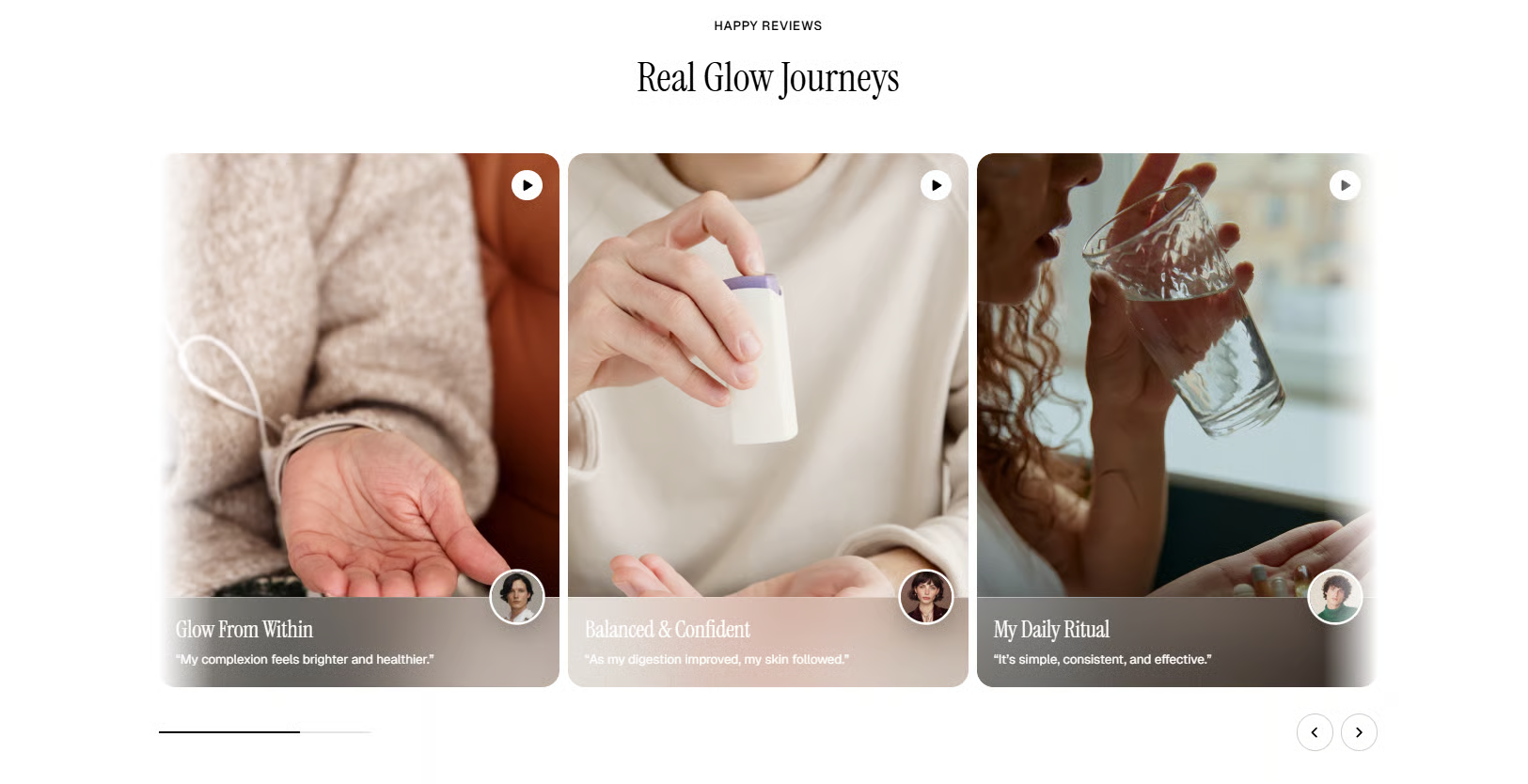
| **Slide per view** | • Defines how the number of visible slides is calculated.
• **Auto:** Automatically adjusts the number of visible slides based on the container width and slide size.
• **Column:** Uses a fixed number of columns set in the **Columns** setting. |
| **Columns** *(Columns only)* | Set the number of columns shown in the column layout. |
| **Horizontal gap** *(Columns only)* | Adjust the spacing between items horizontally. |
#### Mobile layout
| Setting | Description |
| --- | --- |
| **Enable swipe on mobile** | Allow users to swipe through items on mobile devices. |
| **Custom column width** | Enable custom sizing for columns instead of equal widths. |
| **Mobile columns** | Choose the number of columns displayed on mobile devices. |
| **Mobile horizontal gap** | Adjust spacing between items horizontally on mobile. |
_opF4P1rR.jpg)
_lcRvRdqV.jpg)
_LyjRiayh.jpg)
Check out other section settings: [Common settings available in most sections](https://docs.foxecom.com/pebble-theme/theme-sections/overview#common-settings-available-in-most-sections)
### Block settings
The Video cards: Flex carousel section includes two blocks: a **Header** block and multiple **Video cards** blocks for displaying media content.
In this section, you can also add other blocks such as:
* [Basic](https://docs.foxecom.com/pebble-theme/theme-blocks/basic#image-card)
* [Collection item](https://docs.foxecom.com/pebble-theme/theme-sections/collection-list-flex-carousel#collection-item)
* [Collection card](https://docs.foxecom.com/pebble-theme/theme-blocks/collection#collection-card)
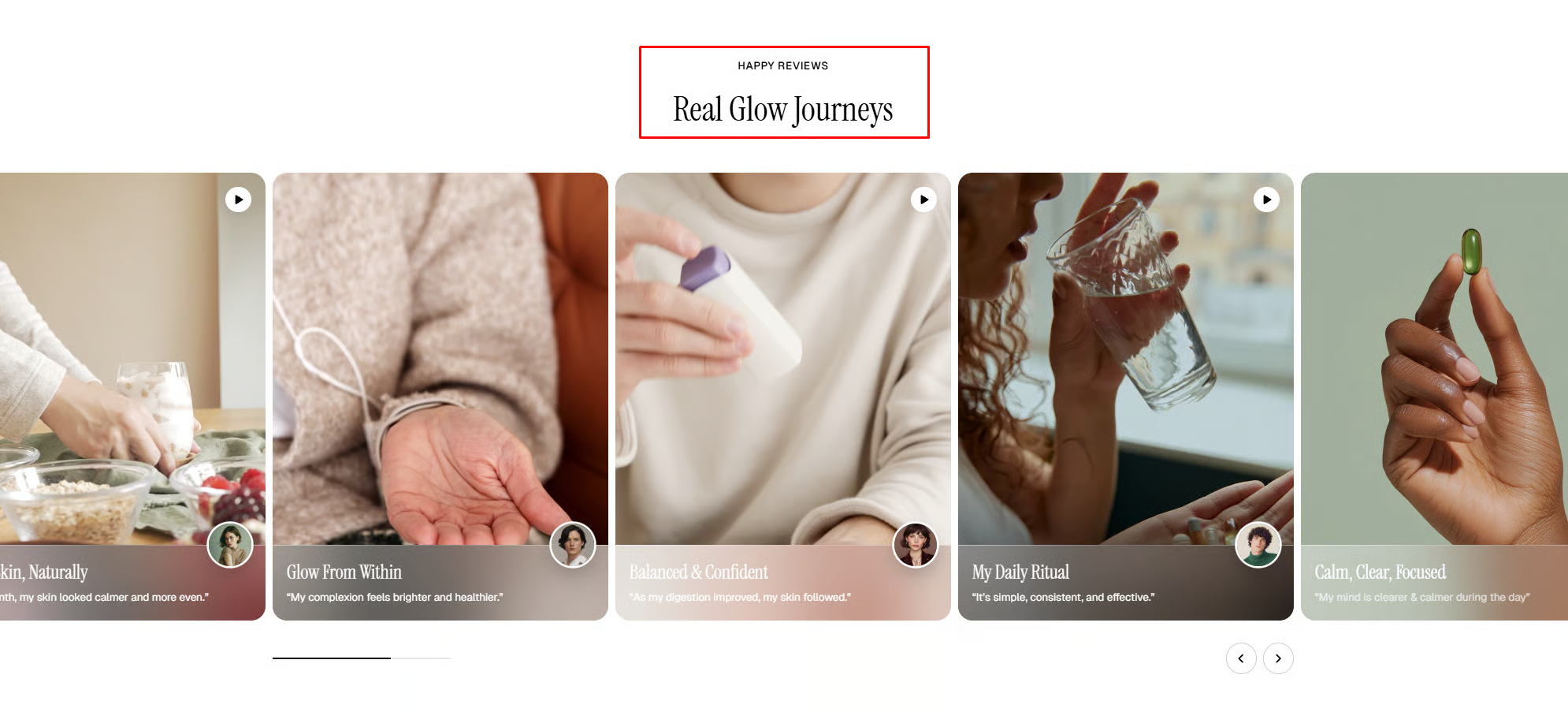
Use the **Header** block to create and customize the section’s heading and introductory content.
| Setting | Description |
| --- | --- |
| **Alignment** | Set the header alignment: left, center, or right. |
| **Devices** | Switch between desktop and mobile padding settings. |
| **Bottom** | Adjust the spacing below the header. |
* **Heading** – Add a main title
* **Subheading** – Provide supporting text above or below the heading
* **Text** – Include additional descriptions or details
* **Image** – Display an image or icon
* **Button** – Add a call-to-action
📝 Learn more: [Basic](https://docs.foxecom.com/pebble-theme/theme-blocks/basic)
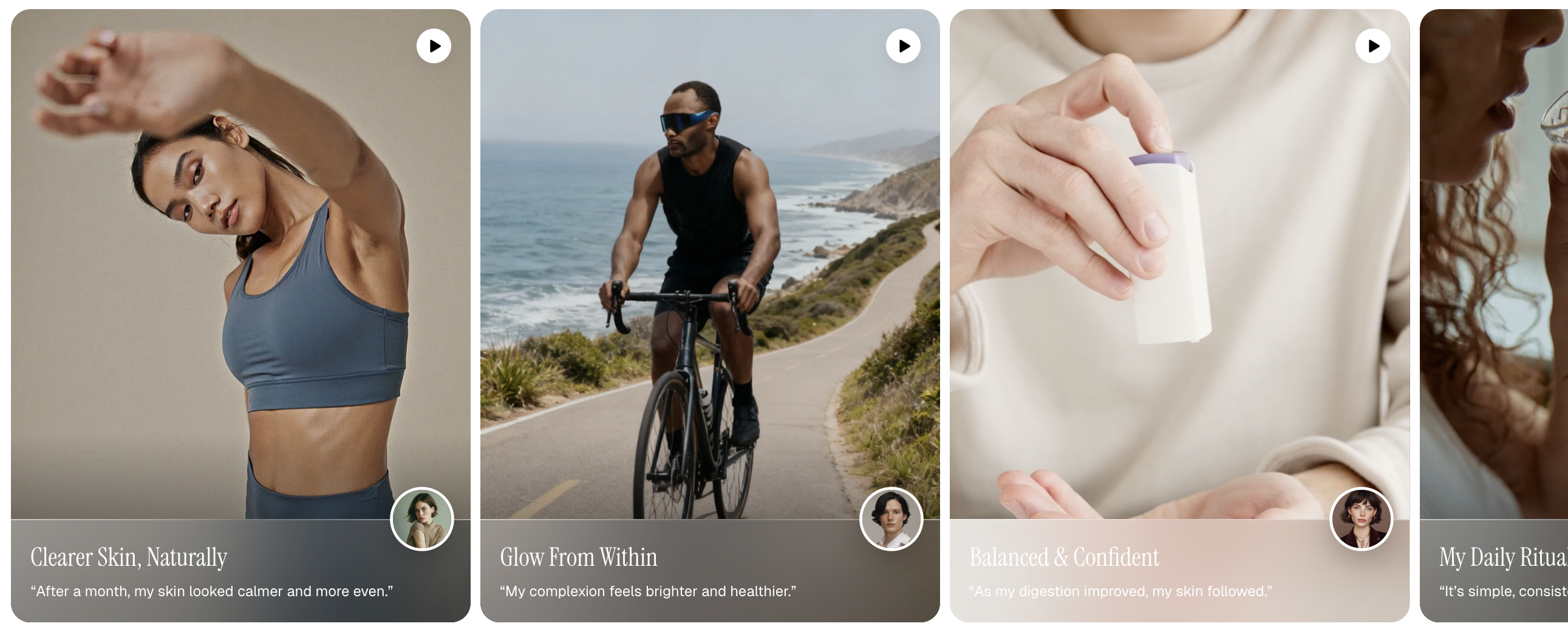
Displays a customizable video card with video media, cover image, sizing and appearance settings, plus an optional info area with avatar, title, bio, typography, and color customization.
📝 Learn more: [Basic](https://docs.foxecom.com/pebble-theme/theme-blocks/basic#video-card)