# Product tabs
_KmF7wyXA.jpg)
Display multiple product categories in clean, easy-to-browse tabs that guide customers through your best collections.
## How to add a Product tabs section to your Shopify store
1. In the theme editor **(Customize)**, click **Add section.**
2. Select **Product tabs: Carousel/Product tabs: Grid** section.
3. Make necessary changes.
4. **Save.**
## How to customize a Product tabs section
_3mJuXiuX.jpg)
_KmF7wyXA.jpg)
### Section settings
* **Container:** Determines whether the section spans the full width of the page or stays within a fixed content width.
* **Section header:**
* **Heading:** The main title text displayed at the top of the section.
* **Highlight style:** Applies an optional animated highlight effect to any text wrapped in italics.
* **Preset:** Selects the text style for the heading
* **Animation type:** Determines how the heading appears on screen using visual entrance effects.
* **Animation delay:** Sets the delay (in milliseconds) before the heading animation begins.
* **Layout:**
* **Product count:** Controls how many products are displayed in this tab.
* **Type:** Chooses whether products appear in a grid or a carousel layout.
* **Columns:** Sets how many products appear per row when using the grid layout.
* **Column gap:** Controls the horizontal spacing between product cards.
* **Mobile layout:**
* **Enable swipe on mobile:** Allows users to swipe horizontally through products on mobile devices.
* **Mobile columns:** Sets how many products appear per row on mobile.
* **Column gap mobile:** Controls horizontal spacing between products on mobile.
### Block settings
#### Collection
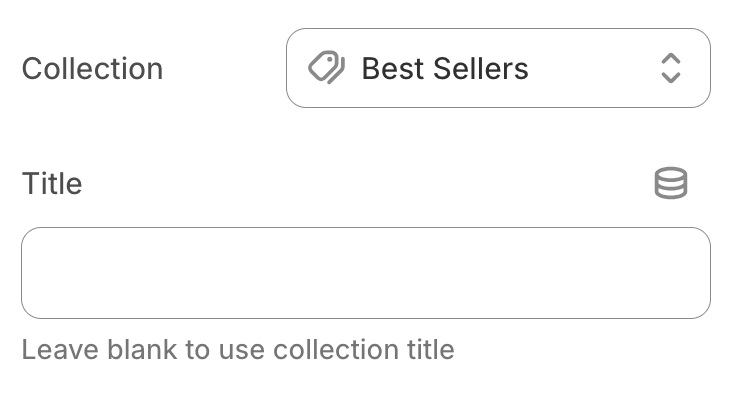
* **Collection:** Selects the product collection to display in this tab.
* **Title:** Allows you to set a custom tab title; leave it blank to use the collection’s default name.
You can go to **Theme Settings > Product cards** to customize your product card: [Product cards](https://docs.foxecom.com/pebble-theme/theme-settings/product-cards)