# Layout
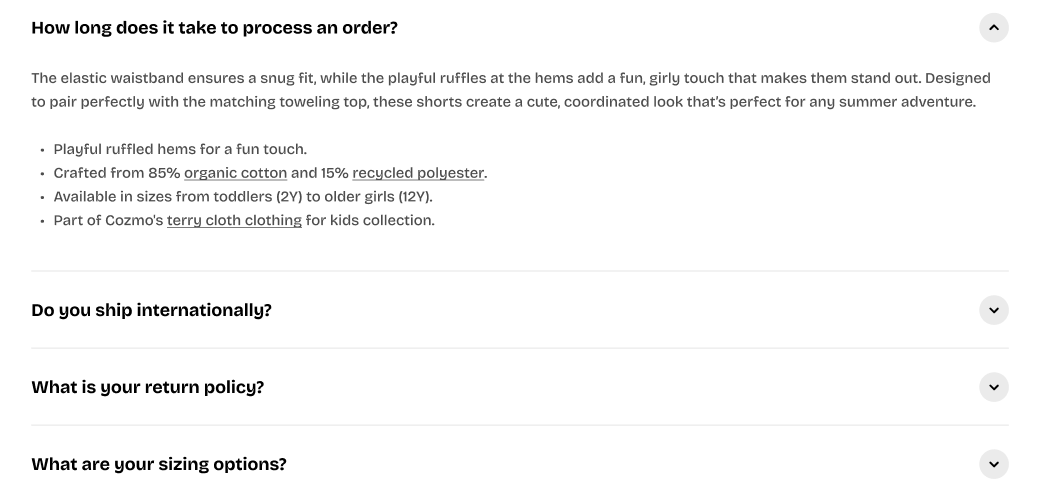
The **Accordion** block lets you group multiple content rows that expand or collapse when clicked. It’s ideal for FAQs, shipping or return details, product information, and other text-heavy content where you want to save space and keep the page tidy.
***Use case examples:***
* Create an FAQ section with collapsible questions and answers.
* Add product details like **Material**, **Care instructions**, or **Shipping & Returns** under product pages.
* Use in storytelling or info-heavy sections to organize content in a clean, interactive layout.
#### ⚙️ **Block settings**
| Setting | Description |
| ------------------------ | --------------------------------------------------------------------------------------------------------------------------------------- |
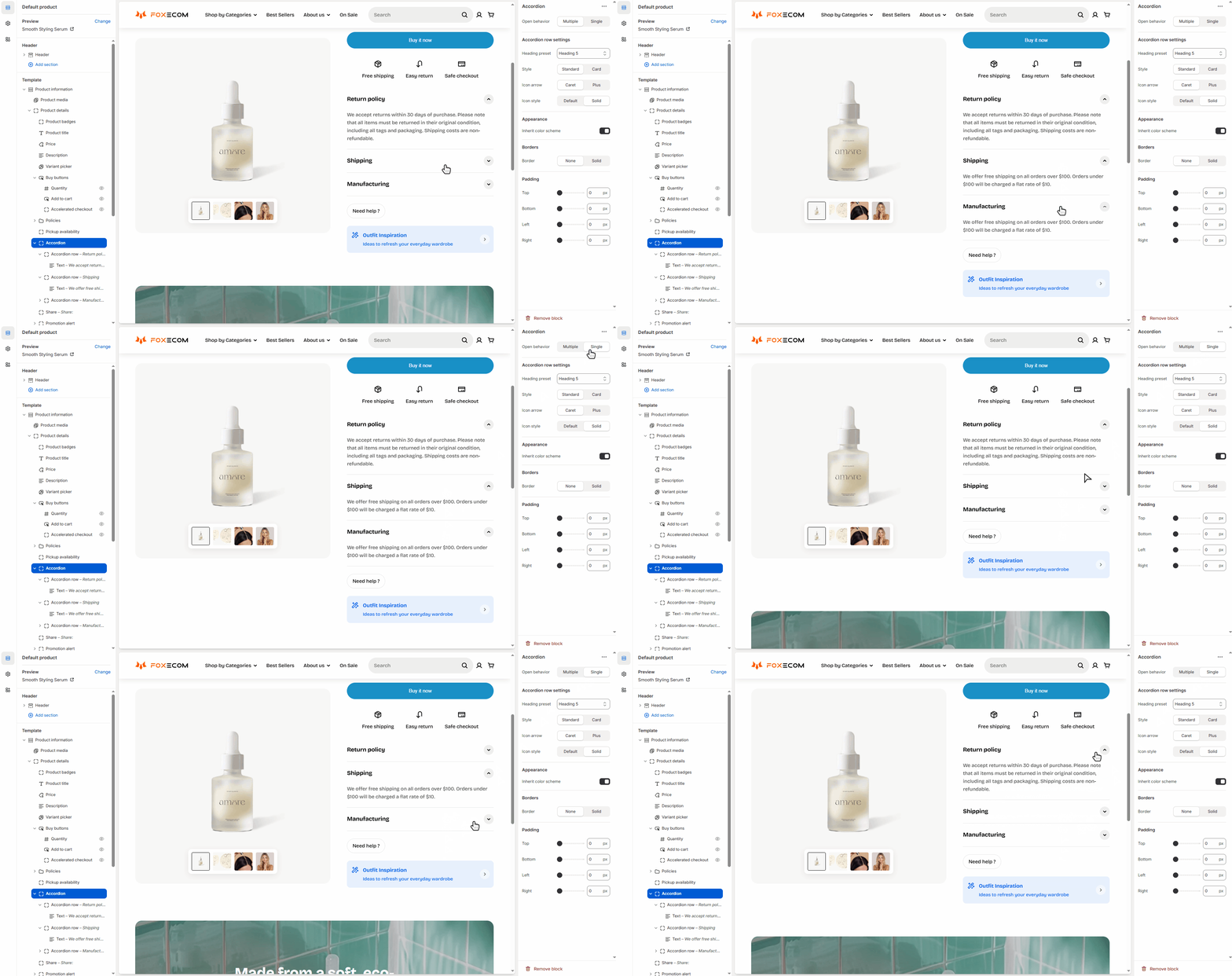
| **Open behavior** | Choose how the accordion behaves:
• `Multiple` — allows several rows to stay open.
• `Single` — only one row opens at a time. |
| **Heading preset** | Select the font style for each accordion title (H1–H6, paragraph, or default). |
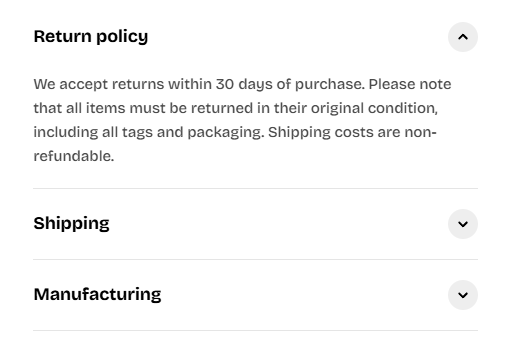
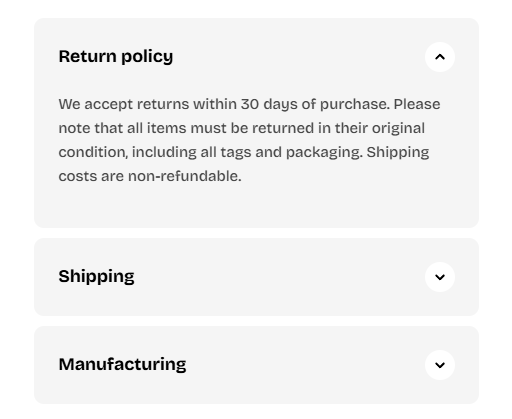
| **Style** | Choose the accordion look:
• `Standard` — simple text layout.
• `Card` — boxed layout with a background color. |
| **Card color scheme** | Pick a color scheme for card-style accordions (visible only when using “Card” style). |
| **Arrow icon** | Select the icon that appears beside each heading (`Caret` or `Plus`). |
| **Icon style** | Choose icon weight — `Default` or `Solid`. |
| **Inherit color scheme** | Use the same color scheme as the parent section. Disable to pick a custom color scheme. |
| **Color scheme** | Choose a custom color palette if not inherited. |
| **Border style** | Add borders to the accordion container (`None` or `Solid`). |
| **Border radius** | Round the corners of the accordion container (px). |
| **Padding** | Control the spacing around the accordion block (in px). |
#### 🧩 Accordion row
The **Accordion row** is only available within the **Accordion** block. It can’t be added independently to other sections.
Each **Accordion** contains one or more **Accordion row** blocks.
Every row includes:
* A **Heading** (the clickable question or title).
* Nested content blocks (usually **Text**, but can include other blocks).
| Setting | Description |
| ----------------------- | --------------------------------------------------------------------------------------------------------------------------- |
| **Open row by default** | Keeps this row expanded by default when the page loads. |
| **Icon** | Choose an icon to appear beside the row title. You can select from various options (e.g., Caret, Plus, Truck, Heart, etc.). |
| **Image icon** | Upload a custom image instead of using a preset icon. Useful for brand-specific icons or badges. |
| **Icon size** | Adjust the icon size. |
| **Custom width** | Define a custom icon width in pixels (visible only when “Custom size” is selected). |

The **Grid** block helps you arrange your content into clean columns and rows. You can use it to group images, text, buttons, or other nested blocks — creating a structured layout that automatically adjusts across devices.
#### ⚙️ Block settings
| Setting | Description |
| --------------------------- | ----------------------------------------------------------------------------------------------------------------------- |
| **Desktop columns** | Choose how many columns to display on desktop (1–12). |
| **Horizontal gap** | Adjust the space between columns in pixels. Only visible when more than one column is set. |
| **Vertical gap** | Adjust the space between rows in pixels. |
| **Width** | Choose how the grid fits its container on desktop and mobile view separately: `Fit content`, `Fill`, or `Custom width`. |
| **Inherit color scheme** | Toggle to use the same color scheme as the parent section. |
| **Color scheme** | Select a different color scheme if you disable “Inherit color scheme.” |
| **Border style** | Add a border around the grid (`None` or `Solid`). |
| **Border width** | Control the thickness of the border (in px). Visible when border is enabled. |
| **Border opacity** | Adjust the transparency of the border (0–100%). |
| **Border radius** | Round the corners of the grid container (in px). |
| **Enable swipe on mobile** | Turn on horizontal swipe for mobile devices (useful for wide grids). |
| **Mobile columns** | Choose how many columns display on mobile (1–3). |
| **Horizontal gap (mobile)** | Adjust column spacing on mobile (in px). |
| **Vertical gap (mobile)** | Adjust row spacing on mobile (in px). Visible if swipe is disabled. |
| **Padding** | Control the spacing around the grid container (in px). |
| **Custom columns** | Define custom column rules using CSS grid syntax (advanced). |
* Use **Enable swipe on mobile** for wide grids to prevent items from shrinking too small.
* Combine with **nested theme blocks** to create more complex grid compositions.
The **Group** block lets you combine different blocks — such as headings, text, buttons, or badges — into a single structured group. You can arrange them horizontally or vertically and control spacing, alignment, and padding for a polished layout.

***Use case examples:***
* Stack text and buttons together as a cohesive content group.
* Create a horizontal header layout with a title on the left and a button on the right.
* Build multi-line feature cards with icons, text, and links aligned neatly.
#### ⚙️ Block settings
| Setting | Description |
| --------------------------------- | --------------------------------------------------------------------------------------- |
| **Layout direction** | Choose how blocks are arranged: `Vertical` (stacked) or `Horizontal` (side by side). |
| **Alignment (horizontal layout)** | Adjust horizontal alignment: `Left`, `Center`, `Right`, or `Space between`. |
| **Position (horizontal layout)** | Control how content is aligned vertically: `Top`, `Center`, or `Bottom`. |
| **Alignment (vertical layout)** | Adjust horizontal alignment when using a vertical layout: `Left`, `Center`, or `Right`. |
| **Horizontal gap** | Space between columns (in px). |
| **Vertical gap** | Space between rows (in px). |
| **Width** | Control how wide the group appears: `Fit content`, `Fill`, or `Custom`. |
| **Custom width** | Define a specific width (%) when “Custom” is selected. |
| **Mobile width** | Control how wide the group appears on mobile. |
| **Inherit color scheme** | Use the same color scheme as the parent section. |
| **Color scheme** | Select a custom color scheme if you disable inheritance. |
| **Border style** | Add a border around the group (`None` or `Solid`). |
| **Border width** | Control border thickness (px). Visible only when border is enabled. |
| **Border opacity** | Adjust border transparency (0–100%). |
| **Border radius** | Round the group’s corners (px). |
| **Horizontal gap (mobile)** | Adjust column spacing for mobile devices. |
| **Vertical gap (mobile)** | Adjust row spacing for mobile devices. |
| **Padding** | Control spacing around the group (top, bottom, left, right). |
| **Device view** | Toggle between `Desktop` and `Mobile` padding controls. |