# Collection list
_vrNC2zvx.jpg)
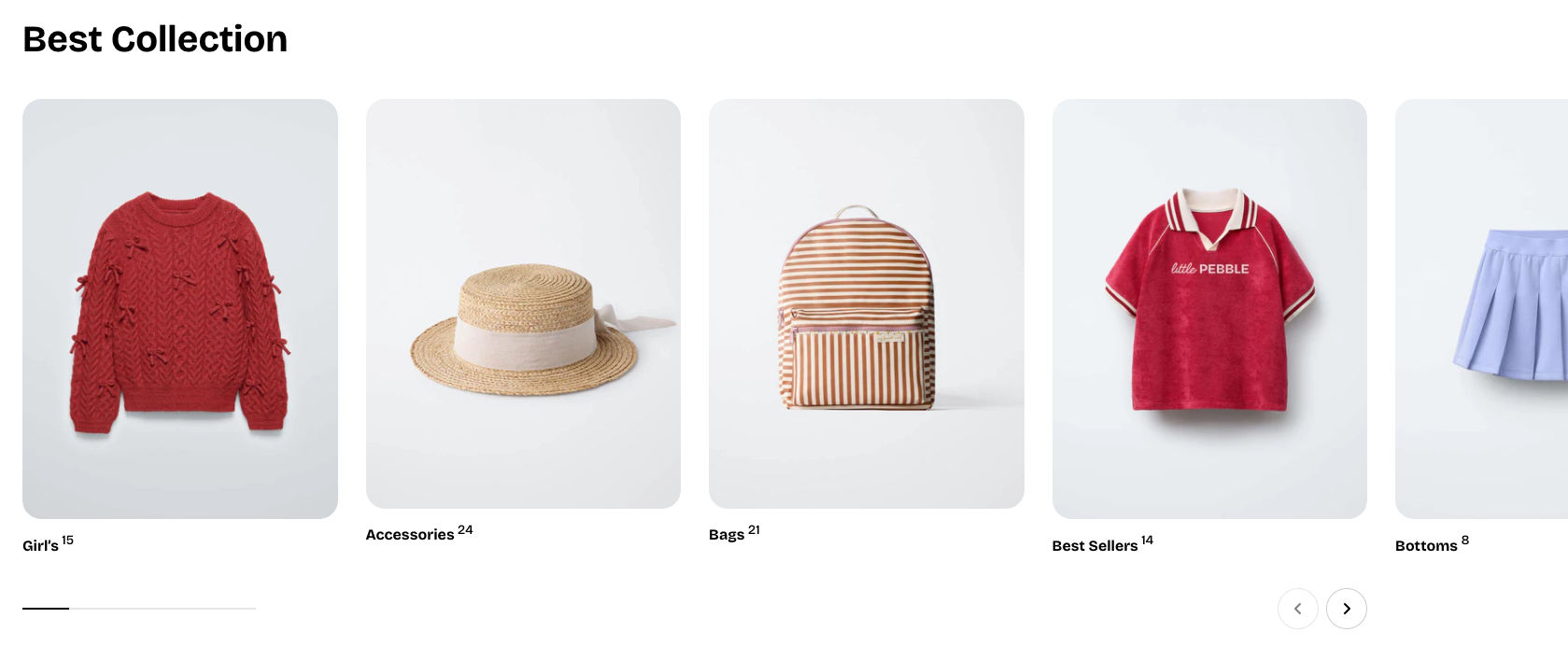
Display multiple collections in a customizable grid or carousel to help customers easily explore your store’s product categories.
## How to add a Collection list section to your Shopify store
1. In the theme editor **(Customize)**, click **Add section.**
2. Select **Collection list: Carousel/Collection list: Grid** section.
3. Make necessary changes.
4. **Save.**
## How to customize a Collection list section
_gxmQmIxX.jpg)
_vrNC2zvx.jpg)
### Section settings
* **Collection:** Selects collections display in this section.
* **Layout:**
* **Container:** Chooses whether the section spans the full page width or stays within a fixed content width.
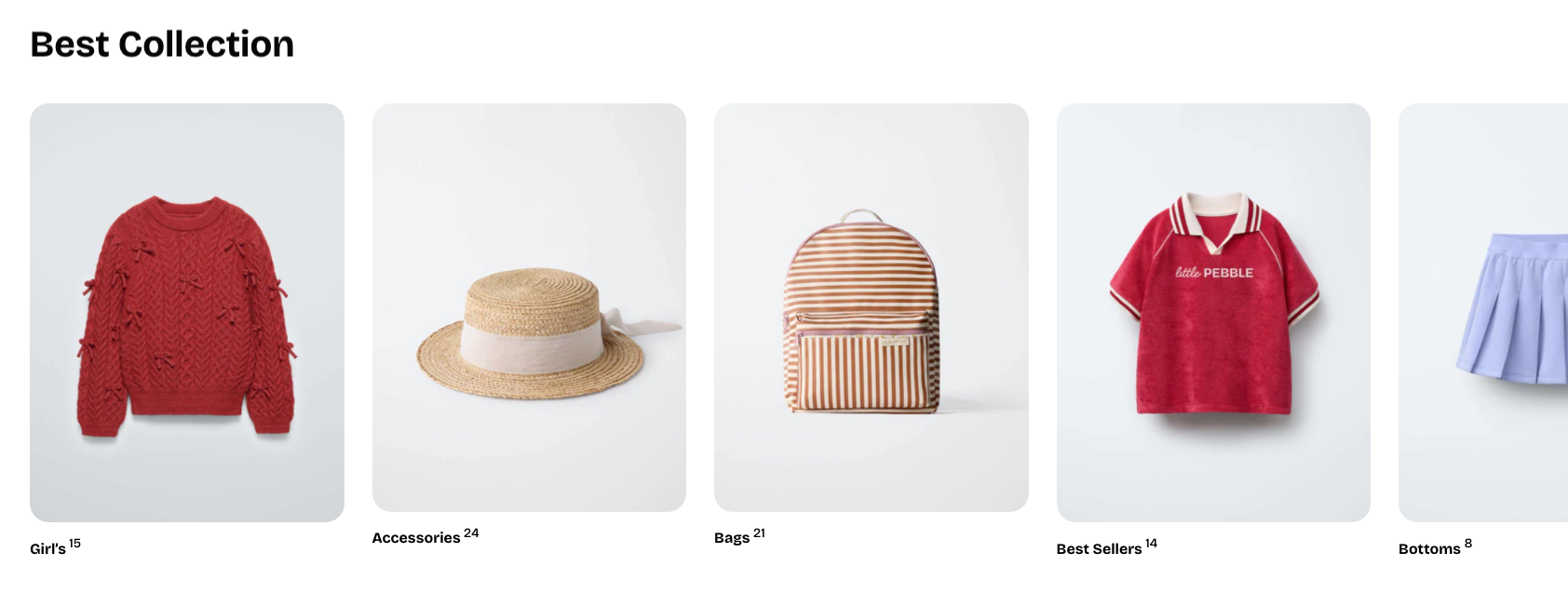
* **Type:** Sets the layout style to either a grid or a carousel.
* **Columns:** Determines how many products appear per row in grid mode.
* **Horizontal gap:** Controls the spacing between products from left to right.
* **Vertical gap:** Controls the spacing between product rows from top to bottom.
* **Control type:** Selects the carousel navigation style, such as default arrows or a floating control **(only available when using the carousel layout)**.
* **Mobile layout:**
* **Enable swipe on mobile:** Allows horizontal swiping to navigate products on mobile.
* **Mobile columns:** Sets how many products appear per row on mobile devices.
* **Horizontal gap (mobile):** Controls left-to-right spacing between products on mobile.
* **Vertical gap (mobile):** Controls top-to-bottom spacing between product rows on mobile.
### Block settings
#### Collection card
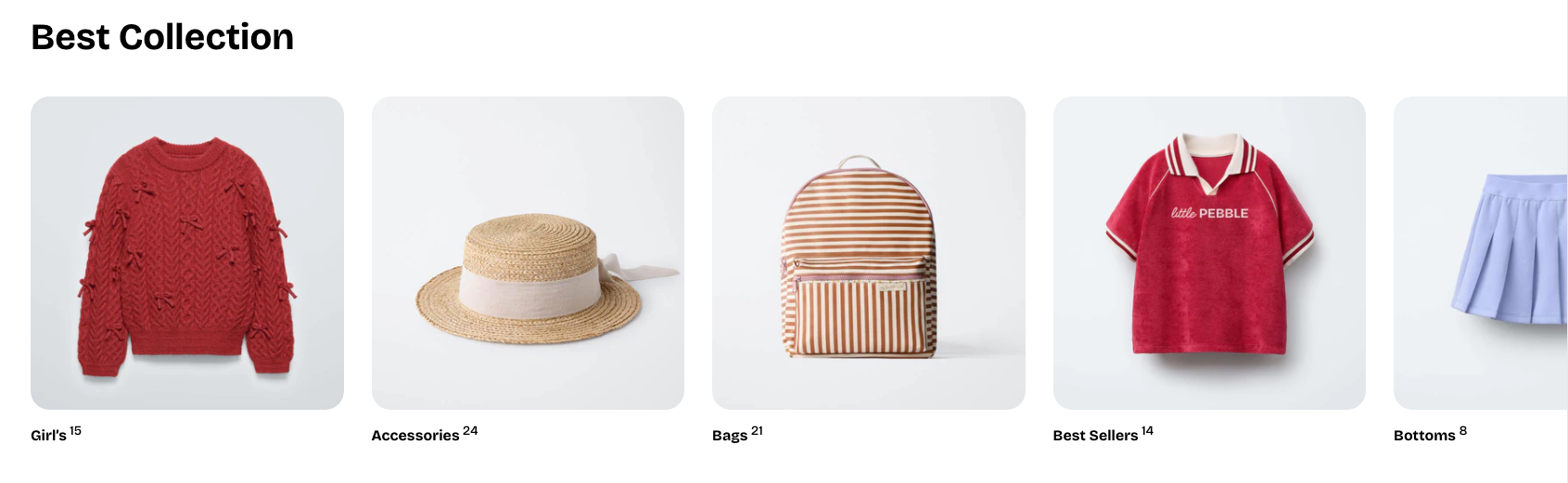
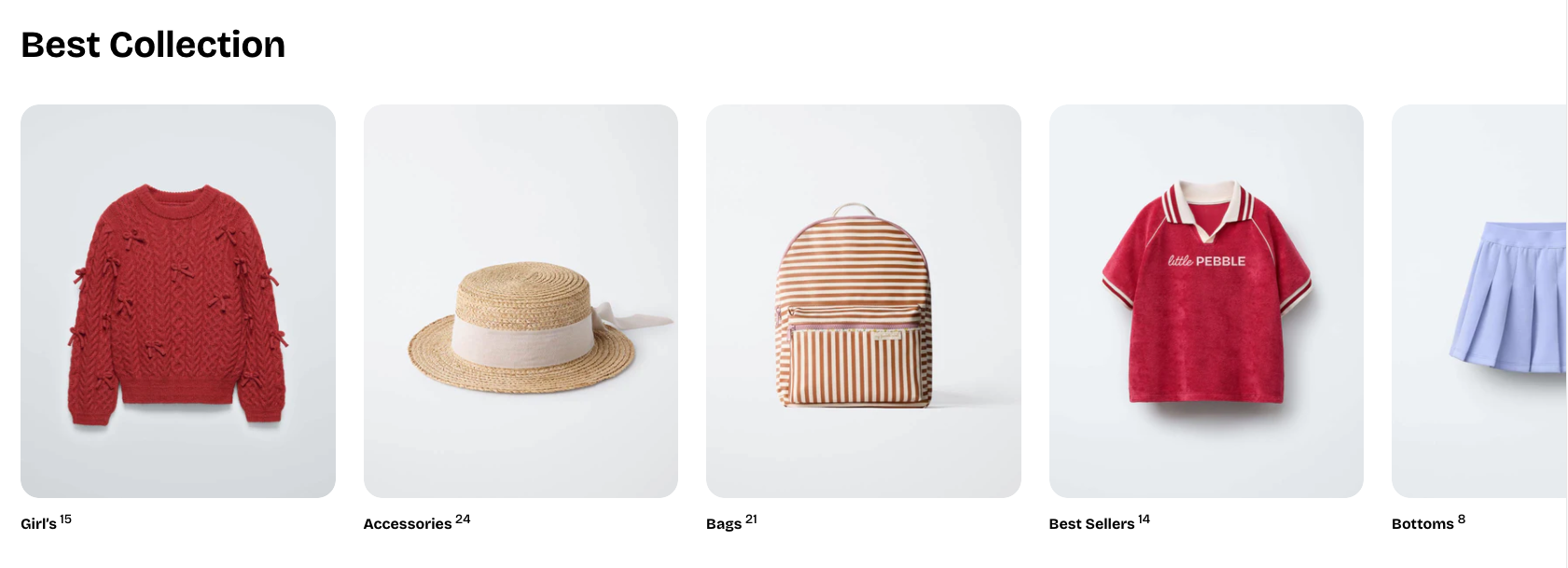
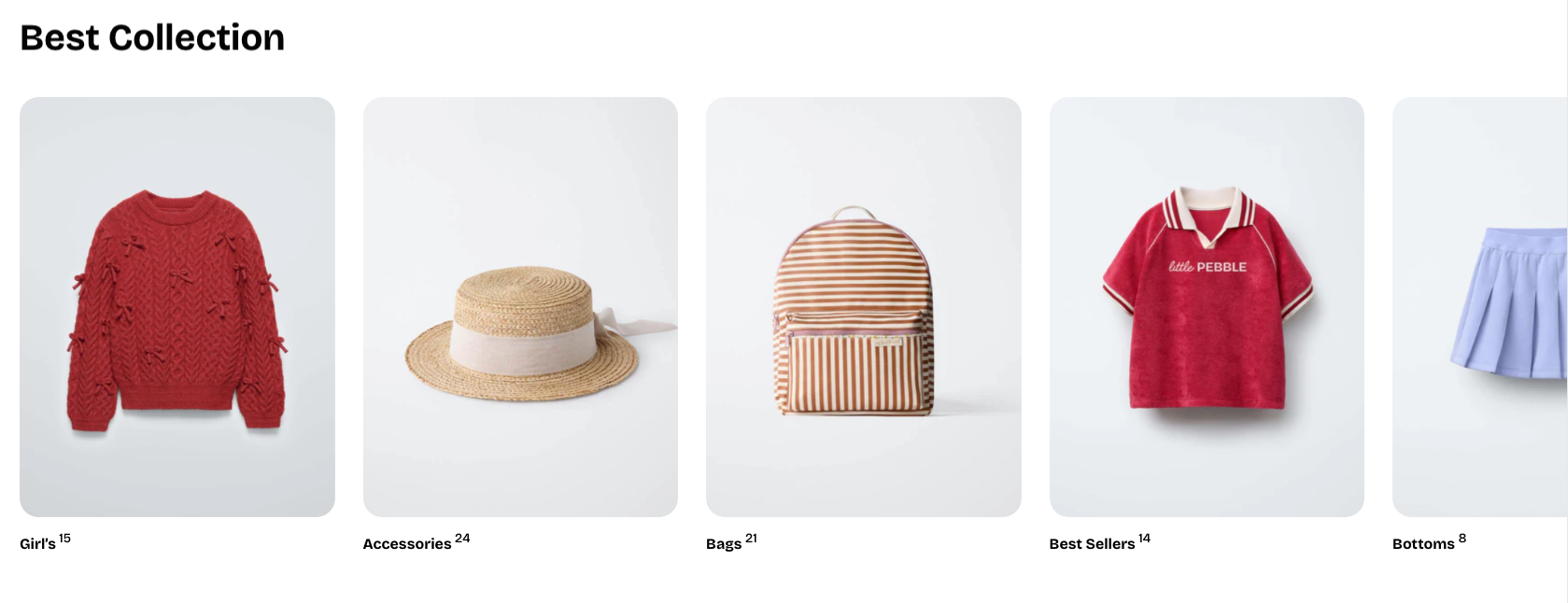
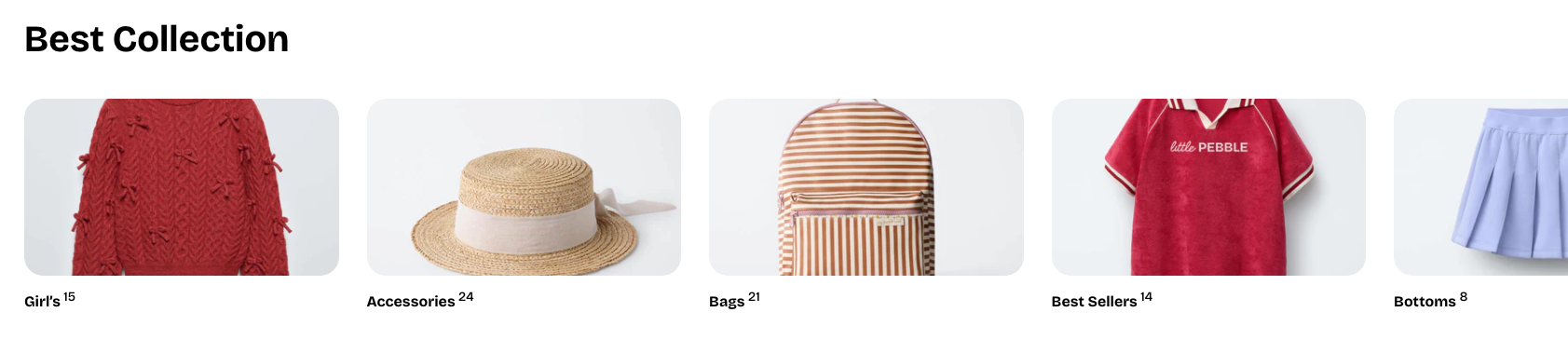
* **Aspect ratio:** Sets the shape of the collection image.
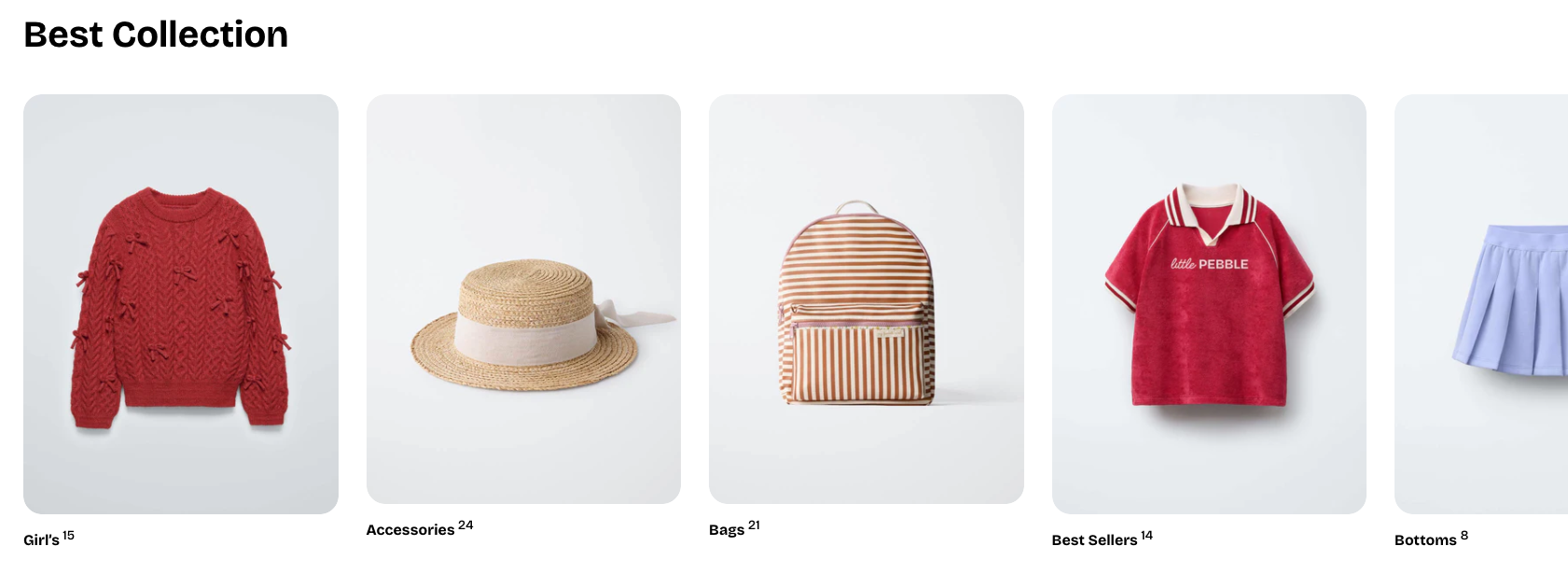
* Go to **Theme settings > Collection cards and set the aspect ratio** there to use it as a global setting.
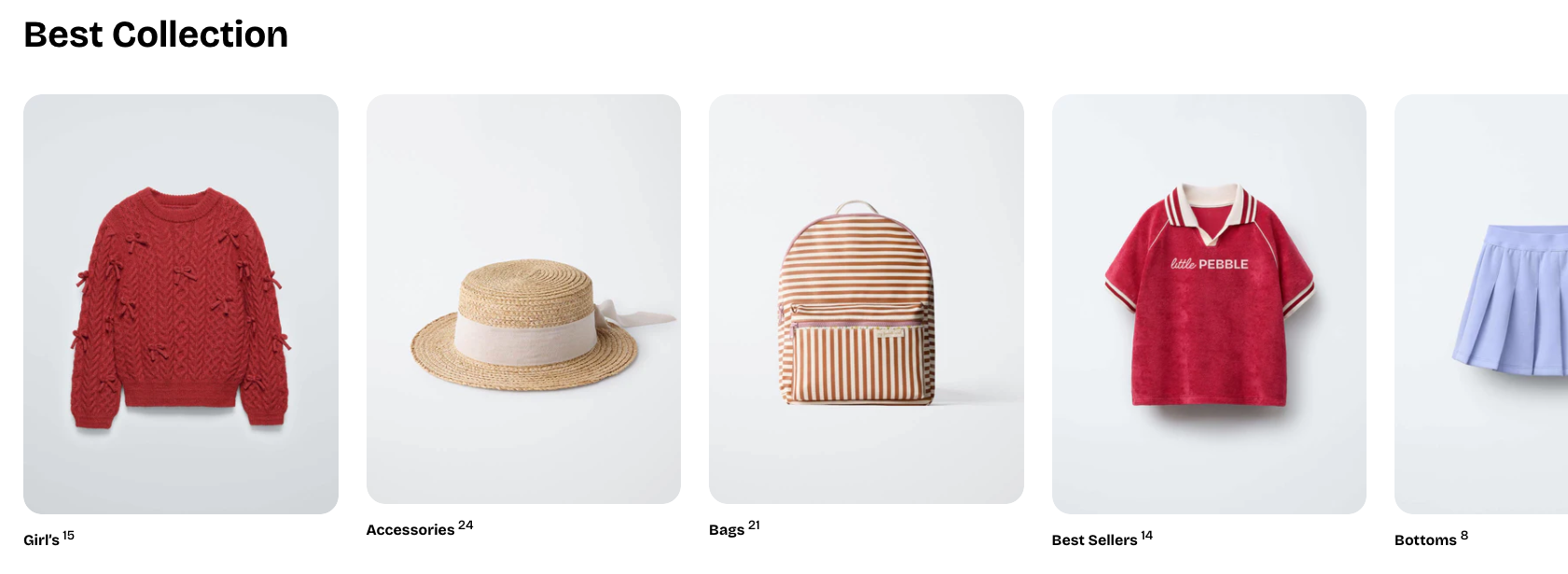
* The image ratio adapts to the original size of the uploaded image.
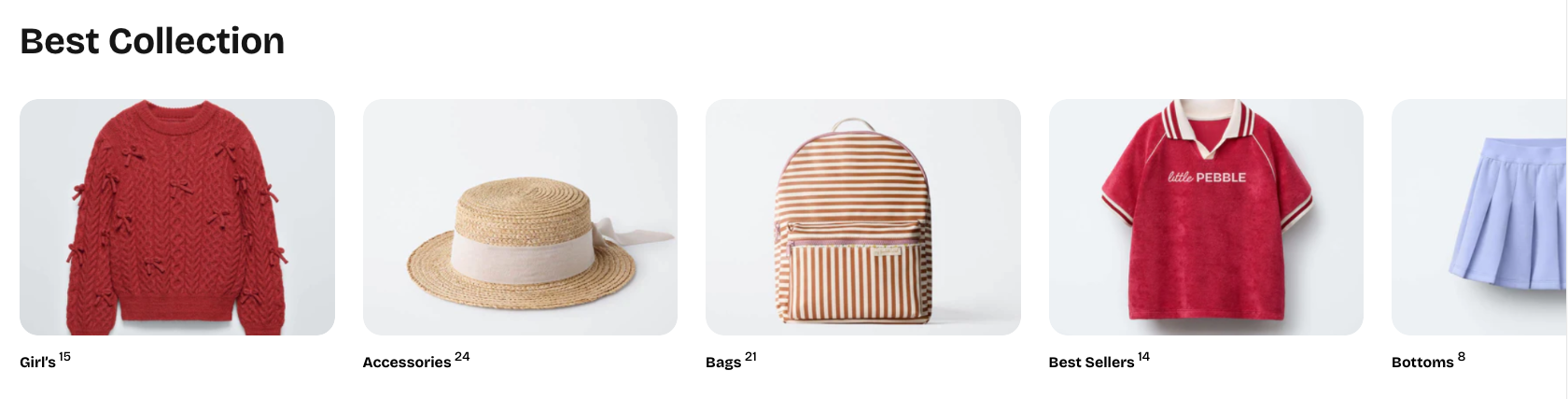
* **Alignment:** Controls the horizontal alignment of the collection title.
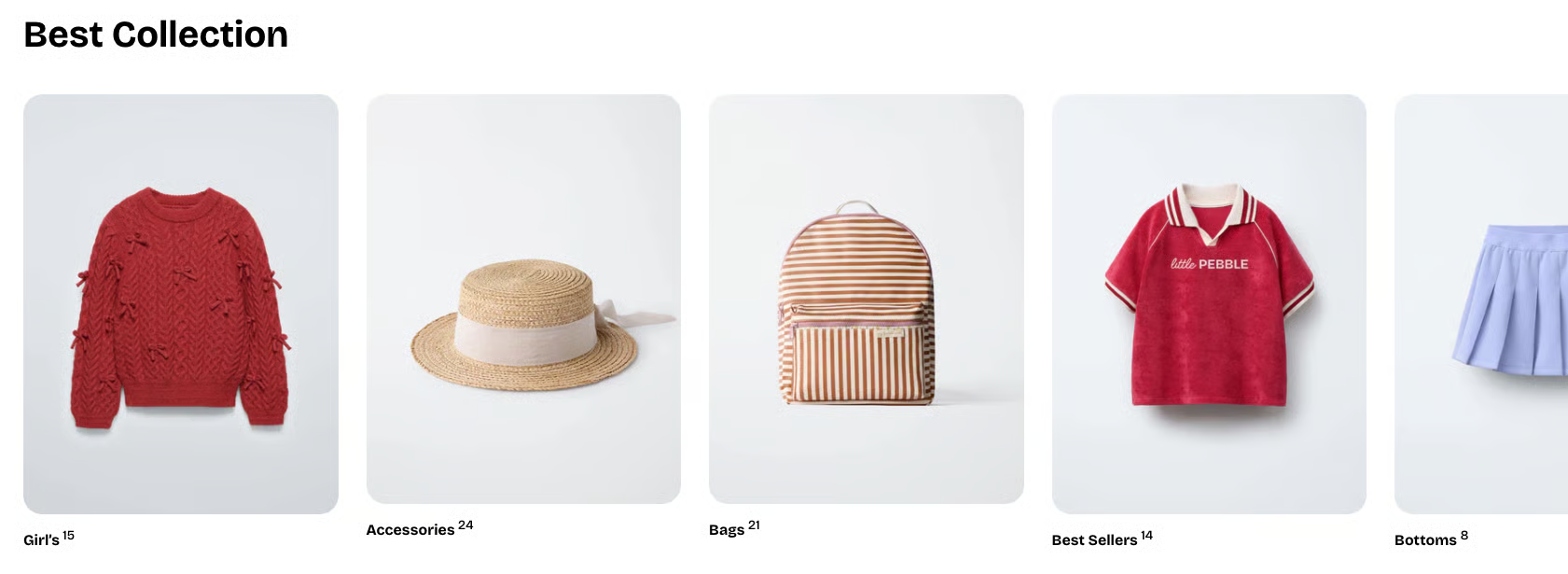
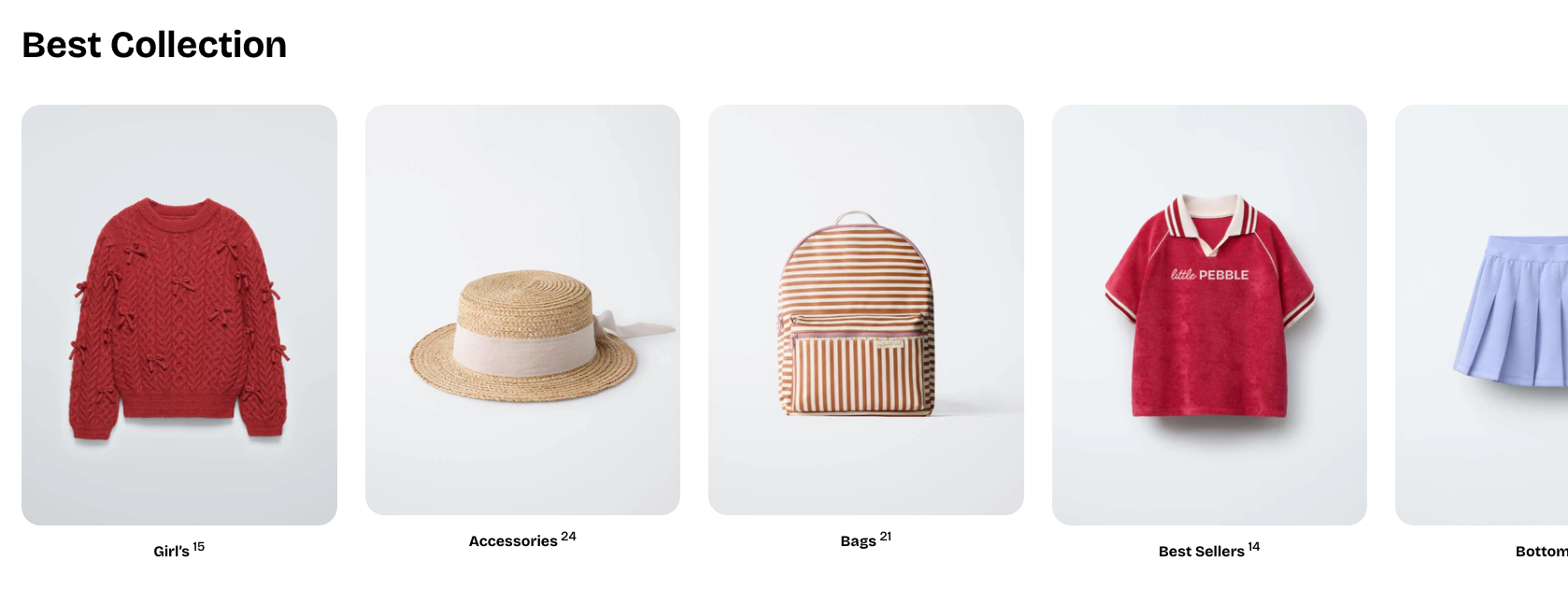
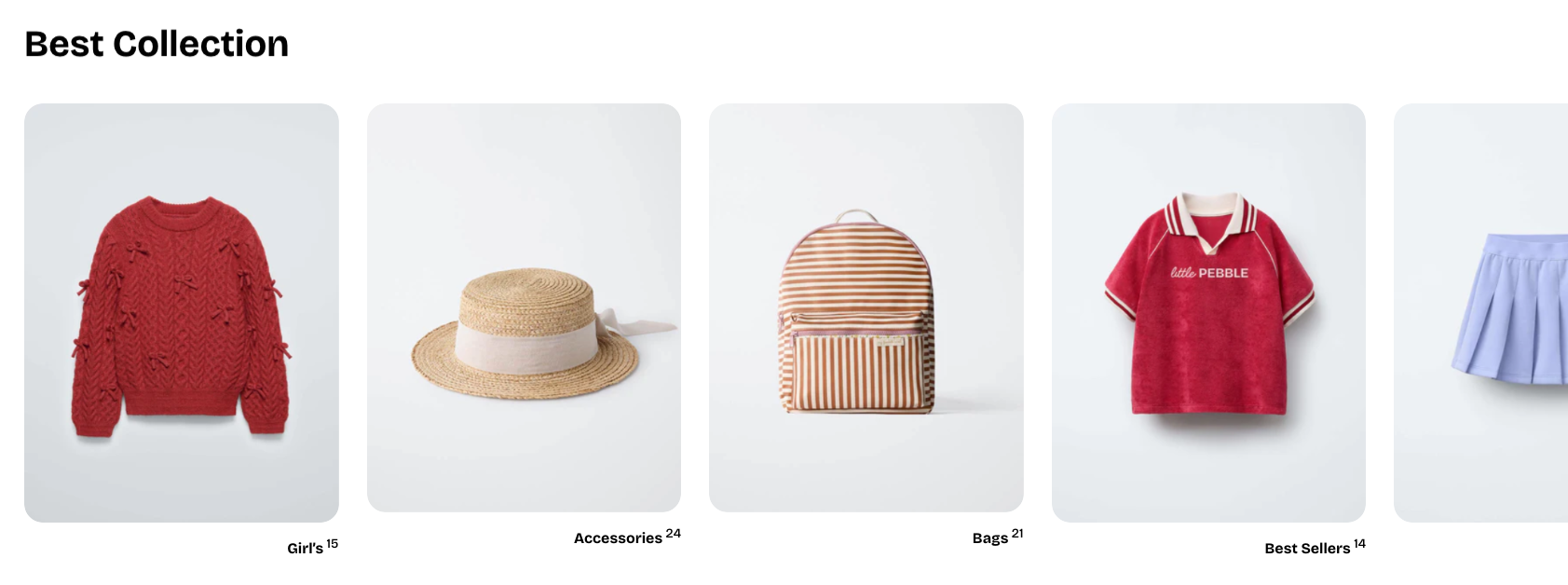
* **Show product count:** Toggles whether the number of products in the collection is displayed.
#### Nested dynamic blocks
You can add multiple dynamic blocks within this section. Learn more about each block type here.
Theme blocks