# Update Pebble theme
Keeping your **Pebble theme** up to date ensures your store benefits from the latest features, bug fixes, and compatibility improvements.
> The most up-to-date version of the theme is available on Shopify Theme Store.
Any **code customizations** in your current theme are **not transferred automatically** to a new theme version.
You’ll need to manually duplicate and move custom code to the updated theme.
***
### Update the theme automatically ⚙️
#### Check notifications on Shopify
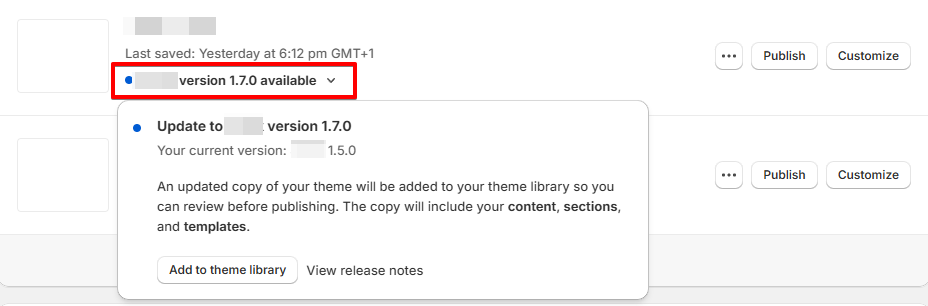
In your Shopify admin, go to **Online Store** > **Themes**. If a new version of Pebble is available, you’ll see a notification in your theme library.
#### Review update details
* Click the notification to view more details about the update.
* Select **View release notes** to read what’s new in the release.
#### Add to Theme library
Click **Add to theme library** to download and add the updated version of the theme to your Shopify store.
The updated version will now appear in your theme library, ready to customize and publish.
### Troubleshooting: No update notification? 🔍
If you don’t see an update notification, it could be due to code customizations conflicting with Shopify’s update system, or the theme was previously uploaded in a ZIP file. In this case, you can manually reinstall the theme and transfer the customization manually.
#### Preparing for the update: Create a backup
Before updating your theme, always duplicate your current theme to create a **backup**. This ensures you can restore your store if something goes wrong.
**Steps:**
1. In your Shopify admin**,** go to **Online store** > **Themes.**
2. Under the Actions dropdown for your current theme, select **Duplicate**.
3. Rename the duplicated file.
#### Install the latest theme version
Install the theme from the Shopify Theme Store.
**Steps:**
1. Visit the Shopify Theme Store and choose **Pebble** theme**.**
2. Click **Add a new copy** to add the latest theme version to your online store.
#### Move the theme settings and pages
After uploading the new theme, transfer your settings, custom templates, and modifications to the new version.
**Steps:**
1. Go to your current theme, click **Actions > Edit code**.
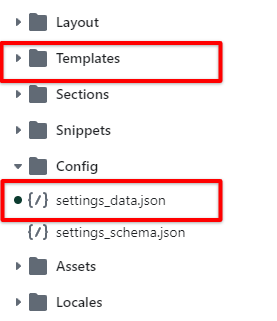
2. Copy the following files from the **old theme** and paste them into the same folders in the **new version**:
* All edited **JSON files** in the `Templates` folder.
* The `settings_data.json` file in the `Config` folder.
3. Re-create custom templates (if any).
For custom templates, you'll need to create the JSON template in the new theme files since they won't exist there by default. More details [here](https://help.shopify.com/manual/online-store/themes/theme-structure/templates#create-a-new-template) from Shopify on creating new templates in the theme.
#### Re-install apps
Any apps that add code to your theme's files will need to be reinstalled. This can be an automatic or manual process depending on the app, so **confirm with the app's developer whether removing and adding the app is enough to connect with the new version.**
Find the app documentation in the [App Store](https://apps.shopify.com/) to follow the installation instructions.
If you're unfamiliar with this process, you can go to **Apps >** click **View details** to find the support email for that Shopify app.