# Testimonials: Split
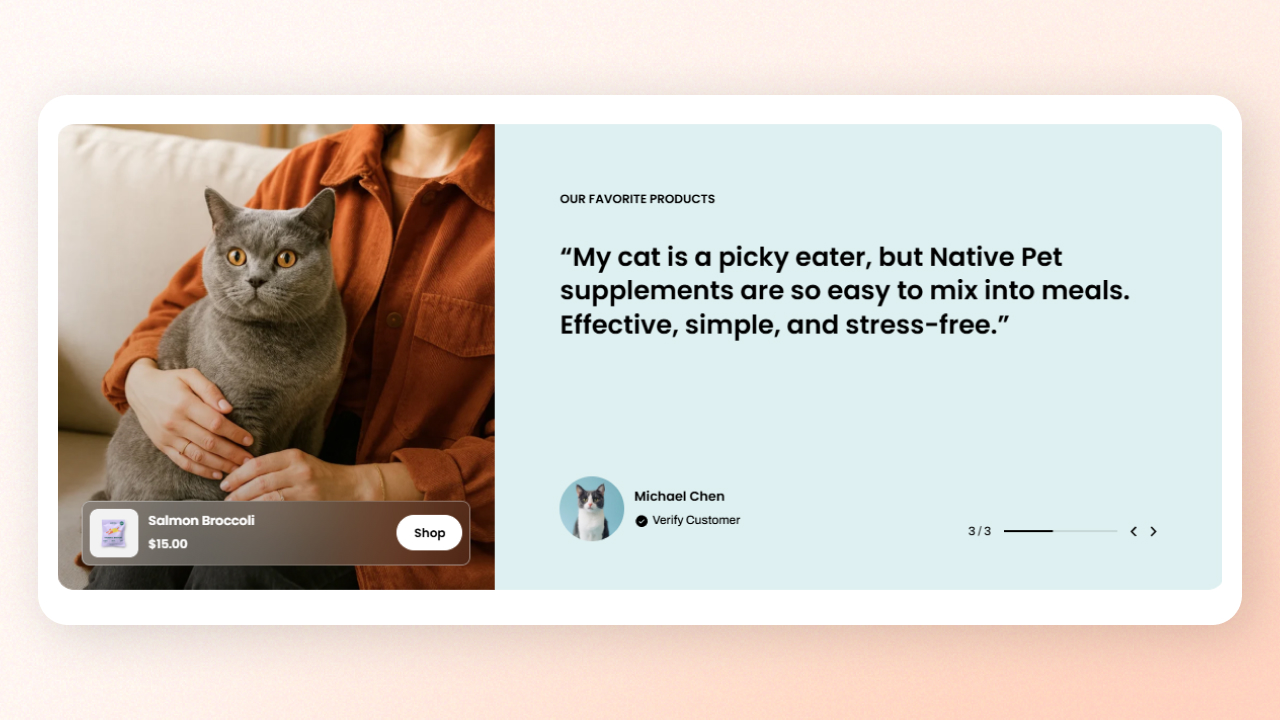
Showcase customer reviews in a split layout to create a more engaging storytelling experience.
## How to add a Testimonials: Split section to your Shopify store
1. In the theme editor **(Customize)**, click **Add section.**
2. Select **Testimonials: Split** section.
3. Make necessary changes.
4. Click **Save**.
## How to customize a Testimonials: Split section
### Section settings
#### Layout
| Setting | Description |
| --- | --- |
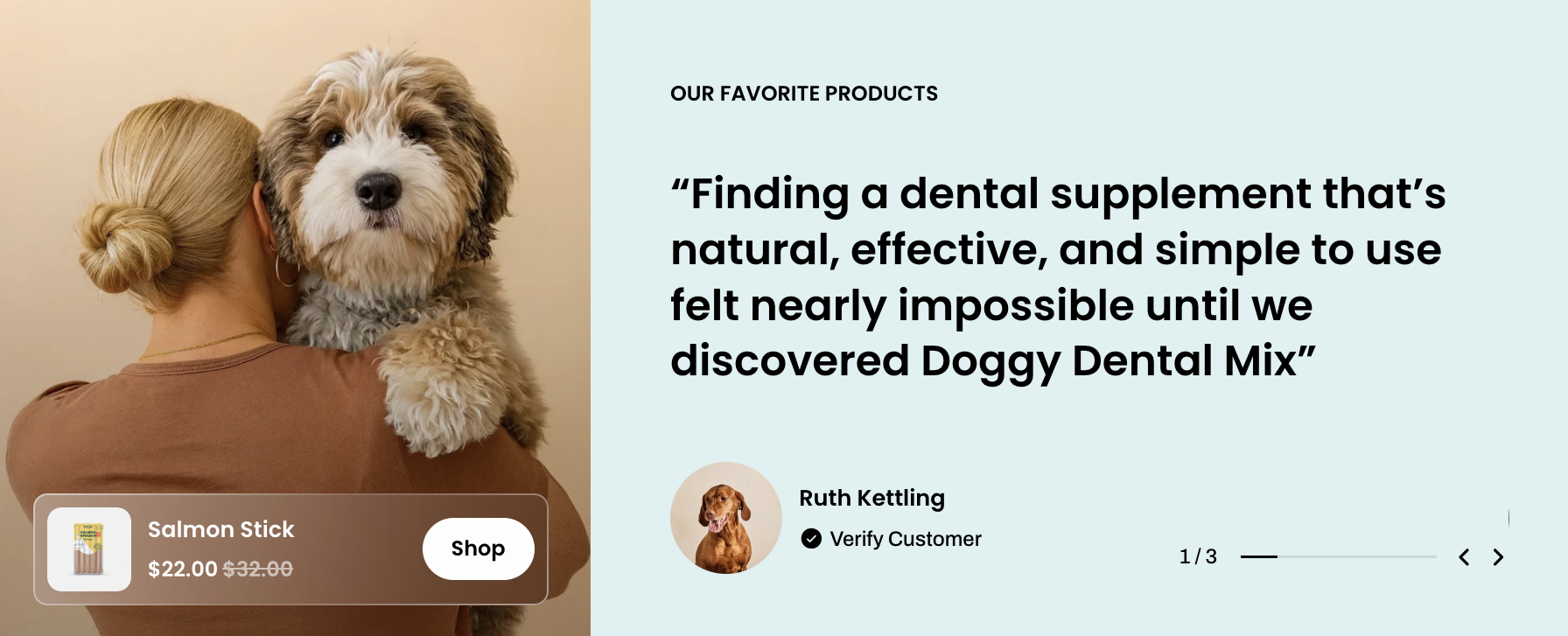
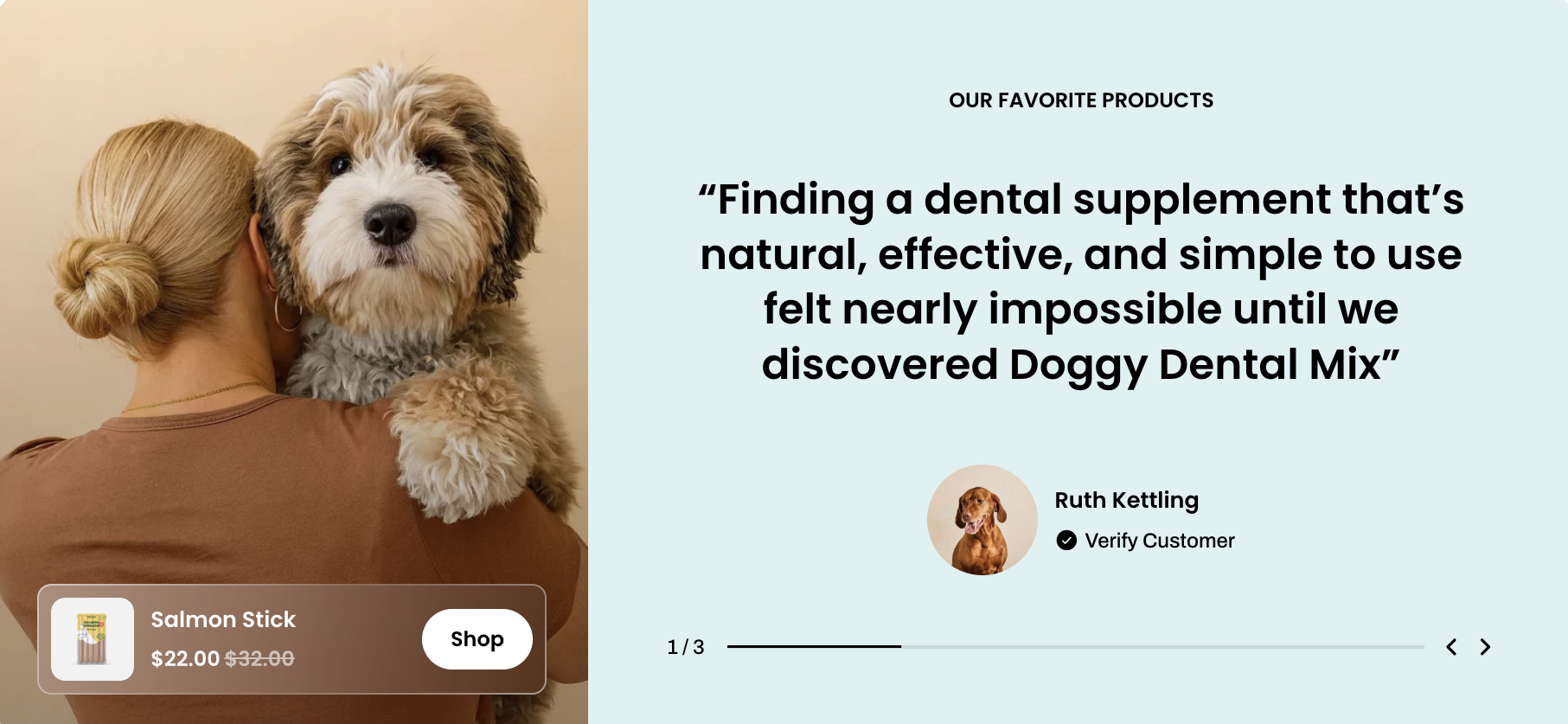
| **Container** | Defines whether the section spans the full page width or stays within a fixed content width. |
| **Alignment** | Sets the content alignment to left or center. |
#### Section header
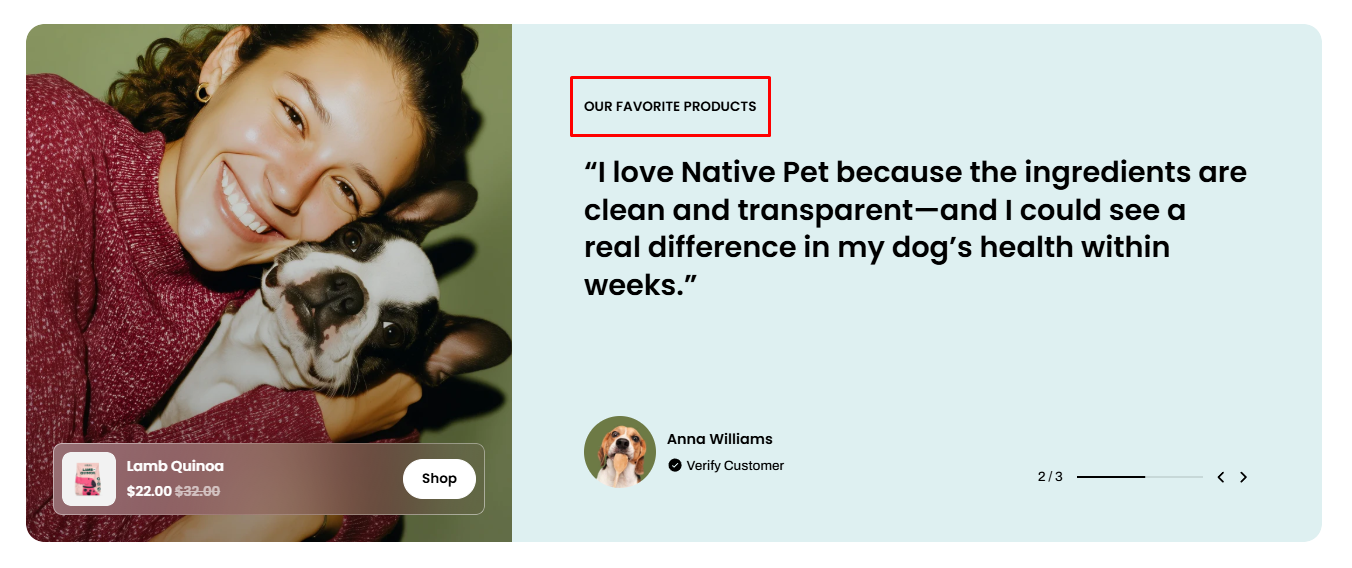
Adds a heading for the section and lets you customize its style, text highlight, alignment, and animation settings.
| Setting | Description |
| --- | --- |
| **Heading** | Adds a title for the section. |
| **Highlight style** | Applies a highlight effect to selected text in the heading. |
| **Preset** | Sets the heading text style. |
| **Animation type** | Selects the animation effect for the heading. |
| **Animation delay** | Sets the delay before the animation starts. |
#### Carousel settings
Controls automatic slide rotation and sets the interval between slide changes.
| Setting | Description |
| --- | --- |
| **Auto-rotate content** | Automatically switches between testimonial slides. |
| **Change slides every** | Sets how often the slides change automatically. |
#### **Card settings**
Controls the layout and media positioning inside each testimonial card.
| Setting | Description |
| --- | --- |
| **Media position** | Sets the image placement to the left or right side of the content. |
| **Media width** | Controls the width ratio of the media area inside the testimonial card. |

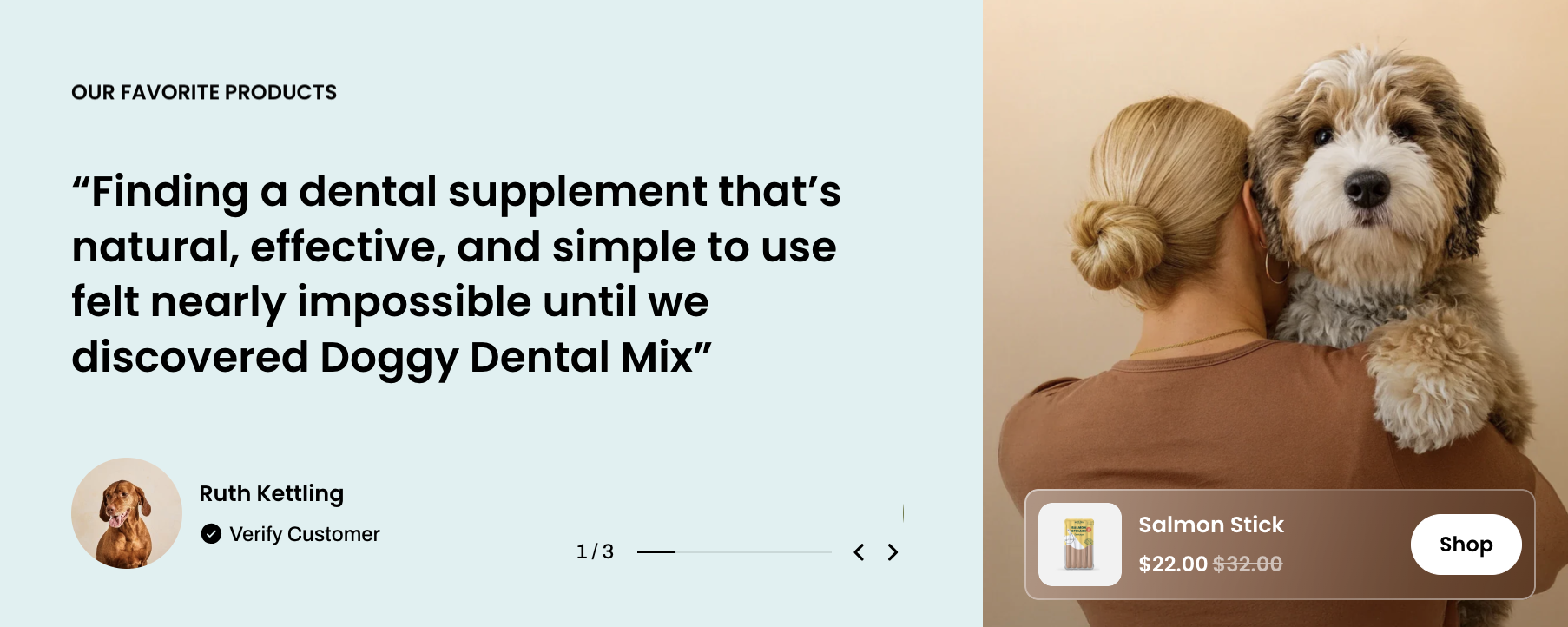

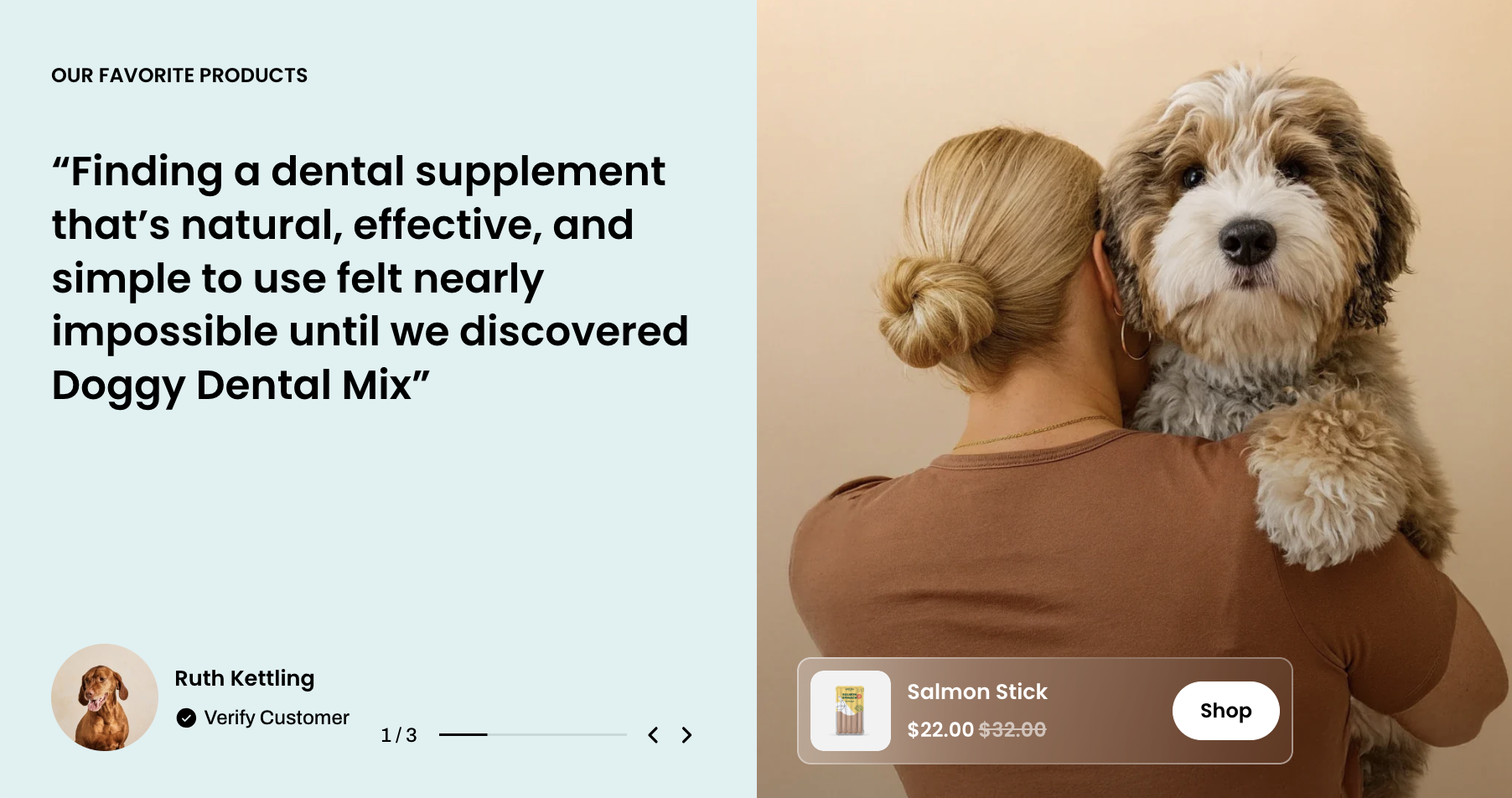
✨ Check out other section settings: [Common settings available in most sections](https://docs.foxecom.com/pebble-theme/theme-sections/overview#common-settings-available-in-most-sections)
### Block settings
The **Testimonials: Split** section includes multiple **Testimonials** blocks for displaying testimonial content.
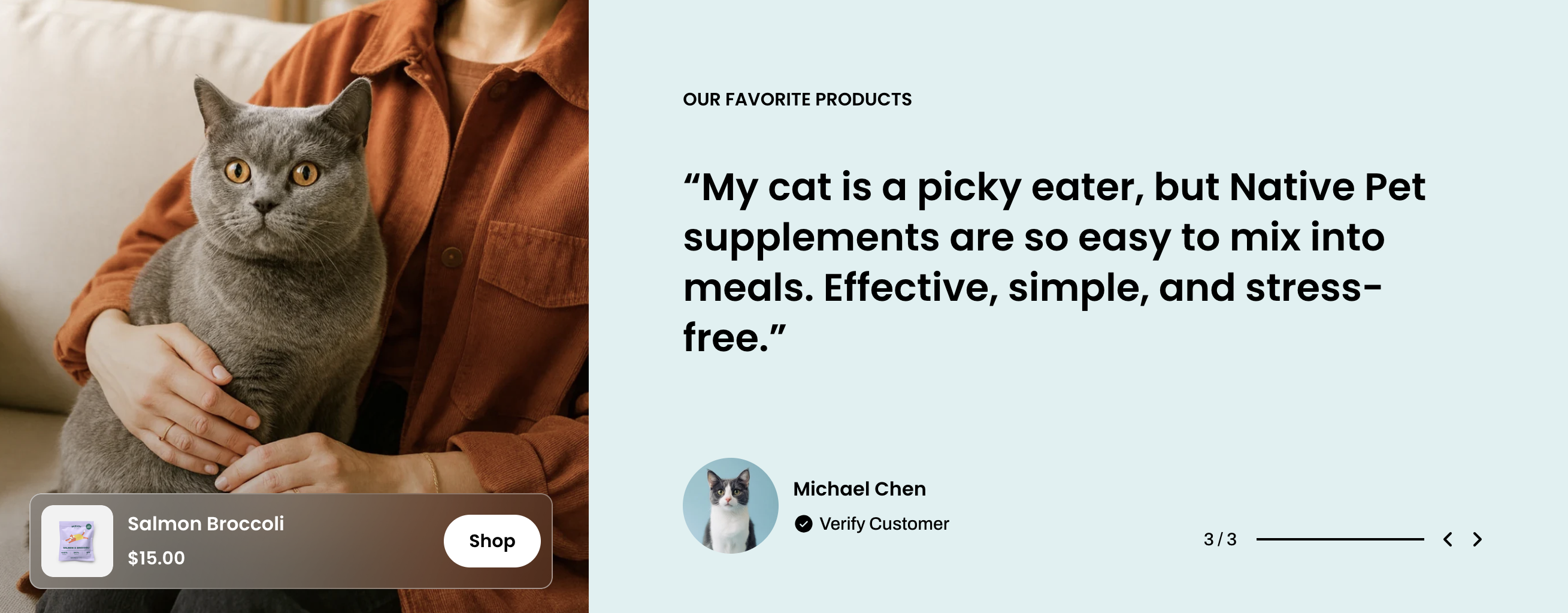
Adds a testimonial item with images, product references, review text, reviewer info, icons, and customizable styles for a more engaging presentation.
* **Use consistent image ratios**: This block does not include an image ratio setting, so we recommend uploading all testimonial images with the same aspect ratio (recommended: 1:1) to maintain a clean and consistent slider layout.
* **Optimize image sizes**: Use compressed images with balanced dimensions (recommended width: 1200px–1600px) to ensure fast loading performance without reducing visual quality.
* **Keep testimonial content concise**: For the best visual balance, avoid overly long testimonial text. Short to medium-length content provides a cleaner appearance and improves readability across desktop and mobile devices.
📝 Learn more: [Basic](https://docs.foxecom.com/pebble-theme/theme-blocks/basic#testimonial)