# Product cards
## How to edit Product cards
Steps:
1. In the theme editor (**Customize**), click **Theme settings**.
2. Locate **Product cards**.
3. Make necessary changes.
4. Click **Save**.
## Product cards settings options
### Media
These options control how the product image is displayed within the card.
| Setting | Description |
| --- | --- |
| **Aspect ratio** | Defines how product images are cropped for consistent display:
• **Auto** (default) - Uses the original aspect ratio.
• **Square (1/1)**
• **Portrait (4/5)**
• **Portrait (3/4)**
• **Landscape (16/9)**
• **Landscape (4/3)** |
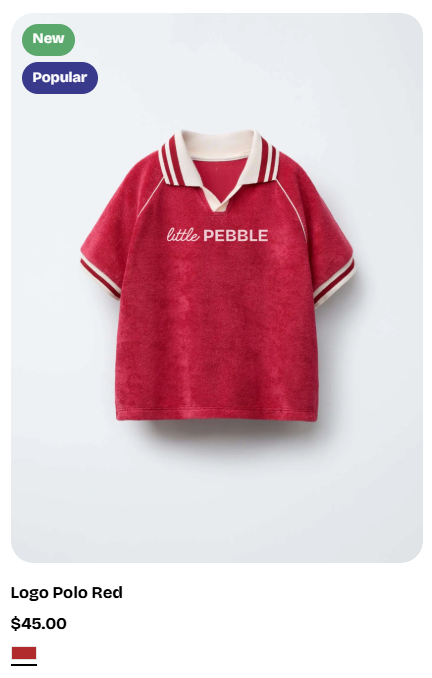
| **Corner radius** | Adjust how rounded the product image corners should be:
• Move the slider to change from 0px (sharp corners) to 32px (fully rounded).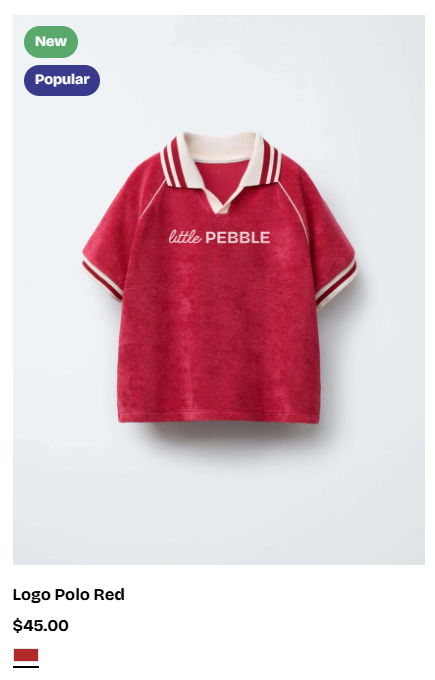
 |
| **Show second image on hover** |
|
| **Show second image on hover** | 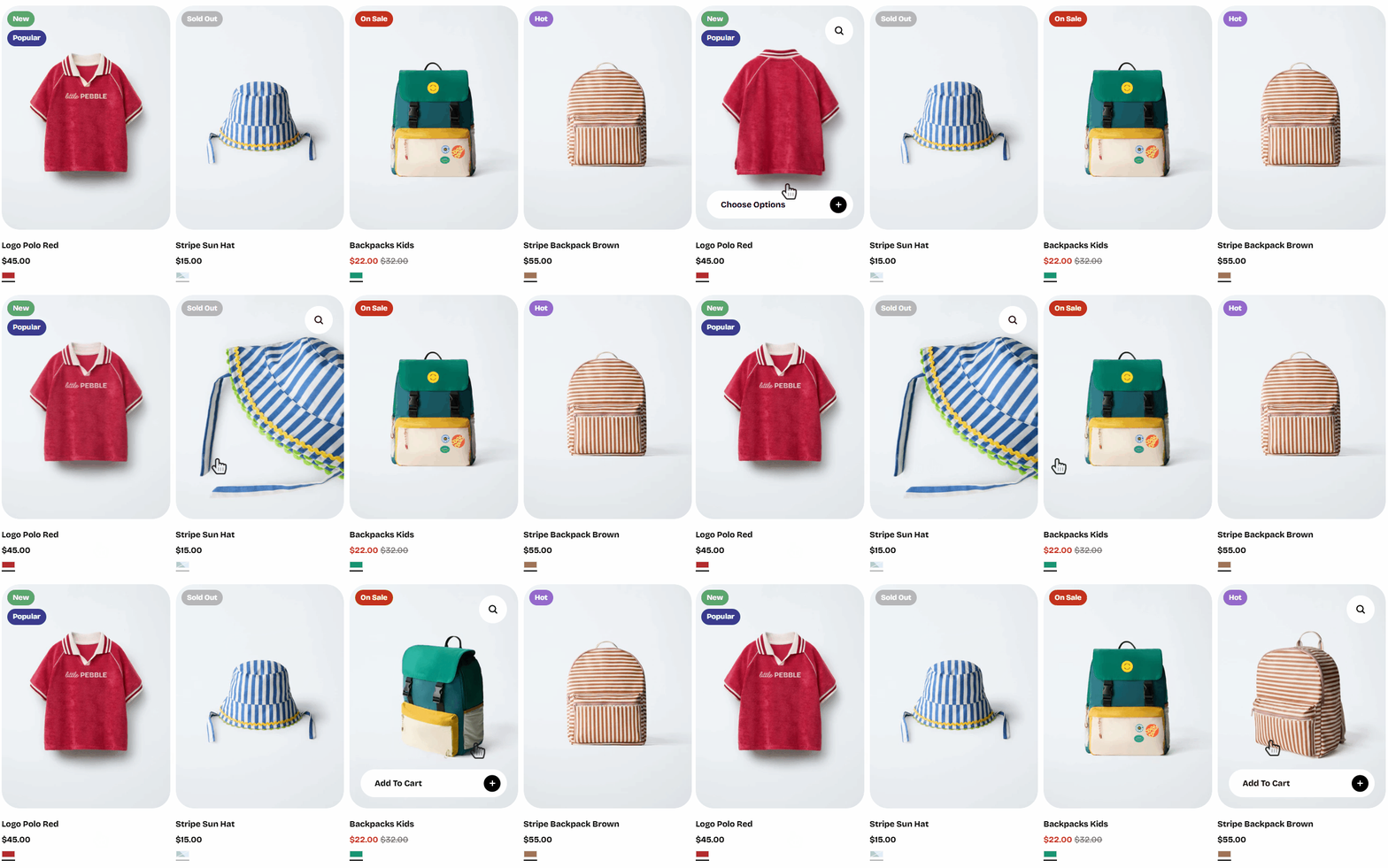 Enables a hover effect that switches to the product’s second image when the customer moves their cursor over the product card. |
### Content
| Setting | Description |
| --- | --- |
| **Style** | Choose the display style for product cards, including standard or card layout. 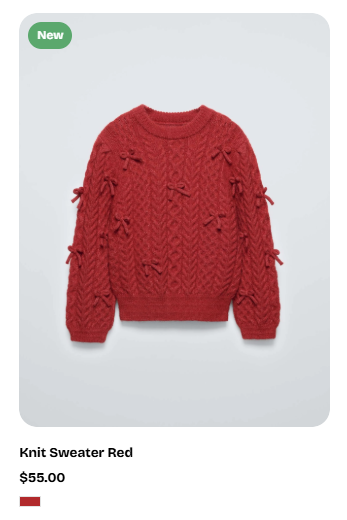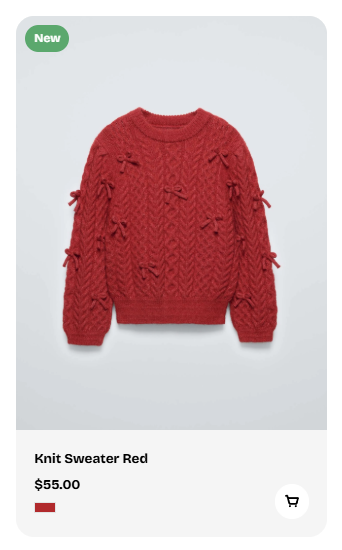 |
| **Alignment** | Controls how text aligns inside the product card: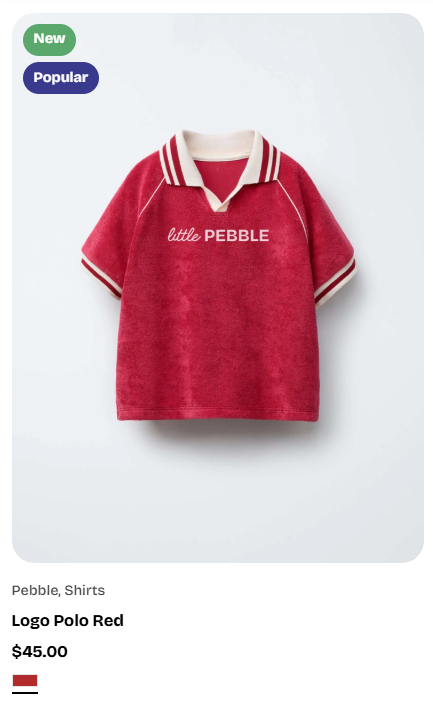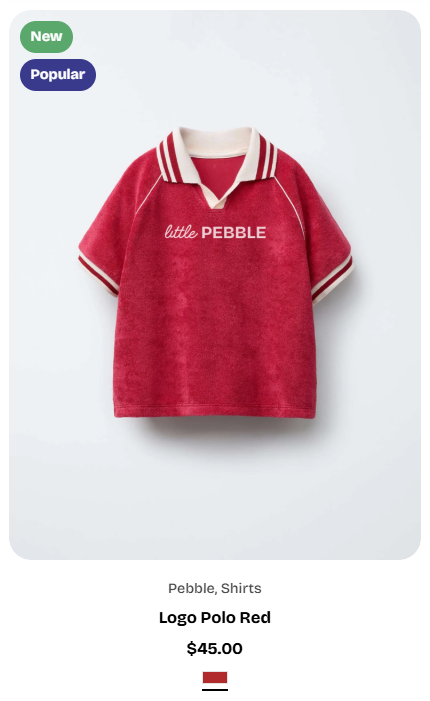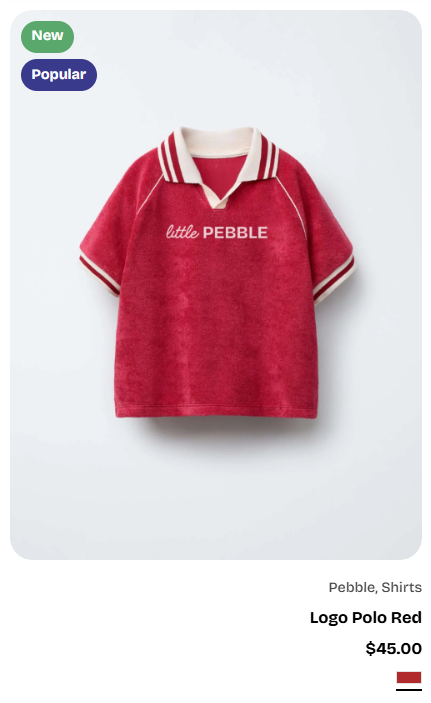 |
| **Show product vendor** | Toggle to display or hide the product vendor/brand above the product title.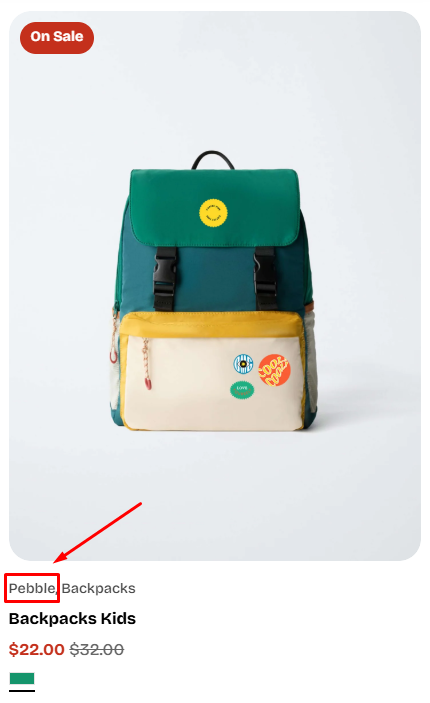 |
| **Show product type** | Toggle to display or hide the product type (e.g., "Hats", "Backpacks").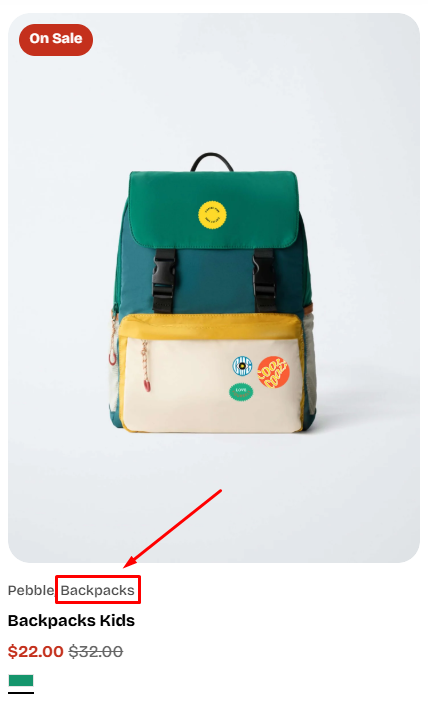 |
### Badges
Customize how product badges like "New", "Hot", "On Sale", or "Sold Out" appear.
| Setting | Description |
| --- | --- |
| **Layout** | Defines how multiple badges (sale, sold out, custom) are arranged:
• **Vertical** (stacked)
• **Horizontal** (side by side)
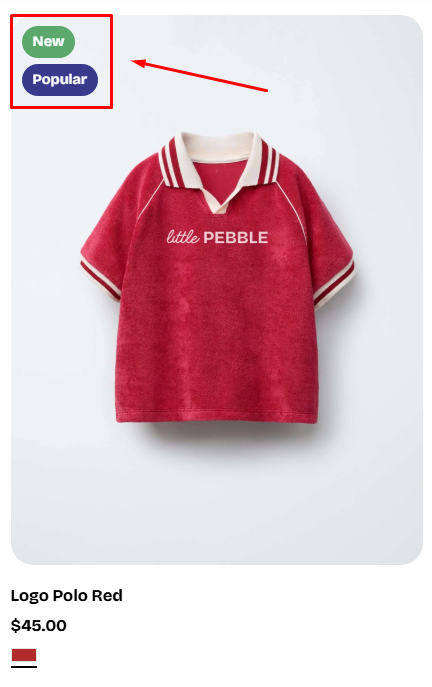
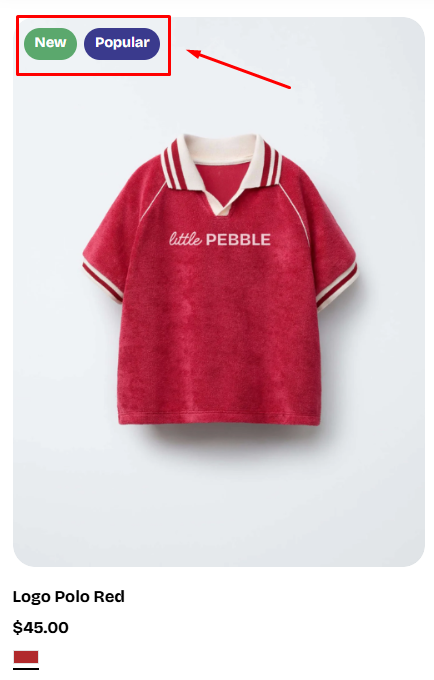 |
| **Show custom badges** | Enable this option to show badges created through product tags.
|
| **Show custom badges** | Enable this option to show badges created through product tags.
✍️ Learn how to add custom badges: [Product badges](https://docs.foxecom.com/pebble-theme/theme-settings/product-badges)
To change the badges' colors, go to **Theme settings** > [Colors](https://docs.foxecom.com/pebble-theme/theme-settings/colors) |
| **Show sold out badge** | Toggle to display or hide a "Sold Out" badge on out-of-stock items.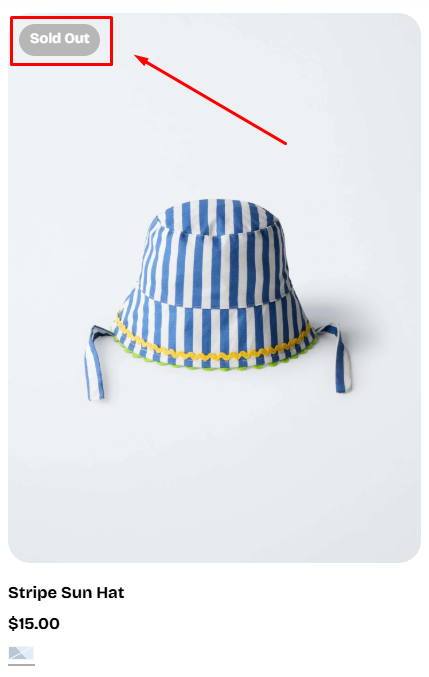 |
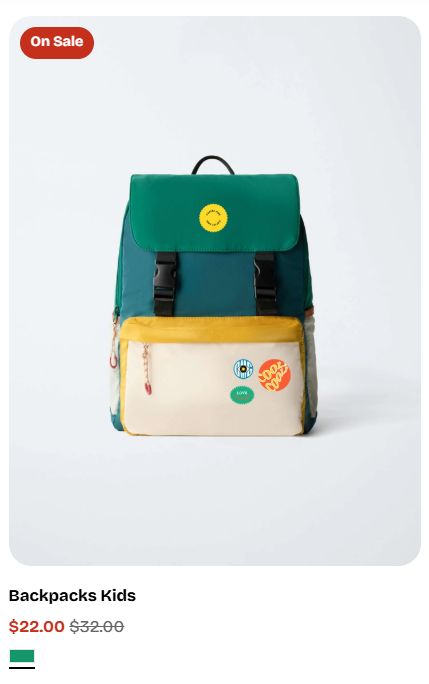
| **Show sale badge** | Toggle to show or hide a sale badge whenever a product has a discounted price (when the Compare-at price is larger than the Price).
|
| **Show sale badge** | Toggle to show or hide a sale badge whenever a product has a discounted price (when the Compare-at price is larger than the Price).
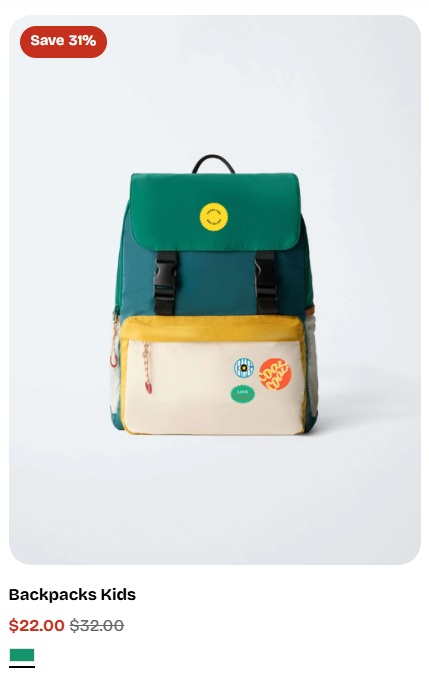
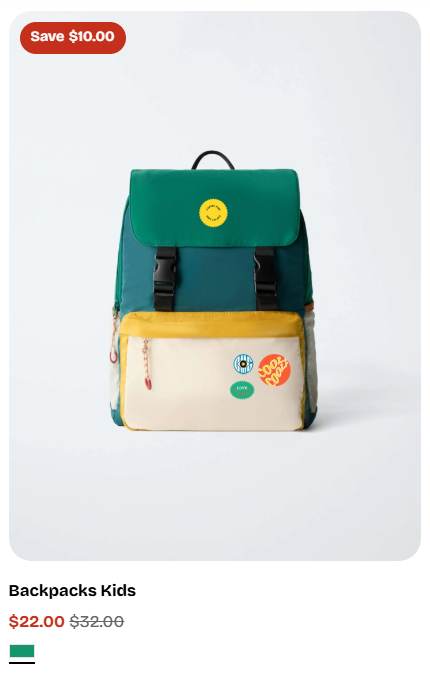
• Sale badge type: Choose how the sale badge displays discount information:
• **Text** - Shows "On Sale"
• **Percentage** - Shows a discount like "Save 20%"
• **Fixed amount** - Shows amount saved like "Save $10.00"
 |
|
### Swatches
Swatches represent variant colors or patterns in a visual way.
| Setting | Description |
| --- | --- |
| **Show swatches** | Toggle this on to display **color or pattern swatches** under the product price.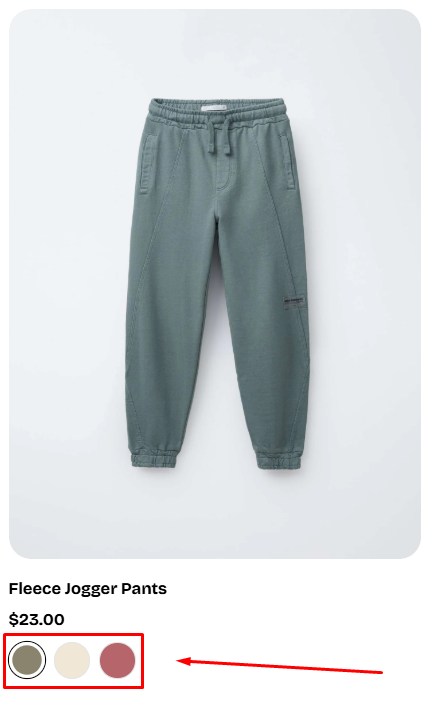
Learn how to [setting up Swatches via Shopify Category Metafields](#setting-up-swatches-via-shopify-category-metafields).
**Note**:
• When **Show swatches** is OFF > all other swatch-related settings remain hidden.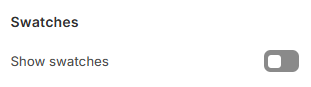
• When **Show swatches** is ON > additional swatch customization options appear (Show variant images, shape, width, max items).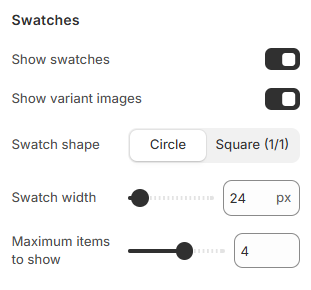 |
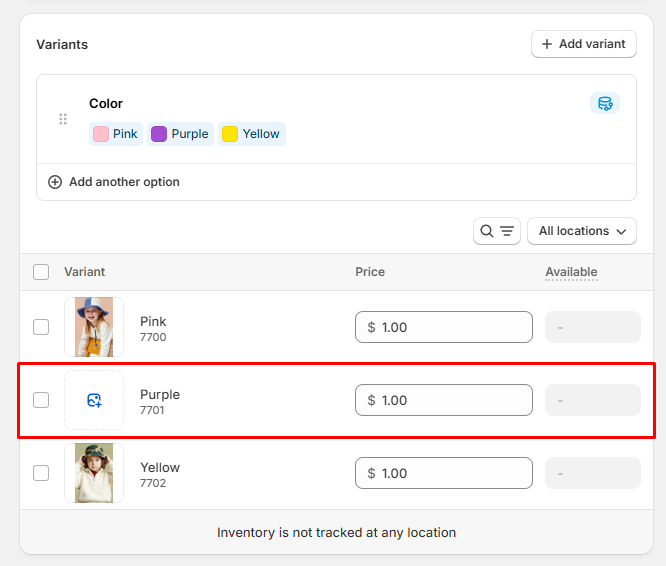
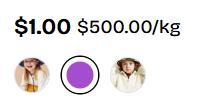
| **Show variant images** | When enabled, each swatch will display the **variant’s assigned image** (a miniature thumbnail) instead of using a solid color swatch.
|
| **Show variant images** | When enabled, each swatch will display the **variant’s assigned image** (a miniature thumbnail) instead of using a solid color swatch.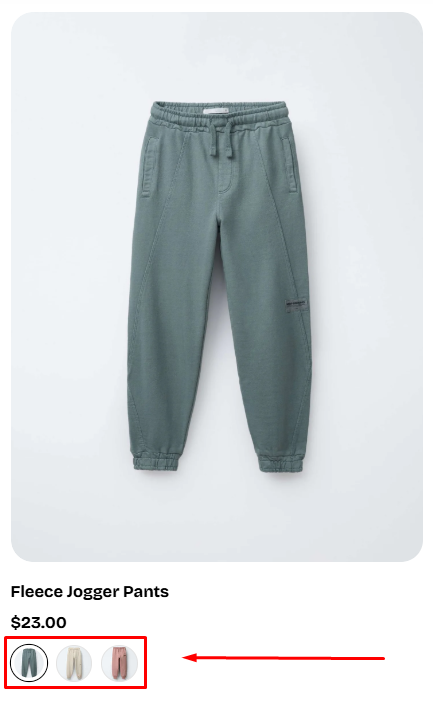
**Fallback behavior:**
If **Show variant images** is ON but **a specific variant does not have an assigned image**, Pebble will automatically fall back to:
1. The **swatch image** defined in the color metafield (if available)
2. Otherwise, the **color value** (HEX/RGB) from the metafieldThis ensures every swatch always has a visible representation, no blank swatches.
 |
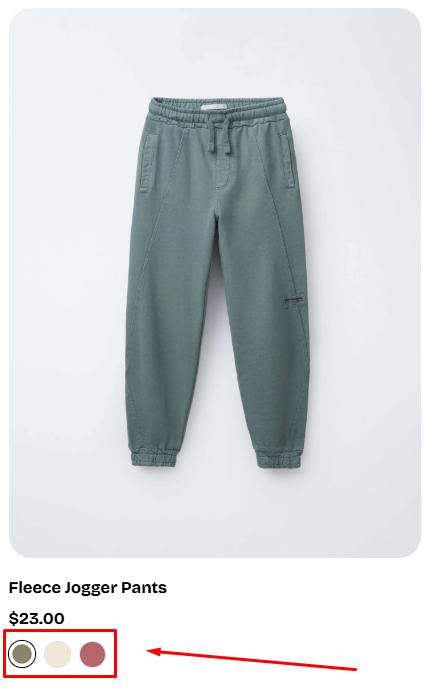
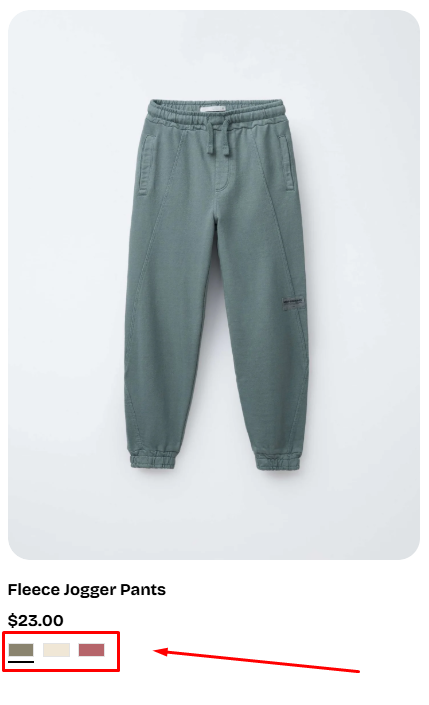
| **Swatch shape** | Choose how swatches are displayed visually:
|
| **Swatch shape** | Choose how swatches are displayed visually:
• **Circle**
• **Square (1/1)**
 |
| **Swatch width** | Controls the size of each swatch.
|
| **Swatch width** | Controls the size of each swatch.
Available range: 20px – 100px. |
| **Maximum items to show** | Limits how many swatches appear before the remaining ones collapse into a "+X" indicator.
• Range: 1 - 6 items.
• Example: If a product has 3 colors and you set this to 2, customers will see **2 swatches + "+1"**.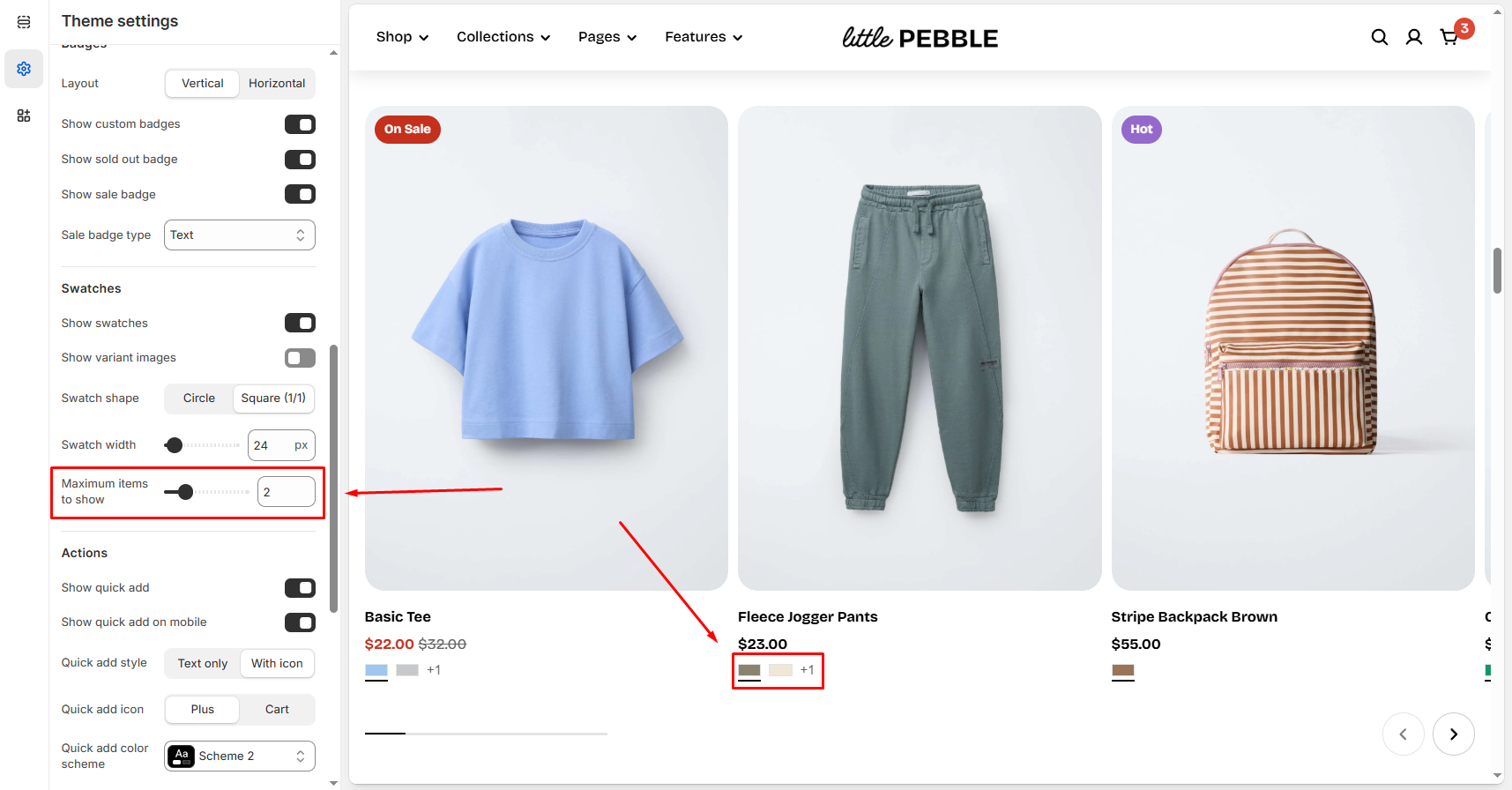 |
|
Pebble uses Shopify’s **Category Metafields** to define swatch colors and images.
**Step 1: Assign a Product Category**
1. In Shopify Admin, go to **Products**.
2. Click the product you want to edit.
3. In the **Category** section, select an appropriate category from Shopify’s Standard Product Taxonomy (for example: *Apparel & Accessories > Clothing > Tops > Shirts*).
4. Click **Save**.
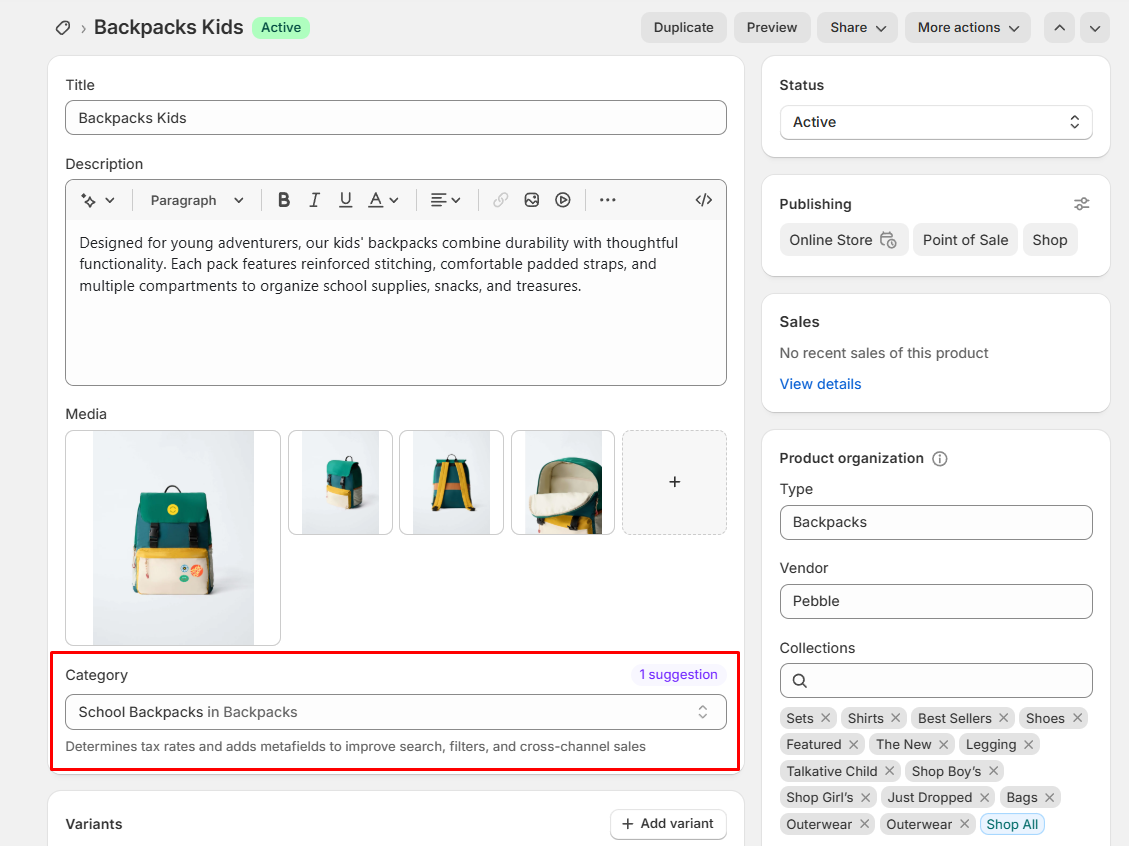
This ensures the product has a category that supports a "Color" product attribute (category metafield) so swatches can be added.
**Step 2: Add or Edit Entries for the Category Metafield**
1. In Shopify Admin, still under the product you selected, locate the **Category metafields** section.
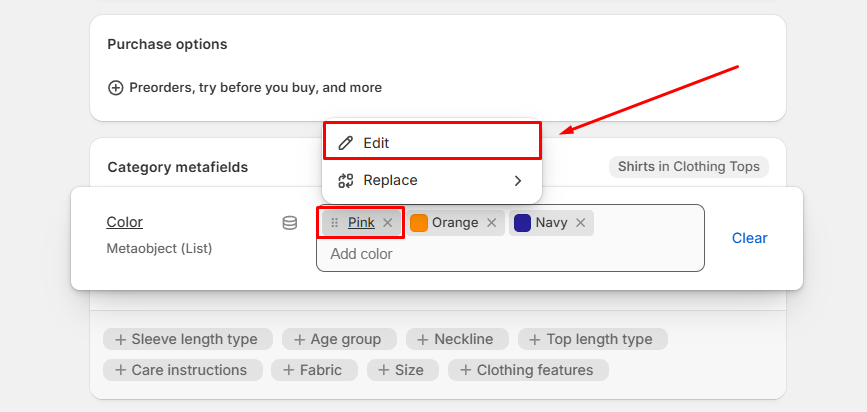
2. To edit an existing entry:
* Click the category metafield.
* Click the entry you want to edit.
* Make changes.
* Click **Save**.
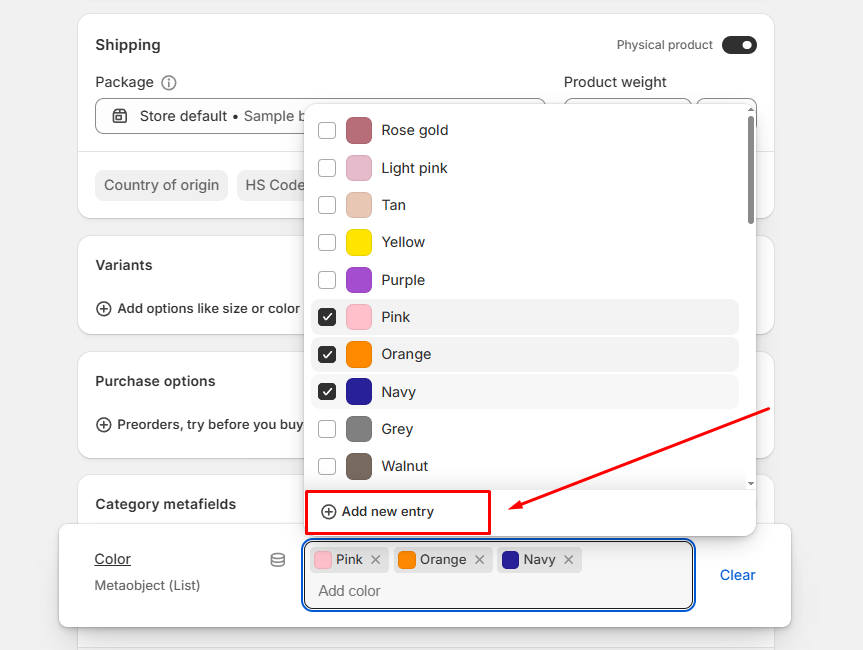
3. To add a new entry:
* Click the category metafield.
* Click **Add new entry**.
* Fill out the fields (e.g., label, color value, image if applicable).
* Click **Save**.
* Then click **Save** again for the product.
Each metafield entry can include:
* **Label** - The human-readable name of the swatch (e.g., "Navy/Blue").
* **Color value** - A HEX color code or RGB value used when the swatch displays as a color circle.
* **Image** - Optional. Upload a swatch image (useful for patterns, textures, prints).
* **Base color** - The primary color family used for organizing swatches.
* **Base pattern** - Defines whether it’s Solid, Striped, Patterned, etc.
* **References** - Shows which products are currently using this swatch entry.
* **Handle** - Auto-generated internal reference (e.g., `navy-blue`).
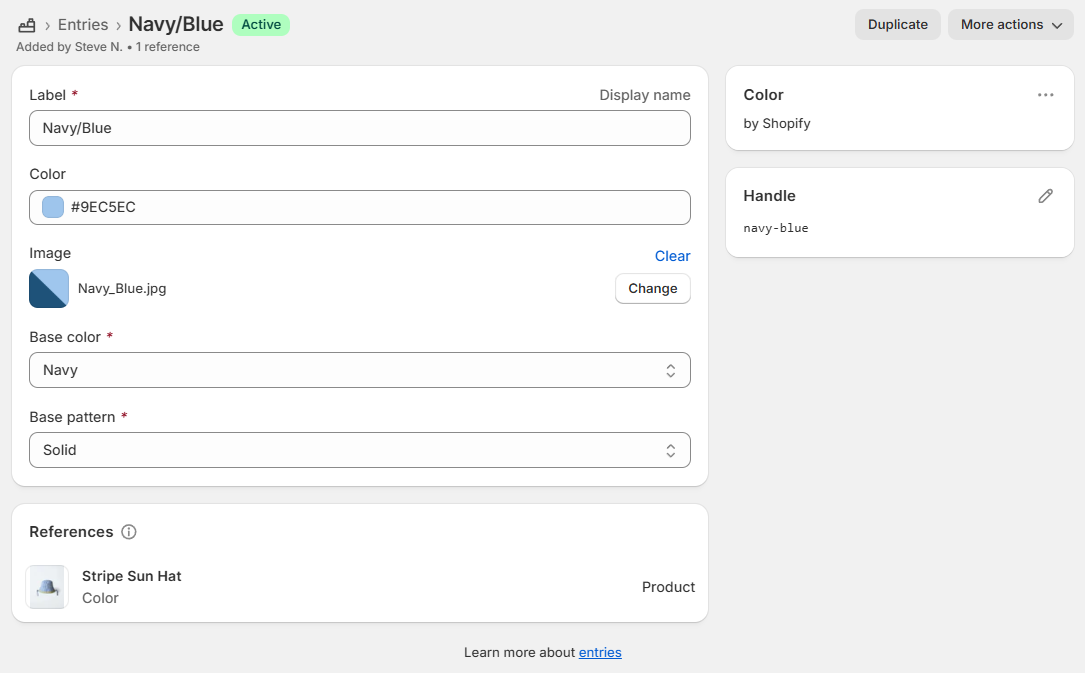
**Note**: **Image** overrides color. **Color** is used only when no image exists.
**Step 3: Connect the Category Metafield to Variant Options**
1. Go back to your product in Shopify Admin.
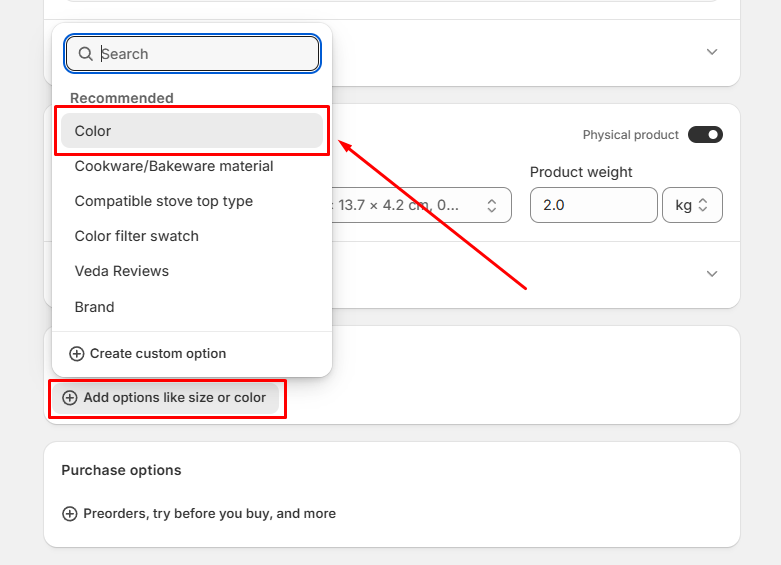
2. In the **Variants** section of the product, click **+ Add options like size or color** (if not already set) or edit an existing option.
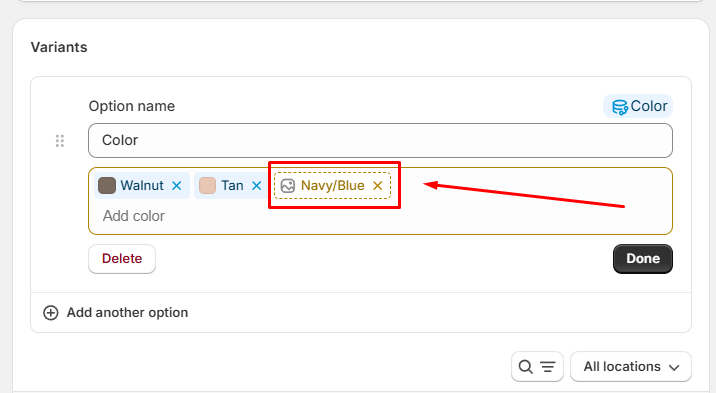
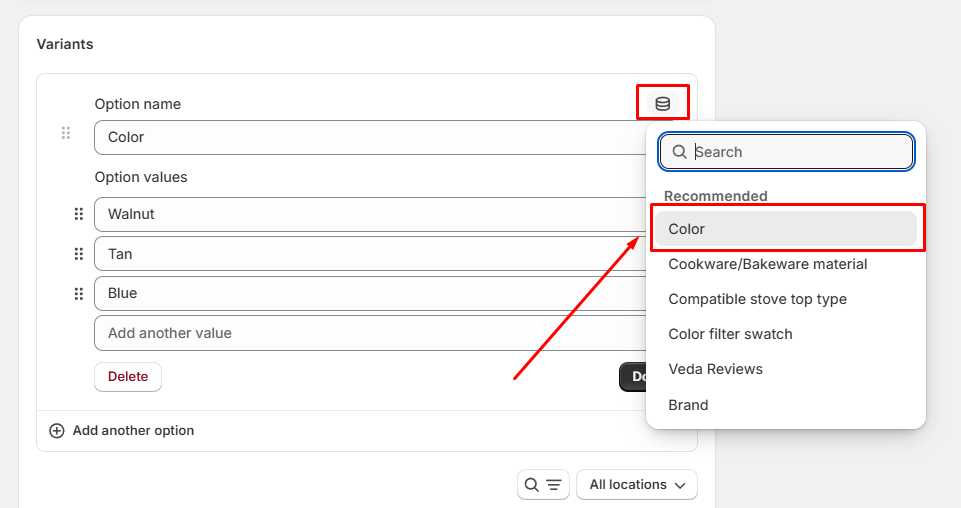
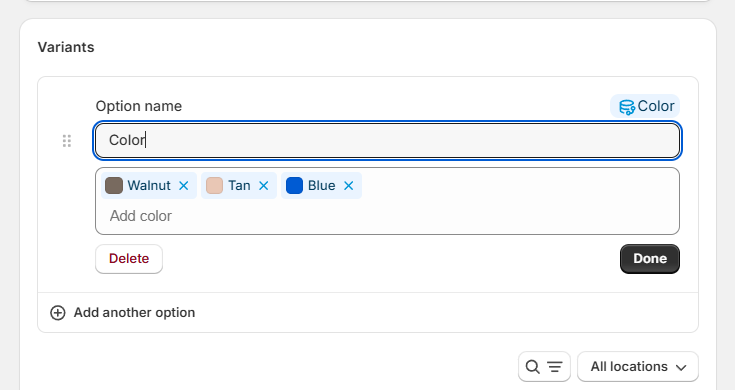
3. If a category metafield (for example, "Color") is available to connect, select it. Shopify will auto-fill the option values with entries from that metafield.
4. Optional: If you have custom option values not yet in the metafield, click on this custom option value, then **Add new entry**, fill out the entry, and save.
 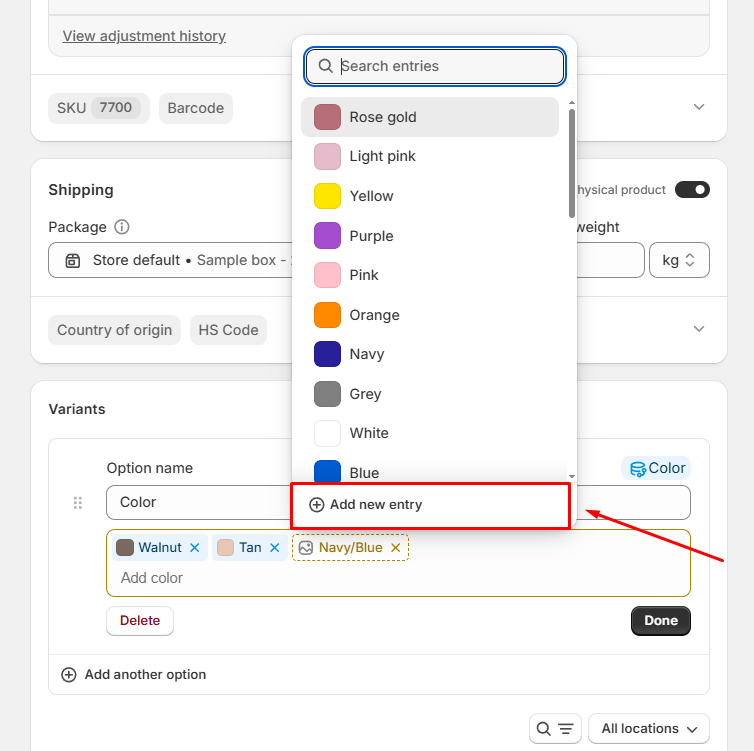
5. Click **Save** on the product.
**Tip***:* If you already have variant options and want to migrate them to category metafields, you can connect them via the "dynamic source" icon and then save.
**Summary**
Using category metafields ensures:
* Centralized, reusable swatch definitions
* Consistent labels and colors across products
* Easier filtering and swatch display in your theme
Learn how to set up color swatches using category metafields: [Shopify Help: Using category metafields](https://help.shopify.com/en/manual/custom-data/metafields/category-metafields/using-category-metafields)
### Actions
Controls interactive elements displayed on product cards.
| Setting | Description |
| --- | --- |
| **Show quick add** | Adds an **Add to cart** or **Choose options** button directly on the product card.
• Single variant products show **Add to cart** button which adds the item immediately.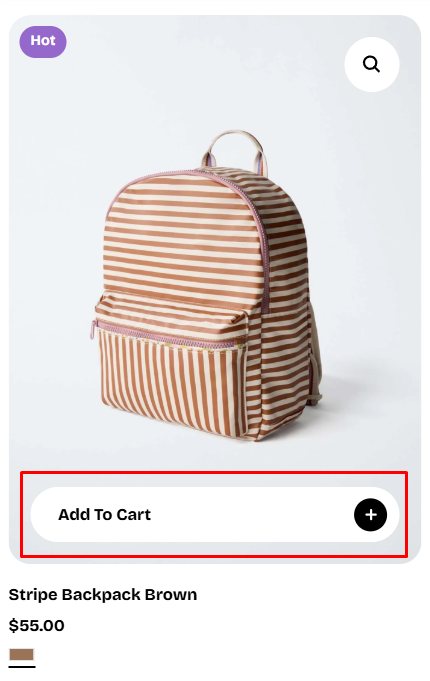
• Multi-variant products show **Choose options** button which opens the Quick View popup, allowing the customer to select a variant and add the product to the cart without leaving the page.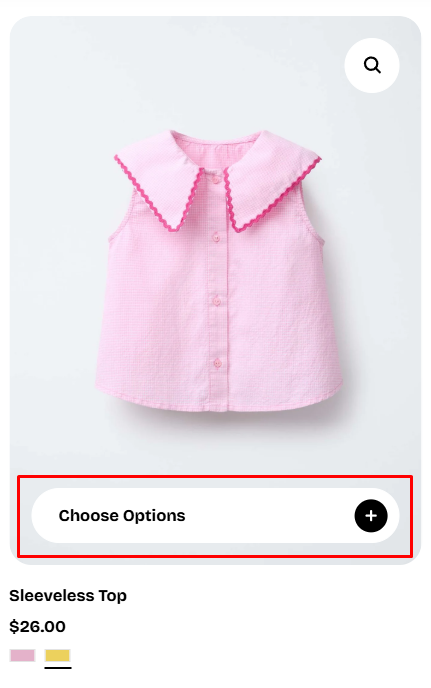
**Note:** The Quick Add button does not appear on **sold-out** products. |
| **Show quick add on mobile** | Enables Quick add functionality specifically for **mobile users**.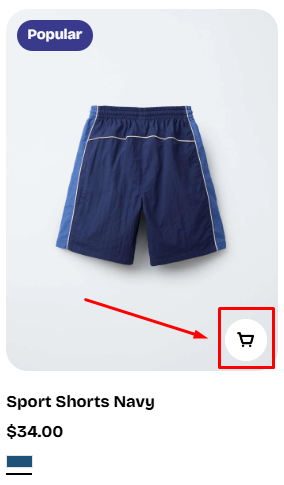
If the product has different variants, the quick view modal will be opened for customer to select the variant they want to added to the cart. |
| **Quick add style** | Choose how the Quick add button is displayed visually:
• **Text only**
• **With icon**
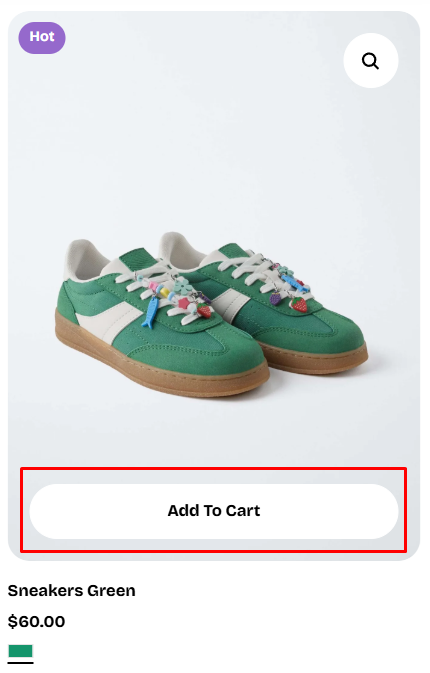
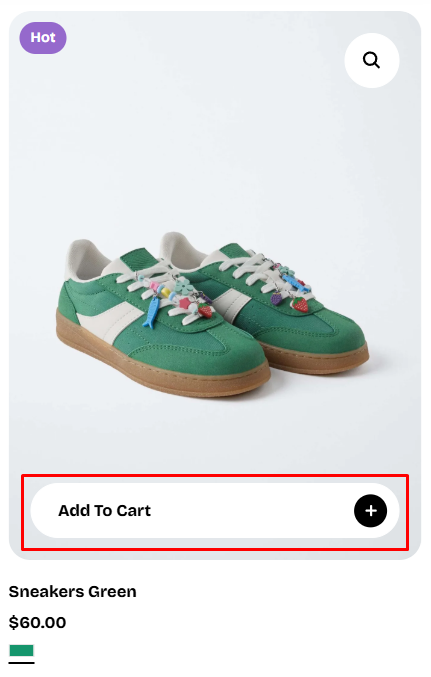 |
| **Quick add icon** | Select the icon used when the **With icon** style is enabled:
|
| **Quick add icon** | Select the icon used when the **With icon** style is enabled:
• **Plus**
• **Cart**
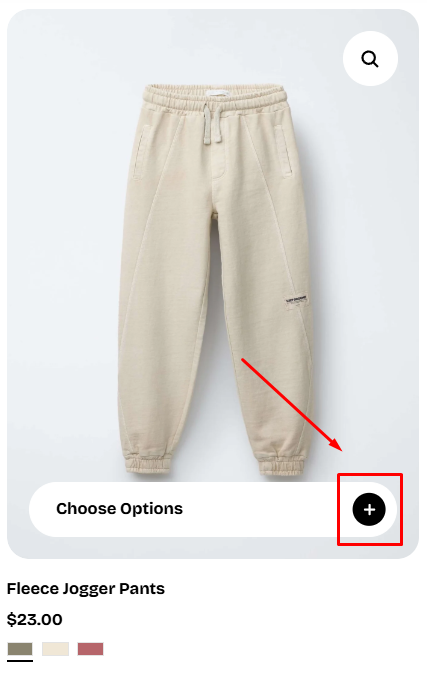
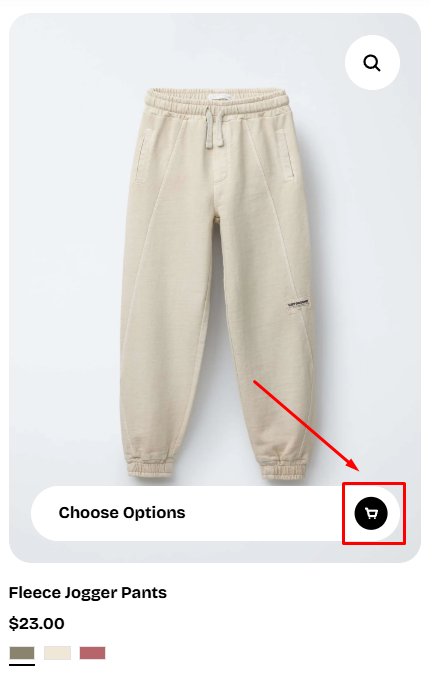 |
| **Quick add color scheme** | Select the color scheme applied to the Quick add button.
|
| **Quick add color scheme** | Select the color scheme applied to the Quick add button.
This setting controls the button’s:
• **Background color**
• **Text color**
• **Border color**
• **Hover state styling**
Color schemes are managed in: **Theme settings >** [Colors](https://docs.foxecom.com/pebble-theme/theme-settings/colors). |
| **Show quick view** | Adds a Quick view icon (magnifying glass) on hover over the product image.
Clicking opens a Quick view popup, allowing customers to see product details without leaving the page.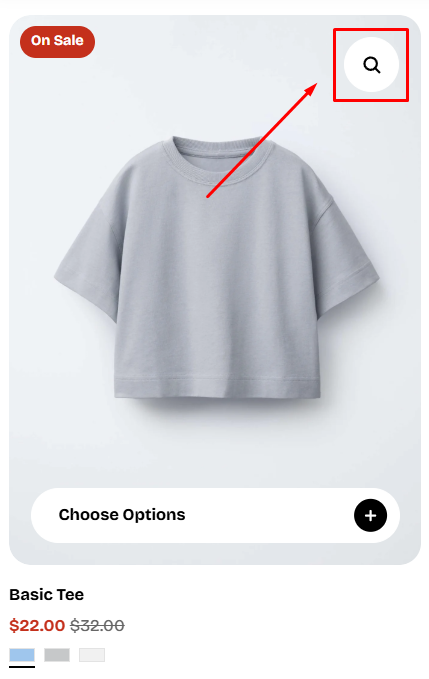
To customize your Quick view, see [Quick add drawer](https://docs.foxecom.com/pebble-theme/global-sections/quick-add-drawer). |
| **Show quick view on mobile** | Enables the Quick view icon and popup on **mobile devices**.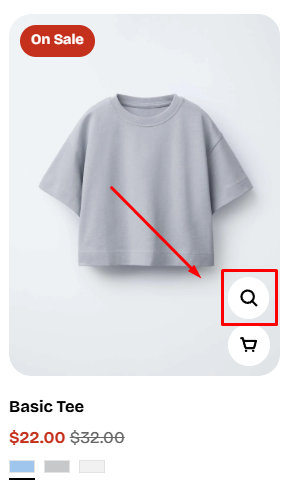 |
|