# Popup
_MuOv9G5w.jpg)
## What is a Popup?
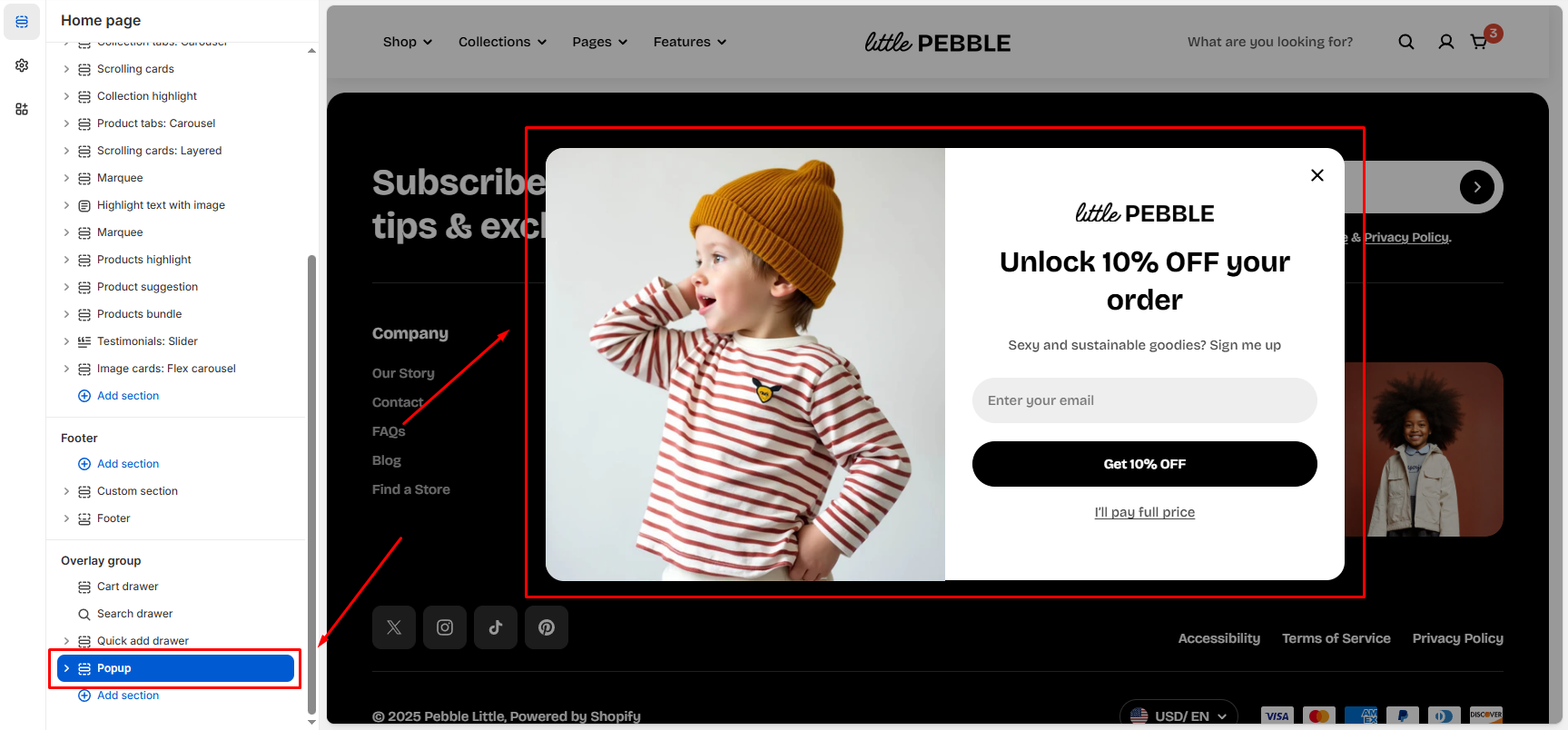
A Popup is an overlay that stops on-site visitors and displays an informational or promotional message to grab their attention.
A Popup can be a great way to grow your email list, get more newsletter sign-ups, and boost sales.
## How to customize the Popup
Steps:
1. In the theme editor (**Customize**), scroll down to the **Overlay group** area.
2. Select the **Popup** section.
3. Make necessary changes.
4. Click **Save**.
### Section settings
#### Enable the Popup
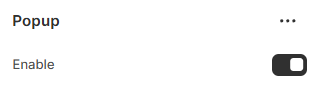
Toggle this option to activate or deactivate the pop-up.
#### Show on home page only

When this option is enabled:
* The popup will appear **only on your store’s homepage**
* It will not appear on product, collection, or other pages
When disabled:
* The popup can appear across the entire website.
#### Show for visitors only

Enable this option to show the popup **only to users who are not logged in**.
Logged-in customers will not see it.
Useful if your pop-up offers:
* A signup discount
* New visitor promotions
* Newsletter incentives
#### Trigger open automatically
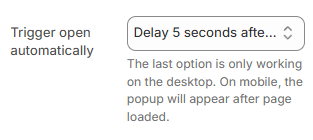
This setting controls **when the popup appears**.
You can choose from:
* **Open immediately after page loaded**: The popup appears the moment the page finishes loading.
* **Delay 5 seconds after page loaded**: The popup will open **5 seconds** after the page loads.
* **Customers scrolling down**: The popup appears only **after the customer scrolls** down the page.
**Note**: The last option works only on desktop. On mobile devices, the popup always displays after the page loads (Shopify limitation).
#### Time before popup appears again
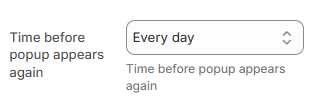
This controls how often a returning visitor sees the popup.
Options include:
* **No repeat** – shows only once
* **Every 30 minutes**
* **Every 1 hour**
* **Every 6 hours**
* **Every 12 hours**
* **Every day**
* **Every 3 days**
* **Every week**
* **Every 2 weeks**
* **Every month**
This prevents the popup from appearing too frequently and creating a poor user experience.
### Block settings
#### Popup image
Popup image block only visible if certain conditions are met.
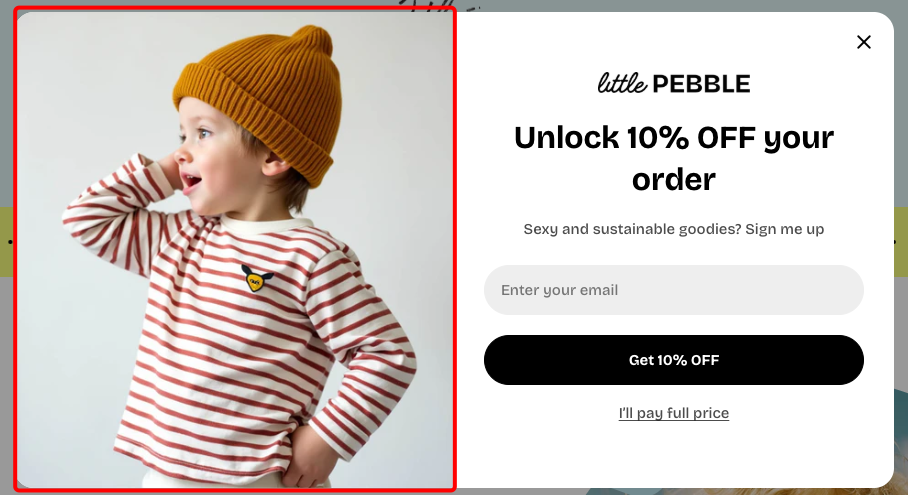
* **Image**: Upload the main image that will appear.
* **Image mobile:** Upload an optimized version of the image specifically for mobile devices.
#### Nested dynamic blocks
You can add multiple dynamic blocks within this section. Learn more about each block type here.
* **Basic**:
* [Button](https://docs.foxecom.com/pebble-theme/theme-blocks/basic#button)
* [Divider](https://docs.foxecom.com/pebble-theme/theme-blocks/basic#divider)
* [Heading](https://docs.foxecom.com/pebble-theme/theme-blocks/basic#text)
* [Icon](https://docs.foxecom.com/pebble-theme/theme-blocks/basic#icon)
* [Image](https://docs.foxecom.com/pebble-theme/theme-blocks/basic#image)
* [Subheading](https://docs.foxecom.com/pebble-theme/theme-blocks/basic#text)
* [Text](https://docs.foxecom.com/pebble-theme/theme-blocks/basic#text)
* [Video](https://docs.foxecom.com/pebble-theme/theme-blocks/basic#video)
* **Form:**
* [Newsletter](https://docs.foxecom.com/pebble-theme/theme-blocks/forms#newsletter)
* **Layout:**
* [Grid](https://docs.foxecom.com/pebble-theme/theme-blocks/layout#grid)
* [Group](https://docs.foxecom.com/pebble-theme/theme-blocks/layout#group)
* Spacer
* **Storytelling**
* [Section header](https://docs.foxecom.com/pebble-theme/theme-blocks/storytelling#section-header)