# Collection

<table data-view="cards"><thead><tr><th align="center"></th><th data-hidden data-card-cover data-type="image">Cover image</th><th data-hidden data-card-target data-type="content-ref"></th></tr></thead><tbody><tr><td align="center"><strong>Collection card</strong></td><td><a href="/files/J2O7MpIpS8KNU8Zo1FGn">/files/J2O7MpIpS8KNU8Zo1FGn</a></td><td><a href="/pages/RMa9NJ6eW6Uf7ajRLH2v#collection-card">/pages/RMa9NJ6eW6Uf7ajRLH2v#collection-card</a></td></tr><tr><td align="center"><strong>Featured collection</strong></td><td><a href="/files/Tz88rMdk7oY2uUeWPba7">/files/Tz88rMdk7oY2uUeWPba7</a></td><td><a href="/pages/RMa9NJ6eW6Uf7ajRLH2v#featured-collection">/pages/RMa9NJ6eW6Uf7ajRLH2v#featured-collection</a></td></tr></tbody></table>

## Collection card

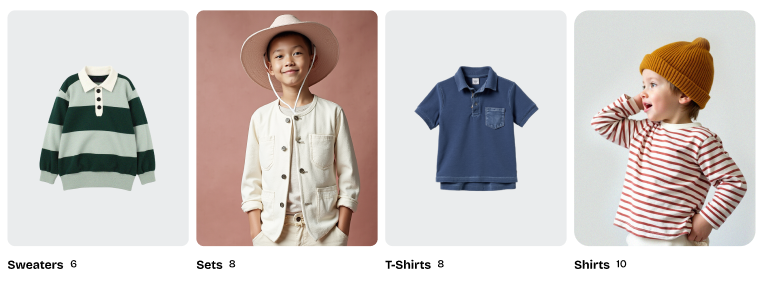
<figure><img src="/files/g2ga1qR1BFIbhRD2f3c5" alt=""><figcaption><p>An example of collection card blocks in grid layout</p></figcaption></figure>

The **Collection card** block displays a visually appealing preview of a product collection, perfect for showcasing your store's categories or featured collections.

#### **⚙️ Block settings**

<table><thead><tr><th width="275">Setting</th><th>Description</th></tr></thead><tbody><tr><td><strong>Collection</strong></td><td>Select the collection you want to showcase. This collection will be displayed as the primary content of the card.<br><br><span data-gb-custom-inline data-tag="emoji" data-code="270d">✍️</span> <em>Learn how to</em> <a href="https://youtu.be/M0DoTpdYPWU"><em>create collections in Shopify with our tutorial.</em> </a></td></tr><tr><td><strong>Text alignment</strong></td><td>Choose the alignment for the text within the card. </td></tr><tr><td><strong>Show product count</strong></td><td>Enable this option to display the number of products in the selected collection. Useful for guiding customers to explore more.</td></tr></tbody></table>

{% hint style="warning" %}
Ensure all collection images have the same aspect ratio to keep the collection cards looking neat and aligned. This is especially important when you display the collection across multiple grid rows.

If the collection doesn't have a featured image, the image of the first product will be displayed.
{% endhint %}

## Featured collection

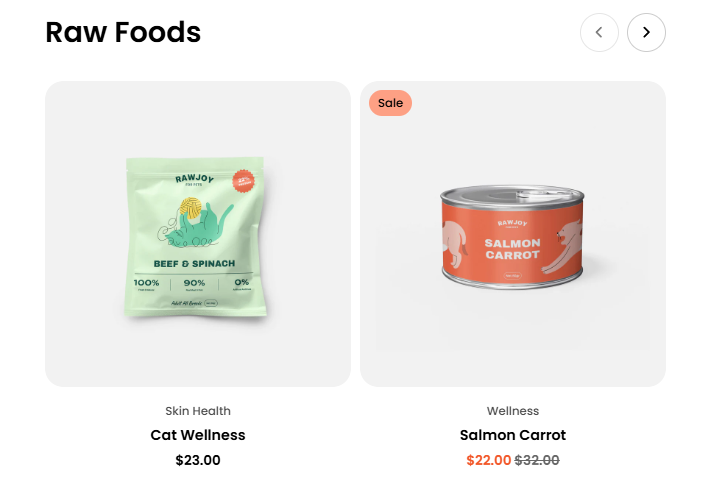
<figure><img src="/files/LpqjL42sXWahVq5LvLZe" alt=""><figcaption></figcaption></figure>

The Featured collection block showcases selected products from a chosen collection in an interactive layout, helping highlight featured items and drive customer engagement.

<table><thead><tr><th width="275">Setting</th><th>Description</th></tr></thead><tbody><tr><td><strong>Collection</strong></td><td>Select the collection you want to showcase. This collection will be displayed as the primary content of the card.<br><br><span data-gb-custom-inline data-tag="emoji" data-code="270d">✍️</span> <em>Learn how to</em> <a href="https://youtu.be/M0DoTpdYPWU"><em>create collections in Shopify with our tutorial.</em> </a></td></tr><tr><td><strong>Product count</strong></td><td>Choose how many products to display from the selected collection.</td></tr><tr><td><strong>Type</strong></td><td>Select how products are displayed: Grid for a static layout or Carousel for a swipeable slider.</td></tr><tr><td><strong>Columns</strong></td><td>Set the number of product columns displayed on desktop devices.</td></tr><tr><td><strong>Horizontal gap</strong></td><td>Adjust the spacing between product cards.</td></tr><tr><td><strong>Width</strong></td><td>Set the section width for both desktop and mobile devices to either Fill or Custom.</td></tr></tbody></table>

{% hint style="info" %}
You can go to **Theme Settings > Product cards** to customize and personalize how your product cards look and behave to perfectly match your brand.

Learn more: [Product cards](/pebble-theme/theme-settings/product-cards.md)
{% endhint %}


---

# Agent Instructions: Querying This Documentation

If you need additional information that is not directly available in this page, you can query the documentation dynamically by asking a question.

Perform an HTTP GET request on the current page URL with the `ask` query parameter:

```
GET https://docs.foxecom.com/pebble-theme/theme-blocks/collection.md?ask=<question>
```

The question should be specific, self-contained, and written in natural language.
The response will contain a direct answer to the question and relevant excerpts and sources from the documentation.

Use this mechanism when the answer is not explicitly present in the current page, you need clarification or additional context, or you want to retrieve related documentation sections.