# Products bundle: Choose
_5Wf7jwGI.jpg)
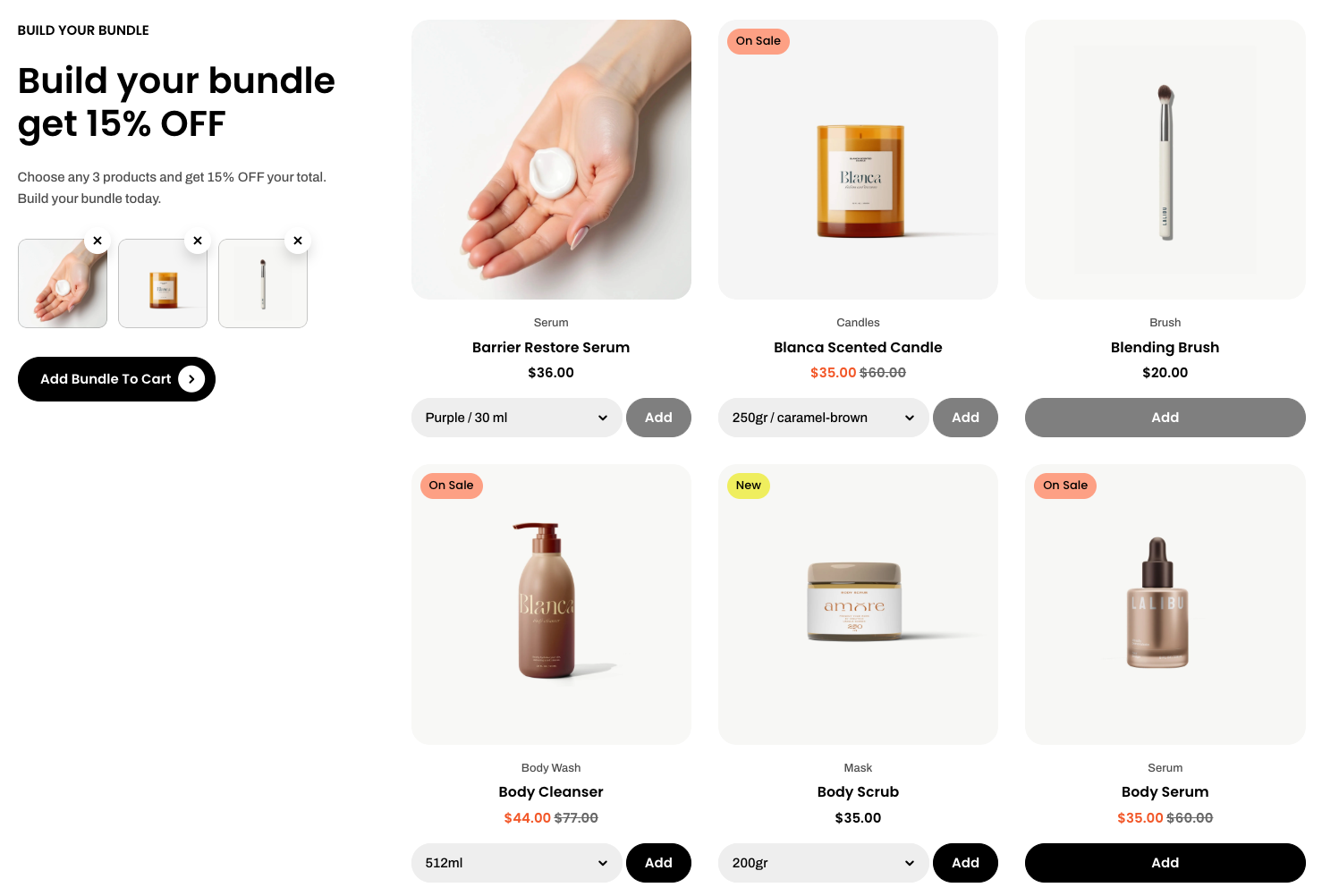
Create a customizable product bundle that lets customers mix and match items while enjoying a built-in discount.
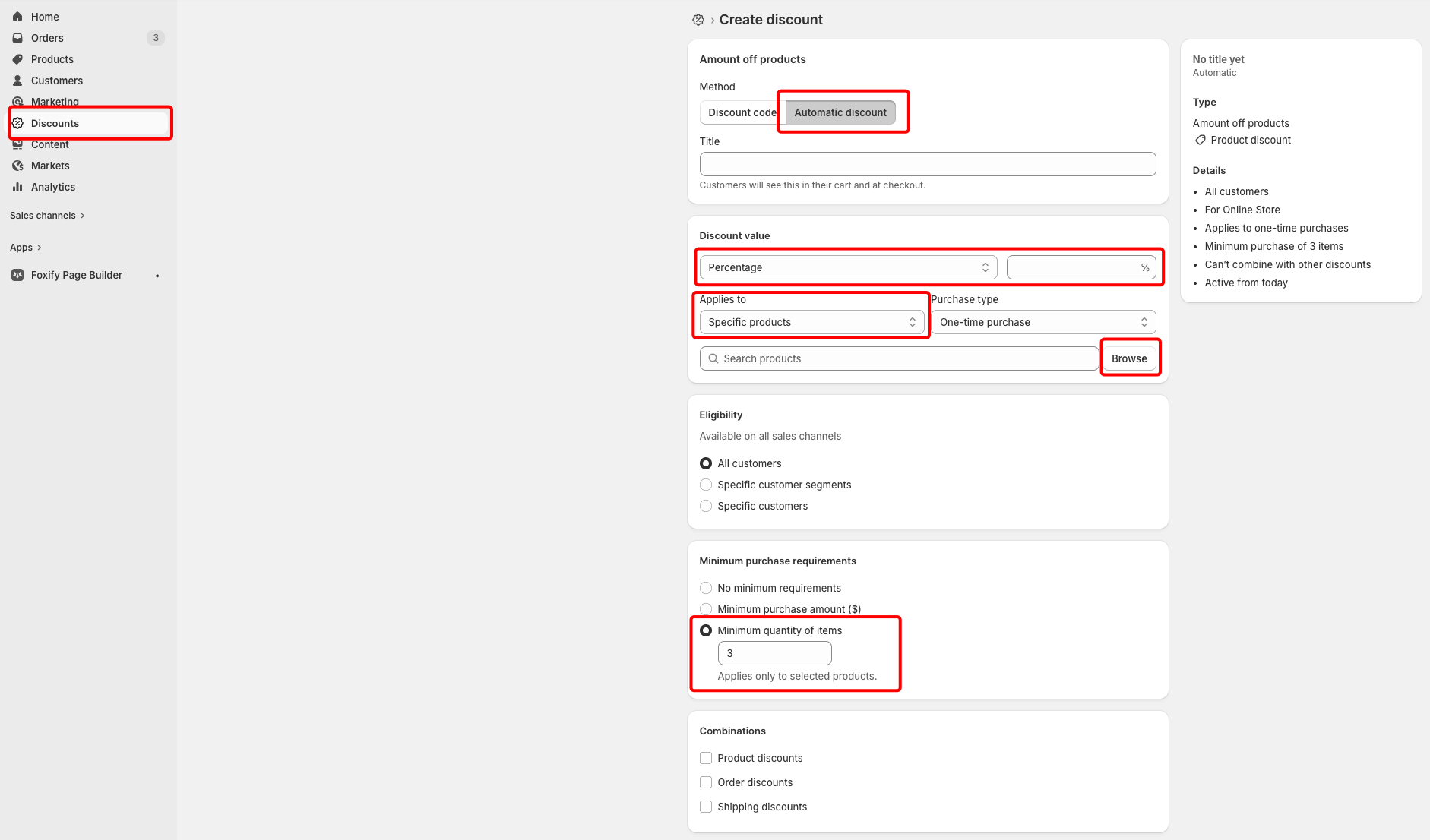
This section only displays the bundle UI. To activate the actual discount at checkout, you must set it up in **Shopify admin > Discounts**.
[📌 How to set up the discount ](#how-to-set-up-the-discount)
## How to add a Products bundle: Choose section to your Shopify store
1. In the theme editor **(Customize)**, click **Add section.**
2. Select **Products bundle: Choose** section.
3. Make necessary changes.
4. **Save.**
## How to customize a Products bundle: Choose section
### Section settings
The section shows an **Add bundle to cart** button on the left of the bundled products list.
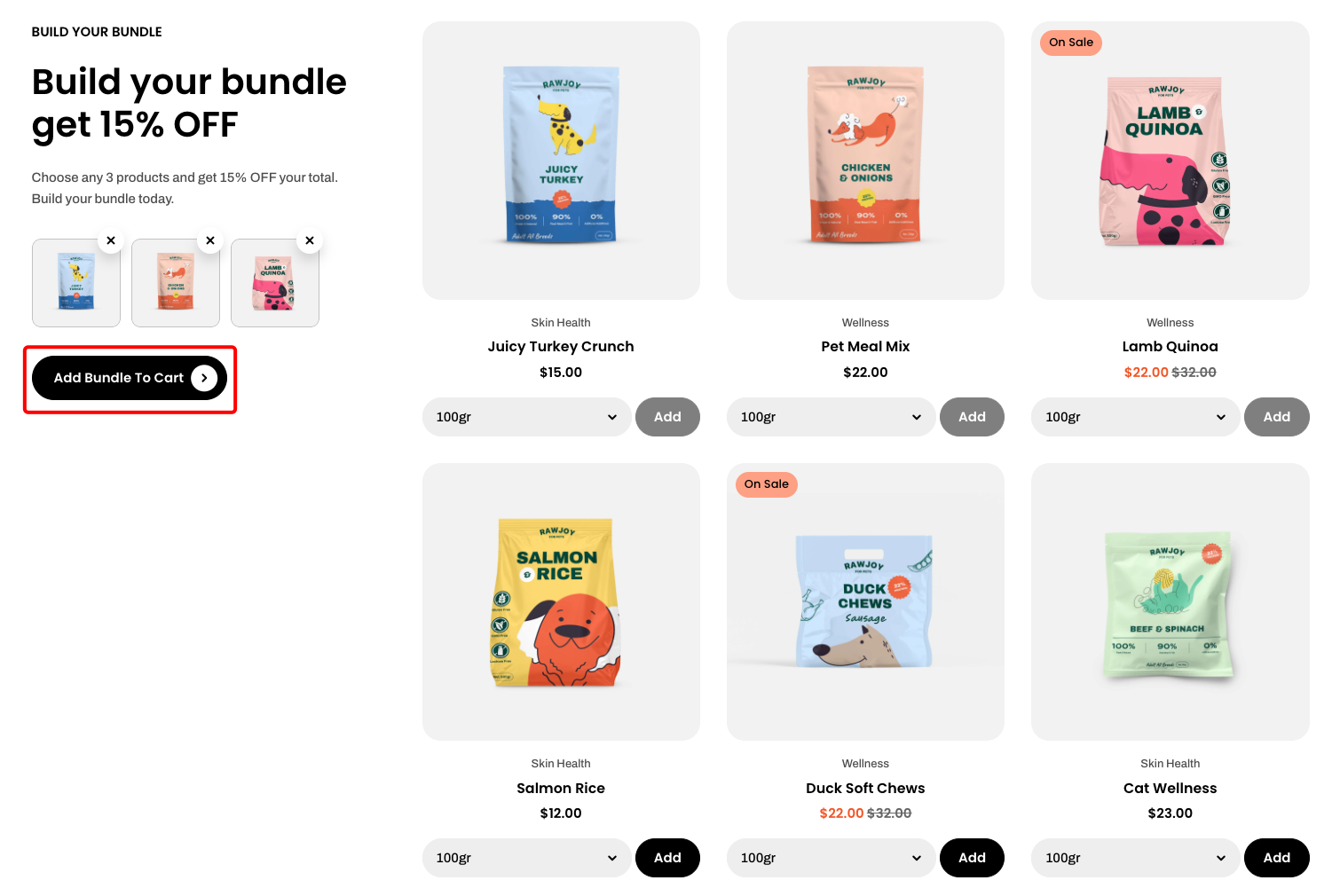
✅ Customers can pick the variant (e.g., size, color) before adding everything to their cart.
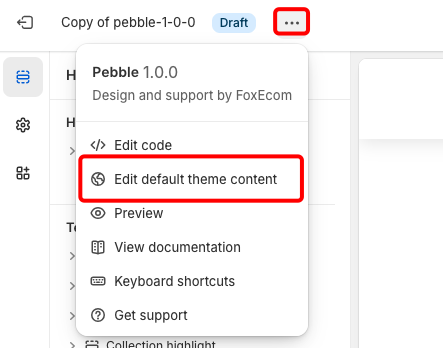
* To change this button label, go to **Actions > Edit default theme content**.

#### General
| Setting | Description |
| --- | --- |
| **Products** | Select products to include in the bundle section. |
| **Minimum items to reach discount** | Set the minimum number of products required to unlock the discount. |
| **Prevent duplicate products in the bundle** | Prevent customers from adding the same product multiple times in a bundle. |
#### Layout
| Setting | Description |
| --- | --- |
| **Columns** | Adjust the number of product columns displayed. |
| **Horizontal gap** | Control the horizontal spacing between product cards. |
| **Vertical gap** | Control the vertical spacing between product cards. |
#### Product cards
| Setting | Description |
| --- | --- |
| **Image ratio** | Set the aspect ratio of product images. |
| **Text line limit** | Limit the number of lines shown for product titles. |
Use global theme settings, follow the image ratio defined in **Theme settings → Product cards**.
Learn more: [Product cards](https://docs.foxecom.com/pebble-theme/theme-settings/product-cards)
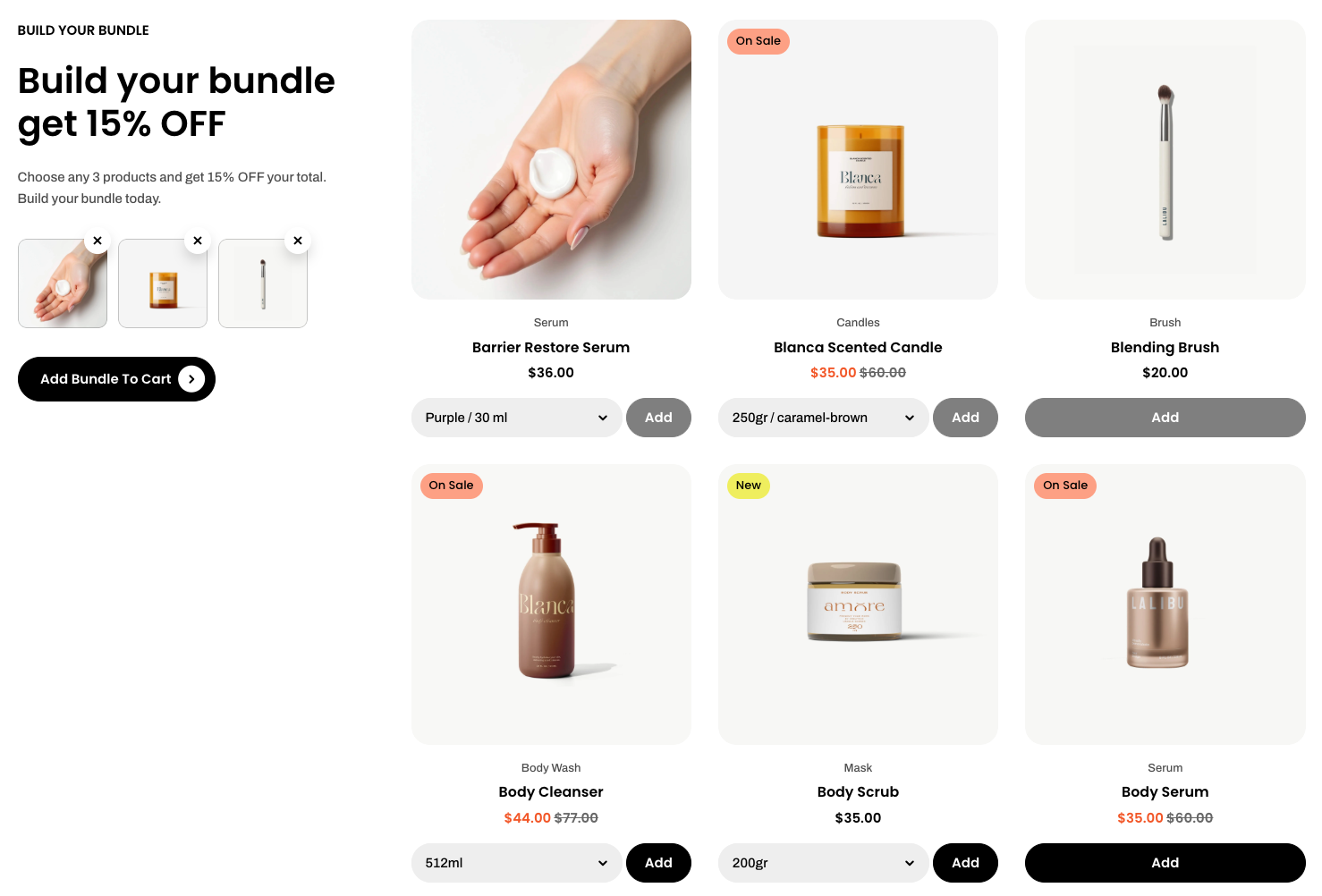
Adapt to image size, keeping the original aspect ratio of the product image
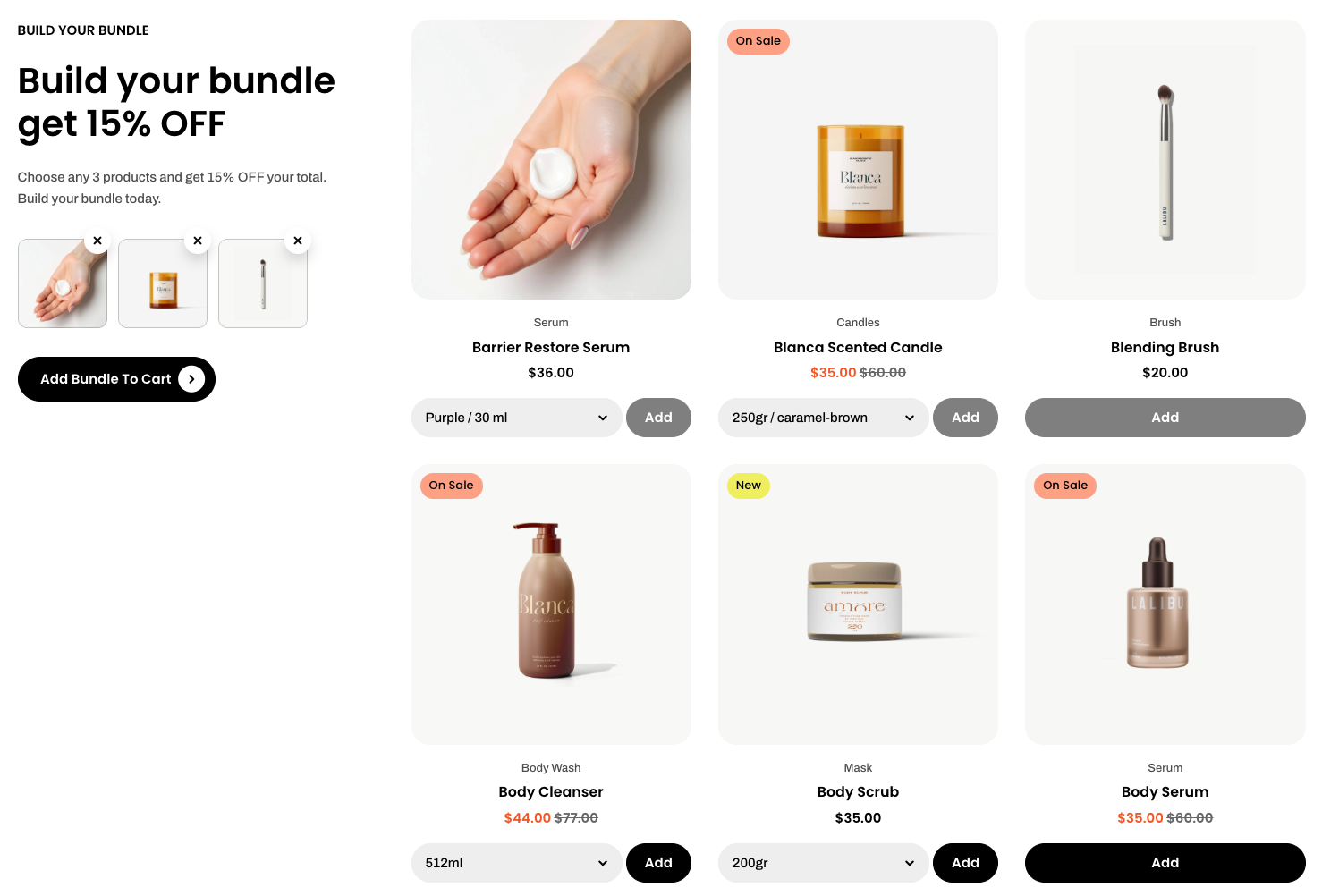
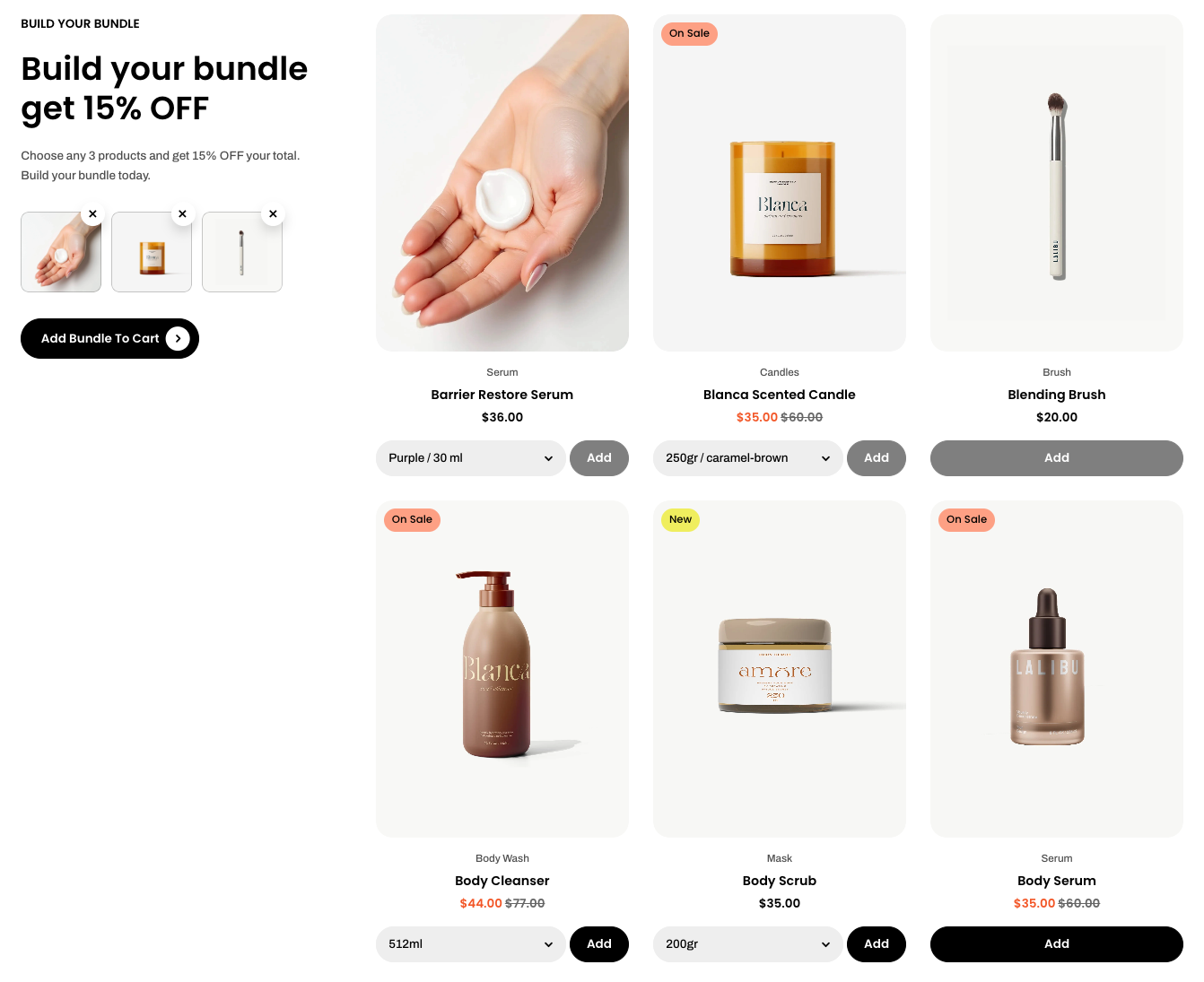
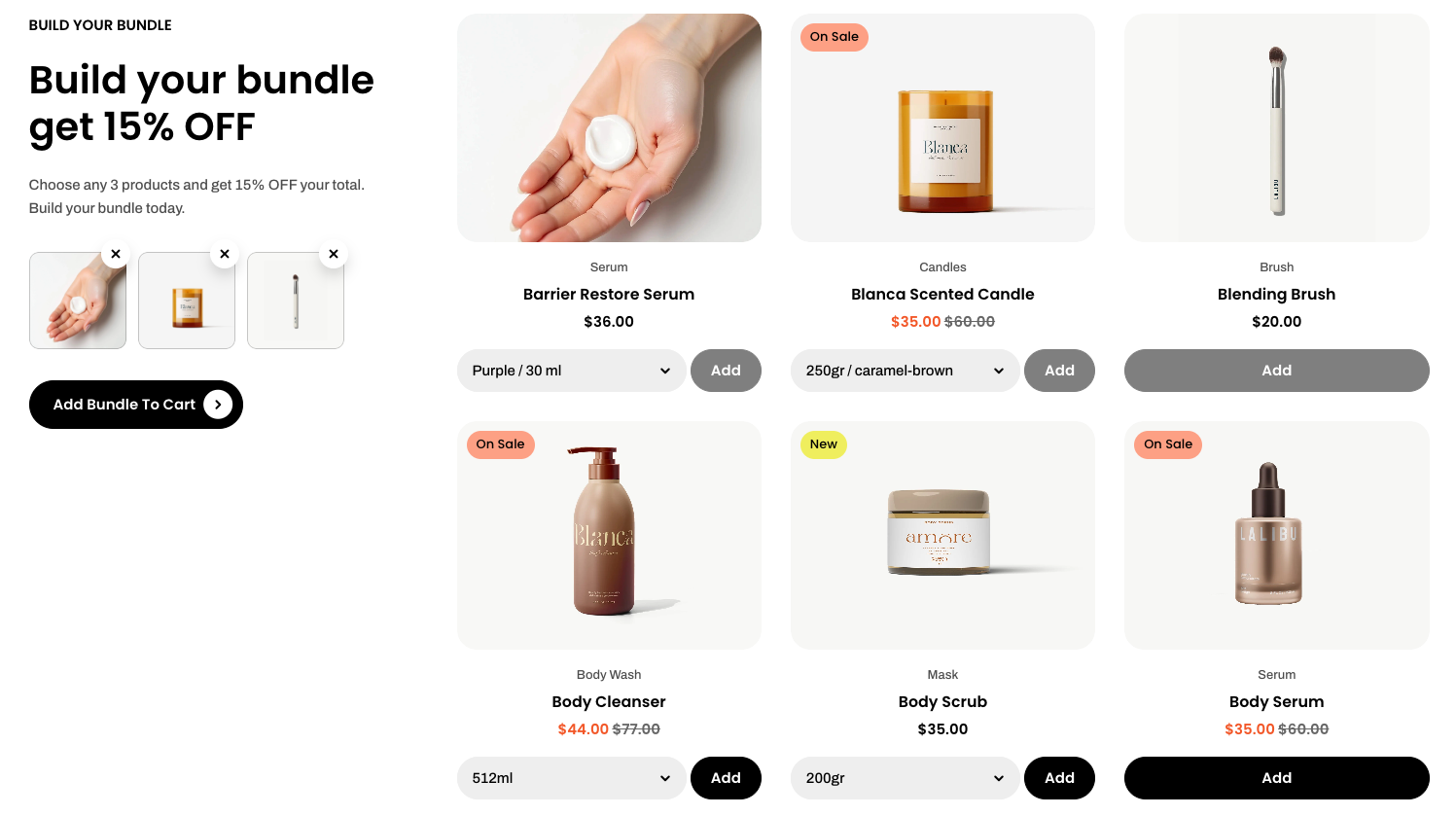
#### Mobile layout
| Setting | Description |
| --- | --- |
| **Enable swipe on mobile** | Allow horizontal swipe interaction on mobile devices. |
| **Mobile columns** | Set the number of columns displayed on mobile. |
| **Mobile horizontal gap** | Adjust horizontal spacing between items on mobile. |
| **Mobile vertical gap** | Adjust vertical spacing between items on mobile. |
_vHP3JyIm.jpg)
_KZzXowNU.jpg)
_qMA9iUsG.jpg)
Check out other section settings: [Common settings available in most sections](https://docs.foxecom.com/pebble-theme/theme-sections/overview#common-settings-available-in-most-sections)
### Block settings
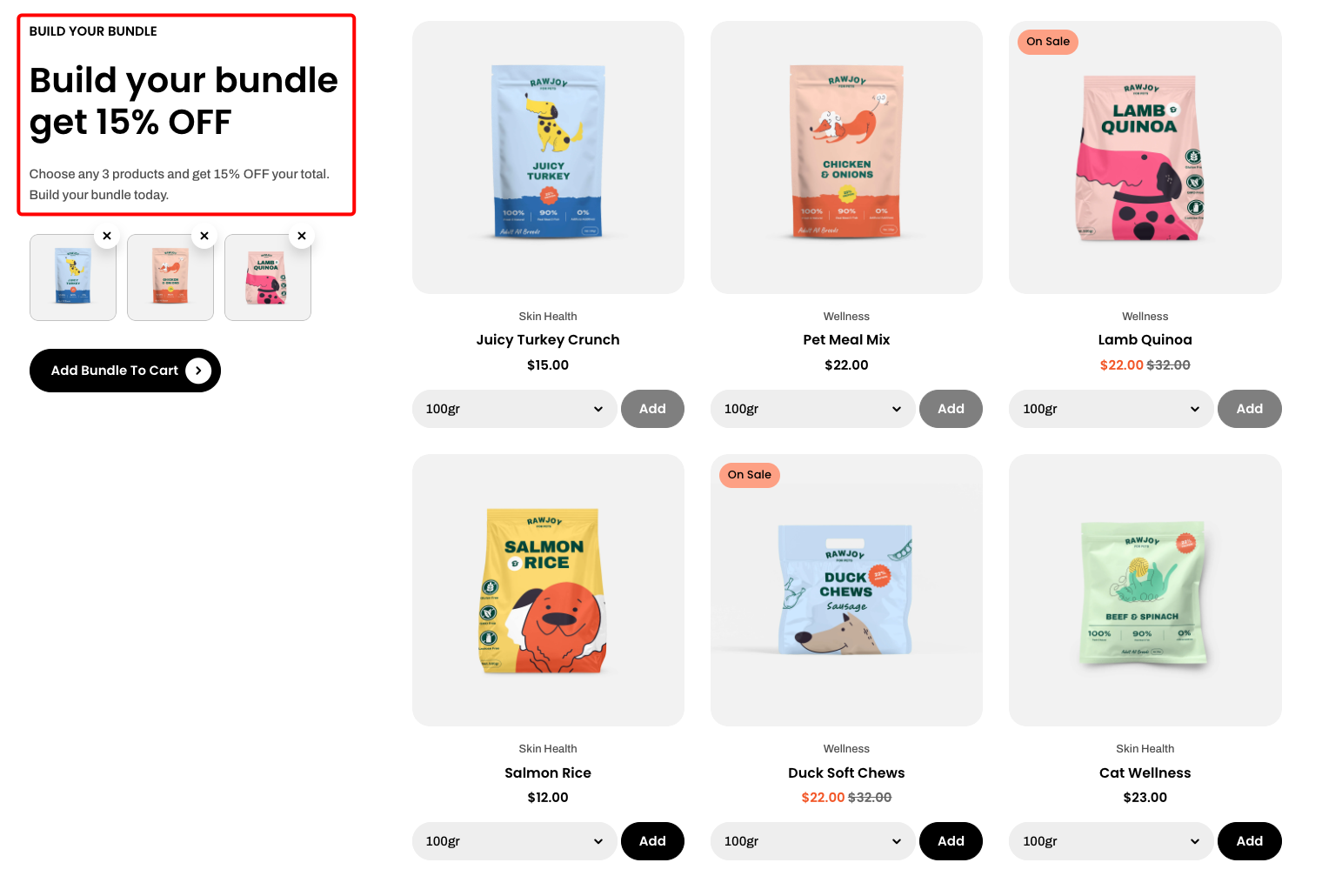
Use the **Header** block to create and customize the section’s heading and introductory content.
| Setting | Description |
| --- | --- |
| **Alignment** | Set the header alignment: left, center, or right. |
| **Devices** | Switch between desktop and mobile padding settings. |
| **Bottom** | Adjust the spacing below the header. |
* **Heading** – Add a main title
* **Subheading** – Provide supporting text above or below the heading
* **Text** – Include additional descriptions or details
* **Image** – Display an image or icon
* **Button** – Add a call-to-action
Learn more: [Basic](https://docs.foxecom.com/pebble-theme/theme-blocks/basic)
### 📌 How to set up the discount
The theme only displays the bundle visually. To make the discount functional at checkout, follow these steps:
1. Go to **Shopify Admin > Discounts**
2. Click **Create Discount**
3. Choose:
* **Type**: `Amount off products`
* **Method**: `Automatic discount`
4. Set **Discount value**: e.g., 15%
5. Under **Applies to**, select **Specific products** → Choose the products used in the section.
6. Set **Minimum quantity of items**: Match the tier settings (e.g., 3 items minimum).