# Logo
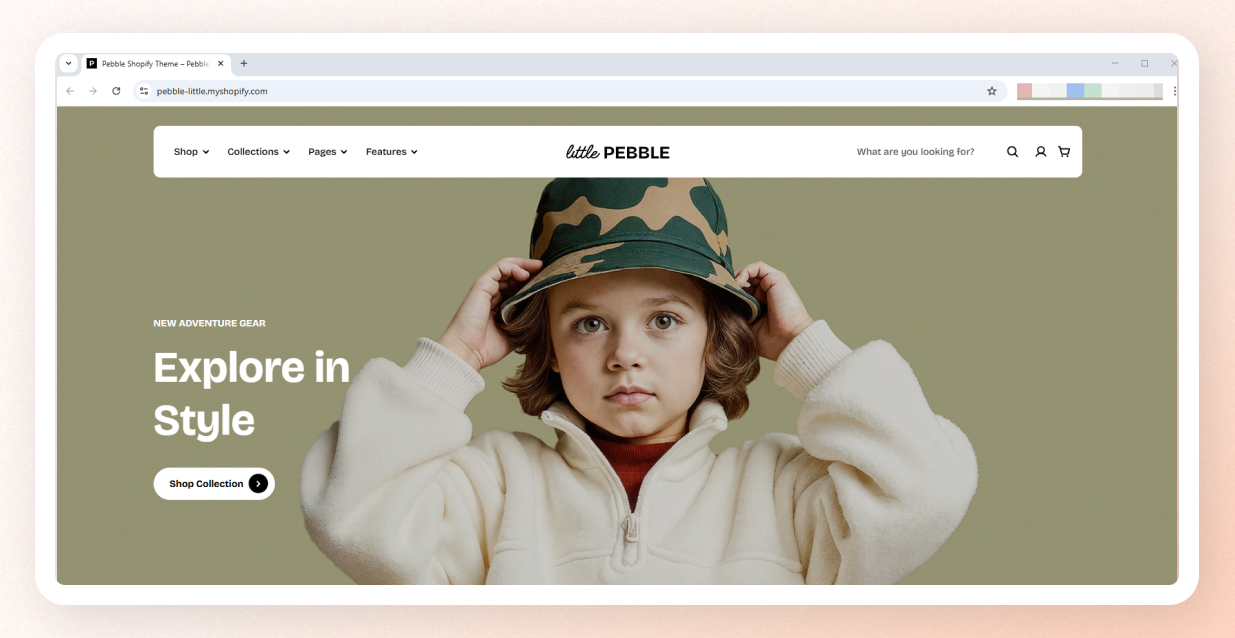
## Logo
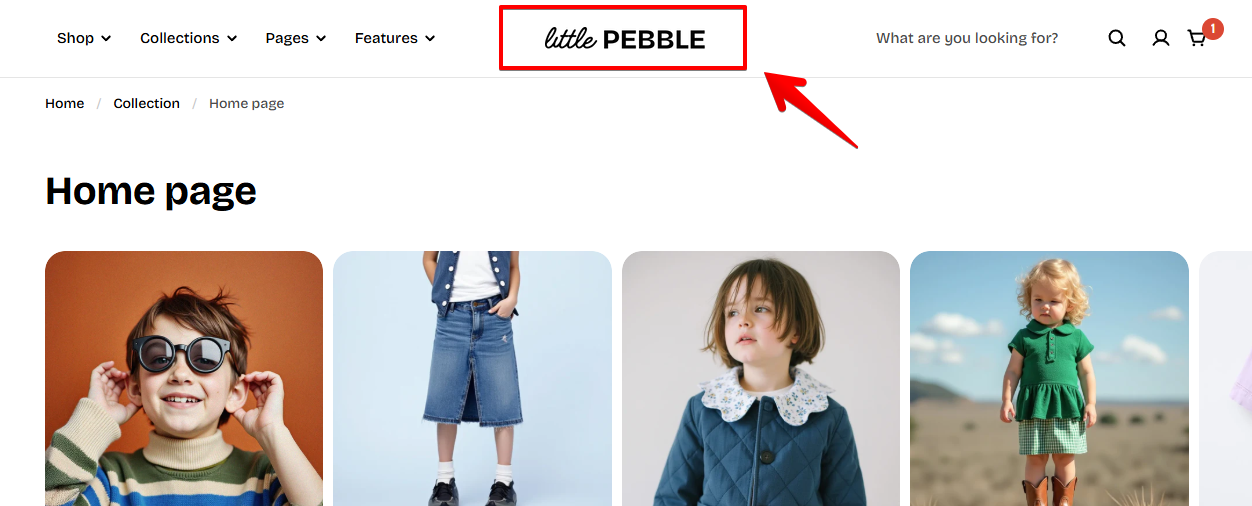
### How to add a Logo
Steps:
1. In the theme editor (**Customize**), click **Theme settings**.
2. Locate **Logo**.
3. Make necessary changes.
4. Click **Save**.
### Logo settings options
Under the Logo section, you can upload and adjust your store’s logo to ensure it looks perfect across all devices.
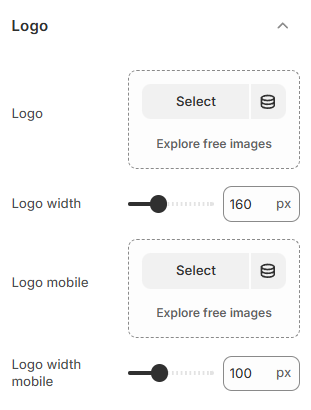
**Options include:**
* **Logo:** Upload the main logo for your store.
* **Logo width:** Adjust the width of the logo displayed on desktop (in pixels).
* **Logo mobile:** Upload an alternate logo for mobile view if needed.
* **Logo width mobile:** Adjust the logo width specifically for mobile view (in pixels).
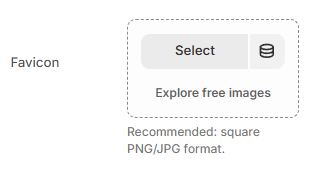
## Favicon

A favicon is a small image that represents your store and helps visitors easily identify your website, especially when multiple tabs are open.
A favicon increases brand awareness and improves user experience.
**Where it appears:**
* Browser tabs
* Search results
* Browser history
* Bookmark lists
**Recommended image size:** `32 × 32 px` (PNG or JPG format)
You can enable or disable the favicon display based on your store’s requirements.