# Lookbook banner
_93UeWQYG.jpg)
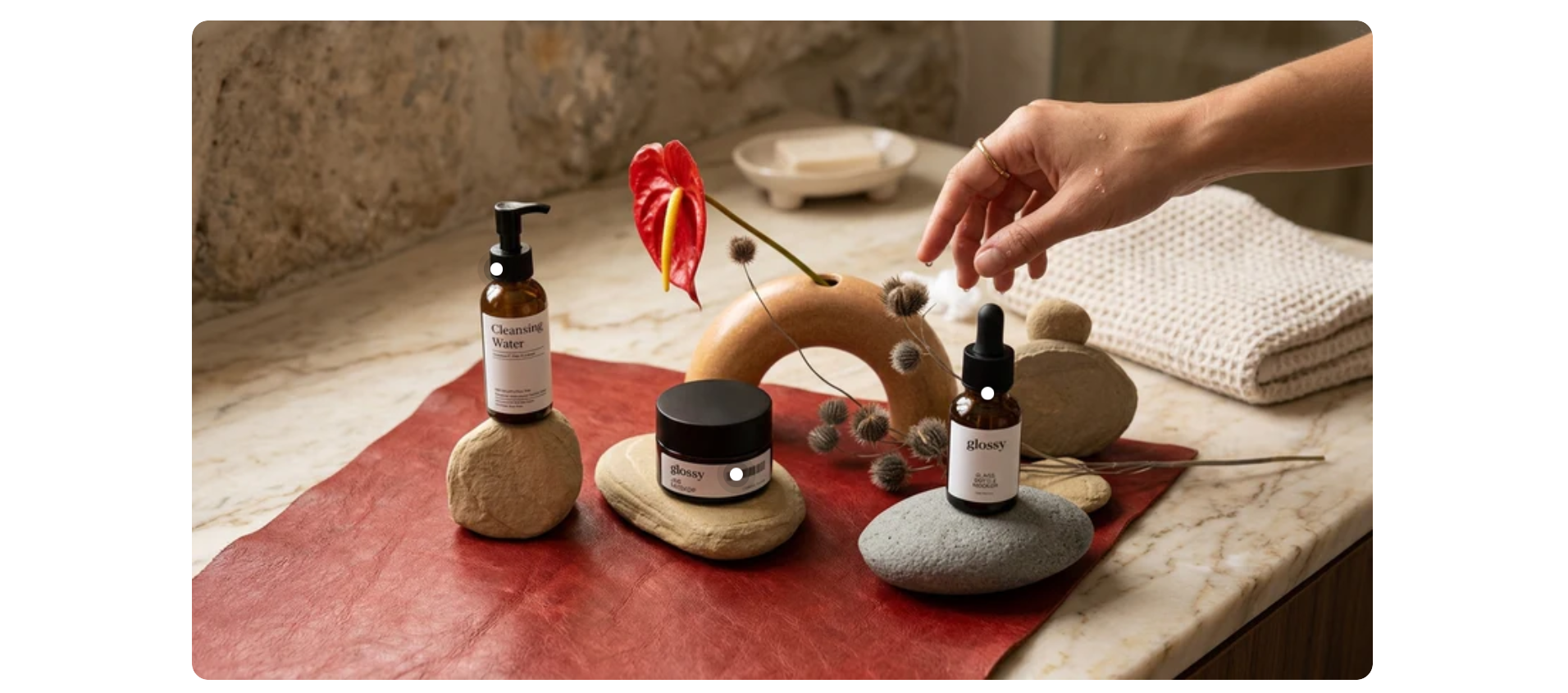
A visually engaging Lookbook banner section designed to highlight key products and inspire customers through compelling imagery.
## How to add a Lookbook banner section to your Shopify store
1. In the theme editor **(Customize)**, click **Add section.**
2. Select **Lookbook banner** section.
3. Make necessary changes.
4. **Save.**
## How to customize a Lookbook banner section
### Section settings
[Common settings available in most sections](https://docs.foxecom.com/pebble-theme/theme-sections/overview#common-settings-available-in-most-sections)
### Block settings
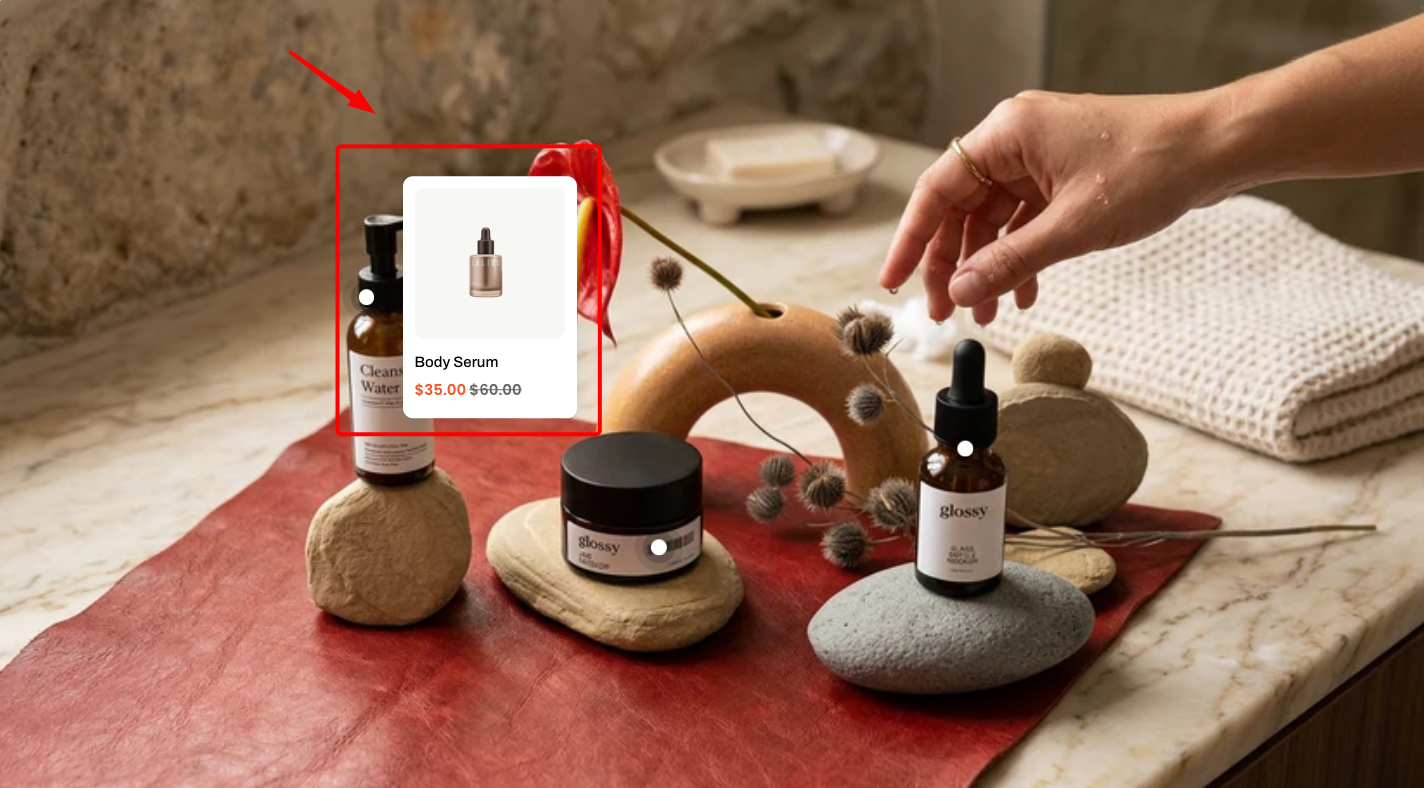
The Lookbook banner section includes a **Header**, a **Banner**, and **Product** blocks for showcasing featured items.
Use the **Header** block to create and customize the section’s heading and introductory content.
| Setting | Description |
| --- | --- |
| **Alignment** | Set the header alignment: left, center, or right. |
| **Devices** | Switch between desktop and mobile padding settings. |
| **Bottom** | Adjust the spacing below the header. |
* **Heading** – Add a main title
* **Subheading** – Provide supporting text above or below the heading
* **Text** – Include additional descriptions or details
* **Button** – Add a call-to-action
📝 Learn more: [Basic](https://docs.foxecom.com/pebble-theme/theme-blocks/basic)
Learn more: [Basic](https://docs.foxecom.com/pebble-theme/theme-blocks/basic#image)
| Setting | Description |
| --- | --- |
| **Product** | Select the product to display in this section. |
| **Offset top** | Adjust the vertical position of the product. |
| **Offset left** | Adjust the horizontal position of the product. |
| **Offset top mobile** | Adjust the vertical position of the product on mobile devices. |
| **Offset left mobile** | Adjust the horizontal position of the product on mobile devices. |
## Best practices
* Since only one banner image is supported, choose an image with **enough space** to place multiple product pins without clutter.
* Add **multiple** **Product blocks** to highlight different items and position them strategically for better visibility.