# Collections list page
_KfXxckfP.jpg)
The Collections list page displays all the collections you choose to show in one place. You can control which collections appear, adjust the layout, and customize how they look on both desktop and mobile.
## How to access Collections list page template
1. From the theme editor (**Customize**), select the template selector.
2. In the dropdown menu, select **Collections list** template.
3. Make necessary changes.
4. **Save** the settings.
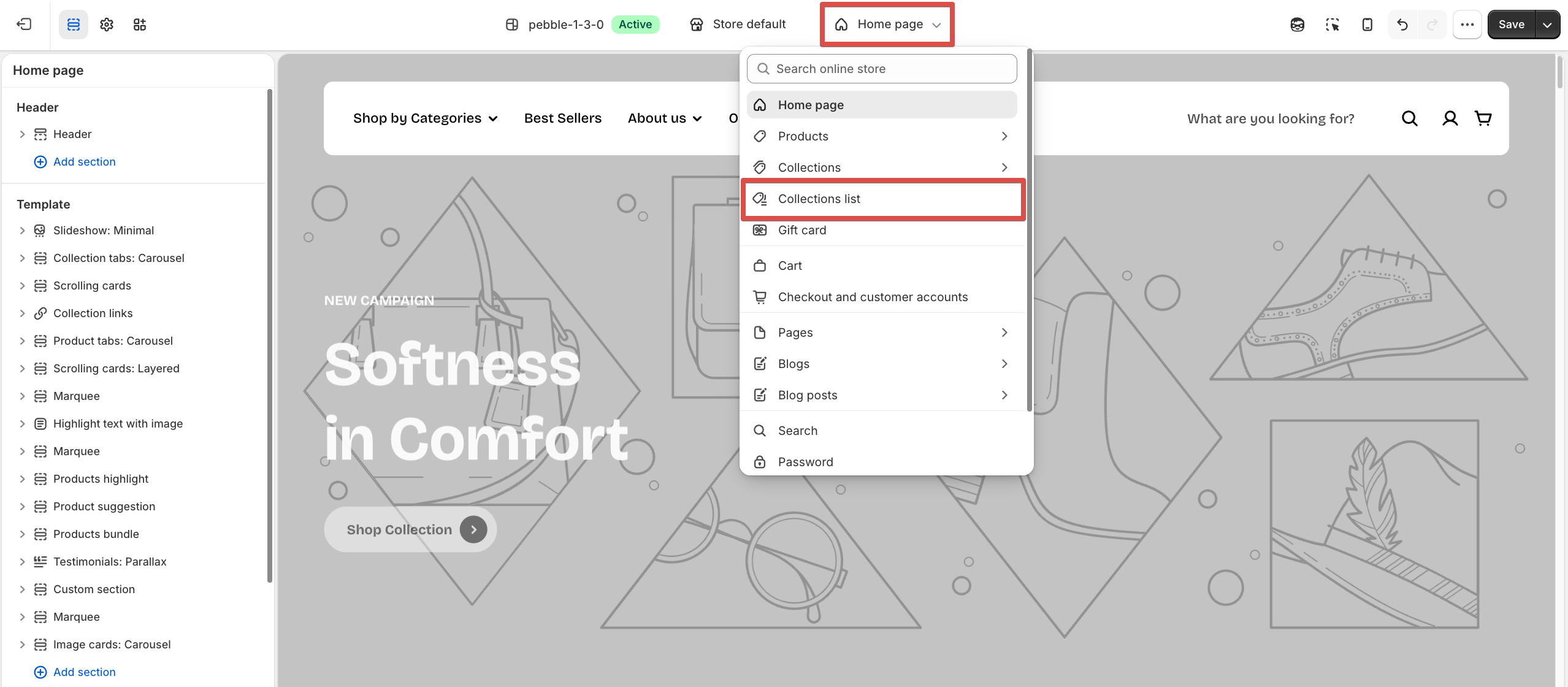
The storefront uses the default handle `/collections`.
Example: [`https://yourstore.myshopify.com/collections`](https://yourstore.myshopify.com/collections)
## How to customize a Collection list section
### Section settings
| Setting | Description |
| ------------------------ | ------------------------------------------------------------------------------ |
| **Container** | Choose Full for full width or Fixed to keep content within the page container. |
| **Columns** | Set the number of collection columns. |
| **Collections per page** | Set how many collections are displayed per page. |
| **Horizontal gap** | Set the horizontal spacing between collections. |
| **Vertical gap** | Set the vertical spacing between collections. |
| **Mobile columns** | Choose to display collections in **1** or **2 columns** on mobile. |
| **Horizontal gap** | Set the horizontal spacing between collections. |
| **Vertical gap** | Set the vertical spacing between collections. |
####
### Block settings
#### Collection card
Each block represents a collection card. You can add multiple blocks and reorder them as you like.
| Setting | Description |
| ---------------------- | ------------------------------------------------------- |
| **Aspect ratio** | Set the image aspect ratio for collection cards. |
| **Alignment** | Choose the content alignment: Left, Center, or Right. |
| **Show product count** | Show or hide the number of products in each collection. |
You can go to **Theme settings → Collection cards** and adjust the settings as needed.
*Learn more:* [*Collection cards*](https://docs.foxecom.com/pebble-theme/theme-settings/collection-cards)
#### Nested dynamic blocks
You can add multiple dynamic blocks within this section. Use these blocks to customize the layout further or add additional content types.
Theme blocks
## Other sections
The Collections list template supports all theme sections. You can freely add, remove, or rearrange sections—just like any other page.
Theme sections
## Best practices
* Use high-resolution images for collection thumbnails so the grid looks clean and consistent.
* Order your collection blocks strategically — feature best-selling or seasonal collections first.
* Use the aspect ratio setting to ensure visual consistency across all cards.