# Grid banner 🔥
_zYYeAlgJ.jpg)
The **Grid banner** section 🧱 is a flexible visual layout tool that lets you display multiple banner cards in a responsive grid. It's ideal for highlighting different collections, promotions, or content blocks in a visually engaging way.
## How to add a Grid banner section to your Shopify store
Steps:
1. In the theme editor **(Customize)**, click **Add section.**
2. Locate **Grid banner** section.
3. Make necessary changes.
4. **Save.**
## How to edit a Grid banner
### Section settings
#### Section header
* **Text alignment:**
* Align the text in the section to the **Left**, **Center**, or **Right**.
* Adjust alignment based on your banner’s design and layout.
* **Text alignment on Mobile:** Override desktop alignment settings specifically for mobile devices if needed.
* **Subheading**: Add a short, secondary heading to complement the main heading. This can provide additional context or detail.
* **Subheading style**: Only show the text, or add a border around the subheading. The subheading border will have a fixed border radius of 24px by default.
* **Heading**: Enter the primary title for your banner.
* **Heading size:** Adjust the size to fit your design preference and ensure readability. Choose from available heading sizes.
✨[Add Highlighted text to your Headings](https://docs.foxecom.com/hyper-theme/faqs/add-highlighted-text-to-your-headings)
* **Text:** Add a detailed explanation or summary for the banner. Use rich text formatting like **bold**, *italic*, links, and lists for better visual emphasis.
* **Text size:** Select the size of the description text.
* **Button label:** Input the text for the call-to-action button.
* **Button link:** Add a link to the button to direct users to a specific page, product, or collection.
* **Button style:** Choose a style for the button.
#### Grid settings
* Set the **number of columns on desktop** (between 4-6 columns).
* Define the **Banner height** and **gap between columns/rows.**
#### Mobile layout
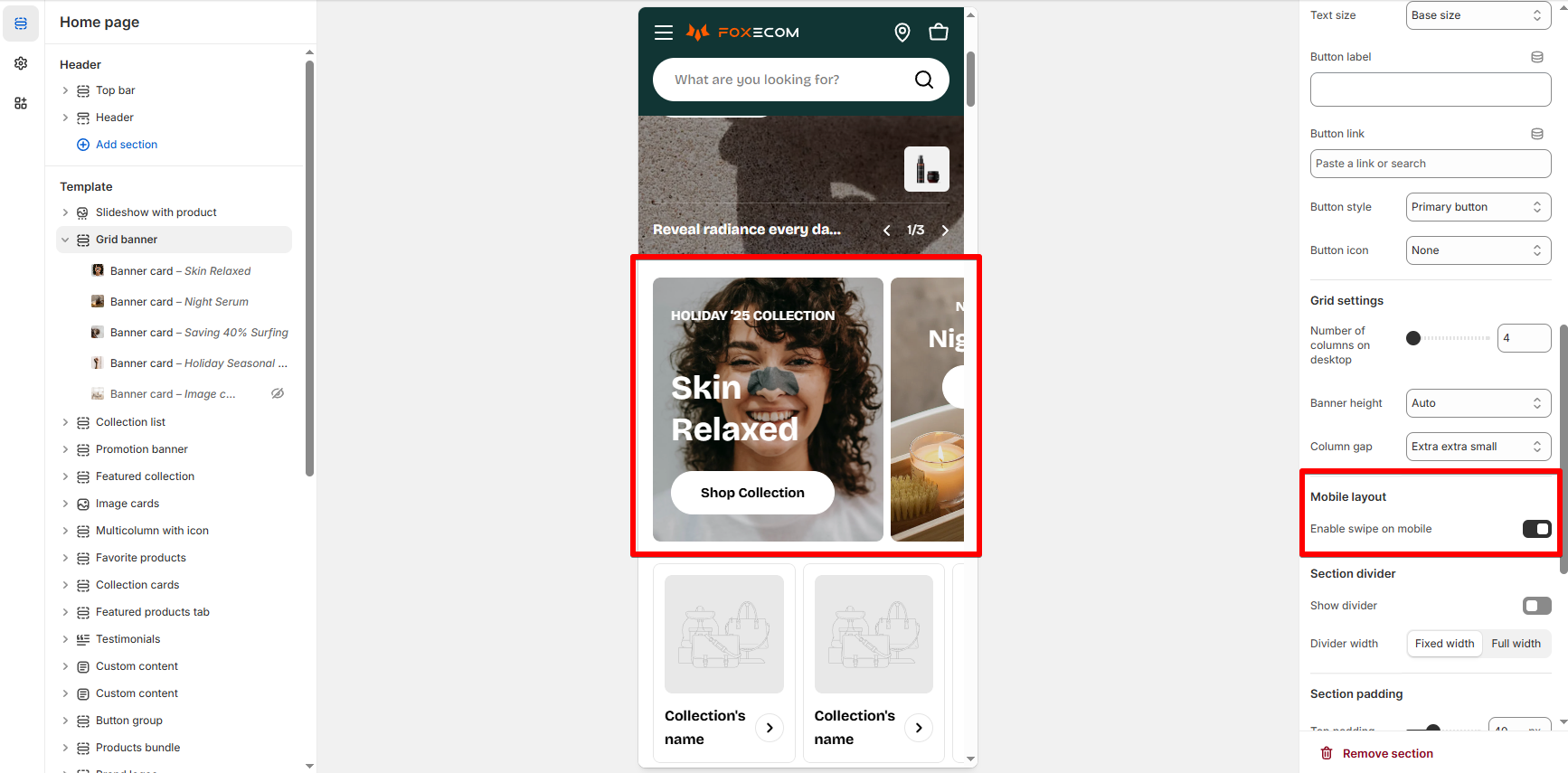
By default, cards stack vertically on mobile for better readability. Grid spans don’t apply the same way on mobile.
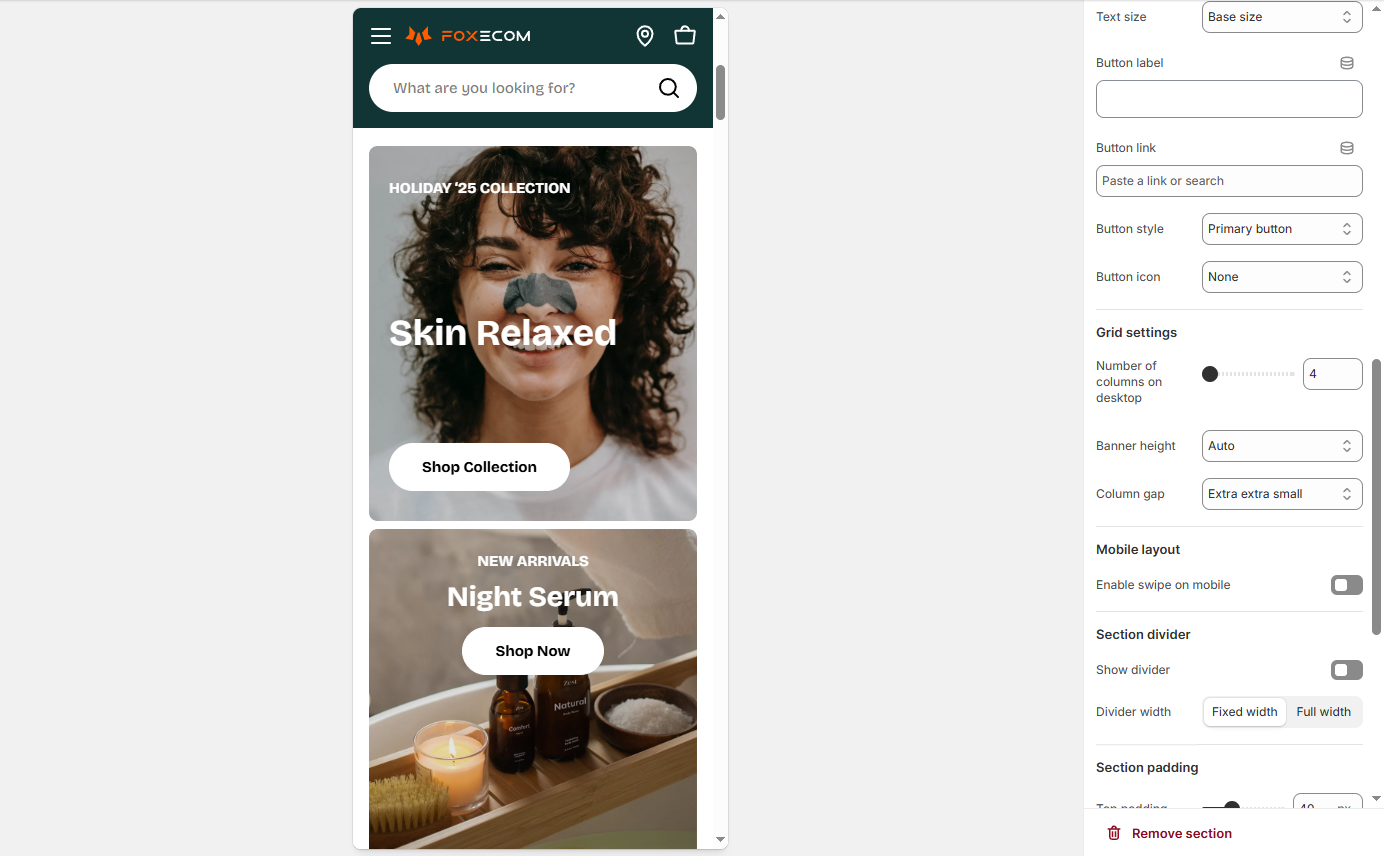
* **Enable swipe on mobile** if you want a horizontal scroll instead of stacked cards.
### Block settings
In each banner block, you can configure:
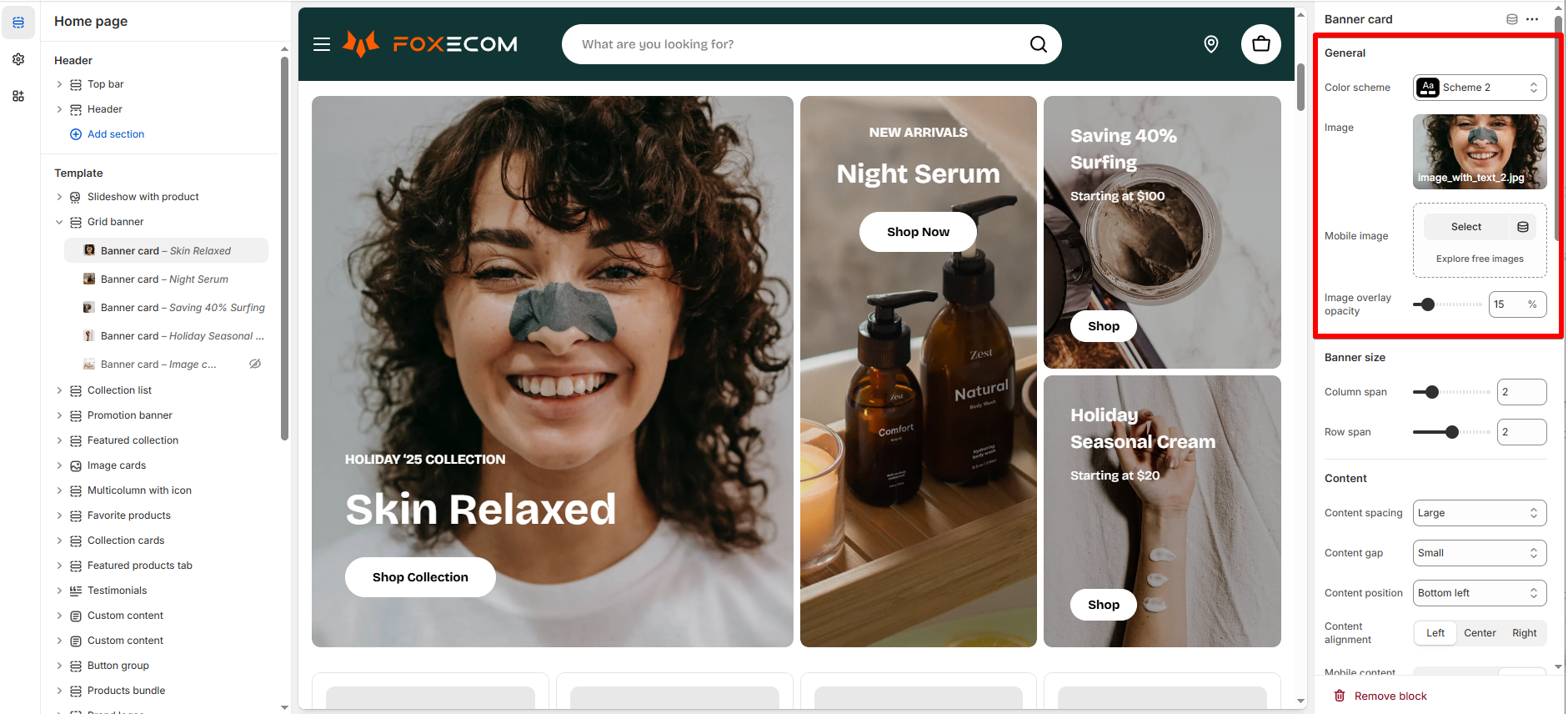
* **Color scheme**: Select a predefined color scheme to apply consistent text and button styles.
* These color schemes are configured in Theme settings > [Colors](https://docs.foxecom.com/hyper-theme/theme-settings/colors)
* **Image**:
* Upload or select the **main image** that displays on this banner.
* You can also upload a **mobile-specific image** for mobile view.
* **Image overlay opacity:** Adjust the **dark overlay** placed on top of your image (useful to improve text contrast).
* 0% = no overlay (fully transparent); 100% = fully dark overlay.
* 💡 Tip for readability**:** Keep this around **15–30%** if your image is bright or busy, so your heading and buttons remain easy to see.
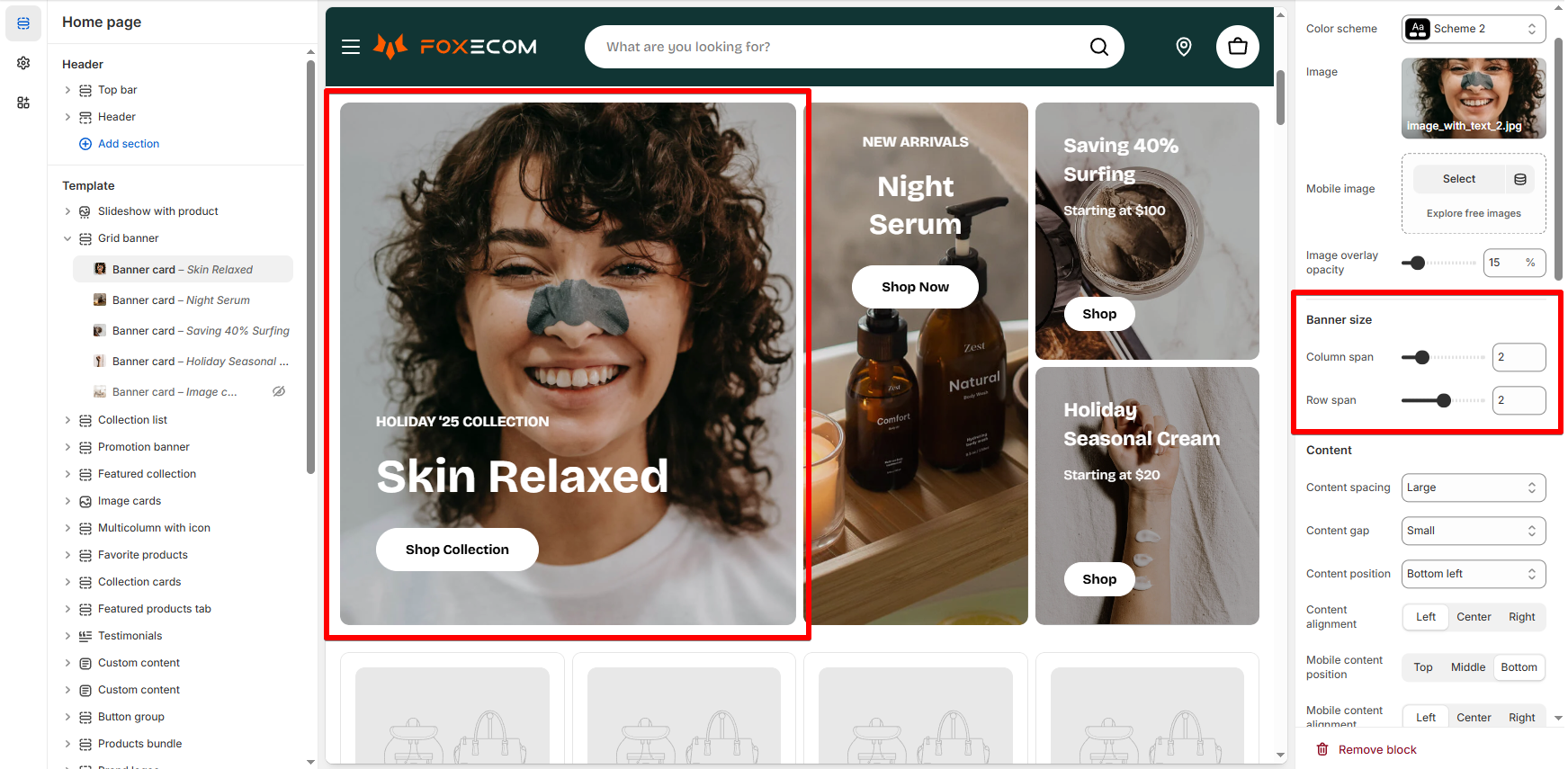
* **Column span**: Control how many vertical columns the banner takes up.
* **Row span**: Control how many horizontal rows it occupies.
*For example:* The section is a 4-column grid layout on desktop. So:
* A **column span of 2** means the card takes up half of the width of the container.
* A r**ow span of 2** makes the card taller, stacking over two row units.
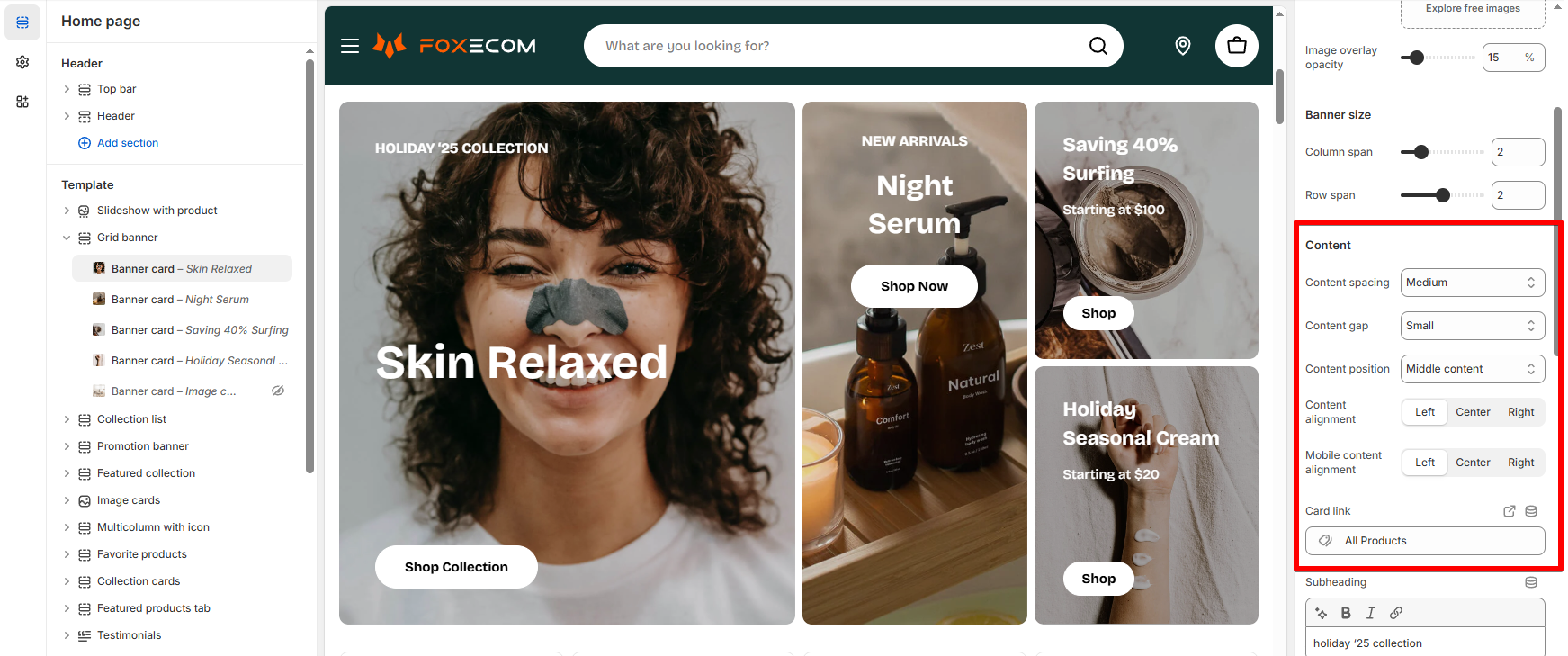
Customize how your text, button, and spacing appear over each image.
* **Content spacing**: Adjust padding around the content inside the banner.
* **Content gap**: Control the space between each content element (subheading, heading, button, text).
* **Content position:** Set the position of all content inside the card.
* Standard positions: These position all content as a single griup in the selected area.
* Split layouts: These break the content into two or more visual layers for added flexibility.
💡 **Tips**:
* Use **Bottom left/center** if your image has clear space at the bottom.
* Use **Top center** for strong campaign banners where the image content is near the bottom.
* Use **Split layouts** when:
* Your image requires careful placement of text (e.g., the face or product in the center)
* You want the **CTA button to be more visible** and accessible for mobile users.
* **Content alignment**: Controls how the text and button are aligned within their position.
* **Card link**: Define where users go when they click the banner card or its button.
## ✅ Best practices
* **Balance large and small cards**: Avoid setting all cards to span 2x2. Mix sizes (e.g., 2x2 with 1x1) to create a dynamic and well-spaced layout.
* **Plan layout flow**: Think of the grid like a puzzle—larger cards go first, then smaller ones fill the gaps.
* **Avoid overflow**: If too many cards are set to span 3 or 4 columns, they may overflow or break alignment. Keep your layout within a 4-column limit per row.