# Featured blogs
_oARo0TN6.jpg)
A blog acts as your brand’s direct voice to the outside world. It helps build, reaffirm, and strengthen your brand name online while attracting more traffic to your website.
This article will show you how to add and customize your blog posts section in Sleek.
## How to add a Featured blogs section to your Shopify store
Steps:
1. In the theme editor **(Customize)**, click the **Add section**
2. Locate **Featured blogs** section
3. Make necessary changes
4. **Save**
To know more about how to add a blog to your online store, see [Blogs](https://help.shopify.com/en/manual/online-store/blogs).
## How to edit a Featured blogs section
### **Section header**
Customize the text and alignment to ensure the sectioneffectively communicates your message and encourages engagement.
* **Subheading**: Add a short, secondary heading to complement the main heading. This can provide additional context or detail.
* **Heading**: Enter the primary title for your banner.
* **Heading size:** Adjust the size to fit your design preference and ensure readability. Choose from available heading sizes.
* **Description:** Add a detailed explanation or summary for the banner. Use rich text formatting like **bold**, *italic*, links, and lists for better visual emphasis.
* **Description size:** Select the size of the description text.
* **Button label:** Input the text for the call-to-action button.
* **Button link:** Add a link to the button to direct users to a specific page, product, or collection.
* **Button style:** Choose a style for the button.
* **Text alignment:**
* Align the text in the section to the **Left**, **Center**, or **Right**.
* Adjust alignment based on your banner’s design and layout.
* **Text alignment on Mobile:** Override desktop alignment settings specifically for mobile devices if needed.
### **Blog settings**
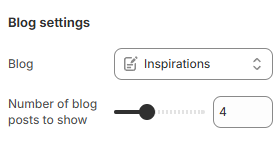
This section is for adding your preferred blog. You can use the slider to adjust the **Number of blog posts to show** (between 2 and 8).
### **Grid settings**
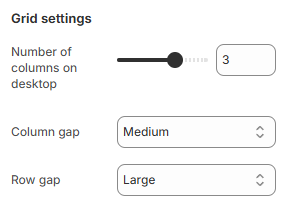
Use the slider to adjust the **Number of columns on desktop** (between 1 and 4).
You can also modify the **Column gap** and **Row gap** of the blog list.
### **Mobile layout**
You can adjust the **Number of columns on mobile** to **1 column** or **2 columns.**
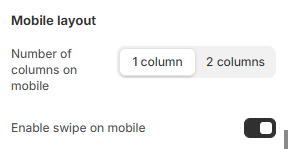
If you are not into the grid layout, you can use the carousel layout by selecting the **Enable swipe on mobile**.
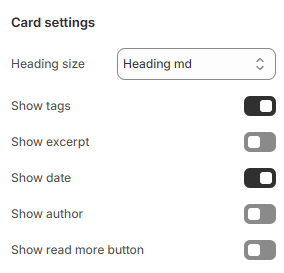
### **Card settings**
Change the **Heading size** of the card. Furthermore, you can also enable/disable the card elements if needed:
* **Show tags**: Display the blog tags. See [how to add tags](https://help.shopify.com/en/manual/shopify-admin/productivity-tools/using-tags).
* **Show excerpt**: Display a short summary of the post.
* **Show date**: Display the date that the blog is issued.
* **Show author**: Display the author name.
* **Show read more button**: Lead the customers to the full blog post.
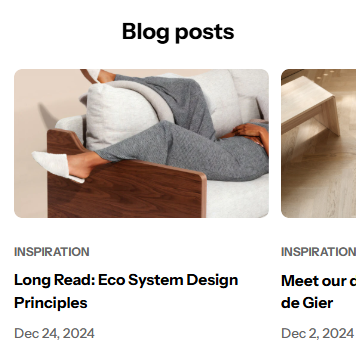
To change the **Image ratio** of the blog posts, go to **Theme settings > Blog cards**.
Blog cards