# Slideshow with product

<figure><img src="https://3026705042-files.gitbook.io/~/files/v0/b/gitbook-x-prod.appspot.com/o/spaces%2FAJrvmfqcj9TMoPkl3bNc%2Fuploads%2F04OcYrWA2K38q3SbQMtN%2FHyper%20docs%20screenshot%20do%20not%20delete%20(55).jpg?alt=media&#x26;token=93b40ca3-c8da-4146-a429-864cc428530f" alt=""><figcaption></figcaption></figure>

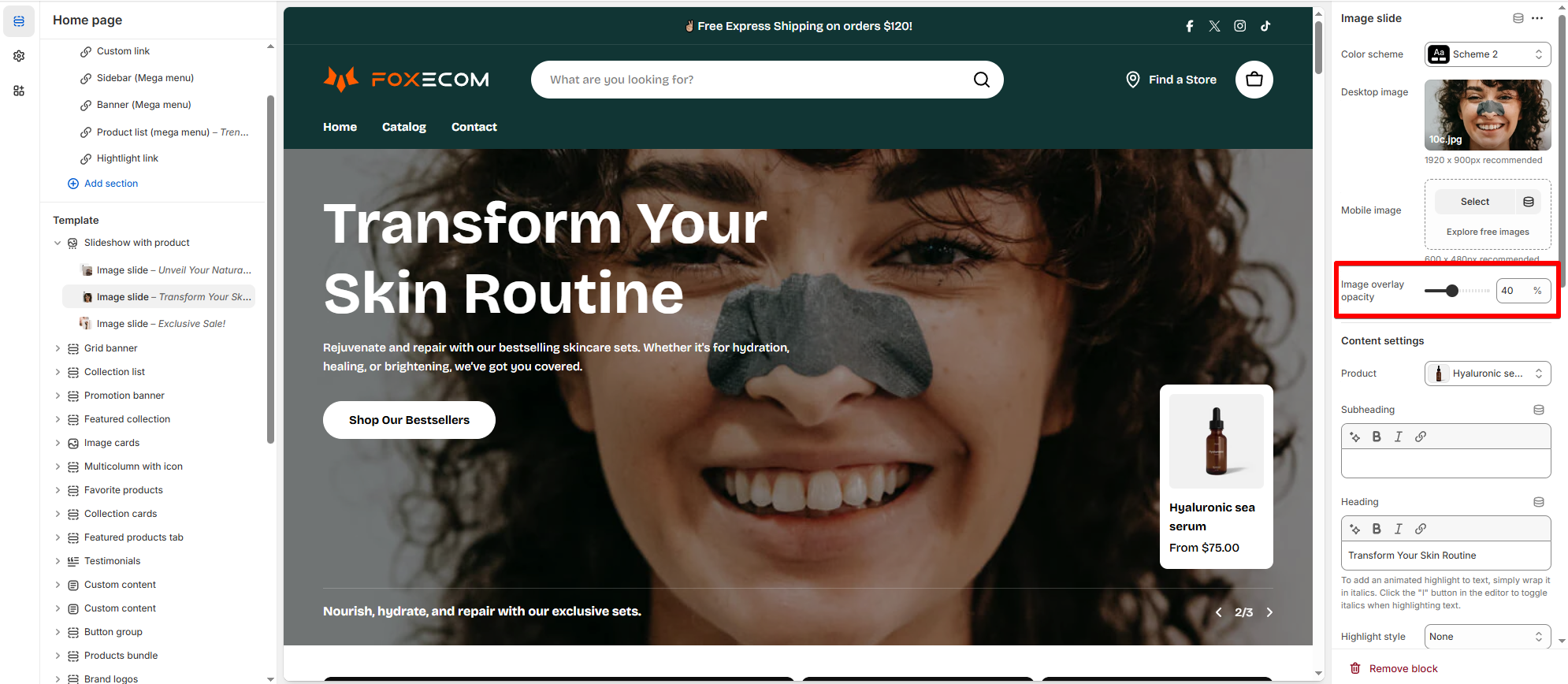
The **Slideshow with product** section let you display a dynamic, visually engaging slideshow on your homepage with a featured product for each slide. This section is perfect for showcasing promotions, new arrivals, or **featured products** with either **image slides** or **video slides**.&#x20;

## How to add a Slideshow with product to your Shopify store

{% hint style="success" %}
Steps

1. In the theme editor (**Customize**), click **Add section.**
2. Locate **Slideshow with product.**
3. Make necessary changes.
4. **Save.**
   {% endhint %}

## How to edit a Slideshow with product section

### Section settings

#### General settings

* **Container**: Set how the image sliders to be displayed as Full width/ Fixed width.
* **Slide height**: Set the height of the slides as **Adapt to first image/ Small/ Medium/ Large**.
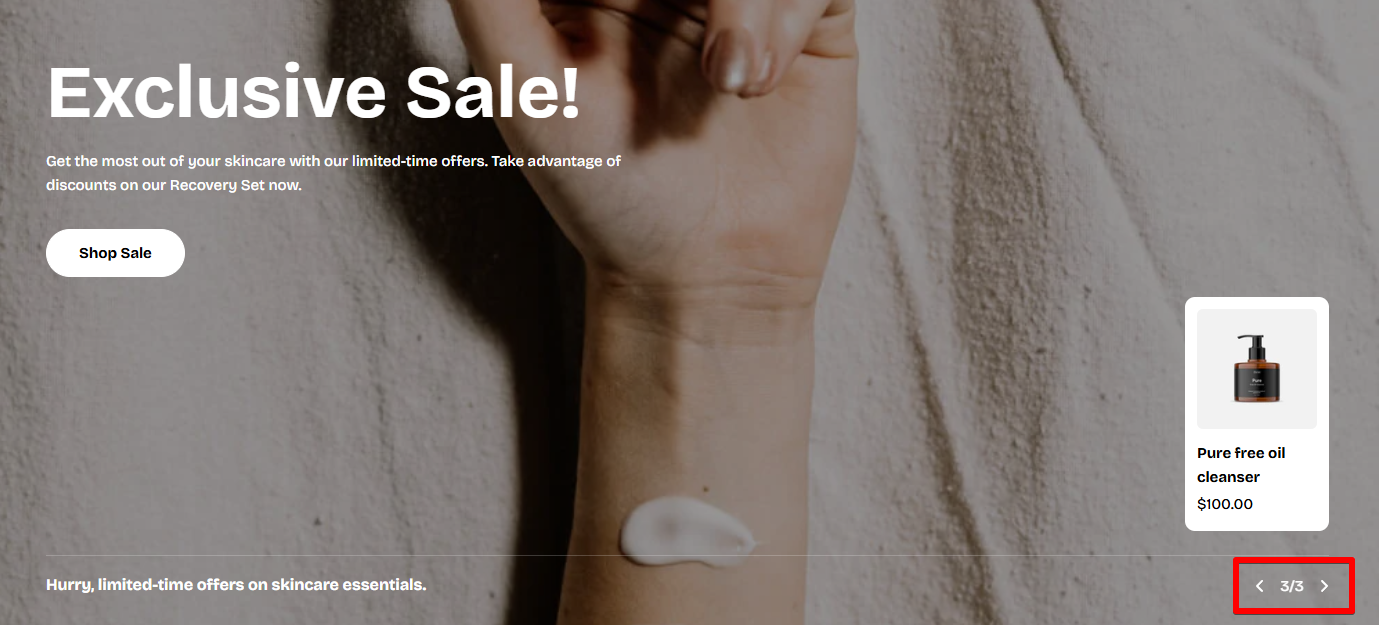
* **Show controls**: Enable controls (navigation and pagination) for the sliders.
<figure><img src="https://3026705042-files.gitbook.io/~/files/v0/b/gitbook-x-prod.appspot.com/o/spaces%2FAJrvmfqcj9TMoPkl3bNc%2Fuploads%2FjK6QdNPcjUZUJ8j5g6Vx%2Fimage.png?alt=media&#x26;token=0a25ef70-3a3a-4b66-9d47-42d3921e778b" alt=""><figcaption></figcaption></figure>

* **Auto-rotate content**: Slideshow will run automatically when enabled. The duration time to change slides is between 2-10 seconds.

#### Accessibility

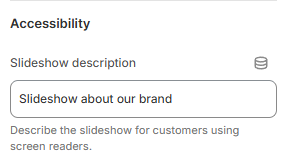
Fill in the slideshow description for customers using screen readers.
<figure><img src="https://3026705042-files.gitbook.io/~/files/v0/b/gitbook-x-prod.appspot.com/o/spaces%2FAJrvmfqcj9TMoPkl3bNc%2Fuploads%2FvVAw1HDQNk0VKDvZx9XN%2Fimage.png?alt=media&#x26;token=a244b241-f5a7-40ae-889b-8f28e1bed040" alt=""><figcaption></figcaption></figure>

### Block settings

{% hint style="info" %}
You have the option to use either **image slides** or **video slides** to create your slideshow. Both formats allow you to showcase products effectively while adding dynamic content to your homepage.

:white\_check\_mark: In each block, you can add:

* An image or a video (depending on the block type)
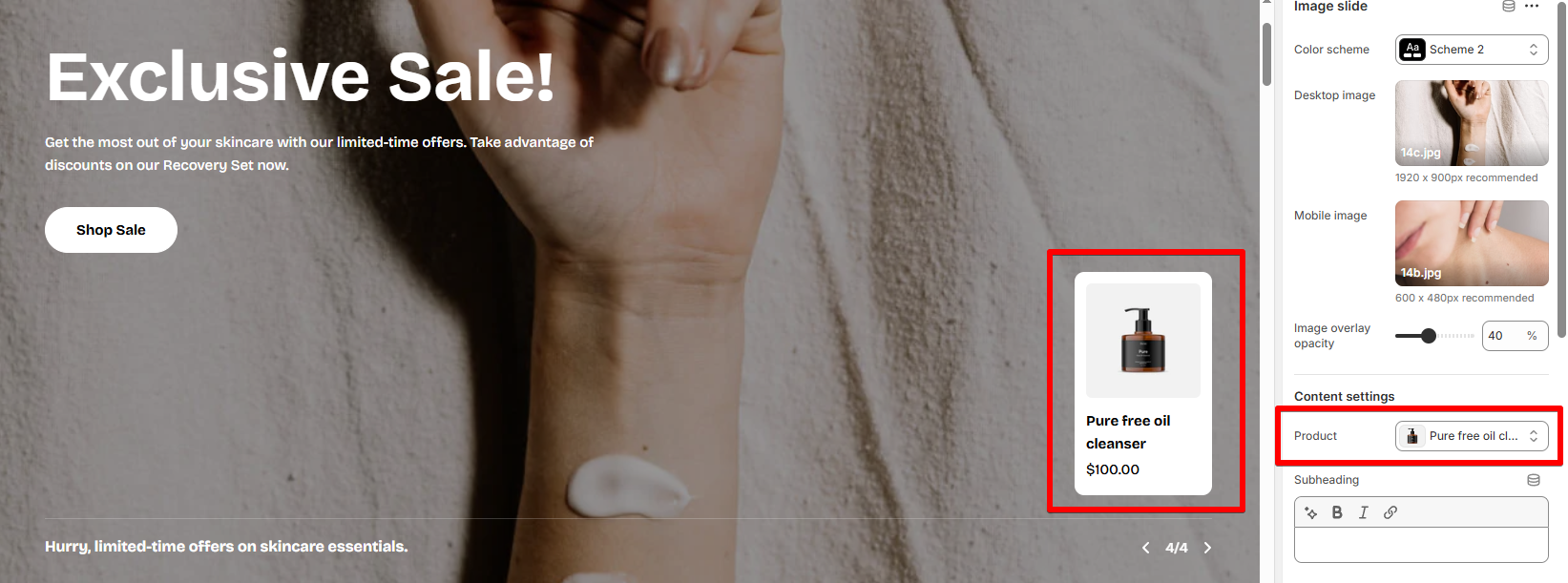
* A product to be featured in the slide
![](https://3026705042-files.gitbook.io/~/files/v0/b/gitbook-x-prod.appspot.com/o/spaces%2FAJrvmfqcj9TMoPkl3bNc%2Fuploads%2FzyyUp3NjeK4RMe3c4vPo%2Fimage.png?alt=media\&token=0b5aaeb3-a658-4a22-829b-d8cfa584281b)

* Block content: Heading, subheading, text and a button
* A bottom heading
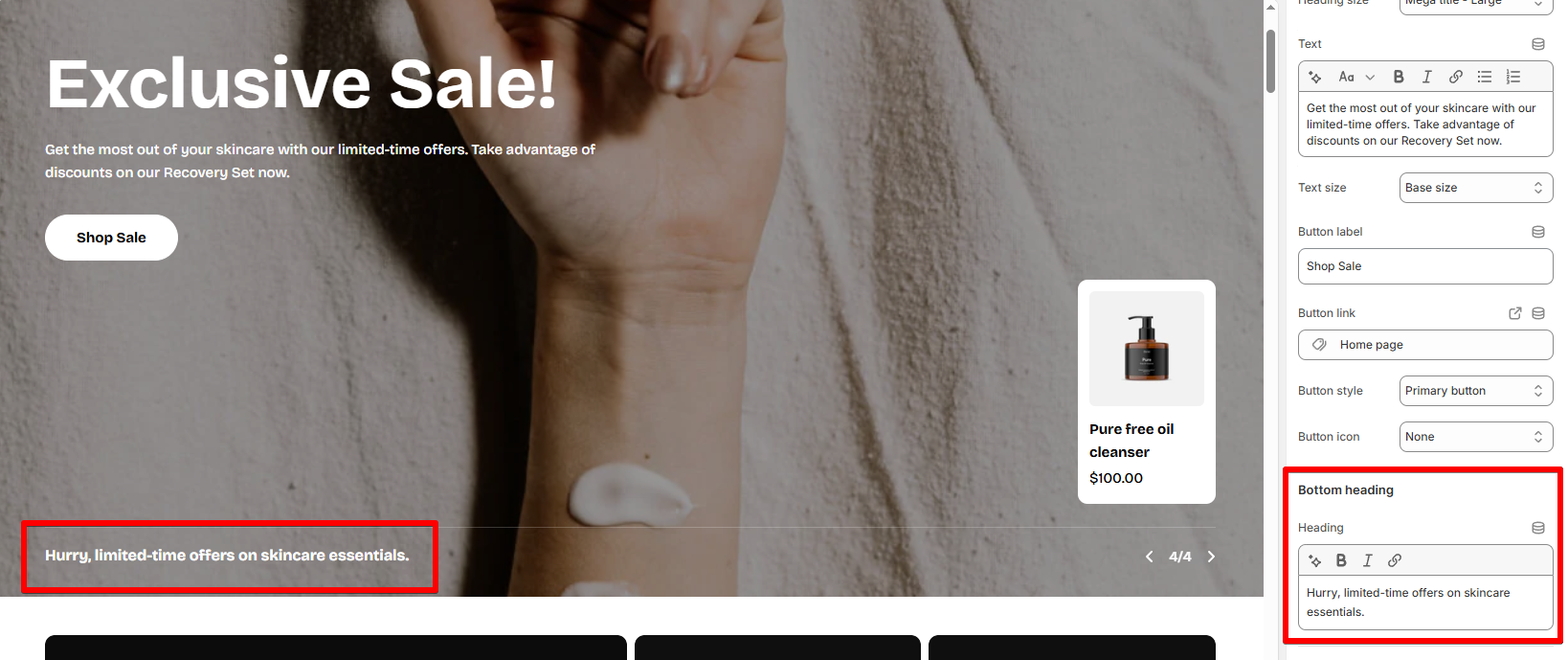
![](https://3026705042-files.gitbook.io/~/files/v0/b/gitbook-x-prod.appspot.com/o/spaces%2FAJrvmfqcj9TMoPkl3bNc%2Fuploads%2FJguJ51Y1WIa9U1YTHIct%2Fimage.png?alt=media\&token=89b345f4-53f4-4124-bb33-96dd8a4386cb)
{% endhint %}

## Best practices :heavy\_check\_mark:

### **Keep text readable**

Ensure that the text is **legible** on various backgrounds. Use **Image overlay** **opacity** setting to make the text stand out.&#x20;

<figure><img src="https://3026705042-files.gitbook.io/~/files/v0/b/gitbook-x-prod.appspot.com/o/spaces%2FAJrvmfqcj9TMoPkl3bNc%2Fuploads%2FNtsqjjOQ35V1hntpxFC8%2Fimage.png?alt=media&#x26;token=b67523a0-f823-47e7-a893-956372b20330" alt=""><figcaption></figcaption></figure>

### **Avoid overloading with too many slides**

While it’s tempting to showcase multiple products, keep your slideshow **concise**. Too many slides may overwhelm visitors. Focus on your most important products or promotions and make sure each slide serves a clear purpose.

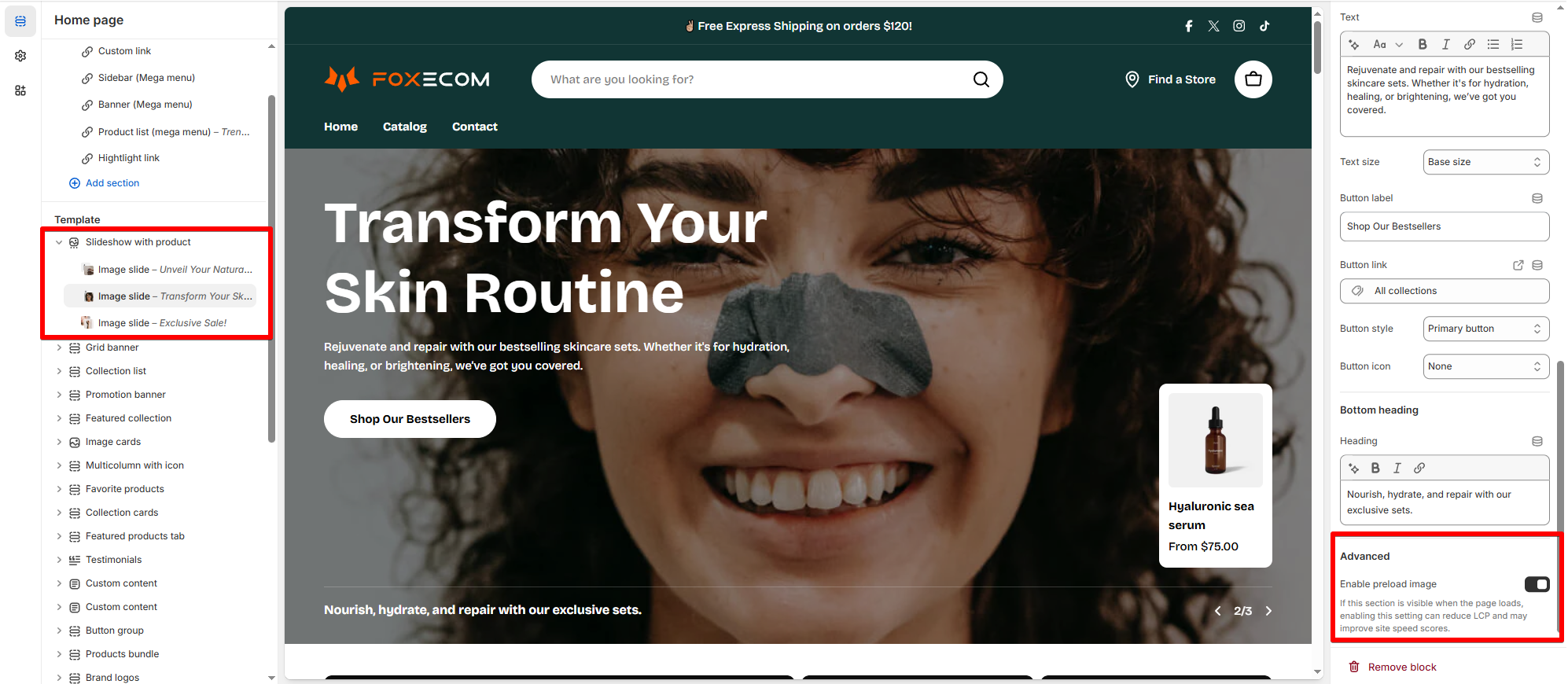
### **Enable preload image for faster loading**

Use this option for sections that appear **above the fold** (i.e., sections that are immediately visible when a user lands on the page).

This can be particularly beneficial for **improving your site's load time** and reducing **Largest contentful paint (LCP)**, which is a key metric for website performance and SEO.

By preloading the image, visitors will see your slideshow content almost instantly, improving the user experience, especially for those with slower internet connections.
<figure><img src="https://3026705042-files.gitbook.io/~/files/v0/b/gitbook-x-prod.appspot.com/o/spaces%2FAJrvmfqcj9TMoPkl3bNc%2Fuploads%2FtFGznlkUDDbHIXPTEqhg%2Fimage.png?alt=media&#x26;token=c09d03cc-762d-4315-ae97-74d09ce04848" alt=""><figcaption></figcaption></figure>

***

<figure><img src="https://3026705042-files.gitbook.io/~/files/v0/b/gitbook-x-prod.appspot.com/o/spaces%2FAJrvmfqcj9TMoPkl3bNc%2Fuploads%2FkUIzEsJKOeRiz891zyf5%2Flivechat883x471%20(1).png?alt=media&#x26;token=90cbed2c-e791-49c8-9f43-49a08bed6f1f" alt=""><figcaption><p><a href="https://apps.shopify.com/xflow?utm_source=foxecom&#x26;utm_medium=help_center_hyper&#x26;utm_campaign=banner">Install XFlow Back In Stock Automation FREE</a></p></figcaption></figure>


---

# Agent Instructions: Querying This Documentation

If you need additional information that is not directly available in this page, you can query the documentation dynamically by asking a question.

Perform an HTTP GET request on the current page URL with the `ask` query parameter:

```
GET https://docs.foxecom.com/hyper-theme/theme-sections/slideshow-with-product.md?ask=<question>
```

The question should be specific, self-contained, and written in natural language.
The response will contain a direct answer to the question and relevant excerpts and sources from the documentation.

Use this mechanism when the answer is not explicitly present in the current page, you need clarification or additional context, or you want to retrieve related documentation sections.