# Collection list slider
_MGxwOpGt.jpg)
The collection list slider displays a list of selected collections in a slider layout. It enables customers to browse through your store more efficiently.
## How to add a Collection list slider section to your Shopify store
Steps
1. In the theme editor (**Customize**), click **Add section**
2. Locate **Collection list slider**
3. Make necessary changes
4. **Save.**
To know more about creating and editing collections, see: [This tutorial](https://youtu.be/M0DoTpdYPWU).
## How to edit a Collection list slider section
### Section settings
#### Section header
* **Subheading**: Add a short, secondary heading to complement the main heading. This can provide additional context or detail.
* **Heading**: Enter the primary title for your banner.
* **Heading size:** Adjust the size to fit your design preference and ensure readability. Choose from available heading sizes.
* **Description:** Add a detailed explanation or summary for the banner. Use rich text formatting like **bold**, *italic*, links, and lists for better visual emphasis.
* **Description size:** Select the size of the description text.
* **Button label:** Input the text for the call-to-action button.
* **Button link:** Add a link to the button to direct users to a specific page, product, or collection.
* **Button style:** Choose a style for the button.
* **Text alignment:**
* Align the text in the section to the **Left**, **Center**, or **Right**.
* Adjust alignment based on your banner’s design and layout.
* **Text alignment on Mobile:** Override desktop alignment settings specifically for mobile devices if needed.
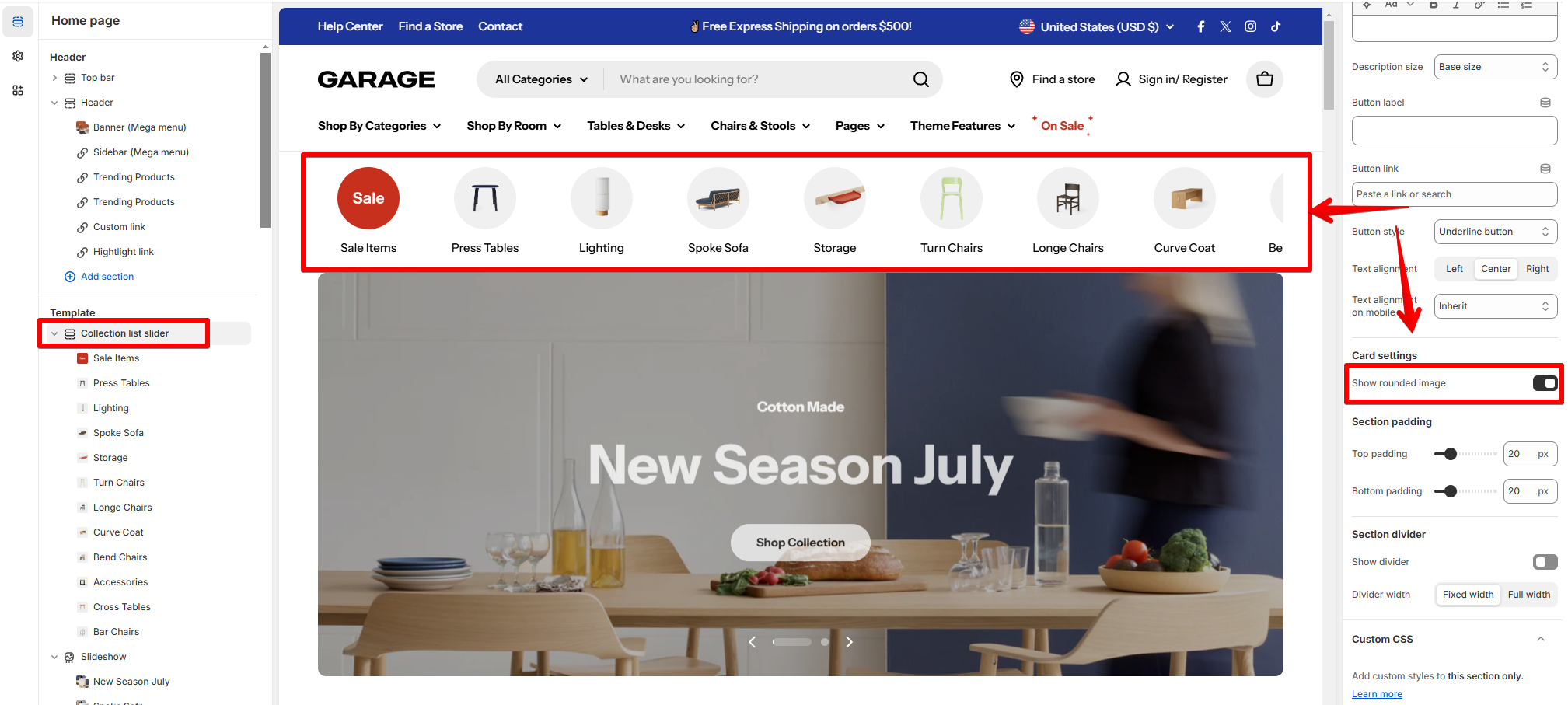
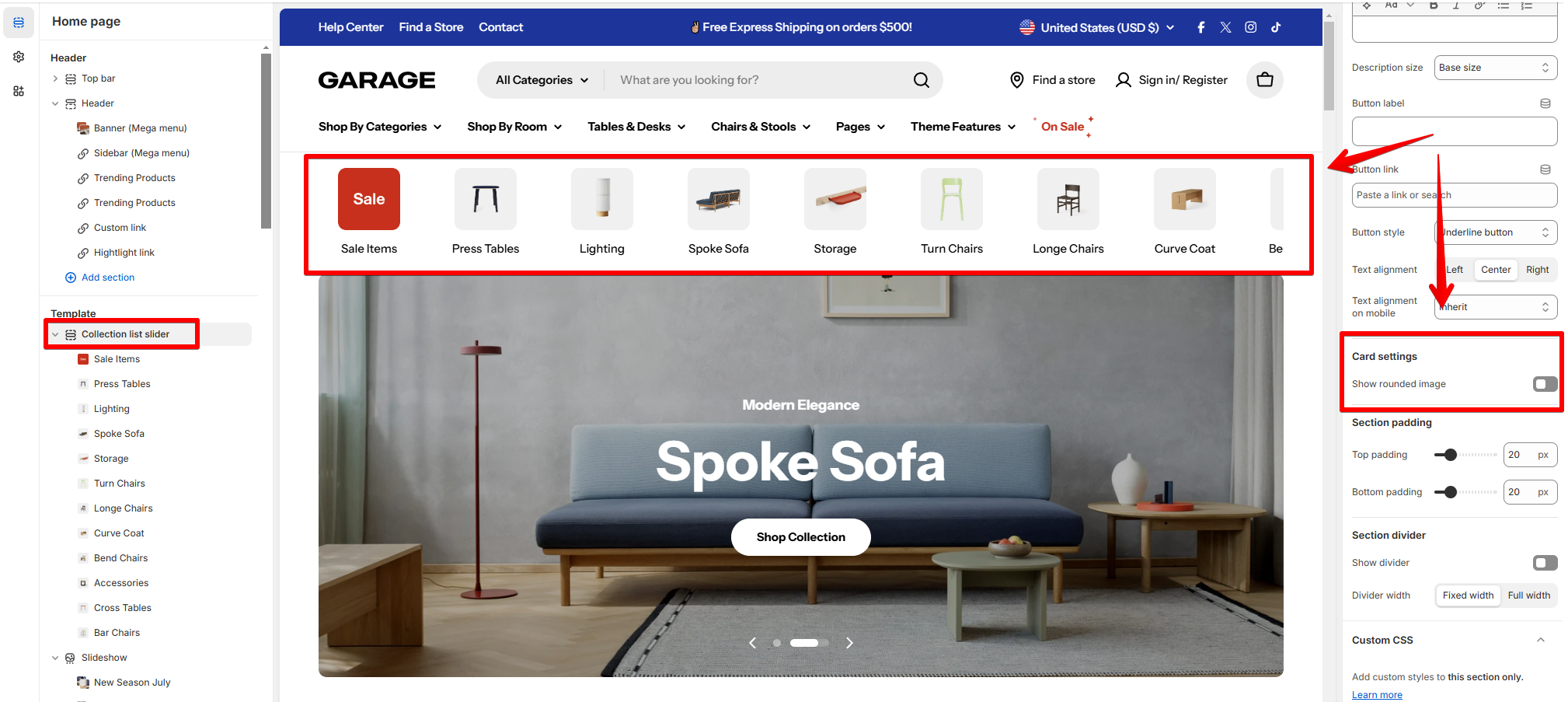
#### Card settings
### Block settings
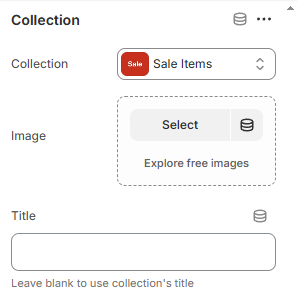
Each collection block has its own settings such as **Collection title** (Leave blank to use collection's title), **Image**, and **Collection** link to choose from.