# Banner with categories 🔥
<figure><img src="https://3026705042-files.gitbook.io/~/files/v0/b/gitbook-x-prod.appspot.com/o/spaces%2FAJrvmfqcj9TMoPkl3bNc%2Fuploads%2FQHmg91ytec6FbfjNlckn%2FHyper%20docs%20screenshot%20do%20not%20delete.jpg?alt=media&#x26;token=8ef13729-bc3a-4787-a2e6-03fa99f2067d" alt=""><figcaption></figcaption></figure>

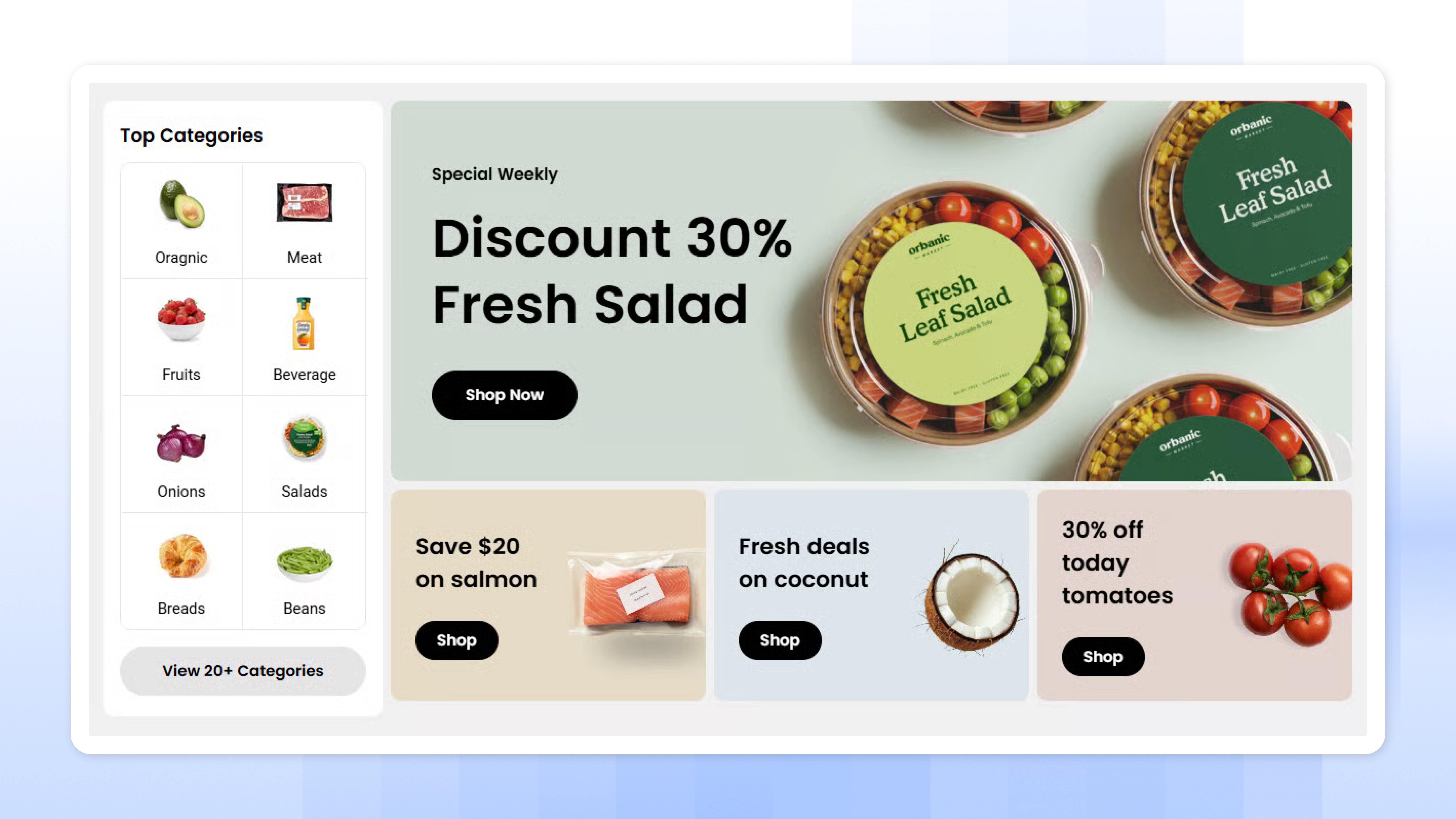
The **Banners with categories** section allows you to display a grid of category icons or cards alongside up to two promotional banners. This is ideal for homepage navigation or spotlighting trending collections and deals.

<figure><img src="https://3026705042-files.gitbook.io/~/files/v0/b/gitbook-x-prod.appspot.com/o/spaces%2FAJrvmfqcj9TMoPkl3bNc%2Fuploads%2FkUIzEsJKOeRiz891zyf5%2Flivechat883x471%20(1).png?alt=media&#x26;token=90cbed2c-e791-49c8-9f43-49a08bed6f1f" alt=""><figcaption><p><a href="https://apps.shopify.com/xflow?utm_source=foxecom&#x26;utm_medium=help_center_hyper&#x26;utm_campaign=banner">Install XFlow Back In Stock Automation FREE</a></p></figcaption></figure>

## How to add a Banner with categories section to your Shopify store

{% hint style="success" %}
Steps:

1. In the theme editor **(Customize)**, click **Add section.**
2. Locate **Banner with categories** section.
3. Make necessary changes.
4. **Save.**
   {% endhint %}

## How to customize a Banner with categories section

### Section settings

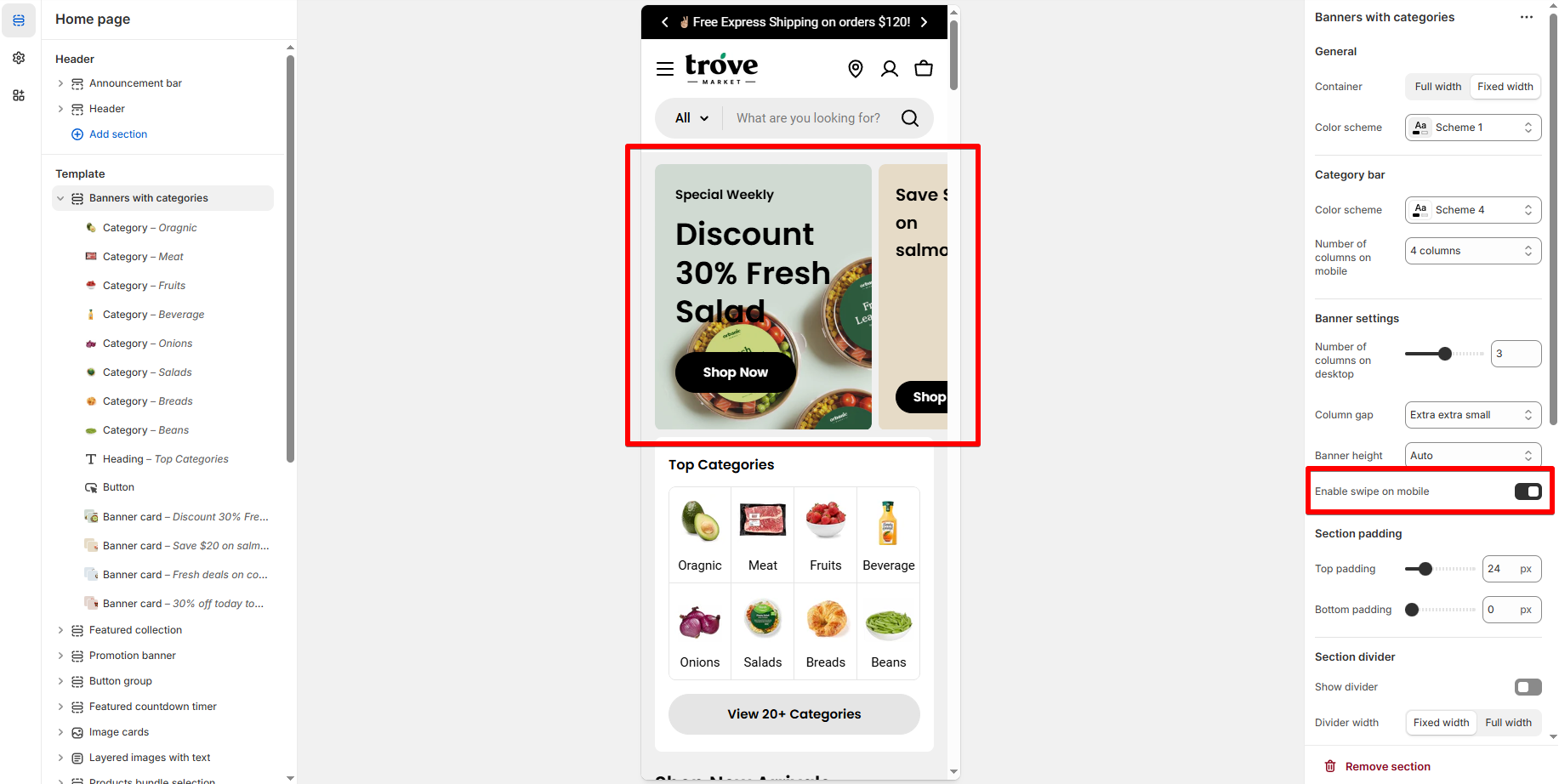
<table><thead><tr><th width="263">Setting</th><th>Function</th></tr></thead><tbody><tr><td><strong>Container width</strong></td><td>Full width or fixed width layout.</td></tr><tr><td><strong>Color scheme</strong></td><td>Choose background and font styling. <br><em>Learn more:</em> <a data-mention href="../theme-settings/colors">colors</a></td></tr><tr><td><strong>Number of columns</strong></td><td>Adjust how many columns:<br>- of banners on desktop<br>- of category bar on mobile.</td></tr><tr><td><strong>Column gap</strong></td><td>Set spacing between category cards.</td></tr><tr><td><strong>Enable swipe on mobile</strong></td><td>By default, the banners are stacked. Toggle ON to make the category row horizontally scrollable on mobile.<br><img src="https://3026705042-files.gitbook.io/~/files/v0/b/gitbook-x-prod.appspot.com/o/spaces%2FAJrvmfqcj9TMoPkl3bNc%2Fuploads%2FY1w4kq2f5MFsz6Cj8LIa%2Fimage.png?alt=media&#x26;token=cc5706c8-c9a6-4169-9b2b-81f6c6d271a8" alt=""></td></tr><tr><td><strong>Top/Bottom padding</strong></td><td>Adjust spacing above and below this section.</td></tr></tbody></table>

### Block settings

{% hint style="info" %}
The section consists of **4 configurable block types**:

1. [#heading-block](#heading-block "mention")
2. [#button-block](#button-block "mention")
3. [#category-block](#category-block "mention")
4. [#banner-card-block](#banner-card-block "mention")
   {% endhint %}

#### Heading block :top:

<figure><img src="https://3026705042-files.gitbook.io/~/files/v0/b/gitbook-x-prod.appspot.com/o/spaces%2FAJrvmfqcj9TMoPkl3bNc%2Fuploads%2FSjGxuUwxf3vo72P5Mj5q%2Fimage.png?alt=media&#x26;token=3b5146bf-6d8c-4c8d-b660-9e309ad88c98" alt=""><figcaption></figcaption></figure>

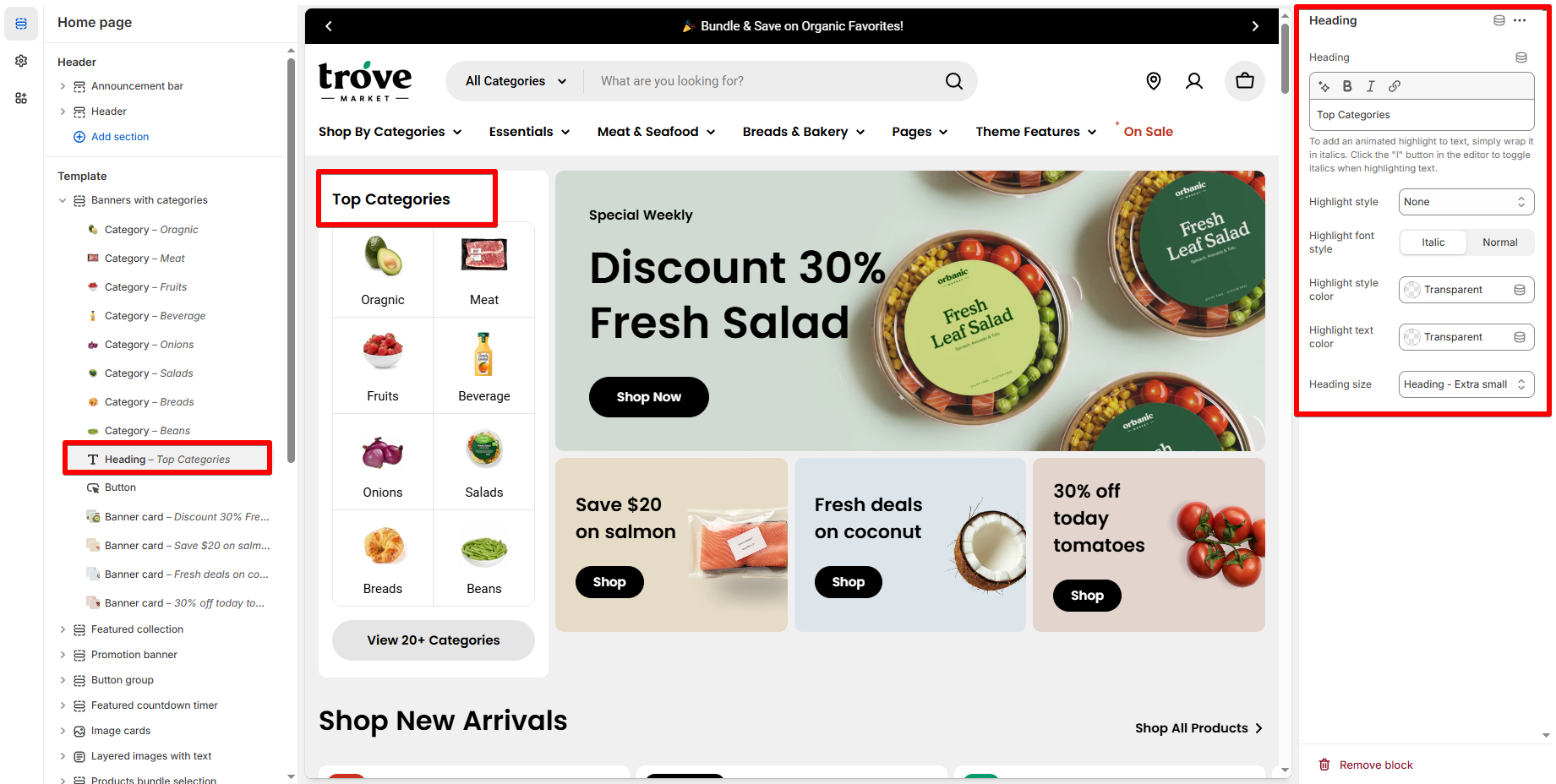
Use this block to add a title to your **Category bar** such as **"Top Categories"** or **"Explore by Type"**.

<details>

<summary>✏️ Editable options</summary>

* **Text**: Enter your title.
* **Highlight text:** [add-highlighted-text-to-your-headings](https://docs.foxecom.com/hyper-theme/faqs/add-highlighted-text-to-your-headings "mention")

</details>

#### Button block 🔘

<figure><img src="https://3026705042-files.gitbook.io/~/files/v0/b/gitbook-x-prod.appspot.com/o/spaces%2FAJrvmfqcj9TMoPkl3bNc%2Fuploads%2FNC0I6sSoEor8Bsnn6ppE%2Fimage.png?alt=media&#x26;token=1a0b9873-a4da-46a5-adf2-527f6e918e40" alt=""><figcaption></figcaption></figure>

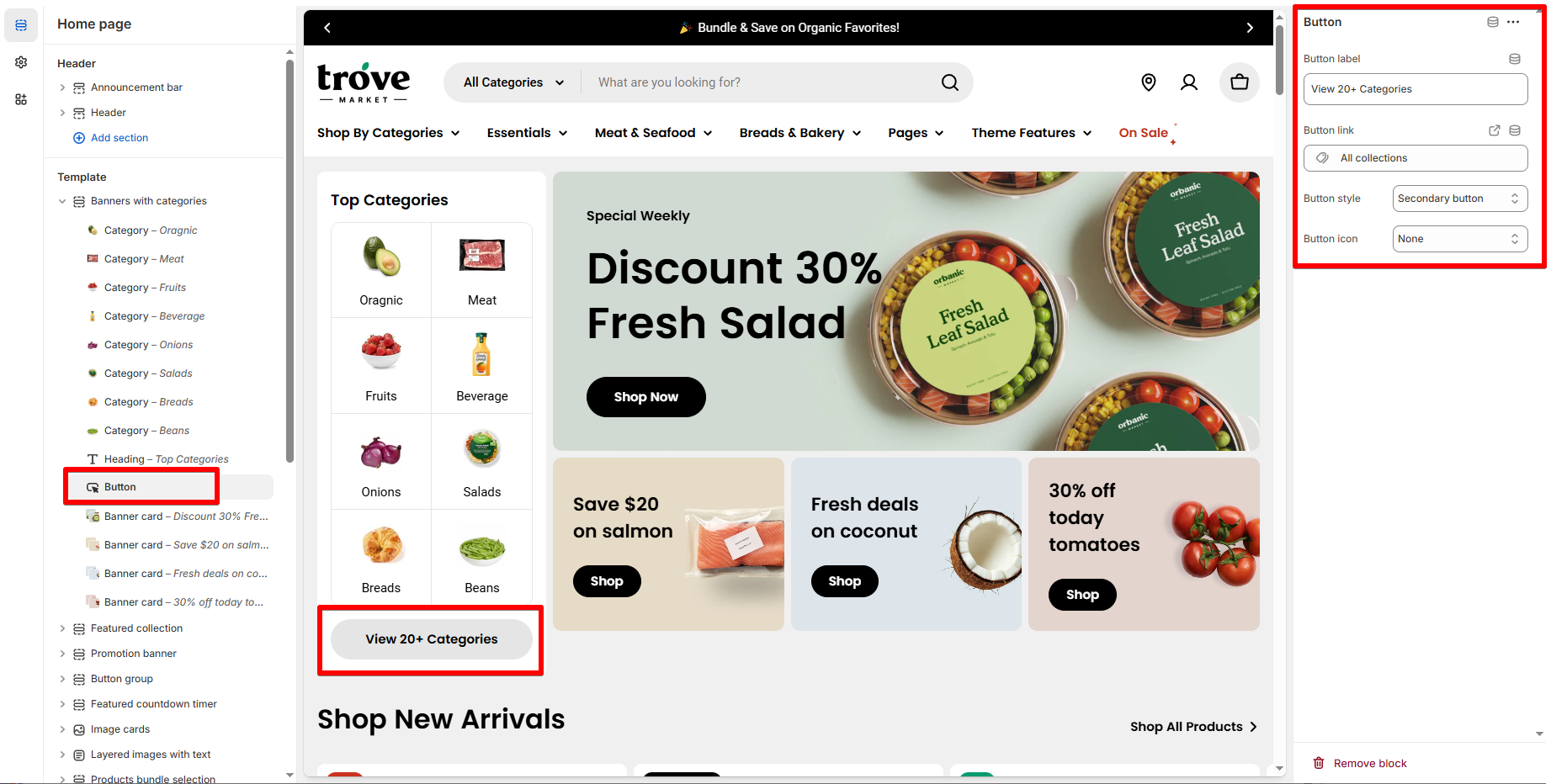
Optional CTA button at the bottom of the category bar.

<details>

<summary>✏️ Editable options</summary>

* **Button label**: (e.g., “View All Categories”)
* **Link**: Add a URL, page, or collection link
* **Button Style**:
  * Primary (solid button)
  * Secondary
  * Underlined
  * Plan
* **Icon (optional)**: Add a relevant icon (like →)

</details>

#### Category block 🗂️

<figure><img src="https://3026705042-files.gitbook.io/~/files/v0/b/gitbook-x-prod.appspot.com/o/spaces%2FAJrvmfqcj9TMoPkl3bNc%2Fuploads%2F72Yvn2H0FS2LVl125Iki%2Fimage.png?alt=media&#x26;token=94fb1ea1-e38b-40b4-b63e-f399706e4ac7" alt=""><figcaption></figcaption></figure>

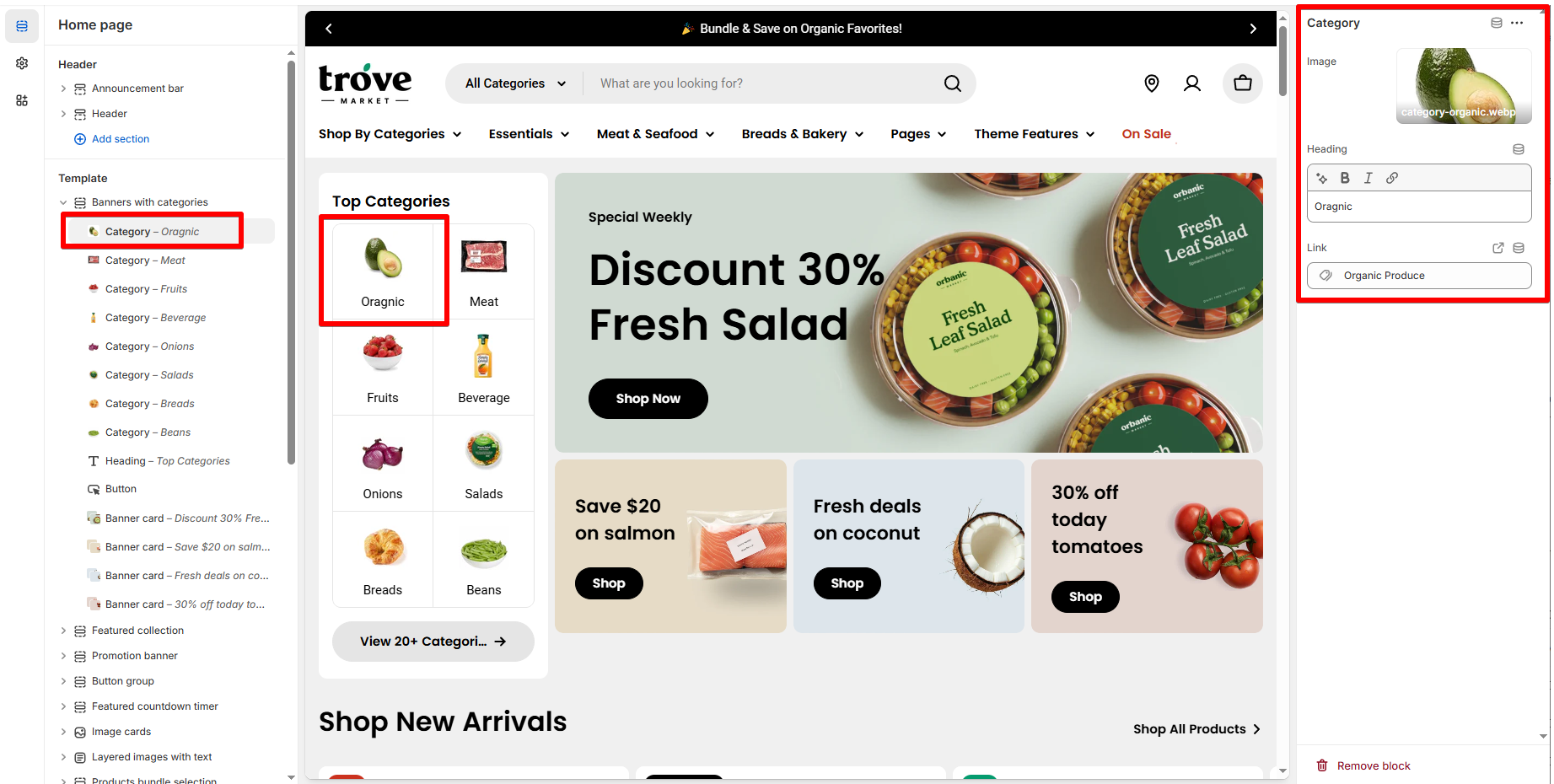
Use these to display icons or images that link to your product categories or collections.

Each **Category block** contains:

| Setting     | Description                         |
| ----------- | ----------------------------------- |
| **Image**   | Upload an icon or small banner      |
| **Heading** | Short label (e.g., “Meat”, “Fruit”) |
| **Link**    | Directs to a page or collection     |

> 💡 **You can add as many Category blocks as needed.**

#### Banner card block 🖼️
<figure><img src="https://3026705042-files.gitbook.io/~/files/v0/b/gitbook-x-prod.appspot.com/o/spaces%2FAJrvmfqcj9TMoPkl3bNc%2Fuploads%2FjHLvAxxkdVWH0znc7ro7%2Fimage.png?alt=media&#x26;token=4374dfff-980b-4fec-9602-d61fdf305a73" alt=""><figcaption></figcaption></figure>

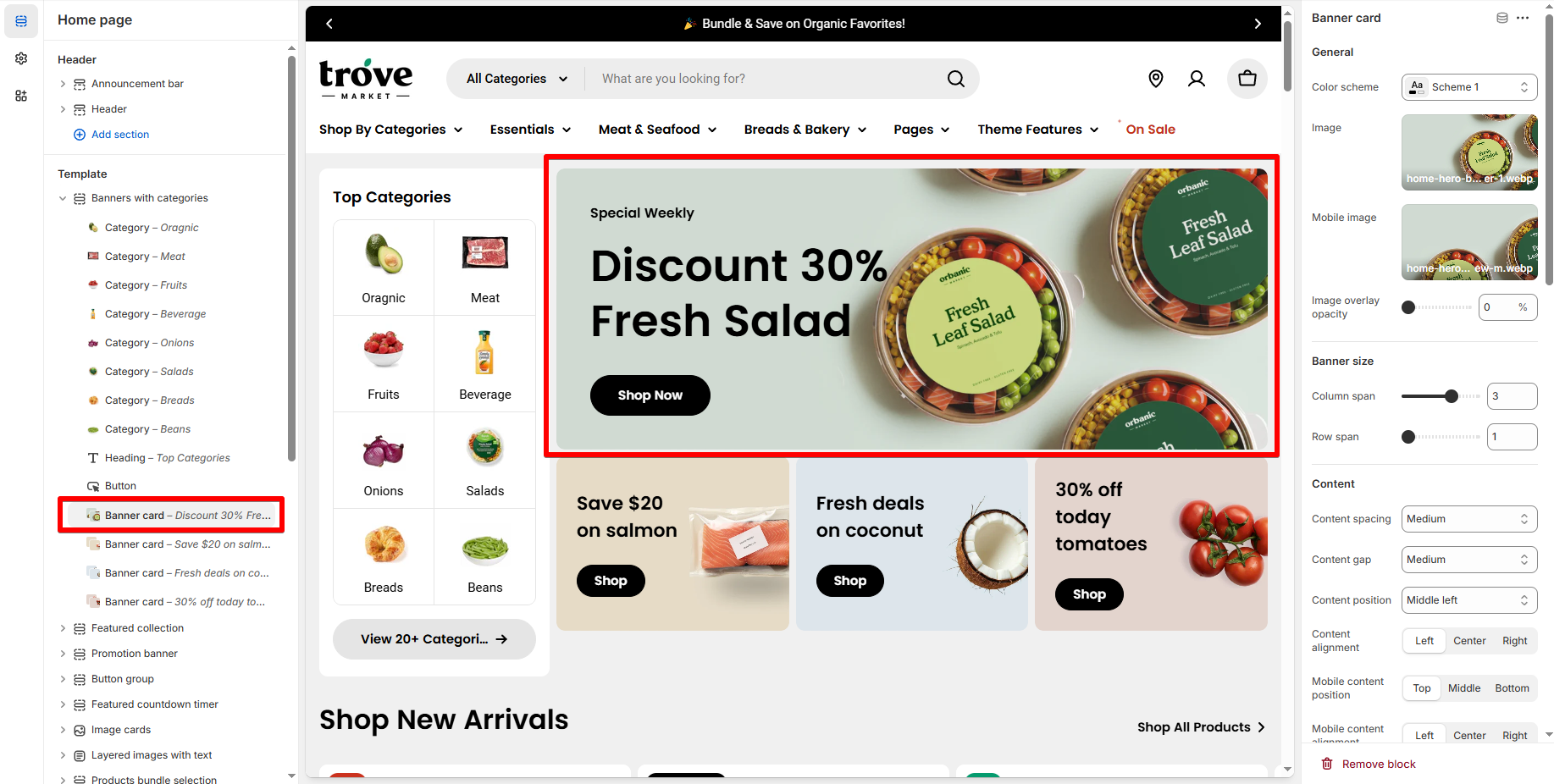
Use these for larger promo visuals next to or under categories. You can multiple banner cards.

Each **Banner card** includes:

| Setting                          | Description                                                                                                                                                                                                      |
| -------------------------------- | ---------------------------------------------------------------------------------------------------------------------------------------------------------------------------------------------------------------- |
| **Image (desktop)**              | Main banner image for desktop                                                                                                                                                                                    |
| **Image (mobile)**               | Optional mobile-optimized image                                                                                                                                                                                  |
| **Column span**                  | <p>Decide how wide the banner appears across the grid (between 1-6).<br><em>The number of columns on desktop is set in section settings.</em> <a data-mention href="#section-settings">#section-settings</a></p> |
| **Row span**                     | Choose vertical space coverage (between 1-3).                                                                                                                                                                    |
| **Content**                      | Promo text                                                                                                                                                                                                       |
| **Button label/link**            | Add a CTA like “Shop Now” with a destination URL                                                                                                                                                                 |
| **Overlay opacity**              | Adjust dark/light overlay on the banner image                                                                                                                                                                    |
| **Content alignment & position** | Control how the control is display over the banner                                                                                                                                                               |

## 📝 Best practices

* Keep **category names short** (1–2 words) to avoid layout issues.
* Use **consistent image styles** for a clean and unified look.
* For banner text, keep it brief and contrast it against the image with an overlay if needed.