# Quick view
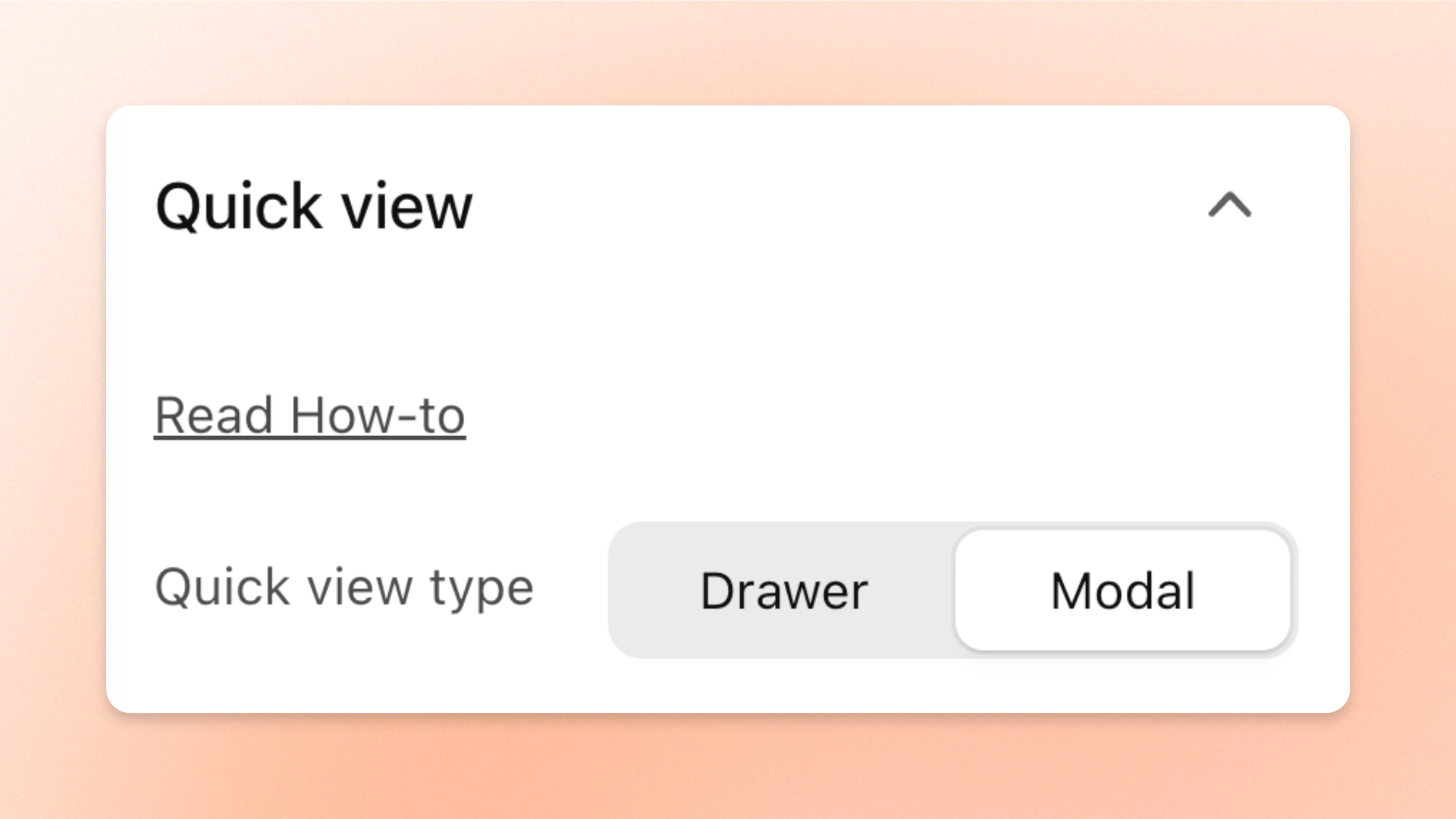
Let customers see product details without leaving the page they're on. The **Quick view** settings choose how those details open when a customer clicks the Quick view button on a product card: as a side panel (**Drawer**) or as a popup window (**Modal**).
The Quick view button shows on product cards only when **Enable Quick view button** is turned on in **Theme settings > Product cards**.
## How to edit Quick view
1. Go to **Online Store > Themes** in your Shopify admin.
2. Click **Edit theme** next to Hyper.
3. Click the **Theme settings** icon in the left sidebar.
4. Click **Quick view**.
5. Select **Drawer** or **Modal** in **Quick view type**.
6. Click **Save**.
## Settings
| Setting | Description | Options |
| ------------------- | ------------------------------------------------- | --------------------------------------------------------------------------------------------------------------------------------------------------------------------------------------------------------- |
| **Quick view type** | Sets how the Quick view opens on your storefront. | **Drawer**: Opens as a panel on the right side of the page, with product images stacked.
**Modal**: Opens as a popup window in the middle of the page, with product images in an image slider. |


Clicking the Quick view button on a product card opens the product as the type you chose.
## Tips and best practices
* The colors of Quick view follow the **Overlays** color scheme in [Colors](https://docs.foxecom.com/hyper-theme/theme-settings/colors).
* To change what shows inside the Quick view, such as the buy buttons, variant picker, or price, edit the **Quick view** section in **Overlay group**. See [Quick view](https://docs.foxecom.com/hyper-theme/pages-global-sections/quick-view).
## Related articles
Quick view
Product cards