# Image size guidelines
We know how important it is for your store to look polished and consistent. This guide provides recommended image sizes and best practices tailored specifically for the **Hyper theme**, based on its layout system, section settings, and responsive behavior.
Hyper relies heavily on **aspect ratio settings and height controls**, so image preparation should align with those options.
## Recommended image sizes for different sections & blocks
On the **Hyper** theme, we recommend you apply the particular image sizes to different sections as follows:
[1. Banner with tabs](#id-1.-banner-with-tabs)
[2. Before/after image slider](#id-2.-before-after-image-slider)
[3. Image with text overlay](#id-3.-image-with-text-overlay)
[4. Image with text slider](#id-4.-image-with-text-slider)
[5. Multicolumn](#id-5.-multicolumn)
[6. Scrolling gallery images](#id-6.-scrolling-gallery-images)
[7. Slider with multicolumn Slide item block](#id-7.-slider-with-multicolumn-slide-item-block)
[8. Slideshow / Slideshow with product / Scrolling banner](#id-8.-slideshow-slideshow-with-product-scrolling-banner)
[9. Testimonial Layout - Card](#id-9.-testimonial-layout-card)
[10. Blog post featured image](#id-10.-blog-post-featured-image)
[11. Collection banner](#id-11.-collection-banner)
[12. Collection list slider / Collection list / Collection list banner Collection card images](#id-12.-collection-list-slider-collection-list-collection-list-banner-collection-card-images)
[13. Collection tabs](#id-13.-collection-tabs)
[14. Product images](#id-14.-product-images)
### 1. Banner with tabs
**Recommended image sizes:**
* Desktop image: 1920 × 900 px or 2880 × 1100 px
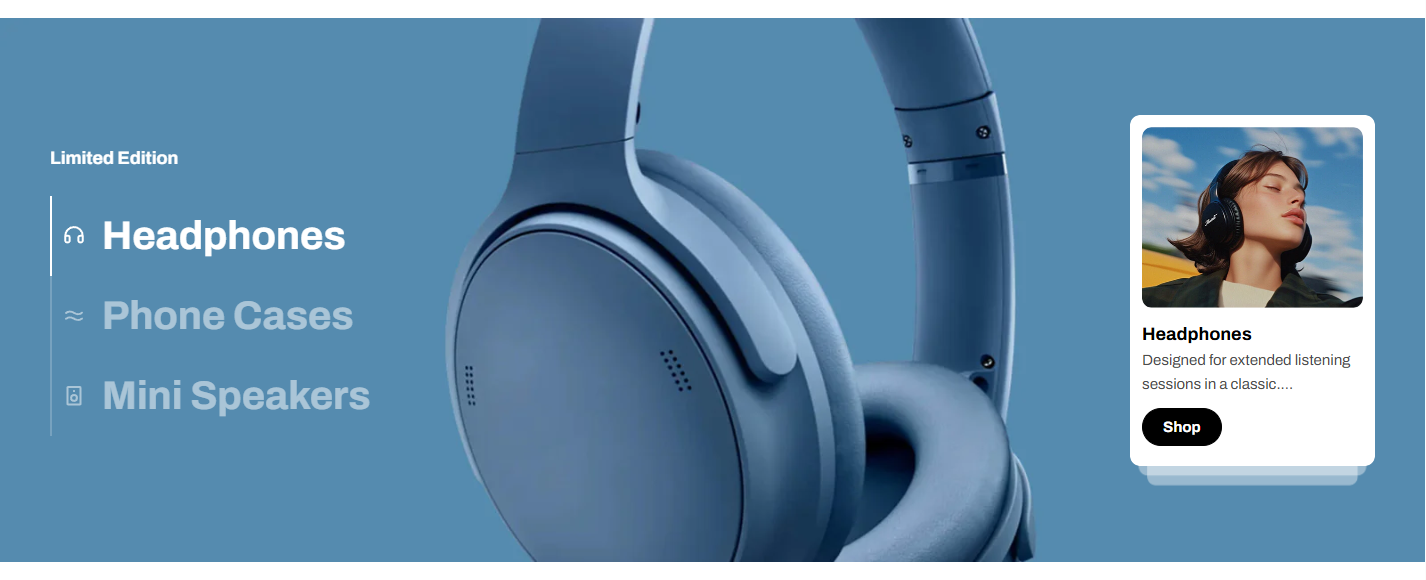
* Mobile image: 600 × 480 px or 750 × 1080 px
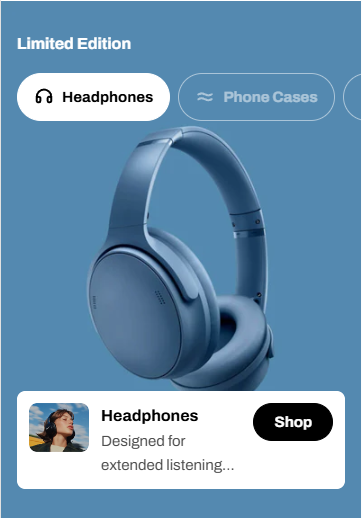
We recommend uploading **separate images for desktop and mobile** to ensure the best composition and **avoid unwanted cropping** on smaller screens.
| Option | Height | Behavior |
| --- | --- | --- |
| Adapt to image | Auto | Height adapts to the aspect ratio of first image block |
| Extra small | 350px | Cropped to fixed height |
| Small | 450px | Cropped to fixed height |
| Medium | 550px | Cropped to fixed height |
| Extra medium | 650px | Cropped to fixed height |
| Large | 700px | Cropped to fixed height |
| Extra large | 750px | Cropped to fixed height |
| Option | Height | |
| --- | --- | --- |
| Auto | Auto | Inherits the desktop height setting (including ratio or fixed height) |
| Small | 300px | Cropped to fixed height |
| Medium | 400px | Cropped to fixed height |
| Large | 500px | Cropped to fixed height |
| Extra large | 600px | Cropped to fixed height |
| Adapt to image | Auto | Height adapts to the aspect ratio of first image block |
How it works:
* **Adapt to image:** Preserving the original proportions of your first image block. All other tabs will follow the same aspect ratio as the first image block.
* **Fixed height options:** Selecting a predefined height (e.g., Small, Medium, Large) ensures consistent section height but may crop images depending on their original ratio.
### 2. Before/after image slider
**Recommended image sizes:**
* Desktop image: 1240 × 1000 px
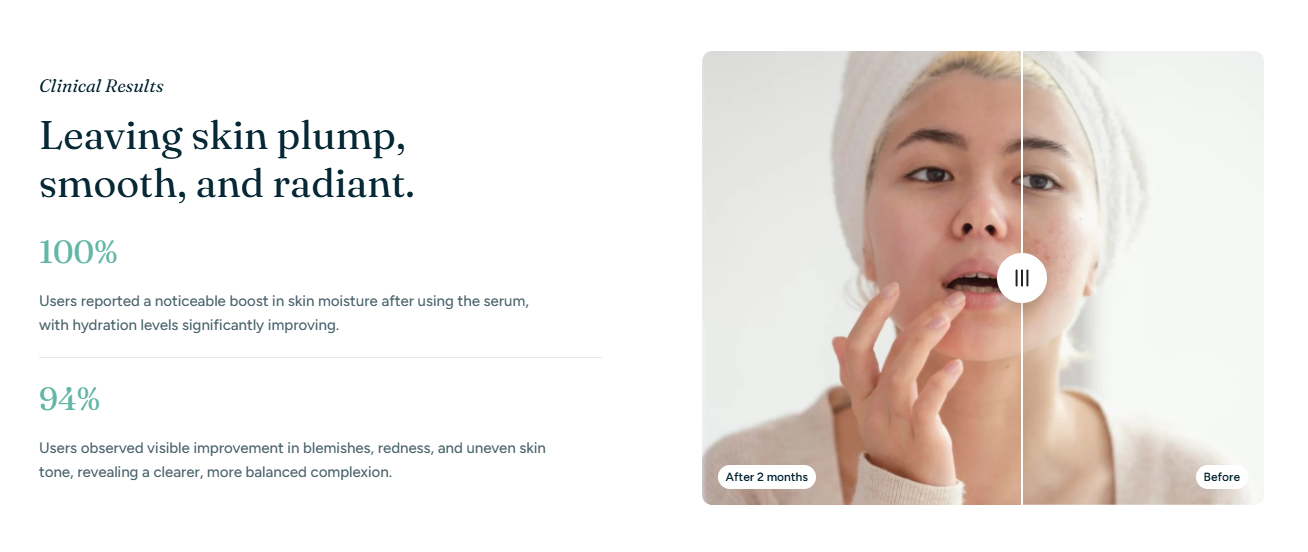
* Mobile image: 1240 × 1000 px
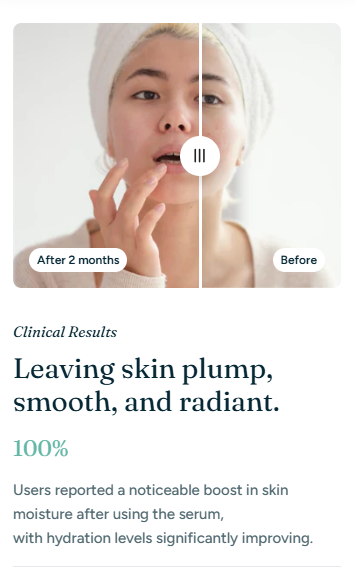
Image height options:
| Size | Desktop height | Mobile height | Behavior |
| --- | --- | --- | --- |
| Adapt to image | Auto | Auto | Height adapts to the aspect ratio of first image block |
| Small | 420px | 290px | Cropped to fixed height |
| Medium | 560px | 360px | Cropped to fixed height |
| Large | 720px | 420px | Cropped to fixed height |
How it works:
* **Adapt to image:** The height of the before/after images will automatically adjust based on the aspect ratio of the first image block.
* **Fixed height options:** Using fixed height options (Small, Medium, Large), images may be cropped depending on their original proportions.
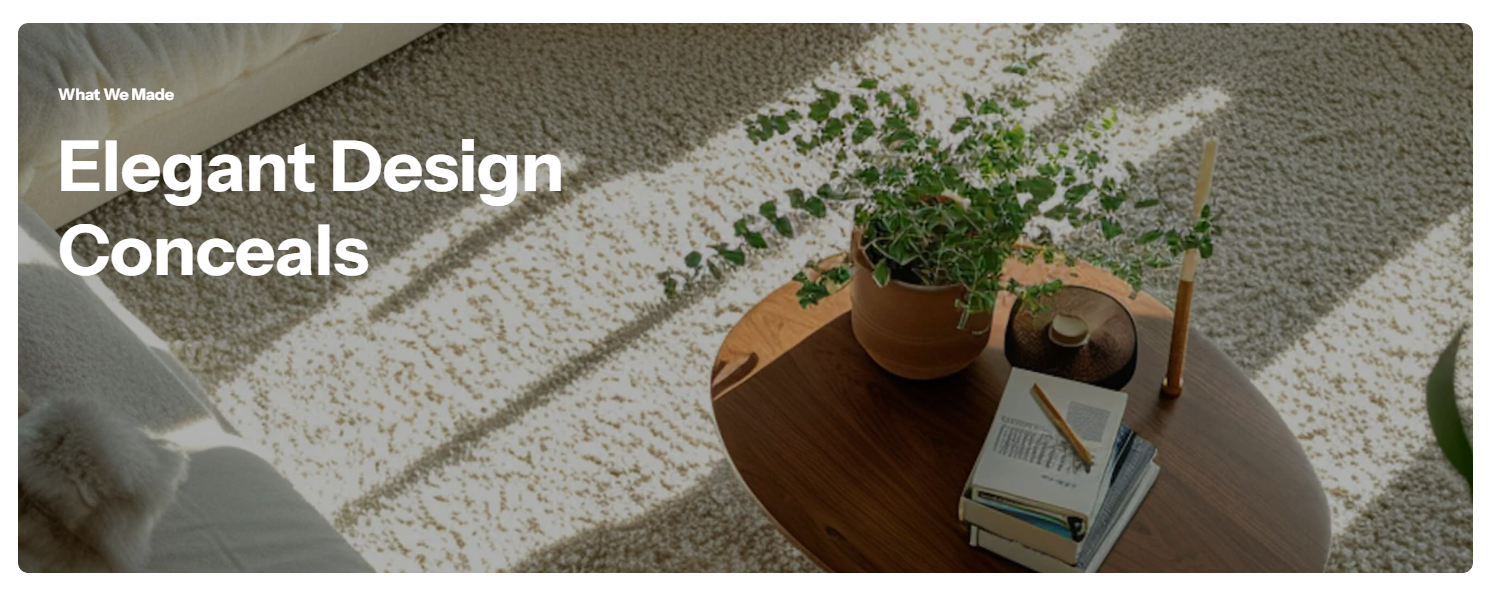
### 3. Image with text overlay
**Recommended image sizes:**
* Desktop image: 2880 × 1000 px or 2680 × 1080 px
* Mobile image: 750 × 900 px or 686 × 940 px
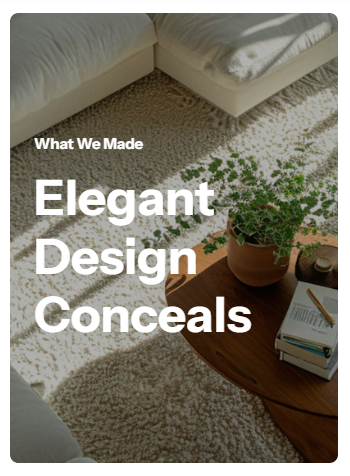
Using separate desktop and mobile images is strongly recommended to ensure optimal composition on different screen sizes.
| Option | Height | Behavior |
| --- | --- | --- |
| Adapt to image | Auto | Follows the image’s original aspect ratio (no fixed height) |
| Extra small | 350px | Cropped to fixed height |
| Small | 450px | Cropped to fixed height |
| Medium | 550px | Cropped to fixed height |
| Extra medium | 650px | Cropped to fixed height |
| Large | 700px | Cropped to fixed height |
| Extra large | 750px | Cropped to fixed height |
| Option | Height | |
| --- | --- | --- |
| Auto | Auto | Inherits the desktop height setting (including ratio or fixed height) |
| Small | 300px | Cropped to fixed height |
| Medium | 400px | Cropped to fixed height |
| Large | 500px | Cropped to fixed height |
| Extra large | 600px | Cropped to fixed height |
| Adapt to image | Auto | Uses the mobile image’s own aspect ratio (independent from desktop) |
How it works:
* **Adapt to image:** The section height is determined by the image’s aspect ratio. This helps preserve proportions and reduces unexpected cropping.
* **Fixed height options:** Selecting a predefined height (e.g., Small, Medium, Large) ensures consistent section height but may crop images depending on their original ratio.
### 4. Image with text slider
**Recommended image sizes:**
* Desktop image: 1740 × 960 px
* Mobile image: 686 × 514 px
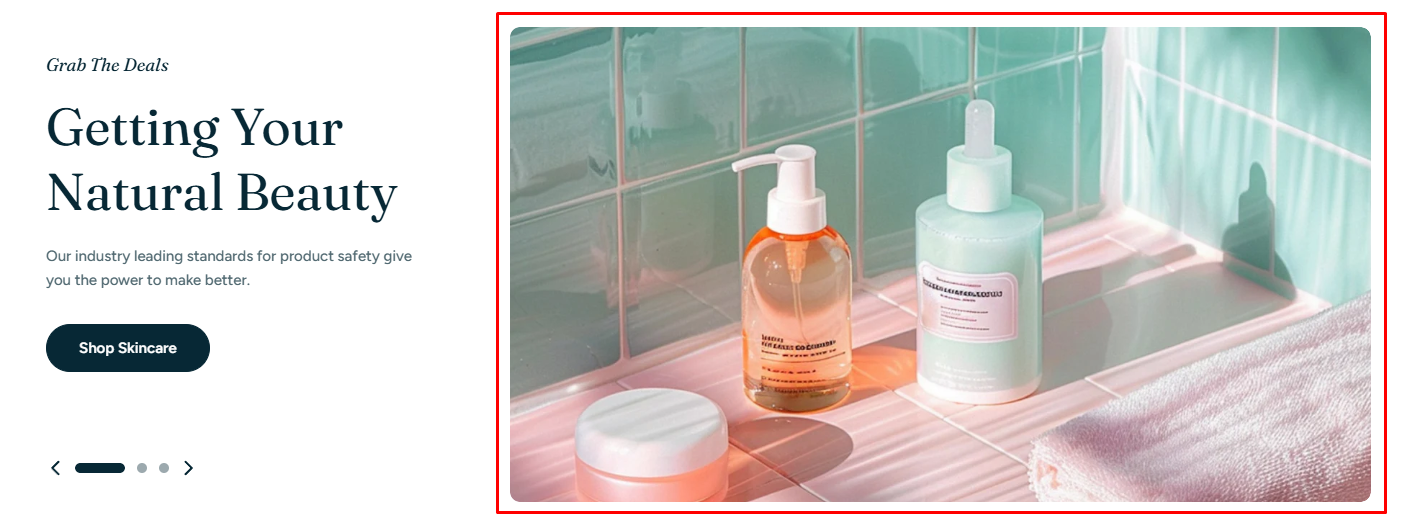
Image height options:
| Option | Desktop height | Mobile height | Behavior |
| --- | --- | --- | --- |
| Adapt to first image | Auto | Auto | Height adapts to the first image ratio |
| Small | 540px | 280px | Cropped to fixed height |
| Medium | 630px | 340px | Cropped to fixed height |
| Large | 720px | 420px | Cropped to fixed height |
How it works:
* **Adapt to first image:** Preserving the original proportions of your first image slide. All other slides will follow the same aspect ratio as the first image.
* **Small / Medium / Large:** Applying fixed heights, so images may be cropped depending on their ratio.
### 5. Multicolumn
**Recommended image size:** 626 × 626 px
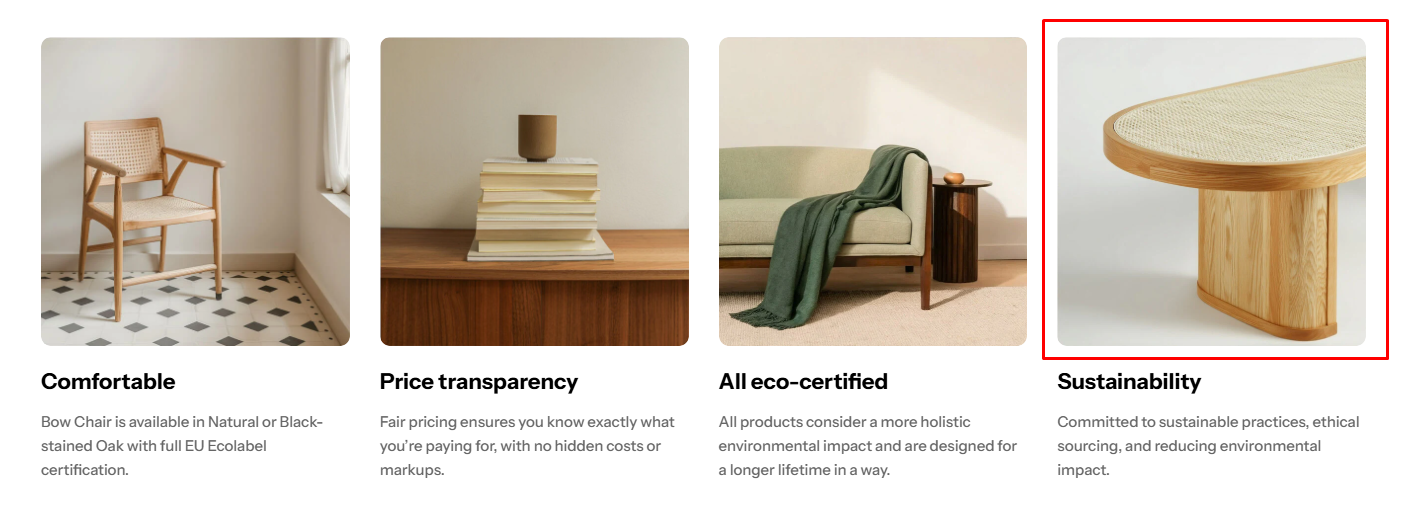
This section supports flexible image sizes and automatically adapts to the original image ratio.
### 6. Scrolling gallery images
**Recommended image size**: 600 × 540 px or 900 x 810 px
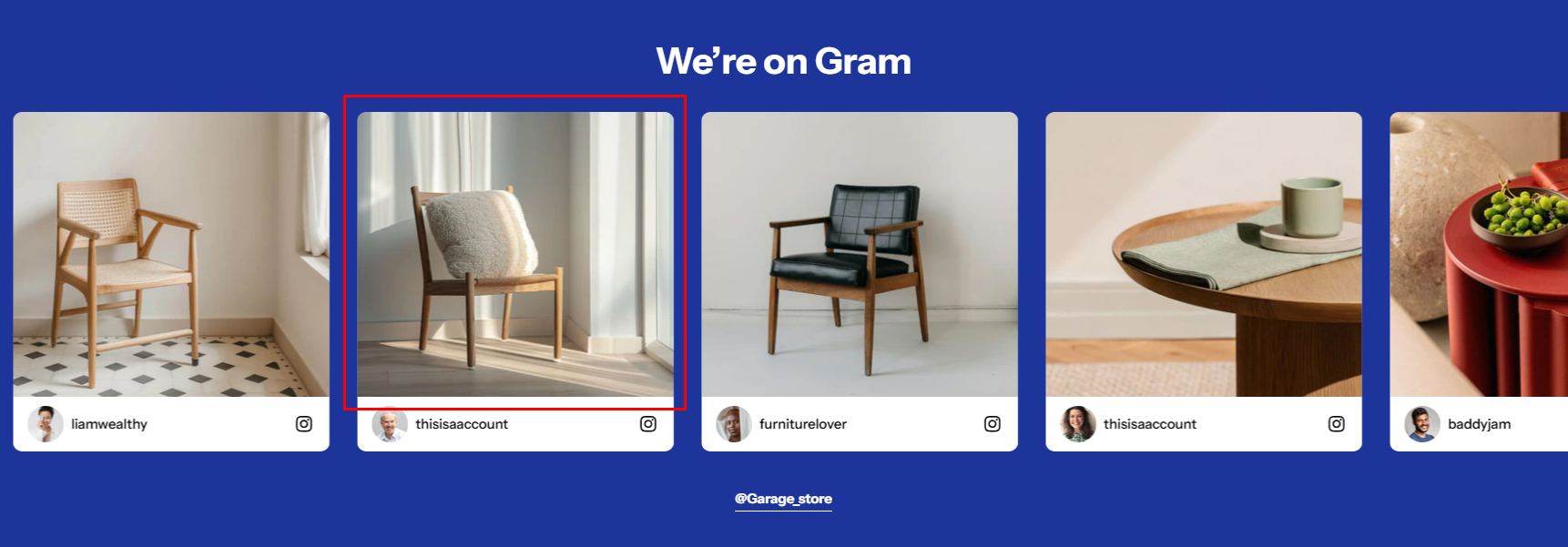
The image ratio in this section is set to **adapt to the first block’s image**. This means all other blocks will follow the same aspect ratio as the first image.
### 7. Slider with multicolumn (Slide item block)
**Recommended image sizes**:
* Desktop image: 1332 × 1332 px
* Mobile image: 686 × 900 px
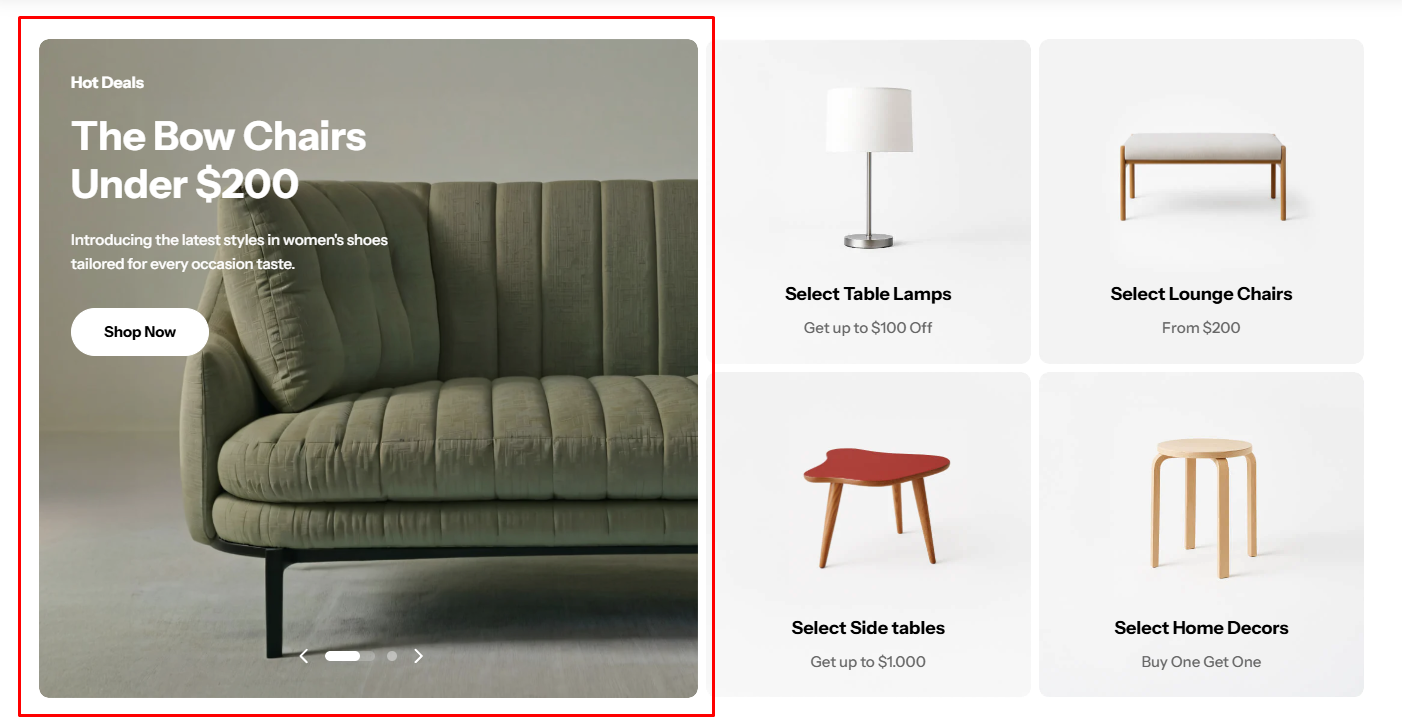
The image ratio in this section is set to **adapt to the first slide item’s image**. This means all other slides will follow the same aspect ratio as the first image.
### 8. Slideshow / Slideshow with product / Scrolling banner
For these sections, the Hyper theme provides flexible height options and supports separate images for desktop and mobile to ensure the best visual presentation across devices.
#### Recommended image sizes
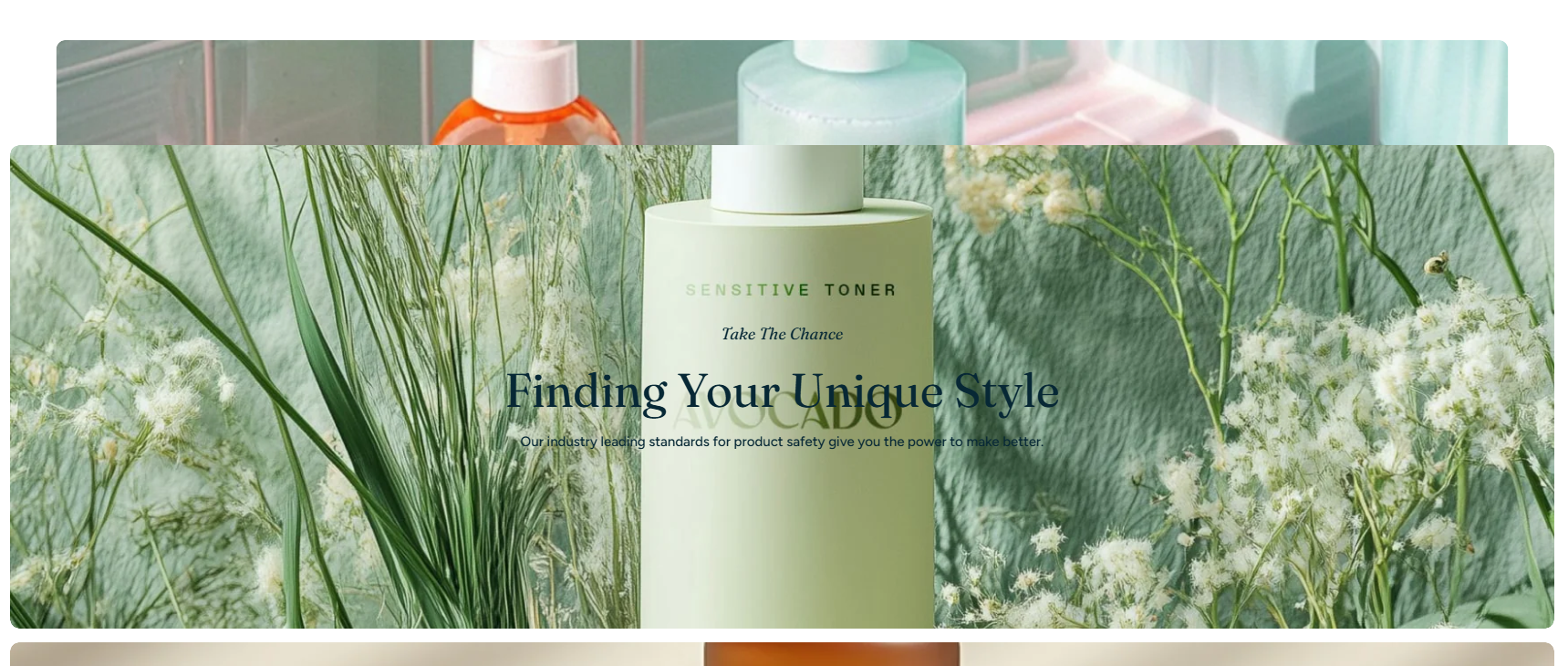
* **Desktop image:** 1920 × 900 px or 2680 × 1120 px
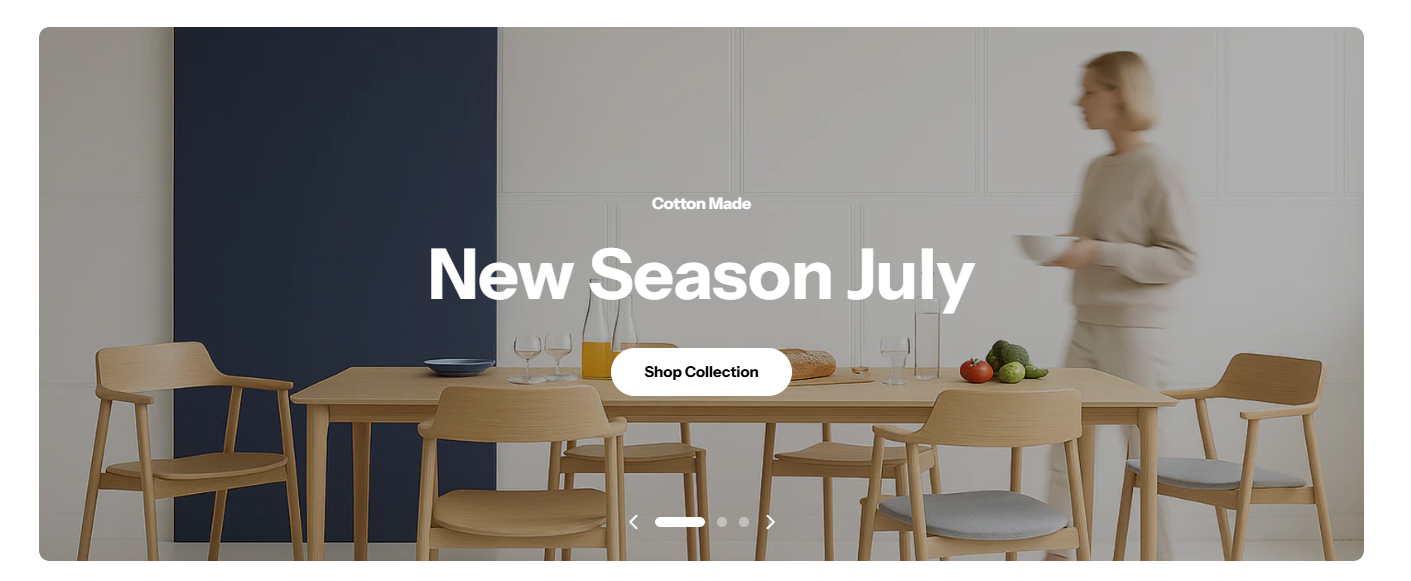
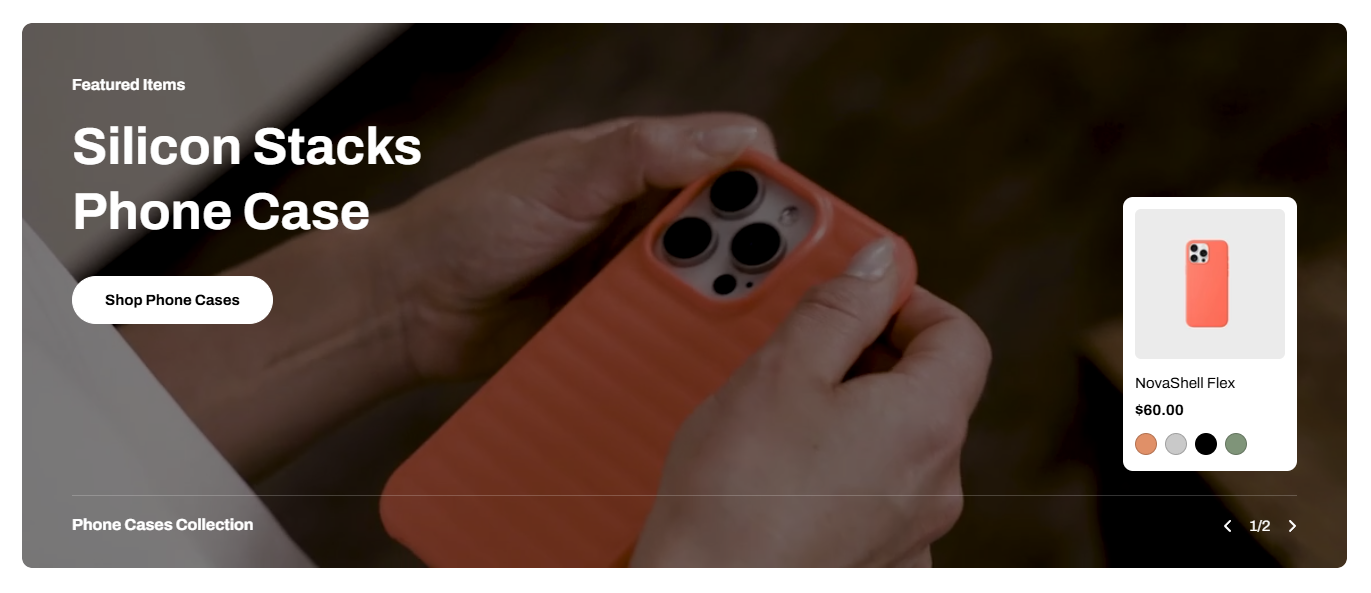
* **Mobile image:** 600 × 480 px or 686 × 940 px
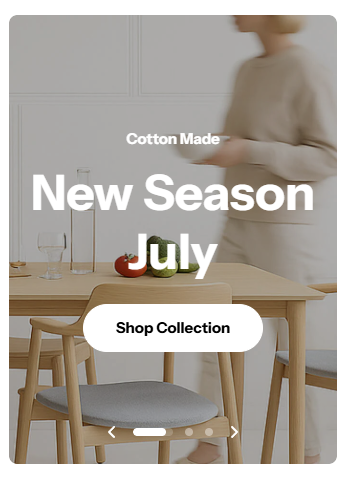
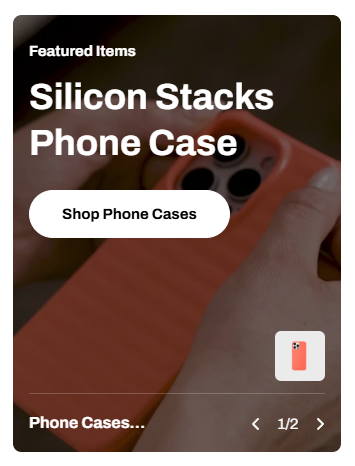
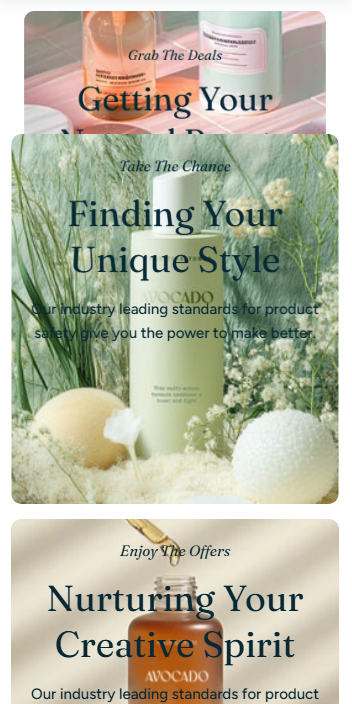
We strongly recommend uploading **separate images for desktop and mobile**. If the same image is used, it will be **center-cropped on mobile**, which may cut off important details.
#### Slide height options
How it works:
* **Adapt to first image:** Preserving the original proportions of your first image slide. All other slides will follow the same aspect ratio as the first image.
* **Small / Medium / Large:** Applying fixed heights, so images may be cropped depending on their ratio.
| Option | Desktop height | Mobile height | Behavior |
| --- | --- | --- | --- |
| Adapt to first image | Auto | Auto | Height adapts to the first image ratio |
| Small | 540px | 280px | Cropped to fixed height |
| Medium | 630px | 340px | Cropped to fixed height |
| Large | 720px | 420px | Cropped to fixed height |
| Option | Desktop height | Mobile height | Behavior |
| --- | --- | --- | --- |
| Adapt to first image | Auto | Auto | Height adapts to the first image ratio |
| Small | 560px | 400px | Cropped to fixed height |
| Medium | 660px | 480px | Cropped to fixed height |
| Large | 760px | 560px | Cropped to fixed height |
### 9. Testimonial (Layout - Card)
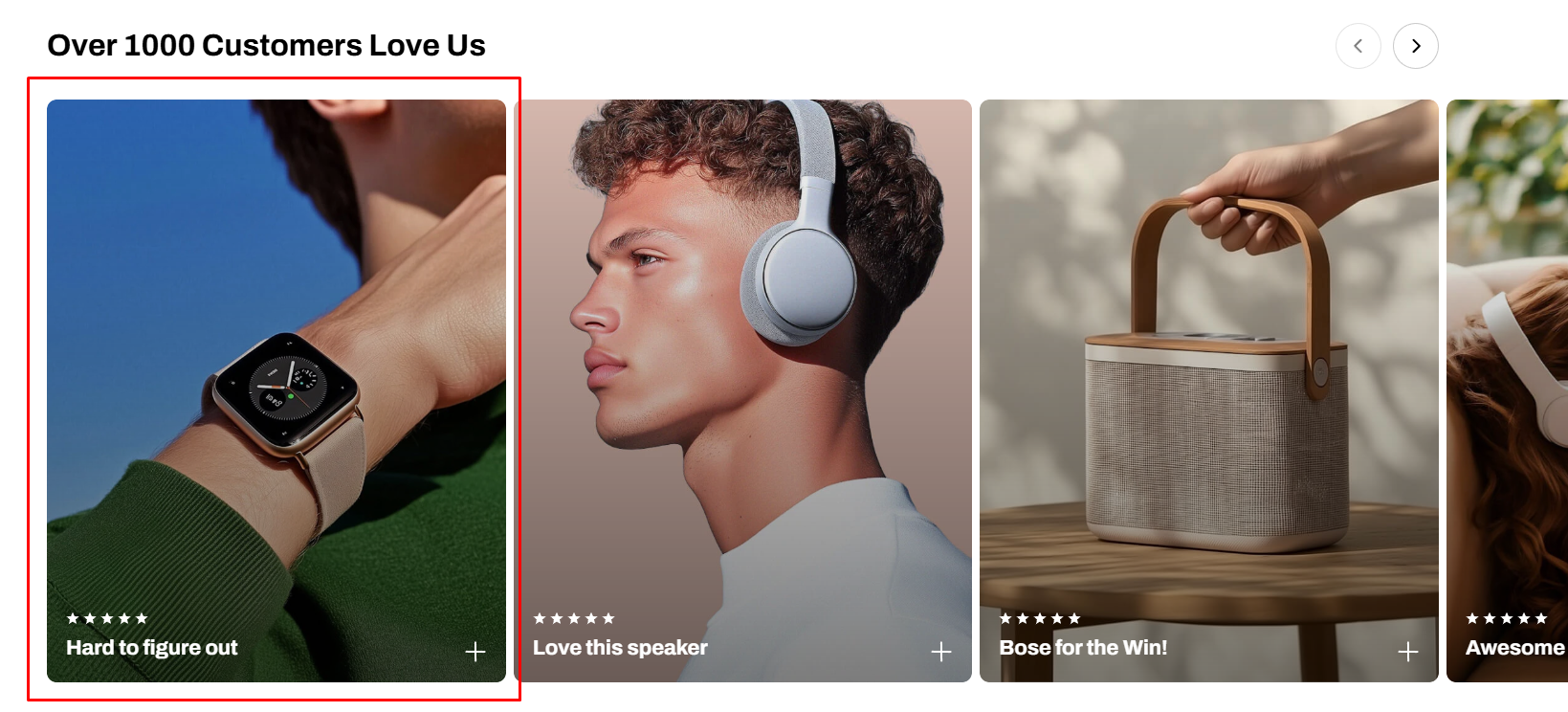
**Recommended image sizes:**
* **Adapt to image:** keeps original ratio (Recommended size: 740 × 940 px)
* **Square (1:1):** 940 × 940 px
* **Portrait (3:4):** 740 × 987 px
* **Landscape (4:3):** 987 × 740 px
When **Adapt to image** is selected, card heights automatically align to the tallest image ratio to maintain a consistent layout.
For best results, use images with the same aspect ratio when **Adapt to image** is enabled.
### 10. Blog post featured image
To set the blog post featured image, go to **Online Store > Blog posts** in your Shopify admin. Then open the post and locate the **Featured image** field on the right-hand side to upload your image.
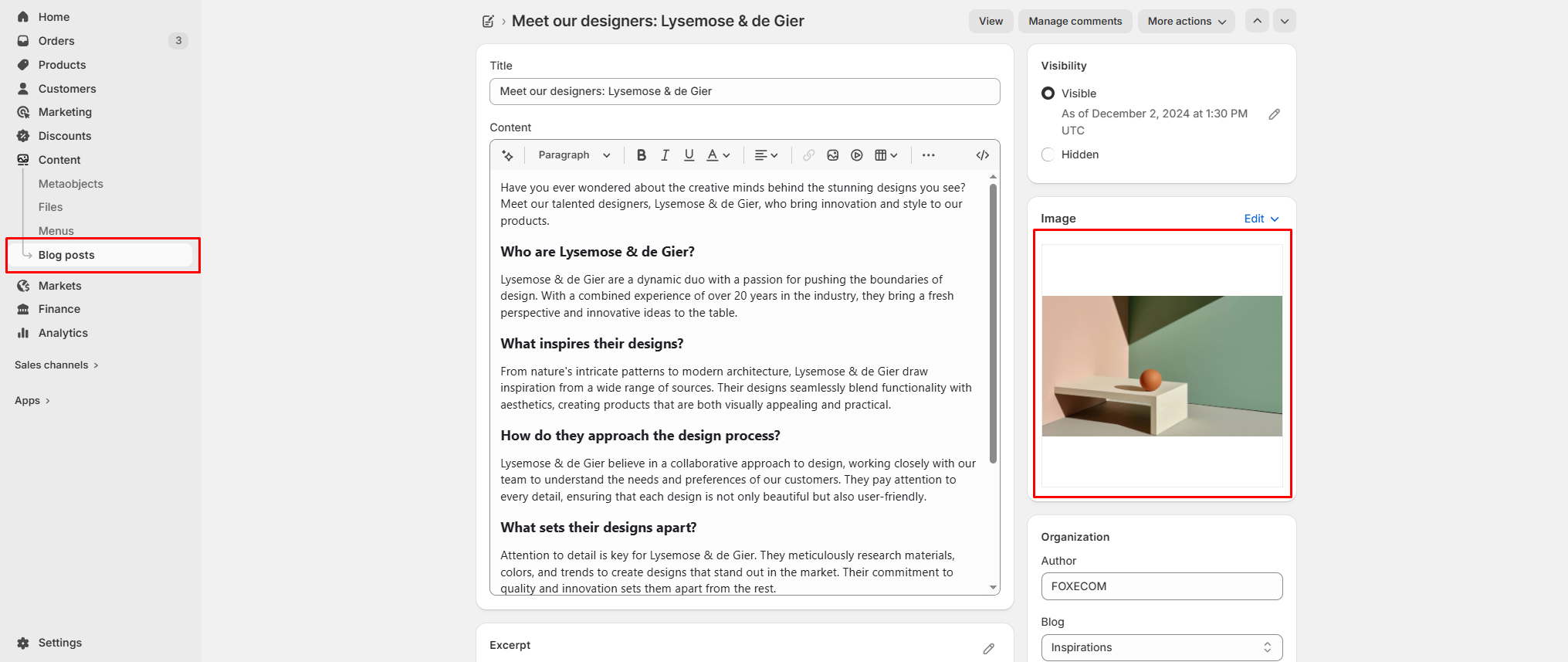
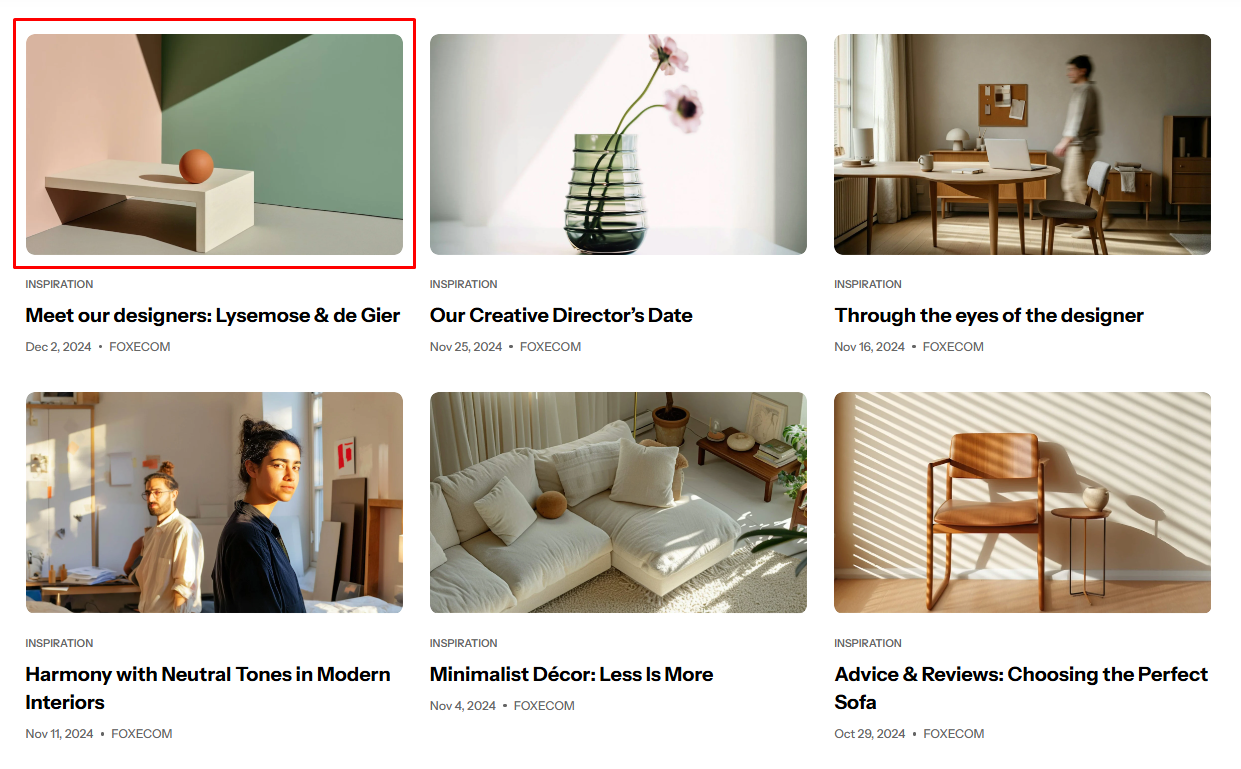
On your website, the blog post featured image is displayed in two places:
* **Post’s thumbnail image (Blog listing page):**
Displayed in blog cards. The appearance depends on **Theme settings > Blog cards > Image ratio**.
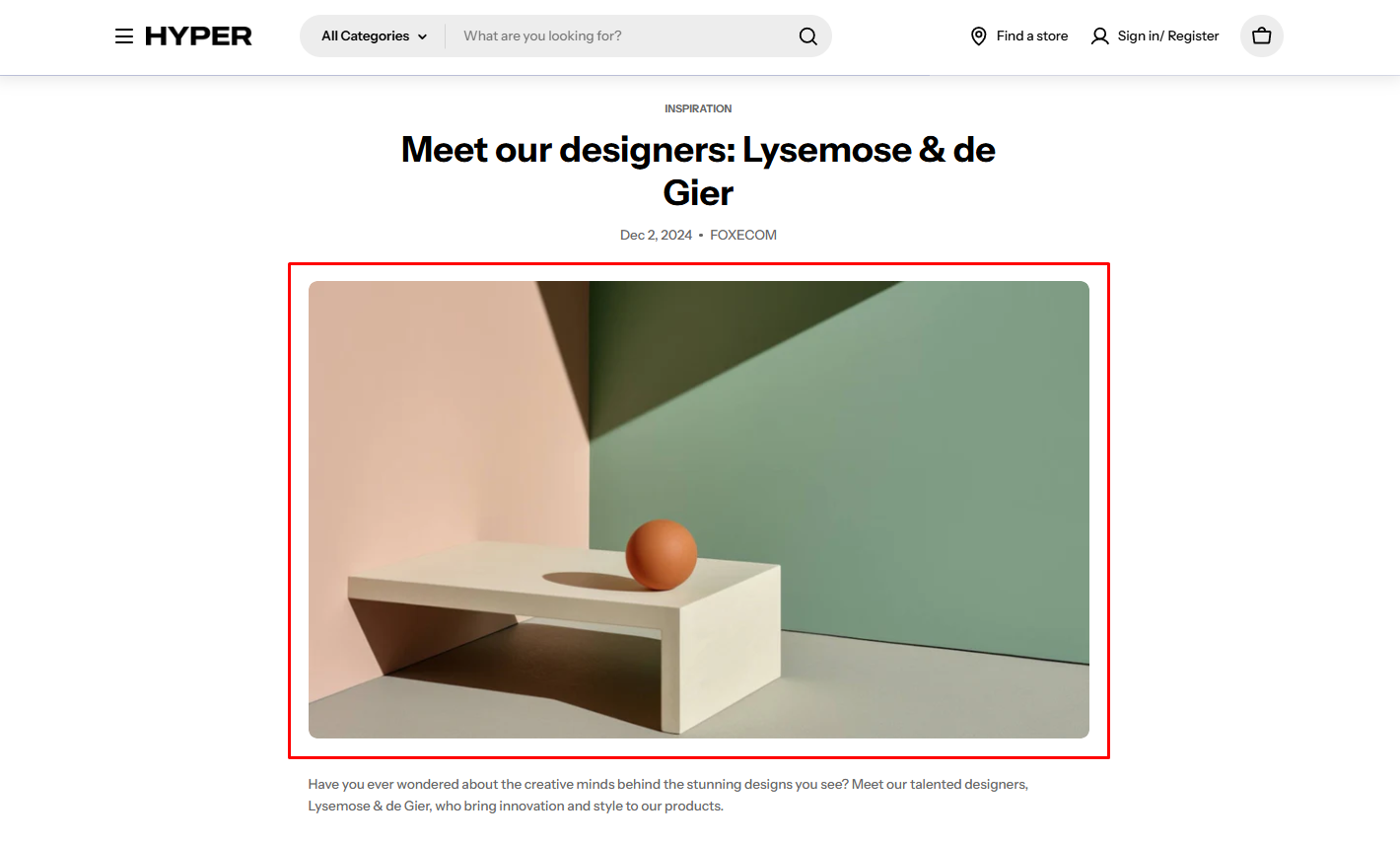
* **Post’s featured image banner (Blog post page):**
Displayed as the main image at the top of the article. This is controlled by the **Image ratio** setting in the blog post template.
You can choose images with **square, portrait, or landscape ratios** to achieve the best visual result.
The recommended sizes are:
* **Square (1:1)**: at least 2000 x 2000 px
* **Portrait (3:4)**: at least 2000 × 2667 px
* **Landscape (4:3)**: at least 2400 x 1800 px
* You can also use **Adapt to image** to preserve the original image ratio.
### 11. Collection banner
**Recommended image sizes:**
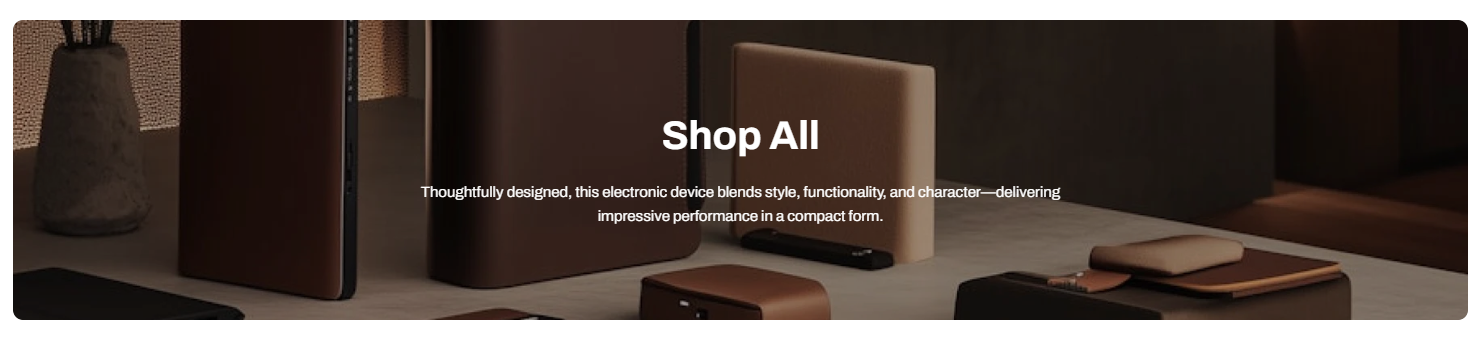
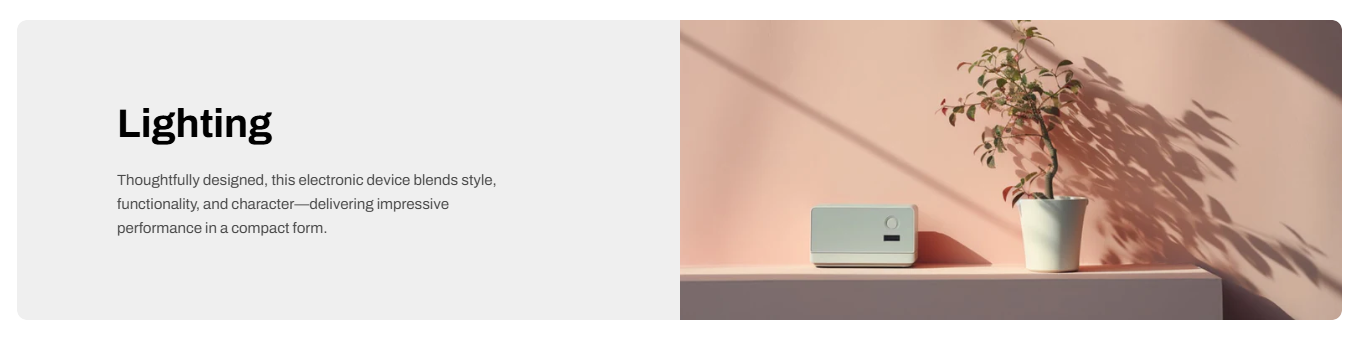
* Desktop image:
* 2680 × 600 px (for image position: Top, Bottom, or Use image as background)
* 1340 × 600 px (for image position: Left or Right)
* Mobile image: 686 × 440 px
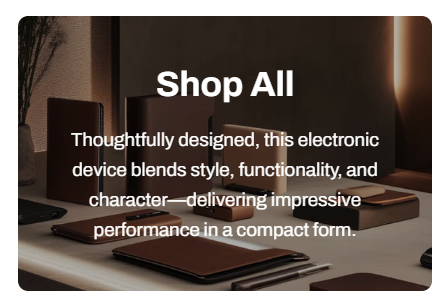
Use images with the correct dimensions based on the selected image position.
| Option | Height | Behavior |
| -------------- | ------ | ----------------------------------------------------------- |
| Adapt to image | Auto | Follows the image’s original aspect ratio (no fixed height) |
| Extra small | 300px | Cropped to fixed height |
| Small | 450px | Cropped to fixed height |
| Medium | 550px | Cropped to fixed height |
| Extra medium | 650px | Cropped to fixed height |
| Large | 800px | Cropped to fixed height |
| Option | Height | |
| --- | --- | --- |
| Auto | Extra small: 220 px
Small: 337.5 px
Medium: 412.5 px
Extra medium: 487.5 px
Large: 600 px | Inherits the desktop height setting (including ratio or fixed height) |
| Adapt to image | Auto | Uses the mobile image’s own aspect ratio (independent from desktop) |
How it works:
* **Adapt to image:** The section height is determined by the image’s aspect ratio, preserving its original proportions and minimizing cropping.
* **Fixed height options:** Selecting a predefined height (e.g., Small, Medium, Large) ensures consistent section height but may crop images depending on their original ratio.
### 12. Collection list slider / Collection list / Collection list banner (Collection card images)
Recommended image sizes:
* **Square (1:1)** *(Recommended)*: 1000 × 1000 px
* **Portrait (3:4)**: 1000 × 1333 px
* **Landscape (4:3)**: 1333 × 1000 px
* **Adapt to image**: keeps original ratio (may look inconsistent)

### 13. Collection tabs
**Recommended image sizes:**
* **Adapt to image:** keeps original ratio (Recommended size: 1240 × 1274 px)
* **Square (1:1):** 1240 × 1240 px
* **Portrait (3:4):** 1240 × 1653 px
* **Landscape (4:3):** 1240 × 930 px
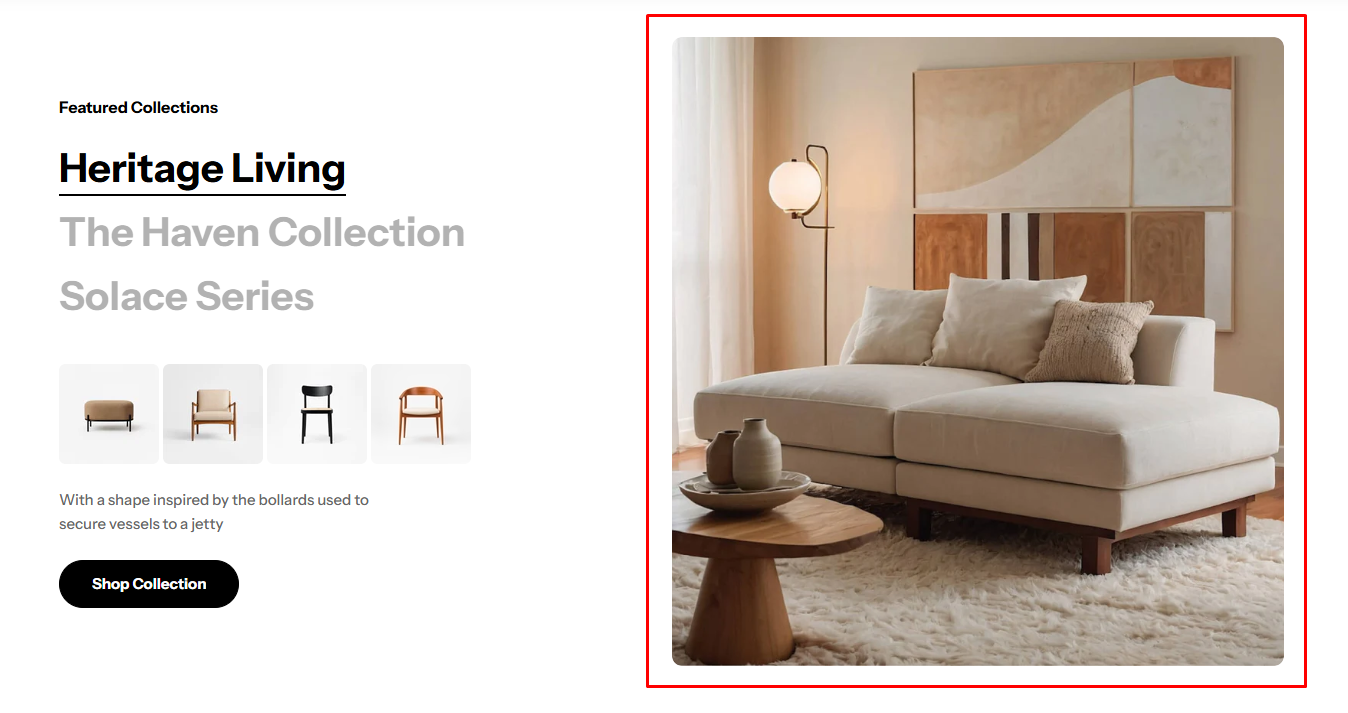
When **Adapt to image** is selected, the image ratio of all collection images will follow the ratio of the **first collection block image**.
### 14. Product images
From the **Products** tab in your Shopify admin, you can easily add new products along with their images. These products will automatically appear across product-related sections in your Hyper theme, such as *Featured Collection, Multiple Product Bundles, Favorite Products, Product Bundles, Bundle Selection,* and *Recently Viewed Products.*
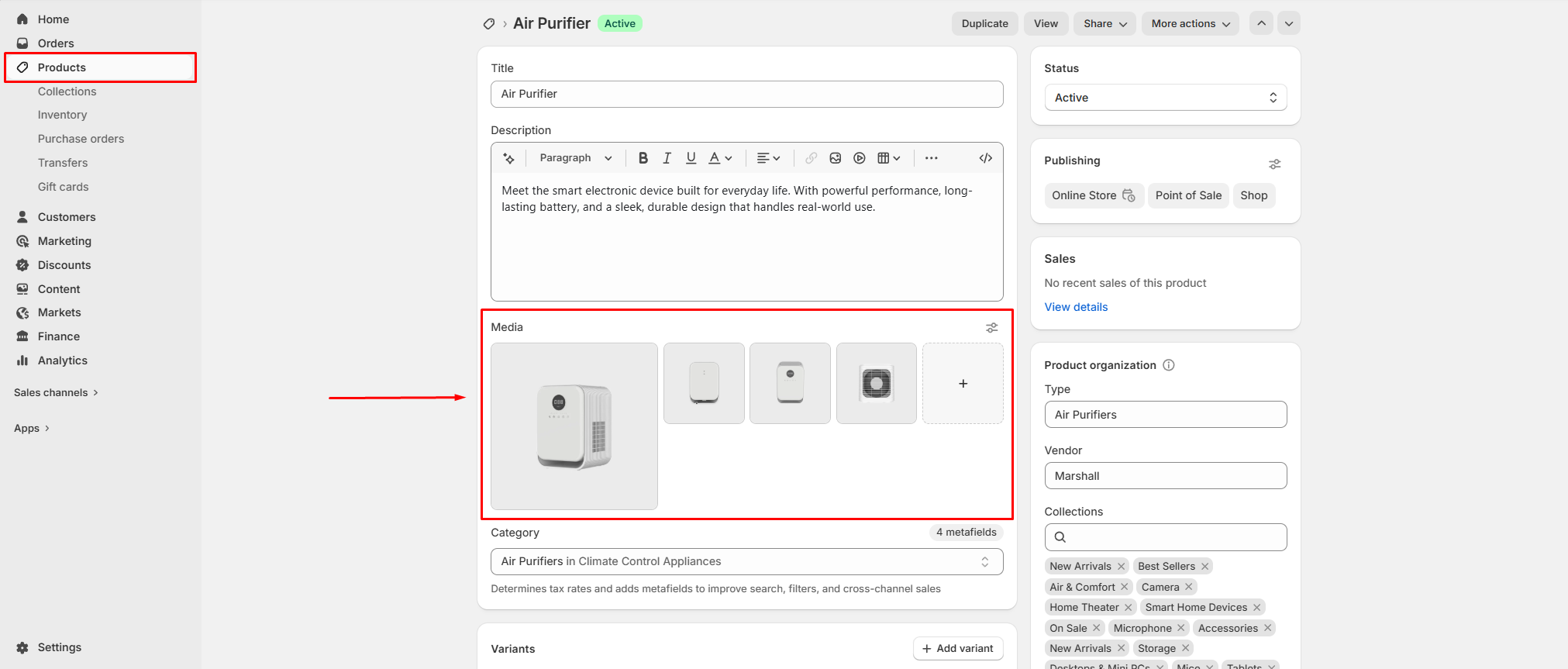
Within Theme settings or individual section settings, you can also control how product images are displayed. Available image ratio options include:
* **Adapt to image**
* **Square**
* **Portrait**
* **Landscape**
These settings allow you to present your product images in the format that best fits your store’s design.
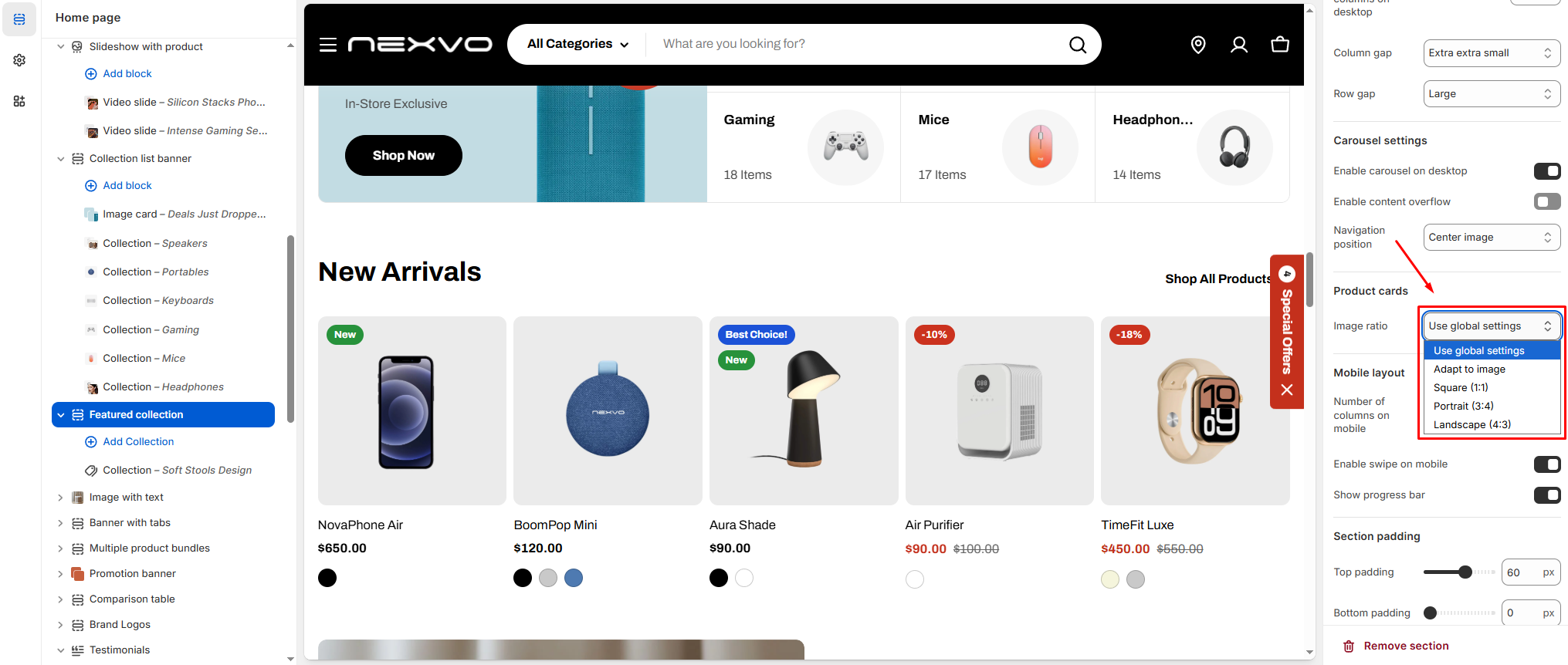
For optimal display quality on the Hyper theme, we recommend the following image sizes:
* **Square (1:1)**: at least 2000 x 2000 px
* **Portrait (3:4)**: at least 2000 × 2667 px
* **Landscape (4:3)**: at least 2400 x 1800 px
These are general recommendations to ensure your images look sharp and consistent across all sections.
## Best practices
To ensure a clean, consistent, and professional storefront, we recommend following these guidelines:
* **Maintain consistency:** Use the same image dimensions and aspect ratio within each section for a uniform layout.
* **“Adapt to first image”:** When enabled, the first image defines the layout ratio. Ensure it has the correct proportions.
* **Prepare images properly:** Design images based on the selected ratio settings to avoid unexpected cropping.
* **Desktop & mobile images:** Upload separate versions when possible for better control across screen sizes.
* **High-resolution images:** Use images at approximately 2× the recommended size for sharp display on high-density screens.
* **Avoid mixing ratios:** Different aspect ratios in one section can create uneven layouts.
* **Safe viewing area:** Keep key content (text, focal points) centered to prevent cropping.
* **Slides & galleries:** Keep image sizes and ratios consistent for visual balance.