# Enable Size chart on product pages

{% embed url="<https://youtu.be/3qaOToVdYNU/>" %}

Steps to Enable the Size chart

{% stepper %}
{% step %}

### **Navigate to the Variant picker block**
<figure><img src="/files/YG45WOvEa0Q2WnGH0BUx" alt=""><figcaption></figcaption></figure>

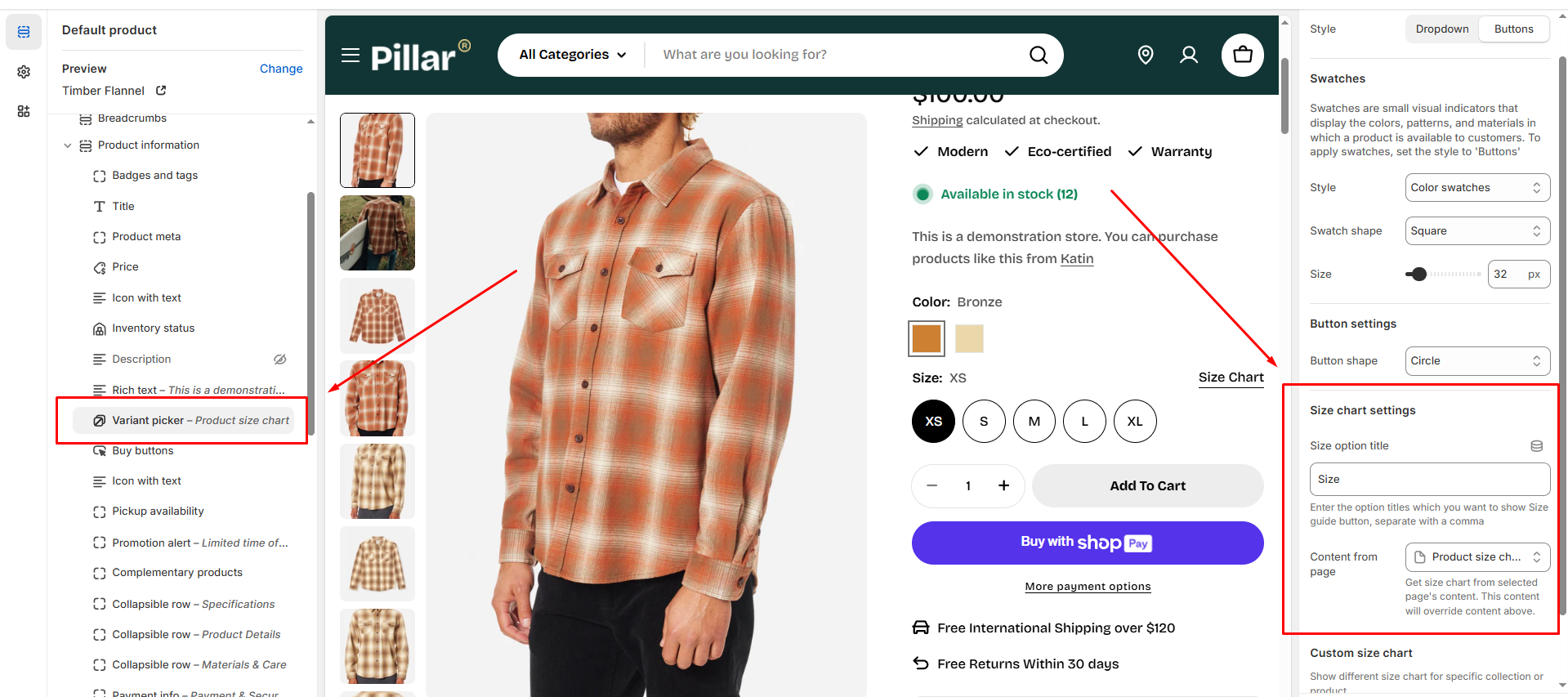
To begin, locate the **Variant picker** block in your theme's settings. This is where you can control the settings related to the size chart feature.
{% endstep %}

{% step %}

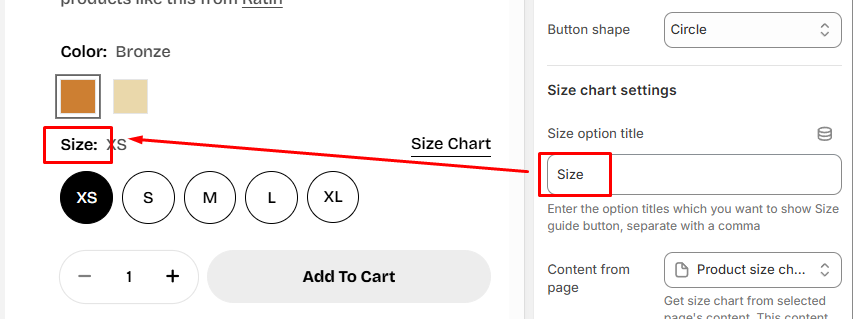
### Set the Size option title

<figure><img src="/files/4ODyZG1LPUFOvwQzW8QS" alt=""><figcaption></figcaption></figure>

Enter the option titles that you would like to display for the Size Guide button. You can list multiple titles separated by commas, and each title will correspond to a different size guide option on your product page.
{% endstep %}

{% step %}

### Choose content from a page

<figure><img src="/files/U7NqyW9T7oGup3Emm0lt" alt=""><figcaption></figcaption></figure>

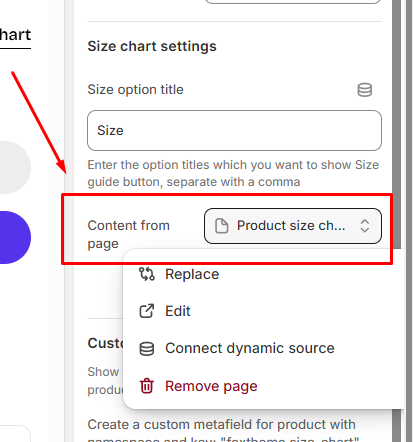
In the **Content from page** section, you can select the source for the size chart content. This allows you to pull size chart information from an existing page on your website. Once you select the appropriate page, the size chart content will automatically appear on your product pages.
{% endstep %}
{% endstepper %}

{% hint style="success" %}
**Create a Custom metafield:**

If you'd like even more customization, you can create custom metafields for your products using the key `foxtheme.size_chart`. This allows you to specify unique size chart data that can be pulled directly onto the product page, providing a personalized shopping experience.
{% endhint %}


---

# Agent Instructions: Querying This Documentation

If you need additional information that is not directly available in this page, you can query the documentation dynamically by asking a question.

Perform an HTTP GET request on the current page URL with the `ask` query parameter:

```
GET https://docs.foxecom.com/hyper-theme/faqs/enable-size-chart-on-product-pages.md?ask=<question>
```

The question should be specific, self-contained, and written in natural language.
The response will contain a direct answer to the question and relevant excerpts and sources from the documentation.

Use this mechanism when the answer is not explicitly present in the current page, you need clarification or additional context, or you want to retrieve related documentation sections.