# Image with text

<div data-full-width="true"><figure><img src="/files/1OZ2q7N6tFYitFzBKwTz" alt=""><figcaption><p><a href="https://foxecom.com/pages/affiliate?utm_source=minimog%2Bhelp%2Bcenter&#x26;utm_medium=banner&#x26;utm_campaign=foxaffiliatelaunch2024">Explore FoxEcom Affiliate Program now </a><span data-gb-custom-inline data-tag="emoji" data-code="2728">✨</span></p></figcaption></figure></div>

{% embed url="<https://youtu.be/mNtsiSfNN9s>" %}

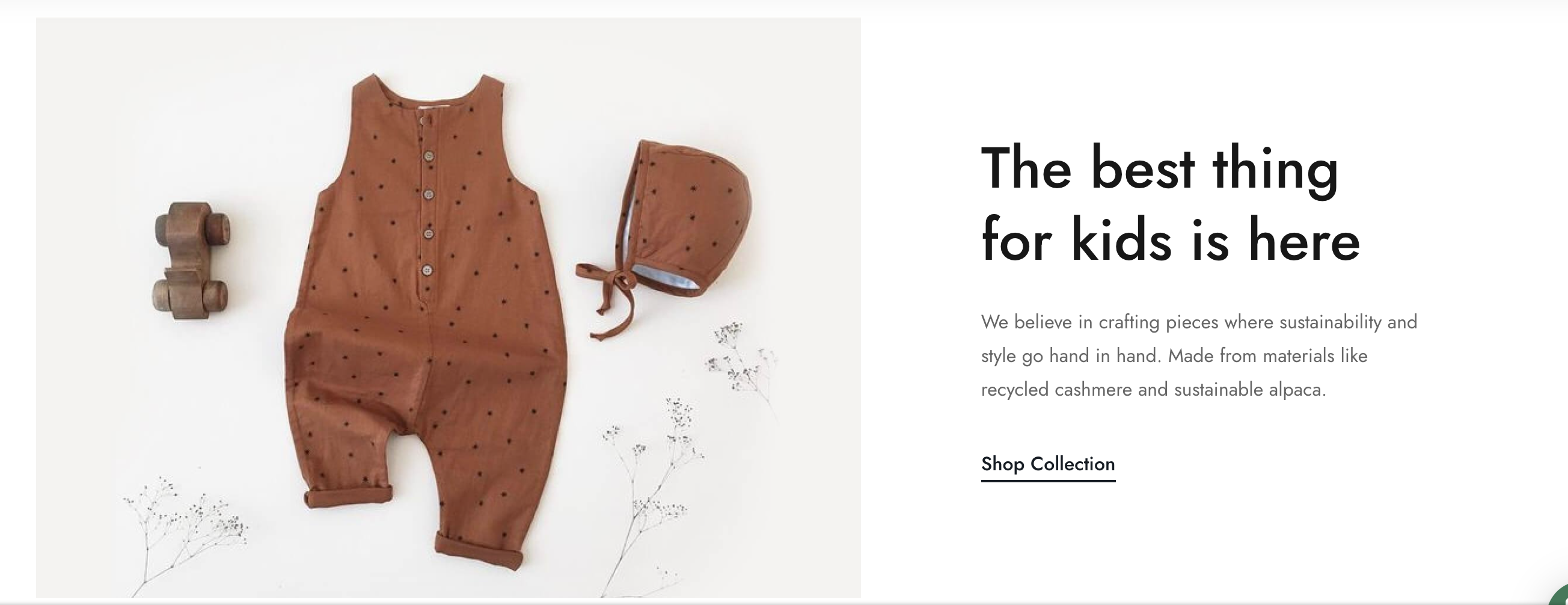
The image with text section provides an appealing and dynamic approach mixing media, message, and a call-to-action button. This is a great way to promote a product/collection or any exciting feature on your online store.
![](/files/ff3jg0iFSrCTuYcGtfze)

{% hint style="success" %}
Steps

1. In the theme editor **(Customize)**, click **Add section**
2. Locate **Image with text**
3. **Save**
   {% endhint %}

## Section header and General

Use the provided fields to add an eye-catching heading/subheading/description along with adjustable background color and container types. The gap between the image column and text column is adjustable using the slider.

<figure><img src="/files/Ac9xf2kEWfiKP0qxPET1" alt=""><figcaption></figcaption></figure>

## &#x20;Content

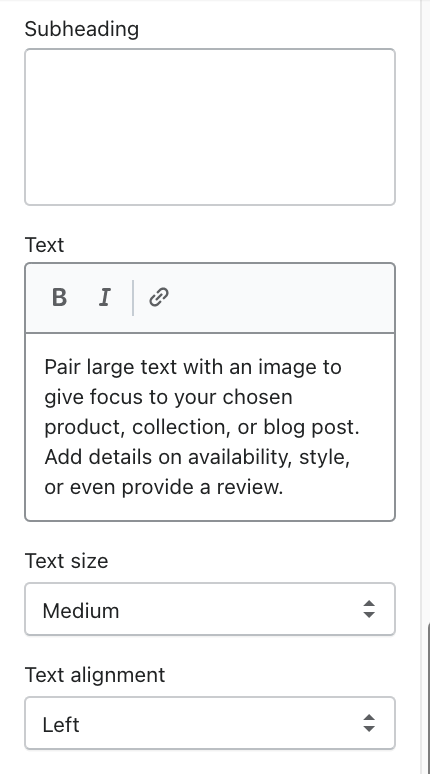
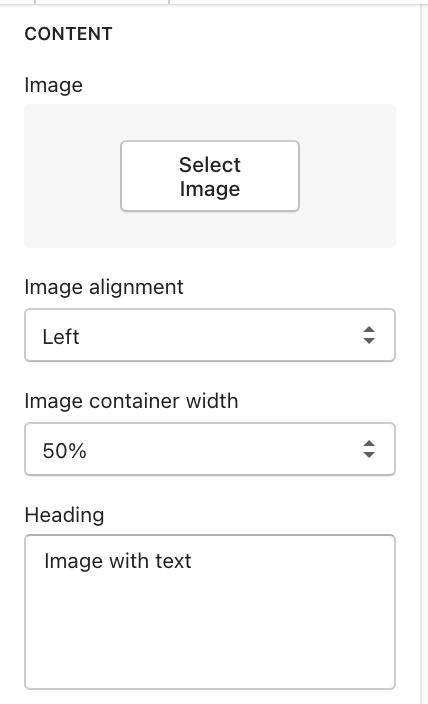
Add some text to the heading, subheading, and a short summary of the product to grab customers attention.
![](/files/LzbbWMdJB8sqQjrYQM5i) ![](/files/XJLu5nxawzUTW6GnxJ3U)

## Button settings

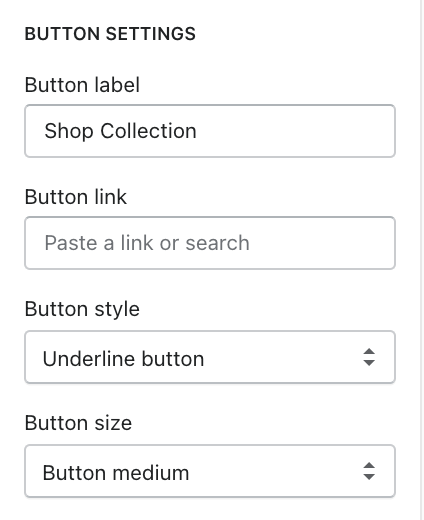
Add a call-to-action button to direct customers to the suitable collection pages.
![](/files/BwBMk9ufACMOiPMQnFKK)


---

# Agent Instructions: Querying This Documentation

If you need additional information that is not directly available in this page, you can query the documentation dynamically by asking a question.

Perform an HTTP GET request on the current page URL with the `ask` query parameter:

```
GET https://docs.foxecom.com/minimog-theme/theme-sections/image-with-text.md?ask=<question>
```

The question should be specific, self-contained, and written in natural language.
The response will contain a direct answer to the question and relevant excerpts and sources from the documentation.

Use this mechanism when the answer is not explicitly present in the current page, you need clarification or additional context, or you want to retrieve related documentation sections.