# Collection page
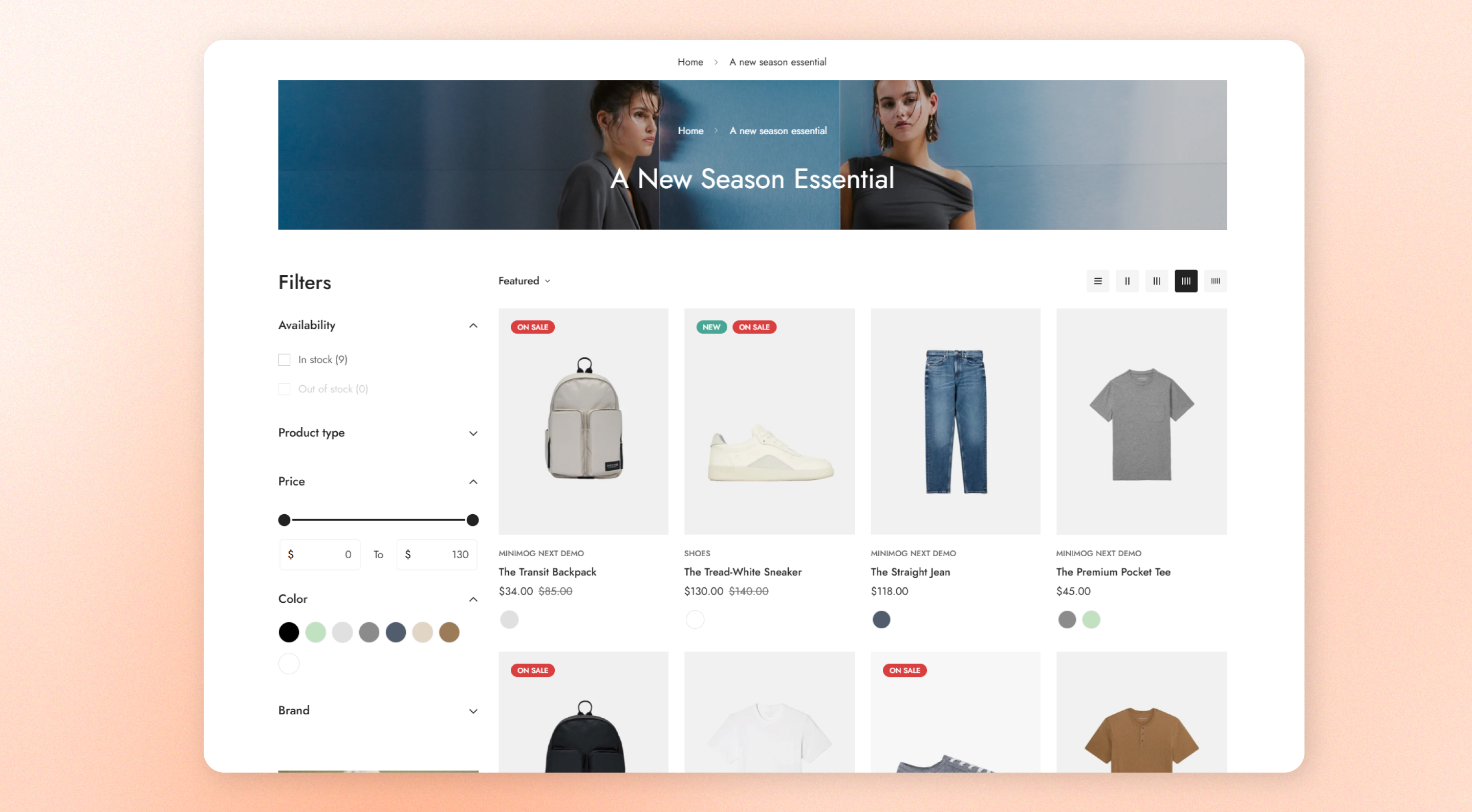
Your collection pages show the products in each collection. Every collection uses a collection template, and by default they all use the same one, so a change to that template changes every collection page. To give some collections a different layout, create another template, as explained in [Collection template](https://docs.foxecom.com/minimog-theme/collections-and-products/collection-page/collection-template).
## How to customize the Collection page
1. Open the theme editor (**Edit theme**).
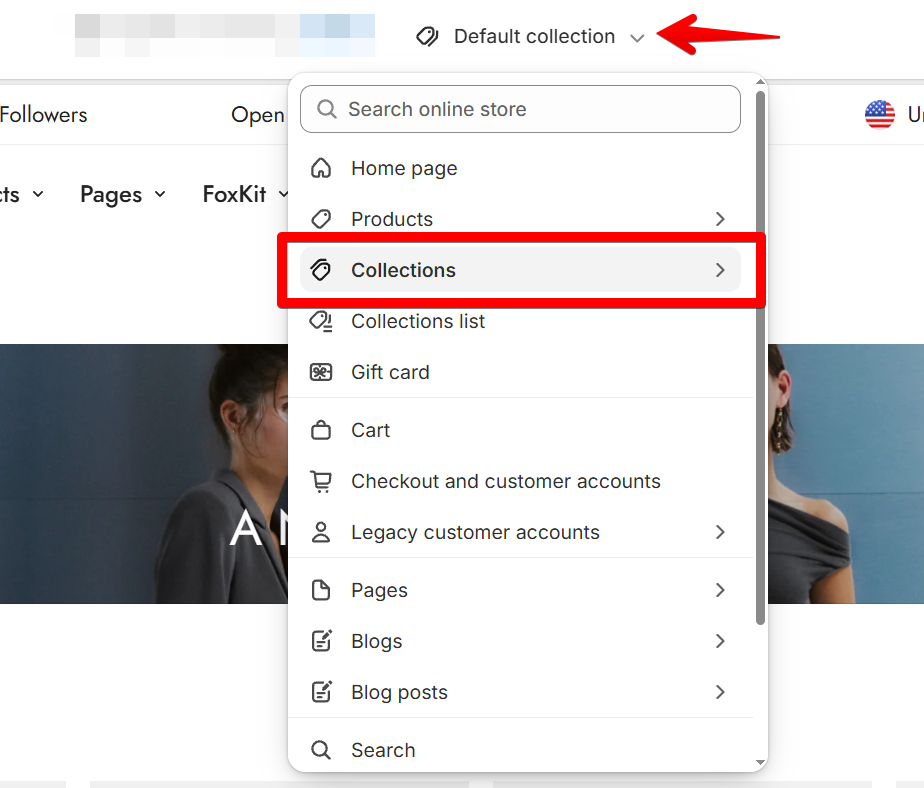
2. Open the page selector at the top of the theme editor.
3. Select **Collections**.
4. Select **Default collection**, or another collection template you created.
5. Click the section you want to change in the sidebar.
6. Click **Save**.
 The theme editor previews the template with a collection from your store. To preview it with another collection, click **Preview** in the sidebar and select the collection.
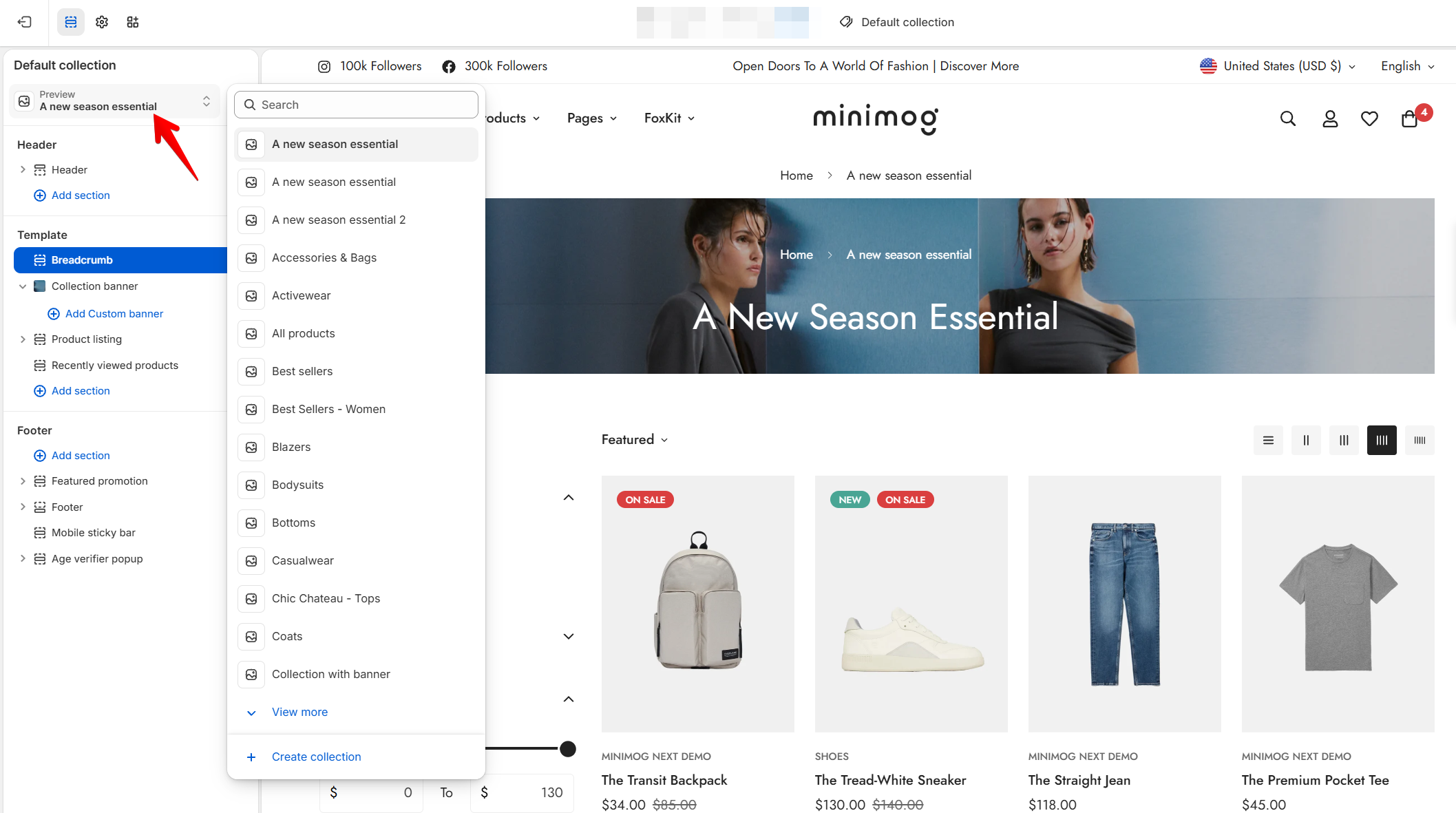
## Sections in this template
Collection banner
Product listing
You can also add other [theme sections](https://docs.foxecom.com/minimog-theme/theme-sections/overview) above or below them.
Your collection pages show the sections and settings you chose in the theme editor preview.
## Related articles
Collection template
Collections list page