# Collection tabs
_iMwWkcpo.jpg)
Display multiple product collections in a sleek tabbed layout. It’s perfect for highlighting different product categories, seasonal edits, or featured collections — all in one compact space.
When a customer clicks (or hovers, depending on your settings) a tab, the corresponding collection content (title, description, image/icon) appears on the left or right side.
This section is available on ✨ **Zest version 7.0.0 onwards**. See our [Changelog](/zest-theme/changelog)
## How to add a Collection tab section to your Shopify store
**Steps**
1. In the theme editor (**Customize**), click **Add section.**
2. Make necessary changes.
3. Locate **Collection tabs.**
4. **Save.**
## How to edit a Collection tab
### Section settings
| Setting | Description |
| --- | --- |
| **Desktop image position** | Choose whether the image appears on the **left** or **right** of the tabs (auto-adjusted for mobile). |
| **Image ratio** | Select aspect ratio: `Adapt to first image`, `Square (1:1)`, `Portrait (3:4)`, or `Landscape (4:3)`. |
| **Prefix header** | Choose to show a tab prefix as `Ordinal number` (01, 02, 03...) or an `Icon`.
If you want to use icons, upload the image icons later in the [block settings](#block-settings). |
| **Trigger open tab** | Choose how a tab opens: on `Click` or `Hover`. |
| **Auto-rotate content** | Enable this to auto-rotate between tabs after a set interval (in seconds). |
| **Change content every** | Adjust the timing for auto-rotation (only visible when enabled). |
### Block settings
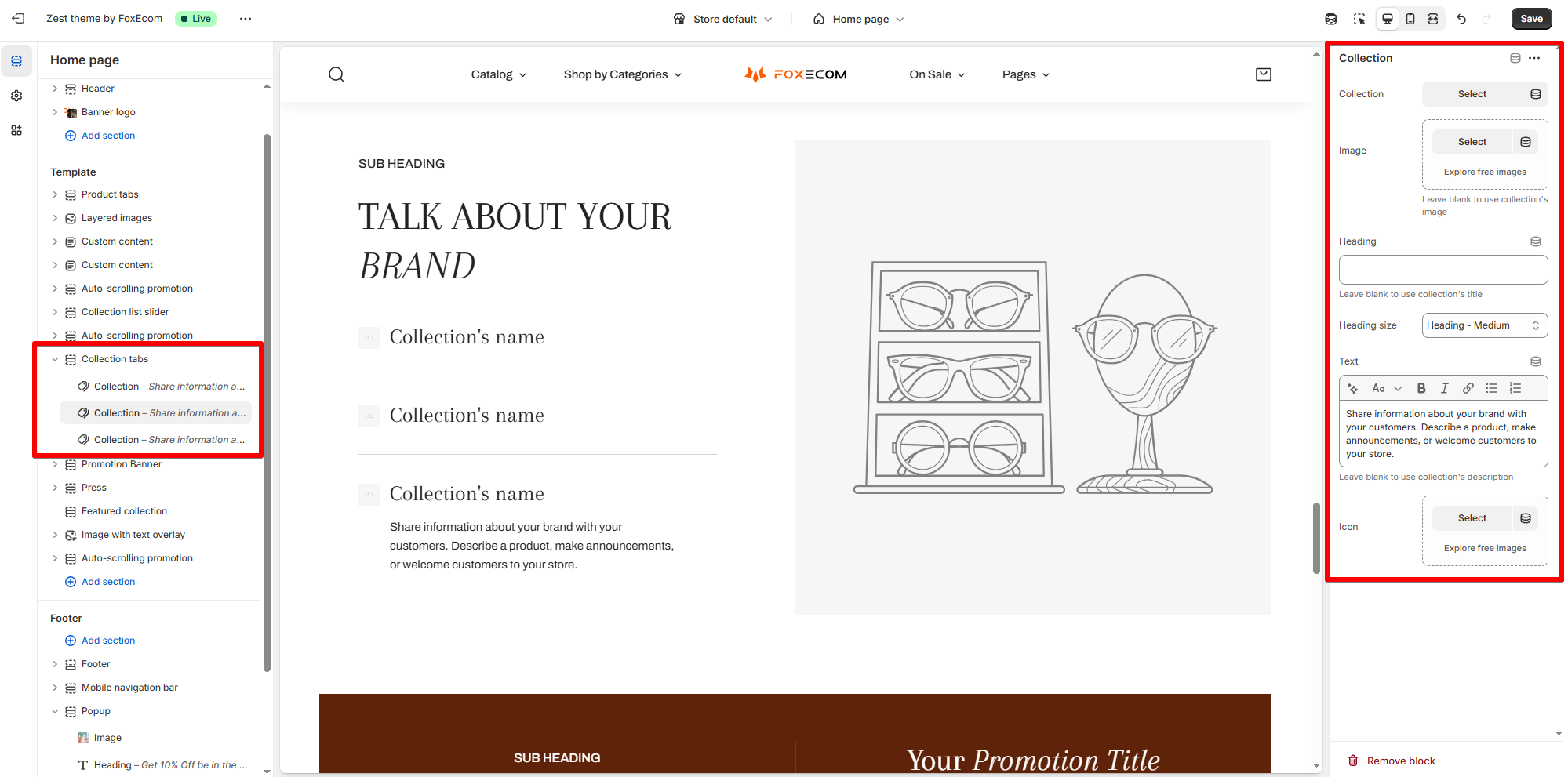
Each **Collection** block represents a tab.
| Setting | Description |
| --- | --- |
| **Collection** | Select a Shopify collection to display. |
| **Image** | Upload an image (optional). If left blank, the collection’s default image will be used. |
| **Heading** | Optional custom title for the tab content. Leave blank to use the collection’s title. |
| **Heading size** | Choose heading font size (`Small`, `Medium`, `Large`, etc.). |
| **Text** | Add a short description or promotional copy. If left blank, it uses the collection’s description. |
| **Icon** | Upload an icon to represent this collection tab. If the **Prefix header** is set as icon. |