Mega menu
Learn how to set up a mega menu for better navigation

In addition to standard dropdown menus, Pebble offers a Mega menu feature.
The Mega menu lets you create a highly functional and visually engaging navigation experience.
How to Set up a Mega menu
Steps:
In the theme editor (Customize), locate the Header section.
Click Add block, then select the add-on type you want for your menu.
Make necessary changes.
Click Save.

Mega menu types

Build a flexible, modern mega-menu with multiple layouts that allow you to display menu links, category thumbnails, banners, or product cards within a single rich dropdown panel.
This works best when the 3rd-level menu items are collections.
Menu title

Connects this Sidebar block to one specific item in your store’s main navigation.
How it works:
Enter the exact name of the menu item (spelling must match).
When the user hovers over or /clicks that menu item, this Sidebar block is displayed in the dropdown.
If it does not match exactly, the banners will not appear.
Menu columns
Controls how many columns are used to display your 3rd-level menu items.
Range: 2 - 4 columns

Right sidebar
How the Sidebar mega menu chooses which image to display:
The menu automatically selects a collection image based on the following order.
Each step overrides the one before it:
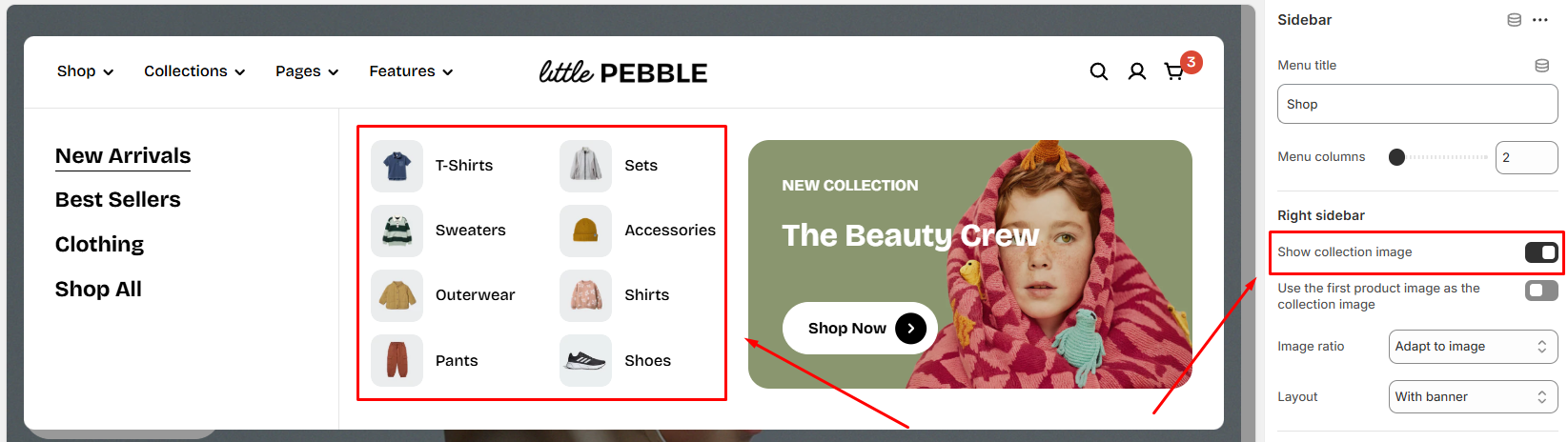
1 - Collection featured image: This is the default image shown when "Show collection image" is enabled.
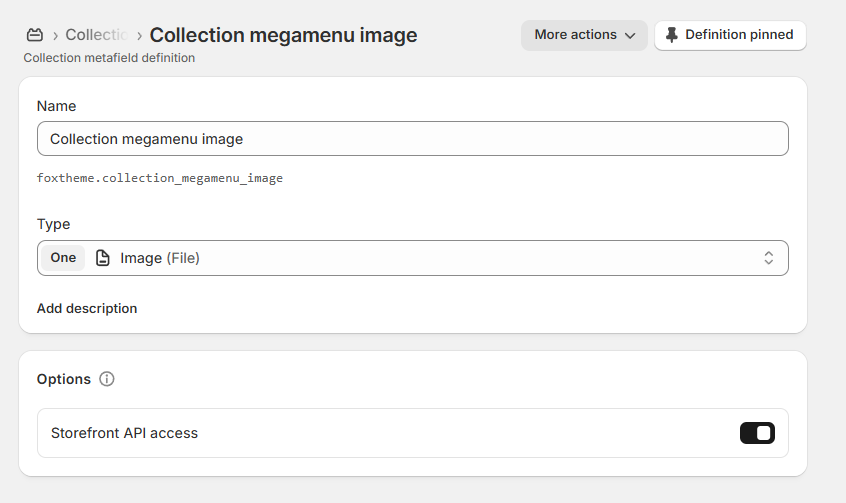
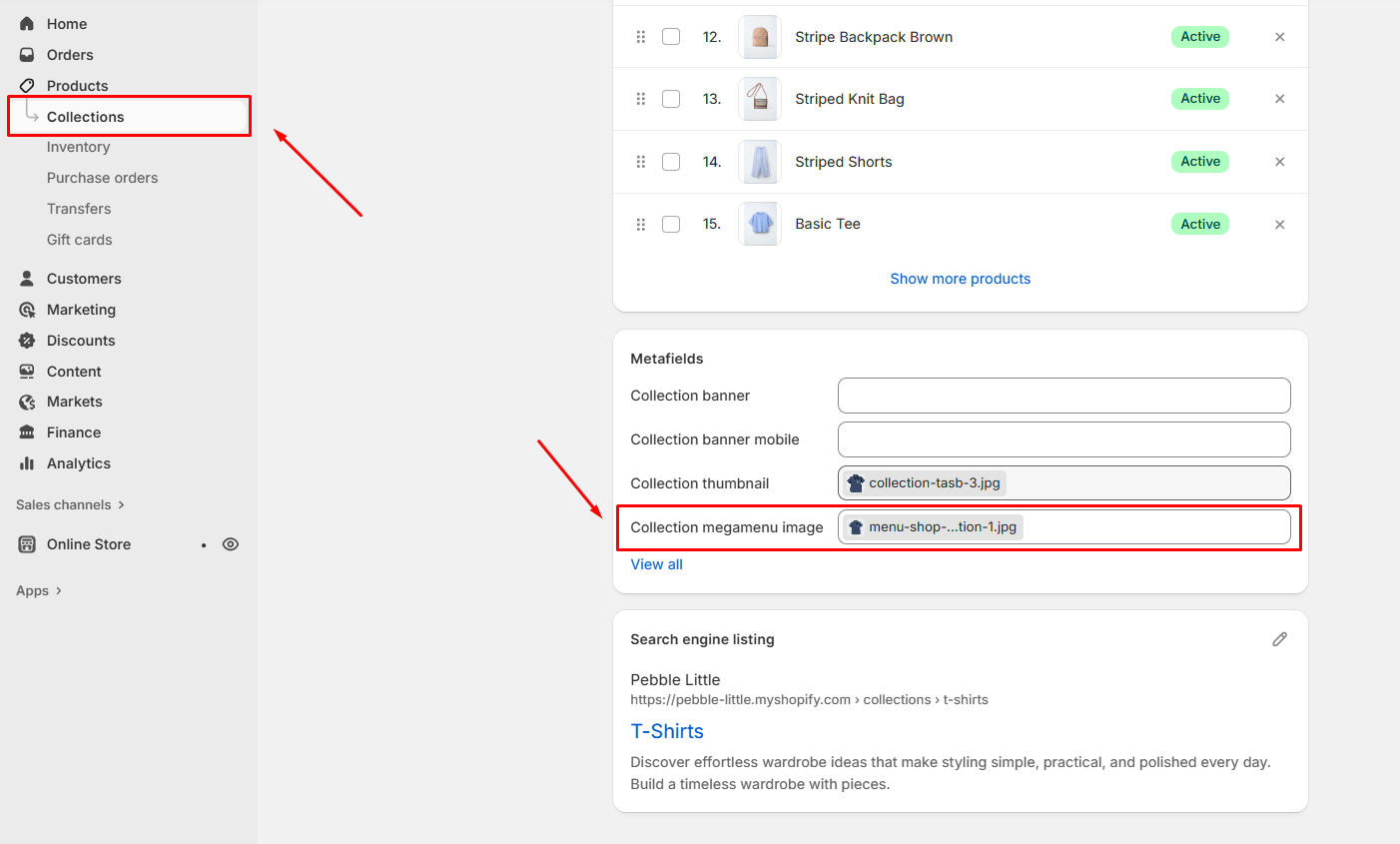
2 - Custom metafield image: If you’ve added an image to the metafield foxtheme.collection_megamenu_image, this image will replace the featured image. Learn more
3 - First product image: If the option "Use the first product image as the collection image" is turned on, the menu will use the first product’s featured image instead.
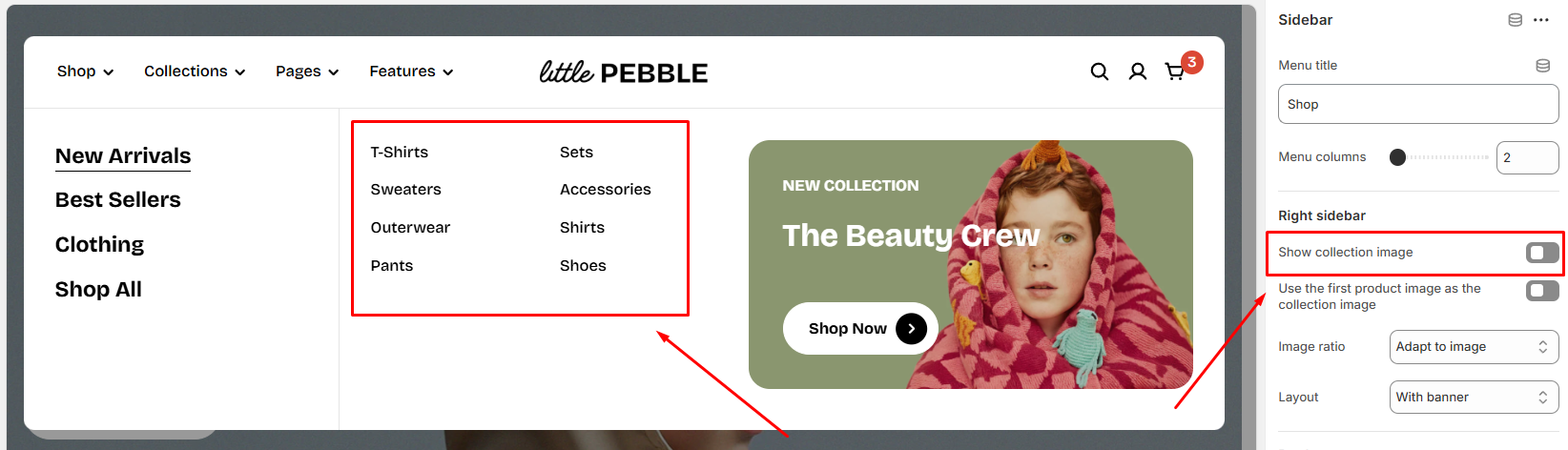
Show collection image
Enables the display of a collection image for each 3rd-level menu item, as long as those items are collections.


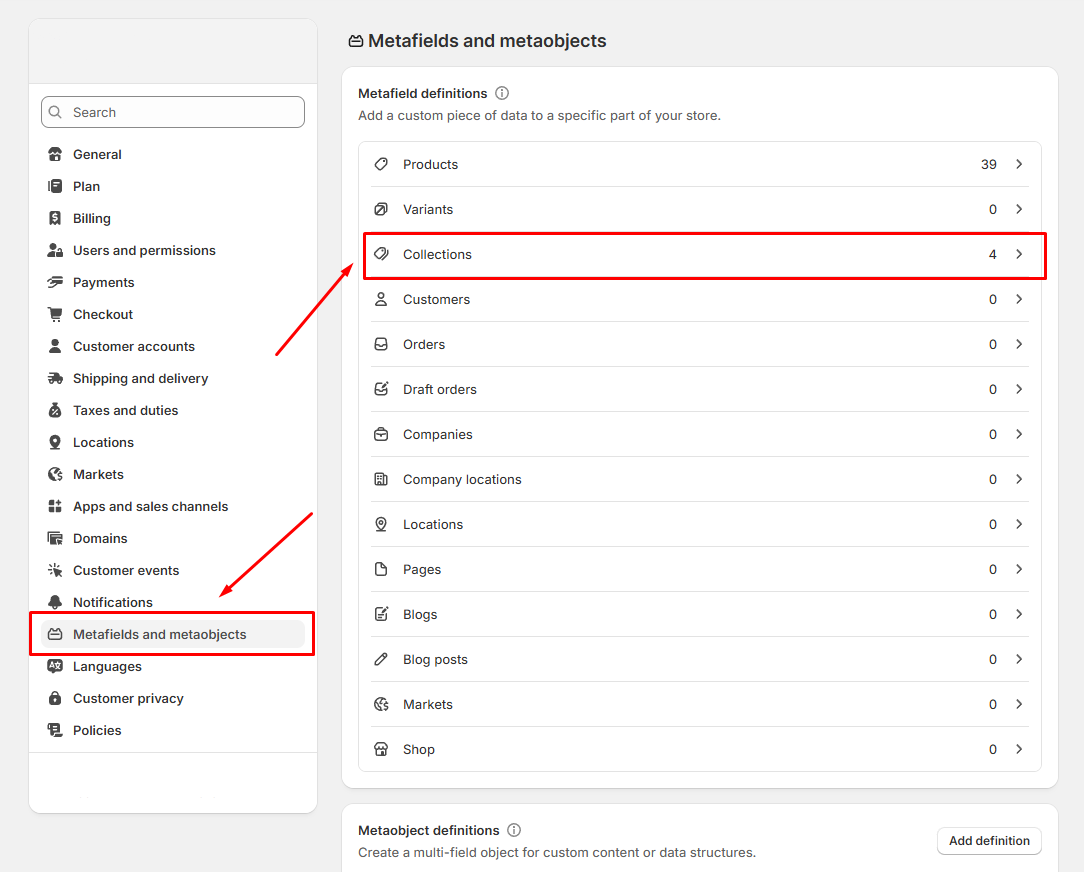
See how to set up collection images for mega menu's sidebar using Metafields
To display collection images in the Sidebar Mega Menu, you’ll need to configure a Shopify metafield with the specified namespace and key. Follow these steps:
Step 1: Add the Metafield definition
Go to Settings > Metafields and metaobjects in your Shopify admin.

In Collections, click Add definition.
Fill in the following details:
Namespace and Key:
foxtheme.collection_megamenu_imageSelect type: File.

Click Save to create the metafield definition.
Step 2: Assign images to collections:
Go to Products > Collections in your Shopify admin.
Select the collection you want to edit.
Add the metafield value under the newly created custom field (e.g., upload the desired image).
Use the first product image as collection image
Automatically uses the first product image from each collection as its thumbnail.
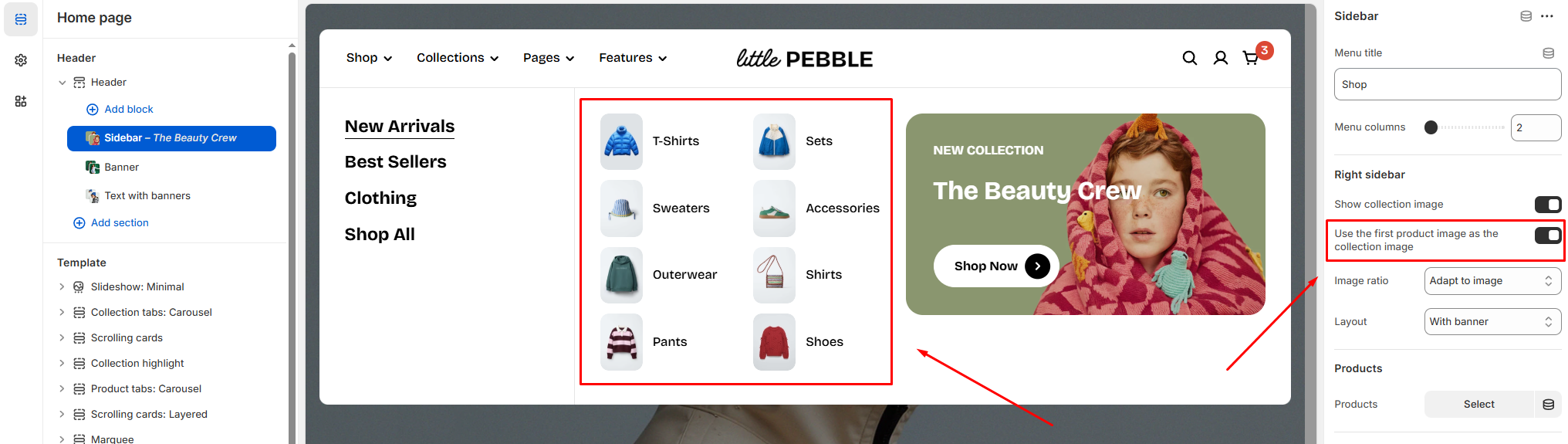
This works only when the Show collection image is enabled.
Layout
The right sidebar offers two main layouts:
With banner: Shows a customizable banner on the right side.
With products: Shows featured product cards on the right side.
Products
(when Layout = With Products)
Allows you to select specific products to display inside the mega-menu for quick shopping access.

Products

Select the specific products to show.
You can choose up to 6 products.
Products appear in the order you select.
Show product vendor
Displays the product’s vendor/brand name above the product title.

Show product type
Displays the product type label above the product title.
✍️ See how to add a product type

Show product badges
Enables this setting to display the product badges such as custom badges, sold out badge and sale badge.

Width
Controls how much horizontal space the product list itself takes within the right side of the mega-menu (in %).
Number of columns
Controls how many product cards are shown in a row.
Range: 2 - 4 columns
Banner
(when Layout = With Banner)
Displays a customizable banner on the right side of your mega-menu.

Width
Controls how much horizontal space the banner itself takes within the right side of the mega-menu (in %).
Color scheme
Applies your theme’s color styling to banner text and buttons.
It works for Top badge and Bottom button designs only.
✍️ Learn more about Color scheme
Design
Determines how text and buttons appear relative to the images.
Content below image
Top badge
Bottom button (Badge does not appear in this mode)
Image
Upload or select the main desktop image for the banner and an optional mobile-optimized image.
If left empty, the desktop image will be used on mobile devices.
Image overlay opacity
Adjusts the amount of color overlay placed over the banner image to improve text readability.
Range: 0% – 100%
Content
(when Layout = With Banner)
This section controls the text and call-to-action inside the banner.
Heading
Enter the main title text for the banner.
Heading size
Choose the display size:
Heading 1
Heading 2
Heading 3
Heading 4
Heading 5
Heading 6
Subheading
Optional supporting text that appears above the heading.
See how to adjust the Subheading font style.
Badge
Text displayed inside a small badge (e.g., "Hot", "Sale", "New").

Visibility rules:
Appears in the Top badge and the Content below image designs
Hidden in the Bottom button design
Button label
Enter the text shown on the call-to-action button (e.g., "Show now").
If you leave the Button label empty and set the Button icon to None, the button will disappear completely.
Button link
Select or enter the link the button should lead to.
Then, you can customize the button style, size, icon, and icon style as you want for it.

Button icon style works only with the Bottom button design.
Add banners to your mega menu to enhance navigation and showcase promotions or featured content.

Menu title
Connect this Banner block to one specific item in your store’s main navigation.
How it works:
Enter the exact name of the menu item (spelling must match).
When the user hovers/clicks that menu item, this Banner block is displayed in the dropdown.
Example
If your main navigation contains:
And you want banners under Collections, you must type:
If it does not match exactly, the banners will not appear.
Menu columns
Control how many navigation columns for your nested menu items show on the left side of the mega menu.
Range: 1 – 4 columns

This does not affect how much space is left for banners on the right side; banner width is controlled separately.
Banners
These settings control the overall layout of the banner area on the right side.

Width
Set how much horizontal space the banners occupy inside the dropdown.
Range: 20% - 100%
Columns
Specify the number of columns the banners occupy.
Range: 1 - 4 columns
Mobile columns
Control the number of banner columns shown on mobile devices.
Option: 1 or 2 columns
Color scheme
Applies your theme’s color styling to banner text and buttons.
It works for Top badge and Bottom button designs only.
Design
Determines how text and buttons appear relative to the images.
Content below image
Top badge
Bottom button (Badge does not appear in this mode)


Banner #1 - #4
You can add up to 4 banner items. Each banner has the following settings:
Image

Upload or select the main desktop image for the banner. You can also upload an optional mobile-optimized image.
If left empty, the desktop image will be used on mobile devices.
Image overlay opacity
Adjusts the amount of color overlay placed over the banner image to improve text readability.
Range: 0% – 100%
Heading
Enter the main title text for the banner.
Heading size
Choose the display size:
Heading 1
Heading 2
Heading 3
Heading 4
Heading 5
Heading 6
Subheading
Optional supporting text that appears above the heading.
See how to adjust the Subheading font style.
Badge
Text displayed inside a small badge (e.g., "Hot", "Sale", "New").

Visibility rules:
Appears in the Top badge and the Content below image designs
Hidden in the Bottom button design
Button label
Enter the text shown on the call-to-action button (e.g., "Show now").
If you leave the Button label empty and set the Button icon to None, the button will disappear completely.
Select or enter the link the button should lead to. Then, you can select the button style, size, and button icon as you want.


Button icon style works only with the Bottom button design.
Combine a text column with a set of image-based banners inside your mega menu to highlight brand information, promotions, or featured pages.

Menu title
Connects this Text with banners block to one specific item in your store’s main navigation.
How it works:
Enter the exact name of the menu item (case and spelling must match).
When the user hovers/clicks that menu item, this Text with banners block is displayed in the dropdown.
Example
If your main navigation contains:
And you want banners under Pages, you must type:
If it does not match exactly, the banners will not appear.
Text with banners

Width
Controls how much horizontal space the entire Text with banners section occupies inside the dropdown.
Range: 20% - 100%
Text column
The text column appears on the left side of the layout.

Heading
Enter the title for the text column (e.g., "Who We Are").
Heading size
Choose the display size:
Heading 1
Heading 2
Heading 3
Heading 4
Heading 5
Heading 6
Text
Enter descriptive text or a short introduction (Supports rich text formatting).
Banners
This section controls the image banners displayed next to the text column.

Columns
Specify the number of columns the banners occupy.
Range: 1 - 4 columns
Mobile columns
Control the number of banner columns shown on mobile devices.
Option: 1 or 2 columns
Color scheme
Applies your theme’s color styling to banner text and buttons.
It works for Top badge and Bottom button designs only.
Design
Determines how text and buttons appear relative to the images.
Content below image
Top badge
Bottom button (Badge does not appear in this mode)


Banner #1 - #4
You can add up to 4 banner items. Each banner has the following settings:
Image

Upload or select the main desktop image for the banner. You can also upload an optional mobile-optimized image.
If left empty, the desktop image will be used on mobile devices.
Image overlay opacity
Adjusts the amount of color overlay placed over the banner image to improve text readability.
Range: 0% – 100%
Heading
Enter the main title text for the banner.
Heading size
Choose the display size:
Heading 1
Heading 2
Heading 3
Heading 4
Heading 5
Heading 6
Subheading
Optional supporting text that appears above the heading.
See how to adjust the Subheading font style.
Badge
Text displayed inside a small badge (e.g., "Hot", "Sale", "New").

Visibility rules:
Appears in the Top badge and the Content below image designs
Hidden in the Bottom button design
Button label
Enter the text shown on the call-to-action button (e.g., "View details").
If you leave the Button label empty and set the Button icon to None, the button will disappear completely.
Button link
Select or enter the link the button should lead to.
Button style
Choose the visual style of the button:
Primary
Secondary
White
Outline
Button size
Select the size of the button:
Extra small
Small
Medium
Large
Button icon

Choose the icon displayed next to the button text.
Button icon style

Select how the icon is styled:
Default
Solid


Button icon style works only with the Bottom button design.
Last updated