# Product information
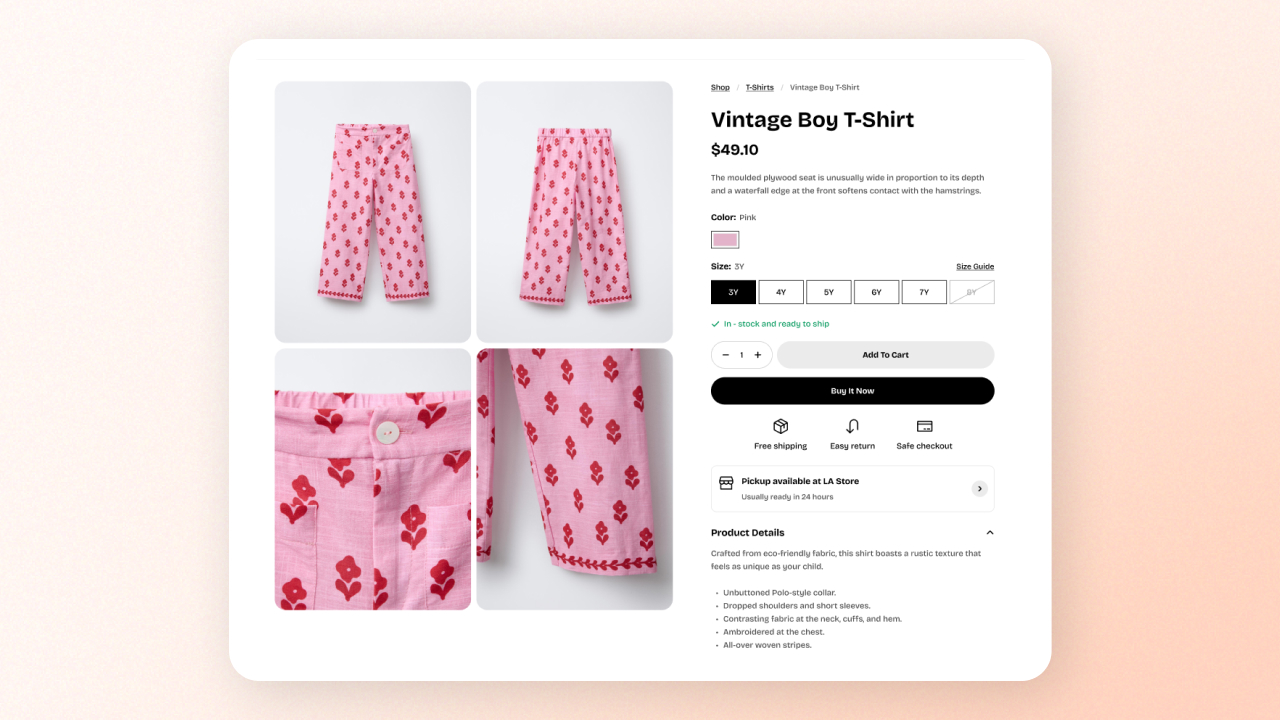
The **Product information** section is the core layout on every product page. It displays your product’s images, videos, details, buy buttons, variants, and supporting information.
This section ensures shoppers can clearly view product imagery while quickly accessing all essential buying details.
## How to navigate to the Product information section
1. In the theme editor (**Customize**), open the template selector.
2. Locate **Products**, and select a product template you want to make changes to.
3. On the left sidebar, select the **Product information** section.
4. Make necessary changes and **Save.**
## How to edit the Product information section
### Section settings
| Setting | Description |
| ----------------------------- | --------------------------------------------------------------------------------- |
| **Container** | Choose `Full width` or `Fixed (Page width)` layout. |
| **Media position** | Display product media on the **left** or **right** side of the details. |
| **Equal columns** | Makes the media and details columns equal width. |
| **Gap** | Adjust spacing between the media and details columns. |
| **Enable sticky add to cart** | Keep the add-to-cart bar visible while customers scroll through the product page. |
| **Inherit color scheme** | Use the product section’s color scheme for the sticky add-to-cart bar. |
The Product information section is made up of **2 static block groups**:
### Product media
This block automatically includes the full Product media gallery, such as images, videos, 3D models, and a thumbnails carousel.
You cannot remove this block, but its layout depends on your settings.
#### Layout
| Setting | Description |
| --------- | ----------------------------------------------------------------------------------------------- |
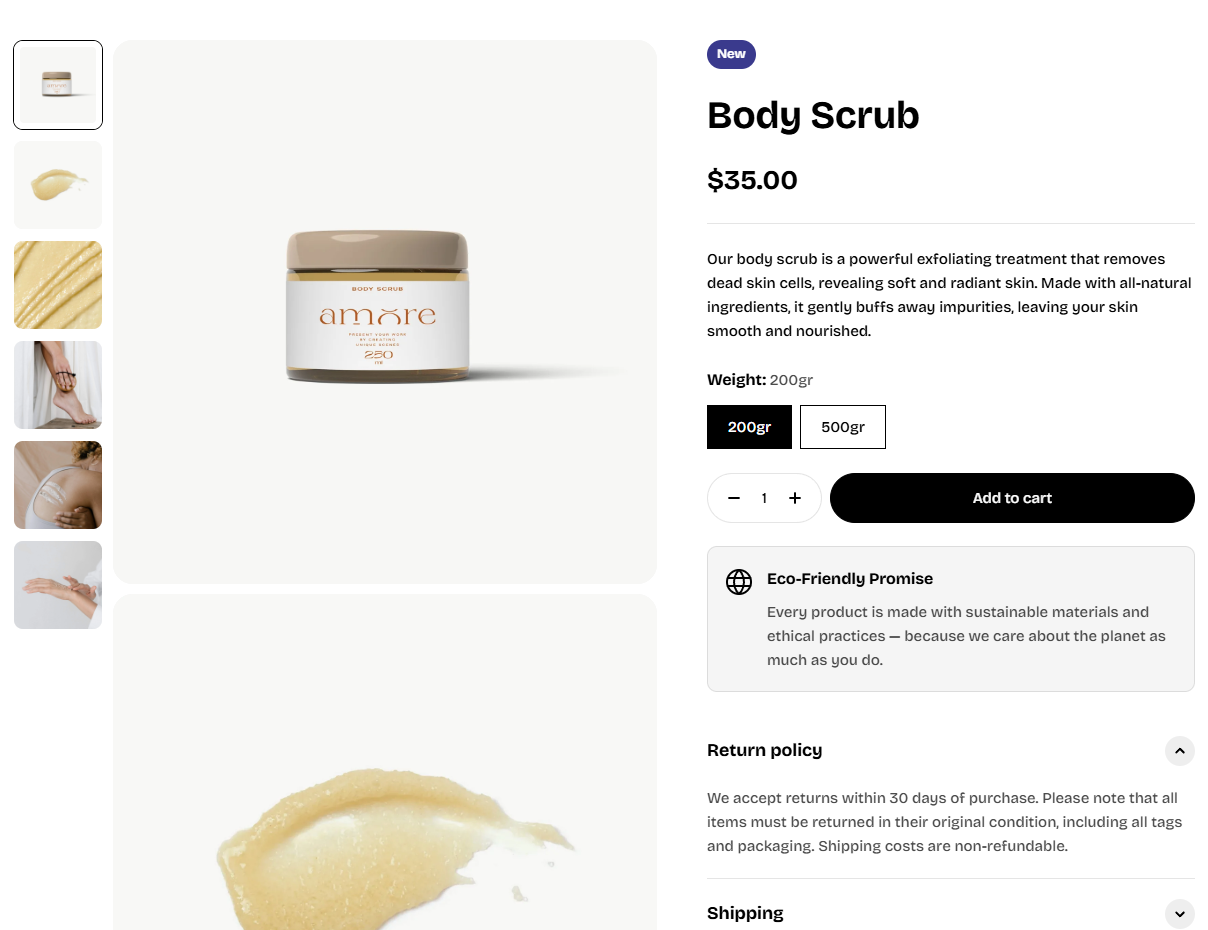
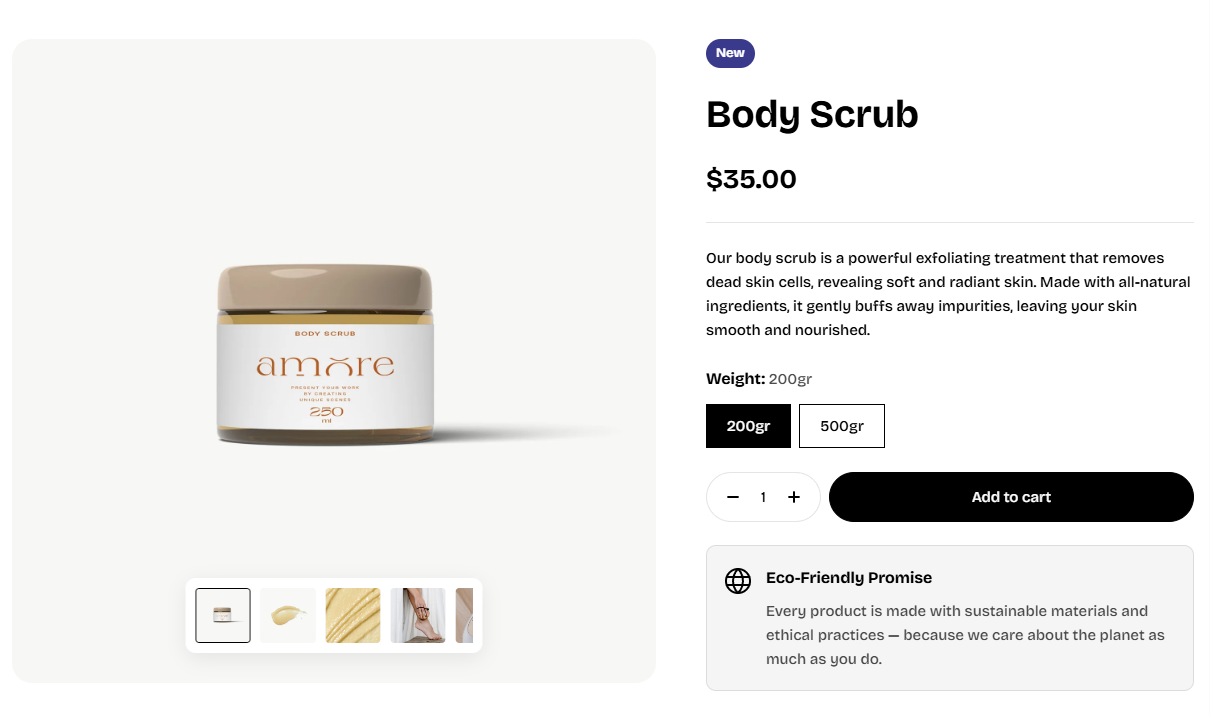
| **Style** | Choose how product media is displayed: Grid or Carousel. The carousel layout is used on mobile. |
#### Grid
| Setting | Description |
| ------------------------ | ----------------------------------------------- |
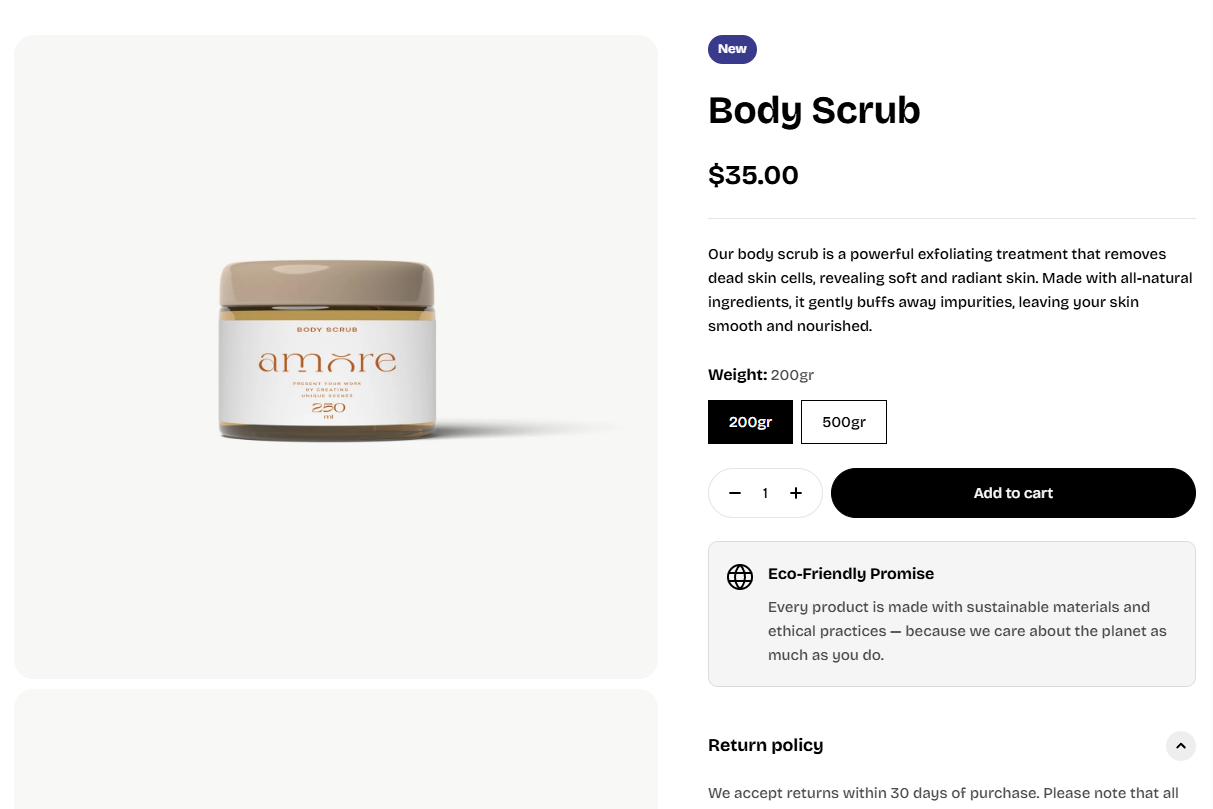
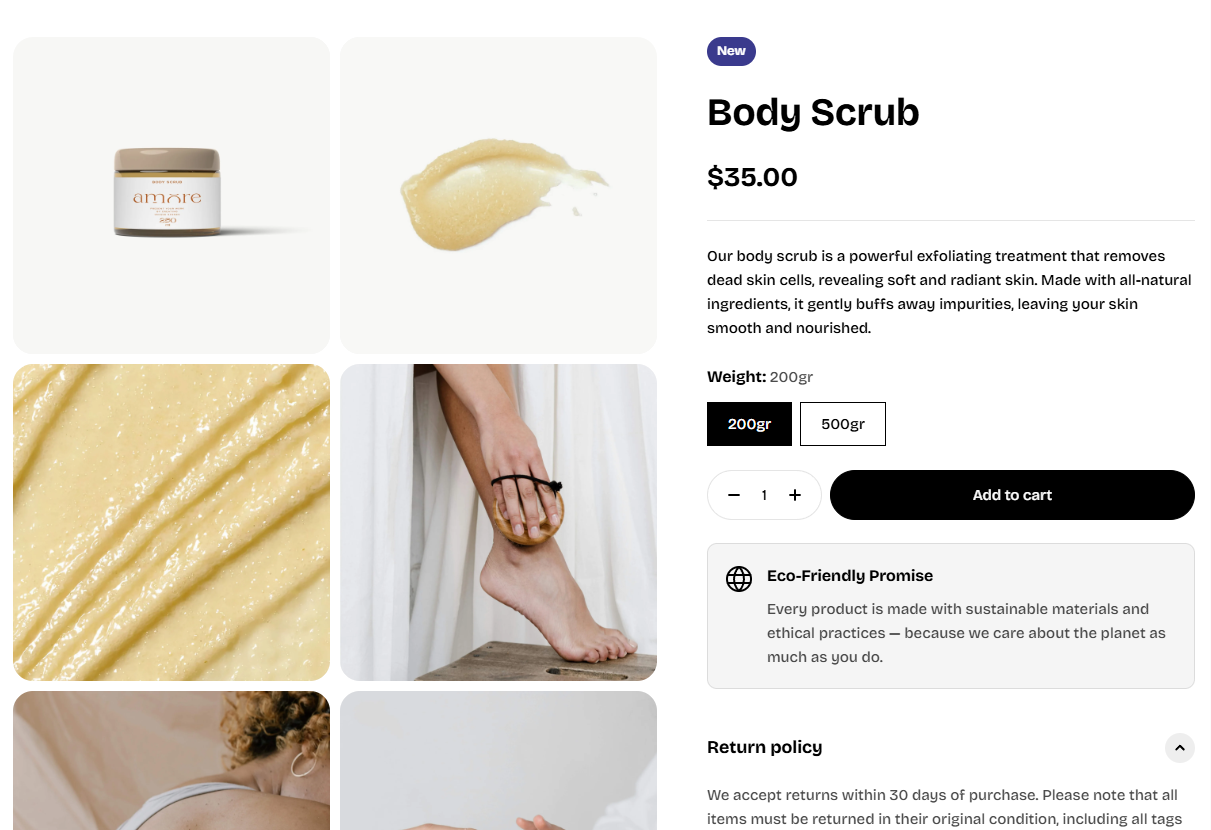
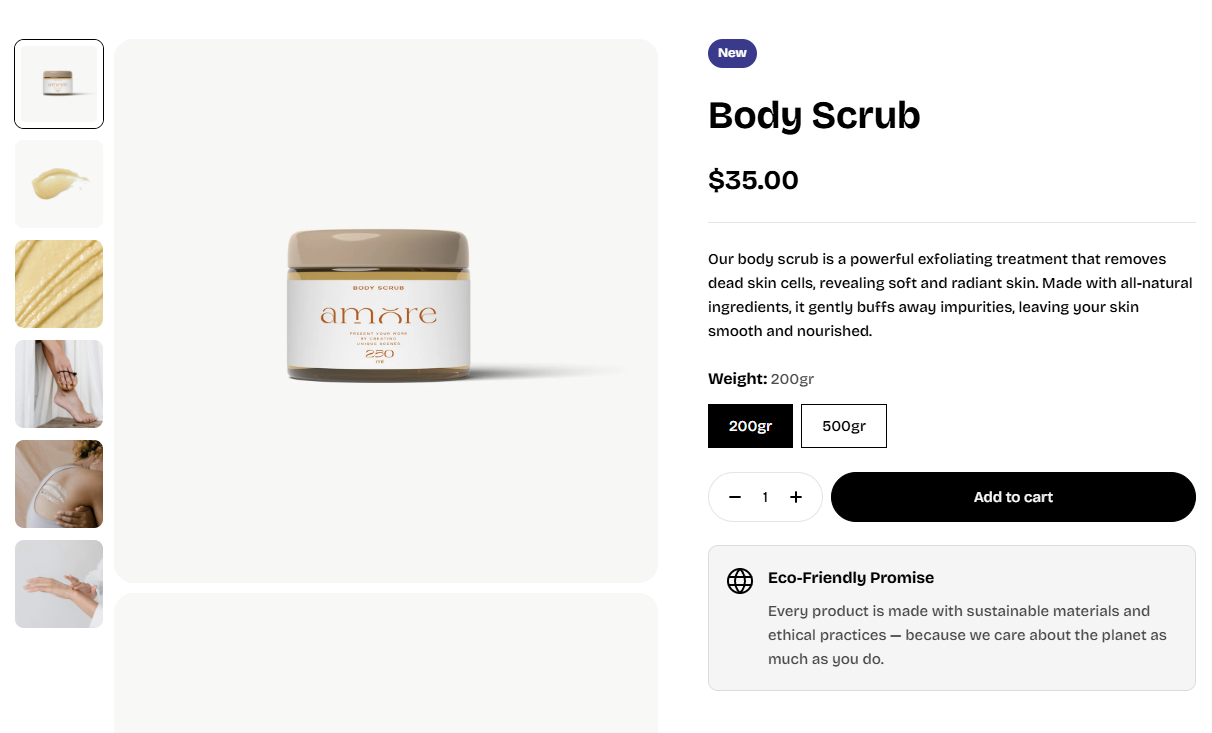
| **Layout** *(Grid only)* | Choose the media layout for the grid |
| **Gap** *(Grid only)* | Adjust the spacing between product media items. |
If **Grid** is selected as the style, choose how the product media is arranged:
#### Thumbnail
| Setting | Description |
| ----------------------- | ---------------------------------------------------------------------------------------------- |
| **Type** | Choose how thumbnails are displayed: **None**, **Inside**, or **Outside** the main media area. |
| **Aspect ratio** | Choose the aspect ratio for thumbnails on desktop. |
| **Aspect ratio mobile** | Choose the thumbnail aspect ratio on mobile, or select **Inherit** to use the desktop setting. |
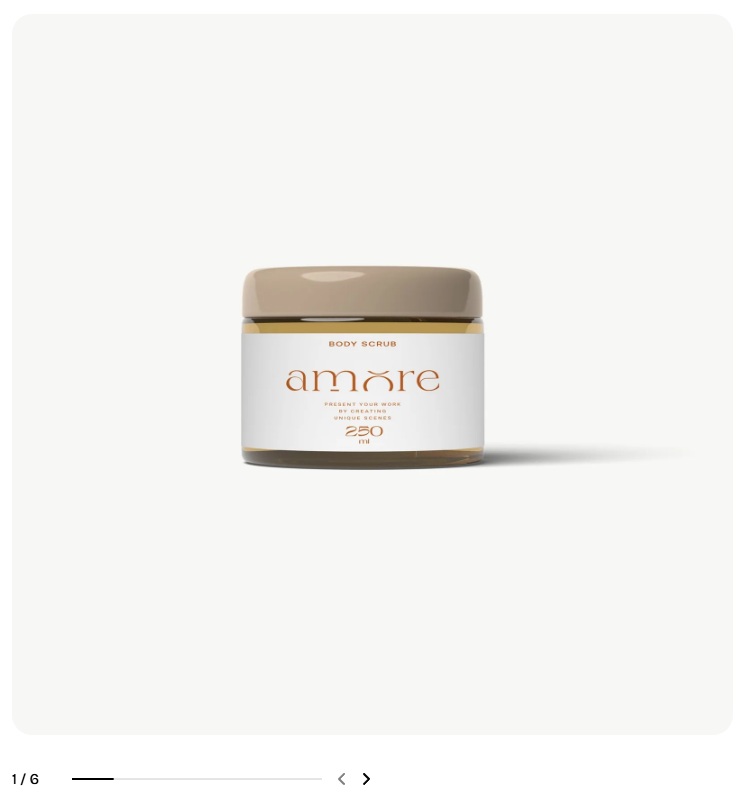
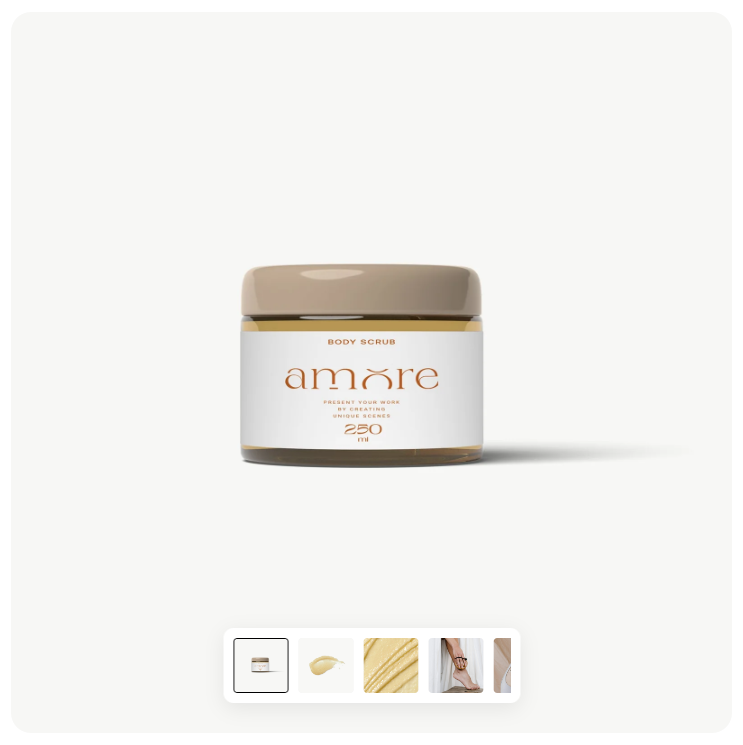
#### Media
| Setting | Description |
| ----------------------------- | -------------------------------------------------------------------------- |
| Aspect ratio | Choose the aspect ratio for product media. |
| Corner radius | Adjust the roundness of the product media corners. |
| Video autoplay | Automatically play product videos when they are displayed. |
| Enable zoom | Allow customers to zoom in on product images. |
| Hide unselected variant media | Hide media that does not belong to the currently selected product variant. |
| Extend media to screen edge | Extend the product media area to the edge of the screen. |
### Product details
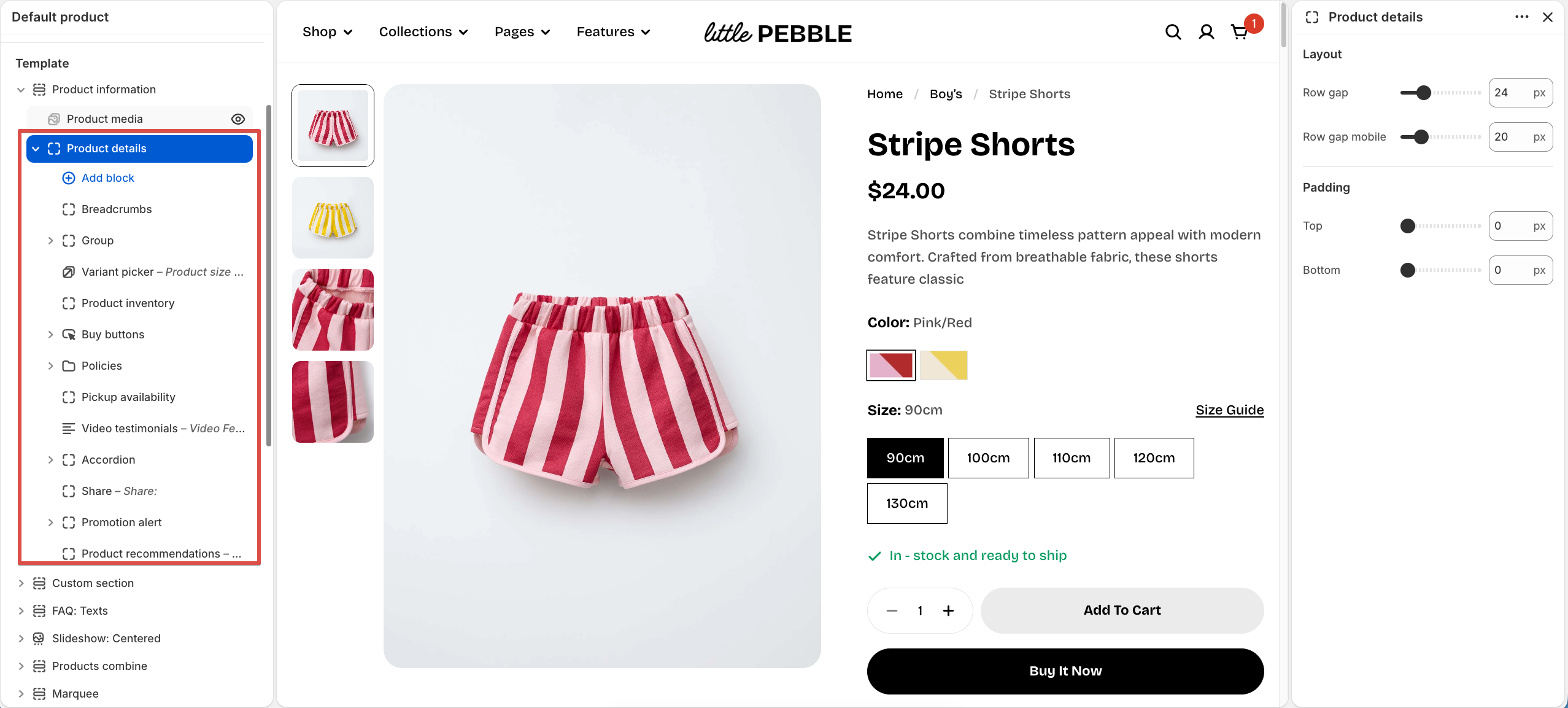
This block includes all core product detail components. You can manage the sub-blocks of the Product details area in the **Product details** section of the theme editor.
#### Breadcrumbs
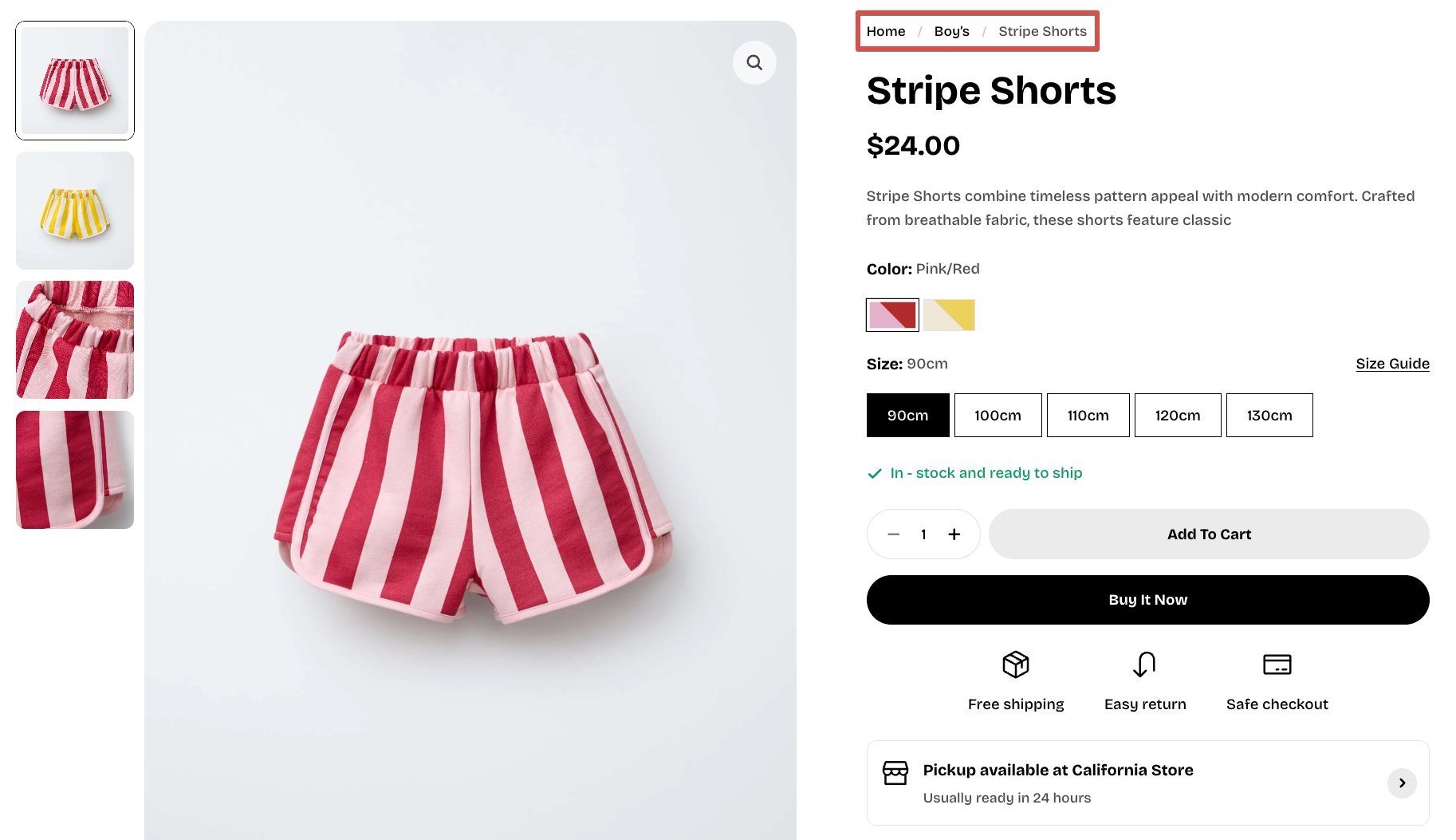
Breadcrumb is a type of secondary navigation scheme that reveals the customers’ location on the website.
By default, breadcrumbs display the name of the collection that comes first in alphabetical order (if that product is included in multiple collections).
*Want to customize breadcrumbs on product pages? Check out:* [*How to create custom breadcrumbs for individual products*](https://docs.foxecom.com/pebble-theme/collections-and-products/product-page/breadcrumbs#how-to-create-custom-breadcrumbs-for-individual-products)
#### Product title
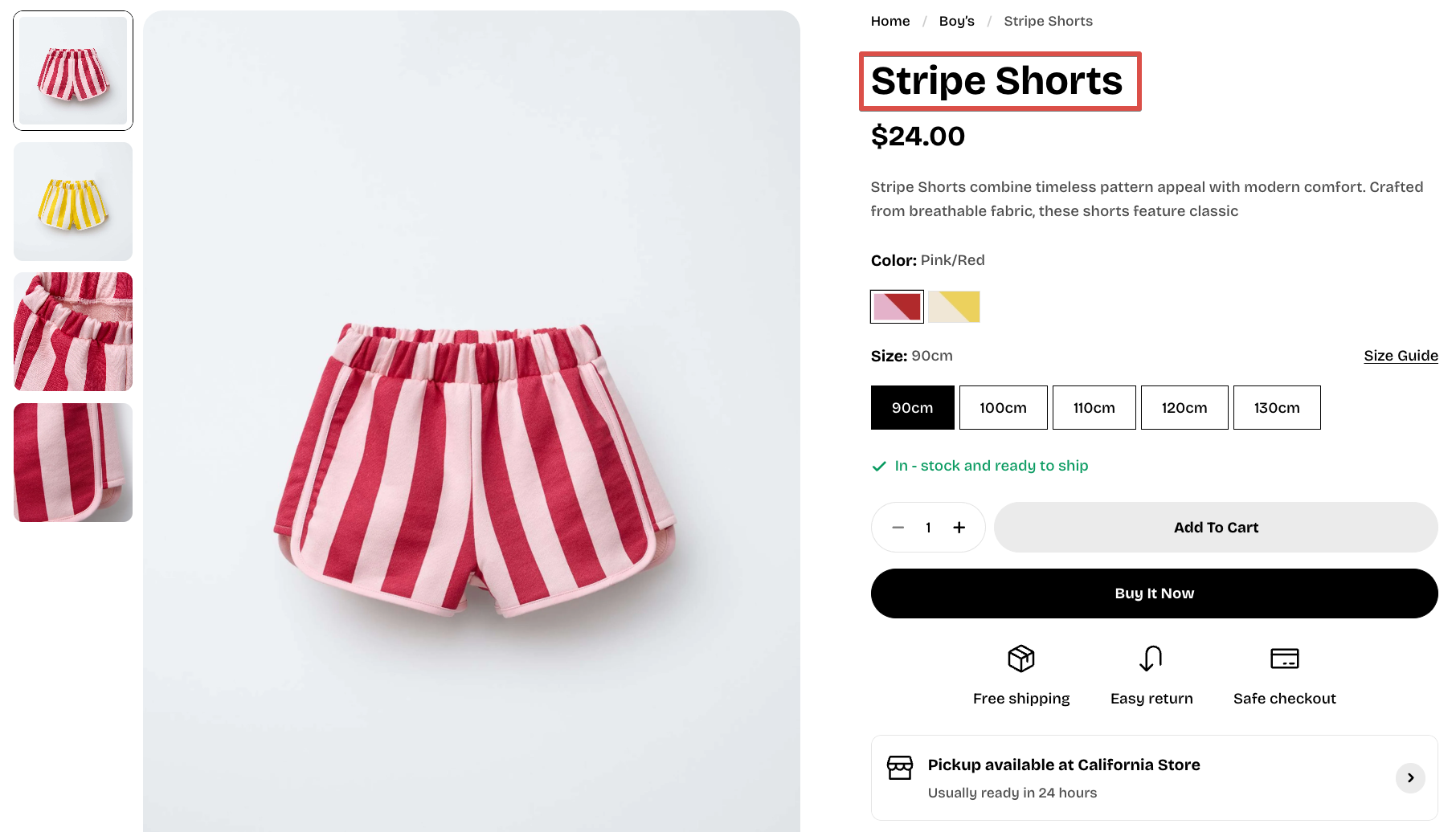
Display the product title. Change the **Text preset** and **HTML tag** as you want for it.
*Learn more:* [*Typography preset*](https://docs.foxecom.com/pebble-theme/theme-settings/typography#text-presets)
#### Product price
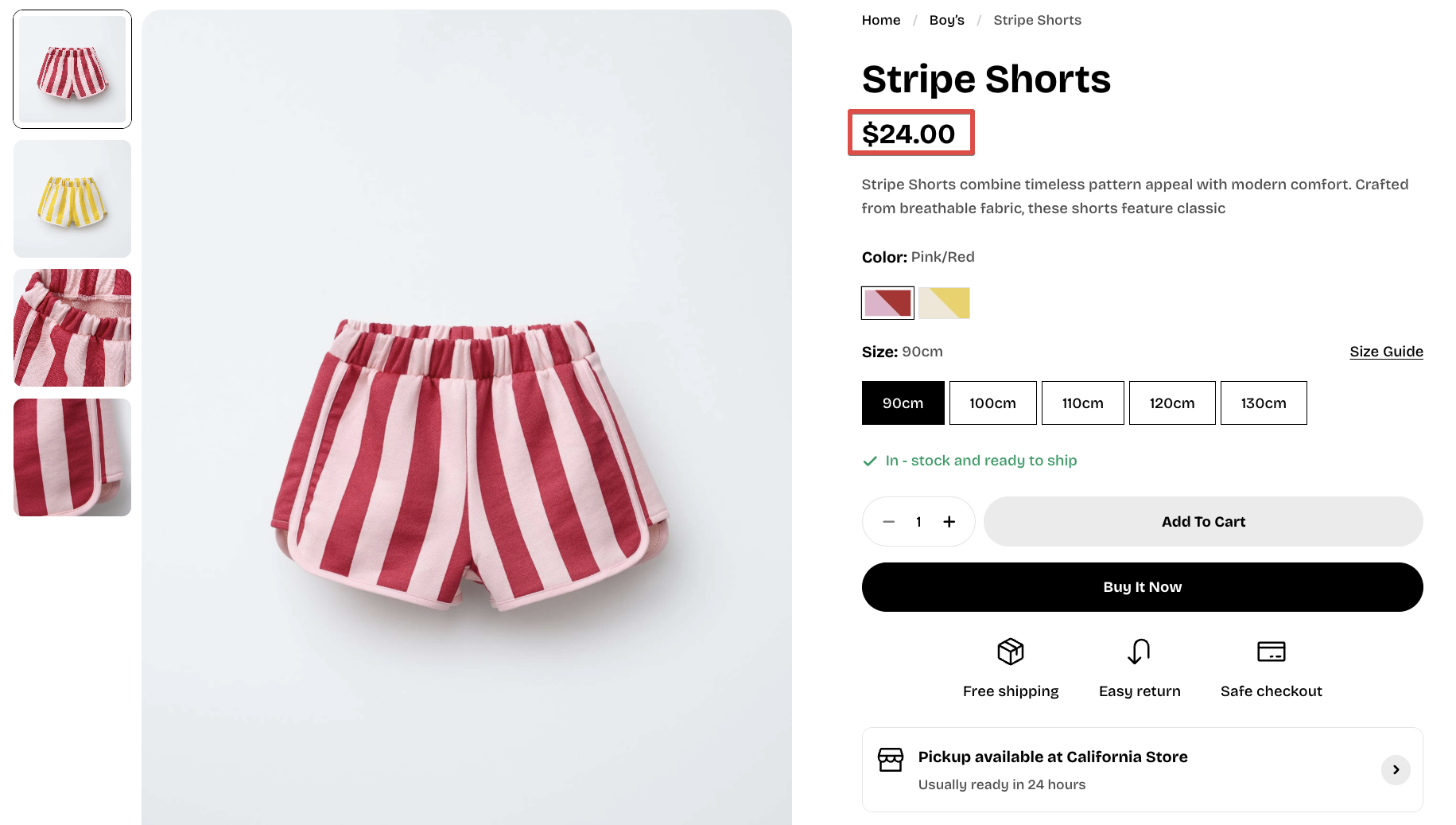
It automatically updates when shoppers select different variants and can also display compare-at price, installment options, and tax/shipping notices depending on your settings.
| Setting | Description |
| --------------------- | ---------------------------------------------------------------------------------- |
| **Show installments** | Shows Shop Pay installment messaging under the price (if set up in Shopify admin). |
| **Show tax info** | Displays tax and duties information based on your store settings. |
* To change price formatting, go to **Theme settings** > [Prices](https://docs.foxecom.com/pebble-theme/theme-settings/prices).
* To change price colors, go to **Theme settings** > [Colors](https://docs.foxecom.com/pebble-theme/theme-settings/colors) > **Color scheme 1**.
#### Description
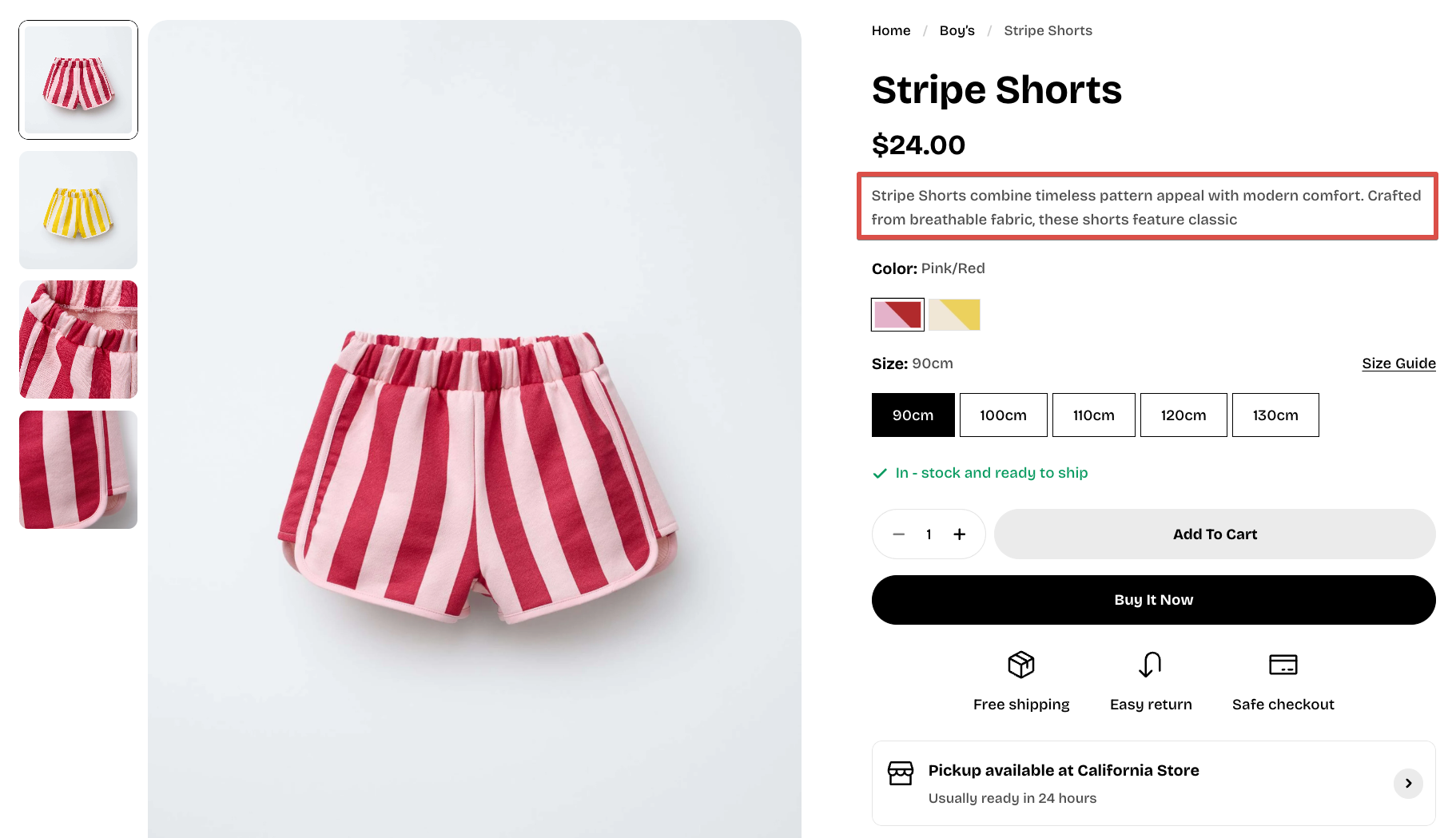
Display the product description.
✍️ *Not sure how to add a description to your product? See* [*our tutorial here*](https://youtu.be/265f0W3LQXY?si=kQCQpGV1hB_Z_lHf)*.*
#### Variant picker
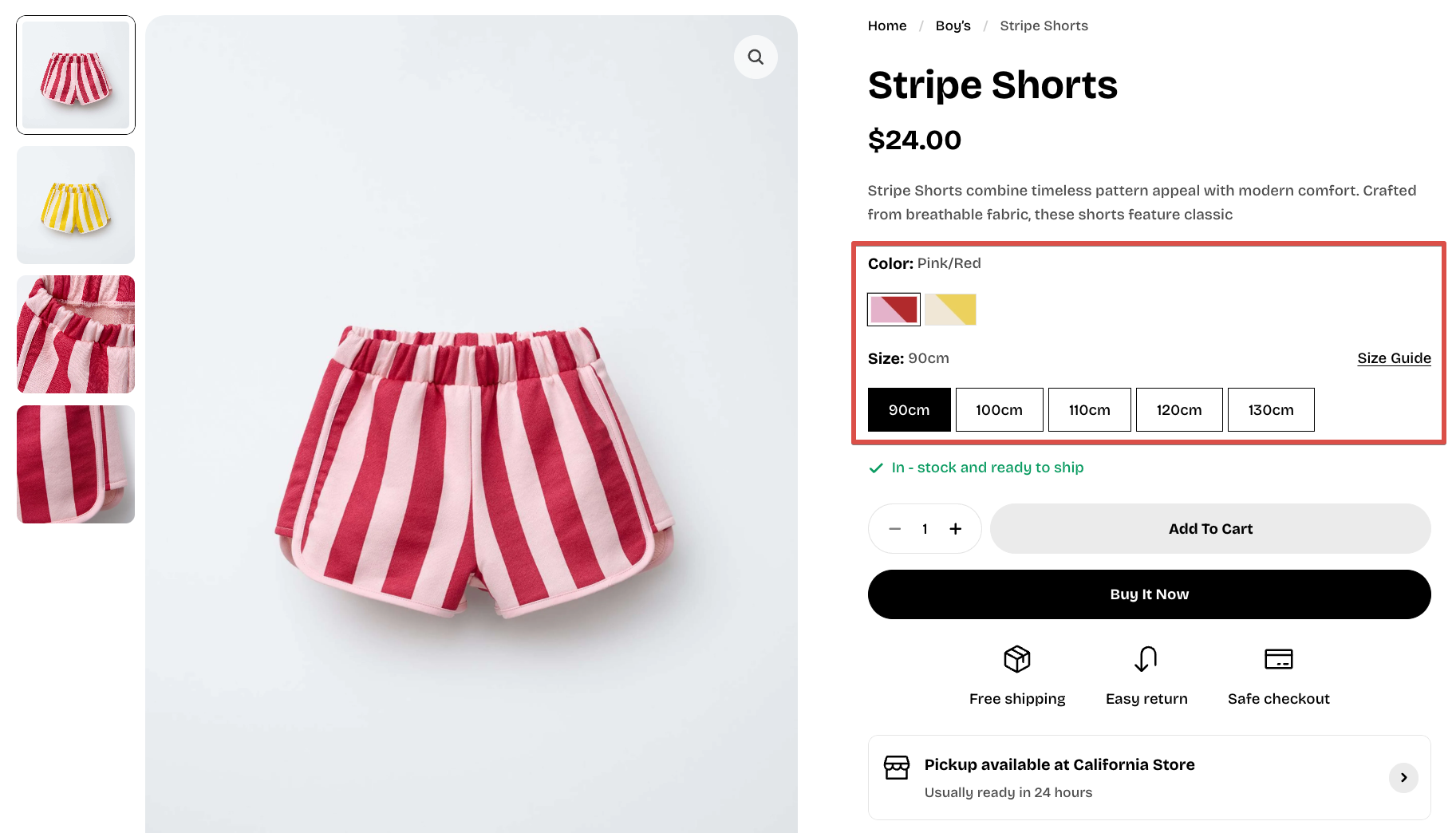
The **Variant picker** block allows shoppers to choose between product variants directly on the product page. It updates the selected variant, price, media gallery, availability, and add-to-cart button automatically.
##### **Variant styles**
Choose how product variant options are displayed to customers.
| Setting | Description |
| ------- | ----------------------------------------------------------------------- |
| Style | Choose how product variants are displayed: **Dropdown** or **Buttons**. |
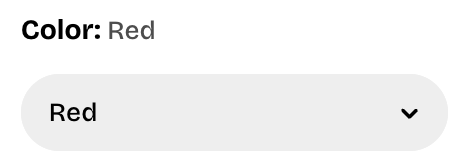
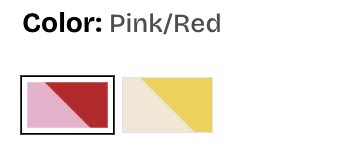
Customize how product variants are displayed, including swatches, variant images, shape, size, and corner radius:
| Setting | Description |
| ---------------------------------------- | ----------------------------------------------------------------------------------------------------------------------------------------------------------------------------------------------------------------------------------------------------------- |
| **Show swatches** | Converts color options into color/pattern circles or squares.
[*Learn how to add color swatches using category metafields in Shopify*](https://help.shopify.com/en/manual/custom-data/metafields/category-metafields/using-category-metafields) |
| **Show variant images** | Shows variant preview images inside the swatch (if available).
[*Learn more on how to add images to product variants*](https://help.shopify.com/en/manual/products/product-media/add-images-variants) |
| **Swatch shape** *(Show swatches only)* | Choose the swatch shape: **Circle** or **Custom**. |
| **Swatch width** *(Show swatches only)* | Adjust the width of the variant swatches. |
| **Swatch height** *(Show swatches only)* | Adjust the height of the variant swatches. |
| **Corner radius** | Adjust the roundness of the swatch corners. A higher value creates more rounded corners. |
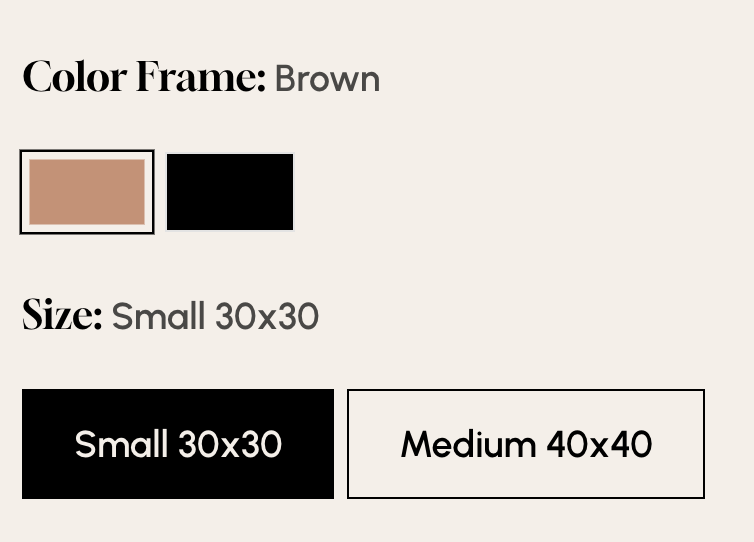
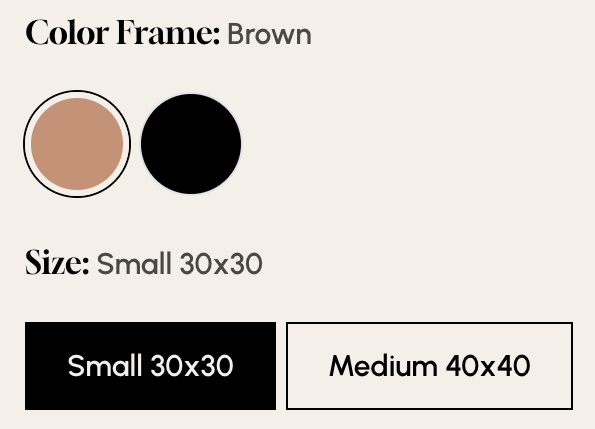
Turning **Show swatches** on doesn't turn every option into a swatch. The option has to be connected to Shopify's **Color** category metafield first — that's what tells the theme which color to paint each value. Learn more about [Category metafield](https://help.shopify.com/manual/custom-data/metafields/category-metafields).
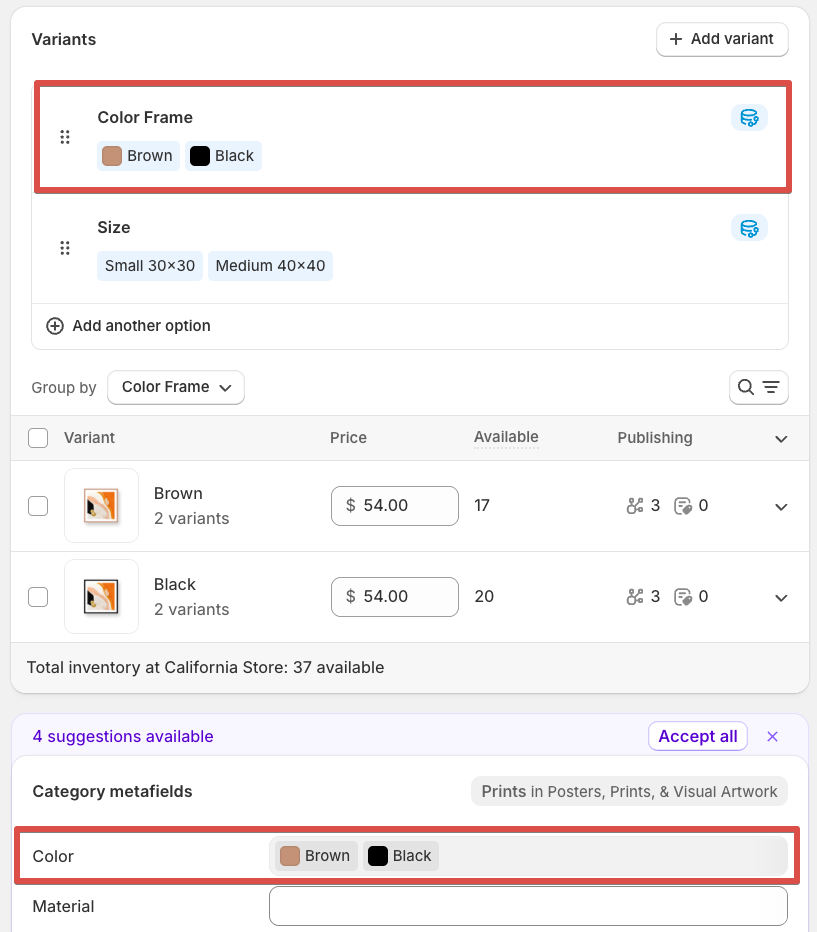
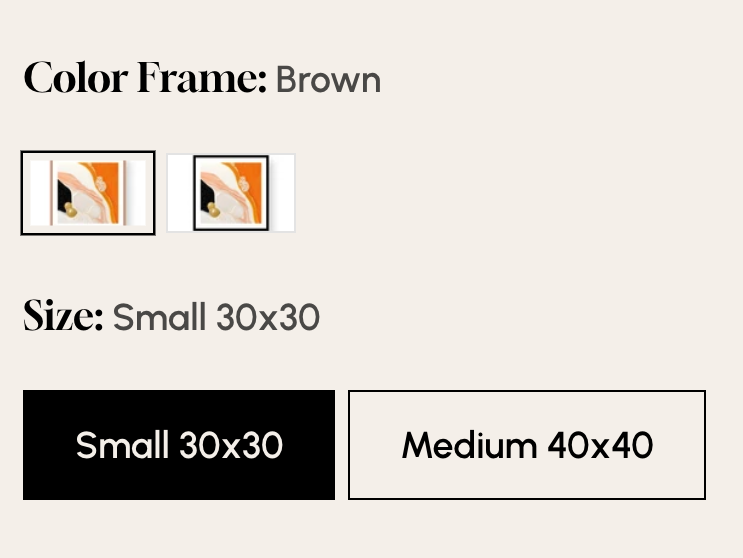
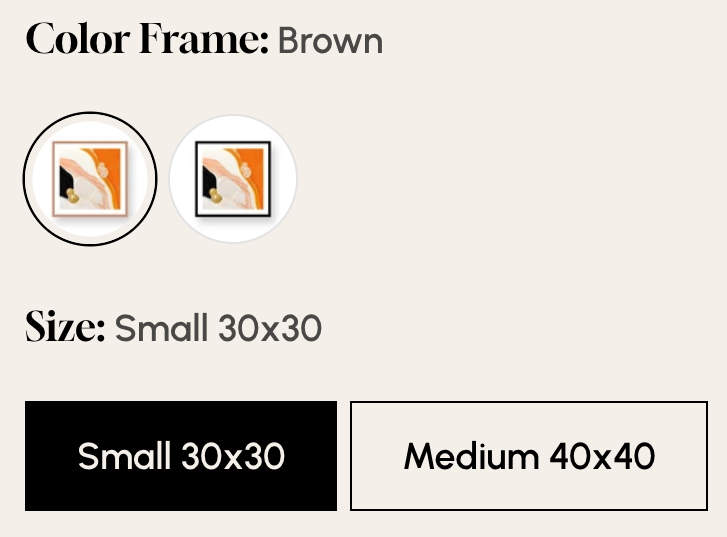
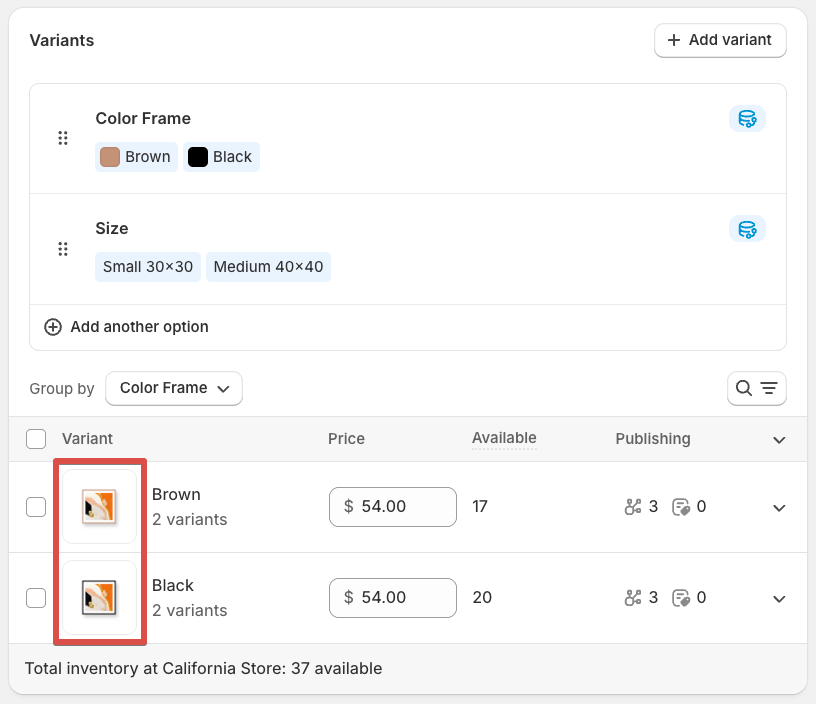
To set up variant images, go to **Shopify Admin > Products > Choose a product**, then add the appropriate image to each variant.
##### **Size chart**
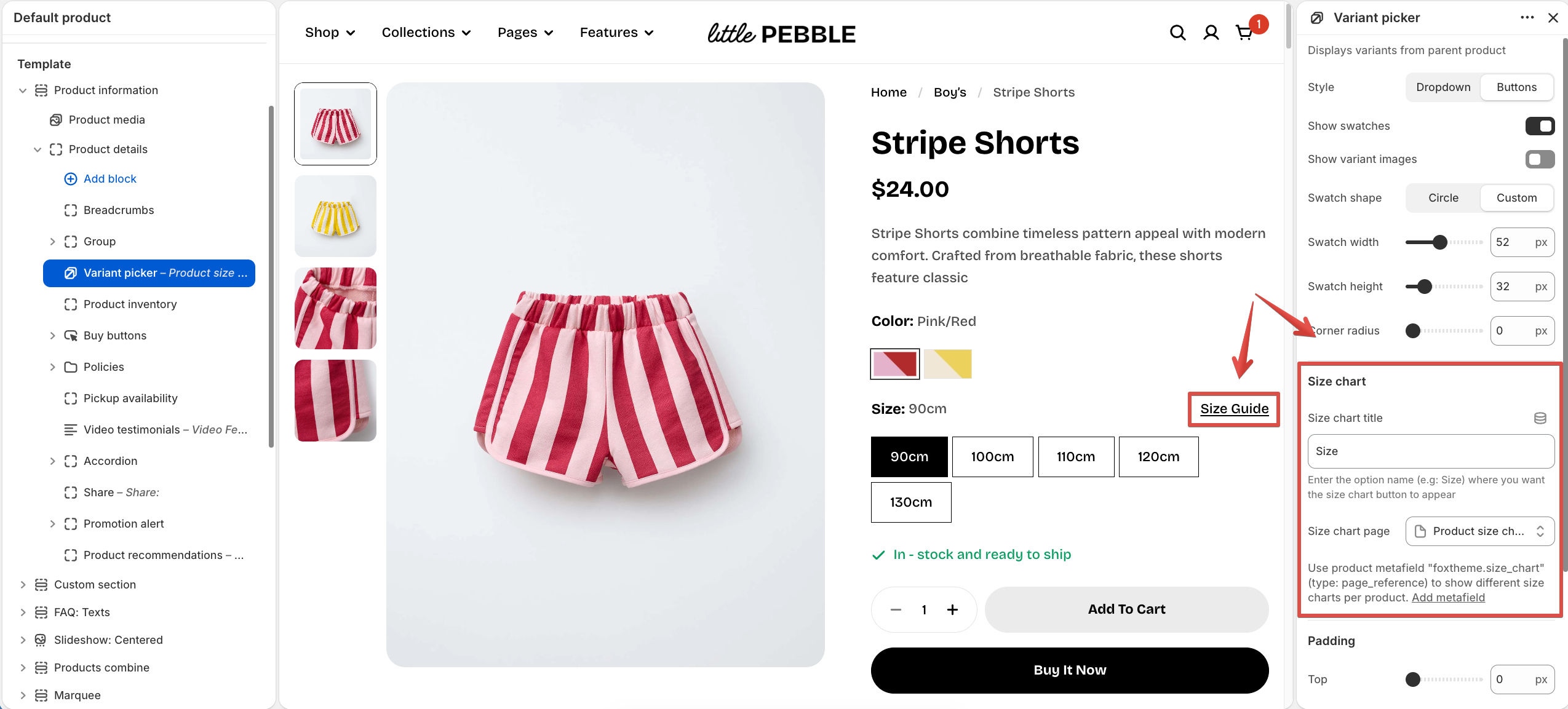
| Setting | Description |
| ---------------- | --------------------------------------------------------------------------------------------------- |
| Size chart title | Enter the product option name where you want the size chart button to appear, for example **Size**. |
| Size chart page | Select the page that contains your size chart content. |
**Want to use a different size chart for each product?**
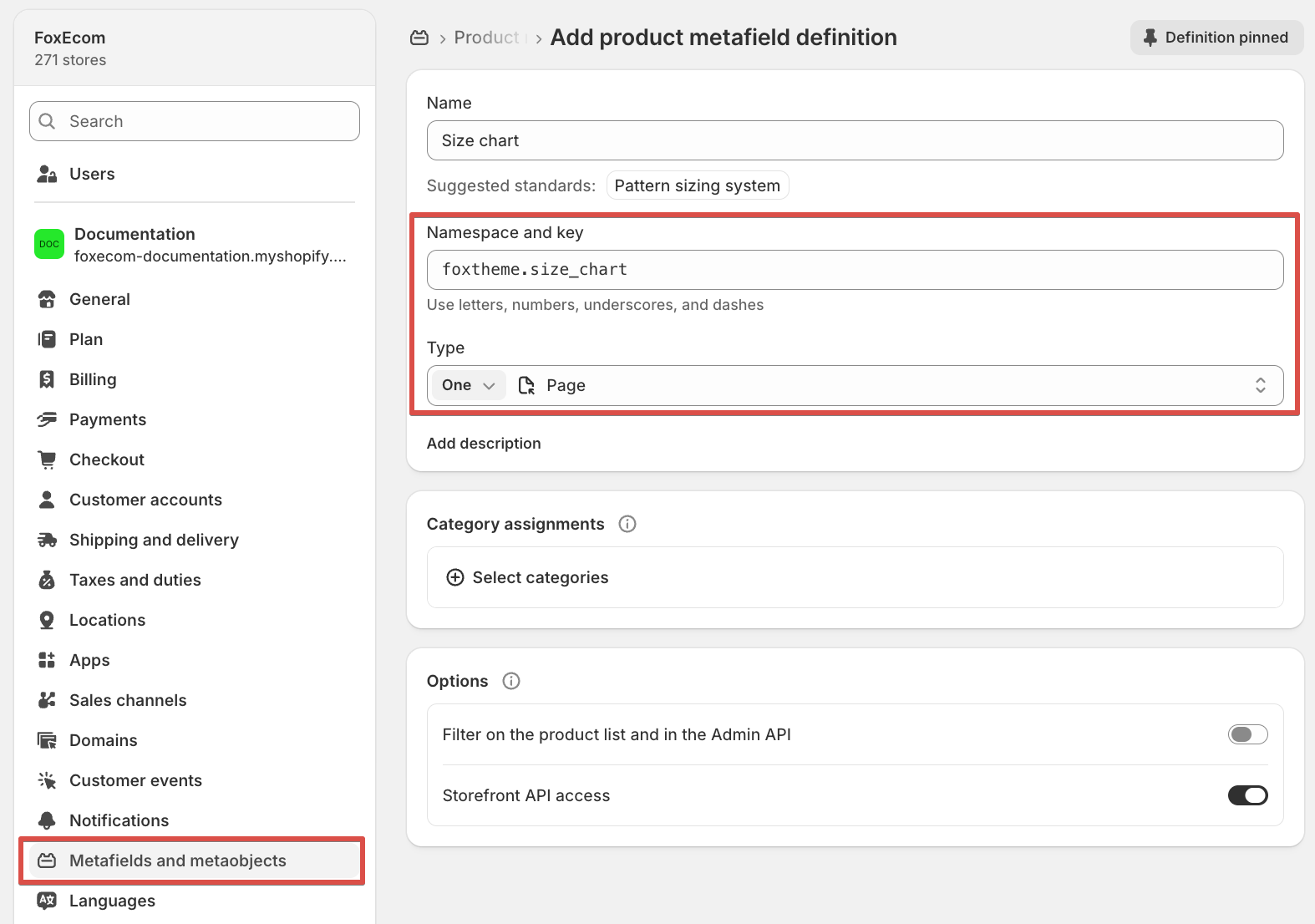
To display a different size chart for each product, create a [product metafield](https://help.shopify.com/en/manual/custom-data/metafields) with the following settings:
* **Namespace and key:** `foxtheme.size_chart`
* **Type:** Page
#### Video testimonials
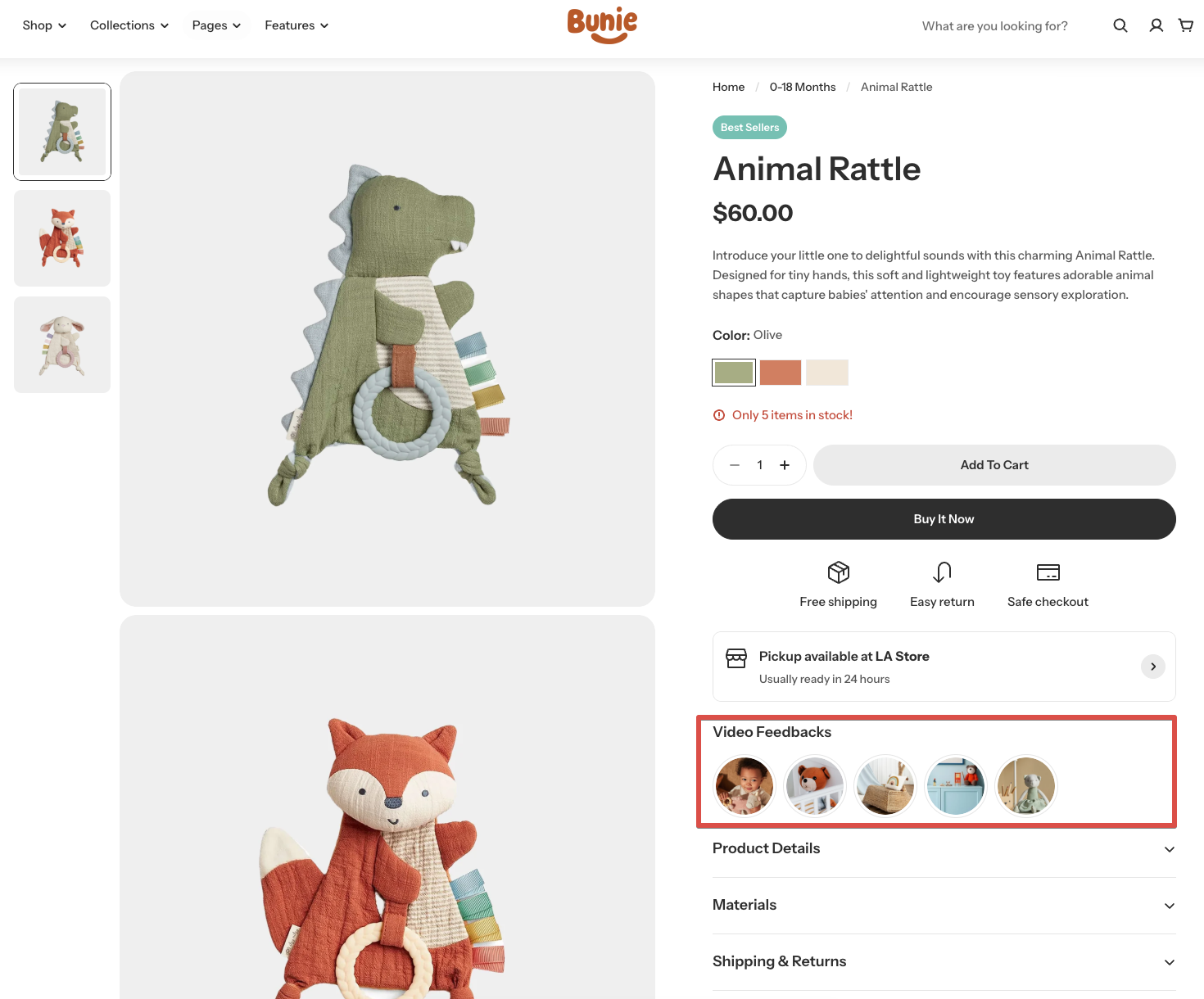
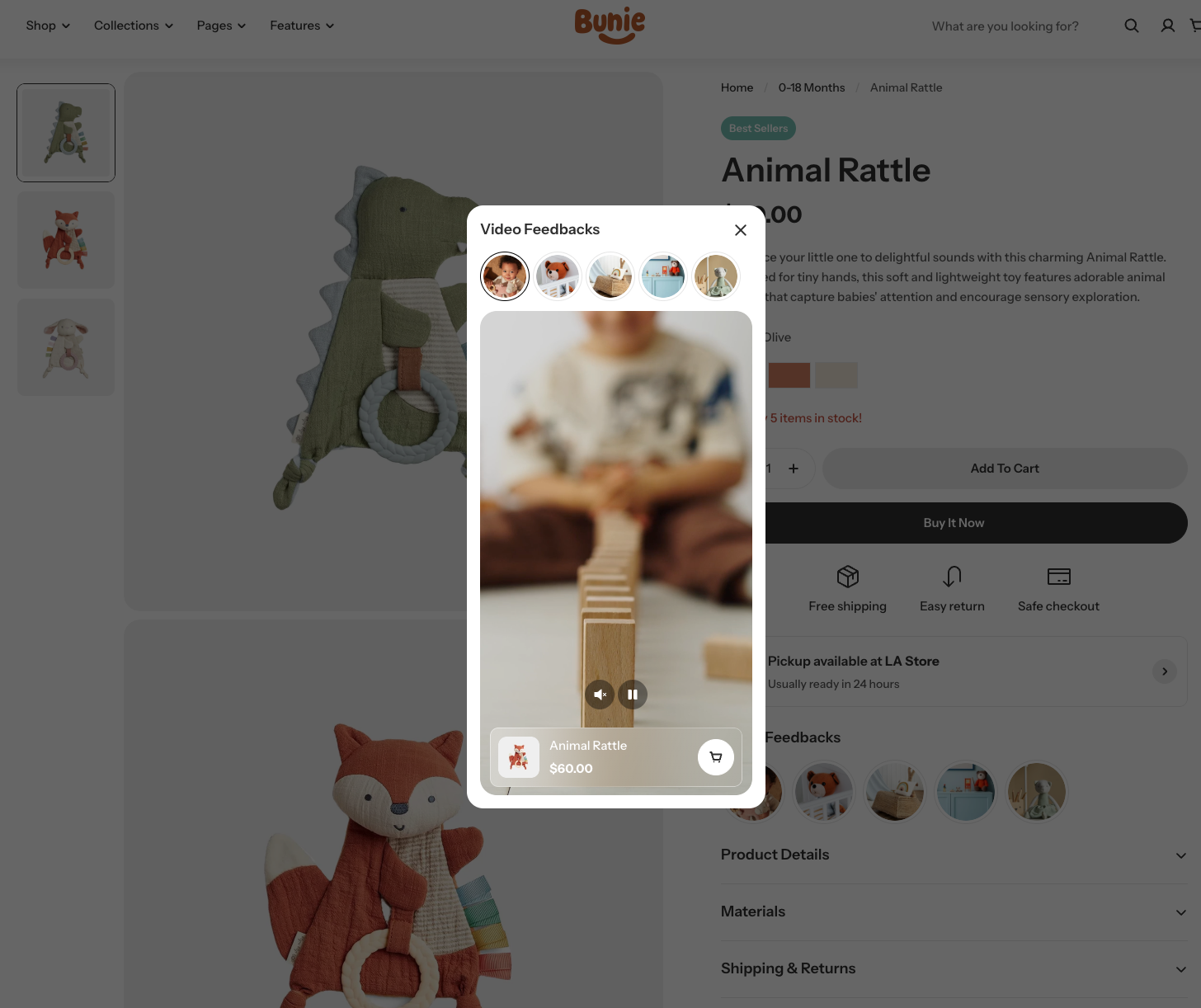
The **Video testimonials** block lets you display short customer videos directly on your product page. Shoppers can tap a thumbnail to open a full video viewer — complete with swipeable navigation and a product card overlay — making it easy to build trust and drive conversions through authentic social proof.
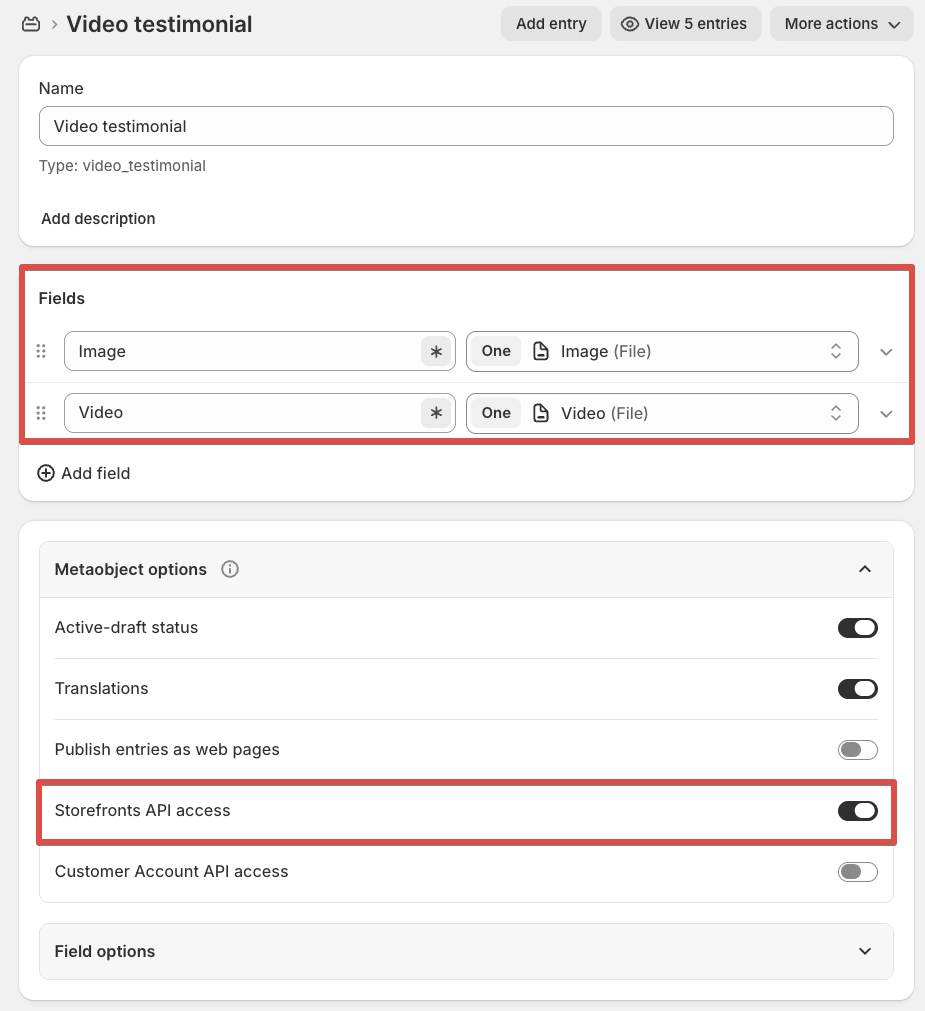
**Step 1: Create the metaobject definition**
1. In your Shopify admin, go to **Settings** > **Metafields and metaobjects**.
2. Go to the **Metaobjects** tab, then click **Add definition**.
3. Add the following two fields:
* Image (File)
* Video (File)
4. Under **Metaobject options**, enable **Storefronts API access**.
5. Click **Save**.
**Step 2: Create the product metafield definition**
This connects the metaobject to your products so Pebble theme can read the data:
1. In your Shopify admin, go to **Settings** → **Metafields and metaobjects**.
2. Click the **Metafields** tab, then select **Products**.
3. Click **Add definition**.
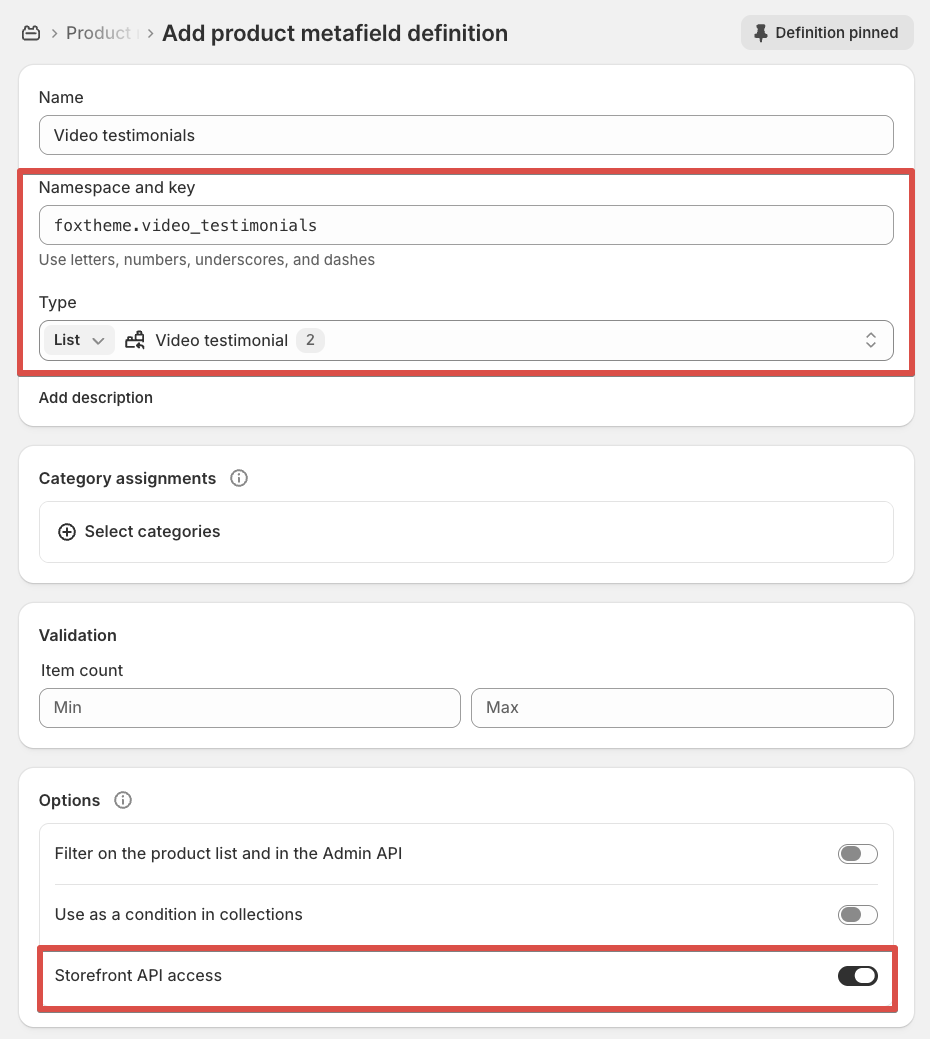
4. Fill in the fields exactly as follows:
* **Namespace and key**: `foxtheme.video_testimonials`
* **Type**: List of Metaobject → select **Video testimonial** metaobject you've created
5. Under **Metaobject options**, enable **Storefronts API access**.
6. Click **Save**.
The **namespace and key** must be exactly `foxtheme.video_testimonials` — this is what the theme code looks for. Any variation will cause the block not to display.
**Step 3: Add testimonial entries**
Each entry represents one testimonial — a thumbnail image paired with a video file.
1. In your Shopify admin, go to **Content** > **Metaobjects**.
2. Select the **Video testimonial** definition.
3. Click **Add entry**.
4. Upload a **thumbnail image** (the circular preview shoppers click to open the video) and a **video file**.
5. Set the status to **Active**.
6. Click **Save**.
Repeat for every testimonial you want to use. Each entry can be reused across multiple products — all linked products are listed in the **References** panel of the entry.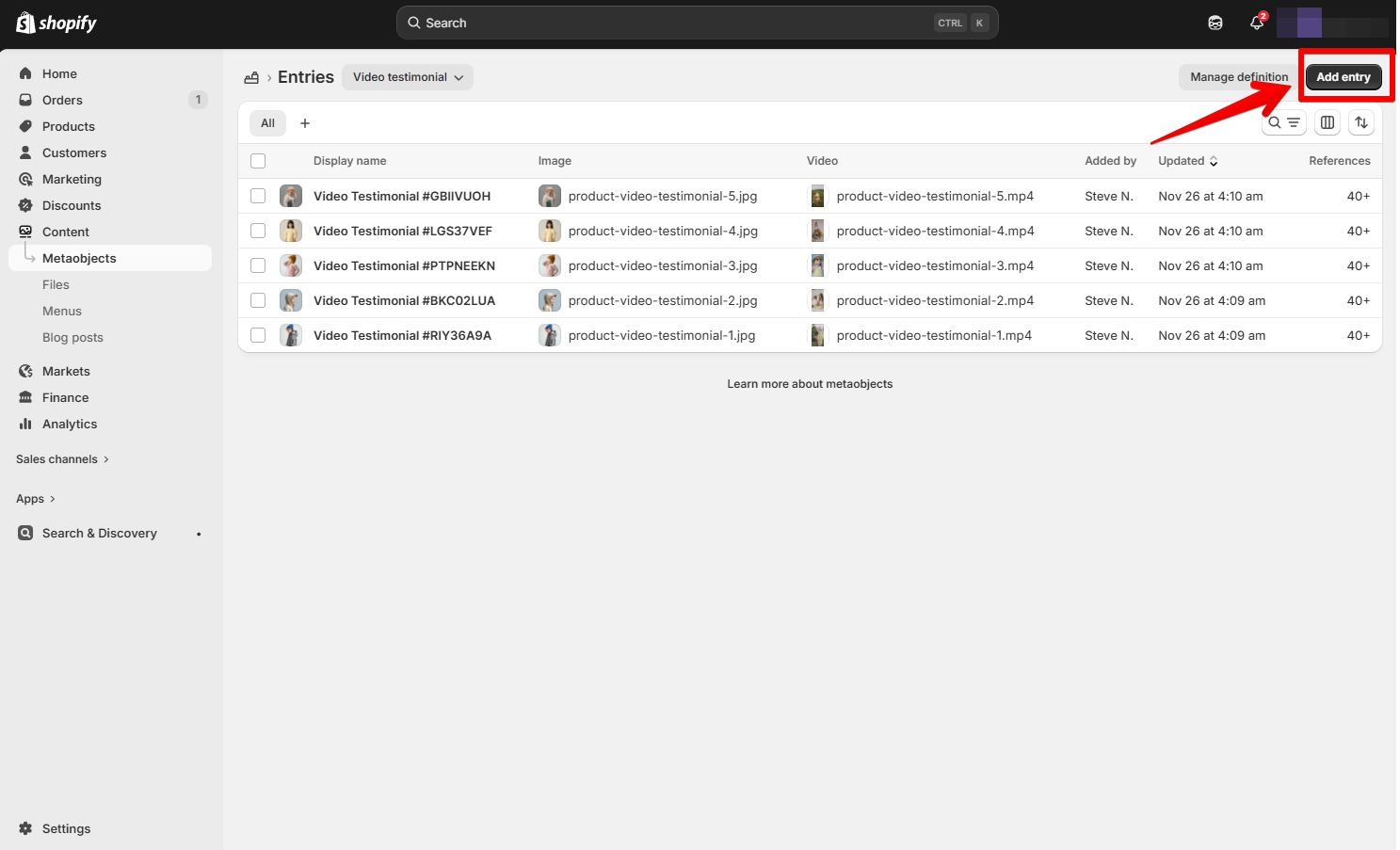
**Step 4: Link testimonials to a product**
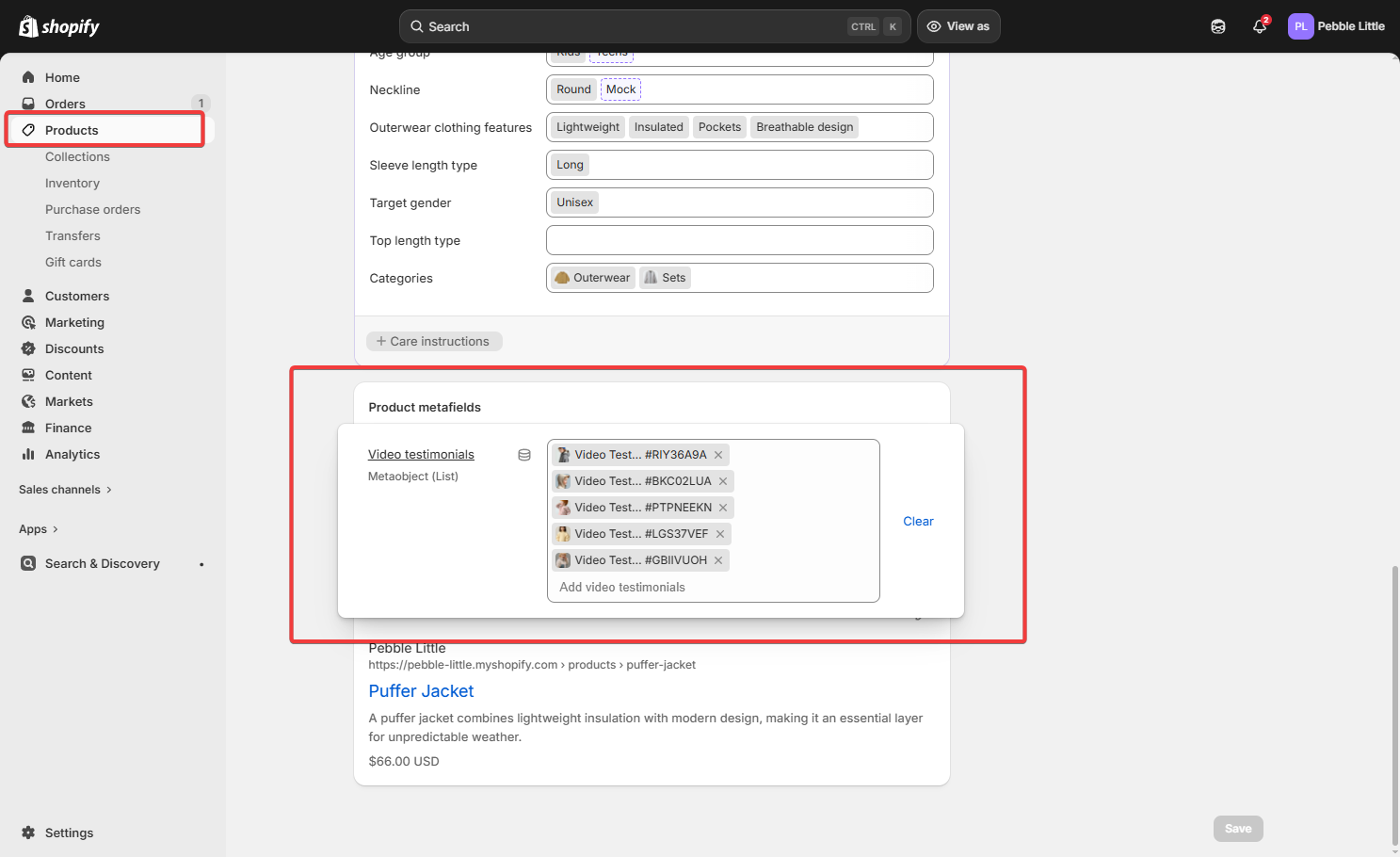
Once you have entries, you connect them to a product via a product metafield:
1. Go to **Products** and open the product you want to add testimonials to.
2. Scroll down to the **Metafields** section.
3. Find the metafield Video testimonials and click to edit it.
4. Select all the testimonial entries you want to display for this product.
5. Click **Save**.
**Step 5: Add the block in the theme editor**
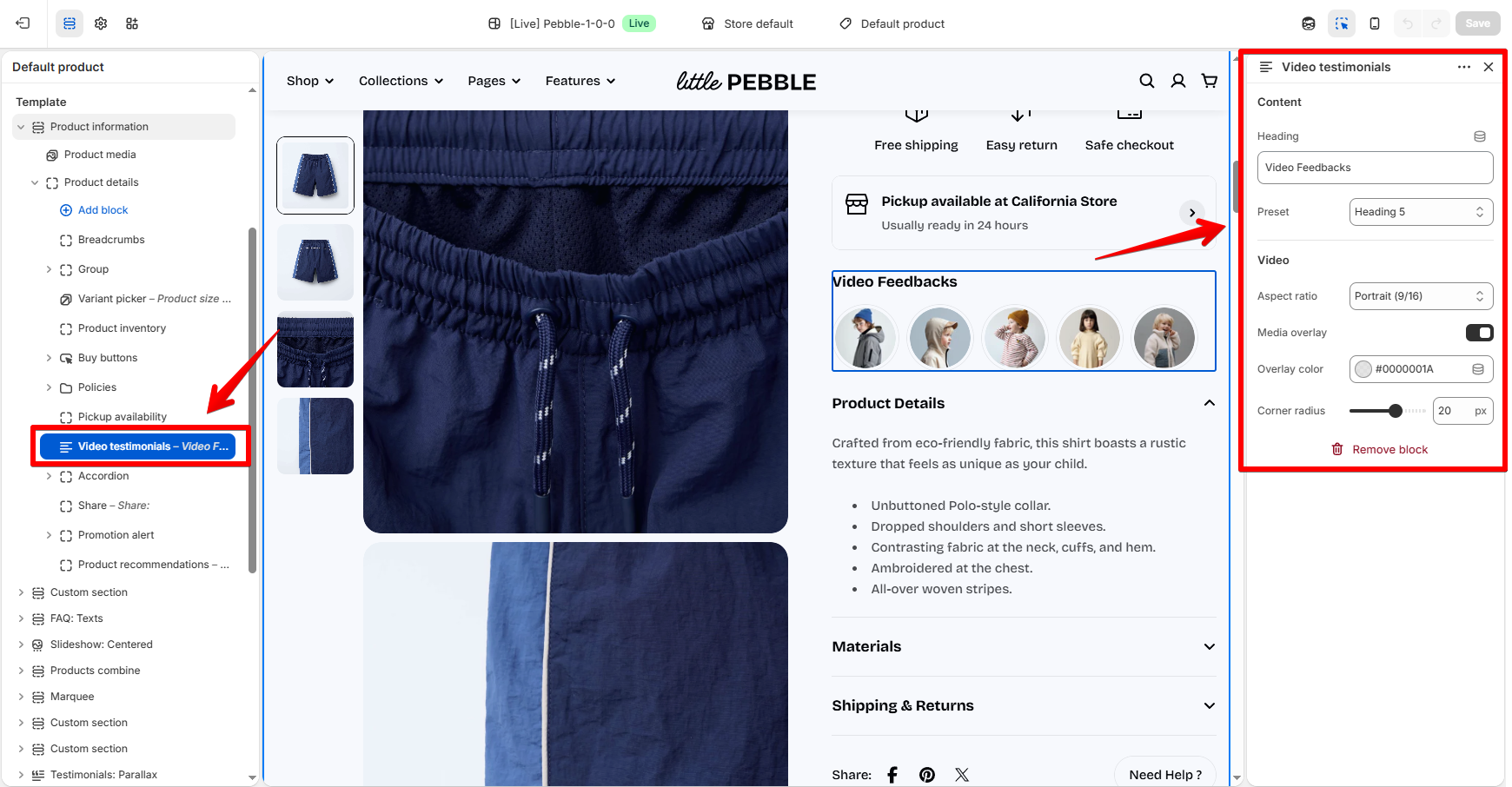
1. In the theme editor (**Customize**), navigate to the product page template.
2. In the **Product details** sidebar, click **Add block**.
3. Select **Video testimonials**.
4. Configure the block settings (see below) and click **Save**.
| Setting | Description |
| ----------------- | ---------------------------------------------------------------------------------------------------------------------- |
| **Heading** | Sets the heading text displayed above the video testimonials. |
| **Preset** | Selects the heading style preset used for the section title. |
| **Aspect ratio** | Sets the shape of the video player. Options include Square (1:1), Portrait (4:5), Portrait (3:4), and Portrait (9:16). |
| **Media overlay** | Adds a color overlay on top of the video. |
| **Overlay color** | Sets the overlay color and opacity. Only applies when **Media overlay** is enabled. |
| **Corner radius** | Adjusts the roundness of the video player corners. |
#### Buy buttons
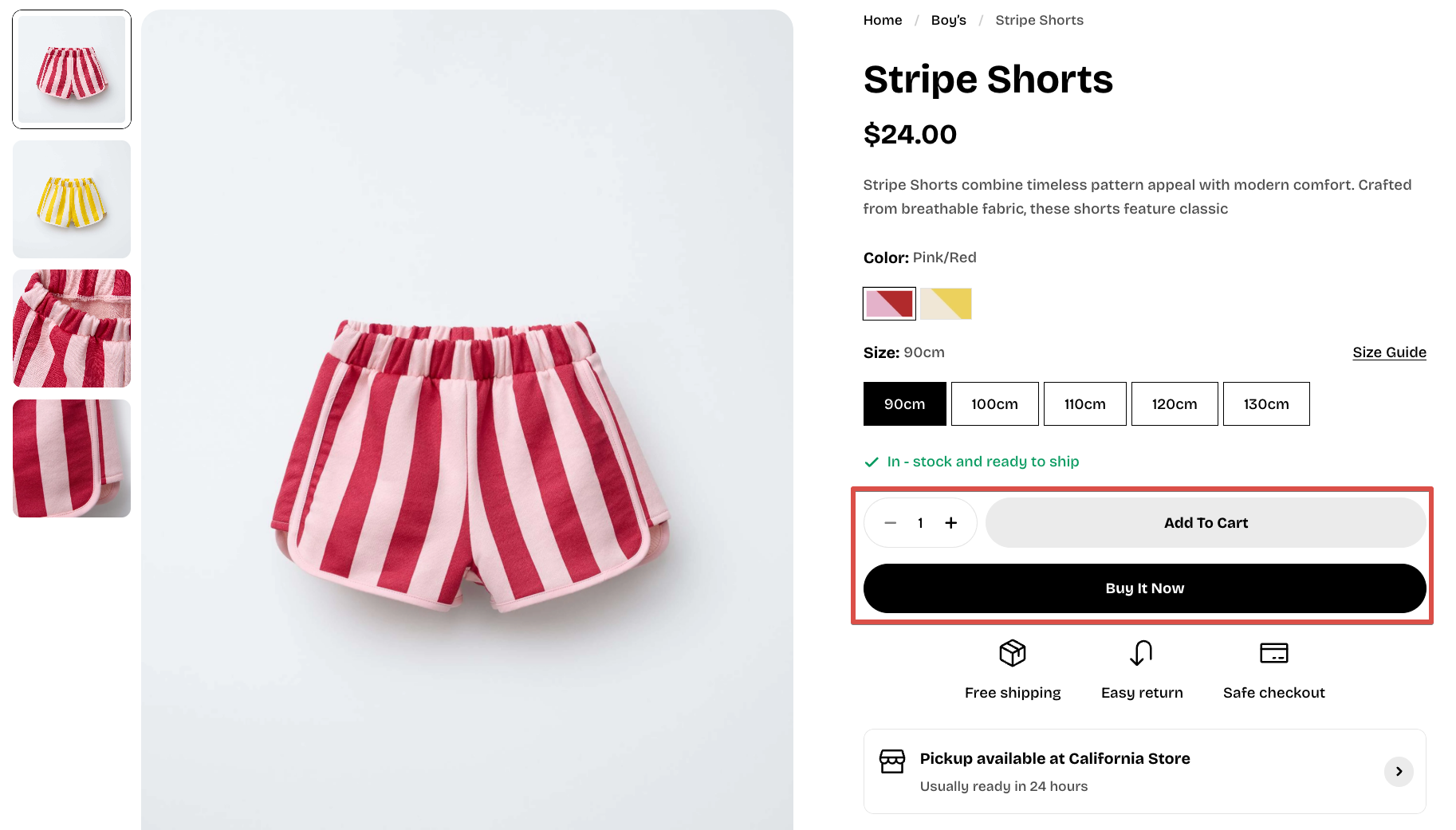
The **Buy buttons** block powers all purchase actions on your product page. It includes the Add to Cart button, quantity selector, accelerated checkout buttons (Shop Pay, Apple Pay, Google Pay…), and **optional gift card recipient form (if the product is a gift card)**. [*Learn more: Gift wrapping*](https://docs.foxecom.com/pebble-theme/theme-settings/cart#gift-wrapping)
The **Buy buttons** include 3 private static blocks:
| Blocks | Description |
| ------------------------ | -------------------------------------------------------------------------------------------------------------------------------------------------------------------------------------------------------------------------- |
| **Quantity** | Display a quantity selector inside the Buy buttons area. It allows shoppers to choose how many items they want to add to cart. |
| **Add to cart** | Display the main action button that adds a selected variant to the customer’s cart. |
| **Accelerated checkout** | Display fast-checkout buttons depending on the customer’s device and Shopify Payments configuration.
[*Learn more about Accelerated checkout buttons*](https://help.shopify.com/manual/online-store/dynamic-checkout) |
#### Product badges
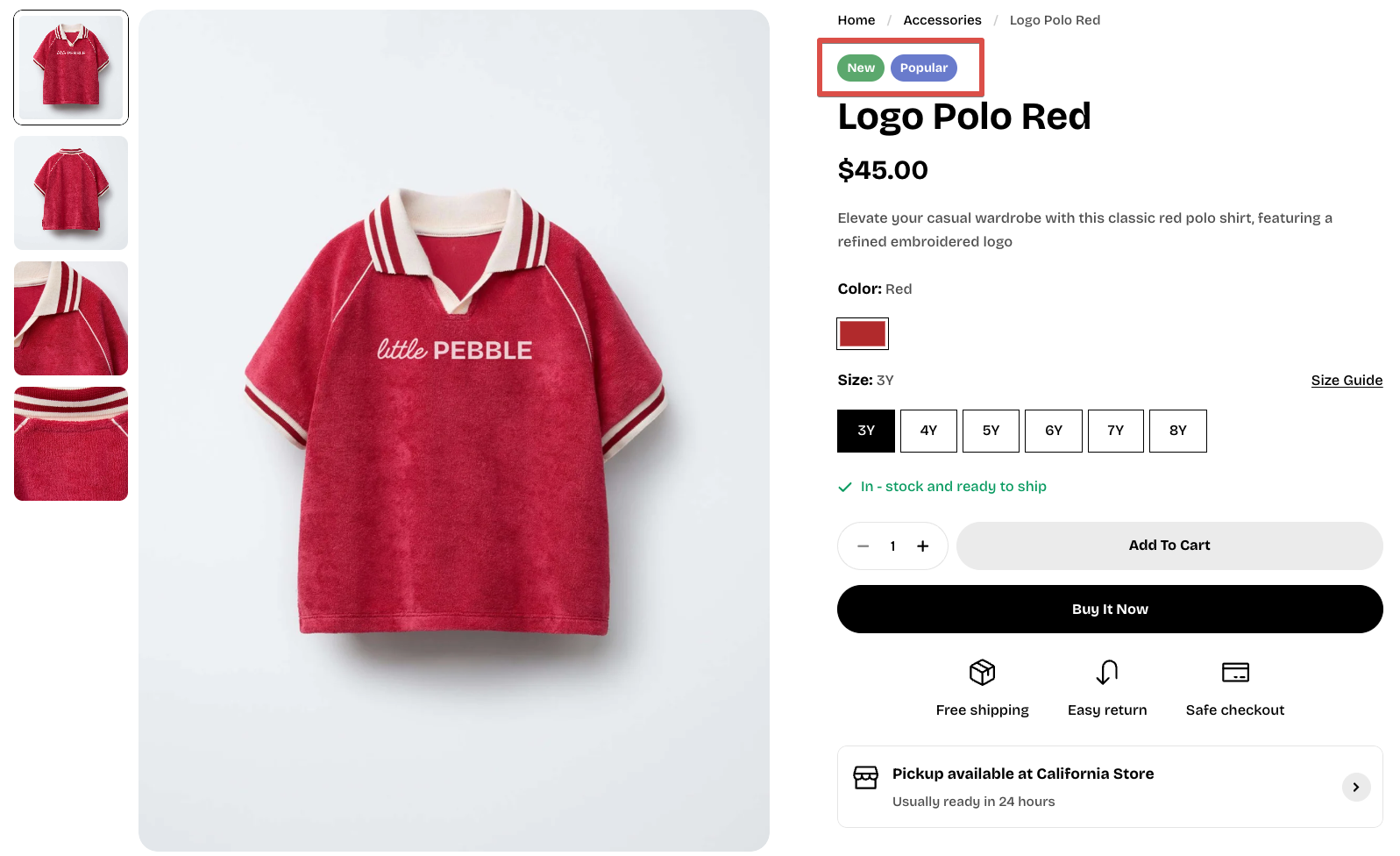
The **Product badges** block lets you display key status labels, such as Sold out, On Sale, or your own custom badges, on the product page. These badges help customers quickly understand product availability and promotions, improving clarity and boosting conversions.
To change your badges' colors, go to **Theme settings** > [Colors](https://docs.foxecom.com/pebble-theme/theme-settings/colors)
| Setting | Description |
| ----------------------- | --------------------------------------------------------------------------------------------------------------------------------- |
| **Show custom badges** | Shows custom badges you've set for the products.
[*Learn more: Product badges*](https://docs.foxecom.com/pebble-theme/theme-settings/product-badges) |
| **Show sold out badge** | Appears when selected variant is out of stock. |
| **Show sale badge** | Appears when a product has a compare-at price. |
| **Sale badge type** | Selects how the sale discount is displayed: **text**, **percentage**, or **fixed amount**. |
#### Product inventory
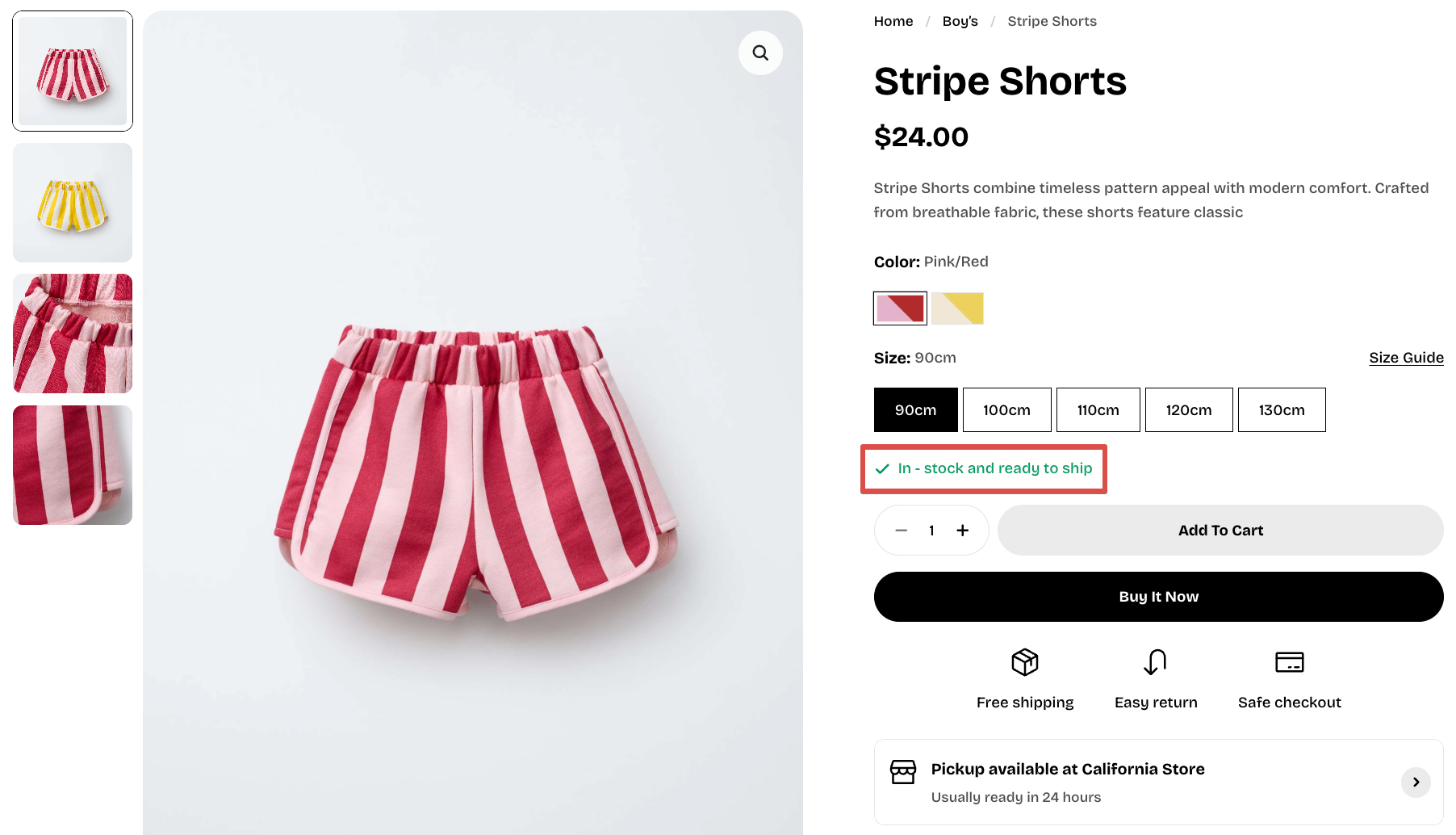
The **Product inventory** block displays real-time stock status for the currently selected variant. This helps shoppers understand availability, creates urgency, and improves trust.
The block automatically reads the inventory data from the **selected product variant** (When the "Track inventory" is enabled):
* **In stock** — inventory quantity is above the threshold
* **Low stock** — inventory quantity is at or below your defined threshold
* **Out of stock** — no inventory and the product cannot continue selling
* **In stock (continue selling) —** inventory is 0, but “Continue selling when out of stock” is enabled, or the "Track inventory" is disabled.
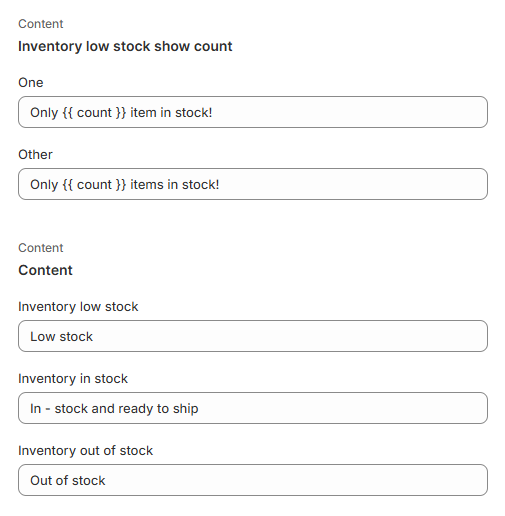
The block also supports optional **low stock quantity display**, for example: *Only 3 items in stock!*
| Setting | Description |
| --------------------------- | ------------------------------------------------------------------------------------------------------------------------------------------------ |
| **Low stock threshold** | Quantity level that triggers the “Low stock” status. Example: set to *10*, and any variant with 10 or fewer units will show a low-stock warning. |
| **Show low stock quantity** | Shows the remaining inventory quantity when stock is below the threshold. |
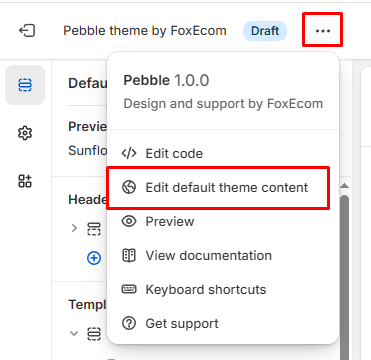
Edit the message content anytime in the **Edit default theme content** section.
#### Product recommendations
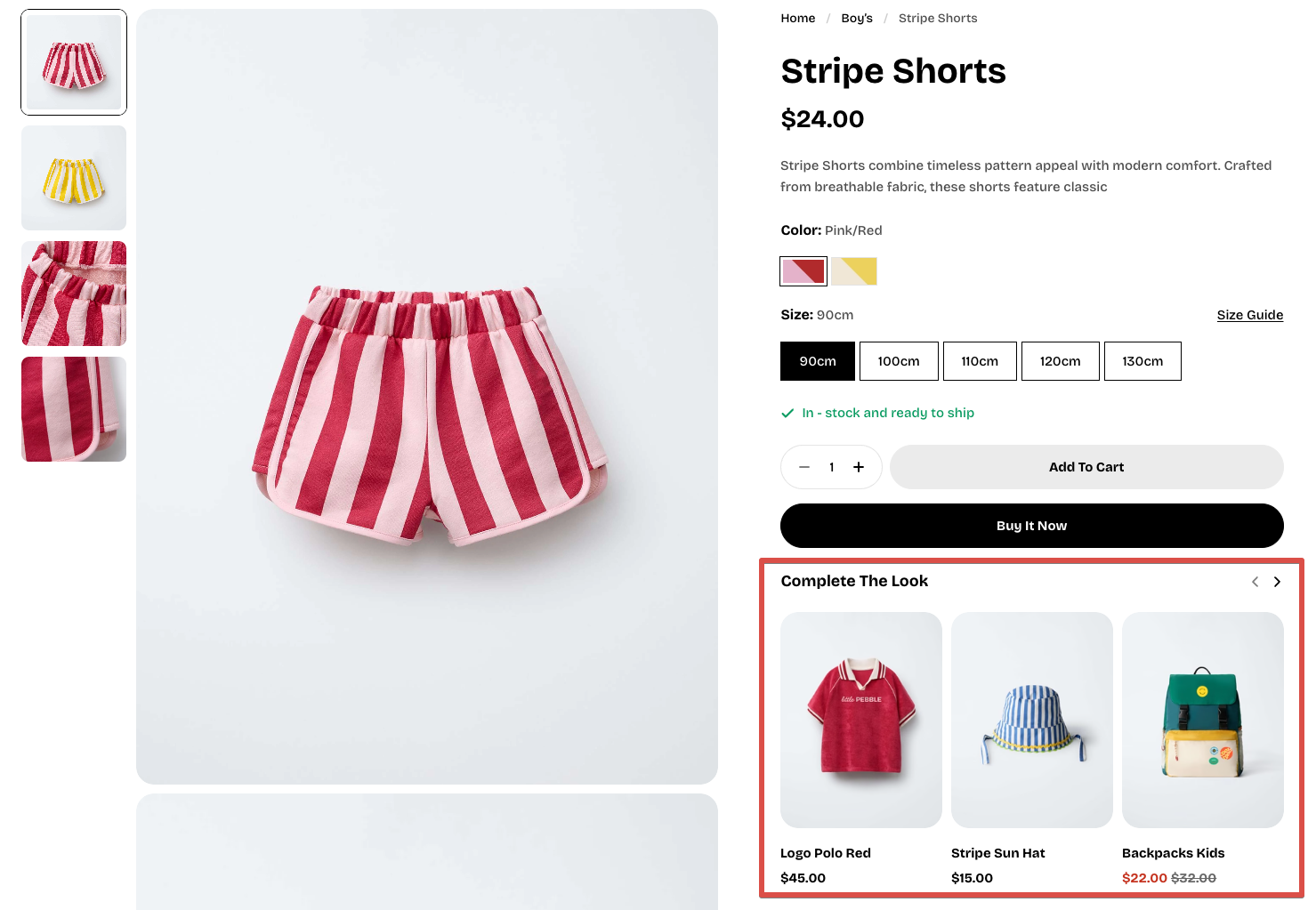
The **Product recommendations** block automatically suggests relevant or complementary products on your product page. It uses Shopify’s built-in recommendation engine to increase product discovery, boost average order value, and help customers find items they’re more likely to buy.
| Setting | Description |
| ------------------ | ---------------------------------------------------------------------------------------- |
| **Type** | Selects the type of product recommendations to display: **Related** or **Complementary** |
| **Heading** | Sets the heading text displayed above the recommended products. |
| **Heading preset** | Selects the heading style preset used for the section title. |
**How to set up recommendation products for the main product?**
First, in the **Product recommendations** block, choose the recommendation **Type** you want to display:
* **Related**
* **Complementary**
Then, set up the products in Shopify:
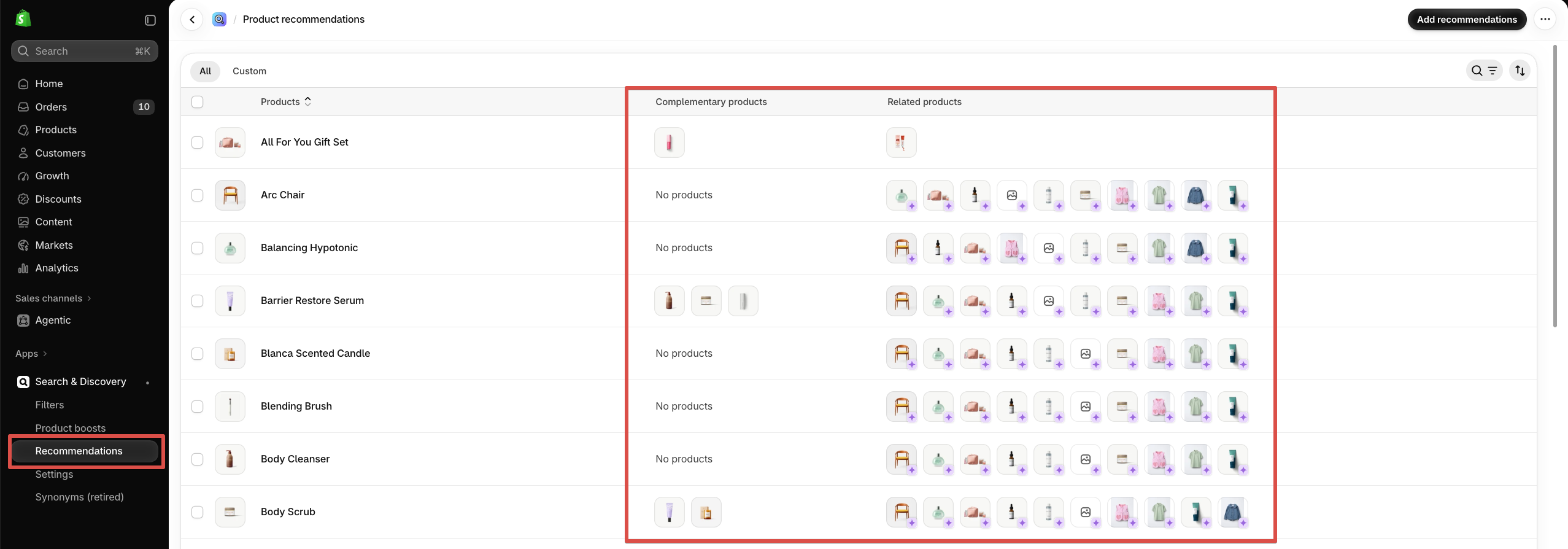
1. Go to [**Shopify’s Search & Discovery app**](https://apps.shopify.com/search-and-discovery).
2. Open **Recommendations**.
3. Select the main product you want to configure.
4. Under **Complementary products** or **Related products**, choose the products you want to recommend.
5. Save your changes.
For best results, choose products that naturally fit with the main product, such as matching accessories, useful add-ons, alternatives, or items customers are likely to buy together.
**Layout**
| Setting | Description |
| -------------------------------- | ---------------------------------------------------------------------------------- |
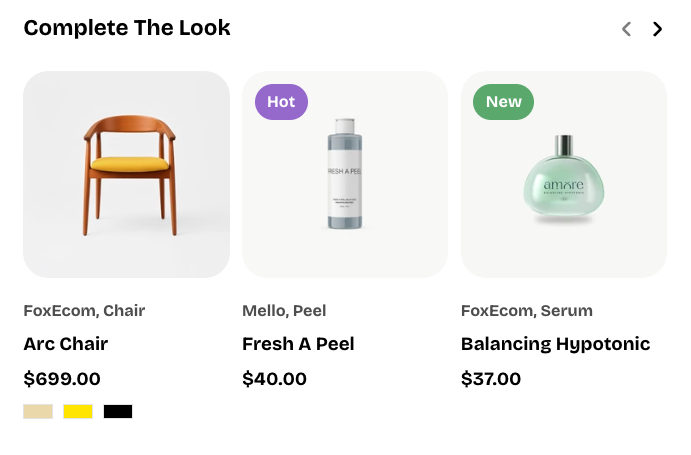
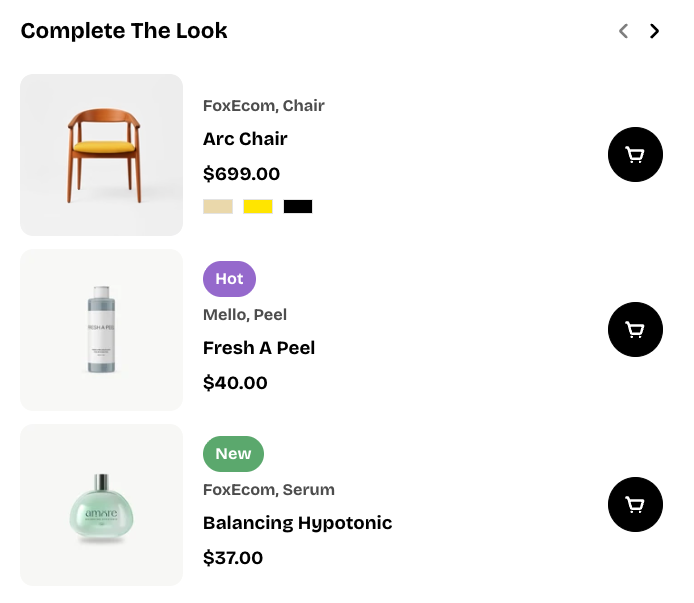
| **Layout** | Selects how the recommended products are displayed: **Grid** or **List**. |
| **Items per page** *(List only)* | Sets the number of products displayed on each page when using the **List** layout. |
| **Columns** *(Grid only)* | Sets the number of product columns displayed in the recommendation section. |
| **Product count** | Sets the maximum number of recommended products to display. |
| **Horizontal gap** | Adjusts the horizontal spacing between product items. |
| **Vertical gap** *(List only)* | Adjusts the vertical spacing between product items. |
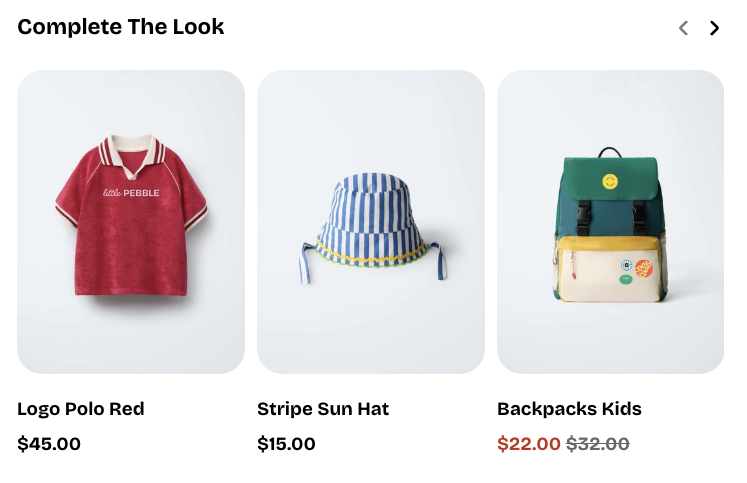
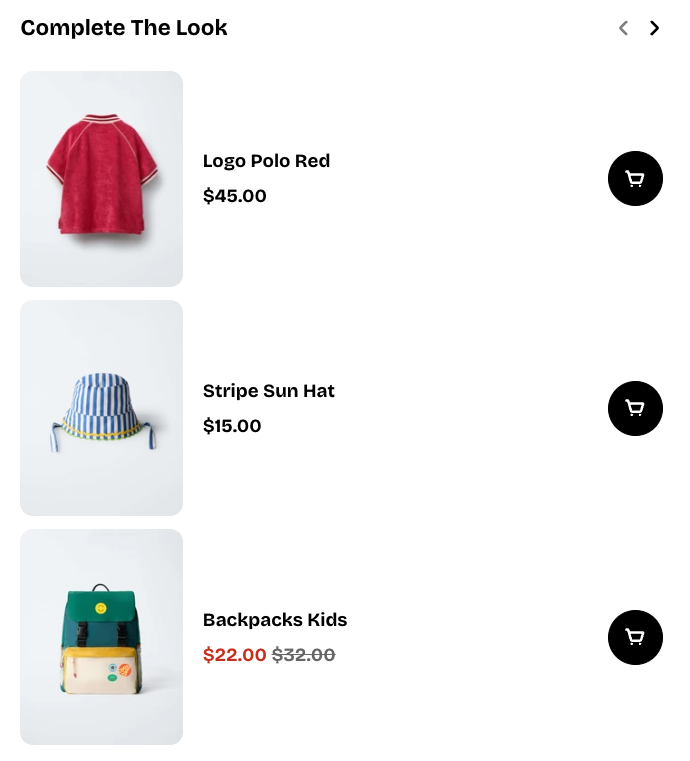
**Product cards**
| Setting | Description |
| ----------------------- | ---------------------------------------------------------------------------------------------------------------------------- |
| **Show product vendor** | Shows or hides the product vendor name on each product card. |
| **Show product type** | Shows or hides the product type on each product card. |
| **Show product badges** | Shows or hides product badges, such as sale or sold-out badges. |
| **Show swatches** | Shows or hides available product swatches, such as color options. |
| **Show quick add** | Shows or hides the quick add button on each product card. |
| **Aspect ratio** | Sets the image aspect ratio for product cards. Select **Use global settings** to follow the store-wide product card setting. |
#### Pickup availability
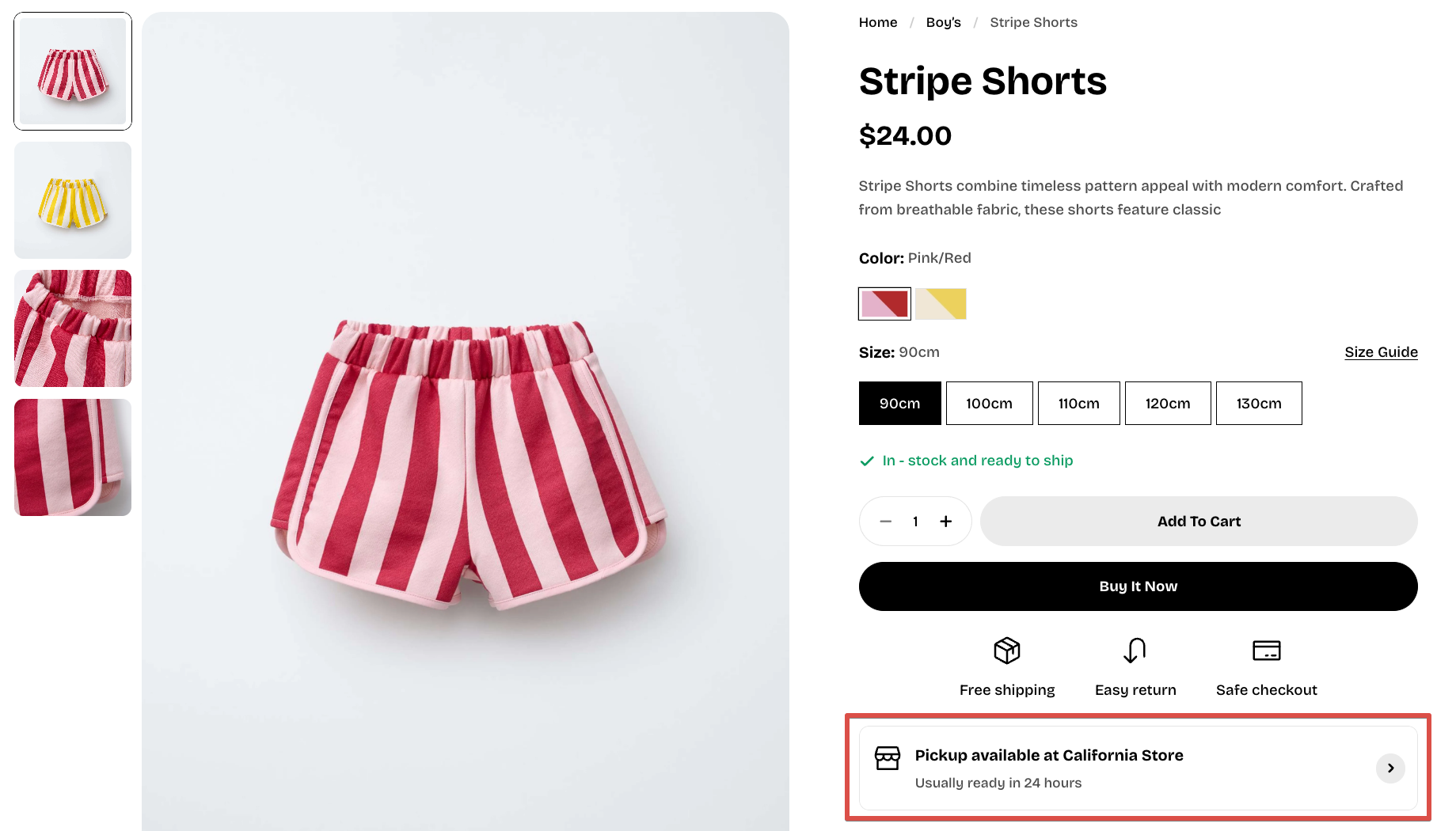
Quickly see whether the selected product variant is available for in-store pickup at any of your retail locations.
To show pickup locations, you must first enable **Local pickup** in your Shopify admin. [*Check Shopify’s official setup guide*](https://help.shopify.com/en/manual/fulfillment/setup/delivery-methods/pickup-in-store#set-up-pickup)
The block will automatically hide itself if:
* The selected variant has **no pickup-enabled locations**, or
* Pickup is not set up in your Shopify store
#### Share
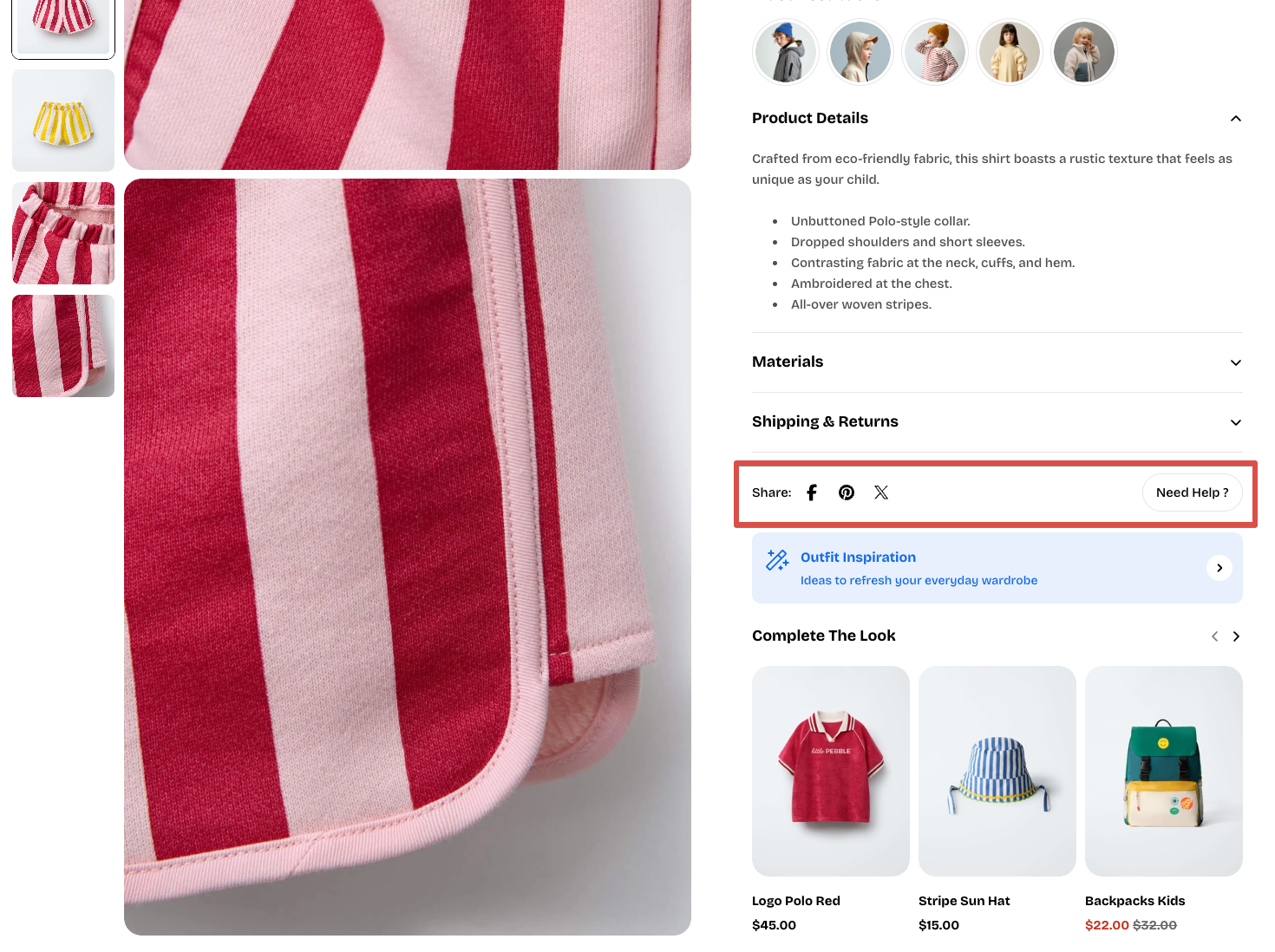
The **Share** block lets customers quickly share your product page across social platforms or copy the link to send to friends, family, or colleagues.
The Share block automatically:
* Generates a **share URL** based on the selected product variant
* Applies the correct **product image** and **page metadata**
* Displays a set of share icons (Facebook, X/Twitter, Pinterest, email, etc.)
* Optionally shows a **Help Desk button** with your custom label and link
| Setting | Description |
| ------------------- | ---------------------------------------------------------------------- |
| **Label** | Sets the text label displayed for the share option. |
| **Show help desk** | Shows or hides the help desk option. |
| **Help desk label** | Sets the text displayed for the help desk link, such as **Need help?** |
| **Link** | Sets the destination URL for the help desk option. |
*Set up which social media to share on in **Theme settings** >* [*Social media*](https://docs.foxecom.com/pebble-theme/theme-settings/social-media#sharing-options)
#### Frequently bought together
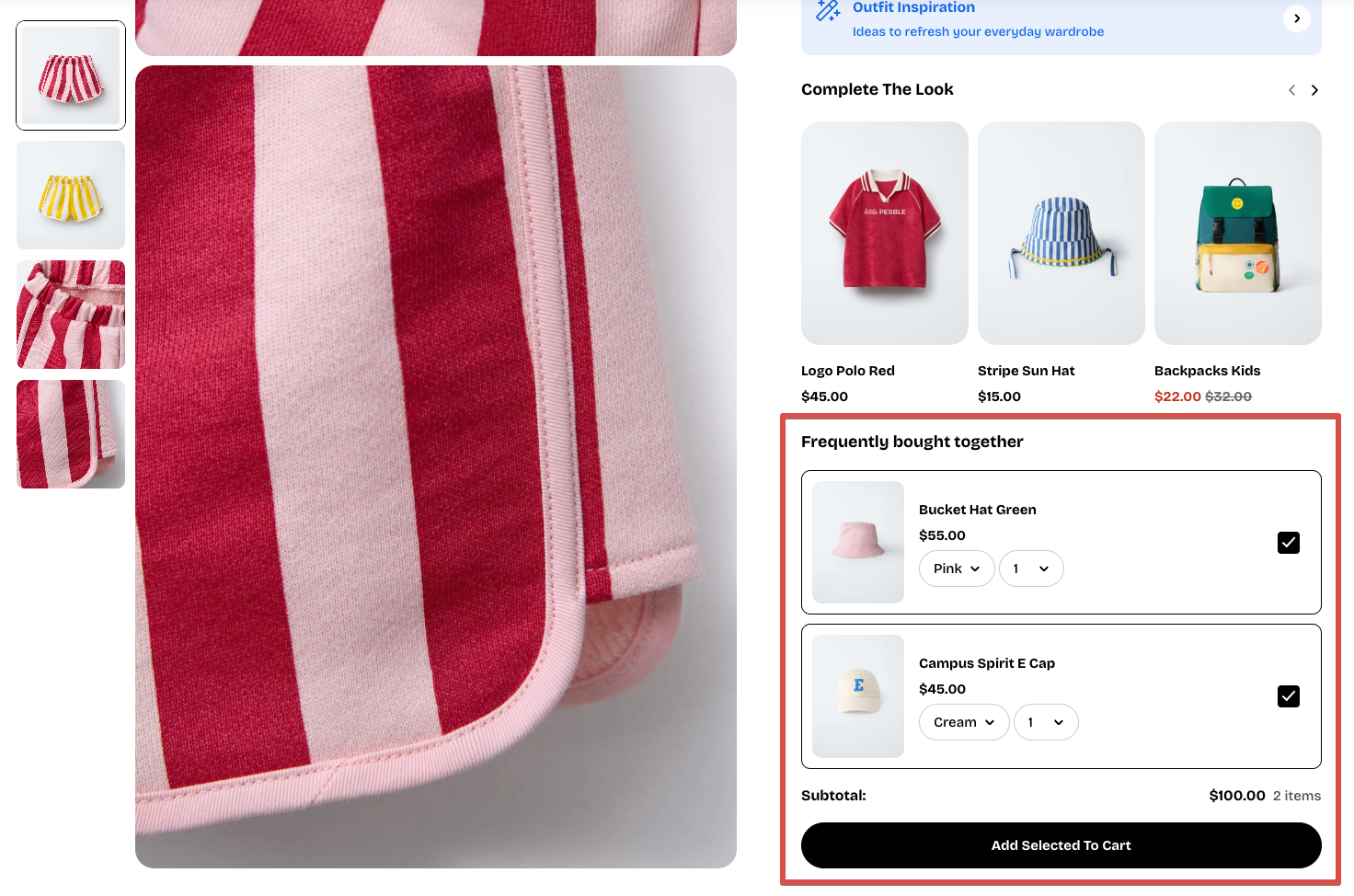
The Frequently Bought Together block helps customers quickly add complementary products to their cart, creating a smoother shopping experience and increasing product discovery.
| Setting | Description |
| ---------------- | -------------------------------------------------------------------------------------------------------------------------------- |
| **Products** | Selects the products to display in the **Frequently bought together** section. |
| **Aspect ratio** | Sets the image aspect ratio for the product cards. Select **Use global settings** to follow the store-wide product card setting. |
This block supports nested blocks, allowing you to combine multiple smaller content blocks to create a more flexible and customizable product information section.
*Learn more:* [*Basic*](https://docs.foxecom.com/pebble-theme/theme-blocks/basic)
#### Other dynamic blocks
Besides private blocks for products, you can also add other dynamic blocks to showcase the details.
Theme blocks