# Translate your store after changing the default language

{% stepper %}
{% step %}

## Install the Translate & Adapt app

{% hint style="success" %}
**Steps:**

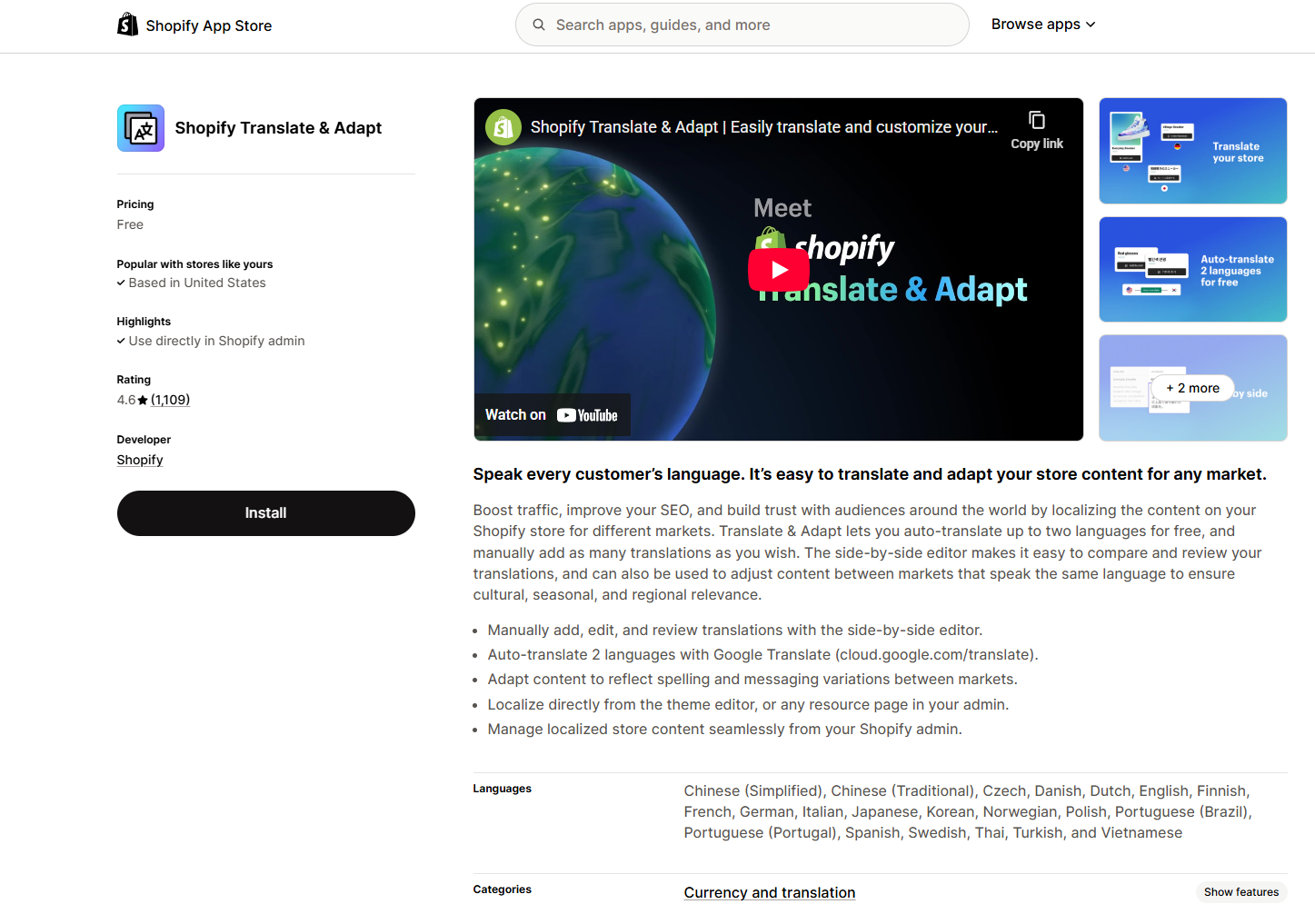
1. From your Shopify admin, go to **Apps** > **Shopify App Store**.
2. Search for **Translate & Adapt** by Shopify (or a translation app you want).
3. Click **Install** and follow the on-screen instructions to install it.
   {% endhint %}

{% hint style="info" %}
The app lets you automatically translate theme and content text into multiple languages.
{% endhint %}

<figure><img src="https://3064615700-files.gitbook.io/~/files/v0/b/gitbook-x-prod.appspot.com/o/spaces%2F3yE7VVjvl0MgK6awOPKB%2Fuploads%2FzoEKbasIiCV3ZNSBULSo%2Fimage.png?alt=media&#x26;token=da0cacfc-6f99-4505-91d7-15cb249cca6f" alt=""><figcaption></figcaption></figure>
{% endstep %}

{% step %}

## Activate and set the new default language

{% hint style="success" %}
**Steps:**

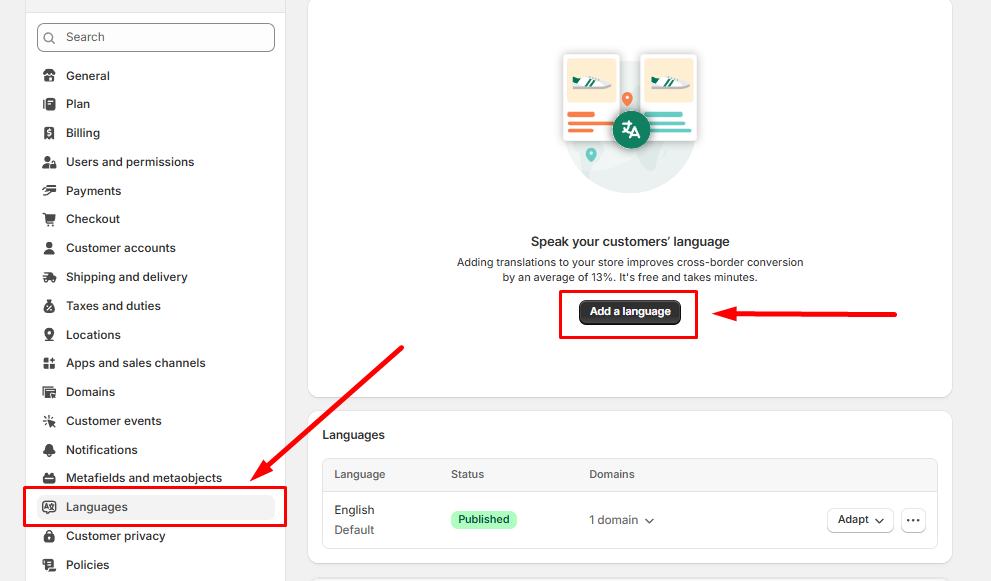
1. In your Shopify admin, navigate to **Settings > Languages**.
2. Click **Add a language**.
   {% endhint %}

<figure><img src="https://3064615700-files.gitbook.io/~/files/v0/b/gitbook-x-prod.appspot.com/o/spaces%2F3yE7VVjvl0MgK6awOPKB%2Fuploads%2FgrI0cTUW9vajlkhR3p6Q%2Fimage.png?alt=media&#x26;token=a7c5154e-9e5b-4b74-9431-a36fcfd811cf" alt=""><figcaption></figcaption></figure>

{% hint style="success" %}
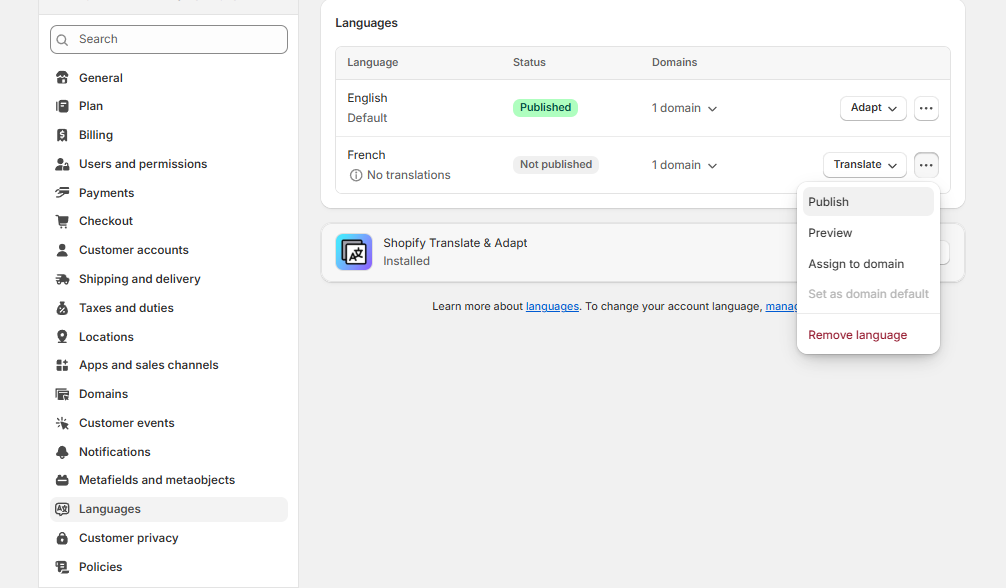
3\. After adding the new language, click **the three small dots**, then click **Publish**.
{% endhint %}

<figure><img src="https://3064615700-files.gitbook.io/~/files/v0/b/gitbook-x-prod.appspot.com/o/spaces%2F3yE7VVjvl0MgK6awOPKB%2Fuploads%2FyMYEx6l1FJVfwLiuxSX8%2Fimage.png?alt=media&#x26;token=363521da-5ad7-4762-ad41-2da5eeccb62c" alt=""><figcaption></figcaption></figure>

{% hint style="success" %}
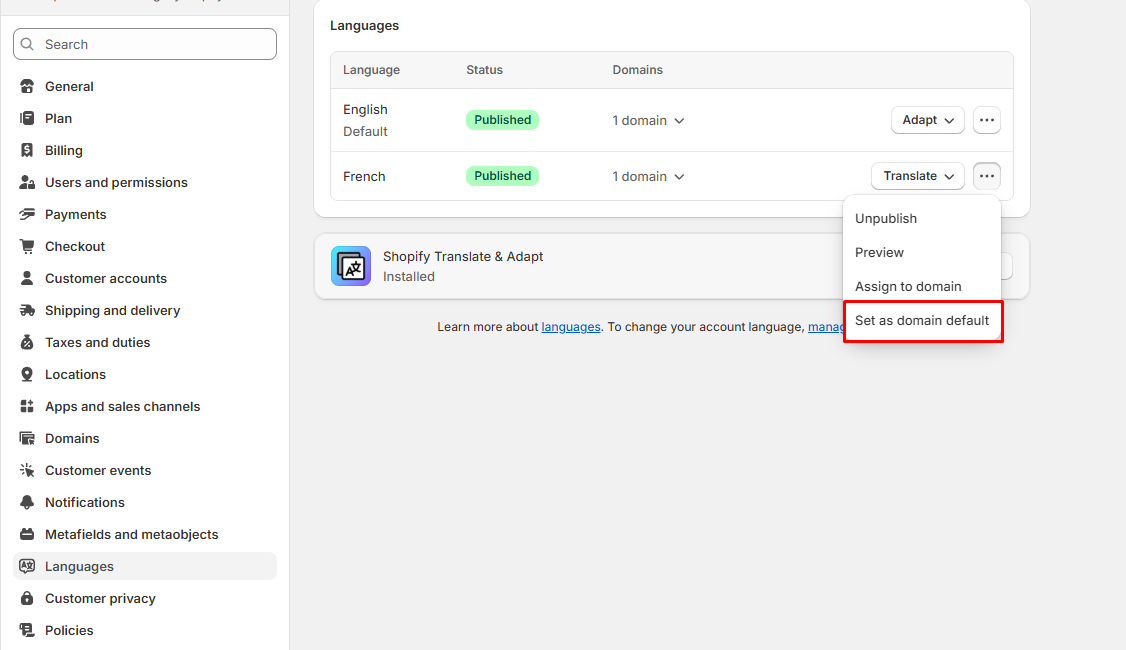
4\. Click **the three small dots** again and select **Set as domain default**.
5\. Select the **domain** currently used for your store.
6\. Choose the **language** you want to set as the default for this domain.
7\. Click **Done** to save and apply your changes.
{% endhint %}

<figure><img src="https://3064615700-files.gitbook.io/~/files/v0/b/gitbook-x-prod.appspot.com/o/spaces%2F3yE7VVjvl0MgK6awOPKB%2Fuploads%2FVUukmdgLcLjKkBTWdyPg%2Fimage.png?alt=media&#x26;token=6e7fdbcc-93f9-4d09-a521-c36d1c880e33" alt=""><figcaption></figcaption></figure>

{% hint style="warning" %}

* Only **published** languages appear on your storefront.
* Always preview your store after publishing to check alignment, spacing, and text wrapping in translated sections.
  {% endhint %}

{% endstep %}

{% step %}

## Translate the theme using Translate & Adapt

{% hint style="success" %}
**Steps:**

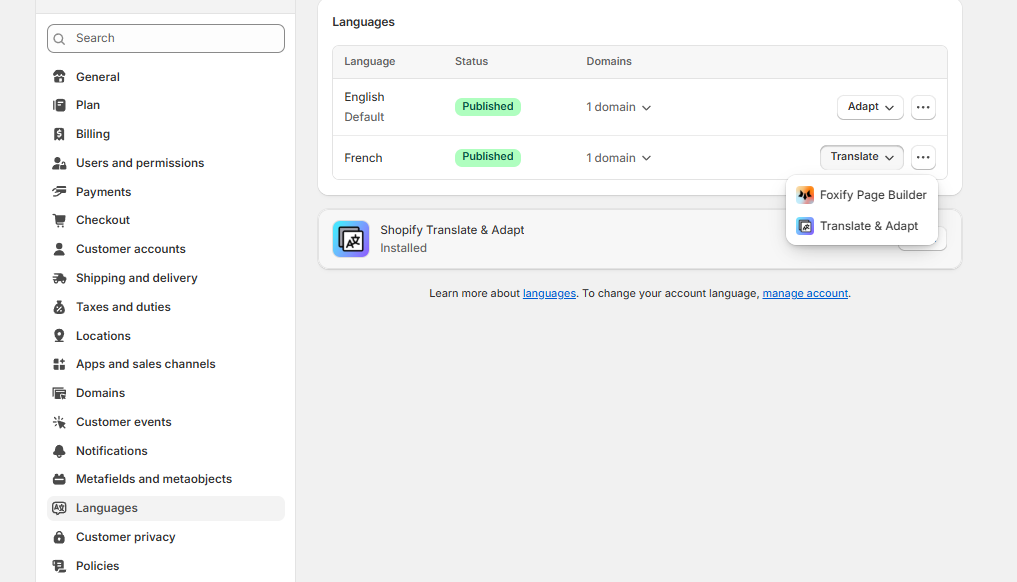
1. After setting a new language as the default, click the **Translate** dropdown and select **Translate & Adapt**.
   {% endhint %}

<figure><img src="https://3064615700-files.gitbook.io/~/files/v0/b/gitbook-x-prod.appspot.com/o/spaces%2F3yE7VVjvl0MgK6awOPKB%2Fuploads%2FxGmtIqCz4gTCtm8cReBV%2Fimage.png?alt=media&#x26;token=8af1df04-93c9-46ba-b378-00cd966c781b" alt=""><figcaption></figcaption></figure>

{% hint style="success" %}
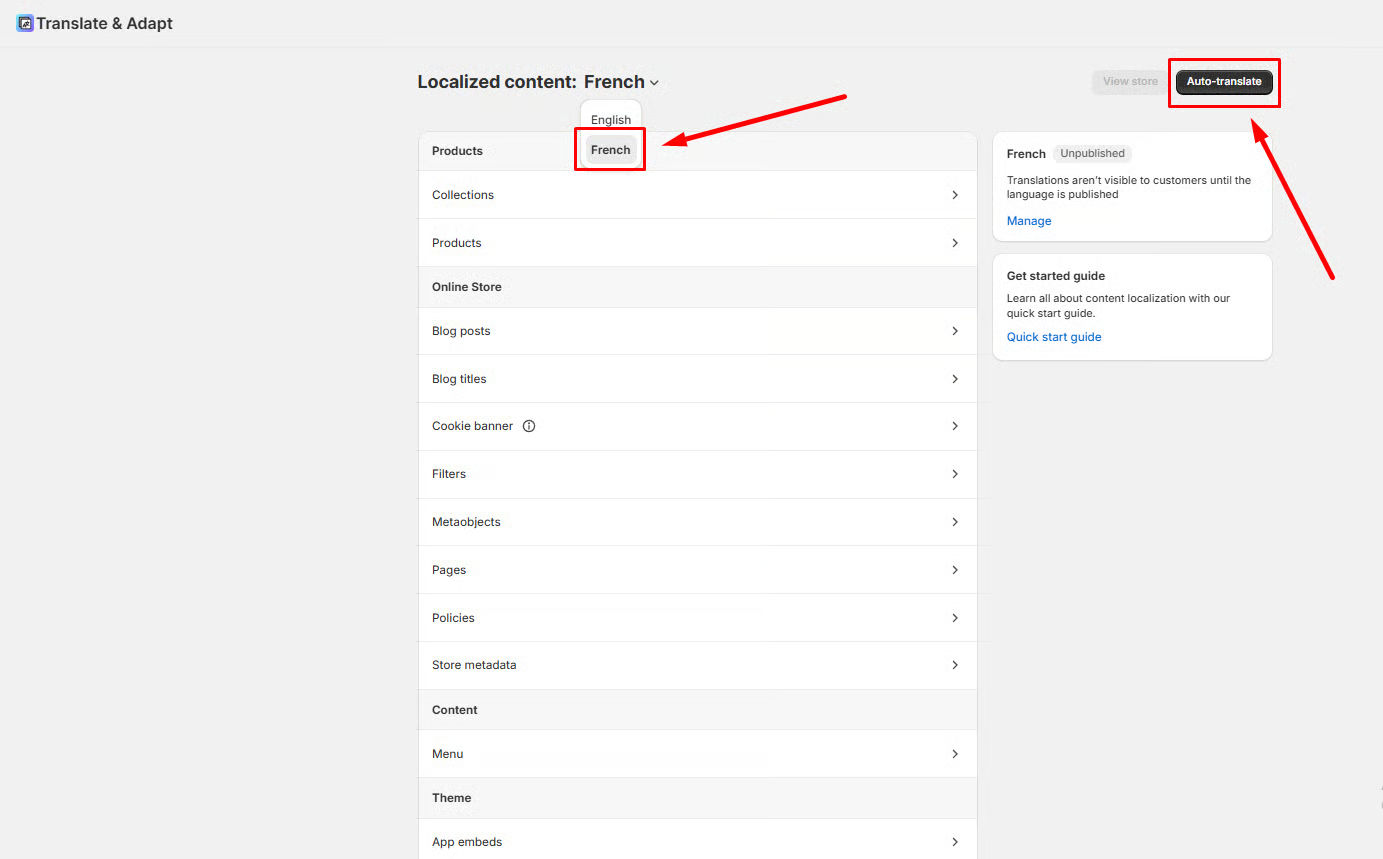
2\. In the app dashboard, select the language you’ve just added.
3\. Click **Auto-translate** to automatically translate all theme content.
{% endhint %}

<figure><img src="https://3064615700-files.gitbook.io/~/files/v0/b/gitbook-x-prod.appspot.com/o/spaces%2F3yE7VVjvl0MgK6awOPKB%2Fuploads%2FBRkEqaMcXr0ZkFT7Hhwo%2Fimage.png?alt=media&#x26;token=dcbc56fa-ac49-48e5-9bd1-70324066c431" alt=""><figcaption></figcaption></figure>

{% hint style="info" %}
📝You can review and manually edit translations for higher accuracy if needed.
{% endhint %}
{% endstep %}
{% endstepper %}

💡 Your new language is now active and ready to use on your store.