# Compared-at pricing not displayed in the storefront
## Ensure you have a discounted price set 🛒
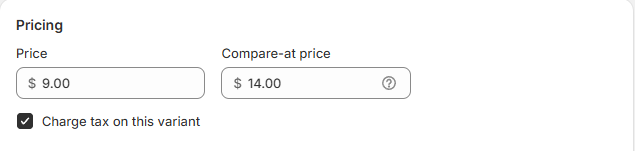
The **Compared-at Price** is only displayed when there is a valid **Sale Price** or **Discount** set for the product. To confirm:
1. Go to your product page in the admin panel.
2. Set a **Price** and a **Sale Price** that is lower than the original price.
3. The compared-at price will then show the difference between the sale price and original price.
## Adjusting market settings for Compare-at prices 🌍
Shopify allows merchants to hide Compare-at prices for European Economic Area (EEA) customers, , due to compliance with legal directives.
If you want your **compare-at prices** visible to EEA customers, you can modify the default settings within the **Markets** section of your Shopify admin. Here’s how to do it:
Steps
1. From your Shopify admin, go to **Settings** and select **Markets**.
2. Click on **Preferences**.
3. Uncheck the box labeled **Hide compare-at prices for European Economic Area (EEA) customers**.
4. Hit **Save** to confirm the changes.
**Note:** If this option is enabled, Compare-at prices will not display for customers in that region.
👉 For more details, refer to the official Shopify article: [European Price Indication Directive](https://help.shopify.com/en/manual/compliance/legal/pricing-indication-directive#use-the-compare-at-price-feature)