# Improve your store speed ⚡

Keeping your theme fast and optimized is key to **higher conversions**, **better SEO**, and a **smooth shopping experience**.

Sleek — like all [FoxEcom](https://foxecom.com/) themes — is built with performance in mind. However, maintaining that speed over time requires careful setup and maintenance.

Some design choices, apps, or settings can have a bigger impact on performance than others. While certain features may look great, they can slow your site down. This guide will help you find the right balance between design and speed.

### 🏎️ TL;DR — Quick performance checklist

<table><thead><tr><th width="190">Category</th><th>Best Practices</th></tr></thead><tbody><tr><td>Apps</td><td>Remove unused apps and extra tracking tags. Use built-in Sleek features whenever possible.</td></tr><tr><td>Content</td><td>Keep pages clean and focused. Fewer sections = faster loads.</td></tr><tr><td>Videos</td><td>Use small, short MP4 files (under 3 MB). Avoid videos at the very top of your page.</td></tr><tr><td>Images</td><td>Compress before uploading. Use correct formats.</td></tr><tr><td>Redirects</td><td>Avoid unnecessary or chained redirects. Use clean, direct URLs.</td></tr><tr><td>Checkout buttons</td><td>Disable dynamic checkout buttons if speed is a top priority.</td></tr><tr><td>Fonts</td><td>Use minimal fonts — system fonts are fastest.</td></tr><tr><td>Swatches</td><td>Use hex color codes instead of image-based swatches.</td></tr><tr><td>Header</td><td>Keep header simple — logo, nav links, and announcement bar only.</td></tr></tbody></table>

{% hint style="info" %}

### 🧭 Before we start

If **Sleek is not published** as your live theme, speed tests will be running in **Preview mode**. Shopify’s preview mode adds extra code (the admin preview bar), which makes speed scores appear lower than they really are.

:bulb: **Tip:** For accurate results, publish Sleek as your **live theme** and check your speed scores using the live version instead.
{% endhint %}

## ⚙️ Limit third-party JavaScript & Shopify apps
Shopify apps are great for adding features — but they can also be the **biggest cause of slow performance**.

Each app adds its own scripts, styles (CSS/JS), and tracking code. These files often load on every page, even when the app isn’t being used. Over time, this buildup slows your store.

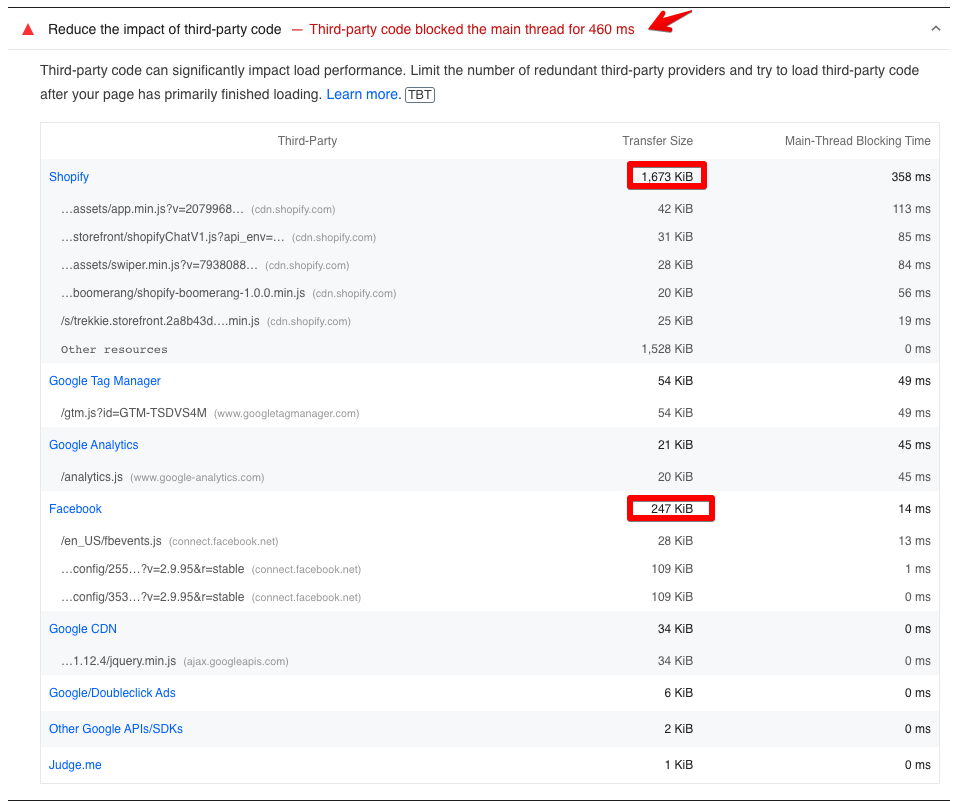
For example, in some store audits, we’ve seen large delays caused by **third-party scripts** like Facebook Pixel or Shopify Boomerang — things that even theme developers can’t fully control.

<figure><img src="https://3064615700-files.gitbook.io/~/files/v0/b/gitbook-x-prod.appspot.com/o/spaces%2F3yE7VVjvl0MgK6awOPKB%2Fuploads%2FEJPkJYpQBjEprwmDzuyY%2Fimage.png?alt=media&#x26;token=349938ff-70a3-4936-9528-3fb2ba02dfbc" alt="A Lighthouse audit showing third-party scripts (like Shopify, Google Tag Manager, and Facebook Pixel) contributing to long main-thread blocking times"><figcaption><p>A Lighthouse audit showing third-party scripts (like Shopify, Google Tag Manager, and Facebook Pixel) contributing to long main-thread blocking times.</p></figcaption></figure>

As such, consider whether installed apps provide enough value to offset any performance impact.

{% hint style="success" %}
**Best practices:**

* Only install apps that are **essential** to your business.
* Uninstall unused apps completely and ask the developer to remove leftover code.
* If two apps do similar things, **keep only one**.
* Where possible, use built-in theme features rather than third-party apps.
* Audit your tag manager to remove any unused or low-value tags. Learn more about best practices for tags and tag managers.
  {% endhint %}

## 🧩 Keep content simple and relevant

When it comes to modern store design, **less is more**. A focused, well-structured page loads faster, looks cleaner, and converts better. The goal is to quickly deliver value and capture your visitors’ attention without overwhelming them.

{% hint style="success" %}
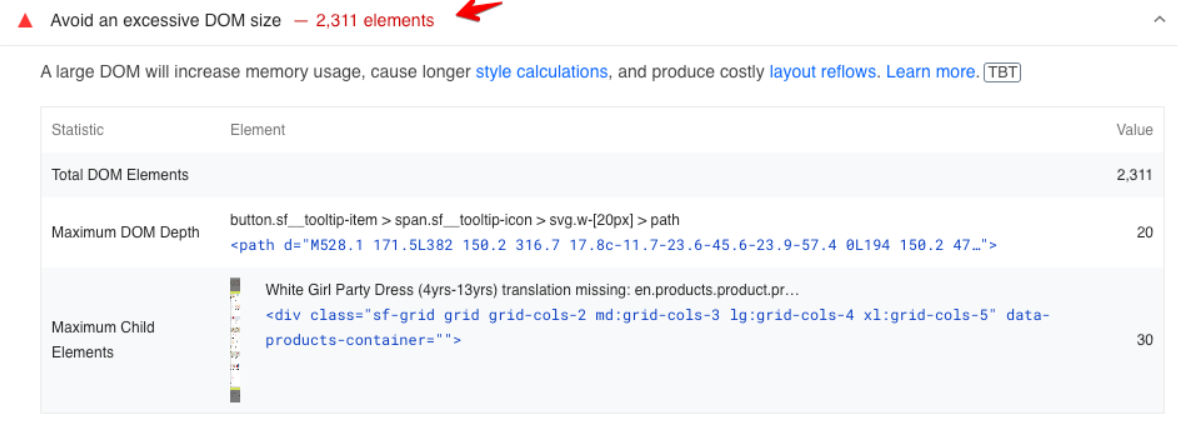
Too many sections, widgets, or large product grids can overwhelm users and increase your **DOM size** (the number of elements on the page), which slows rendering.
{% endhint %}

<figure><img src="https://3064615700-files.gitbook.io/~/files/v0/b/gitbook-x-prod.appspot.com/o/spaces%2F3yE7VVjvl0MgK6awOPKB%2Fuploads%2FIY2juhpyu7BAmHzHJ0mk%2Fimage.png?alt=media&#x26;token=8f524d41-3437-42ff-a7a9-c13766a04ad5" alt="Lighthouse report showing a warning for an excessive DOM size (2,311 elements)"><figcaption><p>An example of a Lighthouse report showing an excessive DOM size (2,311 elements).</p></figcaption></figure>

{% hint style="success" %}
**Best practices:**

* Avoid overcrowding your homepage with too many sections or widgets.
* Show a **limited number of products and collections** per page.
* Keep scrolling short — long pages take longer to load.
* If you have collections with large amounts of products in them, then consider activating **pagination** to limit the number of products that load at one time.
* Rotate sections seasonally (e.g., holiday banners) instead of adding new ones endlessly.
* Move third-party widgets or feeds (e.g. Instagram apps) to a separate landing page, as they add external resources that can slow load times.
  {% endhint %}

## 🎬 Optimize videos

Videos tell stories beautifully — but they’re large files that can slow your store. A big background video can especially hurt your Largest Contentful Paint (LCP) score.

{% hint style="success" %}
**Best practices:**

* Avoid placing the **Background video** section ([Video hero section](https://docs.foxecom.com/sleek-theme/theme-sections/video-hero)) near the top of your page. Since the browser must wait for the video to load and begin playing, it increases the Largest Contentful Paint (LCP) score, which can slow the perceived load speed.
* Avoid embedding videos or images directly in **rich text areas** (such as product descriptions, blog articles, or general pages). Instead, use **dedicated video sections** provided by the theme (e.g. [Video section](https://docs.foxecom.com/sleek-theme/theme-sections/video), [Video hero section](https://docs.foxecom.com/sleek-theme/theme-sections/video-hero), or [Video with text section](https://docs.foxecom.com/sleek-theme/theme-sections/video-with-text)).
* For best results, use **short MP4 files under 2–3 MB** where feasible.
* Compress videos before uploading, and host them on fast, reliable CDNs if possible.
* For autoplay videos, keep file sizes under **10 MB** and durations around **10 seconds**.
  {% endhint %}

{% hint style="info" %}
:bulb:**Tip:** Keep both the number and size of videos low. A few lightweight videos will perform better than several large ones scattered across your homepage.
{% endhint %}

## 🖼️ Optimize images

Images often make up over half of a page’s size. Optimizing them before upload is one of the easiest ways to boost performance.

{% hint style="success" %}
**Best practices:**

* Compress all images before uploading. Tools such as [TinyPNG](https://tinypng.com/) or [JPEG Optimizer](https://jpeg-optimizer.com/) work well for reducing file size without compromising quality.
* Use appropriate file formats (JPG for photos, PNG for graphics with transparency) and resize images to match their display size.
* Keep your page clean — only include images that add value.
* Refer to [Shopify’s Image Optimization Guide](https://www.shopify.com/blog/7412852-10-must-know-image-optimization-tips) for additional best practices.
  {% endhint %}

{% hint style="warning" %}
Even optimized images can impact speed if there are too many on a single page. Use only the images that are essential for your store’s design and storytelling.
{% endhint %}

## 🔁 Minimize redirects

Each redirect adds an extra step before a page can load — slowing things down, especially on mobile networks.

Redirects occur when one URL automatically routes visitors to another (for example, when a discontinued product link forwards to a new product page). While sometimes necessary, too many redirects can reduce site speed and user experience.

{% hint style="success" %}
**Best practices:**

* **Keep redirects to a minimum.** Avoid unnecessary “www” or “https” redirect chains.
* **Update old URLs** in menus, banners, and marketing campaigns to point directly to the correct page.
* **Maintain your sitemap** so search engines and customers reach the right destination efficiently.
* **Repurpose high-traffic pages** instead of deleting or redirecting them when possible.
  {% endhint %}

Reducing redirects helps pages load faster, improves SEO, and ensures smoother navigation for your customers.

## 💳 Accelerated checkout buttons

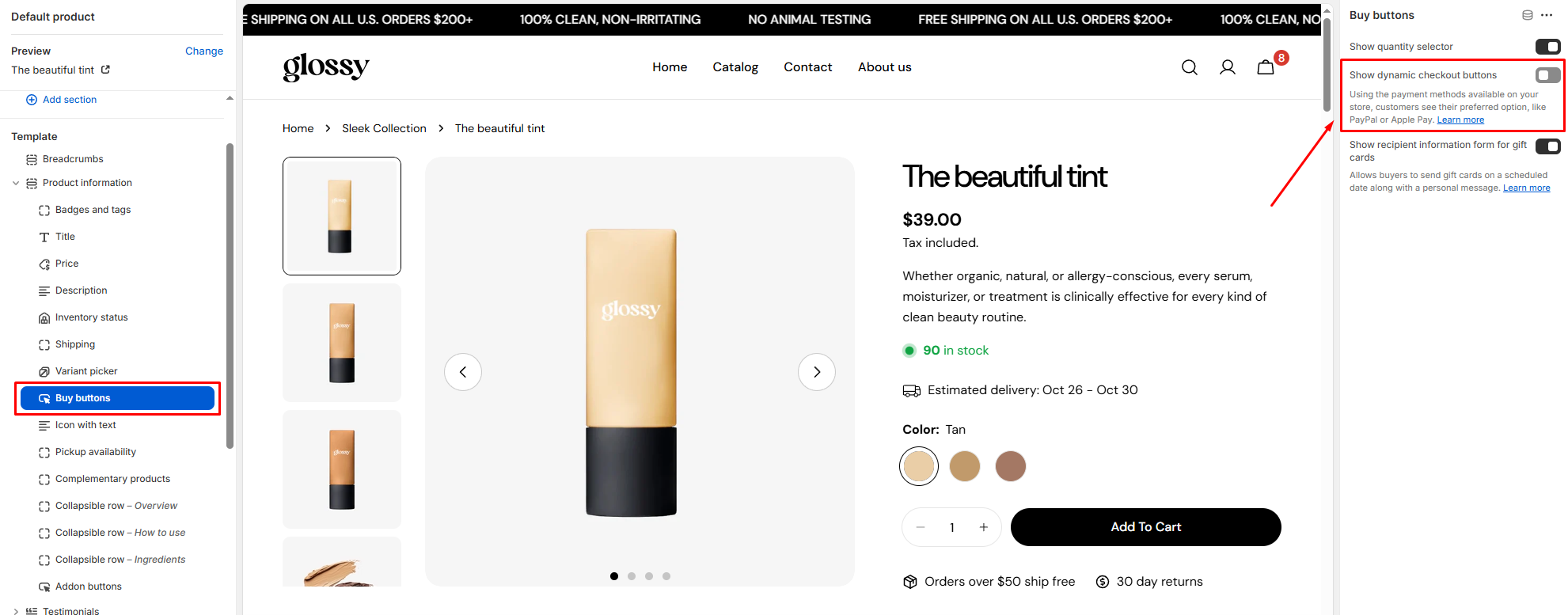
[Accelerated checkout buttons](https://help.shopify.com/en/manual/online-store/dynamic-checkout) (such as **PayPal**, **Shop Pay**, or **Apple Pay**) offer convenience — but they also load **extra external scripts**, which can slow your store.

<figure><img src="https://3064615700-files.gitbook.io/~/files/v0/b/gitbook-x-prod.appspot.com/o/spaces%2F3yE7VVjvl0MgK6awOPKB%2Fuploads%2FnfaY8vVJ7seR5dQZgmY3%2Fimage.png?alt=media&#x26;token=7f9ed61e-4737-4e66-9a18-ef8db107af04" alt=""><figcaption></figcaption></figure>

If speed is your top goal, consider disabling dynamic checkout buttons. Customers can still choose their preferred payment method at checkout.

In **Sleek**, this setting is named **Show dynamic checkout buttons**.

{% hint style="info" %}
**To disable accelerated checkout buttons in Sleek:**

* **Product page:** `Product information > Buy buttons > Show dynamic checkout buttons`
* **Featured product section:** `Featured product > Buy buttons > Show dynamic checkout buttons`
* **Quick view modal:** `Quick view > Buy buttons > Show dynamic checkout buttons`
* **Sticky Add to cart bar:** `Sticky Add to cart bar > Show dynamic checkout buttons`
  {% endhint %}

<figure><img src="https://3064615700-files.gitbook.io/~/files/v0/b/gitbook-x-prod.appspot.com/o/spaces%2F3yE7VVjvl0MgK6awOPKB%2Fuploads%2FaGPTEfzszuolQgoKCixe%2Fimage.png?alt=media&#x26;token=437203f4-0e55-4aee-9bbb-e243601b17e8" alt=""><figcaption><p>An example of the setting on product pages</p></figcaption></figure>

{% hint style="success" %}
Keep them enabled only if you want faster one-click purchases directly from product pages.
{% endhint %}

## 🔧 Adjust other miscellaneous settings

### Header group

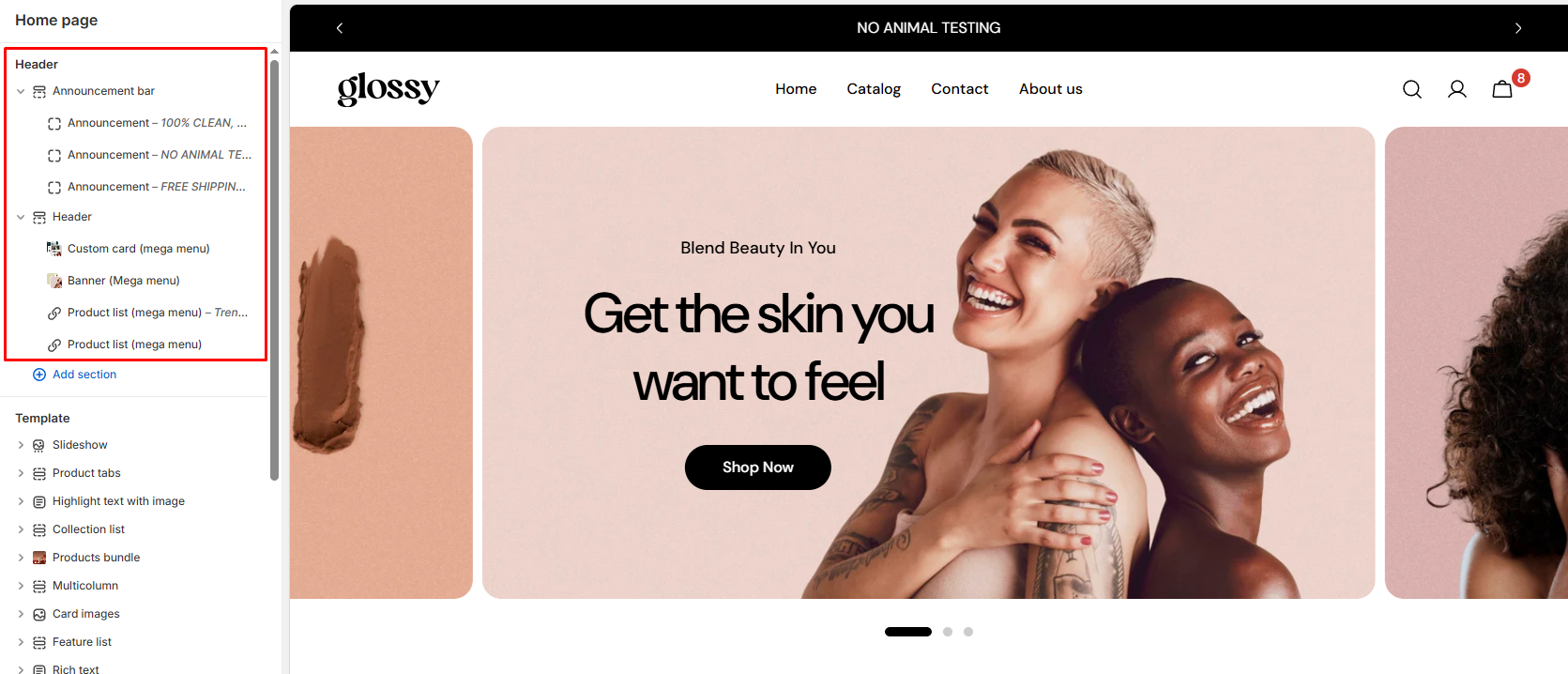
Keep your header **simple** — include only key elements like:

* Announcement bar
* Logo
* Navigation links

<figure><img src="https://3064615700-files.gitbook.io/~/files/v0/b/gitbook-x-prod.appspot.com/o/spaces%2F3yE7VVjvl0MgK6awOPKB%2Fuploads%2F6sGLgOqsJuF7m4m0al4y%2Fimage.png?alt=media&#x26;token=042a422d-8e0e-4e77-9561-6fd86fcf6238" alt=""><figcaption></figcaption></figure>

Avoid adding unnecessary blocks or animations. Fewer elements = faster rendering.

### Swatches

When using colour swatches, choose **hex-based colours** (e.g. `#000000`) instead of **image-based swatches**. They load instantly and avoid extra image requests.

*For more detailed guidance, see the* [*Swatches guide*](https://docs.foxecom.com/sleek-theme/theme-settings/color-swatches) *in Sleek.*

### Fonts

Each font and font weight adds an extra file to download.

{% hint style="success" %}
**Best practices:**

* Use as few different fonts as possible.
* Keep your **Heading**, **Body**, and **Navigation** fonts the same where you can; this minimizes font file requests.
* Whenever possible, select **System fonts** (e.g., Arial, Helvetica, or sans-serif). These load instantly and reduce render time compared to web-hosted fonts.
  {% endhint %}

## 🏁 **The bottom line**

Sleek is designed for speed — but maintaining that performance depends on **how you use it**.

**Always aim to:**

* Keep your homepage simple and focused.
* Use optimized images and lightweight videos.
* Limit third-party apps to only what’s essential.
* Choose built-in Sleek features instead of external scripts or widgets.

Performance isn’t about doing less — it’s about doing what matters most.

With thoughtful setup and regular maintenance, your Shopify store will stay fast, elegant, and ready to deliver an outstanding experience for your customers.