# Product information

<figure><img src="https://3064615700-files.gitbook.io/~/files/v0/b/gitbook-x-prod.appspot.com/o/spaces%2F3yE7VVjvl0MgK6awOPKB%2Fuploads%2FMQ5utrqV6lV6r2TIdlRo%2FHelp%20Center%20(1).png?alt=media&#x26;token=c9ad8a8f-f41f-400d-b2df-7e3414b53e46" alt=""><figcaption><p><a href="https://chromewebstore.google.com/detail/foxtransfer-html-to-shopi/babcinhpofjfhjjbcnjhoikcjbgebimb?utm_source=foxecom&#x26;utm_medium=helpcenter&#x26;utm_campaign=foxtransfer_launch">Install FoxTransfer Chrome Extension FREE</a><a href="https://chromewebstore.google.com/detail/foxtransfer-html-to-shopi/babcinhpofjfhjjbcnjhoikcjbgebimb?utm_source=foxecom&#x26;utm_medium=helpcenter&#x26;utm_campaign=foxtransfer_launch"> here</a></p></figcaption></figure>

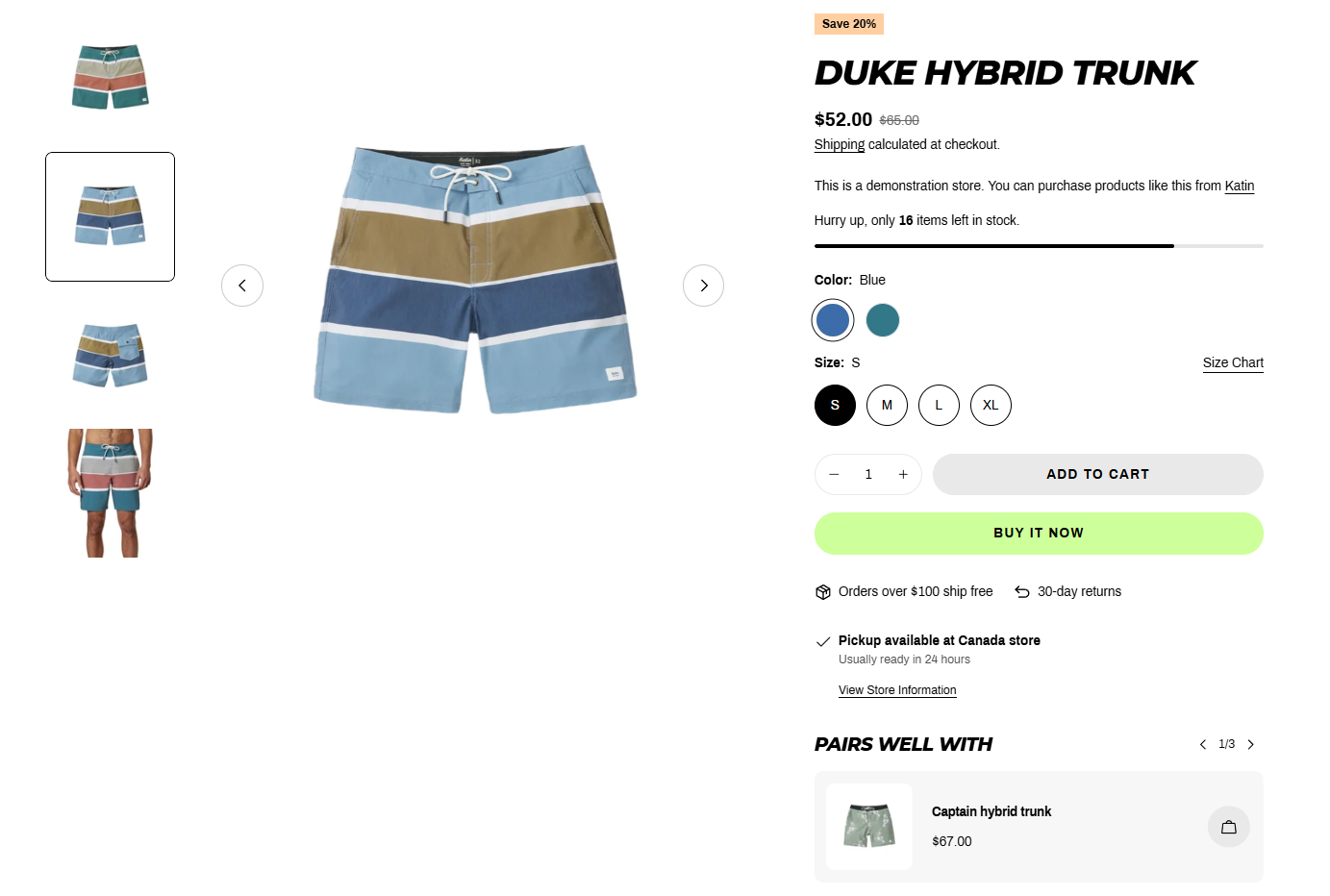
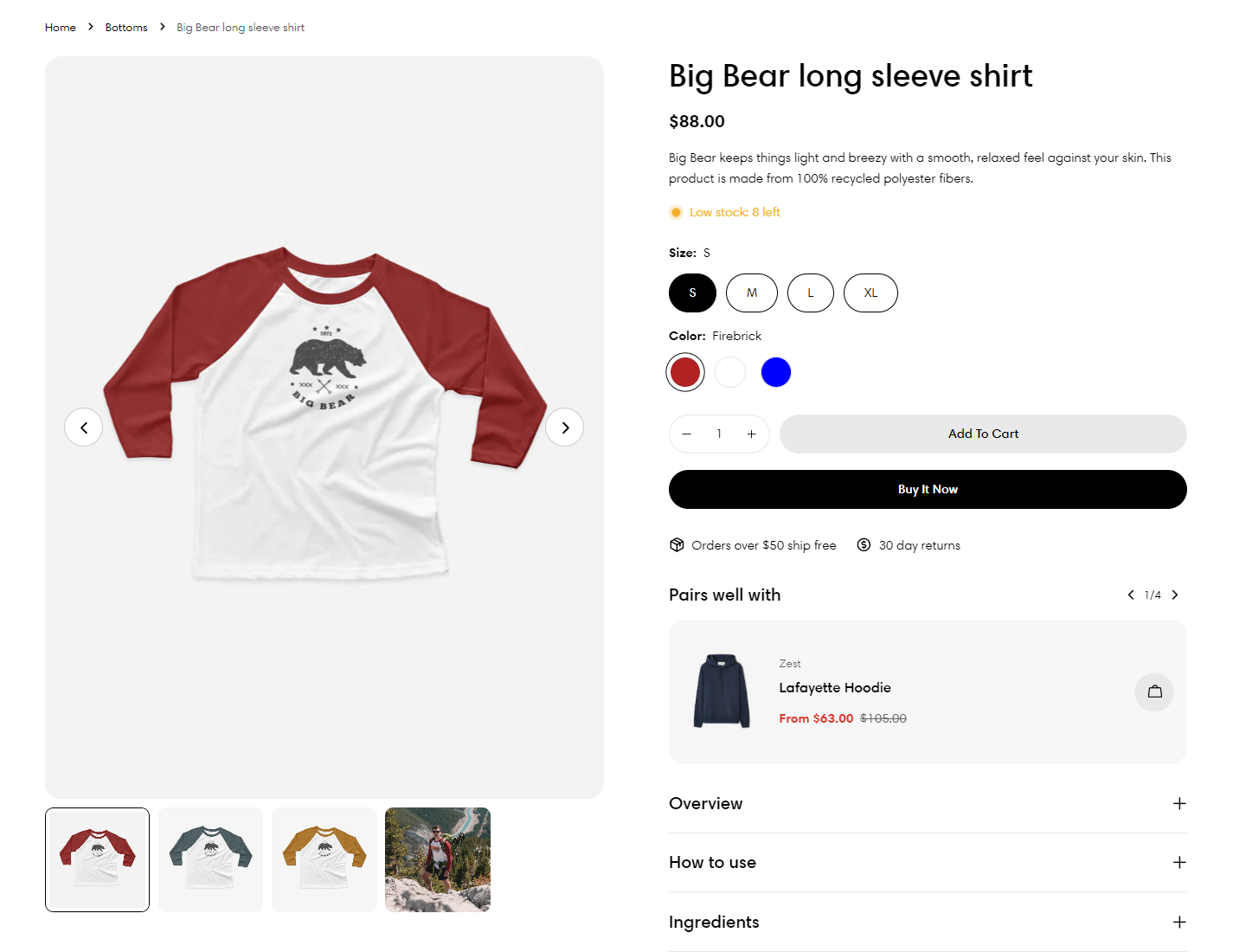
Add, edit, or remove any information on your product pages. Accurate, reliable, and in-depth product details help customers find the information they need to make buying decisions.&#x20;

<figure><img src="https://3064615700-files.gitbook.io/~/files/v0/b/gitbook-x-prod.appspot.com/o/spaces%2F3yE7VVjvl0MgK6awOPKB%2Fuploads%2F36Oa9aYLwIsqyZf6KfcW%2Fimage.png?alt=media&#x26;token=11893688-d54f-40ac-b2c2-e377ee087841" alt=""><figcaption></figcaption></figure>

## How to add a Product information section

{% hint style="success" %}
**Steps:**

1. In the theme editor (**Customize**), open the template selector.
2. Locate **Products**, and select a product template you want to make changes to.
3. On the left-sidebar, add **Product information** section.
4. Make necessary changes > **Save.**
   {% endhint %}

## How to edit the Product information section

This section provides crucial data about an individual product such as price, title, buy buttons, etc. You can change the product information by re-ordering, removing, and adding blocks.

### General settings

#### Sticky content on desktop

Affixes the product content to the screen when scrolling through the product media.
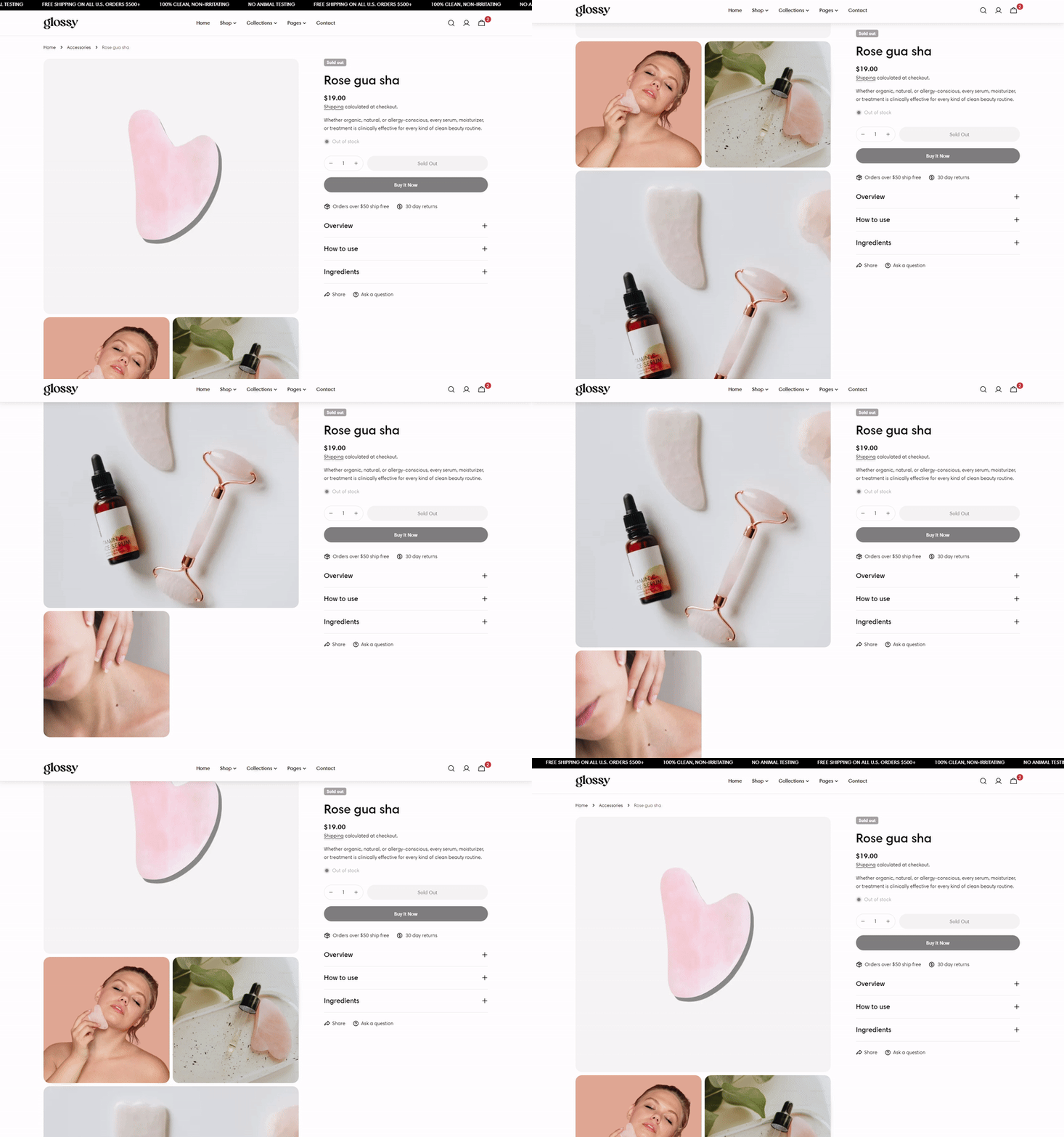
<figure><img src="https://3064615700-files.gitbook.io/~/files/v0/b/gitbook-x-prod.appspot.com/o/spaces%2F3yE7VVjvl0MgK6awOPKB%2Fuploads%2FupA7oWOkVaw56kxsaZKw%2Fsticky-ezgif.com-video-to-gif-converter.gif?alt=media&#x26;token=5b7d1834-a107-4af7-bcad-bbcc0bbdc491" alt=""><figcaption></figcaption></figure>

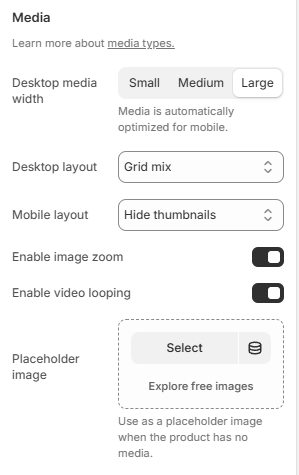
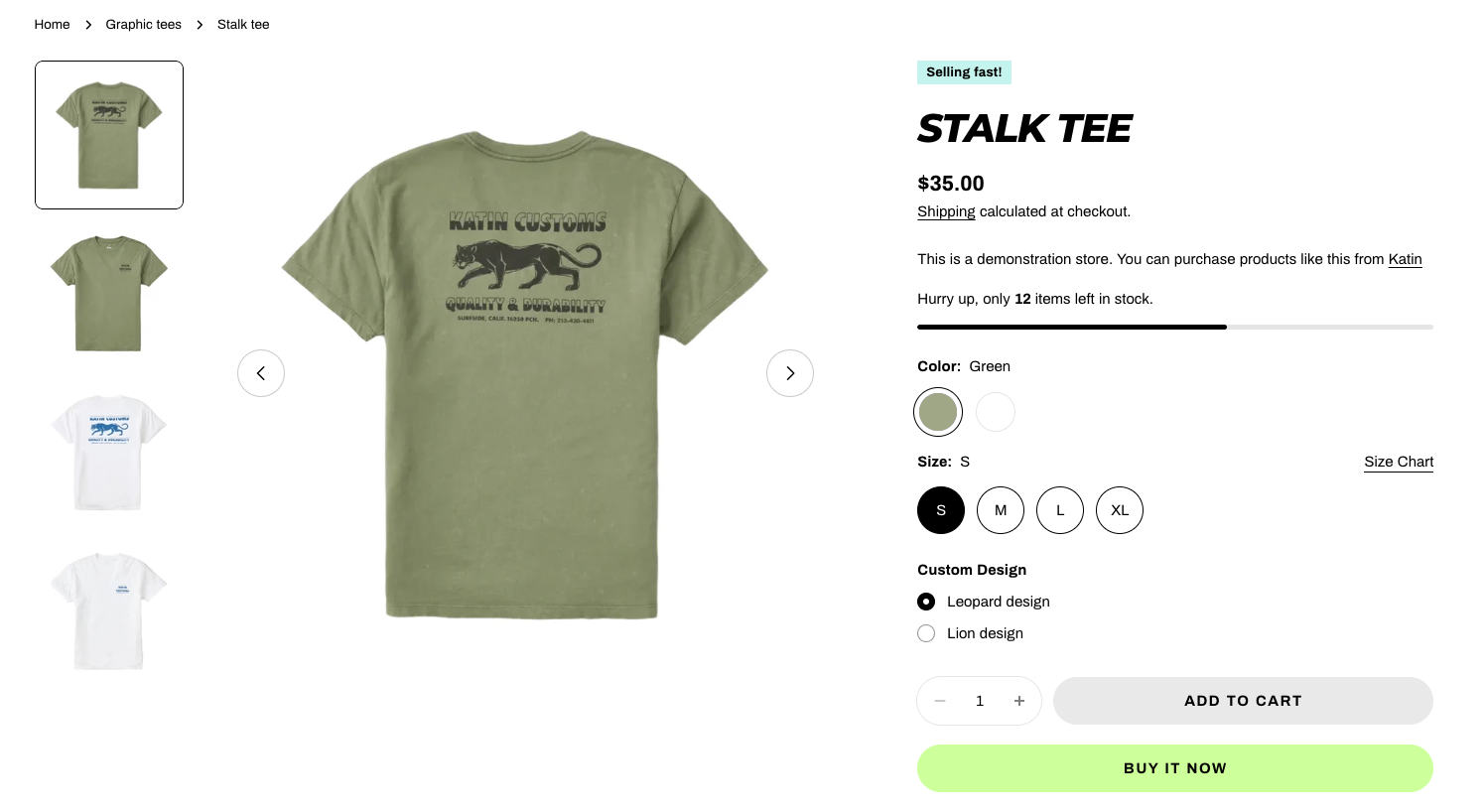
#### Media settings

<figure><img src="https://3064615700-files.gitbook.io/~/files/v0/b/gitbook-x-prod.appspot.com/o/spaces%2F3yE7VVjvl0MgK6awOPKB%2Fuploads%2FdnCzwf2LLN6tSuw1JhaR%2Fimage.png?alt=media&#x26;token=1a8bb190-29d6-4a56-985f-8f3b5306bbbd" alt=""><figcaption></figcaption></figure>

* **Desktop media width**: Small/Media/Large.

Media is automatically optimized for mobile.

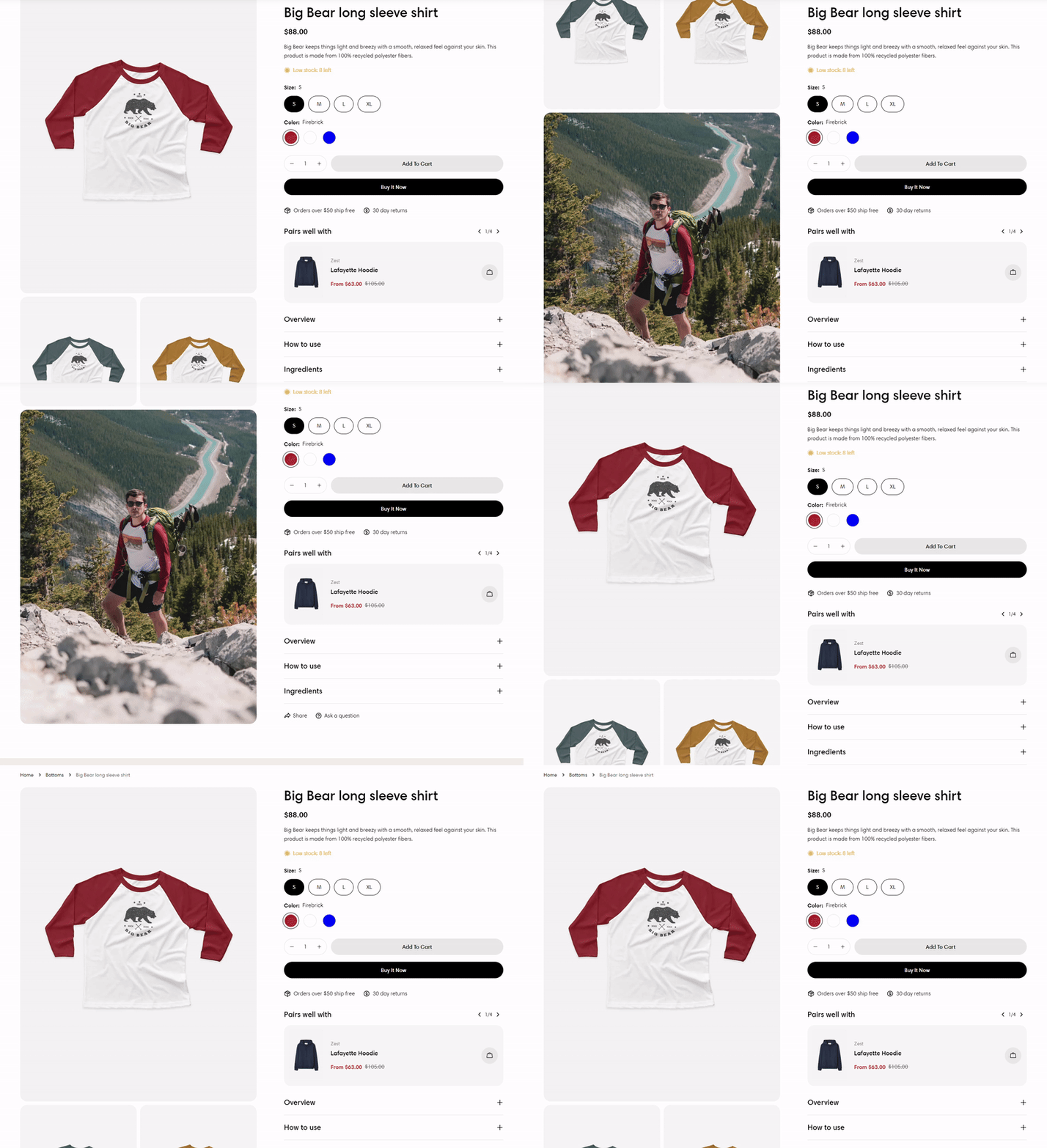
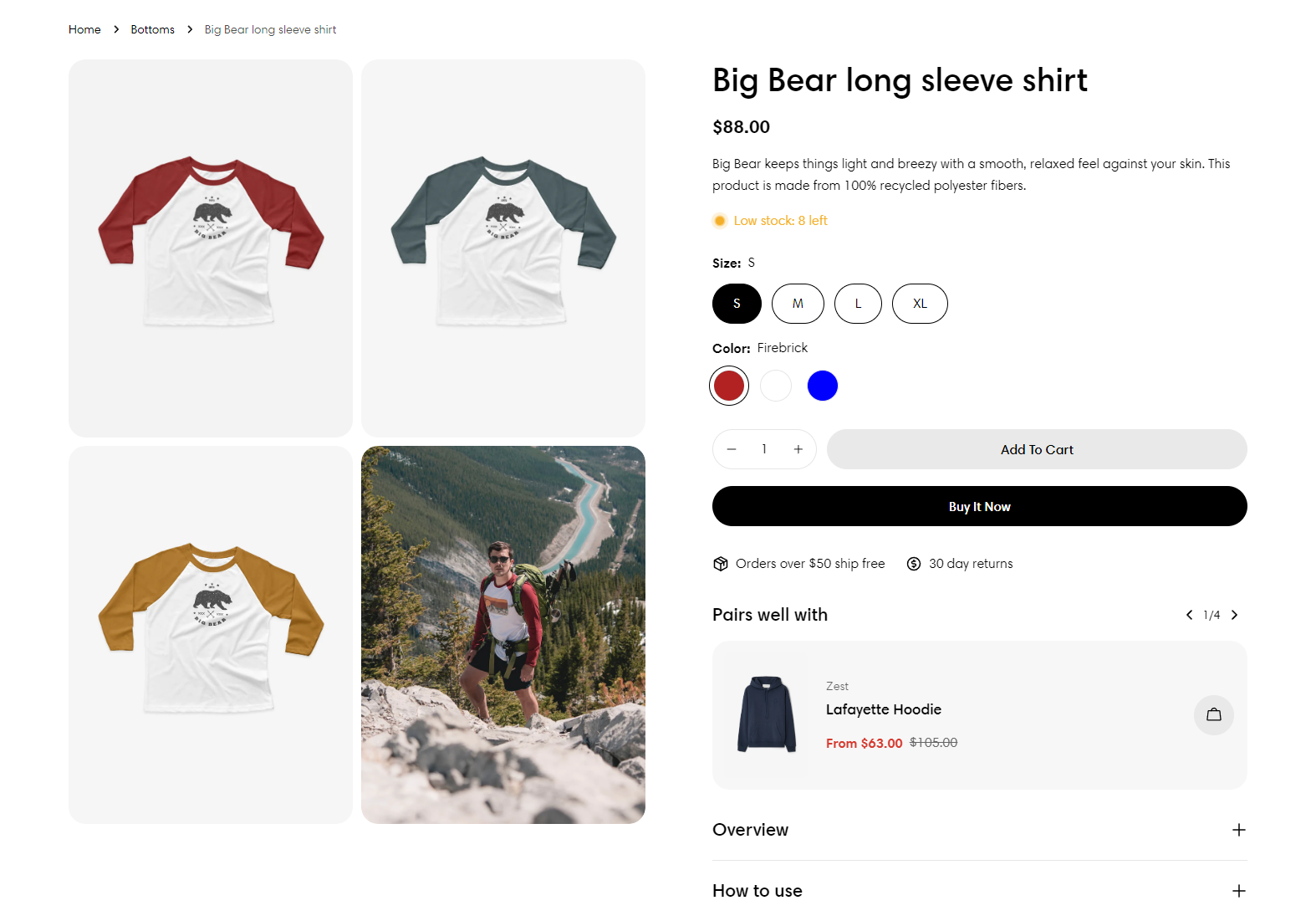
* **Desktop layout**: Set how the media is displayed on the desktop.
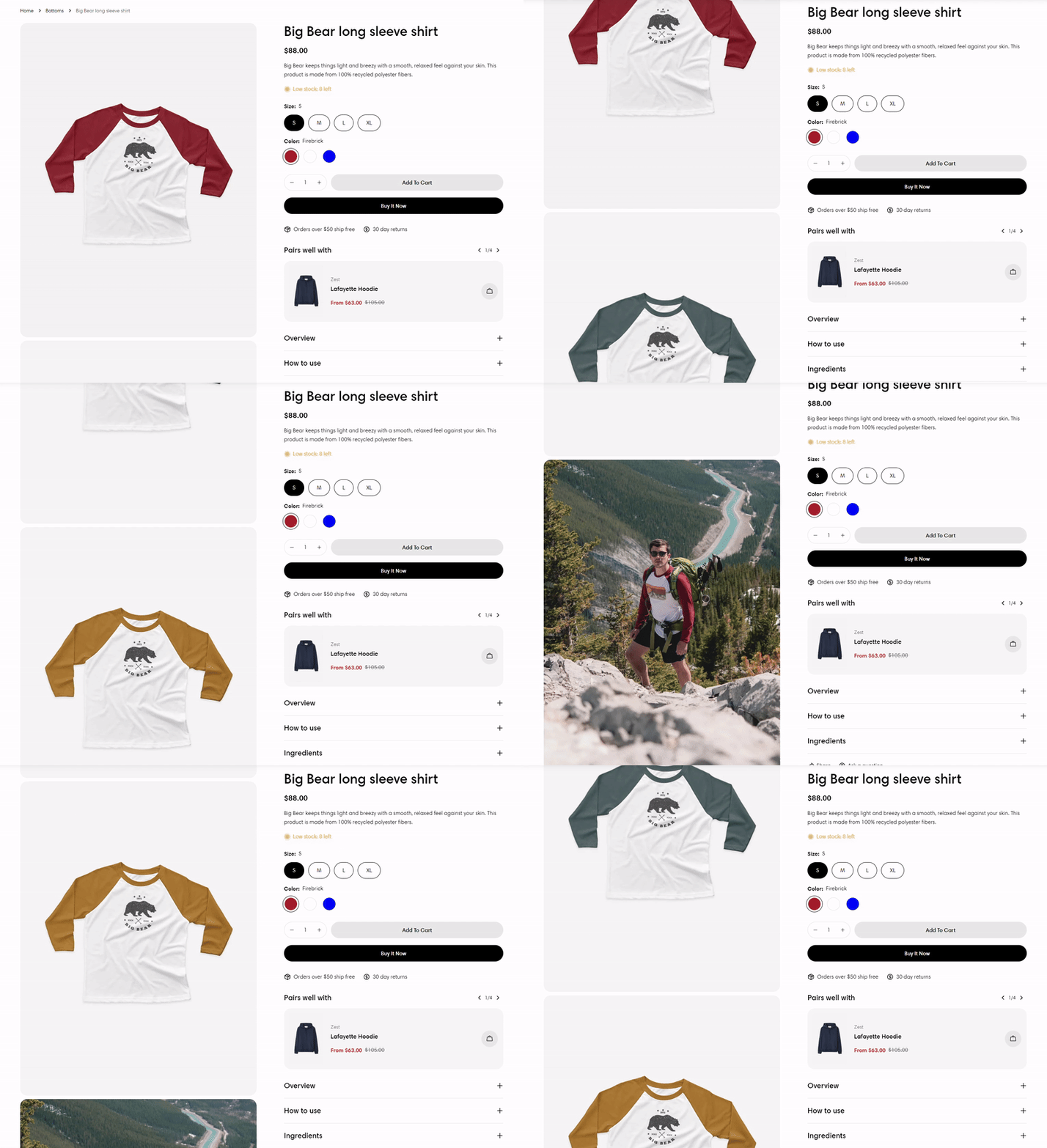
{% tabs %}
{% tab title="Stacked" %}

<figure><img src="https://3064615700-files.gitbook.io/~/files/v0/b/gitbook-x-prod.appspot.com/o/spaces%2F3yE7VVjvl0MgK6awOPKB%2Fuploads%2FkdtgkBSAXQ8Wj5sSyEZH%2F2024-06-0511-06-55-ezgif.com-video-to-gif-converter.gif?alt=media&#x26;token=f05a8ad0-d625-43da-a02f-24ba42e8a90a" alt=""><figcaption></figcaption></figure>
{% endtab %}

{% tab title="Grid mix" %}

<figure><img src="https://3064615700-files.gitbook.io/~/files/v0/b/gitbook-x-prod.appspot.com/o/spaces%2F3yE7VVjvl0MgK6awOPKB%2Fuploads%2FKj5Ki8Ub3y3csCAqBZpx%2F2024-06-0511-09-40-ezgif.com-video-to-gif-converter.gif?alt=media&#x26;token=ad57c3b0-a29f-47c5-8cfa-2d532dee7927" alt=""><figcaption></figcaption></figure>
{% endtab %}

{% tab title="Grid 2 columns" %}

<figure><img src="https://3064615700-files.gitbook.io/~/files/v0/b/gitbook-x-prod.appspot.com/o/spaces%2F3yE7VVjvl0MgK6awOPKB%2Fuploads%2FjAhxzYbtKqJhWUJmZc08%2Fimage.png?alt=media&#x26;token=aaba64ae-97c9-43ef-a79b-acbe596ed173" alt=""><figcaption></figcaption></figure>
{% endtab %}

{% tab title="Horizontal thumbnails carousel" %}

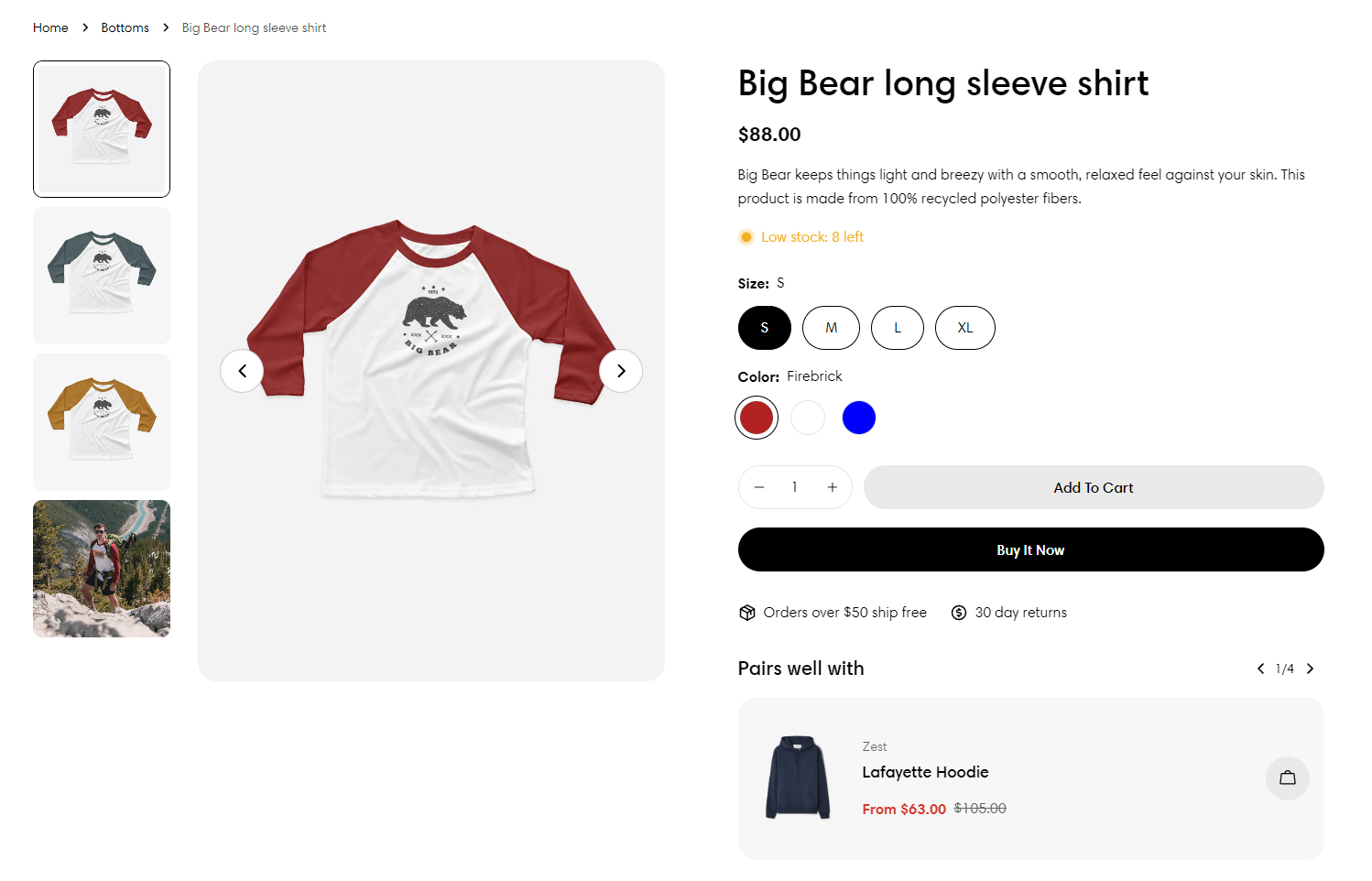
<figure><img src="https://3064615700-files.gitbook.io/~/files/v0/b/gitbook-x-prod.appspot.com/o/spaces%2F3yE7VVjvl0MgK6awOPKB%2Fuploads%2F2dk4YBsgrOH2ddZiPCP6%2Fimage.png?alt=media&#x26;token=356851bf-4761-4e1e-bdaa-353b16bc5686" alt=""><figcaption></figcaption></figure>
{% endtab %}

{% tab title="Vertical thumbnails carousel" %}

<figure><img src="https://3064615700-files.gitbook.io/~/files/v0/b/gitbook-x-prod.appspot.com/o/spaces%2F3yE7VVjvl0MgK6awOPKB%2Fuploads%2F94vQSge1x7IDdC964cHT%2Fimage.png?alt=media&#x26;token=6bebc708-a4a8-4ce7-b121-61e5885f8d01" alt=""><figcaption></figcaption></figure>
{% endtab %}
{% endtabs %}

{% hint style="info" %}
To know more about media, see [Product media](https://help.shopify.com/en/manual/products/product-media).
{% endhint %}

You can also enable/disable **image zoom** and **video looping** to your product information section.

<figure><img src="https://content.gitbook.com/content/3yE7VVjvl0MgK6awOPKB/blobs/tMGjMzJBSp4mHNcCLYWn/ezgif.com-video-to-gif%20(10).gif" alt=""><figcaption><p>An example of product image zoom</p></figcaption></figure>

### Product Information blocks

1. [Title](#id-1.-title)
2. [Price](#id-2.-price)
3. [Description](#id-3.-description)
4. [Variant picker](#id-4.-variant-picker)
5. [Buy buttons](#id-5.-buy-buttons)
6. [Text](#id-6.-text)
7. [Icon with text](#id-7.-icon-with-text)
8. [Collapsible row](#id-8.-collapsible-row)
9. [Inventory status](#id-9.-inventory-status)
10. [Pickup availability](#id-10.-pickup-availability)
11. [Shipping](#id-11.-shipping-information)
12. [SKU](#id-12.-sku)
13. [Pop-up](#id-13.-pop-up)
14. [Badges and tags](#id-14.-badges-and-tags)
15. [Complementary products](#id-15.-complimentary-products)
16. [Addon buttons](#id-16.-addon-buttons)
17. [Custom liquid](#id-17.-custom-liquid)
18. [Line item property](#id-18.-line-item-property) 🔥

#### **1. Title**

Display the product title.&#x20;

Title size can be set to be based on Heading 1/Heading 2/Heading 3.
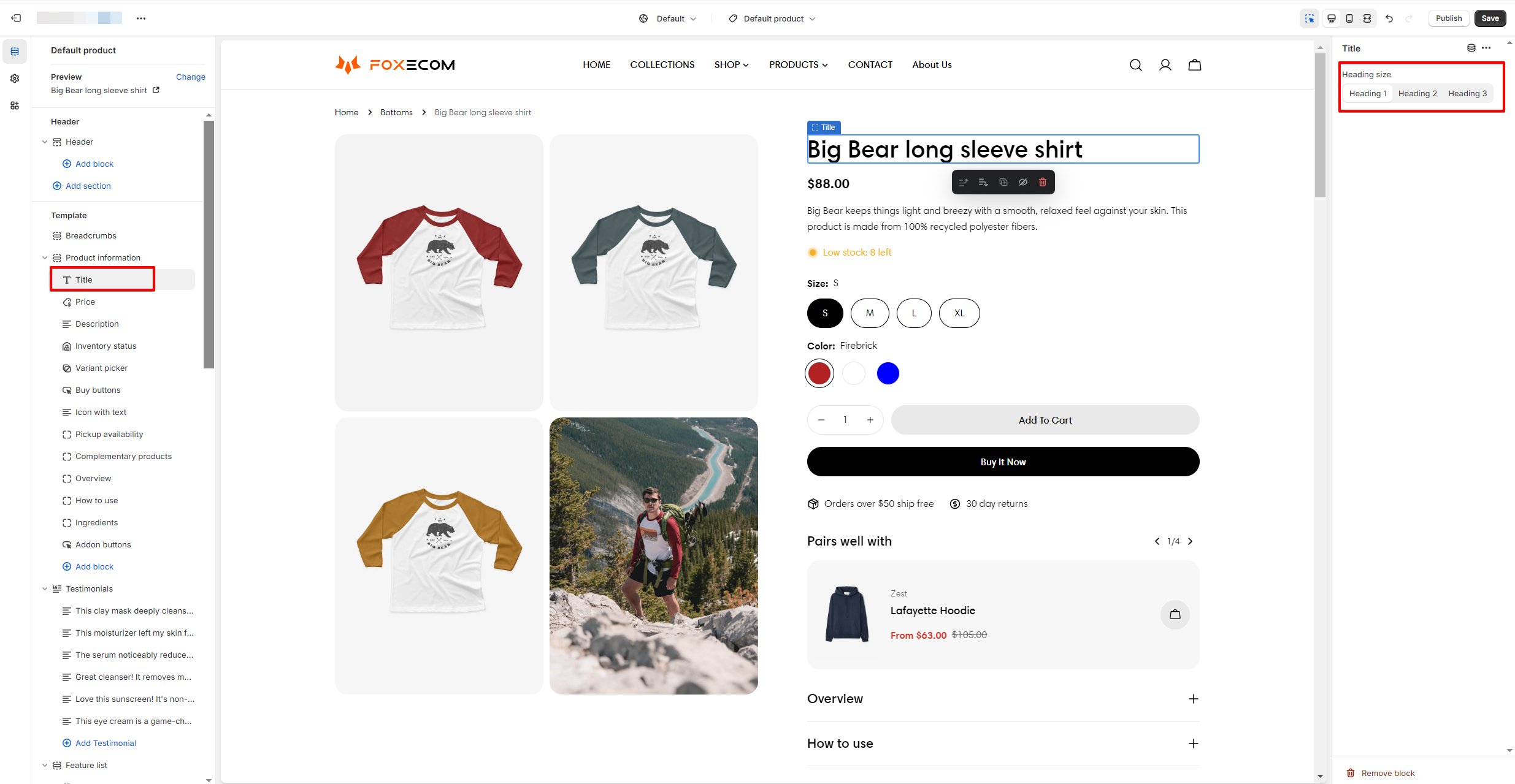
<figure><img src="https://3064615700-files.gitbook.io/~/files/v0/b/gitbook-x-prod.appspot.com/o/spaces%2F3yE7VVjvl0MgK6awOPKB%2Fuploads%2Fk3lxWf1mlOTDQATw1WPh%2Fimage.png?alt=media&#x26;token=3ccbca8f-f399-4c8d-951f-ede1d93105ea" alt=""><figcaption></figcaption></figure>

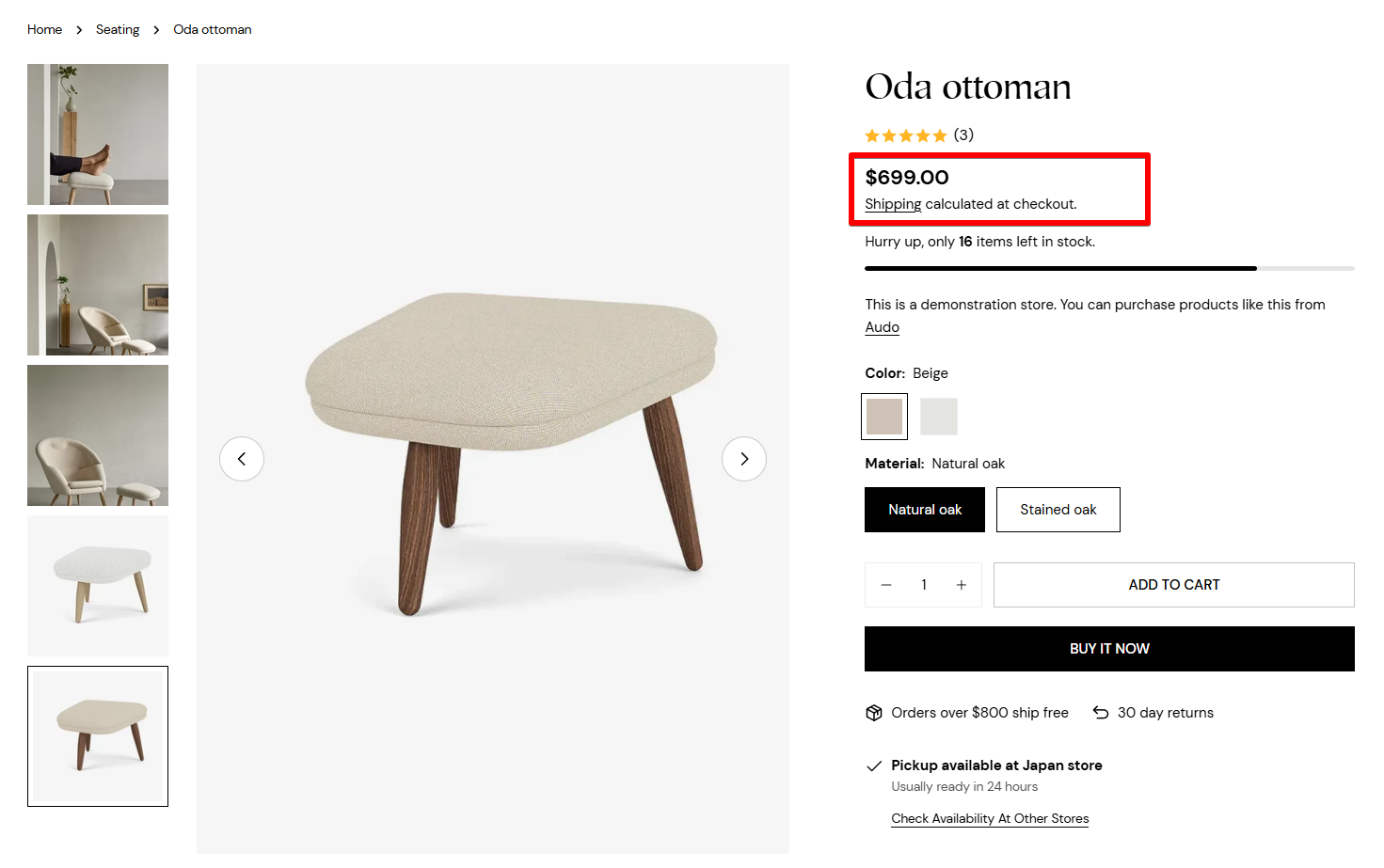
#### **2. Price**

To display the product price.
<figure><img src="https://3064615700-files.gitbook.io/~/files/v0/b/gitbook-x-prod.appspot.com/o/spaces%2F3yE7VVjvl0MgK6awOPKB%2Fuploads%2FBddTQ4cWEpSrNCOFlEAA%2Fimage.png?alt=media&#x26;token=25a03134-c8cb-42aa-9553-cab611c93d2c" alt=""><figcaption></figcaption></figure>

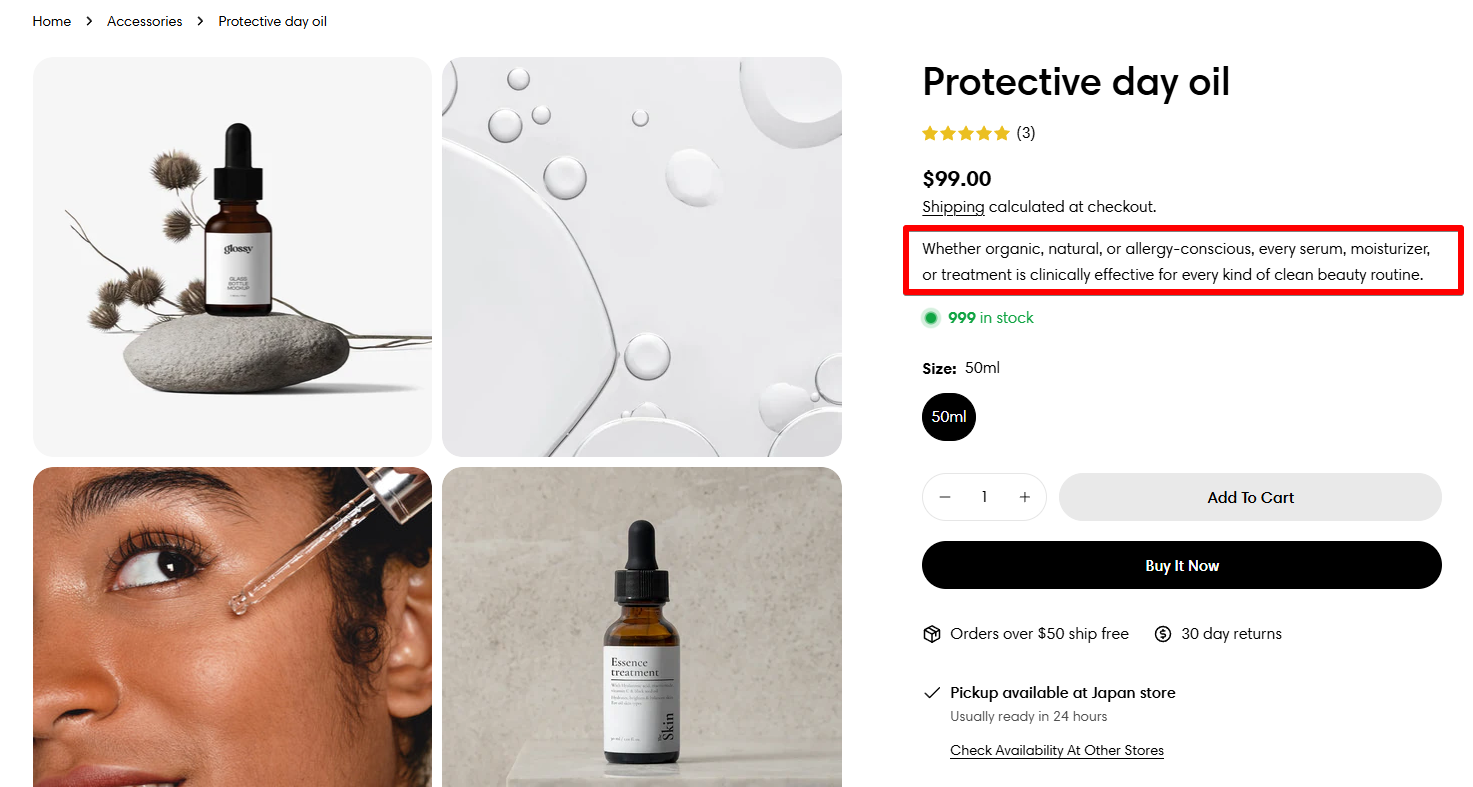
#### **3. Description**

To display the product description.
<figure><img src="https://3064615700-files.gitbook.io/~/files/v0/b/gitbook-x-prod.appspot.com/o/spaces%2F3yE7VVjvl0MgK6awOPKB%2Fuploads%2FG2HlZG2O42Q7IrnaGFhY%2Fimage.png?alt=media&#x26;token=8ecd4570-b4a0-4a09-a002-617814e1e6db" alt=""><figcaption></figcaption></figure>

:writing\_hand:*Not sure how to add a description to your product? See* [*our tutorial here*](https://youtu.be/265f0W3LQXY?si=kQCQpGV1hB_Z_lHf)*.*

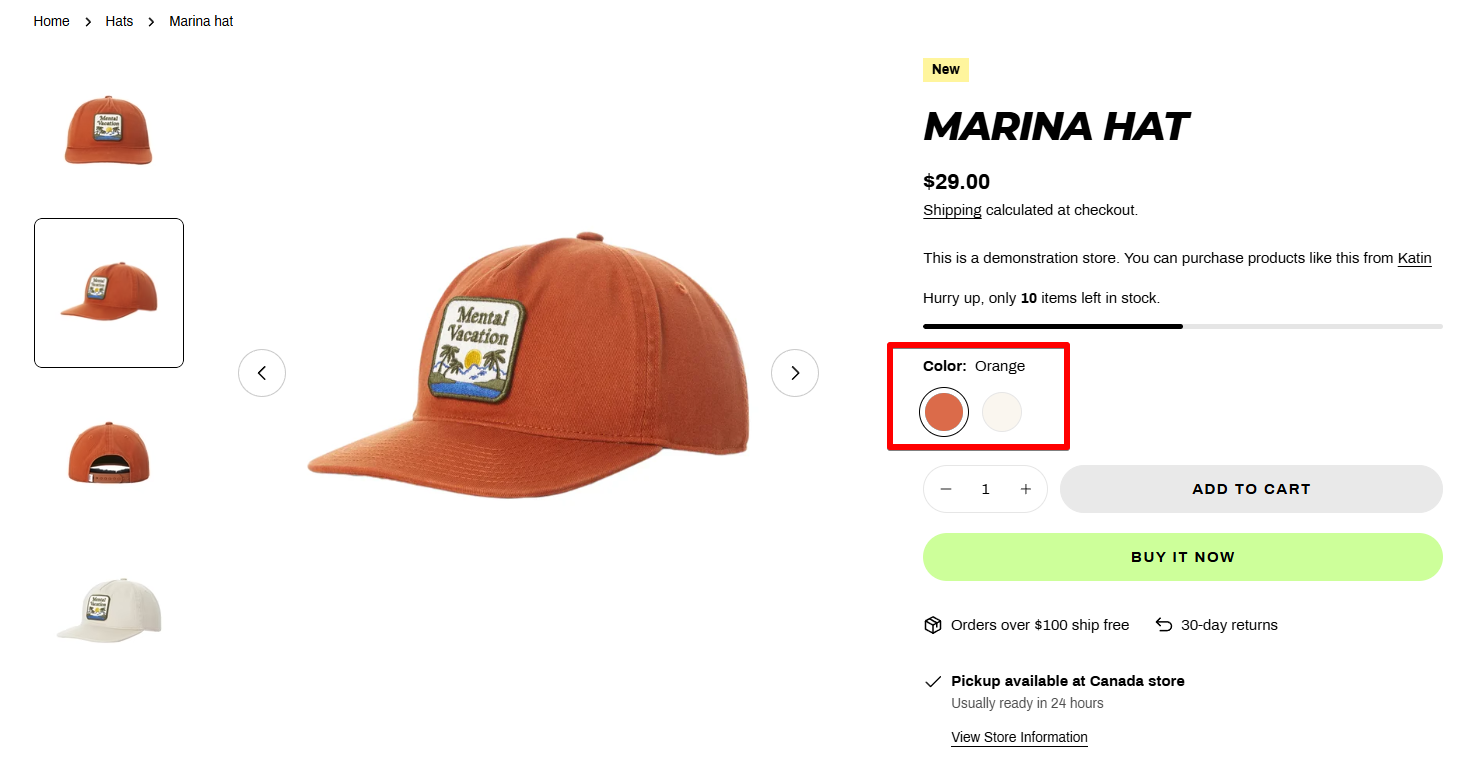
#### **4. Variant picker**
<figure><img src="https://3064615700-files.gitbook.io/~/files/v0/b/gitbook-x-prod.appspot.com/o/spaces%2F3yE7VVjvl0MgK6awOPKB%2Fuploads%2FOm2VPe5lb1rR3KB7siY0%2Fimage.png?alt=media&#x26;token=4711f4b8-bb05-4642-b407-0fd3e6d62ed3" alt=""><figcaption></figcaption></figure>

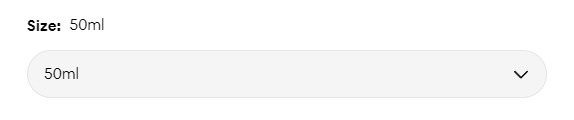
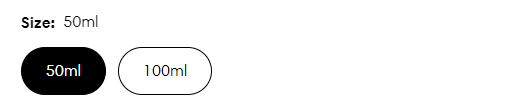
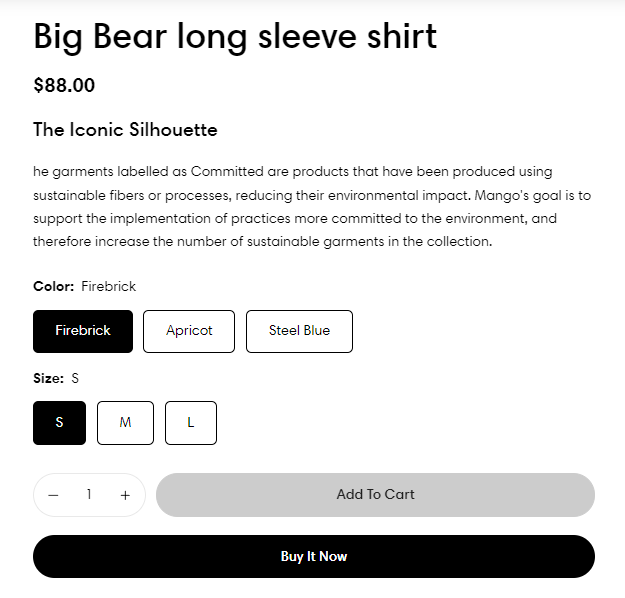
* **Style**: Dropdown/ Buttons

{% tabs %}
{% tab title="Dropdown" %}

<figure><img src="https://3064615700-files.gitbook.io/~/files/v0/b/gitbook-x-prod.appspot.com/o/spaces%2F3yE7VVjvl0MgK6awOPKB%2Fuploads%2FquvnMGZJzf7hFMu52Kz8%2Fimage.png?alt=media&#x26;token=0f51360f-4a0d-4dd4-b6a0-781fe0b01e60" alt=""><figcaption></figcaption></figure>
{% endtab %}

{% tab title="Buttons" %}

<figure><img src="https://3064615700-files.gitbook.io/~/files/v0/b/gitbook-x-prod.appspot.com/o/spaces%2F3yE7VVjvl0MgK6awOPKB%2Fuploads%2FgGohHd8e688wD9yfNIYz%2Fimage.png?alt=media&#x26;token=791ea7ec-fb13-4c70-a7e1-1e75b08871c5" alt=""><figcaption></figcaption></figure>
{% endtab %}
{% endtabs %}

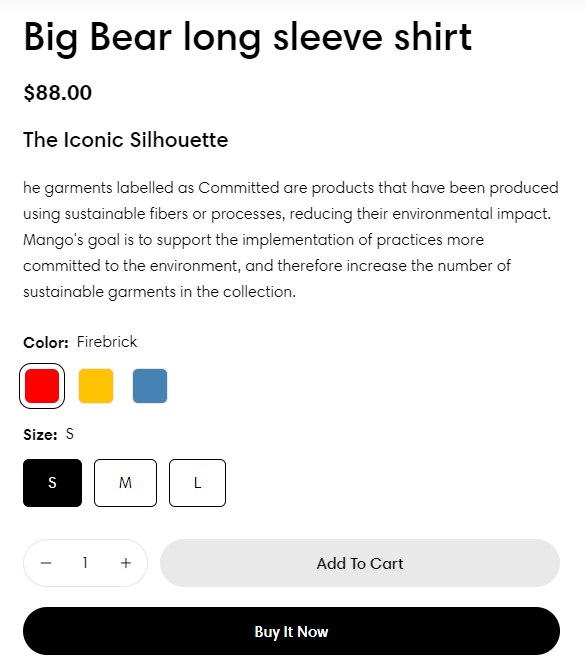
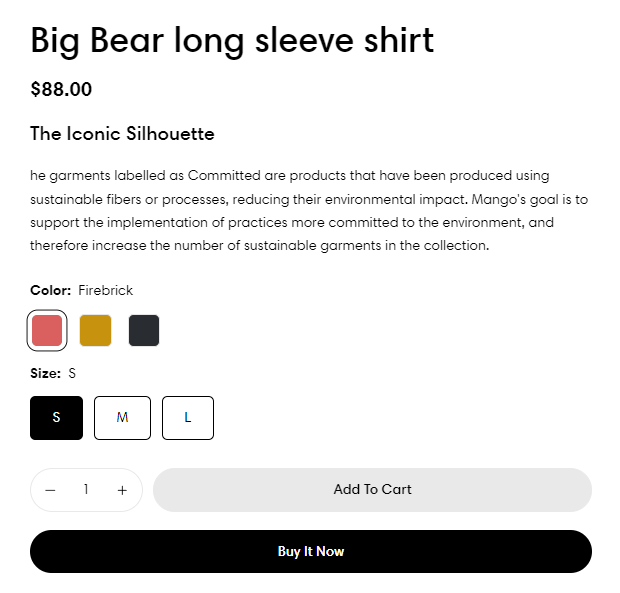
* **Swatches**

{% embed url="<https://youtu.be/NBTK3I06Rtk>" %}

Color swatches allow customers to visualize precisely what you're offering.

{% hint style="warning" %}
To enable swatches, your variant picker's **Style must be 'Button'.**
{% endhint %}

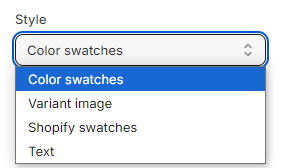
Select the swatches style as **Color swatches**/**Variant image**/**Shopify swatches**/**Text**.
<figure><img src="https://3064615700-files.gitbook.io/~/files/v0/b/gitbook-x-prod.appspot.com/o/spaces%2F3yE7VVjvl0MgK6awOPKB%2Fuploads%2F9ZLX64uOhtTjwAgf9sJP%2Fimage.png?alt=media&#x26;token=d324c674-efb8-44ca-9bd0-5ff62bb14769" alt=""><figcaption></figcaption></figure>

{% tabs %}
{% tab title="Color swatches" %}

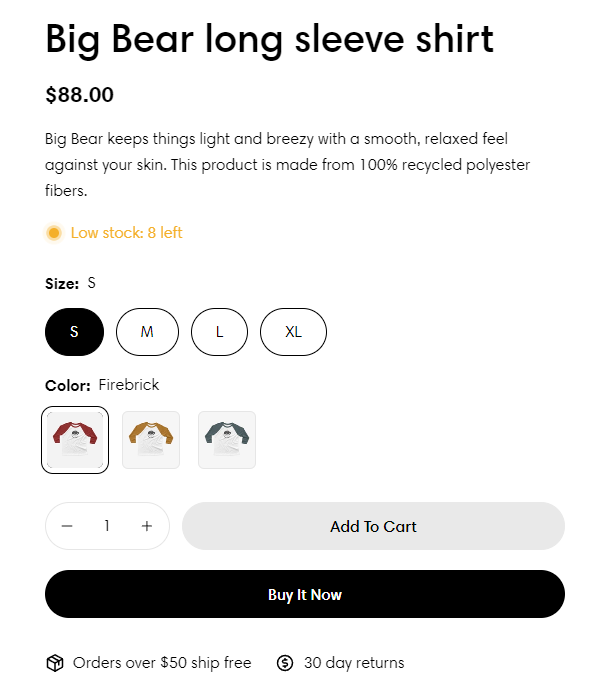
<figure><img src="https://3064615700-files.gitbook.io/~/files/v0/b/gitbook-x-prod.appspot.com/o/spaces%2F3yE7VVjvl0MgK6awOPKB%2Fuploads%2FwlfvgAV5VgYcYmUbnUuP%2Fimage.png?alt=media&#x26;token=33882214-e55d-4d2d-b577-b206fe5301a7" alt=""><figcaption></figcaption></figure>

{% hint style="info" %}
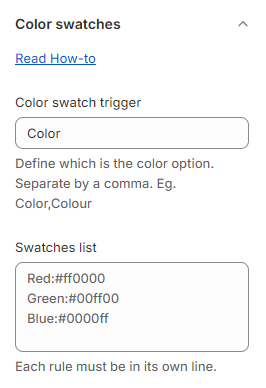
Set the **Color swatch trigger** for your product option and add your **Swatches list** in **Theme settings** > [Color swatches](https://docs.foxecom.com/sleek-theme/theme-settings/color-swatches).
![](https://3064615700-files.gitbook.io/~/files/v0/b/gitbook-x-prod.appspot.com/o/spaces%2F3yE7VVjvl0MgK6awOPKB%2Fuploads%2FkUj1SAVxljHylAIalEoX%2Fimage.png?alt=media\&token=57ebb3aa-7876-4085-bc88-e40ce002f088)
{% endhint %}
{% endtab %}

{% tab title="Variant image" %}

<figure><img src="https://3064615700-files.gitbook.io/~/files/v0/b/gitbook-x-prod.appspot.com/o/spaces%2F3yE7VVjvl0MgK6awOPKB%2Fuploads%2FhcgtCVdfVmrig60GcCAE%2Fimage.png?alt=media&#x26;token=98648c0a-c118-4edd-ba61-1aa57a304211" alt=""><figcaption></figcaption></figure>

{% hint style="info" %}
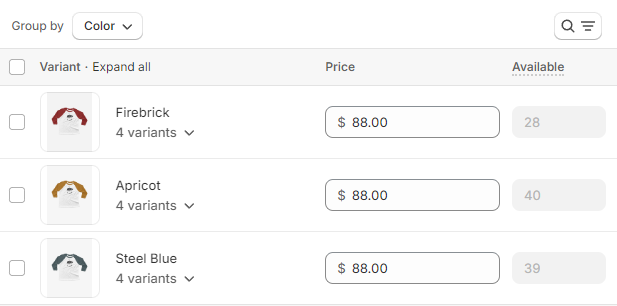
Make sure you have [associated your product variants with their images](https://help.shopify.com/manual/products/product-media/add-images-variants) in Shopify **Products** > **Variants**.
{% endhint %}

<figure><img src="https://3064615700-files.gitbook.io/~/files/v0/b/gitbook-x-prod.appspot.com/o/spaces%2F3yE7VVjvl0MgK6awOPKB%2Fuploads%2FAIs7fQzUAX1isWRI0IQu%2Fimage.png?alt=media&#x26;token=91d9f55c-aed2-4495-b535-82f0451cd4b4" alt=""><figcaption></figcaption></figure>
{% endtab %}

{% tab title="Shopify swatches" %}

<figure><img src="https://3064615700-files.gitbook.io/~/files/v0/b/gitbook-x-prod.appspot.com/o/spaces%2F3yE7VVjvl0MgK6awOPKB%2Fuploads%2F7f10ZUXZ9yeshzMSgBJO%2Fimage.png?alt=media&#x26;token=0f6977b0-f375-492b-92ec-cd9b35b32bee" alt=""><figcaption></figcaption></figure>

{% hint style="info" %}
Native Shopify swatches allow you to manage your swatch directly from Shopify admin.

Native color swatches leverage Shopify categories to work.

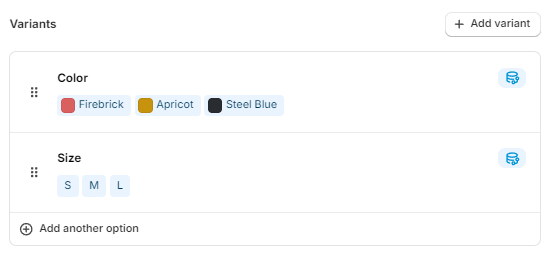
For more information on setting up native color swatches, please check the [Shopify documentation](https://help.shopify.com/en/manual/custom-data/metafields/category-metafields/using-category-metafields).
{% endhint %}

{% hint style="warning" %}
Note: Make sure you set the :white\_check\_mark: **Color swatch trigger** for your color option in Theme settings > [Color swatches](https://docs.foxecom.com/sleek-theme/theme-settings/color-swatches).
{% endhint %}

<figure><img src="https://3064615700-files.gitbook.io/~/files/v0/b/gitbook-x-prod.appspot.com/o/spaces%2F3yE7VVjvl0MgK6awOPKB%2Fuploads%2FzpbTQeh8TXxtWkM5bji9%2Fimage.png?alt=media&#x26;token=9c6b8b20-61fe-4801-9863-744774b3aebf" alt=""><figcaption></figcaption></figure>
{% endtab %}

{% tab title="Text" %}

<figure><img src="https://3064615700-files.gitbook.io/~/files/v0/b/gitbook-x-prod.appspot.com/o/spaces%2F3yE7VVjvl0MgK6awOPKB%2Fuploads%2FlnVUeL3kjt85UdRdytvA%2Fimage.png?alt=media&#x26;token=b0639f3d-409b-4cd1-bf3b-832ff161dc35" alt=""><figcaption></figcaption></figure>

{% hint style="info" %}
Show variant names as plain text.
{% endhint %}
{% endtab %}
{% endtabs %}

{% hint style="info" %}
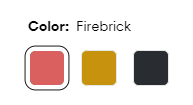
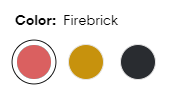
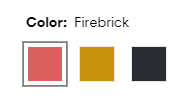
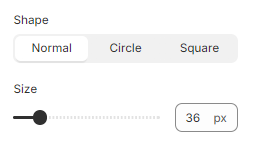
You can change the **shape** and **size** of the swatches.
![](https://3064615700-files.gitbook.io/~/files/v0/b/gitbook-x-prod.appspot.com/o/spaces%2F3yE7VVjvl0MgK6awOPKB%2Fuploads%2Fgn6NcJgj9TkkSk2Viqsb%2Fimage.png?alt=media\&token=49e12dbf-b53a-434d-a233-810e58e9f09d)
{% endhint %}

{% tabs %}
{% tab title="Normal" %}

<figure><img src="https://3064615700-files.gitbook.io/~/files/v0/b/gitbook-x-prod.appspot.com/o/spaces%2F3yE7VVjvl0MgK6awOPKB%2Fuploads%2FgjfnNanRiwc50fy5Plow%2Fimage.png?alt=media&#x26;token=2b704aac-ad42-41dd-9af8-48e769f625fc" alt=""><figcaption></figcaption></figure>
{% endtab %}

{% tab title="Circle" %}

<figure><img src="https://3064615700-files.gitbook.io/~/files/v0/b/gitbook-x-prod.appspot.com/o/spaces%2F3yE7VVjvl0MgK6awOPKB%2Fuploads%2FkIBFXharPeBAHpqwFziz%2Fimage.png?alt=media&#x26;token=6851eaf3-f5d5-4477-918e-16d3dad95c47" alt=""><figcaption></figcaption></figure>
{% endtab %}

{% tab title="Square" %}

<figure><img src="https://3064615700-files.gitbook.io/~/files/v0/b/gitbook-x-prod.appspot.com/o/spaces%2F3yE7VVjvl0MgK6awOPKB%2Fuploads%2F4EaY0zvTQHUdXddIK66p%2Fimage.png?alt=media&#x26;token=de979dd1-bf0a-4812-8eff-d5f5bc47986b" alt=""><figcaption></figcaption></figure>
{% endtab %}
{% endtabs %}

* **Size chart**

<figure><img src="https://3064615700-files.gitbook.io/~/files/v0/b/gitbook-x-prod.appspot.com/o/spaces%2F3yE7VVjvl0MgK6awOPKB%2Fuploads%2FQPzsU8XnutrYuYvR71Sf%2Fimage.png?alt=media&#x26;token=d1df26f8-0367-4f16-b8ba-71abf5c9aba4" alt=""><figcaption></figcaption></figure>

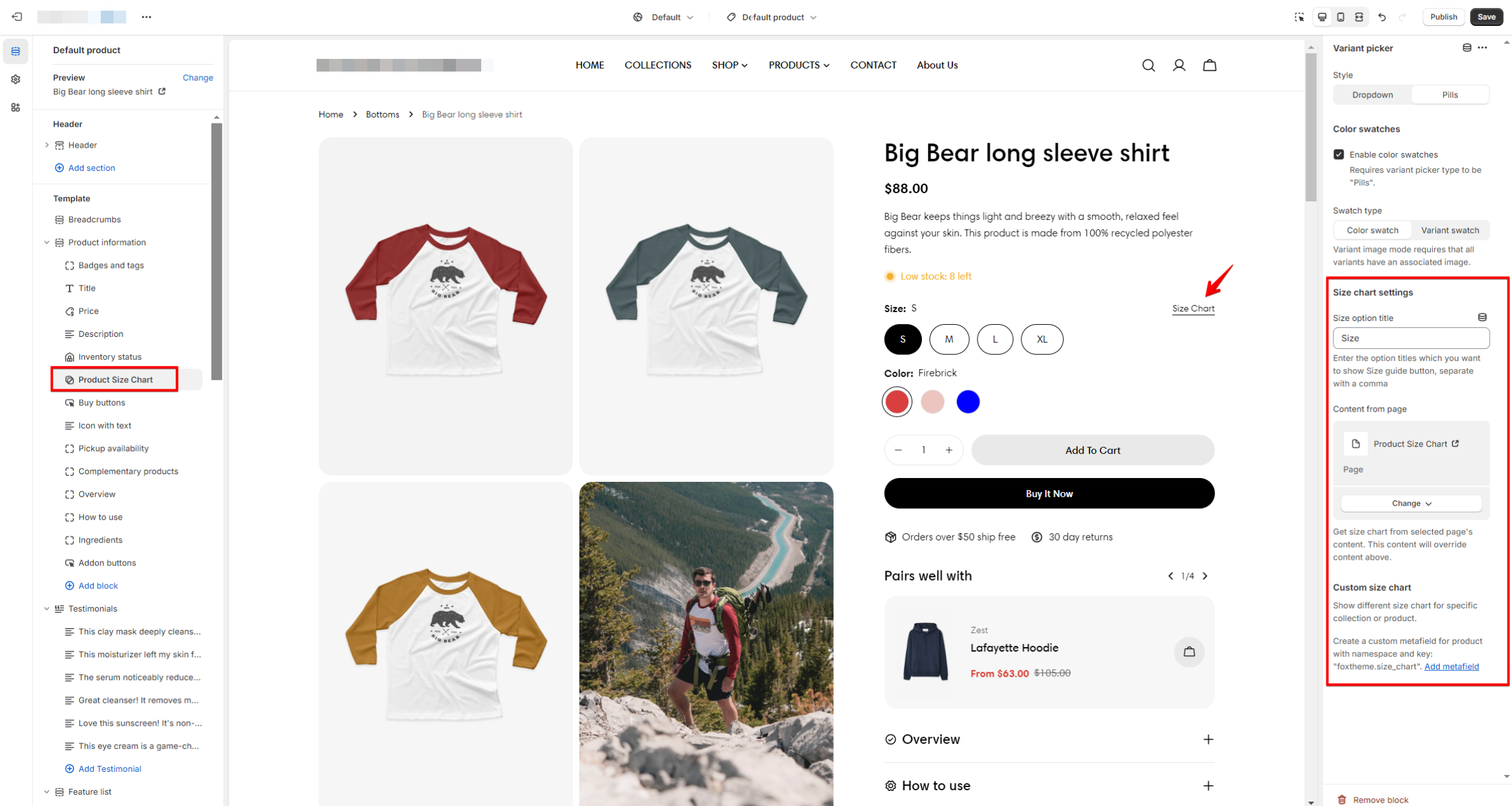
Add the **Option name** you want to display your size chart and select a page created in [Shopify Pages](https://help.shopify.com/en/manual/online-store/themes/theme-structure/pages#add-new-page) or use metafields to display dynamic content.
<figure><img src="https://3064615700-files.gitbook.io/~/files/v0/b/gitbook-x-prod.appspot.com/o/spaces%2F3yE7VVjvl0MgK6awOPKB%2Fuploads%2F3lZHNewiwIVXRsBqNbyu%2Fimage.png?alt=media&#x26;token=9f9c0527-08c3-49bb-9507-8e29f1e0a803" alt=""><figcaption></figcaption></figure>

#### **5. Buy buttons**

<figure><img src="https://3064615700-files.gitbook.io/~/files/v0/b/gitbook-x-prod.appspot.com/o/spaces%2F3yE7VVjvl0MgK6awOPKB%2Fuploads%2FBgptPf3lAqHerlZfKeFW%2Fimage.png?alt=media&#x26;token=6f8aedb8-2f79-4cc1-9ea1-83bf72bf9e70" alt=""><figcaption></figcaption></figure>

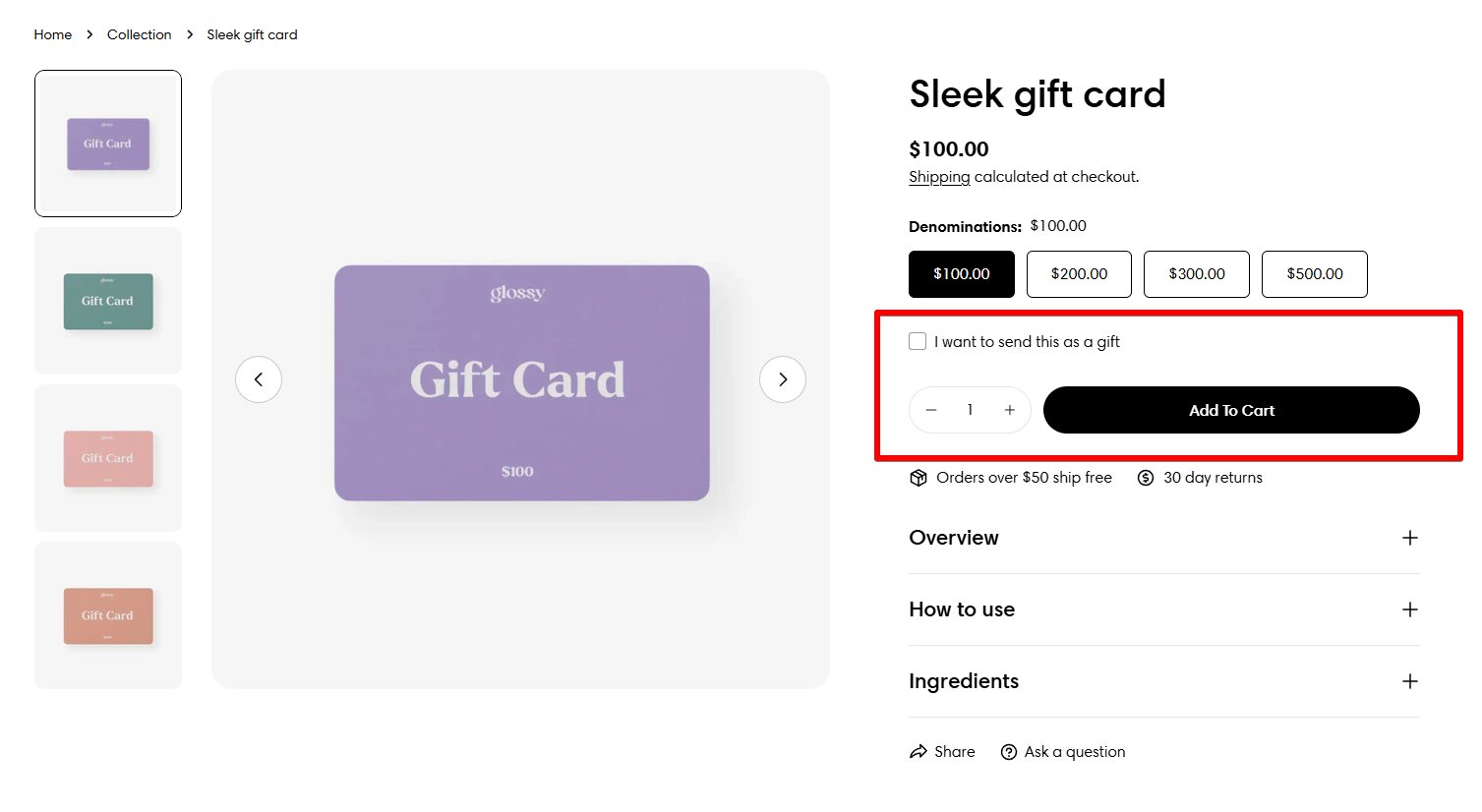
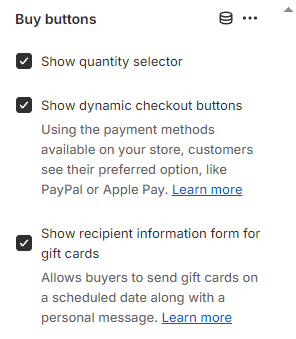
Enable the **Quantity selector**, **Dynamic checkout buttons**, and **Show recipient information form** for gift cards.
<figure><img src="https://3064615700-files.gitbook.io/~/files/v0/b/gitbook-x-prod.appspot.com/o/spaces%2F3yE7VVjvl0MgK6awOPKB%2Fuploads%2FERzqRWwsG1ayEIb6rwkS%2Fimage.png?alt=media&#x26;token=e06bcb95-c4b5-4071-be4c-769a0ca3a907" alt=""><figcaption></figcaption></figure>

:eyes: [*Learn more about Shopify Dynamic checkout buttons*](https://help.shopify.com/manual/online-store/dynamic-checkout)*.*

:gift:[*Learn more about gift cards.*](https://help.shopify.com/manual/products/gift-card-products)

#### 6. Text

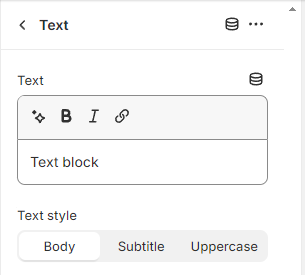
Add text to your product details.
<figure><img src="https://3064615700-files.gitbook.io/~/files/v0/b/gitbook-x-prod.appspot.com/o/spaces%2F3yE7VVjvl0MgK6awOPKB%2Fuploads%2F9J4Cn4XXlKbh1eptdlQz%2Fimage.png?alt=media&#x26;token=020efea5-7ac6-42ba-8e3a-2b382844291f" alt=""><figcaption></figcaption></figure>

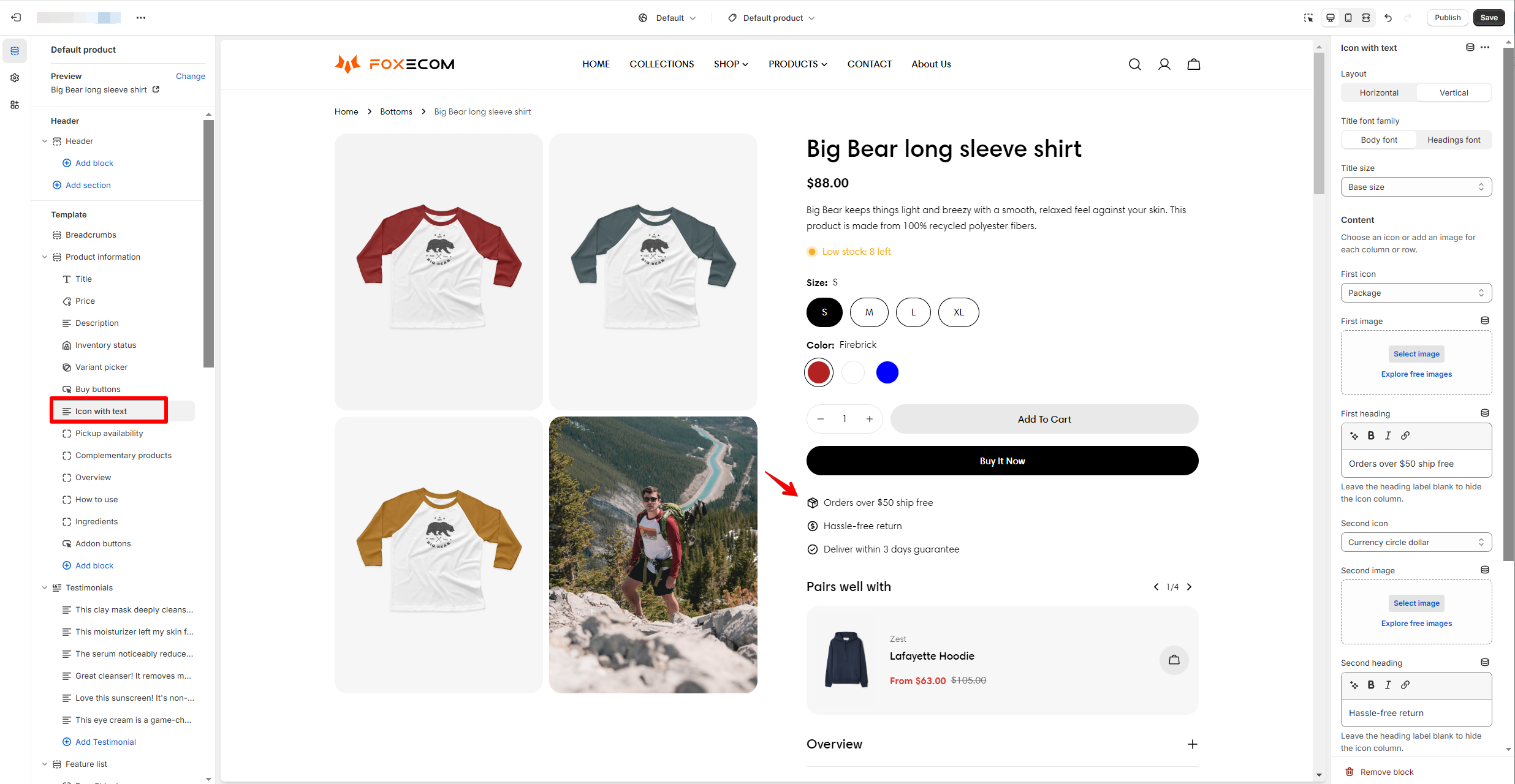
#### **7. Icon with text**

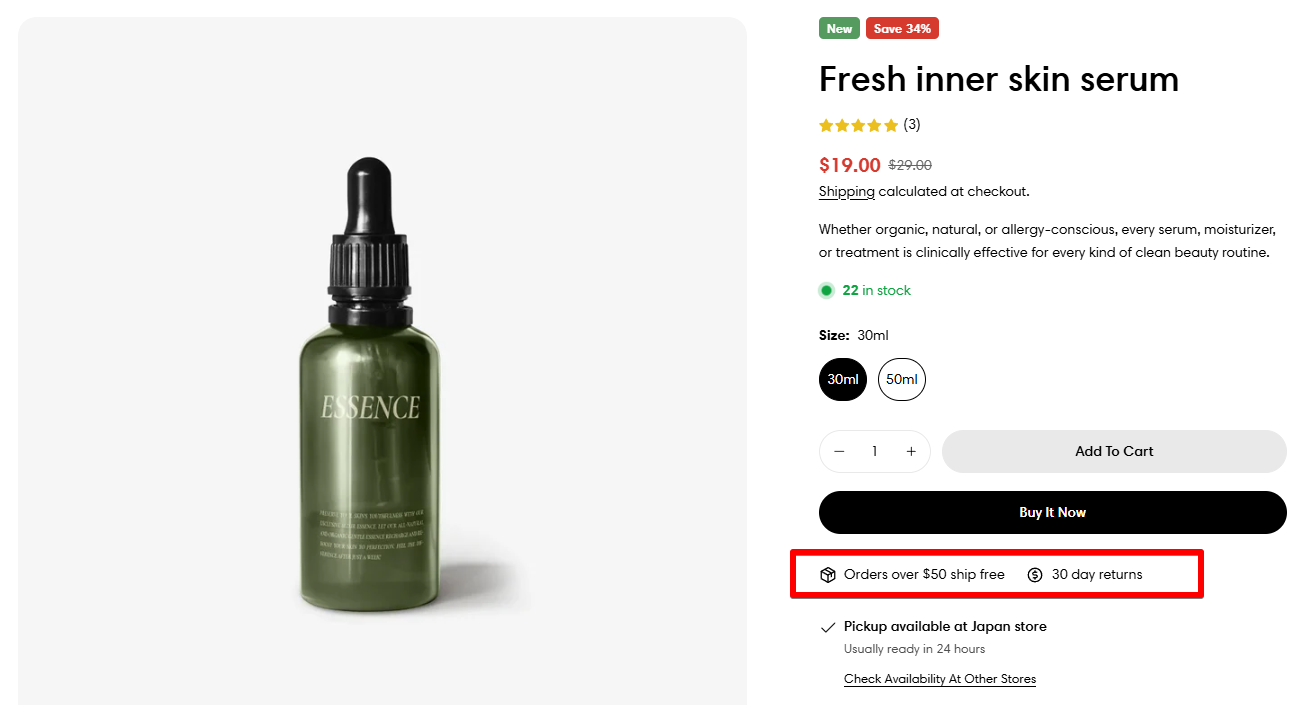
<figure><img src="https://3064615700-files.gitbook.io/~/files/v0/b/gitbook-x-prod.appspot.com/o/spaces%2F3yE7VVjvl0MgK6awOPKB%2Fuploads%2FpJTR96Yfj0FYE3laYZO3%2Fimage.png?alt=media&#x26;token=ccdd7ac0-02db-48b4-80e8-9e732332c58e" alt=""><figcaption></figcaption></figure>

Add your content/promotion in a row/column layout. You can add up to 3 messages. Each comes with an icon/image and a text.
<figure><img src="https://3064615700-files.gitbook.io/~/files/v0/b/gitbook-x-prod.appspot.com/o/spaces%2F3yE7VVjvl0MgK6awOPKB%2Fuploads%2FFlf4U0TMuNjyEftHtYFM%2Fimage.png?alt=media&#x26;token=01a73ee6-ca17-47e4-bb64-920869a631e8" alt=""><figcaption></figcaption></figure>

#### **8. Collapsible row**

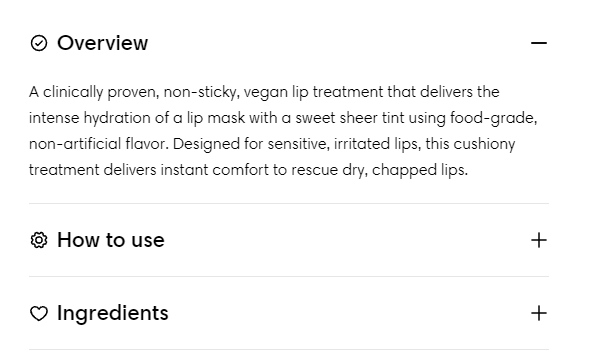
<figure><img src="https://3064615700-files.gitbook.io/~/files/v0/b/gitbook-x-prod.appspot.com/o/spaces%2F3yE7VVjvl0MgK6awOPKB%2Fuploads%2FV0U1xE2zWugAmVXMOoIC%2Fimage.png?alt=media&#x26;token=4f6bb50e-9abe-4cb9-a350-0bd317ea429a" alt=""><figcaption></figcaption></figure>

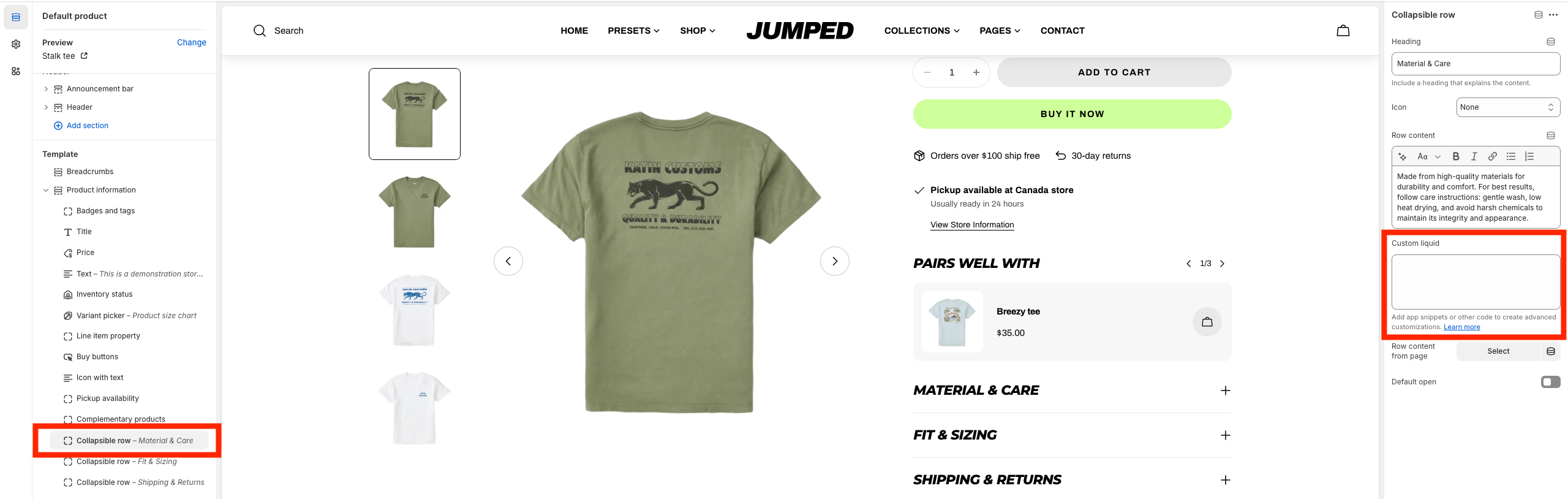
Display your content in an expandable tab.

* Heading: To include a heading explaining the content.
* Icon: To add an icon before the block's heading.
* Row content: To add the tab content. The copy can be added via the theme editor or pulled from a page in [Shopify Pages](https://help.shopify.com/manual/online-store/themes/theme-structure/pages).
* Custom liquid: Add app snippets or other code to create advanced customizations. [Learn more](https://shopify.dev/docs/api/liquid)
<figure><img src="https://3064615700-files.gitbook.io/~/files/v0/b/gitbook-x-prod.appspot.com/o/spaces%2F3yE7VVjvl0MgK6awOPKB%2Fuploads%2FCFGzhKpKqXNadA4yNUv6%2FScreenshot%202025-06-03%20at%2011.35.02.png?alt=media&#x26;token=cb68909d-4fdb-4782-a12d-7b57784877d7" alt=""><figcaption></figcaption></figure>

#### 9. Inventory status

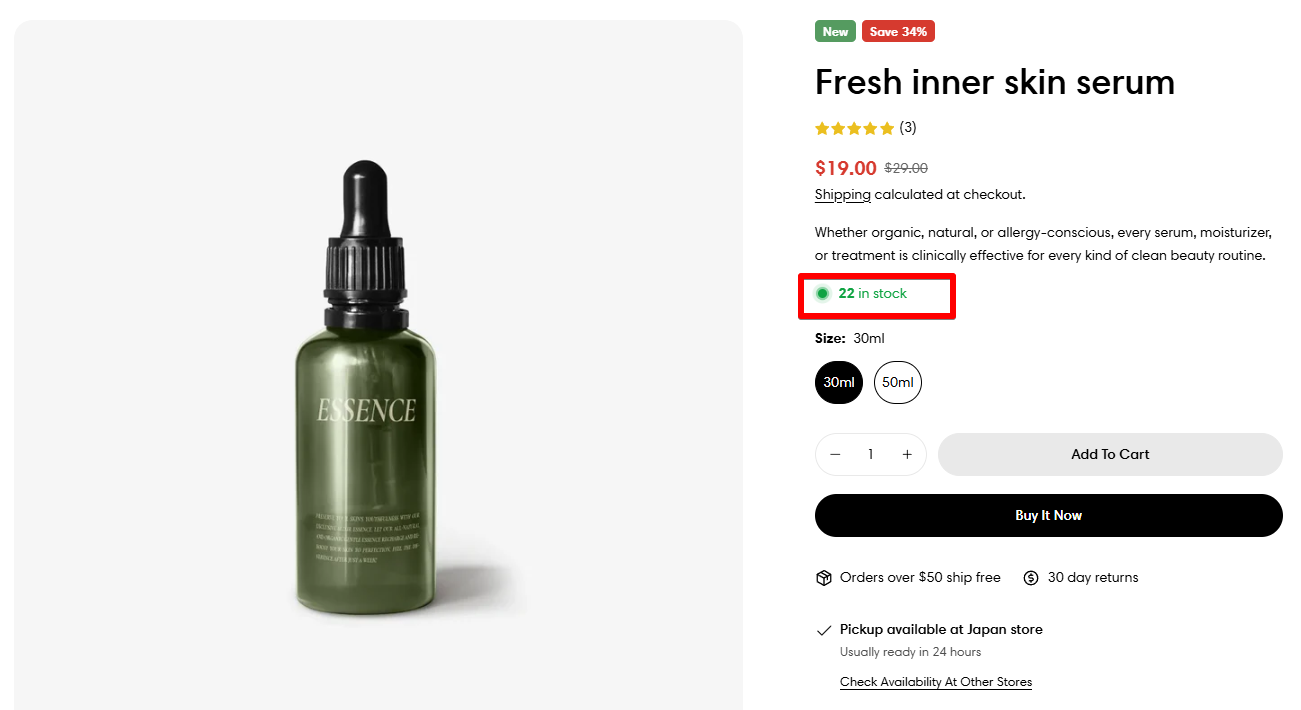
<figure><img src="https://3064615700-files.gitbook.io/~/files/v0/b/gitbook-x-prod.appspot.com/o/spaces%2F3yE7VVjvl0MgK6awOPKB%2Fuploads%2Fu0rgyXgJP4IjW42CaNBq%2Fimage.png?alt=media&#x26;token=177b7543-3851-466a-a9d9-2dfd78045752" alt=""><figcaption></figcaption></figure>

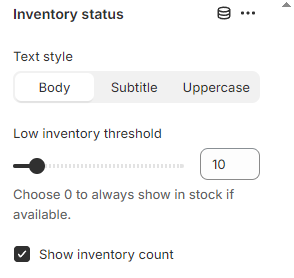
The inventory status block lets you display the stock status on individual product pages so that customers can know if a product is in stock, running low in stock, or out of stock.

{% hint style="success" %}
To show the **Inventory status** as in stock and low stock alerts on your product page, in **Shopify Products** > **Variants**:

* check the option **Track quantity**;
* uncheck **Continue selling when out of stock**.
  {% endhint %}

<figure><img src="https://docs.foxecom.com/~gitbook/image?url=https%3A%2F%2F1836495117-files.gitbook.io%2F%7E%2Ffiles%2Fv0%2Fb%2Fgitbook-x-prod.appspot.com%2Fo%2Fspaces%252FOdebKCa6IK9qfbdvSKj0%252Fuploads%252FTFPEuW9IFcRugB9DtmVr%252Fimage.png%3Falt%3Dmedia%26token%3D7fdea7f3-bc15-4e9c-9bef-ded84ef94360&#x26;width=768&#x26;dpr=4&#x26;quality=100&#x26;sign=42dddea19166d93449601e878a8ed1f687a04a0ff671ca1c56188cc76de25e20" alt=""><figcaption></figcaption></figure>

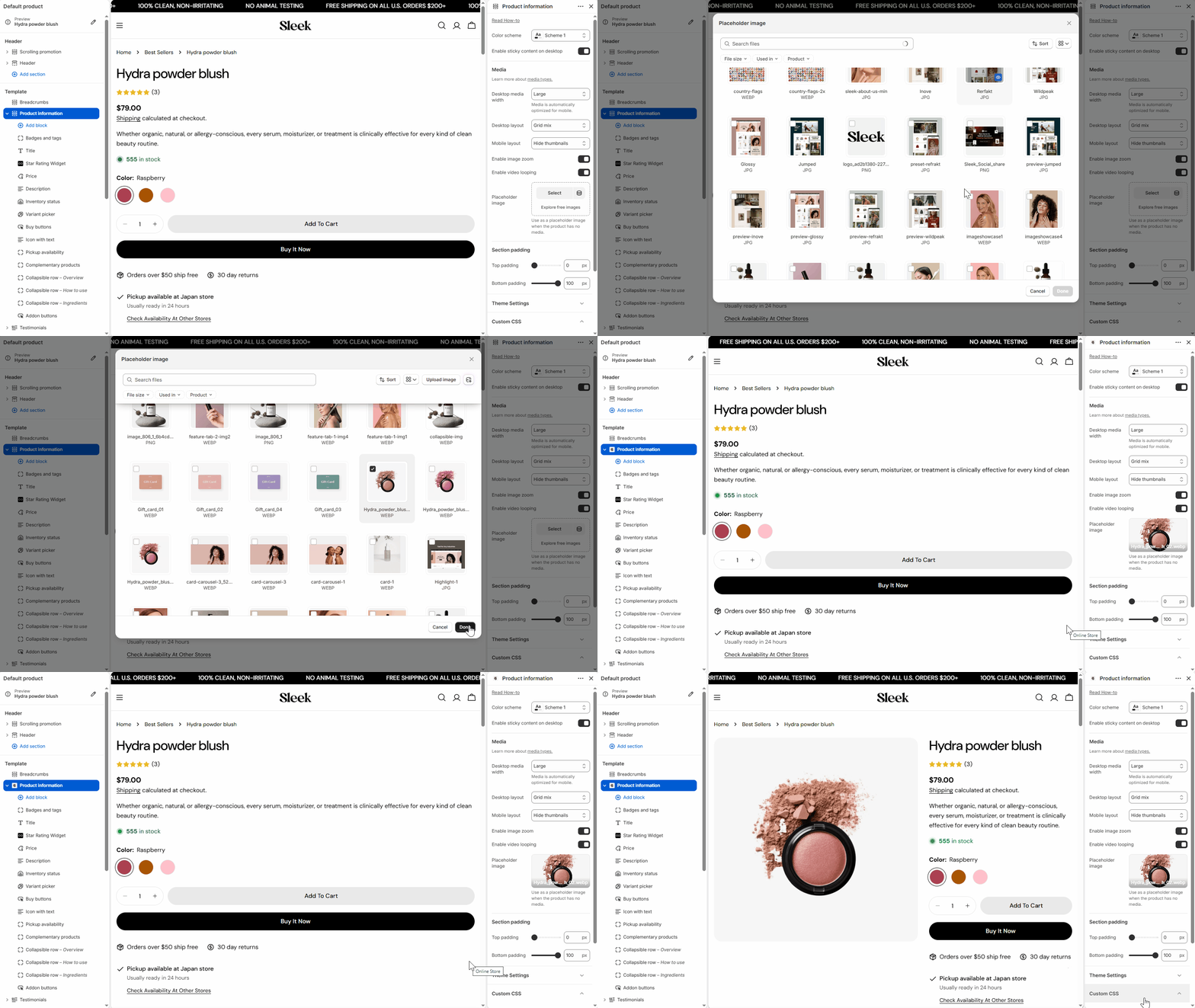
In your product template, add the **Inventory status** block and select the **Low inventory threshold** by tweaking the slider (between 0 and 100).
<figure><img src="https://3064615700-files.gitbook.io/~/files/v0/b/gitbook-x-prod.appspot.com/o/spaces%2F3yE7VVjvl0MgK6awOPKB%2Fuploads%2FvL4l1tWPXz9O325gVUcy%2Fimage.png?alt=media&#x26;token=87991384-96fc-4b5b-b5ad-b250d031b95a" alt=""><figcaption></figcaption></figure>

#### 10. Pickup availability

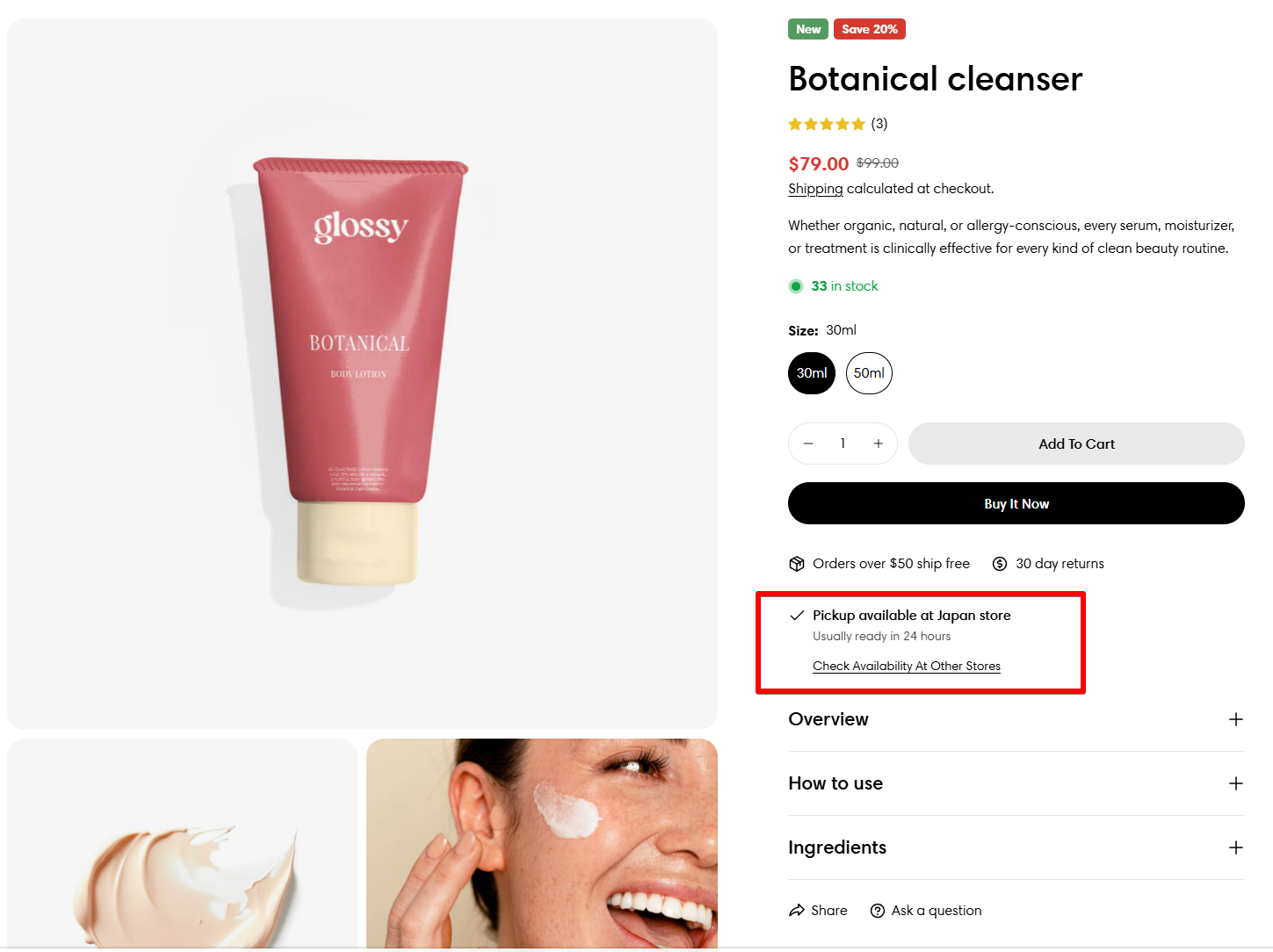
<figure><img src="https://3064615700-files.gitbook.io/~/files/v0/b/gitbook-x-prod.appspot.com/o/spaces%2F3yE7VVjvl0MgK6awOPKB%2Fuploads%2FaN4i1LUg7vwOpG6pbYQx%2Fimage.png?alt=media&#x26;token=f38983f2-a915-4aaf-b262-a1bb4e9308f0" alt=""><figcaption></figcaption></figure>

Show customers whether a product is available for local pickup. On each product page, a pickup availability section shows whether the product is available, and the estimated time frame for pickup.

This information appears only for products that are stocked at at least one pickup location and have **This is a physical product** selected in the **Shipping** section of a product variant's details.

{% content-ref url="../../faqs/product/set-up-local-pickup-option" %}
[set-up-local-pickup-option](https://docs.foxecom.com/sleek-theme/faqs/product/set-up-local-pickup-option)
{% endcontent-ref %}

#### 11. Shipping information

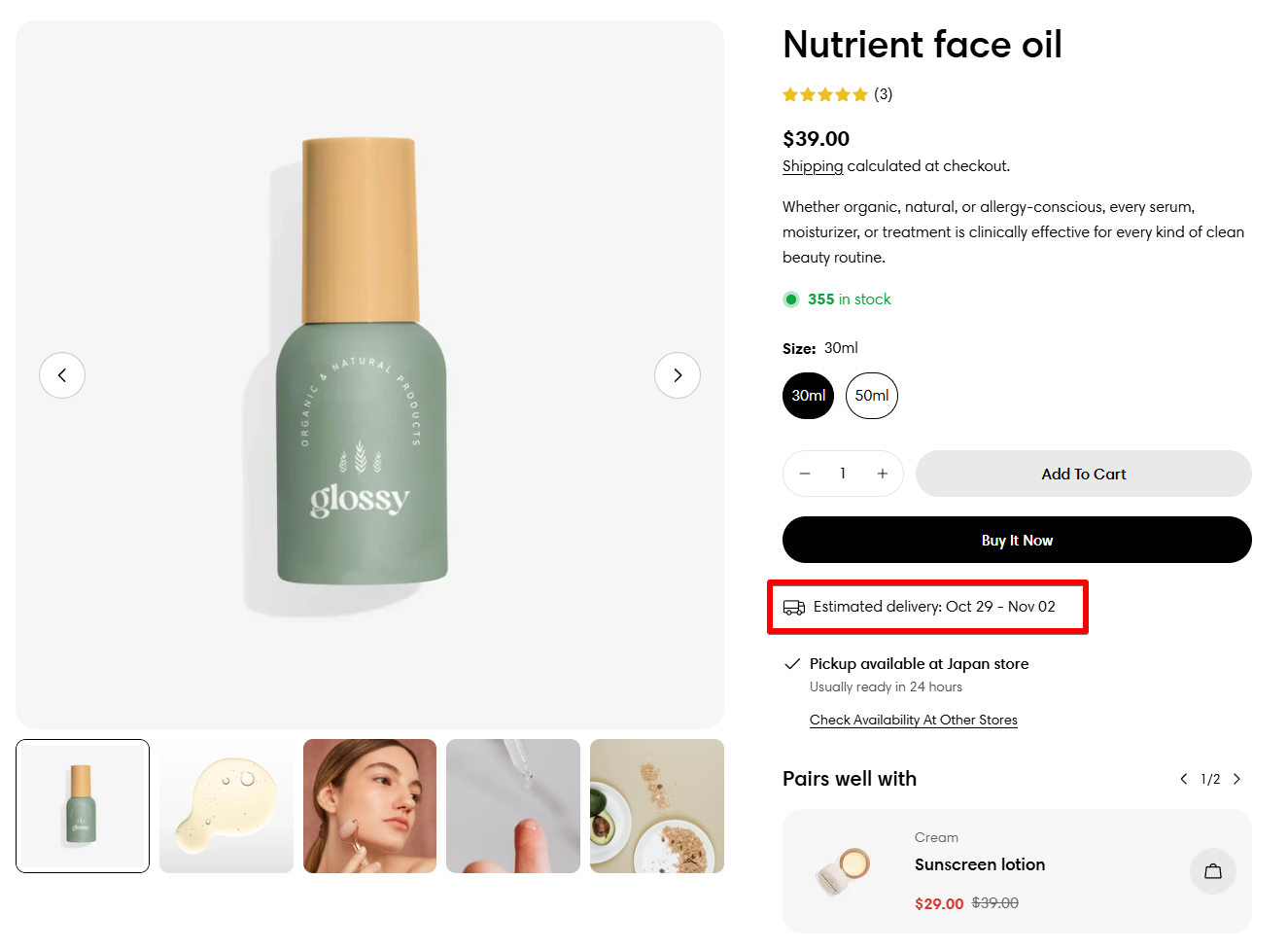
<figure><img src="https://3064615700-files.gitbook.io/~/files/v0/b/gitbook-x-prod.appspot.com/o/spaces%2F3yE7VVjvl0MgK6awOPKB%2Fuploads%2FF1eA8L0b8pI0751qRvMM%2Fimage.png?alt=media&#x26;token=a1c1af69-244e-4ad0-8054-ce11a9f1ddb1" alt=""><figcaption></figcaption></figure>

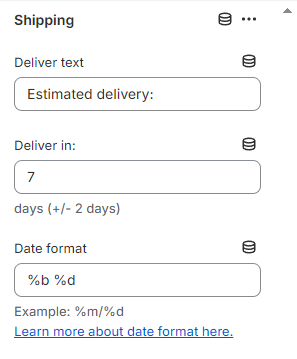
Enable/disable shipping text. Add preferable info regarding the shipping text and the number of days that the package will arrive.

⚙️ *Find more about the* [*available date format here*](https://strftime.net/)*.*
<figure><img src="https://3064615700-files.gitbook.io/~/files/v0/b/gitbook-x-prod.appspot.com/o/spaces%2F3yE7VVjvl0MgK6awOPKB%2Fuploads%2FpnbmzO8Vbm6vuvnPjzCP%2Fimage.png?alt=media&#x26;token=e491eb9b-8837-493f-8523-95d2d262e20f" alt=""><figcaption></figcaption></figure>

#### 12. SKU

SKUs (stock keeping units) are numbers, typically alphanumeric, that are used to help identify products and track inventory. If a store uses SKUs, then a unique number is assigned to each individual product variant.

You can show SKU numbers for variants on your product pages using the SKU block.

\#️⃣ *See* [*how to add SKU numbers to your product variants from the admin.*](https://help.shopify.com/manual/products/details#inventory)

#### 13. Pop-up
<figure><img src="https://3064615700-files.gitbook.io/~/files/v0/b/gitbook-x-prod.appspot.com/o/spaces%2F3yE7VVjvl0MgK6awOPKB%2Fuploads%2FZZmn5refk5OHuq08IzqX%2Fimage.png?alt=media&#x26;token=0f1d468e-08aa-40cd-bf9e-a586b5b54ff0" alt=""><figcaption></figcaption></figure>

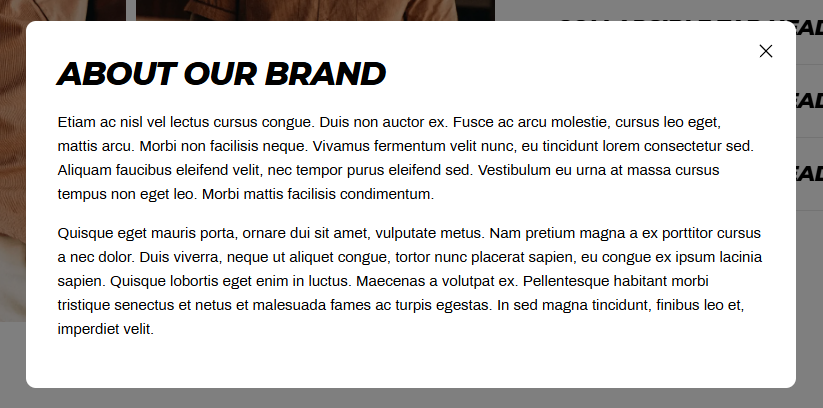
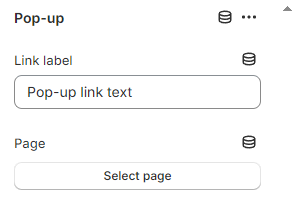
Add a pop-up link text to your product information. This allows you to link the text to a certain page content.

Insert the link label and the page to pull the content from.
<figure><img src="https://3064615700-files.gitbook.io/~/files/v0/b/gitbook-x-prod.appspot.com/o/spaces%2F3yE7VVjvl0MgK6awOPKB%2Fuploads%2FvWcUnn6tCPfugXeVHeMv%2Fimage.png?alt=media&#x26;token=58c8e229-d3c7-479f-ab3c-1425afdb2157" alt=""><figcaption></figcaption></figure>

#### 14. Badges and tags

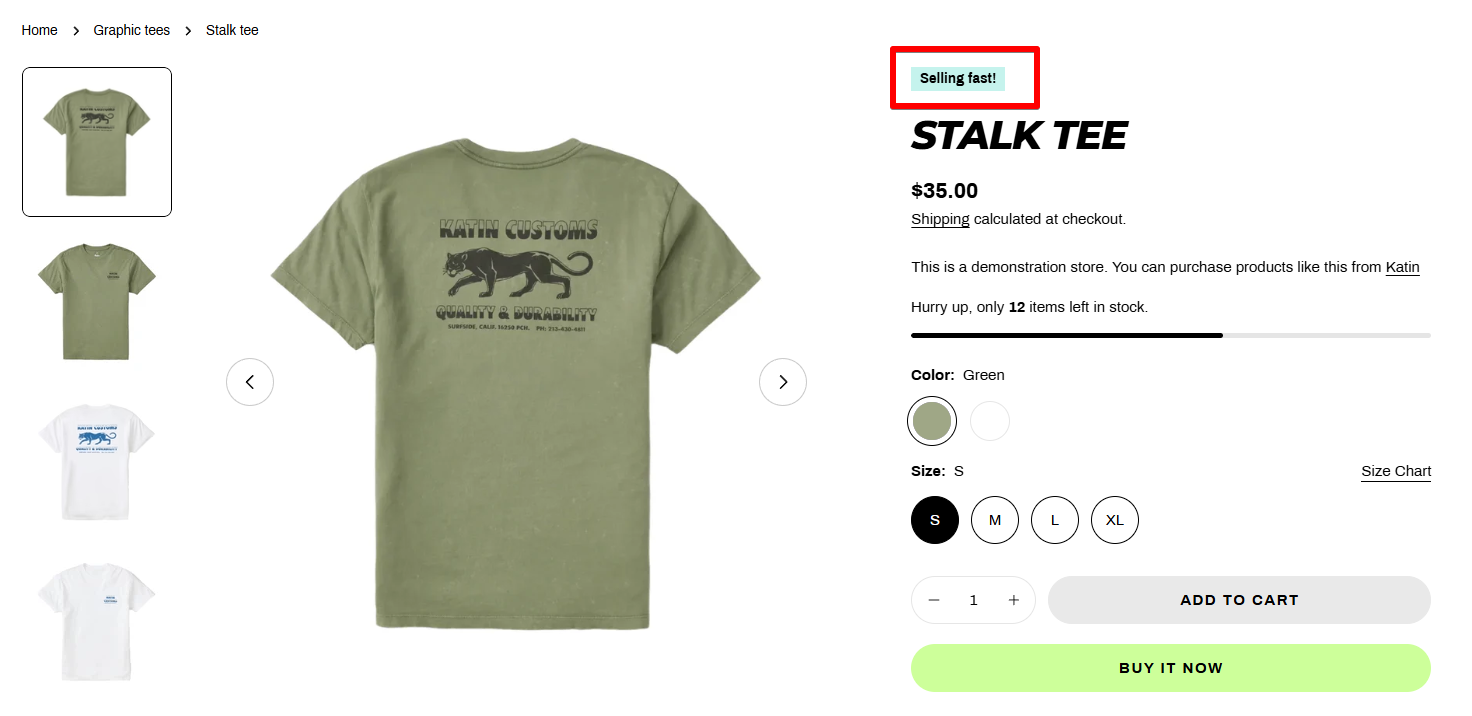
<figure><img src="https://3064615700-files.gitbook.io/~/files/v0/b/gitbook-x-prod.appspot.com/o/spaces%2F3yE7VVjvl0MgK6awOPKB%2Fuploads%2FkVMdg2uEX5qySKvBFu7l%2Fimage.png?alt=media&#x26;token=75d9094c-025b-4e9a-b456-947a837ef499" alt=""><figcaption></figcaption></figure>

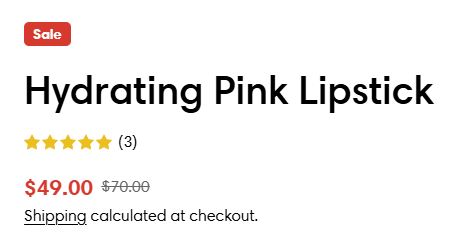
You can enable your sale badge, sold out badge, or custom tag badges here.

{% content-ref url="../../faqs/product/add-custom-badges-to-products" %}
[add-custom-badges-to-products](https://docs.foxecom.com/sleek-theme/faqs/product/add-custom-badges-to-products)
{% endcontent-ref %}

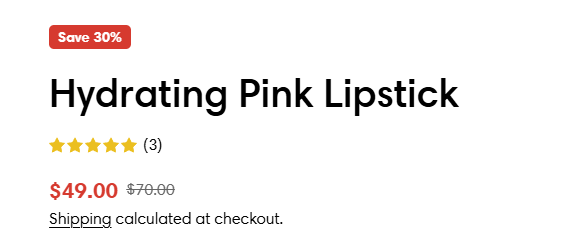
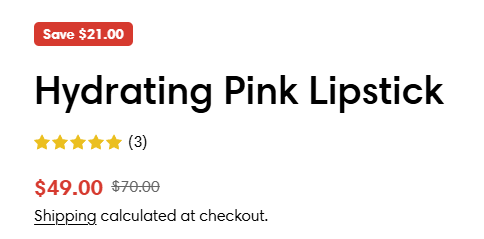
The **sale badge type** can be set as Text/ Percentage/ Fixed amount.

{% hint style="info" %}
Go to Theme settings > [Colors](https://docs.foxecom.com/sleek-theme/theme-settings/colors) to change the badges' color.
{% endhint %}

{% tabs %}
{% tab title="Text" %}

<figure><img src="https://3064615700-files.gitbook.io/~/files/v0/b/gitbook-x-prod.appspot.com/o/spaces%2F3yE7VVjvl0MgK6awOPKB%2Fuploads%2FGvuzck21itQ6srlyvh9Y%2Fimage.png?alt=media&#x26;token=9a5ee105-3b9f-4932-9bf3-e2adf642c030" alt=""><figcaption></figcaption></figure>
{% endtab %}

{% tab title="Percentage" %}

<figure><img src="https://3064615700-files.gitbook.io/~/files/v0/b/gitbook-x-prod.appspot.com/o/spaces%2F3yE7VVjvl0MgK6awOPKB%2Fuploads%2Fr7Vflrqbvlo3qMyTgSZv%2Fimage.png?alt=media&#x26;token=ecf5265b-458f-4ac8-896c-a3a073d15a34" alt=""><figcaption></figcaption></figure>
{% endtab %}

{% tab title="Fixed amount" %}

<figure><img src="https://3064615700-files.gitbook.io/~/files/v0/b/gitbook-x-prod.appspot.com/o/spaces%2F3yE7VVjvl0MgK6awOPKB%2Fuploads%2FoneUTCL4akqMfGBxsz7p%2Fimage.png?alt=media&#x26;token=227f9e65-85c4-46cb-a872-bce37d8cb180" alt=""><figcaption></figcaption></figure>
{% endtab %}
{% endtabs %}

#### 15. Complementary products

{% embed url="<https://youtu.be/WCGt79dSjcU/>" %}

Displaying complementary products to customers makes it easier for them to discover new products, and can help increase online store sales.

You can add the complementary products block to your product pages in the theme editor. You can have only one complementary product block on a product page at a time.

* **Heading**: The title of the block.
* **Show as collapsible row**: When selected, the content isplays as collapsed under a row tab. When a customer clicks a title, the tab expands to display additional content.
* **Icon**: Select an icon to pair with your heading when complementary products are shown as a collapsible row.
* **Maximum products to show**: Select the maximum number of complementary products to show. Select a value between 1 and 10.
* **Number of products per page**: The number of complementary products that you want to display per slider page. Select a value between 1 and 4.
* **Image ratio**: Determines the aspect ratio of the product card images.
* **Enable quick add button**: The "quick add" button allows customers to add a product to their cart from the product card. If the product has variants, then the button reads **Choose options** and displays the product details in a pop-up. The customers can then select their desired variants, add to cart, check out immediately with the **Buy it now** option, or else click to view a product's full details. The [Buy it now](https://help.shopify.com/en/manual/online-store/dynamic-checkout) option needs to be set up separately from the product page to appear in the quick add options. When the **Buy it now** option isn't set up, customers can still add the product to their cart.

{% hint style="info" %}
Learn how to use the [Shopify Search & Discovery](https://apps.shopify.com/search-and-discovery) app to [choose complementary products](https://help.shopify.com/en/manual/online-store/search-and-discovery/product-recommendations) for your website’s product pages.
{% endhint %}

#### 16. Addon buttons

<figure><img src="https://3064615700-files.gitbook.io/~/files/v0/b/gitbook-x-prod.appspot.com/o/spaces%2F3yE7VVjvl0MgK6awOPKB%2Fuploads%2F1ADfCfJi8X1odZpydwDy%2Fimage.png?alt=media&#x26;token=1b21256a-ca7d-41ba-8d20-f2e31b7d8a72" alt=""><figcaption></figcaption></figure>

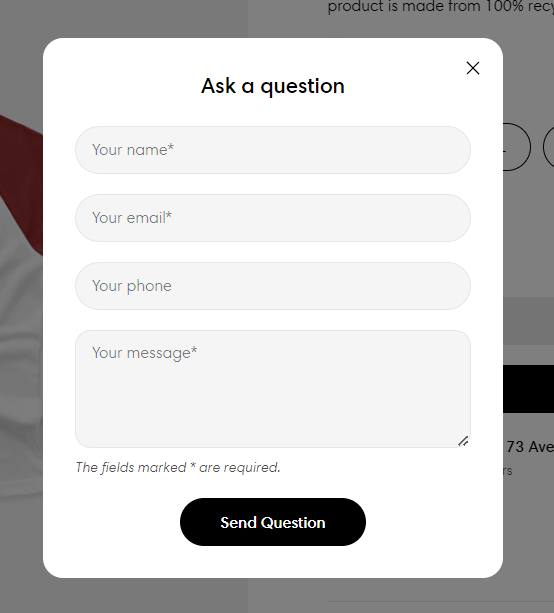
Enable/disable ask a question and social share buttons.

{% hint style="warning" %}
The Ask a question form sends all submissions to the **Sender email** address of your store. You can change the sender email address in the [Store details](https://admin.shopify.com/store/minimog-documentation/settings/general) settings page of your Shopify admin.
{% endhint %}

{% hint style="info" %}
The Share button supports sharing the product on Facebook, Twitter, and Pinterest.
{% endhint %}

#### 17. Custom liquid

Add app snippets or other code to create advanced customizations. [Learn more](https://shopify.dev/docs/api/liquid)

#### 18. Line item property

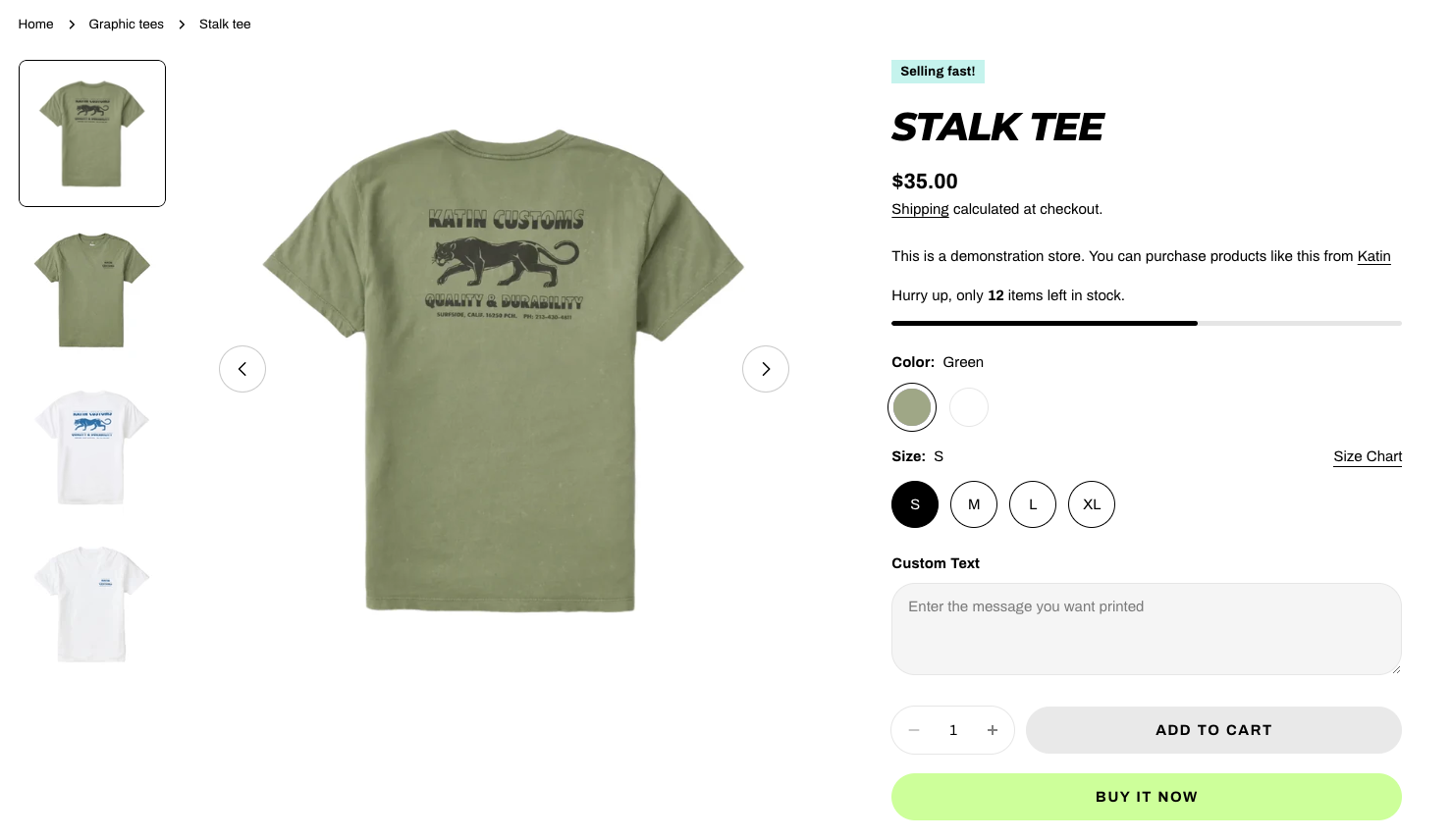
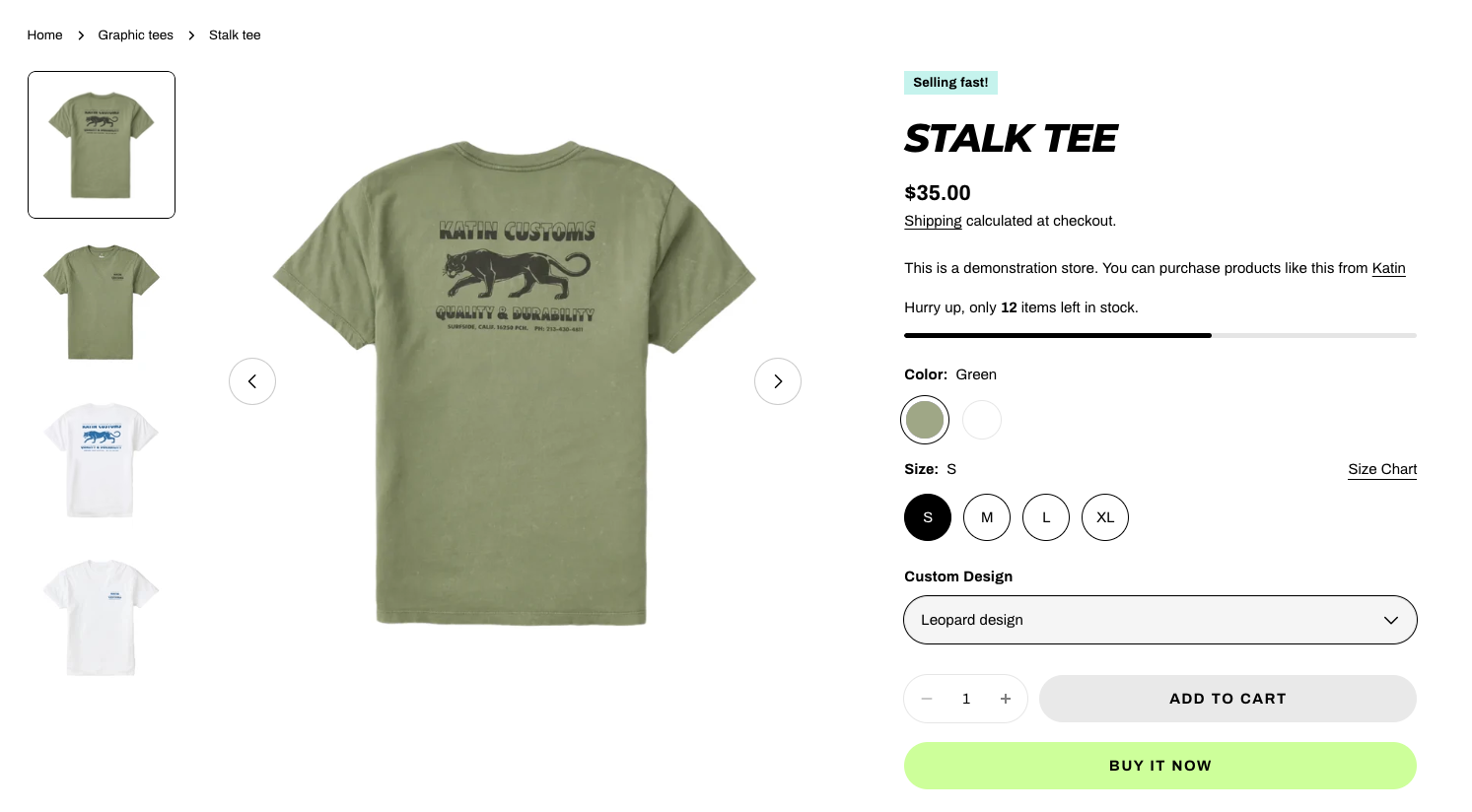
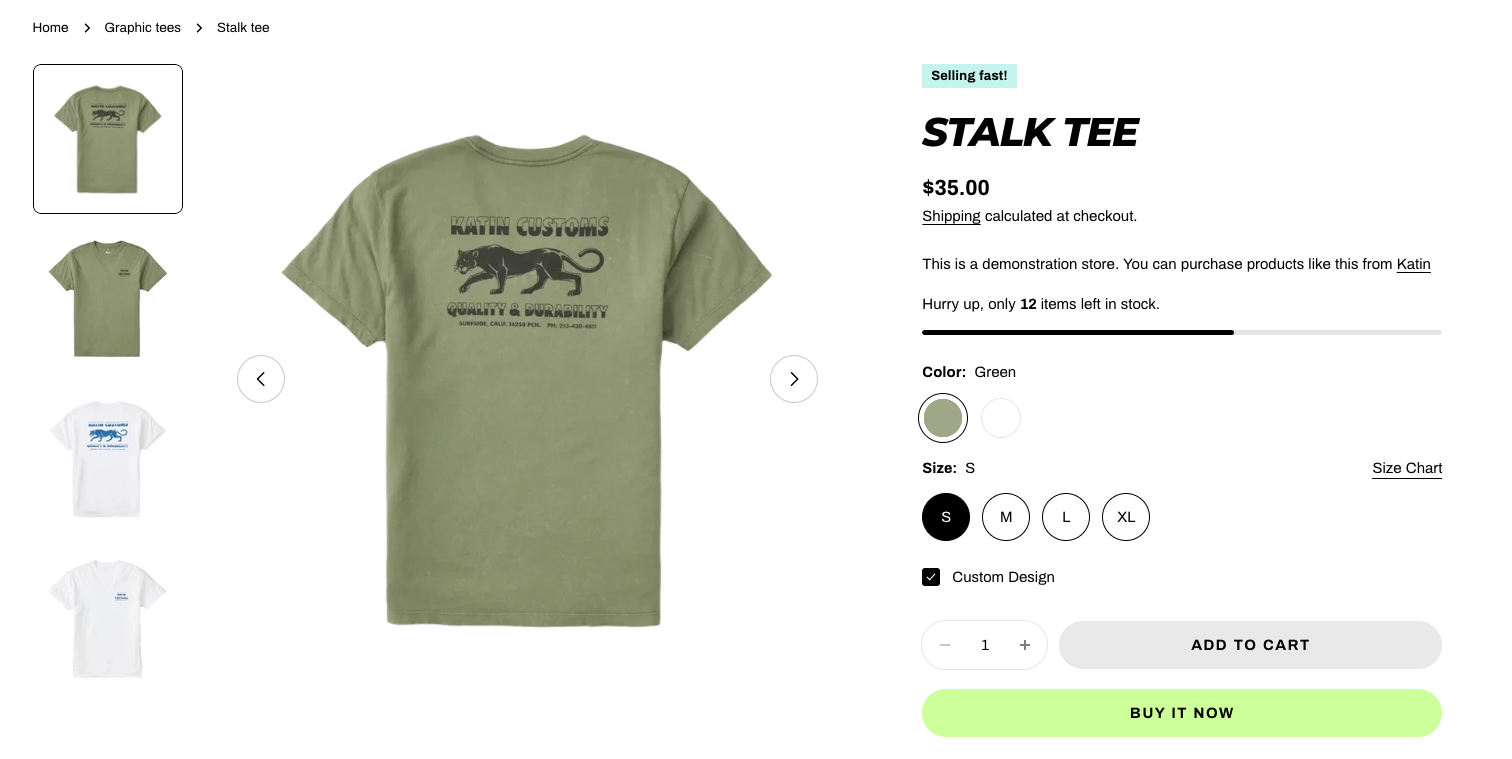
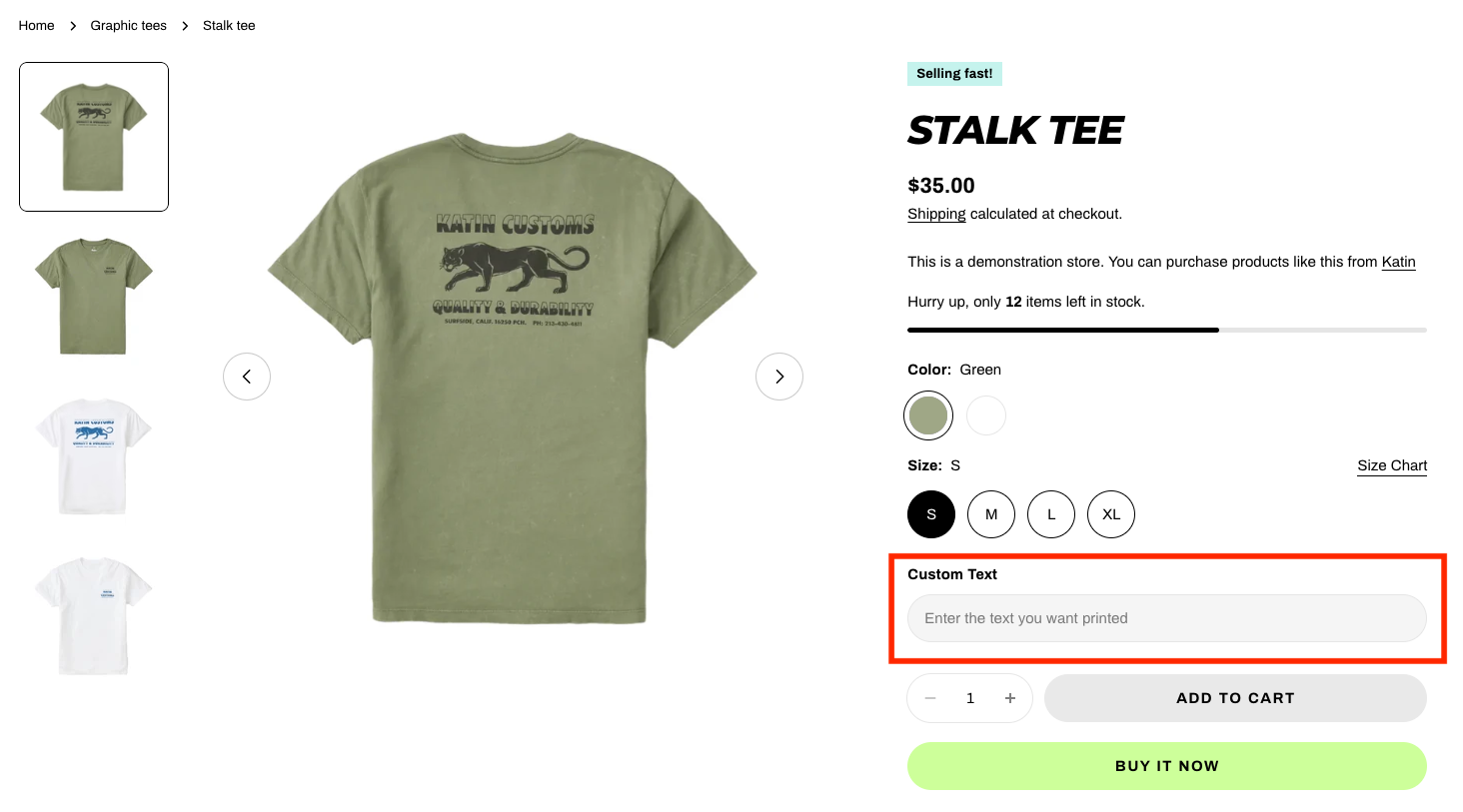
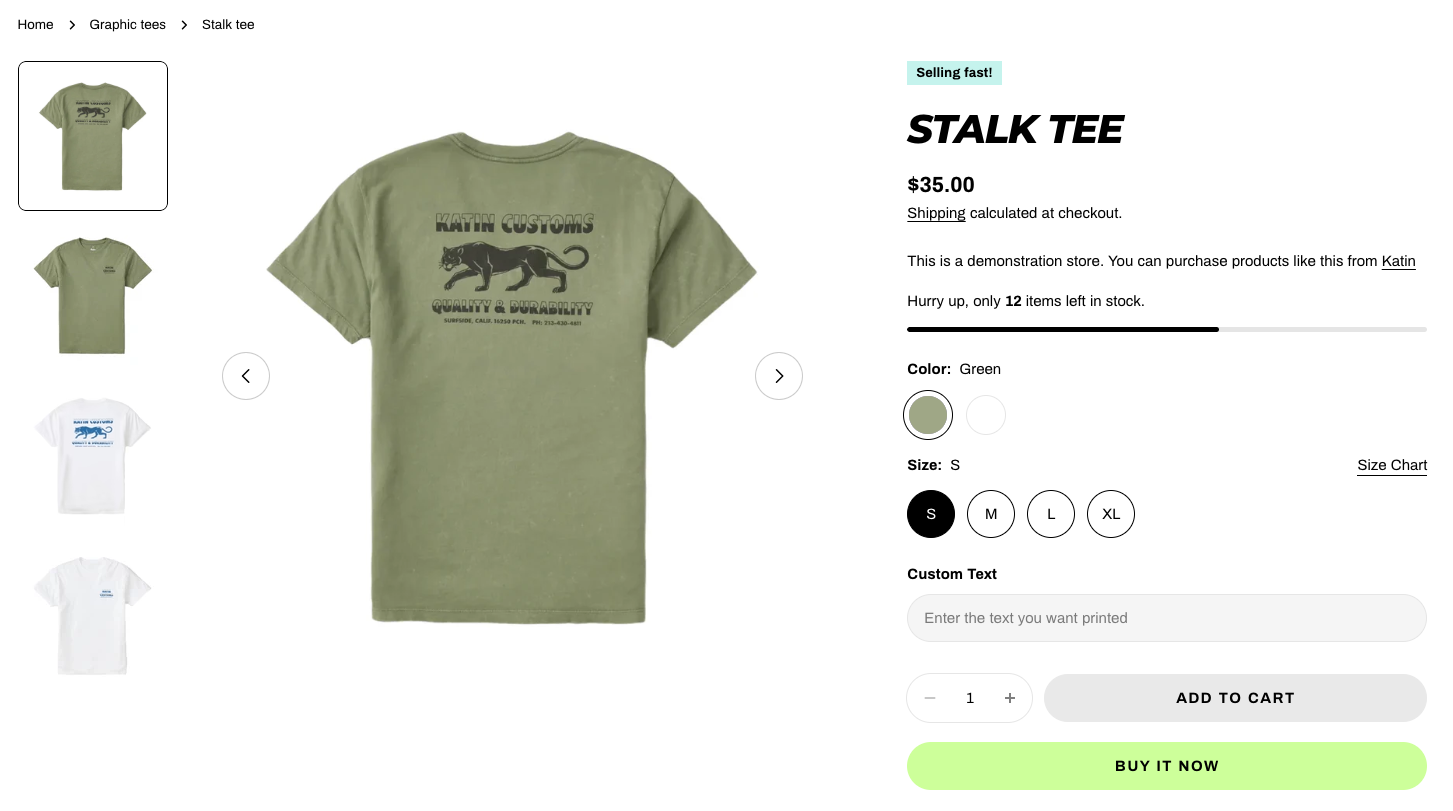
Line item properties allow customers to add custom information or personalization to a product before adding it to their cart.
<figure><img src="https://3064615700-files.gitbook.io/~/files/v0/b/gitbook-x-prod.appspot.com/o/spaces%2F3yE7VVjvl0MgK6awOPKB%2Fuploads%2FD8tgTJbO3yOaIdiEhx9t%2FScreenshot%202025-06-02%20at%2016.21.01.png?alt=media&#x26;token=f9b0db6c-fced-4514-9d75-d696b91832c0" alt=""><figcaption></figcaption></figure>

* **Type**: Select the type as Text/Textarea/Select/Checkbox/Radio.
{% tabs %}
{% tab title="Text" %}

<figure><img src="https://3064615700-files.gitbook.io/~/files/v0/b/gitbook-x-prod.appspot.com/o/spaces%2F3yE7VVjvl0MgK6awOPKB%2Fuploads%2Fx2xR36l1vah3efpdH3lG%2FScreenshot%202025-06-03%20at%2009.39.46.png?alt=media&#x26;token=283e2c74-5cfe-4d88-95a3-e8bd6864a1e5" alt=""><figcaption></figcaption></figure>
{% endtab %}

{% tab title="Textarea" %}

<figure><img src="https://3064615700-files.gitbook.io/~/files/v0/b/gitbook-x-prod.appspot.com/o/spaces%2F3yE7VVjvl0MgK6awOPKB%2Fuploads%2F5s3qxKDIGDoK5pjoBYS4%2FScreenshot%202025-06-02%20at%2016.22.54.png?alt=media&#x26;token=ad6afa71-f66c-4f13-82e9-78689190e277" alt=""><figcaption></figcaption></figure>
{% endtab %}

{% tab title="Select" %}

<figure><img src="https://3064615700-files.gitbook.io/~/files/v0/b/gitbook-x-prod.appspot.com/o/spaces%2F3yE7VVjvl0MgK6awOPKB%2Fuploads%2FxXgNSFb1gUQBSWTlUlCy%2FScreenshot%202025-06-02%20at%2016.32.59.png?alt=media&#x26;token=db51314d-e6a2-4a20-b930-f5f63be05bee" alt=""><figcaption></figcaption></figure>
{% endtab %}

{% tab title="Checkbox" %}

<figure><img src="https://3064615700-files.gitbook.io/~/files/v0/b/gitbook-x-prod.appspot.com/o/spaces%2F3yE7VVjvl0MgK6awOPKB%2Fuploads%2FbYw6MQQKXih1CFgkHg6n%2FScreenshot%202025-06-02%20at%2016.33.37.png?alt=media&#x26;token=f3661d06-6316-48c5-bb4a-54892ca6f908" alt=""><figcaption></figcaption></figure>
{% endtab %}

{% tab title="Radio" %}

<figure><img src="https://3064615700-files.gitbook.io/~/files/v0/b/gitbook-x-prod.appspot.com/o/spaces%2F3yE7VVjvl0MgK6awOPKB%2Fuploads%2FMuhlz7eOGcCUSh1GycNb%2FScreenshot%202025-06-02%20at%2016.33.18.png?alt=media&#x26;token=e5da6766-b305-44fd-a36c-10915ef582f2" alt=""><figcaption></figcaption></figure>
{% endtab %}
{% endtabs %}

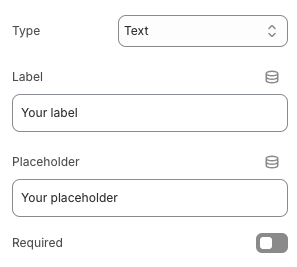
* **Label:** Display the title or question shown to the customer.
* **Placeholder:** Provide guide text inside the input box to suggest customer what to enter.
* **Required:** Toggle on to make the property mandatory before the product can be added to the cart.
<figure><img src="https://3064615700-files.gitbook.io/~/files/v0/b/gitbook-x-prod.appspot.com/o/spaces%2F3yE7VVjvl0MgK6awOPKB%2Fuploads%2Fr0i7FD9CpbFgAAvqHsUB%2FScreenshot%202025-06-03%20at%2011.39.12.png?alt=media&#x26;token=bc5675fe-218c-496e-bbff-821f42e0b734" alt=""><figcaption></figcaption></figure>

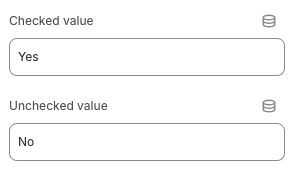
* **Checked/Unchecked Value** (*Checkbox only*)**:** Define the values that are stored when the checkbox is checked or unchecked.
<figure><img src="https://3064615700-files.gitbook.io/~/files/v0/b/gitbook-x-prod.appspot.com/o/spaces%2F3yE7VVjvl0MgK6awOPKB%2Fuploads%2FxoRViqgpLXXjGA5x9tw6%2FScreenshot%202025-06-03%20at%2011.22.38.png?alt=media&#x26;token=73432e1a-b3fa-4429-9b39-60e6baf9281c" alt=""><figcaption></figcaption></figure>

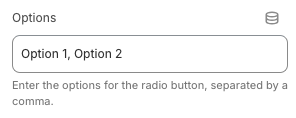
* **Options** (*only for Select, Radio*): Enter a list of choices separated by commas.
<figure><img src="https://3064615700-files.gitbook.io/~/files/v0/b/gitbook-x-prod.appspot.com/o/spaces%2F3yE7VVjvl0MgK6awOPKB%2Fuploads%2FXW4rzKthsP7SISIGi9YE%2FScreenshot%202025-06-03%20at%2011.31.35.png?alt=media&#x26;token=76e916bf-3579-44d2-b9ab-b5814a576b5e" alt=""><figcaption></figcaption></figure>

* **Layout** (*Radio only*):  Set how the line item options are displayed.

<figure><img src="https://3064615700-files.gitbook.io/~/files/v0/b/gitbook-x-prod.appspot.com/o/spaces%2F3yE7VVjvl0MgK6awOPKB%2Fuploads%2F1yhI2vwKXCDQZeggkThx%2FScreenshot%202025-06-03%20at%2011.31.40.png?alt=media&#x26;token=8c508eda-2932-48b1-8c5e-03da5e5fd6fb" alt=""><figcaption></figcaption></figure>